

Disclosure: BenQ supplied the M Mouse and Flow Desk Mat for review. It did not see this review before publication and had no input into our verdict.
What are the BenQ INFTYLAB M Mouse and Flow Desk Mat?
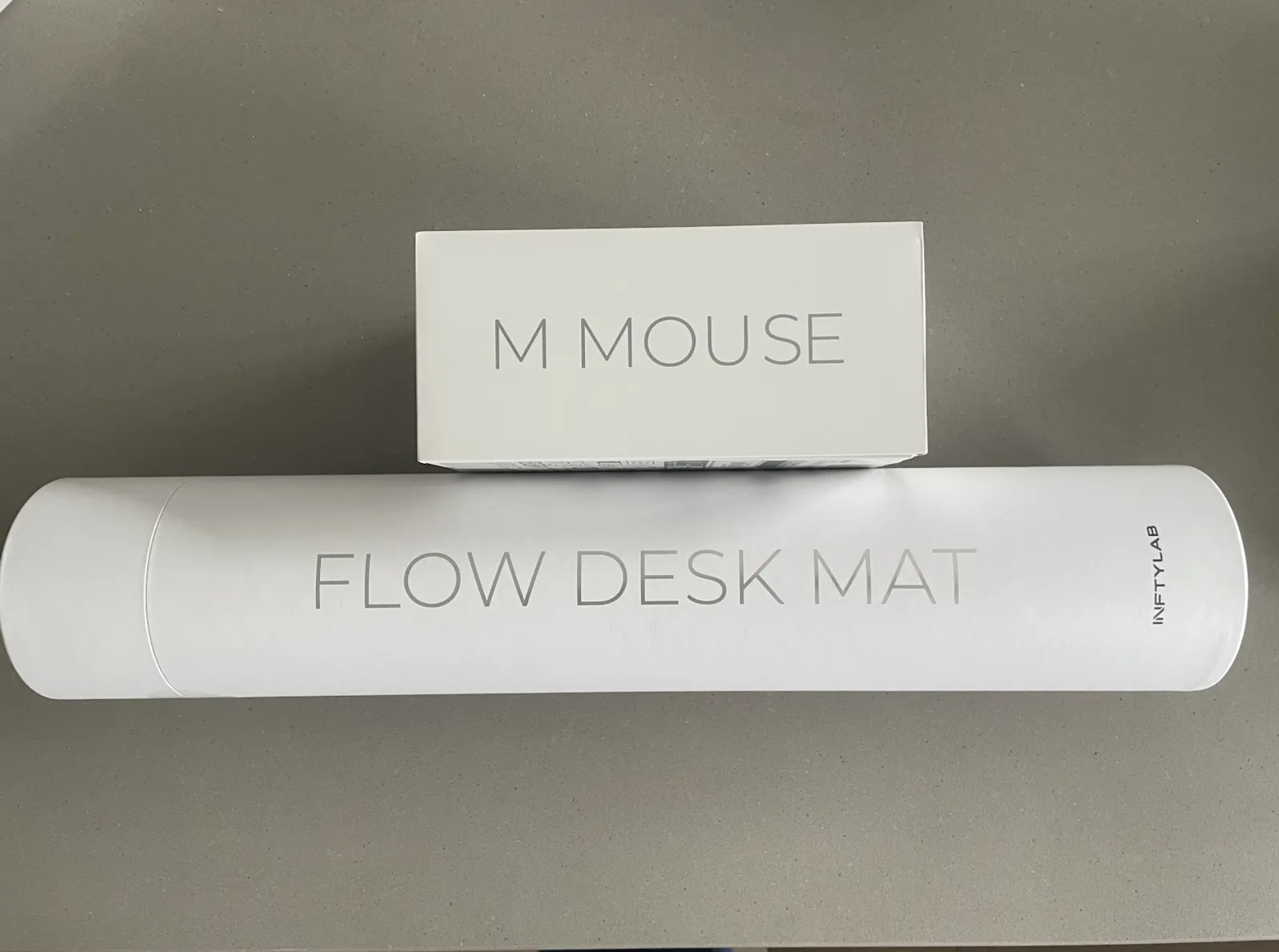
BenQ is best known for monitors, particularly its Mac-friendly 4K and 5K displays such as the MA270U, PD3220U and PD2730S.
Now the company is moving into Mac friendly accessories with the INFTYLAB brand. The M Mouse and Flow Desk Mat are intended to make an Apple workspace feel more comfortable and more coherent without copying Apple’s own Magic Mouse and Magic Trackpad.
It’s actually been years since I used a proper mouse – I’m very much a Trackpad man nowadays – so I was quite looking forward to going back to the old-skool days of double clicking and wheel scrolling.
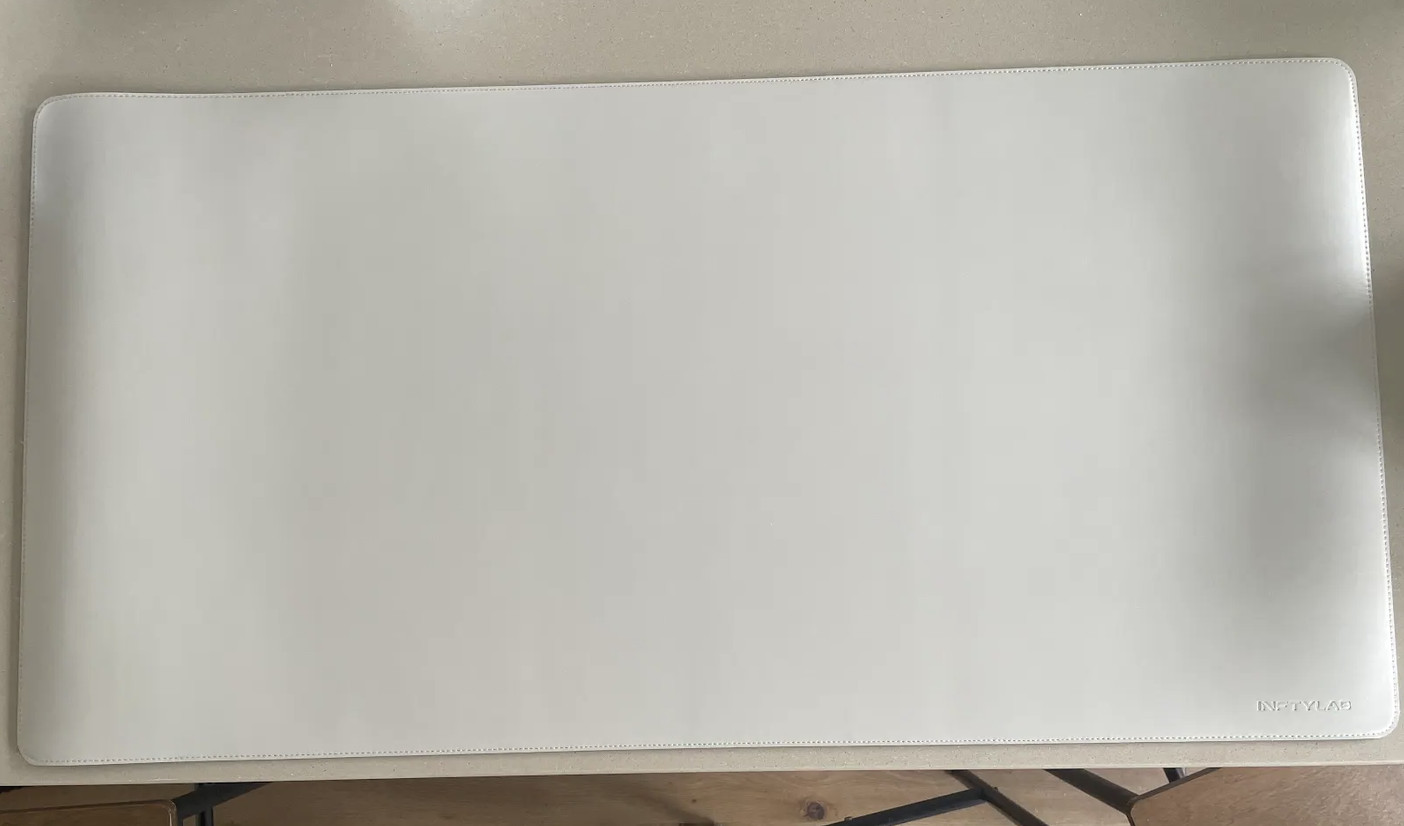
The M Mouse is a right-handed ergonomic mouse with a conventional scroll wheel, a horizontal thumb wheel and three configurable shortcut buttons. It connects to a Mac by Bluetooth, a USB-C cable or its included 2.4GHz USB-C receiver. Its selling point is not merely that it works with macOS – almost any mouse does – but that its shortcuts and scrolling options are built around familiar Mac actions such as Mission Control, screenshots and horizontal scrolling.
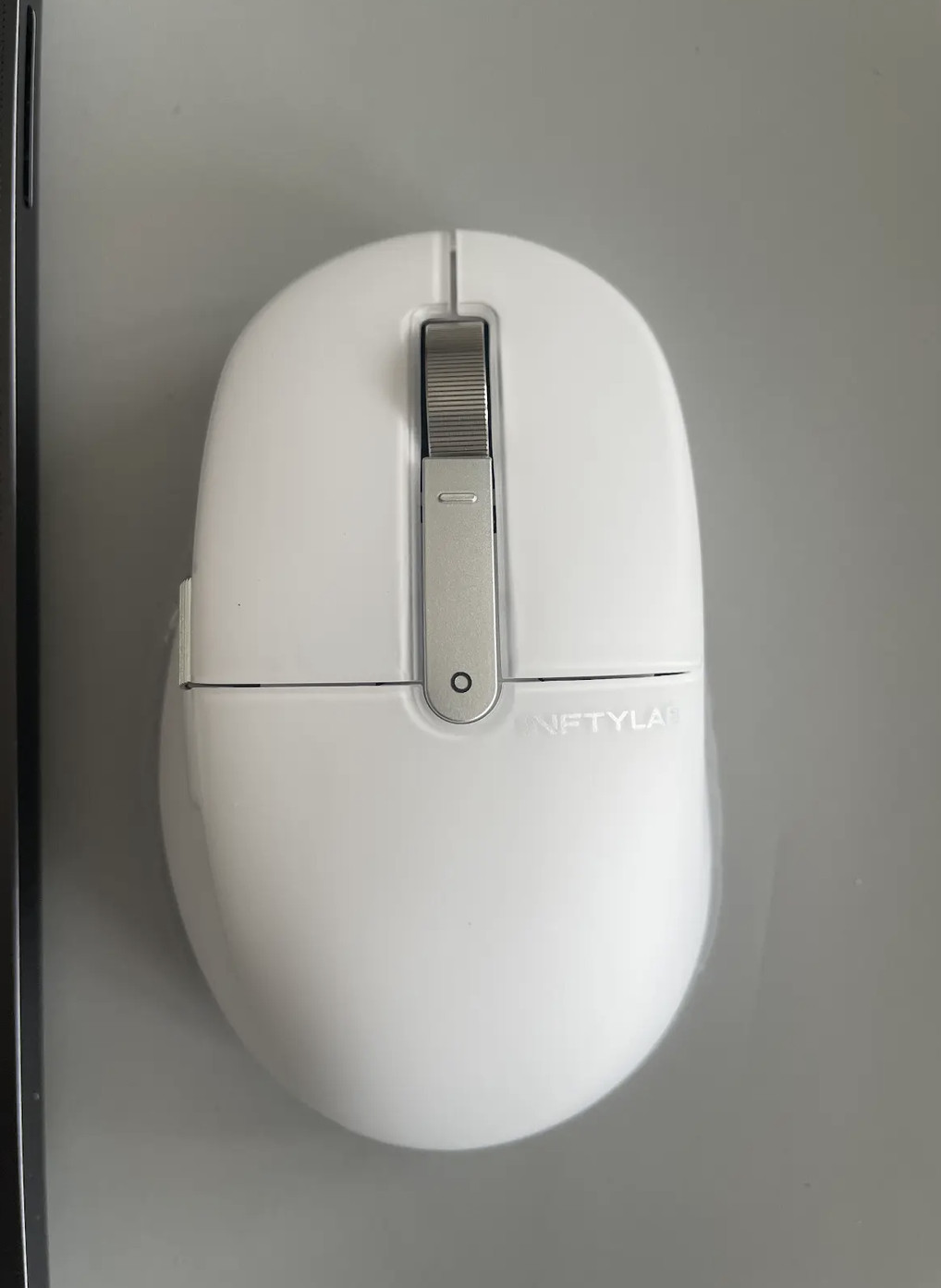
The Flow Desk Mat meanwhile is an 800 x 400mm leather-look desk mat with a smooth mouse surface, a water- and stain-resistant finish, and a repositionable magnetic cable clip. It is deliberately understated: there is no charging pad, RGB lighting or elaborate accessory system. Its job is to give the mouse room to work and make a Mac desk look tidier.
BenQ INFTYLAB M Mouse at a glance
| Feature | Confirmed specification / claim |
|---|---|
| Design | Right-handed ergonomic mouse |
| Size and weight | 115 x 72.5 x 41.5mm; 85g |
| Sensor | 400–6,000 DPI |
| Connections | USB-C wired, 2.4GHz receiver, or three Bluetooth channels |
| Saved connections | Up to five connection methods in total: one wired, one receiver and three Bluetooth channels; only one is active at a time |
| Polling rate | 125Hz over Bluetooth; up to 1,000Hz over USB-C or the 2.4GHz receiver |
| Controls | Main dual-mode flywheel, horizontal thumb wheel and three configurable function buttons |
| Battery | 500mAh rechargeable battery; BenQ’s UK pages currently give conflicting endurance figures, so we would use the measured result below rather than quote a claim |
| Software | INFTYLAB Glide desktop app for macOS 13 or later; a browser-based configurator handles basic settings in Chrome or Edge |
| Warranty | Three years but may differ by region |
BenQ INFTYLAB Flow Desk Mat at a glance
| Feature | Confirmed specification / claim |
|---|---|
| Size | 800 x 400 x 2.5mm (31.5 x 15.7 x 0.1 inches) |
| Surface | Smooth, leather-look surface designed for mouse use |
| Finish | Water- and stain-resistant |
| Cable management | One repositionable magnetic cable clip |
| In the box | Desk mat, magnetic cable clip and quick-start guide |
| Warranty | Three years but may differ by region |
Design and setup
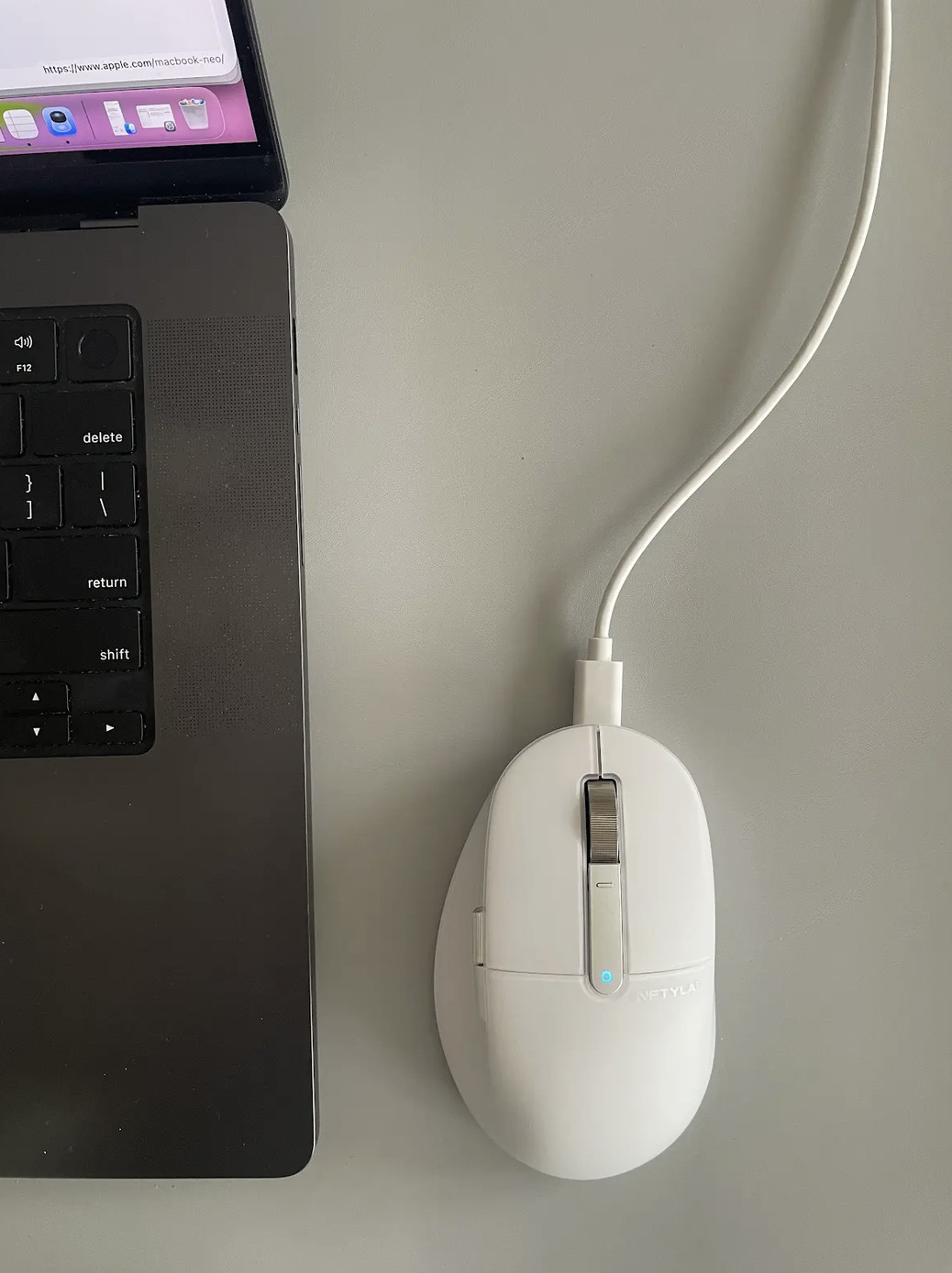
The M Mouse looks much closer to a refined office or graphic designers mouse than a gaming peripheral. It comes in a light grey finish intended to sit naturally beside a MacBook, Mac mini or Studio Display, and its 85g weight keeps it mobile enough to move around the desk without feeling flimsy. The important question is whether the curved right-handed shape works for your hand rather than whether it matches your Mac.

First impressions are the mouse feels really comfortable in your hand with convenient scroll wheels on both the top and the sides. I haven’t used an Apple Magic Mouse in years but it feels like a comparable product with a tasteful finish and ergonomic design.
BenQ includes a USB-C cable, a USB-C 2.4GHz receiver and a USB-C-to-USB-A adapter. That is a sensible package for a Mac audience because it avoids occupying an additional USB-C port with a legacy Type-A receiver although that’s the option I chose anyway.
The receiver can be stored underneath the mouse when travelling although I found it difficult to pull it back out again without using something to prize it out!
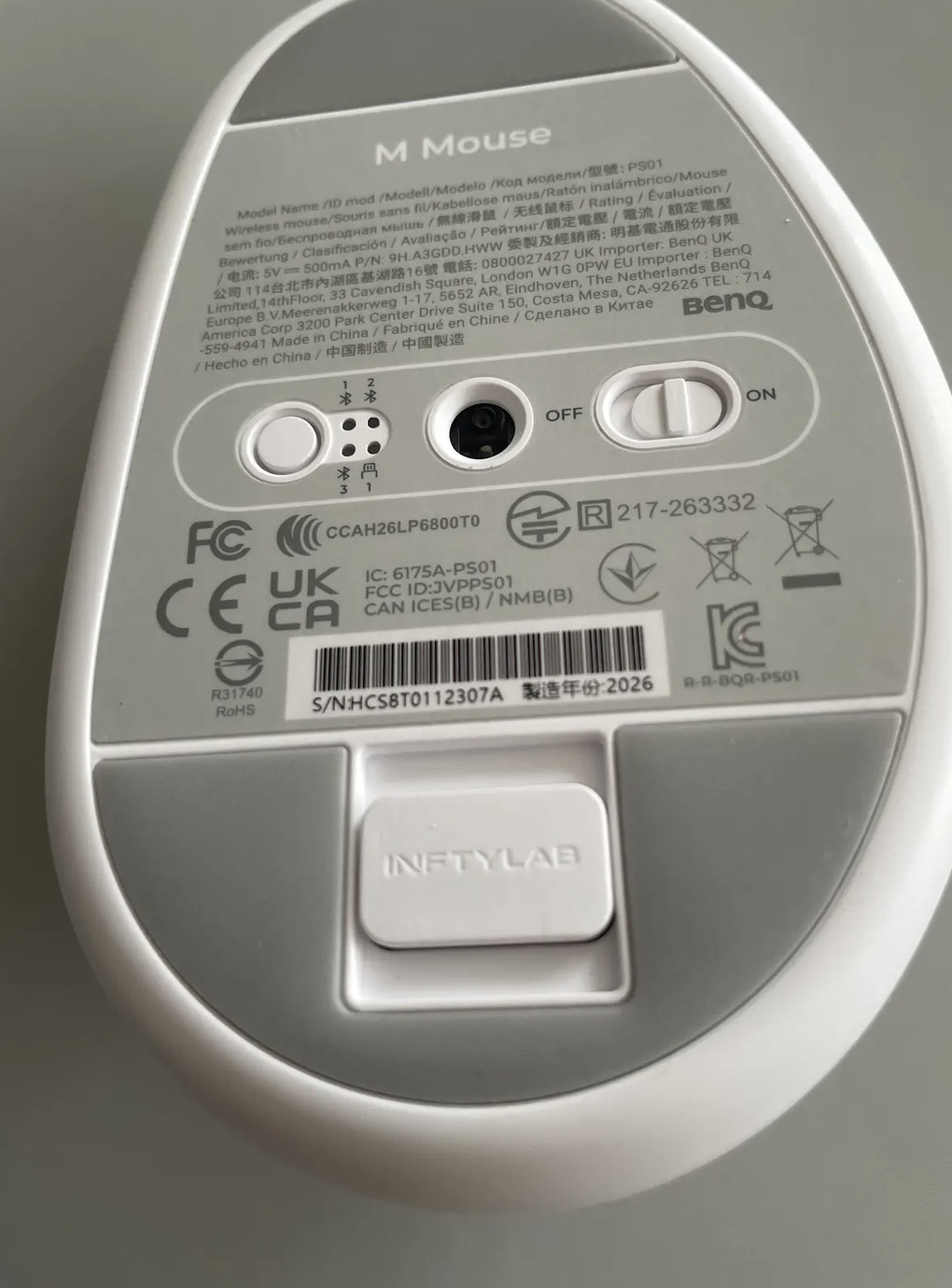
Initial setup is straightforward. Don’t be confused by the “Keyboard Setup Assistant” when you connect the USB-C Bluetooth receiver – macOS doesn’t quite understand what it is that you’ve connected and you can skip the setup process.
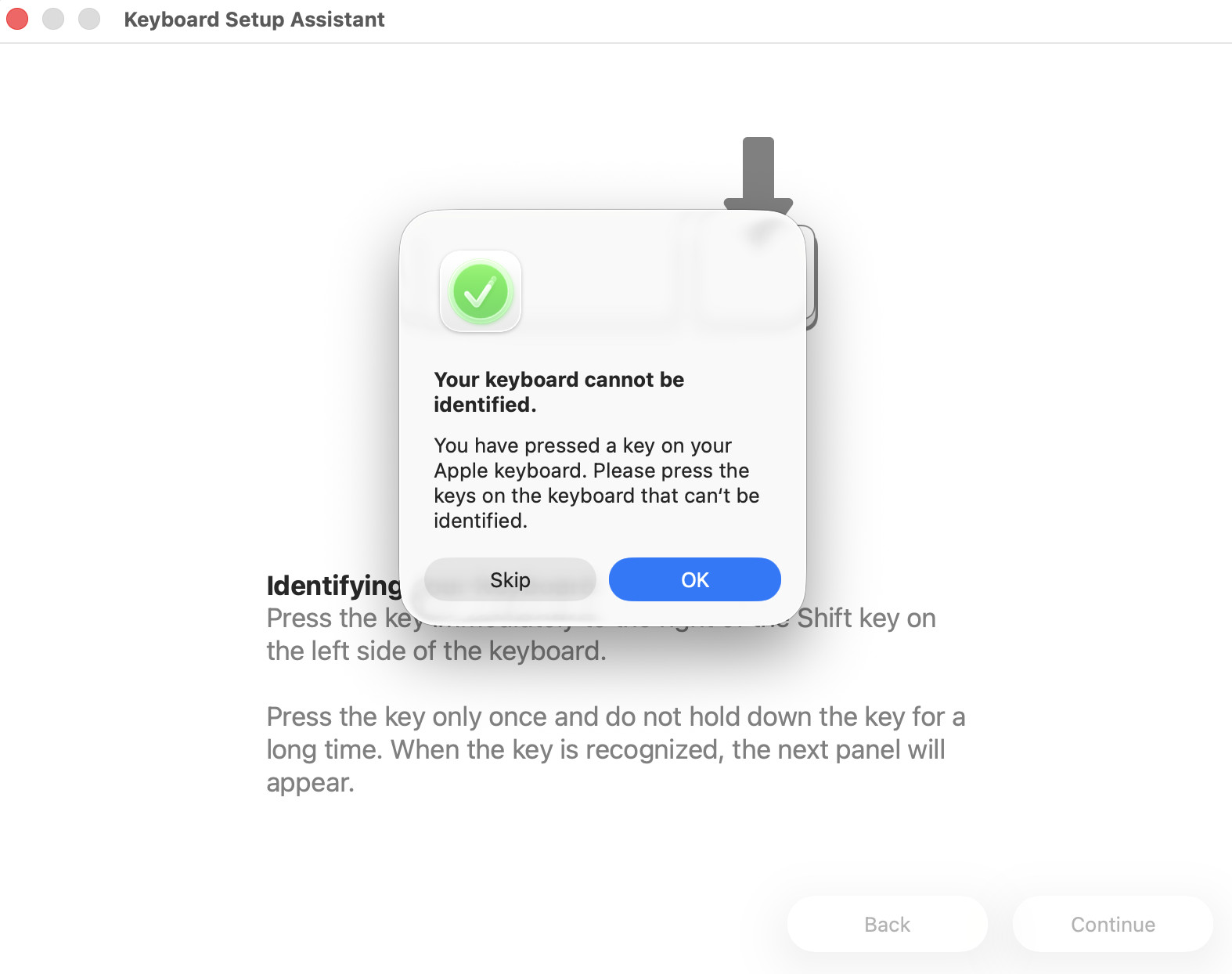
I found the USB-C Bluetooth receiver worked instantly – there was no need to pair the device in macOS the M Mouse magically detected the receiver immediately. Bluetooth is the most convenient route for a single Mac, while the receiver or cable promises a higher 1,000Hz polling rate. The mouse can remember three Bluetooth pairings, so it should be a useful option if you move between a desktop Mac, MacBook and a work PC.
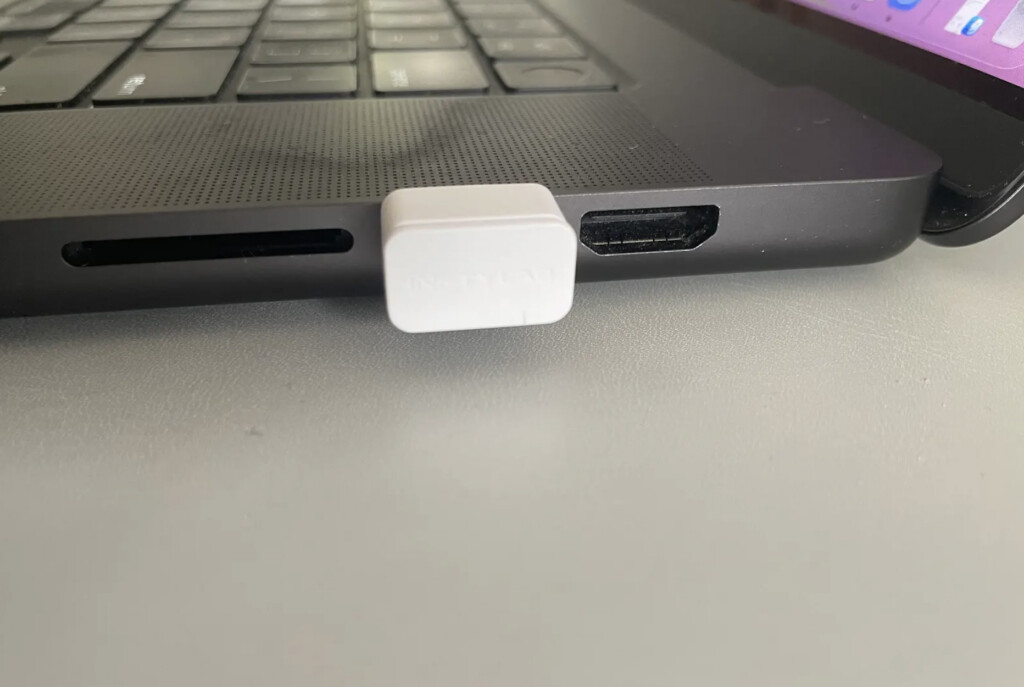
I switched between the USB-C receiver and the USB-C cable and had absolutely no problems with either connection method.
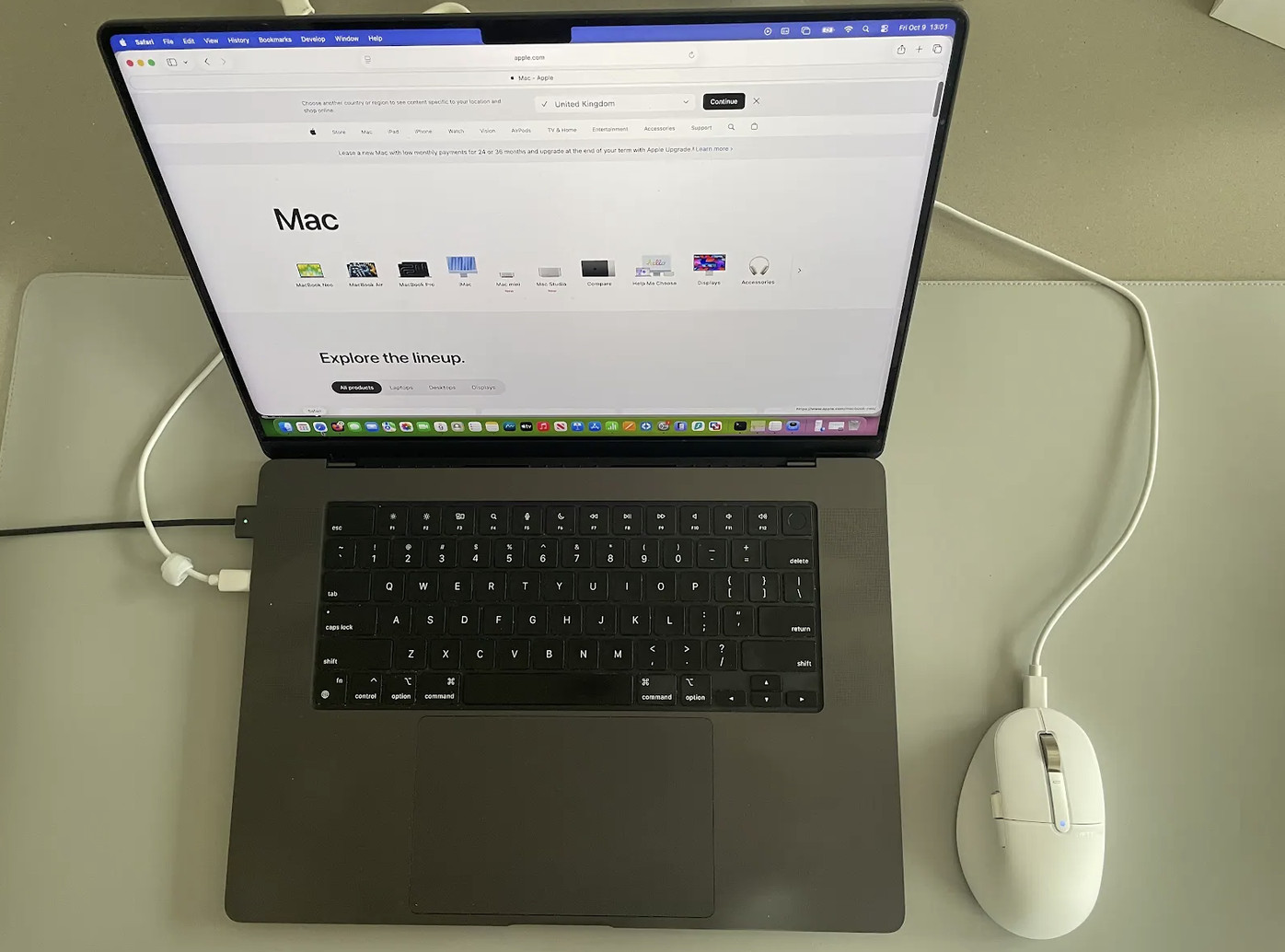
The USB-C also receiver responded instantly when waking the Mac from sleep. The cable is a bit long and the idea is you can use the magnetic clip to secure it down but I found the clip a bit restrictive and didn’t use it.
The Flow Desk Mat arrives rolled, but rolls out flat instantly with no kinks or turned up corners. At 800mm wide, it is large enough to hold a MacBook and mouse, or a keyboard and mouse, but it will not cover an entire very wide desk. Its 2.5mm profile is slim enough that it should not create an awkward step at the front edge of the desk.
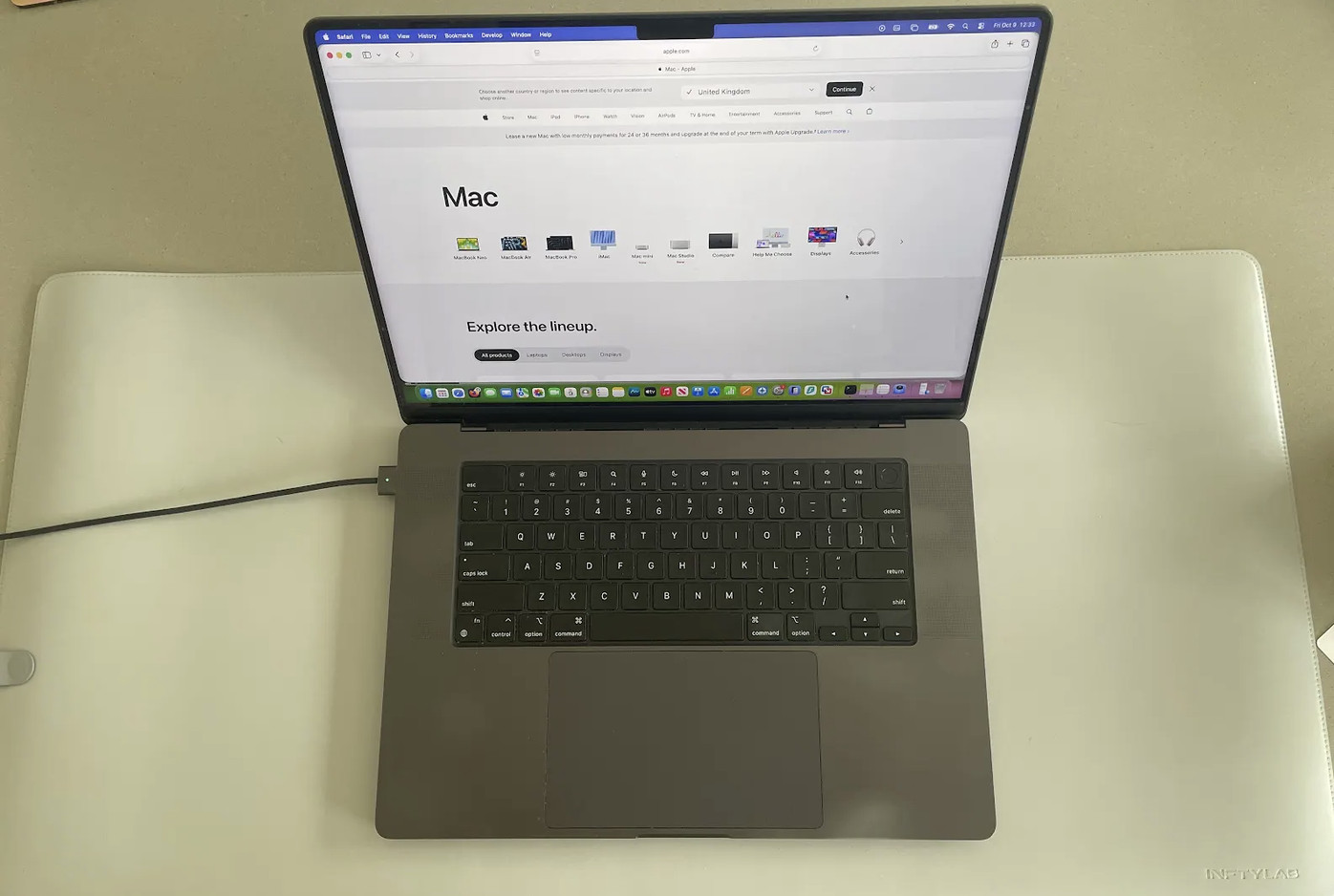
It’s smooth to the touch and has a premium, leather like feel to it.
Comfort: does the M Mouse feel better than a Magic Mouse?
This is the central question. Apple’s Magic Mouse is beautifully integrated with macOS but its very low profile can be uncomfortable for people who spend long days editing, writing or working in spreadsheets. The INFTYLAB M Mouse takes the opposite approach: it raises the hand into a more relaxed, supported position and provides dedicated controls where Apple’s mouse relies on gestures.
The M Mouse is designed for small to medium hands, although grip style matters as much as hand size. It supports palm, claw and fingertip grips, but its fixed right-handed contour means it is not a sensible choice for left-handed users. Anyone with very large hands should pay particular attention to whether their fingers feel cramped after a long session.
For me personally, I found it pretty much the perfect size and could easily work for hours comfortably with it.
Scrolling, controls and Mac shortcuts
The M Mouse’s main wheel switches between a precise ratchet-style scroll and free-spinning flywheel mode. It also has a horizontal thumb wheel, which could be especially useful in large spreadsheets, timelines and wide creative-app panels. BenQ calls the clicks silent but clear but the reality is that I could barely hear the clicking – which for someone like me that relies on the Trackpad normally, isn’t an issue.
The main vertical wheel whizzes pages up and down and I actually preferred it to the two finger swiping that you need to do with a Trackpad.
Out of the box, the function buttons are set to macOS-oriented actions including Mission Control, screenshot and horizontal scrolling. Basic settings such as DPI, polling rate and the three shortcut buttons can be changed in the browser-based configurator.
Although you can configure basic settings of the mouse in macOS system settings as you can see below:
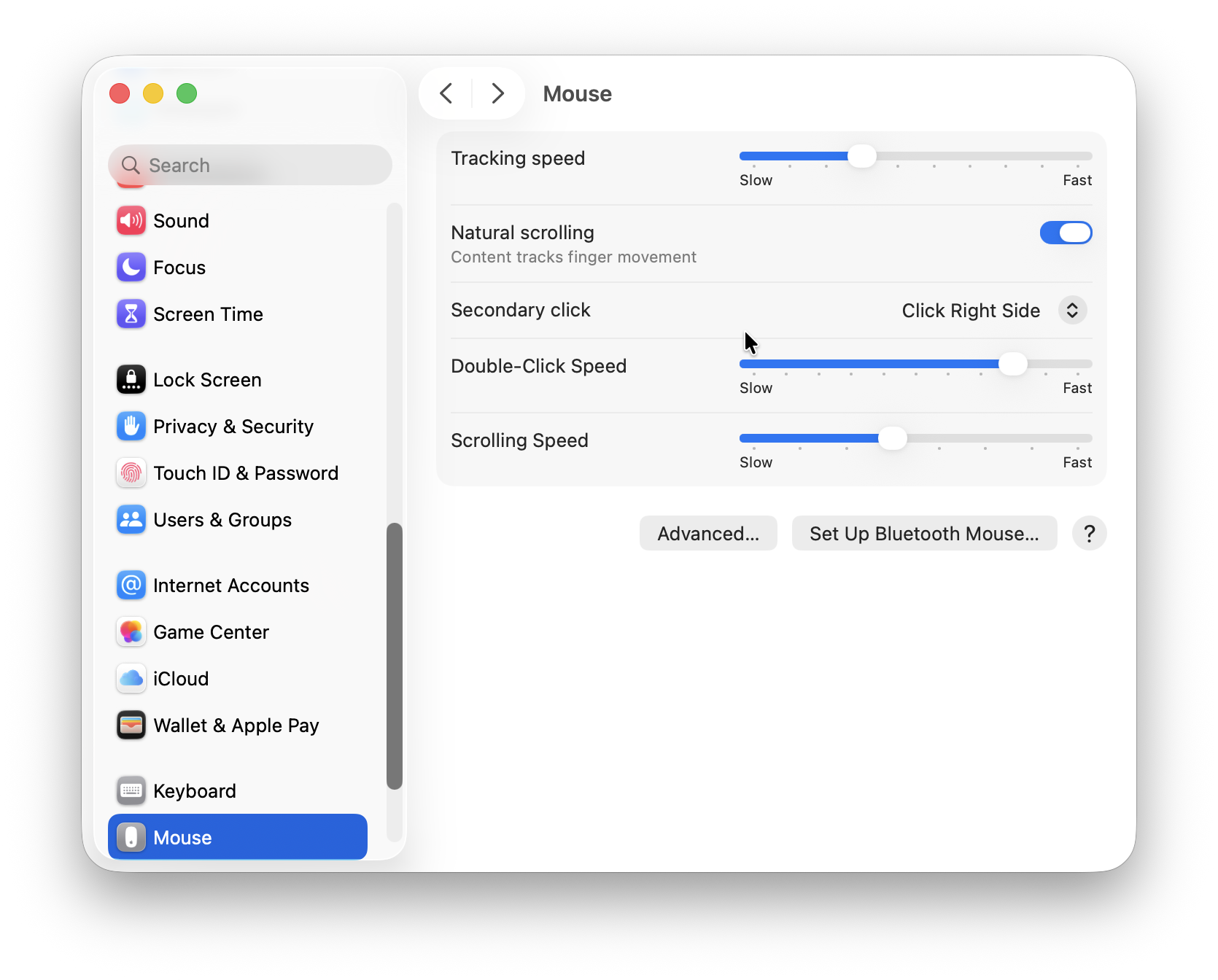
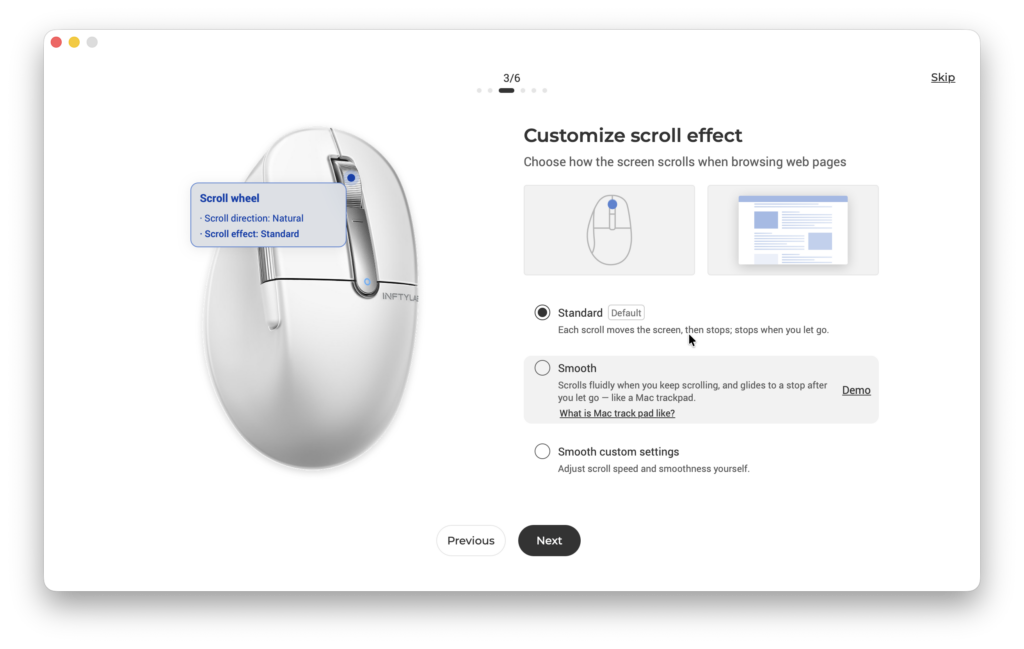
I strongly recommend downloading the full INFTYLAB Glide app which adds scroll behaviour, trackpad-like smooth scrolling and Quick Pie options. You do have to grant accessibility permissions in macOS in order for this to work though.
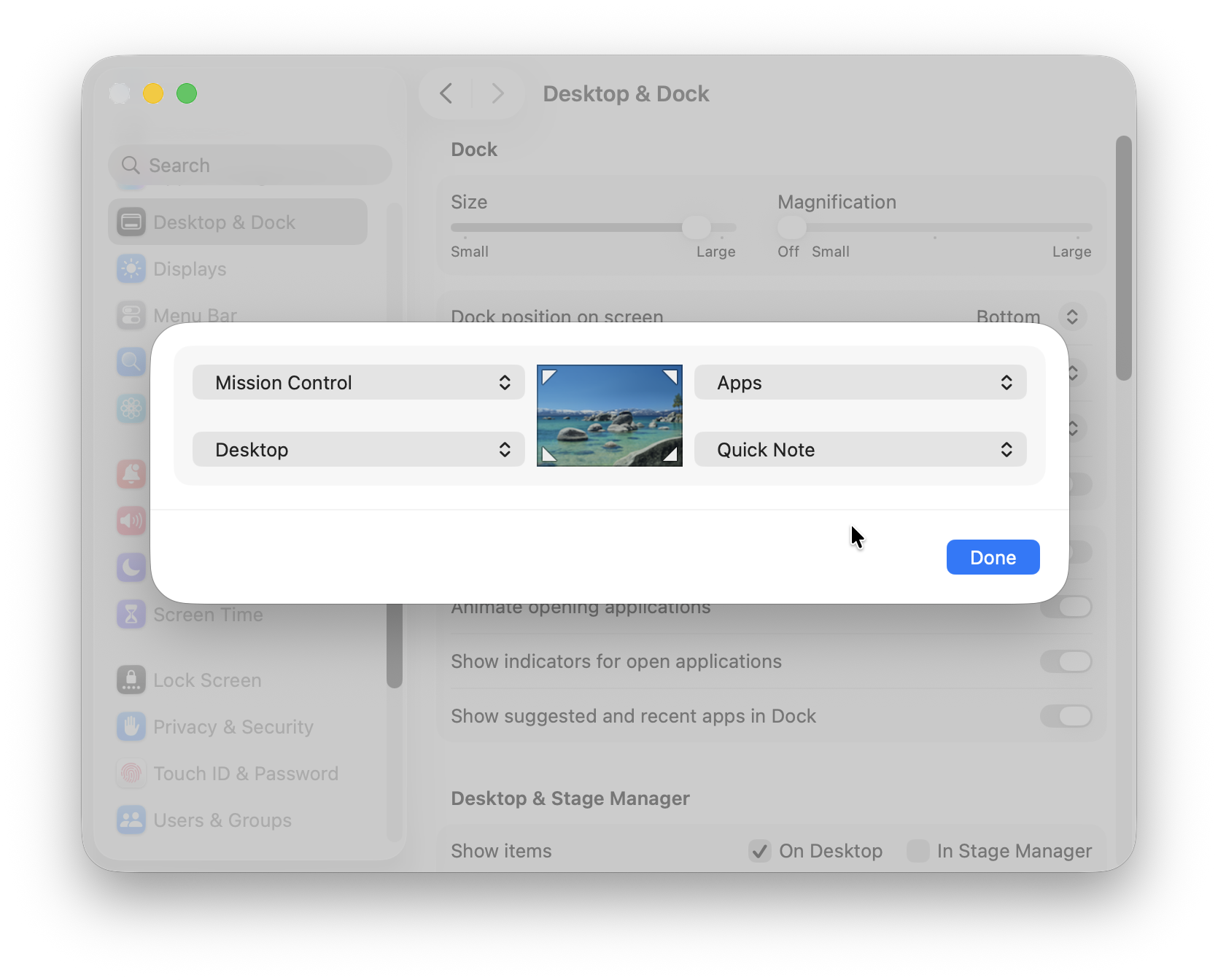
The INFTYLAB Glide app is geuinely impressive and even allows you to setup bluetooth profiles with up to 4 other devices as well as “Hot Corners” to trigger certain actions. This means that if you swipe the mouse into any of the corners, it will trigger the action you’ve defined for it.
The most interesting feature is the app’s “Mac trackpad-like” smooth scrolling. It is designed to make a mouse wheel feel more like a MacBook trackpad, with natural direction and momentum. Note that the desktop app, rather than the web configurator, is required for the full scrolling options, and it needs macOS 13 or later.
Everyday performance and battery life
The M Mouse supports a 400–6,000 DPI range and is rated for 125Hz over Bluetooth and up to 1,000Hz when connected by cable or the 2.4GHz receiver. For everyday Mac work, the cursor is consistent and it wakes reliably whether connected via cable or receiver.
BenQ’s official UK specification page currently says the 500mAh battery lasts “90 Days”, while a support FAQ says a full charge lasts “up to 60 days”. Whichever is true, the battery last more than long enough between charges without it being a problem. After using it for a whole day, it had only lost 2% of its charge according to the INFTYLAB Glide app.
BenQ Flow Desk Mat: simple, but does it earn its desk space?
The Flow Desk Mat has a much simpler job than the mouse. It provides a large, tidy work surface with enough texture for accurate mouse movement, while its light grey, leather-look finish is meant to complement rather than dominate an Apple setup. The surface is water- and stain-resistant, and the supplied magnetic clip can be moved around the mat to guide a charging cable or wired peripheral.
The cable clip wasn’t much use to me but it does hold cables securely if you need it to. It should be tested with a MacBook charging cable, mouse cable, USB-C lead and any thicker braided cable you normally use. It is useful only if it holds cables securely without damaging them or making it inconvenient to move a laptop.
In terms of stain resistance, the mat does wipe down very easily with a cloth and it doesn’t absorb water spillages although I didn’t go as far as throwing an entire cup of coffee across it! I can imagine that over time, it would get dirty but it should be possible to clean it relatively easily with a cloth. BenQ’s official advice is “Simply wipe the surface with a soft, damp cloth. For tougher stains, use mild soap and water, then wipe dry.”
The main gripe I have with the BenQ Flow Desk Mat is that it doesn’t seem to grip MacBooks very well. It doesn’t take much to slide it across the mat although I can’t see this being an issue unless you accidently knocked it and it slipped off the mat over the edge of your desk!
Is the INFTYLAB pair good value?
At $119.99 for the M mouse and $39.50 for the mat, BenQ is competing with established Mac accessories rather than budget office gear. I think the M Mouse stands up well against the Apple Magic Mouse, Logitech MX Master 3S and other multi-device ergonomic mice. It will appeal most to someone that wants a more comfortable shape and useful physical controls, but still values Mac-style scrolling and shortcut integration.
The Flow Desk Mat is harder to assess in isolation because a basic desk mat costs much less. Its value comes from finish, fit with the mouse, stain resistance, cable clip and warranty—not from a feature that cheaper mats cannot imitate. It is a better purchase for someone who wants a coordinated Mac desk than for someone who simply needs any surface beneath a mouse.
Should you buy the BenQ INFTYLAB M Mouse and Flow Desk Mat?
Buy the M Mouse if you use a Mac for long hours and want a right-handed ergonomic alternative to the Magic Mouse, particularly if you work across more than one computer. Its dedicated buttons, thumb wheel and multiple connection methods should appeal to productivity users more than to people who want the lightest possible travel mouse.
Buy the Flow Desk Mat if you want a large, smart-looking surface for your Mac workspace and will make use of the cable clip. It makes the most sense beside the M Mouse or another light-coloured Mac accessory, rather than as a bargain mouse pad.
Look elsewhere if you are left-handed, have particularly large hands, do not want to install mouse software, or mainly want the lowest-cost desk mat. The Magic Mouse remains the most natural choice for people who genuinely prefer its multi-touch top surface, while a more conventional ergonomic mouse may offer better value if Mac-specific scrolling and shortcuts are not important to you.
FAQ
Is the BenQ INFTYLAB M Mouse compatible with Mac?
Yes. It connects to a Mac through Bluetooth, the included 2.4GHz USB-C receiver or a USB-C cable. Its INFTYLAB Glide software supports macOS 13 and later, although the mouse works for basic use without the software.
Can the M Mouse connect to more than one device?
Yes. It can remember three Bluetooth devices, plus its 2.4GHz receiver and USB-C wired connection. You switch between those connections from the mouse; it does not control two Macs at the same time.
Is the INFTYLAB M Mouse suitable for left-handed users?
No. It has a fixed right-handed ergonomic shape and BenQ does not currently offer a left-handed version.
Does the Flow Desk Mat work with other mice?
Yes. The Flow Desk Mat is a standard desk mat with a smooth, low-resistance surface, so it should work with virtually any optical mouse.
Can you clean the Flow Desk Mat?
BenQ describes the surface as water- and stain-resistant. Wipe spills away promptly with a soft, slightly damp cloth and follow the care instructions supplied with the mat.