

There has never been an official version of Microsoft Paint for Mac, but you do not need to install Windows just to crop an image, add text to a screenshot or make a quick drawing.
For most people, Patina is the best simple Paint-style app made specifically for the Mac. If you want the closest free match to old-school MS Paint, use JS Paint in your browser. And if you want a native Windows 98-style interface rather than a web app, Paint 98 Desktop is the newest option worth considering.
This guide covers the best free and paid Microsoft Paint alternatives for Mac in 2026, from basic sketching tools to more capable image editors. Prices and availability can change by country, so check the linked developer or App Store page before buying.
The Best Microsoft Paint Alternatives for Mac at a Glance
| App | Best for | Price | Why choose it? |
|---|---|---|---|
| Patina | A simple, polished Mac app | Paid one-off purchase | The most natural replacement for Paint without feeling like a Windows port |
| JS Paint | A free, faithful MS Paint experience | Free | Runs instantly in a browser and closely recreates classic Paint |
| Paint 98 Desktop | A native retro Paint interface | Low-cost one-off purchase | Classic Windows 98-style tools, menus and colour palette in a Mac app |
| Preview | Editing a screenshot or existing image | Free with macOS | Already on your Mac and excellent for annotations |
| Paint S | Basic drawing plus layers and effects | Free download with optional paid upgrade | More capable than Paint while staying approachable |
| Pinta | A free desktop Paint.NET-style editor | Free | A proper desktop editor with separate downloads for Intel and Apple silicon Macs |
| Krita | Digital painting and drawing tablets | Free | A serious open-source art app with far more creative depth than Paint |
| Pixelmator Pro | Photo editing, graphics and illustration | £49.99 / US$49.99 | Professional tools that still feel very at home on a Mac |
1. Patina – Best Simple Paint Alternative for Mac
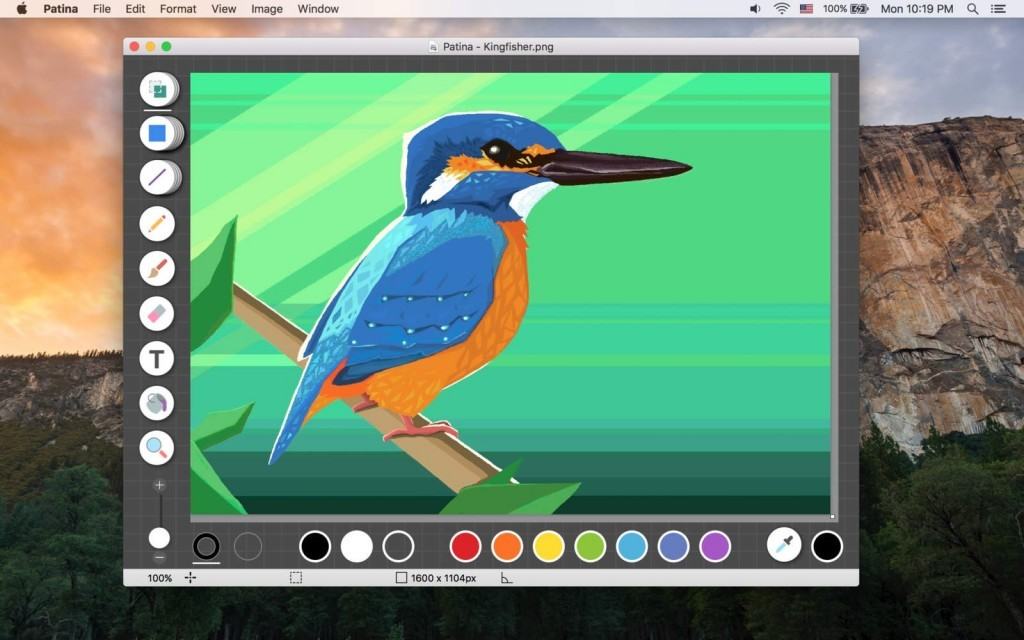
Patina is our top recommendation if you liked Microsoft Paint because it was straightforward. It is a purpose-built Mac drawing and bitmap-editing app rather than a complicated design suite with dozens of panels you will never use.
You get the essentials: freehand drawing, shapes, lines, text, colour controls, image resizing, rotation, cropping and transparent image saving. The interface feels cleaner and more Mac-like than an old Windows clone, so it is a particularly good choice for making simple diagrams, marking up an image or creating a quick graphic for a document.
Patina deliberately stays simple. It does not have layer-based editing, so it is not the right tool for a complex social graphic or a multi-stage photo edit. But that limitation is also why it is so easy to pick up.
Best for: Anyone who wants a lightweight, polished app that does the job without becoming a mini Photoshop.
Price: Paid one-off purchase from the Mac App Store. Regional pricing varies.
2. JS Paint – Best Free Classic MS Paint Experience

If what you really miss is the familiar look and feel of old Microsoft Paint, JS Paint is the closest free option. It recreates the classic menus, toolbox, colours, pencil, brush, fill bucket, text tool, shapes and selection tools in a web browser.
It opens immediately in Safari, Chrome, Firefox or another modern browser, so there is nothing to download or set up. You can open an existing image, make quick edits and save the result when you are finished.
JS Paint is not just a nostalgic toy. It is useful when you want a genuinely simple canvas for a small job and do not want to learn a larger app. It is also open source and actively maintained.
Its limits are the same ones that made classic Paint simple: it is not designed for non-destructive layer work, professional photo retouching or detailed illustration.
Best for: Free, no-install use and anyone who wants the closest visual match to classic MS Paint.
Price: Free.
3. Paint 98 Desktop – Best Native Retro Paint App
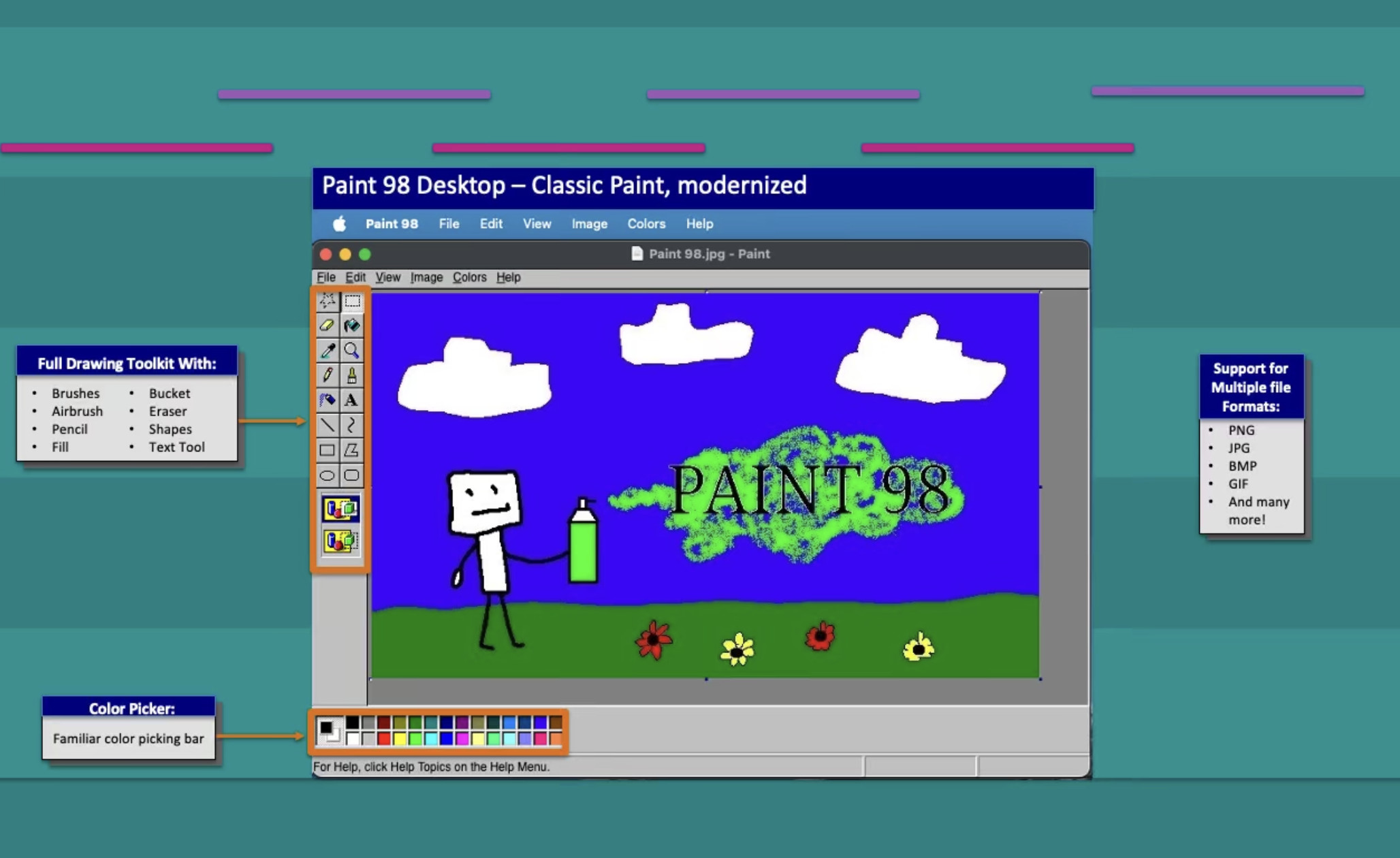
Paint 98 Desktop is a native Mac app built around the familiar Windows 98 Paint experience. It has the old-school pencil, brush, airbrush, fill bucket, eraser, shapes, text tool and palette, but it also supports modern file types including PNG, JPG, BMP, GIF and HEIC.
This is the best option if you want that retro interface without keeping a browser tab open. It is especially fun for pixel art, quick sketches and simple image edits. The app requires macOS 12 or later.
It is still a relatively new app with a small review history, so we would choose it for its familiar MS Paint interface rather than for important design work. For a more established, Mac-first alternative, choose Patina instead.
Best for: People who want a native, nostalgic MS Paint-style app on their Mac.
Price: A low-cost one-off App Store purchase; check your local App Store for current pricing.
4. Preview – Best Built-In Option for Quick Markup

You already have Preview on your Mac, and it is the fastest way to annotate a screenshot or existing image without installing anything.
Open an image in Preview, click the Markup button, then use the sketch, shape, text, line, highlight and colour tools. You can crop, resize, rotate and export the finished image too.
Preview is not a true Paint replacement because it does not give you a blank canvas or a full painting toolbox. But for circling something on a screenshot, adding an arrow, writing a label or signing an image, it is hard to beat.
Best for: One-off screenshot annotations, simple image markups and basic edits.
Price: Free with macOS.
5. Paint S – Best for Basic Image Editing With Layers
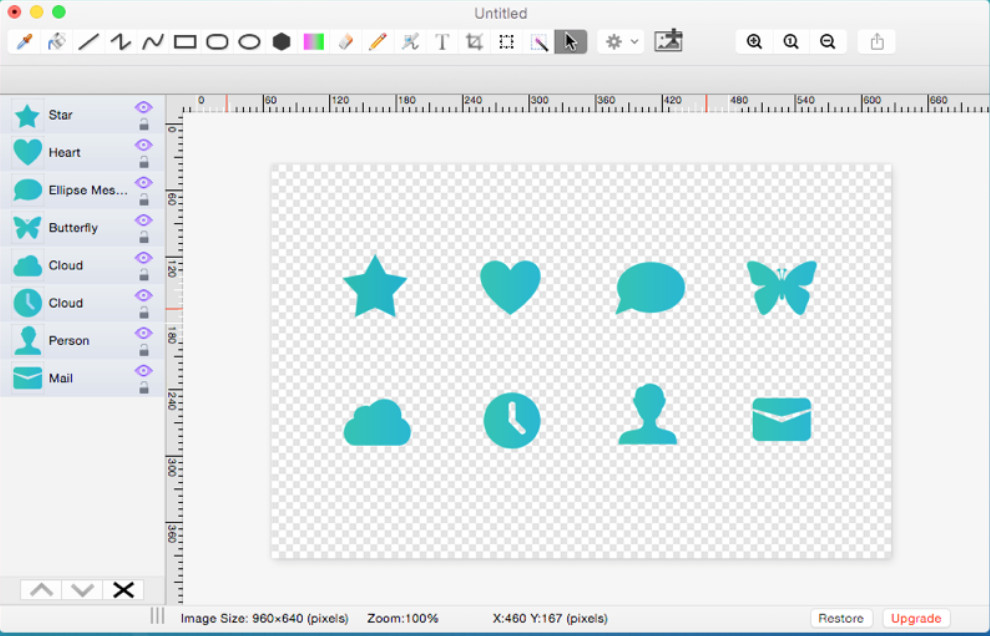
Paint S is a more capable Paint-style app for people who want to start simple but may need extra control later. It includes drawing and editing tools such as fill, eyedropper, line, curve, rectangles, ellipses, text, pen and eraser, alongside crop, resize, rotate and flip controls.
Unlike basic Paint clones, Paint S supports layers, guides, rulers, transparency and a broader range of file types, including PNG, JPEG, HEIC, WebP, PDF and SVG. That makes it useful for light graphic design as well as casual doodling.
The app is free to download, but some features require an in-app upgrade or subscription. Read the current App Store options carefully before relying on it as a completely free editor.
Best for: Users who want a familiar Paint-style tool with more room to grow.
Price: Free download with optional paid upgrades and subscriptions.
6. Pinta – Best Free Desktop Editor
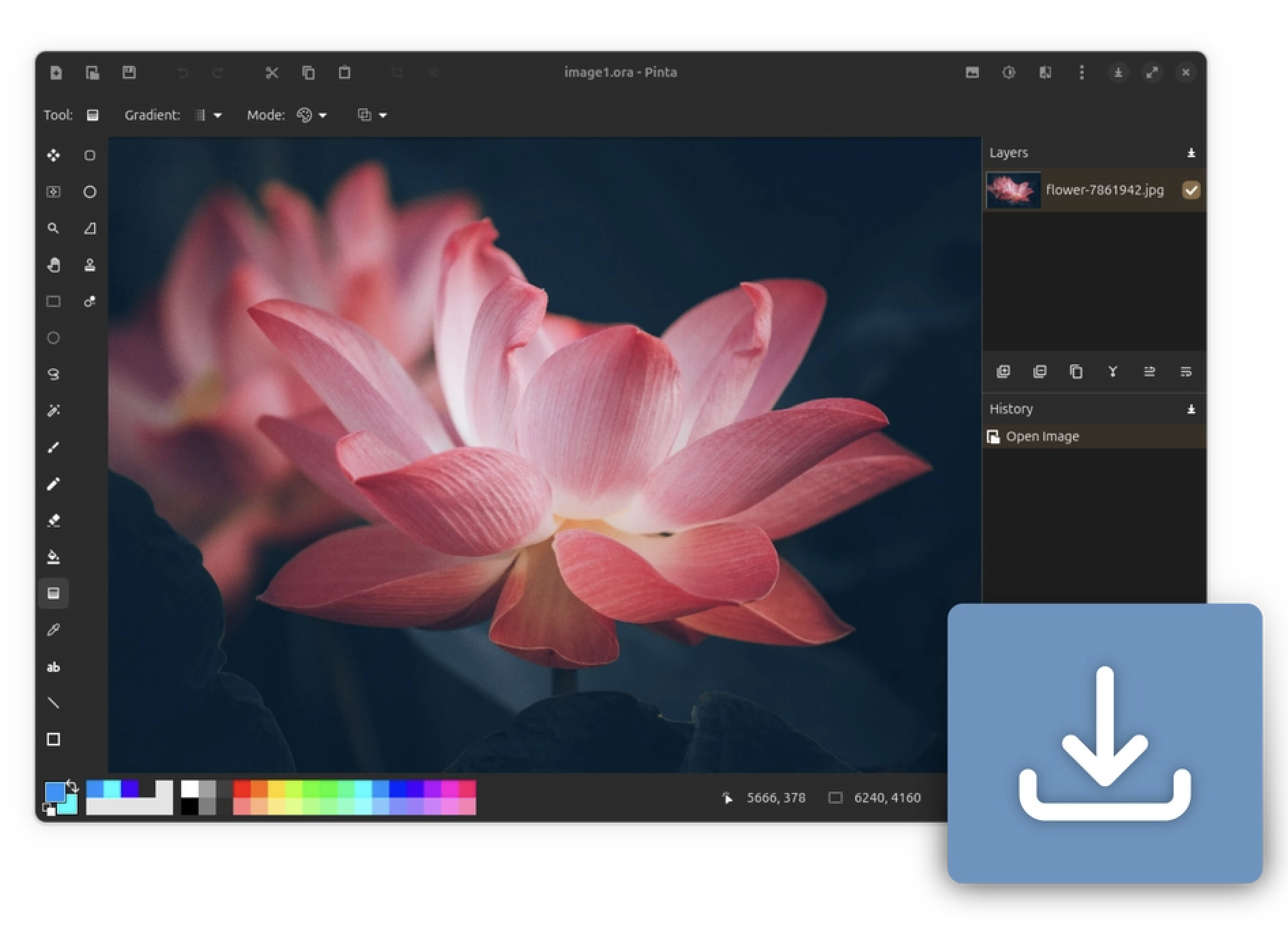
Pinta is a free, open-source image editor inspired by Paint.NET. It is more technical-looking than Patina or Preview, but it gives you useful desktop features without asking for a subscription.
Expect standard drawing tools, selections, colour adjustment, effects, layers and a history panel for undoing changes. The project provides separate macOS downloads for Intel and Apple silicon Macs, which is helpful if you want a free desktop app rather than a browser-based tool.
Pinta is not the most Mac-like app in this list, but it is a strong free choice for editing images, compositing a few layers or doing more than classic Paint can manage.
Best for: A free, capable desktop image editor with layers and effects.
Price: Free.
7. Krita – Best Free Option for Digital Art
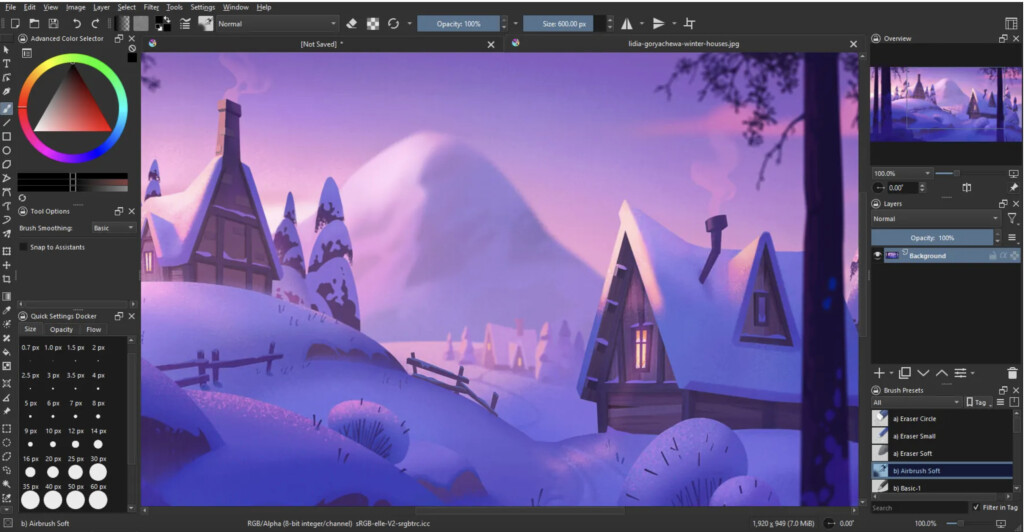
Krita is a powerful free and open-source painting app. It is far more advanced than Microsoft Paint, which means it is not the best choice for someone who only wants to crop a screenshot. But it is excellent if your real goal is drawing, painting or using a graphics tablet on a Mac.
Krita has a comprehensive brush engine, layers, colour management, selection tools and tablet support. It is a better fit than a Paint clone for concept art, comics, illustrations and more deliberate creative work.
The trade-off is a steeper learning curve. If you want five-minute edits, start with Preview, JS Paint or Patina. If you want to develop digital-art skills without paying for software, Krita is one of the best places to start.
Best for: Digital artists, illustrators and Mac users with drawing tablets.
Price: Free.
8. Pixelmator Pro – Best Premium Upgrade
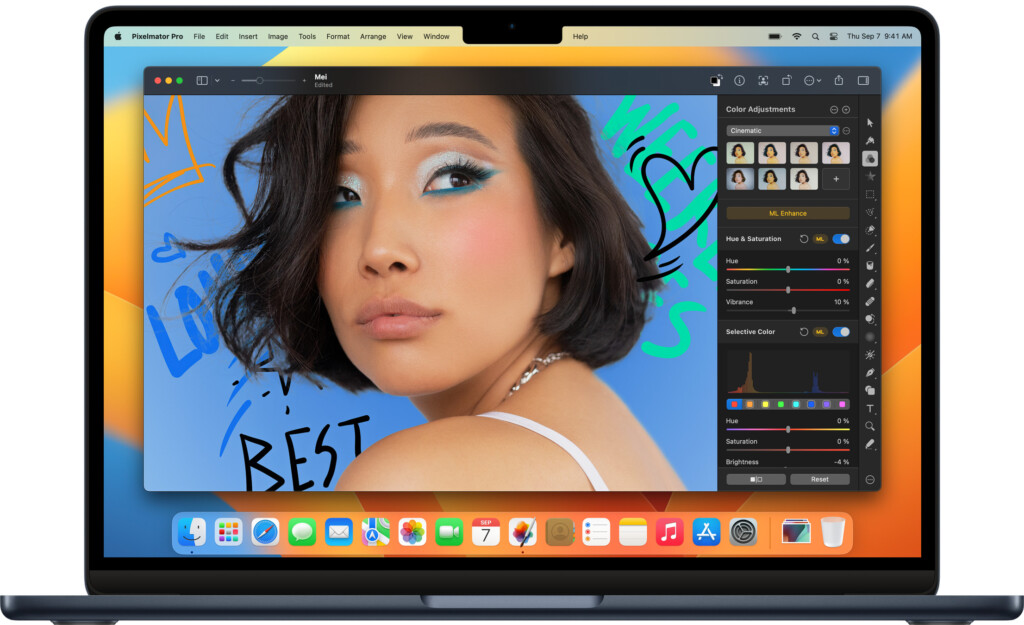
Pixelmator Pro is much more than an MS Paint alternative, but it is the right upgrade if simple drawing keeps turning into photo editing, web graphics, social visuals or illustrations.
It combines layer-based image editing, drawing tools, vector shapes, text, masks, effects, templates and powerful retouching features in a polished Mac interface. It also runs natively on Apple silicon Macs and supports graphics tablets, making it a substantial step up from Paint without the ongoing cost of an Adobe subscription.
At £49.99 / US$49.99, it is unnecessary for basic doodles. But if you want one app that can handle quick Paint-like jobs today and serious creative work later, Pixelmator Pro is a very good long-term purchase.
Best for: Mac users who need professional image editing and design tools as well as simple drawing.
Price: £49.99 / US$49.99 as checked in October 2026.
Which Microsoft Paint Alternative Is Right for You?
Choose Patina if you want the most straightforward, Mac-native equivalent of Paint.
Choose JS Paint if you want the free, browser-based experience that feels most like classic MS Paint.
Choose Paint 98 Desktop if you want an installable, retro Windows-style Paint app.
Choose Preview if you simply need to mark up a screenshot or edit an existing image.
Choose Paint S or Pinta if you need layers and more editing tools without jumping straight to a professional creative suite.
Choose Krita for serious drawing and digital painting, or Pixelmator Pro for a premium Mac image editor that can grow with you.
Do You Need To Run Microsoft Paint in Windows on a Mac?
Usually, no. The alternatives above are quicker and more convenient for everyday Mac use.
However, regular Microsoft Paint itself has not been discontinued. Microsoft still updates the Windows 11 version, including some newer AI-assisted features on eligible Copilot+ PCs. If you specifically need Microsoft’s own app, you can run Windows 11 in a virtual machine on a Mac using software such as Parallels Desktop, VMware Fusion or UTM.
That is only worthwhile if you also need Windows for other applications. It adds the overhead of installing and maintaining Windows, and you should use a properly licensed copy of Windows.
You can watch us running Microsoft Paint on a Mac below.
What About Paint 3D?
We don’t recommend using Paint 3D on a Mac. Microsoft retired the app and removed it from the Microsoft Store in 2024. It is also a Windows-only app, so a Mac Paint alternative is normally the much simpler answer.
Is Freeform a Good Paint Alternative on Mac?
Freeform is now more useful than it was in older versions of macOS: you can draw and sketch directly on a board on current Macs. It is useful for brainstorming, whiteboarding and collaborating with iPhone and iPad users.
It is not, however, a bitmap image editor. Use Freeform when you want an infinite collaborative canvas, not when you need to open a PNG, paint on it precisely and export a finished image. For more ideas, see our guide to drawing on a Mac.
Why We No Longer Recommend Paintbrush or MacPaint as Main Picks
Older versions of this guide included Paintbrush and an emulated copy of MacPaint. They are interesting historically, but neither is a sensible first recommendation for a modern Mac in 2026.
Paintbrush has not had a current official feature release for years, while MacPaint is a piece of Mac history best experienced through emulation. If nostalgia is your priority, choose JS Paint or Paint 98 Desktop; both are much more practical for everyday use.
FAQs
Is there an official Microsoft Paint app for Mac?
No. Microsoft has never released a native version of Paint for macOS. You can use it only by running Windows, but a Mac app such as Patina, Preview, JS Paint or Paint S will be easier for most people.
What is the closest free equivalent to MS Paint for Mac?
JS Paint is the closest free equivalent if you want the familiar classic interface. Preview is the easiest built-in option for annotating images, while Pinta is better if you need a free desktop app with layers.
Can I create a blank canvas in Preview?
No. Preview is designed to view and annotate existing files. Use JS Paint, Patina, Paint S, Pinta or Krita if you need to start with a blank canvas.
Is Paint S really free?
Paint S is free to download, but it has optional paid upgrades and subscriptions. Check which tools are included in the version you install before choosing it for a particular project.
Can I use Microsoft Paint on an Apple silicon Mac?
Yes, by running Windows 11 for ARM in a compatible virtual machine. That is overkill if you only need a simple drawing program, but it can make sense if you already need Windows on your Mac for other reasons.