


For years, I’ve switched between using both Parallels and Crossover to run Windows games and applications on a Mac.
Both are, in my opinion, the best at what they do – I would say that Parallels is easily the best way to run Windows on a Mac whereas Crossover is the best way to play Windows PC games on a Mac (especially Steam games).
However, while they can often run the same Windows applications or games, they work in completely different ways and are designed for different types of users.
In this guide, I’ll take you through them both and compare them across installation, compatibility, gaming, performance, pricing, ease of use and everyday experience so you can decide which is the better choice for your Mac.
Quick Verdict
If you simply want Windows to behave exactly like it does on a PC, Parallels is the clear winner.
If you want to play Windows only games or just run a handful of Windows programs and don’t want to install Windows itself, CrossOver can save money and use fewer system resources.
For most users:
- Best overall: Parallels ⭐⭐⭐⭐⭐
- Best for gaming: Crossover (especially games on Steam)
- Best for business software: Parallels
- Best lightweight solution: CrossOver
- Best value: CrossOver
Parallels vs Crossover Compared
| Feature | Parallels Desktop | CrossOver |
|---|---|---|
| Installs Windows | Yes | No |
| Requires Windows licence | Only required to remove watermarks and customize Windows ARM | No |
| Runs almost all Windows apps | Yes | No |
| Performance | Excellent | Excellent (depending on app or game) |
| Gaming | Good | Very good |
| Easy to install apps | As easy as using a Windows PC | Requires a bit of configuration first |
| Resource usage | Higher | Lower |
| Disk space | 40–70GB+ | Usually under 5GB |
| Works with unsupported software | Usually yes | No |
What Is The Difference?
Parallels is a complete virtual machine that runs Windows within macOS giving you the freedom to install whatever you want. Crossover on the other hand is a compatibility layer which “translates” Windows software to work on a Mac.
Parallels Desktop
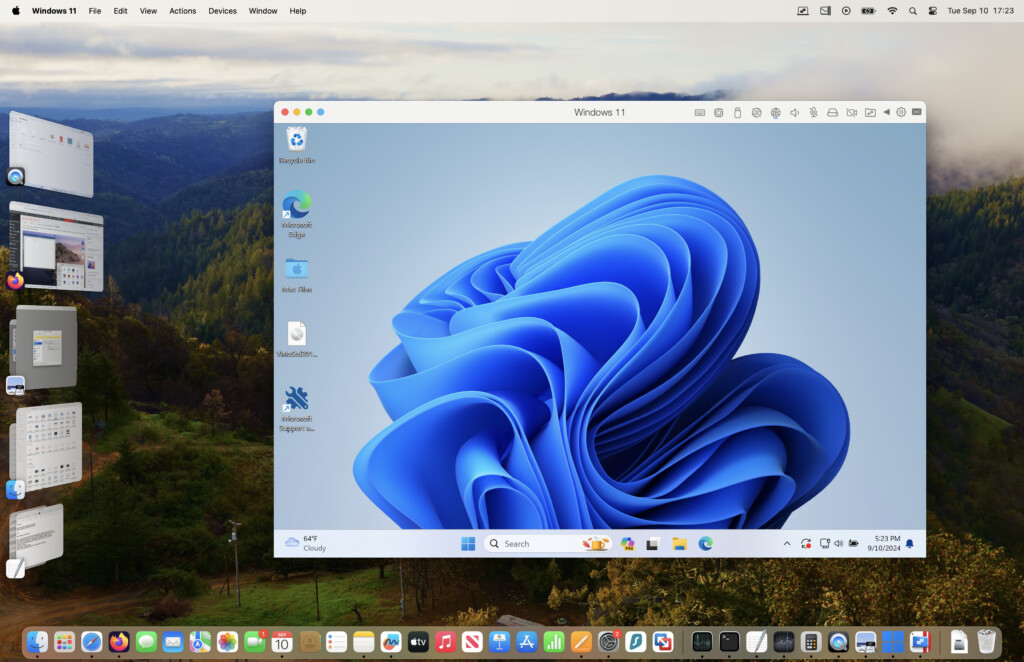
Parallels creates a complete virtual Windows PC inside macOS. You’re actually installing Windows 11 ARM just as you would on a physical computer.
Every Windows feature is available. That means you can use any type of software that you’d use on a Windows PC.
CrossOver
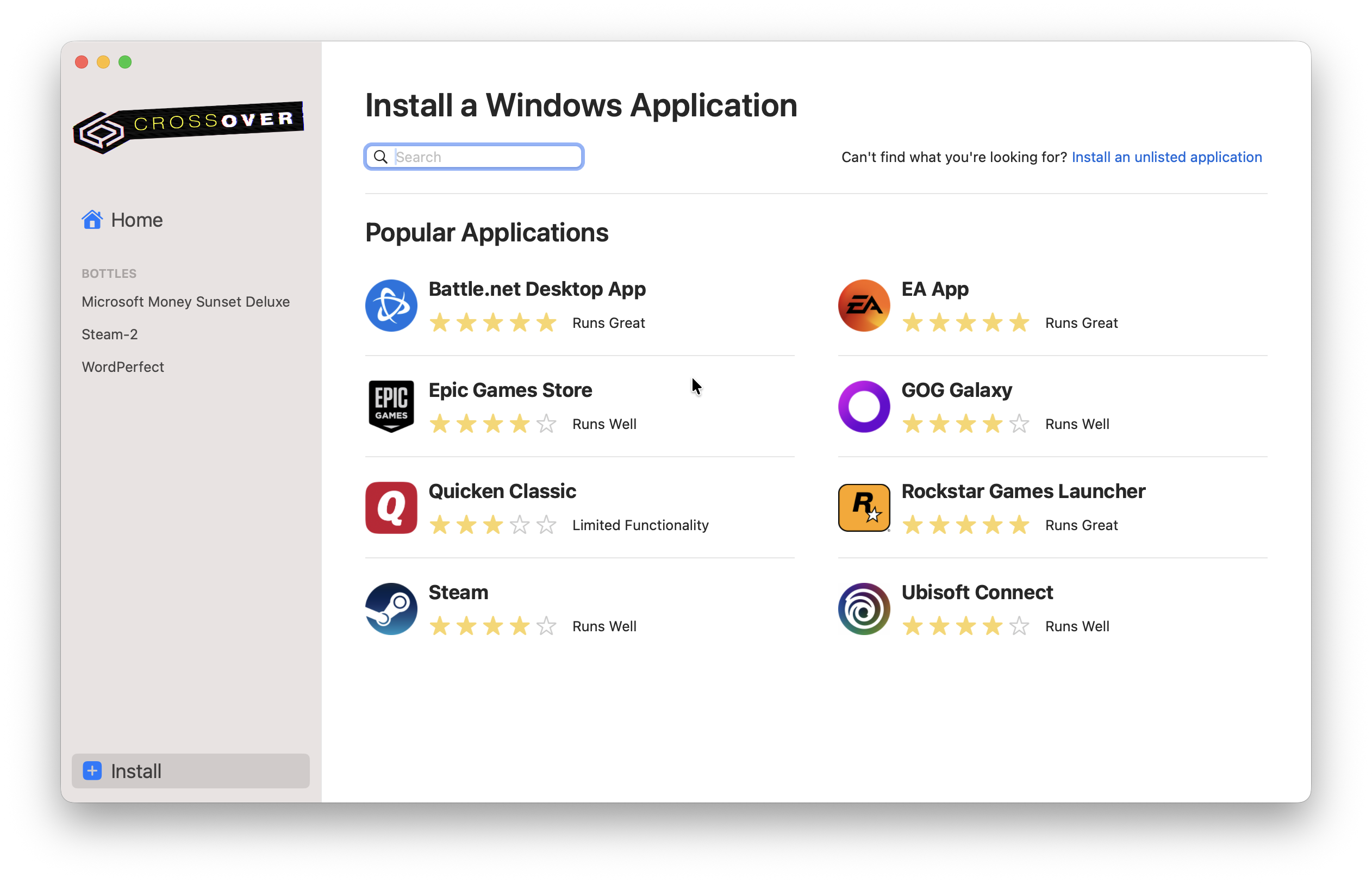
CrossOver doesn’t install Windows at all. Instead, it translates Windows system calls into macOS.
Think of it as convincing Windows software that it’s running on Windows when it’s actually running on macOS.
That makes it lighter, faster and easier to install than Parallels. It also doesn’t require physically installing Windows and therefore uses far less storage space on your Mac.
However, it only works with software that Crossover can translate to work properly and it’s a good idea to check the compatibility database before deciding whether its for you.
Installation Experience
Installing Parallels
Parallels has become remarkably simple. Today it can automatically download Windows 11, install it, create shared folders, integrate macOS and much more.
I went from downloading Parallels to running Windows in minutes as the process is almost completely automated. Watch the installation video above to see how easy it is.
Installing CrossOver
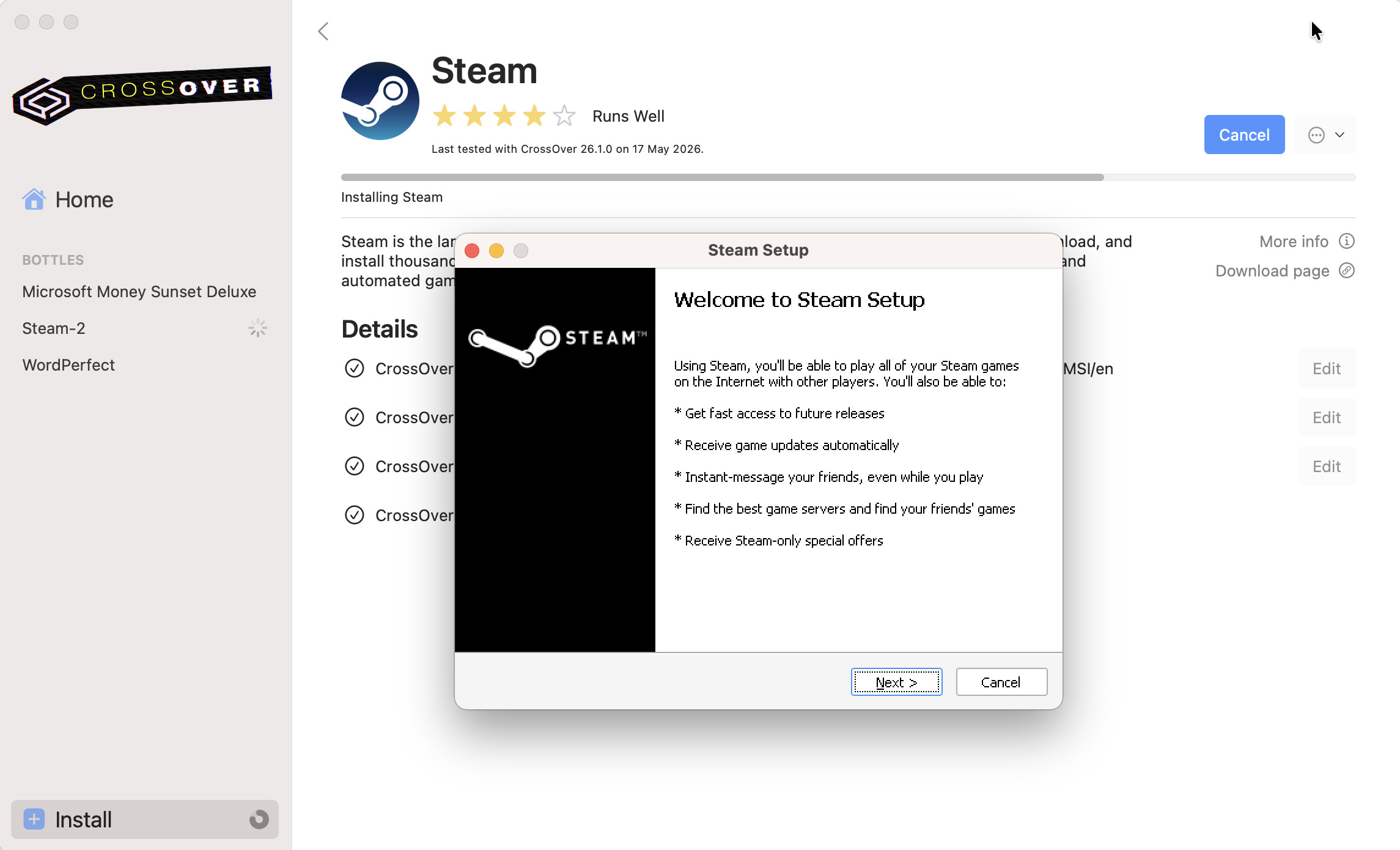
CrossOver installs much faster. There’s no Windows download. Instead you simply install CrossOver, choose an application let it create a “Bottle” for it and then install your software
If the application is officially supported by CrossOver, the process is simple. When it isn’t, things become considerably more complicated and you may need to install different Wine versions, mess around with settings and experiment with dependencies.
I find that, especially when it comes to games, 80% of the time the game I want to play is supported but I don’t use it for running Windows applications.
Ease of Use
This is where Parallels has an advantage in my mind. With Parallels you don’t need to think about compatibility. If software runs on Windows, it’ll usually run in Parallels.
CrossOver requires more research beforehand and often you’ll need to check which exact version is supported, whether tweaks are required, whether DirectX works with it and whether updates will break compatibility.
Windows Software Support
One advantage of Parallels is software updates. With Parallels, you can simply update Windows to work with new software updates.
However with Crossover, one application update can introduce compatibility problems and you’ll need to wait for the developers Codeweavers to issue an update before it works again – which may or may not happen.
Gaming Performance
Both Parallels and Crossover allow you to play games but in my mind, Crossover comes out on top.
The strength of Parallels when it comes to gaming are:
- DirectX 11 support
- Better compatibility overall
- More games launch successfully
- Stable frame rates
- Easier installation through Steam
On the downside:
- There’s the resources needed by your Mac just to run the virtual machine
- Higher RAM usage
- Most anti-cheat game protections don’t work
- DirectX 12 support remains limited
CrossOver
The strengths of Crossover are:
- Lower overhead as no virtual machine required
- Some games actually perform better
- Excellent DirectX translation
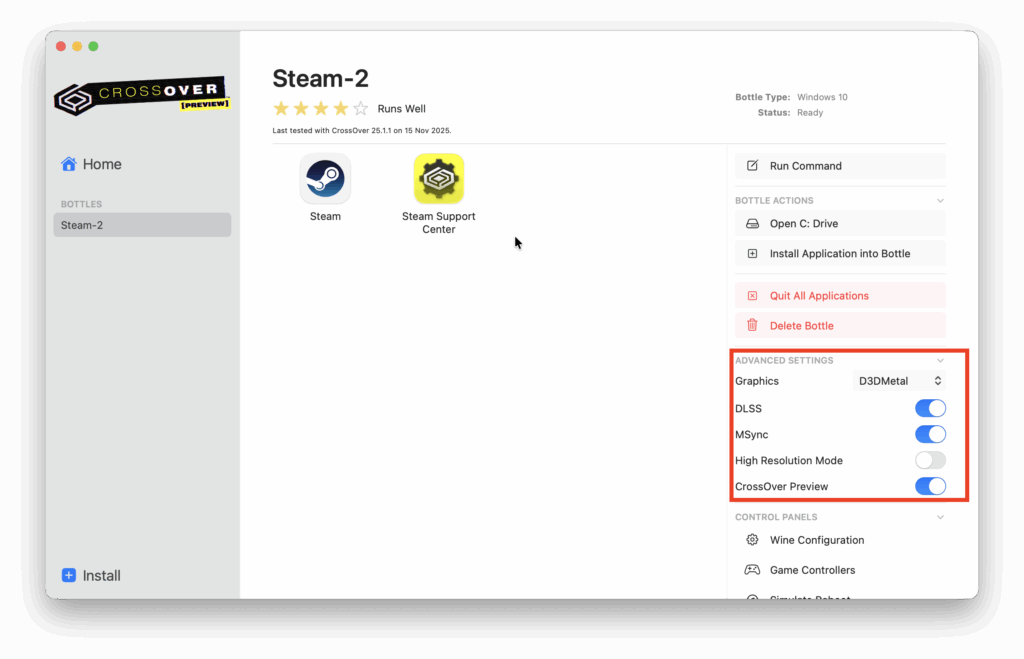
- Supports D3DMetal
- Doesn’t need Windows installed
On the downside of Crossover:
- Compatibility is inconsistent
- Some games need launch tweaks
- Anti-cheat remains a major issue
- New releases can take time to become compatible
In my experience, many games actually run faster in CrossOver whereas others run dramatically better in Parallels.
The biggest factors that seem to influence this are:
- The DirectX version required
- The graphics API
- Whether there’s anti-cheat software involved
- The game engine
- How demanding the game is on the CPU
You can watch me using Crossover to play Where Winds Meet on a Mac below.
macOS Integration
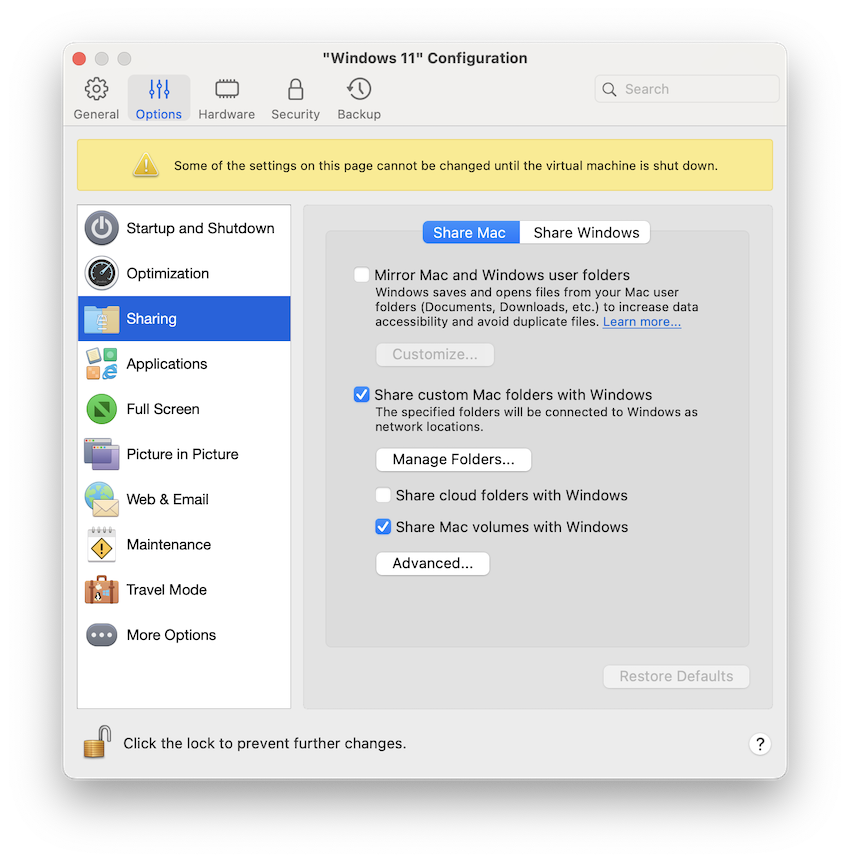
The way that Parallels integrates with macOS is amazing nowadays. From sharing files and folders between Windows and macOS to opening applications from your Dock, Parallels has got better and better over the years.
Some of my favorite features include:
- Coherence Mode
- Drag-and-drop
- Shared clipboard
- Shared folders
- Printer sharing
- Touch ID support
- USB passthrough for external storage devices
- File associations
The result is that Windows apps can appear directly beside Mac apps and you forget that Windows is even running!
CrossOver is also well integrated, but because there isn’t a Windows desktop, integration feels different.
Applications simply launch like Mac apps, but only when they work.
Windows Licensing
A common misconception is that you need to buy a Windows licence to use Parallels. In fact, Windows 11 ARM can be downloaded and installed for free, and Microsoft allows it to run without activation.
An unactivated copy of Windows works almost exactly the same as an activated one. The main limitations are a small “Activate Windows” watermark and restricted personalization options, but you can still install and use Windows apps, receive updates, and play games.
CrossOver doesn’t require Windows at all, since it runs Windows applications directly on macOS. While that avoids installing Windows entirely, the cost of a Windows licence is no longer a major advantage over Parallels for most home users.
Price Comparison
Parallels generally costs more as you’re paying for continuous compatibility, virtual hardware, Windows integration and in some versions enterprise features.
Pricing starts at $99 per year for a licence (often discounted) going up to $149.99 per year for the business edition.
CrossOver is cheaper starting at $74 per year and also offers a lifetime licence option of $494 alongside subscription plans. If the software you want to use is supported by Crossover, it’s the better deal.
Which Is Best: Parallels or Crossover?
I’d say choose Parallels if you:
- Need Microsoft Office every day
- Use Windows for work
- Run multiple Windows applications
- Need maximum compatibility
- Use specialist software
- Don’t want to troubleshoot
- Need USB devices
- Want Windows exactly as it works on a PC
However, I’d say go for Crossover if you:
- Only need one or two Windows applications
- Want to avoid installing Windows
- Have limited SSD space
- Want lower memory usage
- Mainly play supported games
- Are happy checking compatibility
Conclusion
If your priority is running Windows software with the least hassle and the widest compatibility, Parallels Desktop remains the better overall solution. It behaves like a complete Windows PC, supports far more applications out of the box, and requires very little troubleshooting once it’s set up.
CrossOver, however, fills a different niche. It’s lighter, uses fewer resources, avoids the need for a Windows licence, and can deliver excellent performance for supported applications and games. If the programs you need are officially compatible, it’s a really cool, lightweight cost-effective alternative.
For most Mac users – particularly professionals and anyone relying on Windows software every day -I’d recommend Parallels. But if your needs are limited to a handful of compatible applications or games, CrossOver can save disk space, reduce memory usage, and spare you from installing Windows altogether.
If you have any questions about either product, let me know in the comments below!
FAQ
Which is faster?
For supported applications, CrossOver can be faster because it avoids running an entire copy of Windows.
Across all software, Parallels is generally the more consistent performer because almost everything that works in Windows behaves as expected.
Which is easier?
Parallels. The experience is much closer to using a normal PC.
Which uses less battery?
CrossOver generally consumes fewer resources because it doesn’t have to keep Windows running in the background.
Can both run Windows games?
Yes, although compatibility varies considerably depending on the game. Anti-cheat systems, DirectX version and graphics APIs all influence which solution performs better.
Do I need a Windows licence?
Parallels typically requires a Windows licence if you want a fully activated installation. CrossOver does not require Windows at all.