

Although there’s still no native version of Microsoft Power BI Desktop for macOS, it’s easy to run it on a Mac using Parallels Desktop.
In the video below, I’ll show you exactly how to install Windows on an Apple Silicon or Intel Mac using Parallels and then install Power BI Desktop just like you would on a Windows PC.
Don’t forget to check out our guide to the best database software for Mac and the best data visualization software for Mac for other native Mac options.
Watch: How to Install Power BI on a Mac
What You’ll Need
Before you start, you’ll need:
- A Mac (Apple Silicon or Intel). I used an M3 MacBook Pro with 36GB of RAM
- Parallels Desktop – read my full Parallels review to see how easy it is to setup and run Windows on a Mac with it.
- Windows 11 installed in Parallels (Parallels can download and install it automatically)
- A Microsoft account to download Power BI Desktop
The entire Windows setup usually takes less than 30 minutes and installing Power BI takes just a few minutes after that.
Why Use Parallels?
Since Microsoft hasn’t released a macOS version of Power BI Desktop, running Windows in a virtual machine is the easiest and most reliable solution.
Parallels offers several advantages:
- Power BI runs alongside your Mac apps without rebooting.
- Excellent performance on Apple Silicon Macs.
- Easy file sharing between macOS and Windows.
- Supports external monitors and multiple displays.
For most Mac users, it’s a much smoother experience than setting up a separate Windows PC.
Note that there are other virtual machines for Mac available, most notably VMware Fusion which is free. However, they are nowhere near as seamless and smooth as using Parallels, especially when it comes to running Microsoft applications like Power BI.
You can watch how easy it is to install Windows on a Mac with Parallels below.
Installing Power BI
Once Windows is running inside Parallels:
- Open the Microsoft Store (or download Power BI Desktop from Microsoft).
- Install Power BI Desktop.
- Launch the application.
- Sign in with your Microsoft account.
- Start creating reports and dashboards.
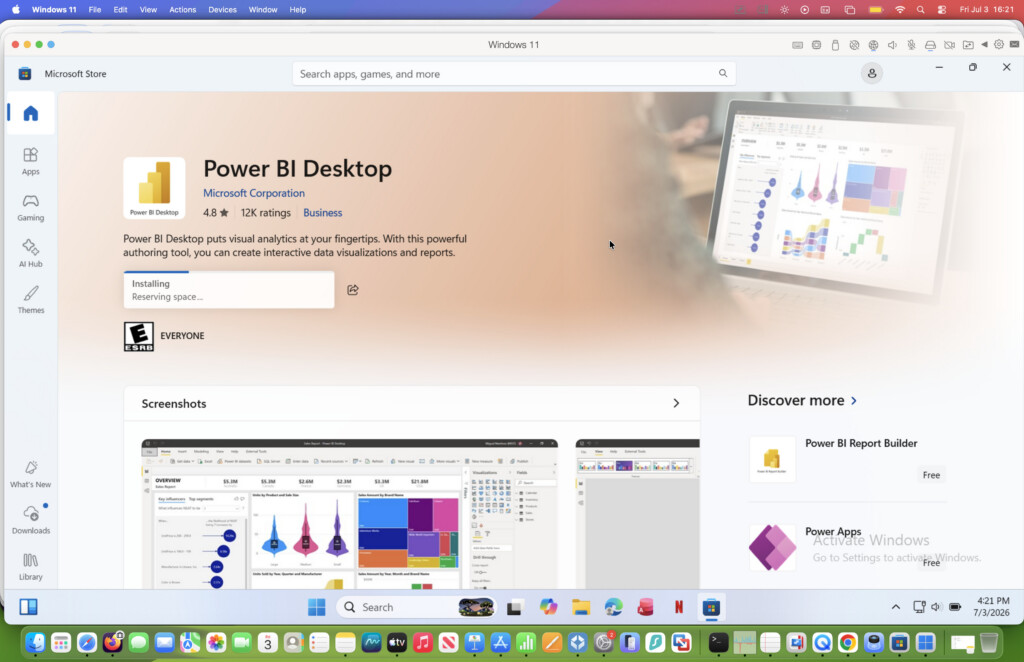
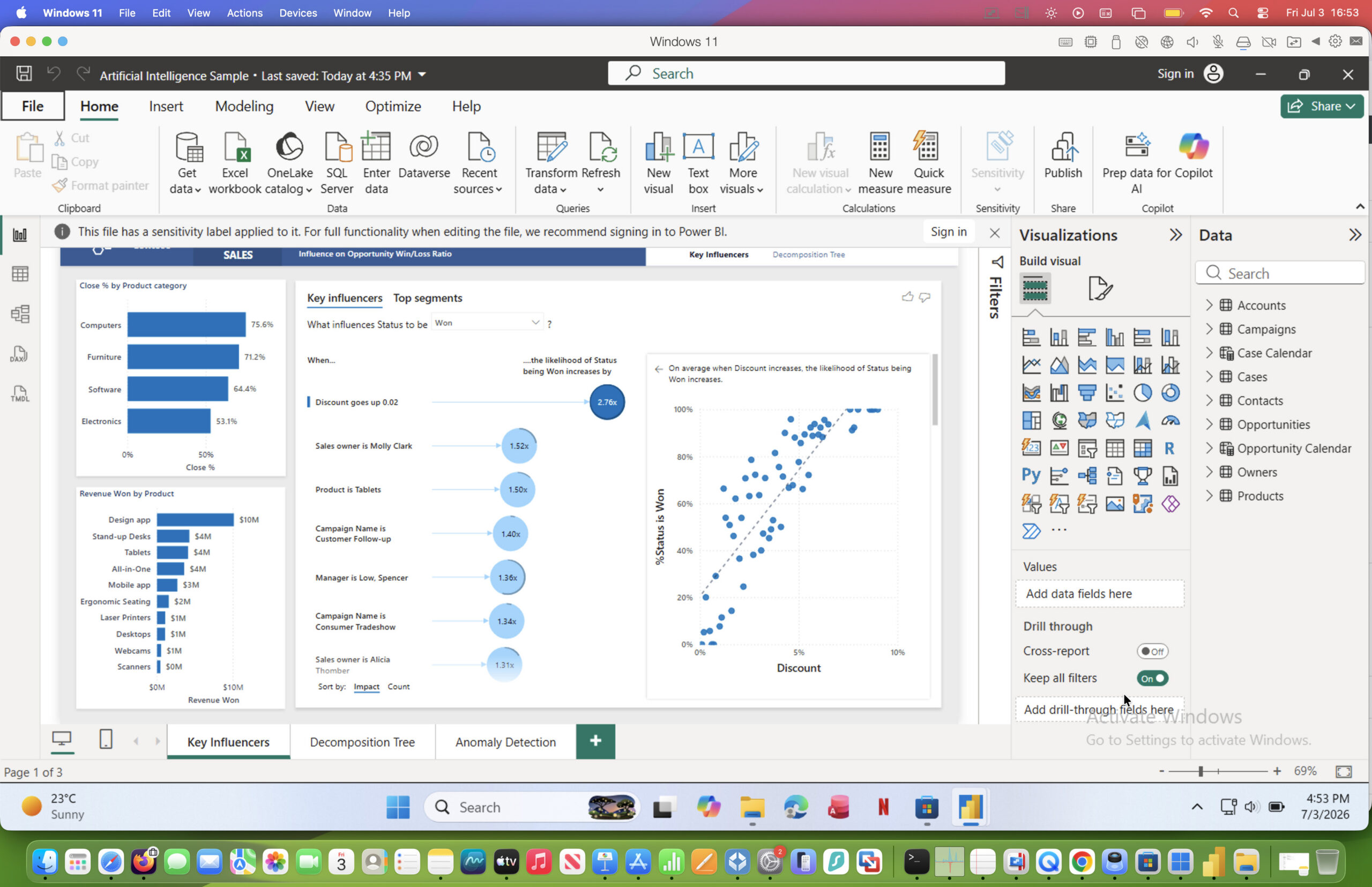
Power BI behaves exactly as it would on a native Windows computer although you will notice that it’s a bit laggy at times.
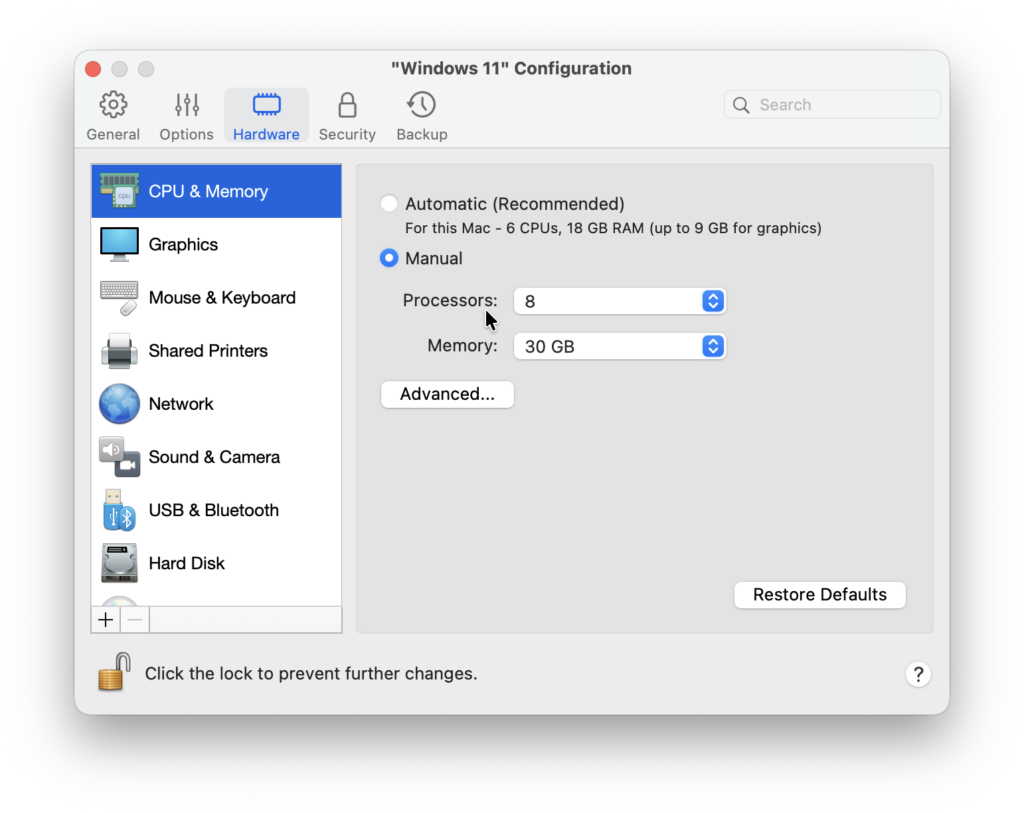
The best solution to this is to allocate as much RAM and Processors as possible to Parallels when you set it up.
Working with Databases
Power BI is designed to connect to a huge range of databases and data sources including:
- SQL Server
- MySQL
- PostgreSQL
- Oracle
- Snowflake
- Microsoft Access
- Excel
- CSV files
- Hundreds of cloud services
If you’re looking for a database to use alongside Power BI, we’ve also rounded up the best database software for Mac, including SQL databases, no-code databases and database management tools that work well with macOS.
Summary
Until Microsoft releases a native Mac version of Power BI Desktop, running Windows with Parallels remains the best solution. Performance is excellent on modern Macs, installation is straightforward, and you’ll have access to the complete Windows version of Power BI without needing a separate PC.
If you regularly work with data analysis, reporting or business intelligence on a Mac, this setup gives you the full Power BI experience while continuing to use macOS.