

If you’ve recently tried using FnMacAssistant to play Fortnite on your Mac, you may have found that the game launches successfully but disconnects you shortly after entering the lobby.
Unfortunately, Epic Games introduced new anti-sideloading checks in Fortnite v40.20 (released on April 16th 2026) that currently prevent players using FnMacAssistant from joining online matches. While the game may install and open normally, the servers now detect that it’s been sideloaded and remove players within seconds.
Here’s what changed and what your options are until a fix becomes available.
What Is FnMacAssistant?
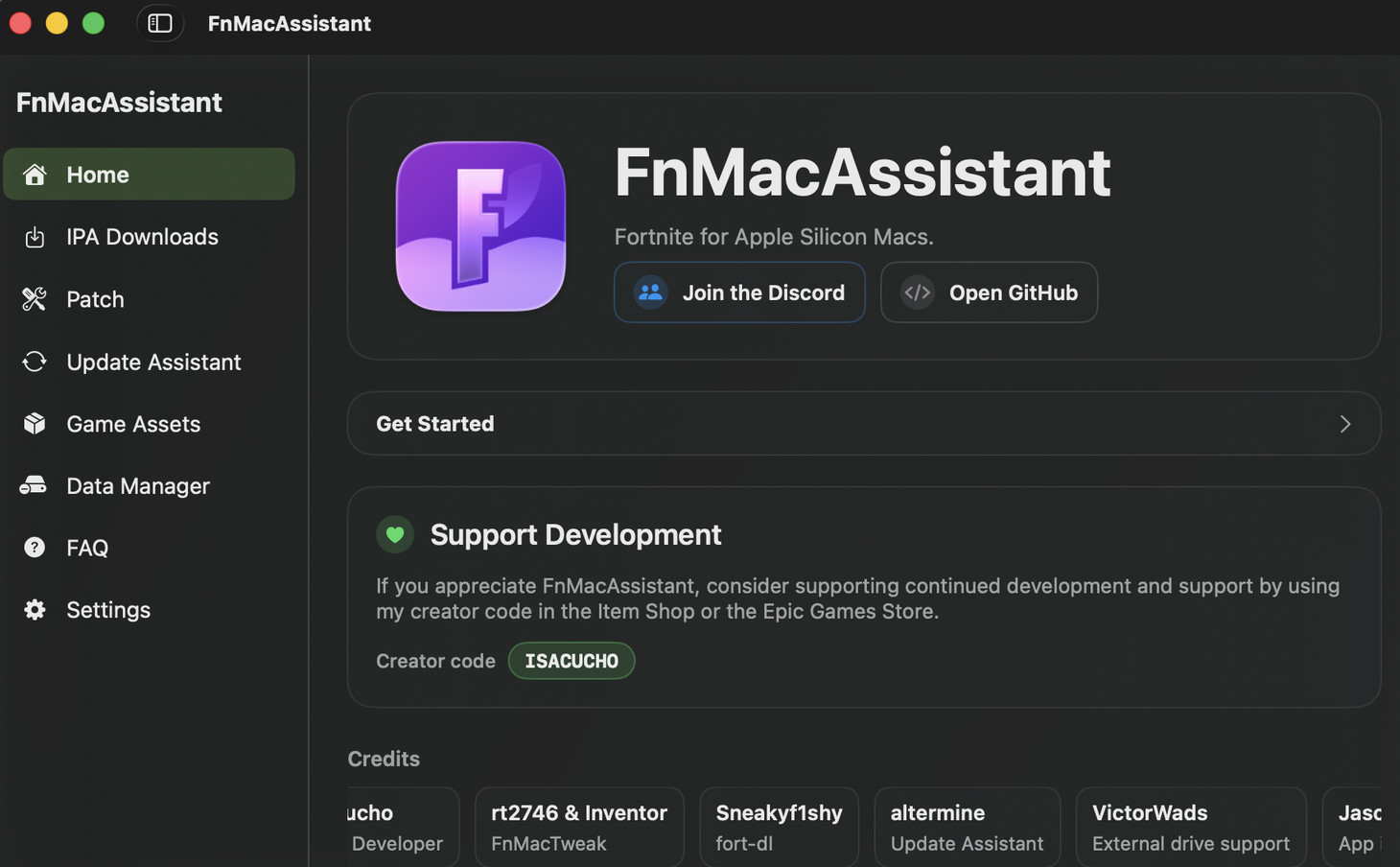
FnMacAssistant is a free community-developed utility that made it possible to run the iPhone and iPad version of Fortnite on Apple Silicon Macs.
Instead of installing the discontinued macOS version of Fortnite, it downloaded and patched the latest iOS release before installing it using Sideloadly. This allowed many Mac users to play current Fortnite seasons locally without relying on cloud gaming or Windows.
For Apple Silicon owners, it quickly became one of the most popular ways to play Fortnite on macOS.
What Changed in Fortnite v40.20?
With the release of Fortnite v40.20, Epic Games added new server-side checks designed to detect sideloaded versions of the game.
According to the FnMacAssistant developers:
“Epic added sideload checks to Fortnite with v40.20, which makes it impossible for us to natively play on Mac. While you might reach the lobby, the server will kick you after a few seconds.”
In other words:
- Fortnite can still be downloaded and installed.
- The game may launch successfully.
- You may even reach the lobby.
- However, you’ll typically be disconnected from Epic’s servers within a few seconds, making the game effectively unplayable online.
Because these checks are performed by Epic’s servers rather than your Mac, reinstalling FnMacAssistant or trying different installation methods won’t solve the problem.
Is FnMacAssistant Broken?
Not exactly. FnMacAssistant itself still works as intended. It can download, patch and install Fortnite.
The issue is that Epic’s servers now reject sideloaded copies of the game after they connect online.
Until the developers discover a workaround – or Epic changes its verification system – FnMacAssistant is no longer a viable way to play Fortnite matches on a Mac.
Are the Developers Working on a Fix?
Yes. The developers have confirmed they’re actively investigating possible solutions. However, they haven’t announced when (or even if) a reliable workaround will be available.
Since the detection happens on Epic’s servers, there’s no guarantee that the issue can be bypassed long-term.
We’ll update this article if the situation changes.
What Should Mac Users Do Instead?
For now, cloud gaming remains the easiest and most reliable way to play the latest version of Fortnite on a Mac.
Our recommended options are:
GeForce NOW
GeForce NOW streams the PC version of Fortnite from NVIDIA’s servers and offers the closest experience to playing on a gaming PC. It supports keyboard and mouse, controllers, high frame rates on supported hardware, and doesn’t require installing Fortnite locally.
Amazon Luna
Amazon Luna also lets you play the latest version of Fortnite through your browser on macOS. Setup is quick, and you can use a Bluetooth controller or even your smartphone as a controller if you don’t have one available. You can watch us playing Fortnite on a Mac using Amazon Luna below.
Xbox Cloud Gaming
Xbox Cloud Gaming offers another browser-based option with no local installation required. It’s a good choice if you already use an Xbox or simply want to jump into Fortnite without downloading anything. You can watch us playing Fortnite on a Mac using Xbox Cloud below.
Should You Still Download FnMacAssistant?
At the moment, probably not.
Although the application itself still functions, it can’t currently bypass Epic’s new sideload verification system introduced in Fortnite v40.20.
Unless a future update restores compatibility, you’ll save yourself time and frustration by using one of the cloud gaming services above instead.
Looking for the Best Way to Play Fortnite on a Mac?
If you’re trying to decide which method to use, check out our complete guide to playing Fortnite on a Mac, where we compare GeForce NOW, Amazon Luna, Xbox Cloud Gaming and every other currently available option, along with setup instructions, performance comparisons and compatibility information.
We’ll continue monitoring FnMacAssistant and update this page if the developers release a working solution for Fortnite on macOS again.
FAQ
Does FnMacAssistant still install Fortnite?
Yes. It can still download, patch and install the game, but the current version of Fortnite disconnects players shortly after connecting online.
Can I still reach the Fortnite lobby?
Usually, yes. However, most users are removed from the game within seconds due to Epic’s new sideload checks.
Is there a fix available?
Not at the time of writing. The FnMacAssistant developers have said they’re investigating the issue, but no public workaround has been released.
Does this affect all Apple Silicon Macs?
Yes. The issue is caused by Epic’s server-side verification rather than a specific Mac model, so it affects all Apple Silicon Macs using the sideloaded version of Fortnite.
What’s the best alternative?
For most users, GeForce NOW provides the best overall Fortnite experience on a Mac, while Amazon Luna and Xbox Cloud Gaming are also excellent options if you prefer browser-based gaming without installing the game locally.