

If you’re faced with a Mac that’s decided to suddenly just give-up, don’t worry. There are several ways to restart a Mac depending on whether it’s working normally, frozen, or you’re trying to troubleshoot a problem.
The easiest method is simply to choose Apple menu > Restart, but there are also keyboard shortcuts, Safe Mode, Recovery Mode and force restart options when your Mac isn’t responding.
In this guide we’ll show you every way to restart a Mac, including Apple Silicon Macs and older Intel Macs.
How To Restart a Mac Normally
If your Mac is working as expected, restarting only takes a few seconds.
- Click the Apple menu in the upper-left corner.
- Select Restart…
- If you don’t want your apps to reopen automatically, uncheck Reopen windows when logging back in.
- Click Restart.
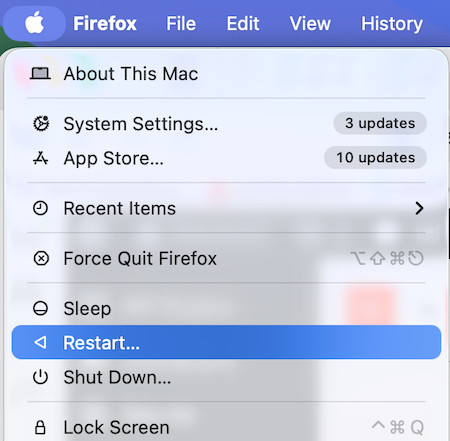
Your Mac closes any open applications, shuts down macOS and automatically starts up again.
Note: Restarting your Mac once every few days can clear cached system files, free memory and often resolve minor glitches without affecting your data.
How To Restart a Mac With the Keyboard
If your mouse or trackpad has stopped working but your keyboard still responds, you can restart macOS entirely from the keyboard.
Option 1: Restart Safely
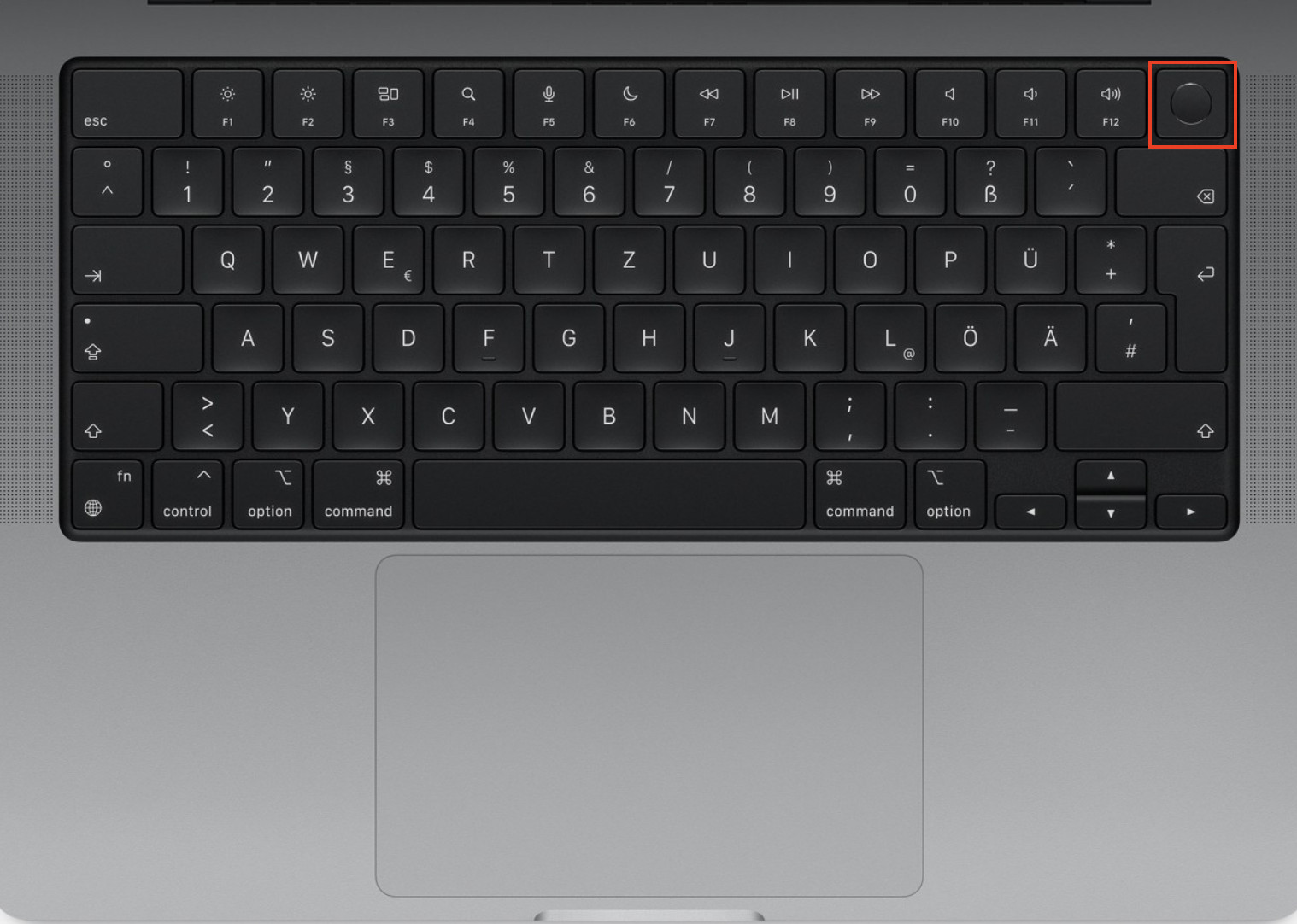
Press: Control + Command + Power button
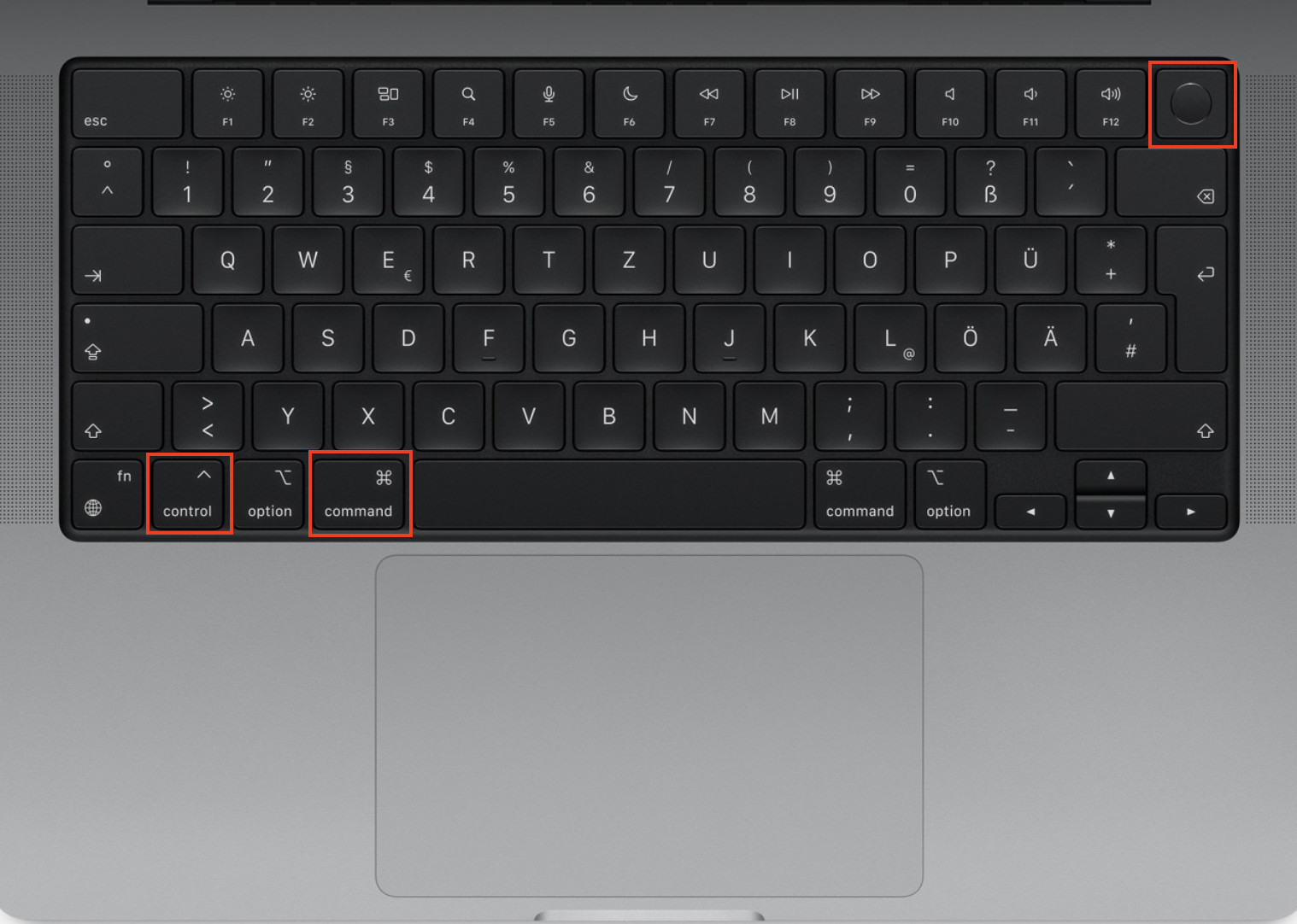
or on Macs with Touch ID: Control + Command + Touch ID
The power button on iMacs, Mac Studio and Mac Mini will obviously be in a different location to MacBooks but the principle remains the same.
macOS will safely close applications and restart.
This is the quickest way to restart a Mac without using the mouse.
Method 2: Shut down safely
If restarting doesn’t help, you can instead perform a keyboard shutdown by pressing:
Control + Option + Command + Power
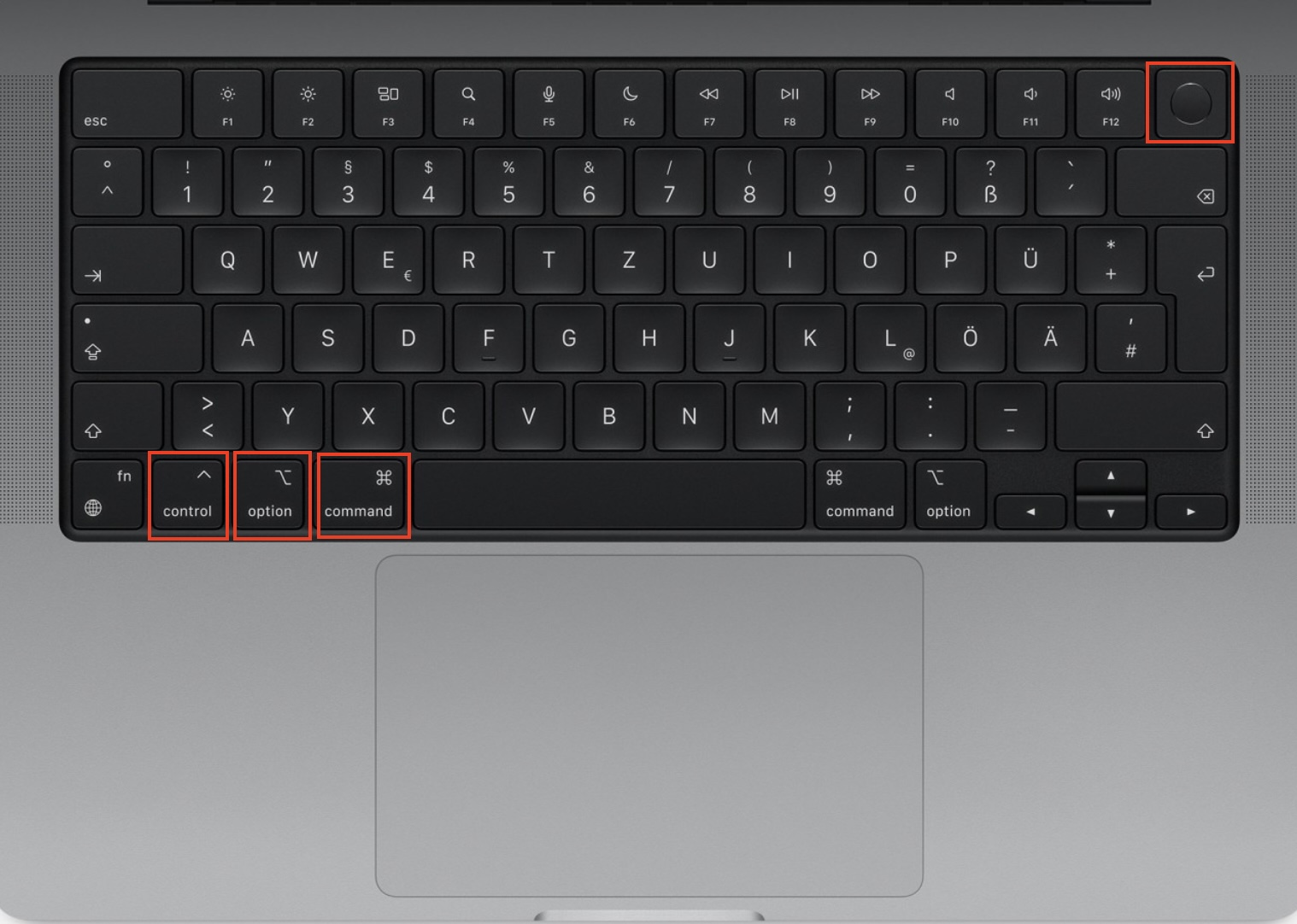
This tells macOS to close your apps and shut down the Mac cleanly before powering off.
Once the Mac has shut down, press the Power button again to start it up.
How To Restart a Frozen Mac
Sometimes a Mac becomes completely unresponsive and won’t respond to clicks or keyboard input.
Before forcing a restart, wait a minute or two in case macOS is simply busy completing a task.
If your Mac still shows the spinning beach ball, has a black screen or doesn’t respond at all:
- Press and hold the Power button (or Touch ID button) for about 10 seconds.
- Wait until the screen goes completely black.
- Wait another few seconds.
- Press the Power button again to turn the Mac back on.
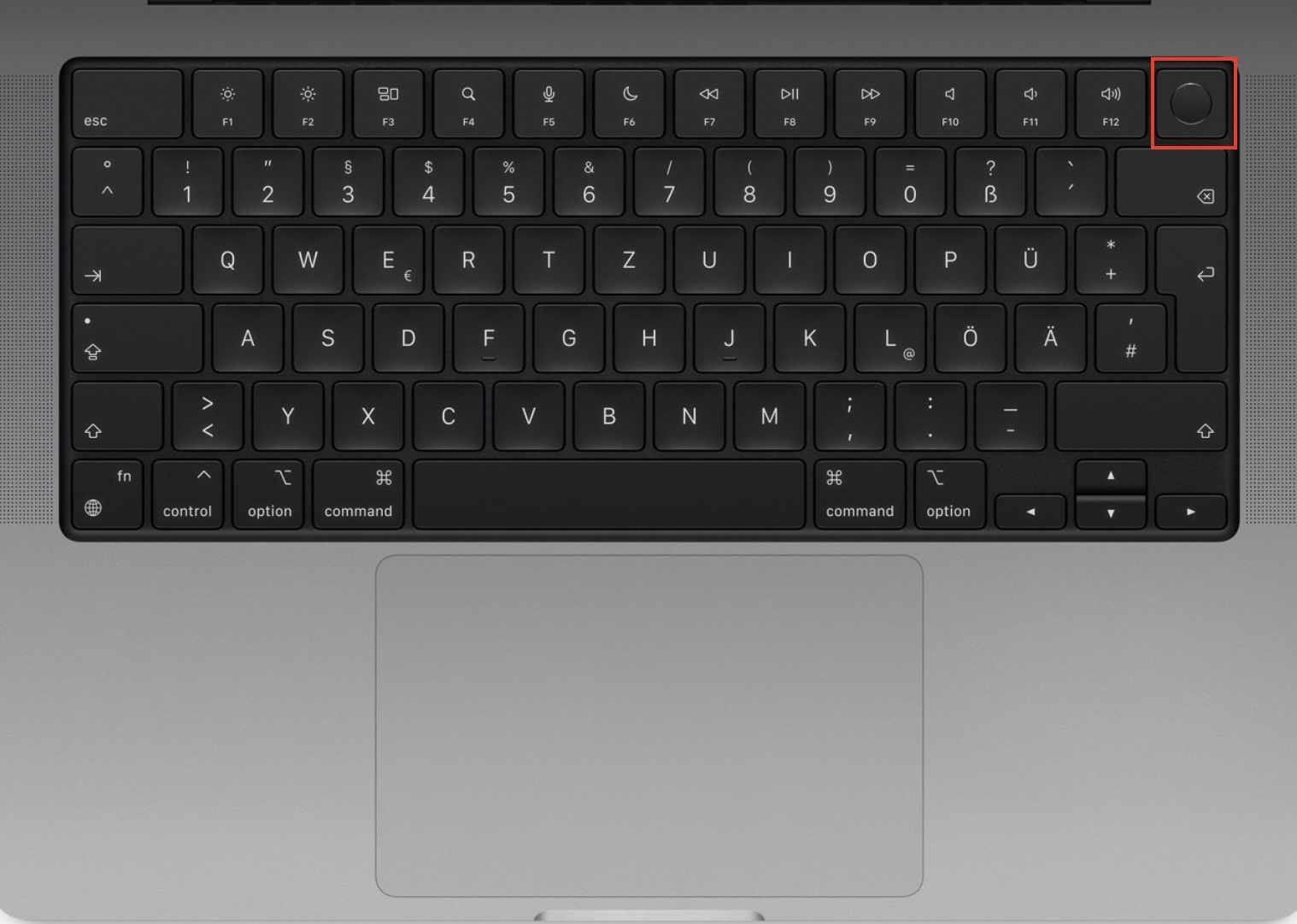
This is known as a force restart or hard reboot.
Note: Because macOS doesn’t have time to save open documents, you may lose any unsaved work.
Try Force Quit first
If only one application has frozen, you don’t necessarily need to restart your Mac. You can simply Force Quit the application that has crashed or is not responding.
Press: Option + Command + Escape

Select the frozen application which usually says “not responding” next to it.
Click Force Quit.
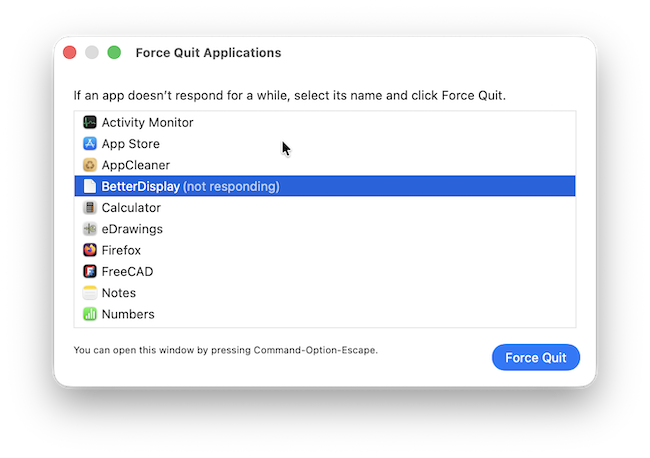
If the Mac responds normally afterwards, a restart may not be necessary.
For more help, read our guide on how to Force Quit on Mac.
If you need more help on a Mac that’s stopped responding, check out our guide on how to fix a frozen Mac.
How To Restart a Mac in Safe Mode
Safe Mode starts macOS with only essential system software and performs a quick check of your startup disk.
It’s useful when troubleshooting:
- Apps that won’t open
- Frequent crashes
- Startup problems
- Slow performance
- Login issues
Apple Silicon Macs (M1-M5)
- Shut down your Mac.
- Press and hold the Power button until Loading startup options appears.
- Select your startup disk.
- Hold Shift.
- Click Continue in Safe Mode.
- Log in if prompted.
You’ll see Safe Boot in the menu bar on the login screen.
Intel Macs
- Restart or turn on your Mac.
- Immediately hold the Shift key.
- Release Shift when the login window appears.
- Log in.
Safe Mode may take longer than usual to start because macOS performs several system checks during startup.
How To Restart a Mac in Recovery Mode
Recovery Mode lets you repair your startup disk, reinstall macOS, restore from Time Machine or erase your Mac before selling it.
Apple Silicon Macs
- Shut down the Mac.
- Hold the Power button.
- Wait until Loading startup options appears.
- Click Options.
- Click Continue.

Intel Macs
Restart your Mac while holding: Command + R
Keep holding the keys until the Apple logo appears.
How To Restart a Mac to Factory Settings
Restarting alone does not erase your Mac.
A factory reset permanently erases everything on your Mac, so make sure you’ve backed up anything you want to keep first.
Before doing this:
- Back up your files using Time Machine or another backup solution.
- Sign out of Apple Account if you’re selling the Mac.
- Make sure you know your Apple Account password.
Then:
- Start in Recovery Mode.
- Open Disk Utility.
- Select your startup disk.
- Click Erase.

- Return to the Recovery window.
- Select Reinstall macOS.
- Follow the installation instructions.
Once complete, your Mac will start exactly as it did when new.
How To Restart a Mac Using Terminal
If macOS is still responding, you can also restart your Mac from the command line using Terminal.
- Open Terminal (Applications > Utilities > Terminal) or press Command + Space, type Terminal, and press Return.
- Enter the following command:
sudo shutdown -r now- Press Return.
- Enter your administrator password when prompted and press Return again.
Your Mac will immediately begin restarting.
Note: The sudo command requires administrator privileges. You won’t see your password appear as you type it, which is normal.
Restart vs Shut Down vs Sleep
Many people use these interchangeably, but they’re different.
| Option | What it does | Best for |
|---|---|---|
| Sleep | Keeps your session in memory while using very little power | Short breaks |
| Restart | Reloads macOS and clears temporary system resources | Solving most software problems |
| Shut Down | Completely powers off the Mac | Long periods of non-use, hardware upgrades or transport |
If you’re troubleshooting, Restart is almost always the better first step than Shut Down.
Why Won’t My Mac Restart?
If your Mac refuses to restart, try these solutions:
An app won’t close
Press Option + Command + Escape and Force Quit the application.
External devices are causing problems
Disconnect:
- USB hubs
- External drives
- Printers
- Displays
Then restart again.
macOS is stuck during restart
Hold the Power button for 10 seconds to shut down the Mac completely, then turn it back on.
Your Mac restarts repeatedly
This could indicate:
- A faulty login item
- Corrupted software
- A failing peripheral
- Disk errors
Try starting in Safe Mode first. If the issue continues, use Recovery Mode to run Disk Utility’s First Aid on your startup disk.
FAQ
Does restarting a Mac delete anything?
No. Restarting simply reloads macOS. Your files, apps and settings remain unchanged.
How often should I restart my Mac?
You don’t need to restart your Mac regularly, but doing so once every week or two can help resolve minor software glitches and free temporary system resources.
What’s the difference between restart and force restart?
A normal restart allows applications to save their work before macOS closes them. A force restart immediately powers off the Mac and should only be used when it has completely frozen.
Can I restart a Mac without using the mouse?
Yes. Press Control + Command + Power (or Touch ID) to safely restart, or use Control + F2 to navigate the Apple menu with your keyboard.
Does Safe Mode delete files?
No. Safe Mode only loads essential system software to help diagnose startup and software issues. Your files remain untouched.