

If you’ve recently switched from Windows to a Mac, you might be wondering what is the keyboard shortcut equivalent of Ctrl + F is in macOS.
The good news is that it’s almost identical.
On a Mac, the equivalent of Ctrl + F is:
⌘ Command + F
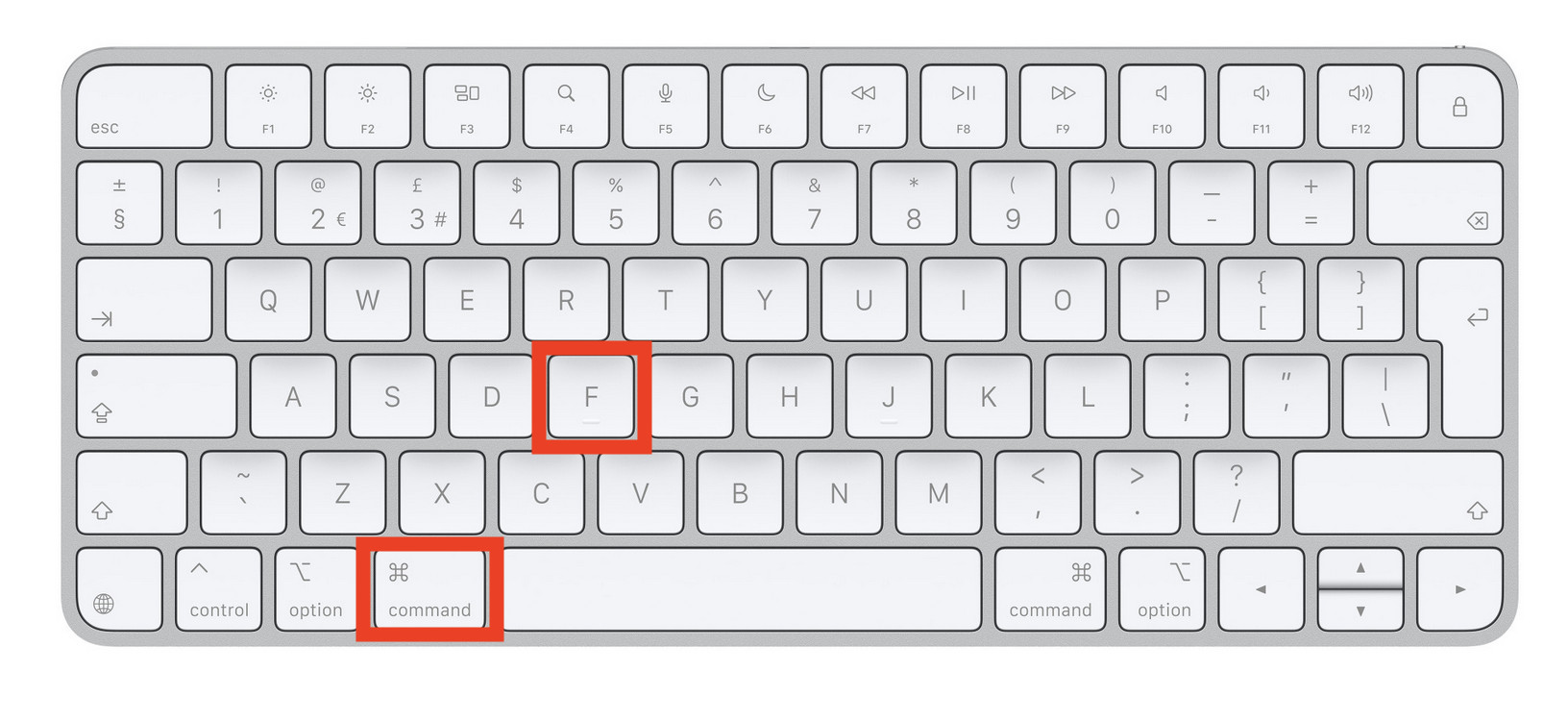
This keyboard shortcut works in almost every Mac application – including Finder when looking for files – and lets you quickly search for text, words, numbers, or phrases on the current page or document.
How to Use Command + F on a Mac
Simply:
- Open a document, webpage, PDF, or app.
- Press Command (⌘) + F.
- Type the word or phrase you’re looking for.
- Press Return or use the arrows in the search box to move between results.
A search bar will usually appear at the top or bottom of the window, depending on the app you’re using.

Where Command + F Works
You’ll find Command + F works in most macOS apps, including:
Whether you’re searching a long webpage, finding a sentence in a report, or locating a file name in Finder, Command + F is one of the most useful Mac keyboard shortcuts to know.
Why Doesn’t Ctrl + F Work?
Unlike Windows PCs, Macs use the Command (⌘) key instead of the Control (Ctrl) key for most common keyboard shortcuts.
For example:
| Windows | Mac |
|---|---|
| Ctrl + C | Command + C |
| Ctrl + V | Command + V |
| Ctrl + X | Command + X |
| Ctrl + Z | Command + Z |
| Ctrl + F | Command + F |
The Control key does exist on a Mac keyboard, but it’s generally used for system functions and special shortcuts rather than everyday copy, paste, and search commands.
Can I Use Ctrl + F on a Mac?
In most applications, Ctrl + F won’t perform a search.
Instead, pressing Command + F is the standard macOS shortcut.
Some cross-platform applications or remote desktop sessions may still respond to Ctrl + F, but for normal Mac use, Command + F is the shortcut you need.
Other Useful Search Shortcuts on a Mac
Once you’ve mastered Command + F, these shortcuts are also worth knowing:
- Command + G – Find the next search result
- Shift + Command + G – Find the previous result
- Command + Space – Open Spotlight Search
- Option + Command + Space – Search directly in Finder
These can make navigating documents and finding files much faster.
For more tips, check out our ultimate guide to Mac keyboard shortcuts.
Frequently Asked Questions
What is Ctrl + F called on a Mac?
The Mac equivalent is Command (⌘) + F.
Does Command + F work in every app?
It works in most Mac applications that support text searching, including web browsers, document editors, PDFs, Finder, and email apps.
Why do Macs use Command instead of Control?
Apple designed macOS to use the Command key for most keyboard shortcuts, leaving the Control key available for other system functions and accessibility features.
How do I search my entire Mac?
Press Command + Space to open Spotlight Search, then type the name of a file, app, folder, email, or document.
Learn More Mac Keyboard Shortcuts
If you’re moving from Windows, learning a few common keyboard shortcuts can make using your Mac much easier. Check out our complete guide to Mac keyboard shortcuts for dozens of time-saving shortcuts from taking screenshots to using Finder that you’ll use every day.
If you’re just getting started with macOS, you may also find our new Mac user guide helpful. It covers everything from setting up your Mac to mastering the essential features and settings every new user should know.