

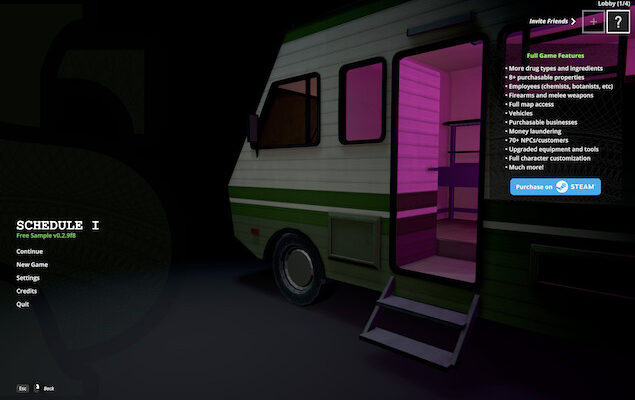
Schedule I (also commonly searched for as Schedule 1) is still a Windows-only Steam game. There is no native Mac version, but it now runs far more simply on recent Macs than it did when this guide was first published.
For most people with an Apple Silicon Mac, the best free starting point is Pixel Port. It lists Schedule I as Playable on M1-or-newer Macs running macOS Sonoma (14) or later, and runs the Windows Steam version without a Windows licence, virtual machine, Wine bottle, Boot Camp partition or Terminal setup.
If Pixel Port does not work well on your particular Mac, CrossOver is the best paid alternative. It is a mature, actively maintained compatibility layer with a free trial. Parallels Desktop is useful if you already need Windows for other software, while Boot Camp remains the best-performance route on a sufficiently powerful Intel Mac.
Quick Answer: The Best Way To Play Schedule I on a Mac
| Method | Best for | Cost | Mac support | Do you need Windows? |
|---|---|---|---|---|
| Pixel Port | The easiest free option for most Apple Silicon owners | Free | M1 or newer, macOS 14+ | No |
| CrossOver | A supported paid fallback with a free trial | Paid | Apple Silicon and Intel | No |
| Parallels Desktop | People who also need a full Windows installation | Paid | Apple Silicon and Intel | Yes |
| Boot Camp | Best native performance on a compatible Intel Mac | Windows licence may be needed | Intel only | Yes |
Our recommendation: If you have an M-series Mac, try Pixel Port first. It is the least complicated free route and its current catalogue specifically marks Schedule I as playable. If you want a more established paid option or Pixel Port is temporarily affected by an update, use CrossOver instead.
Before You Start
You will need to own Schedule I on Steam. Pixel Port and CrossOver do not include the game; they let your Mac run the Windows copy tied to your own Steam account.
Schedule I is still an Early Access game, so substantial game updates can occasionally affect compatibility. Check the current status on the Pixel Port game page before buying a Mac purely to play it, and keep your chosen compatibility app up to date.
The official Windows version needs at least 8GB of RAM, DirectX 11-compatible graphics and 10GB of storage. Those specifications do not map perfectly to a Mac, but they are a useful warning for older Intel models with integrated graphics. Leave some additional free storage for Steam, updates and the compatibility layer.
1. Play Schedule I on a Mac With Pixel Port — Best Free Option for Apple Silicon

Pixel Port is the most straightforward free way to play Schedule I on an M1-or-newer Mac. It automatically prepares the compatibility runtime and the game’s launch settings, so you do not have to create and maintain a separate Wine bottle or install Windows.
In our tests, we were really impressed at how easy Pixel Port makes it to install Steam games on a Mac.
Pixel Port currently classifies Schedule I as Playable on Apple Silicon Macs with macOS 14 or later. That is encouraging, but it is worth understanding the label: Playable means the game has been auto-tested or community-confirmed, rather than fully human-verified end-to-end. As with any Windows game on a Mac, a future Steam, game or macOS update can change the result.
How To Install Schedule I With Pixel Port
- Download and install Pixel Port on your Apple Silicon Mac.
- Open it and allow the initial Prism runtime setup to finish.
- Find Schedule I in Pixel Port, or open its game page and choose Download & play.
- Sign in to your Steam account when prompted.
- Click Install & Play. Steam will download the Windows version you own, while Pixel Port prepares it to run on macOS.
- When the download has completed, press Play once and wait for the first launch to finish.
There is no Boot Camp partition, Windows licence or separate Mac version of Steam required for this method. Pixel Port uses its own Steam setup behind the scenes, so quit the regular Mac Steam app first if Pixel Port says that Steam is already running.
Pixel Port Troubleshooting Tips
- The first launch after restarting your Mac can carry out quiet setup before a window appears. Press Play once and give it up to two minutes before trying again.
- Avoid repeatedly pressing Play or force-quitting Steam. Steam can temporarily pause a connection after several rapid restarts; if that happens, close the app and leave it for around 30 minutes before trying once more.
- If the initial Prism download appears to stall, quit Pixel Port and retry once before assuming that the game is unsupported. In our testing, an early download pause resolved on a subsequent attempt.
- For a controller, update Pixel Port first and connect the controller before launching the game. Current versions support most Xbox, PlayStation and generic USB/Bluetooth controllers.
- If performance is not as smooth as you would like, start with a lower resolution and medium graphics settings, then increase them gradually.
For more on it, check our full Pixel Port review.
2. Play Schedule I With CrossOver — Best Supported Paid Alternative
CrossOver is a paid compatibility layer that runs Windows games on macOS without installing Windows itself. It works on both Apple Silicon and Intel Macs, is actively maintained, and includes a free trial so you can test Schedule I on your own Mac before paying.
It is the route to choose if you prefer a well-established product with support and regular compatibility updates, or if Pixel Port is not currently behaving well after a game update. You can read more about it in our full CrossOver review.
How To Install Schedule I With CrossOver
- Download the CrossOver free trial and install it in your Applications folder.
- Open CrossOver and select Install a Windows Application.
- Search for and install Steam. Let CrossOver create a new bottle for it.
- Launch Steam inside CrossOver, sign in, then buy or install Schedule I.
- Start the game from Steam. Once it is working, you can create a Mac launcher from CrossOver for quicker access.
Start with CrossOver’s default settings. Older guides often tell you to manually enable DXVK, select a Metal backend or change several bottle options, but those instructions can be version-specific and occasionally make a modern setup less reliable. Update CrossOver first and only change a graphics setting if its current support guidance identifies a fix for the exact issue you see.
If a game update leaves the existing installation unreliable, create a fresh Steam bottle rather than spending hours altering old settings. This is often the cleanest way to rule out a damaged configuration.
3. Play Schedule I in Parallels Desktop — Best If You Also Need Windows
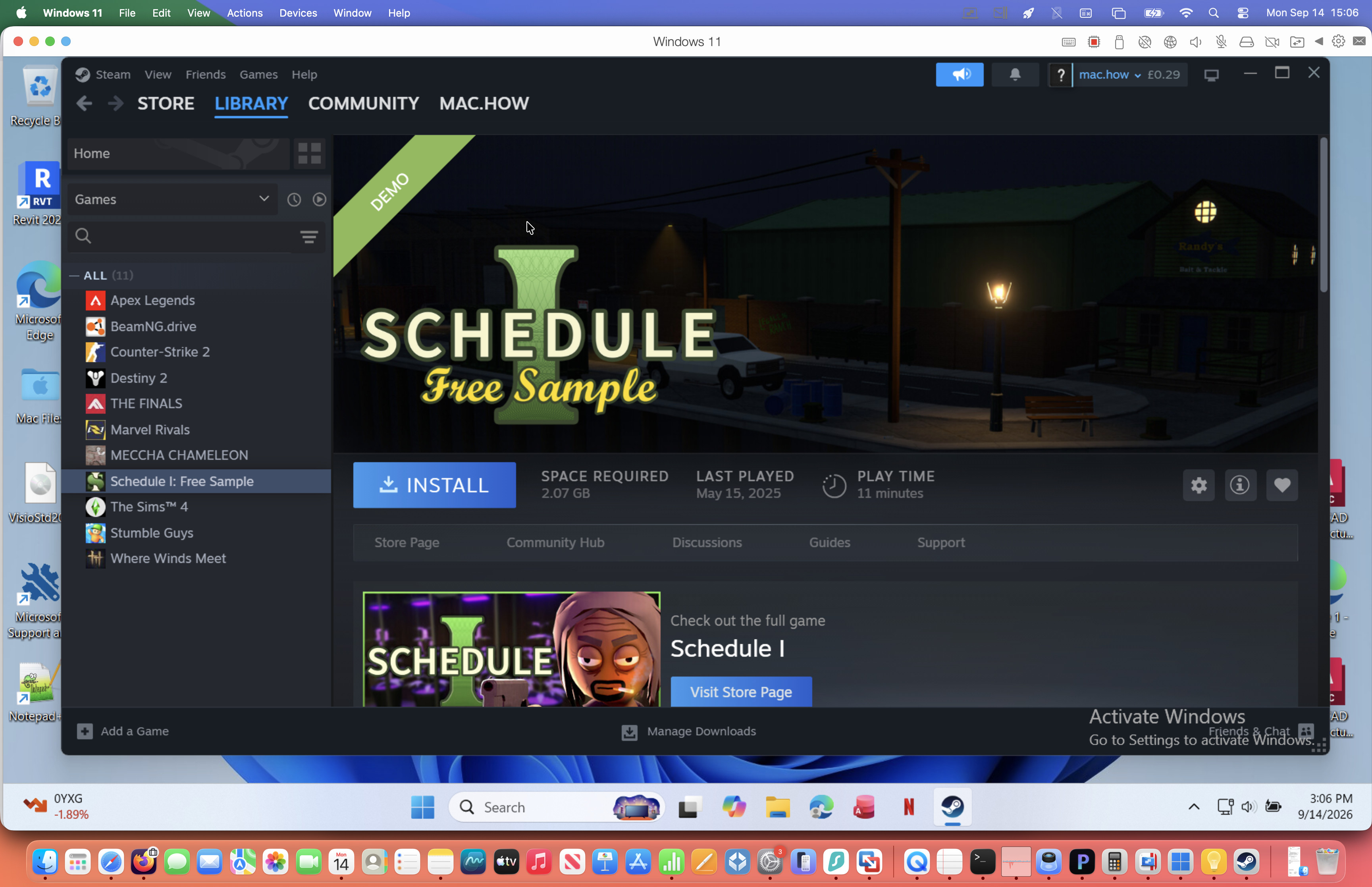
Parallels Desktop lets you run a complete Windows installation alongside macOS. It is not our first recommendation for gaming because a virtual machine shares your Mac’s memory and graphics resources with Windows, but it is useful if you already use Parallels for Windows-only apps, coursework or work software.
Schedule I uses DirectX 11, which is within the graphics feature set currently supported by Parallels. However, Windows on Apple Silicon and the game itself both involve translation, so performance depends much more on your particular Mac than it does with Pixel Port or CrossOver. Use the Parallels trial to check it before committing to it as a gaming solution.
How To Play It in Parallels Desktop
- Install Parallels Desktop and let it set up Windows 11 on Apple Silicon, or install a compatible Windows version on an Intel Mac.
- In Windows, install Steam and sign in to your account.
- Download Schedule I as you would on a PC.
- Shut down other demanding Mac apps before launching the game and begin with modest in-game graphics settings.
If you are choosing a Mac primarily for Windows gaming, a dedicated Windows PC remains the better-value option. Parallels is best here as a convenient fallback or as part of a Windows setup you already need.
Check our review of Parallels for Mac for more on what it can do.
4. Play Schedule I With Boot Camp — Best for Compatible Intel Macs
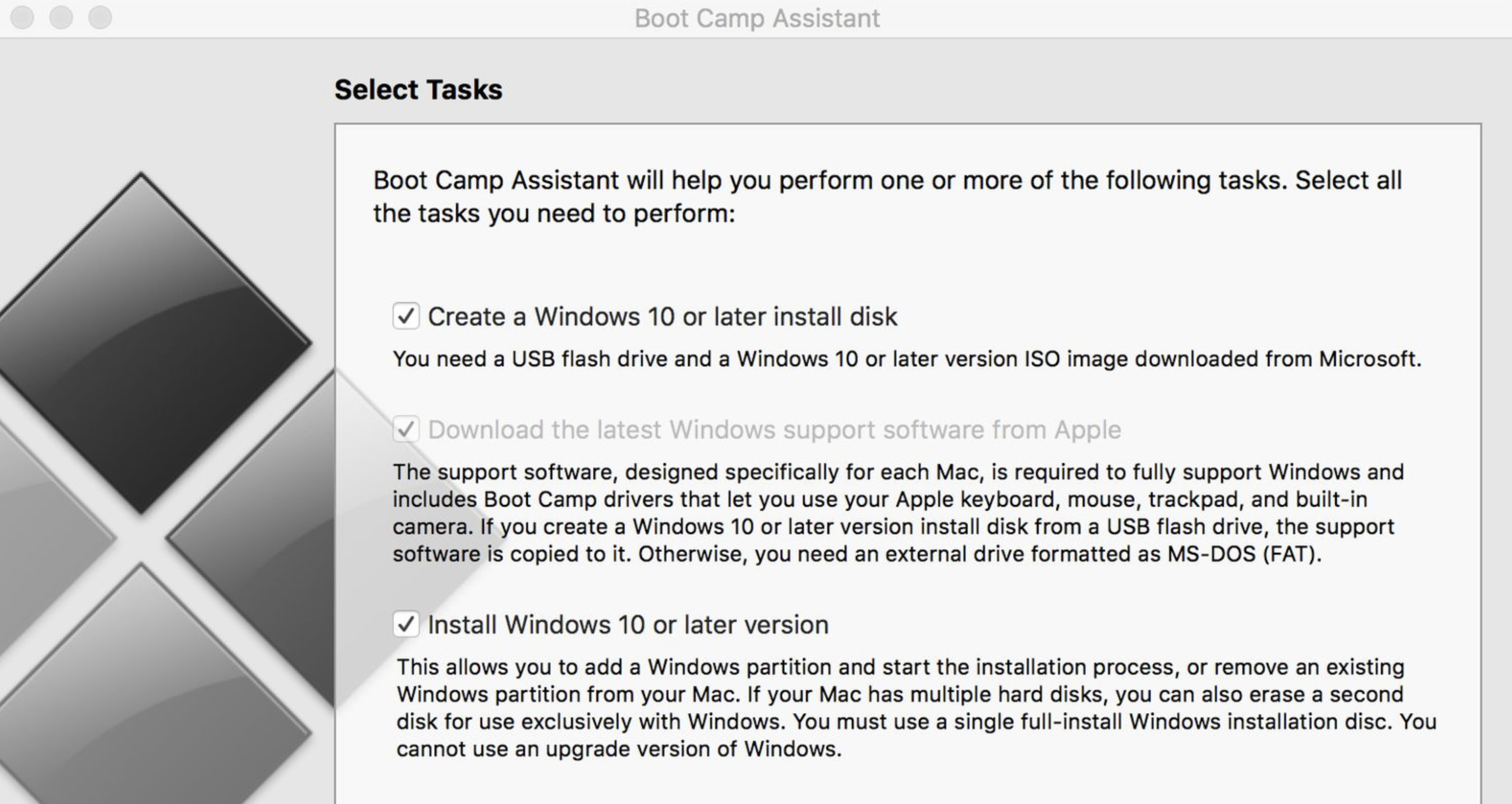
Boot Camp only works on Intel Macs. It cannot be used on any Apple Silicon Mac.
On a capable Intel Mac, installing Windows natively with Boot Camp gives you the least overhead because you boot directly into Windows rather than running a compatibility layer or virtual machine. It can therefore be the strongest option for an Intel iMac or MacBook Pro with enough RAM and a discrete graphics card that meets the game’s requirements.
- Follow our current guide to installing Windows with Boot Camp on an Intel Mac.
- Restart into Windows.
- Install Steam, sign in and download Schedule I.
- Install the latest Boot Camp drivers, then launch the game as you would on a Windows PC.
Do not assume every Intel Mac is suitable just because it has Boot Camp. Older Intel MacBooks and Intel Mac minis with integrated graphics are unlikely to be a good fit for a game whose minimum Windows GPU is a GeForce GTX 1060 6GB or Radeon RX 580.
Why We No Longer Recommend Whisky or Apple’s Game Porting Toolkit
Earlier versions of this guide recommended Whisky as a free method. It should now be removed as a main option: the project stopped receiving active updates in 2025, and its GitHub repository is archived. An old Whisky installation may still work for some people, but it is not a sensible recommendation for a new Schedule I setup in 2026.
Apple’s Game Porting Toolkit should also no longer be a full method in this article. It is useful technology for developers evaluating Windows games, but it is not a polished consumer game launcher. Pixel Port provides a much simpler route for this game by handling the compatible runtime and setup automatically, while CrossOver is the better established supported alternative.
Schedule I on Mac: FAQ
Does Schedule I have a Mac version?
No. The official Steam release is for Windows. Pixel Port, CrossOver, Parallels and Boot Camp are ways to run the Windows version on a Mac.
Is it called Schedule I or Schedule 1?
The official title uses the Roman numeral I: Schedule I. Many people search for “Schedule 1,” but they are referring to the same game.
Do I need to buy the game again to play it on a Mac?
No. You need to own the game on Steam, but you do not need a separate Mac purchase. Pixel Port and CrossOver use the Windows Steam copy in your existing library.
Do I need Windows on an Apple Silicon Mac?
No. Pixel Port and CrossOver run the Windows game without a Windows installation or licence. You only need Windows if you choose Parallels Desktop or, on an Intel Mac, Boot Camp.
Can I play Schedule I multiplayer on a Mac?
Schedule I supports online co-op on Steam, and Pixel Port currently lists no anti-cheat blocker for the game. That said, compatibility can change after updates, so test an online session with your friends after installing and keep your chosen app up to date.
Will it work on an Intel Mac?
Possibly, but it depends on the model and its graphics hardware. CrossOver can run on Intel Macs, while Boot Camp gives the best chance of native Windows performance on a sufficiently powerful Intel model. Check the game’s Windows requirements before spending time on setup.
The Bottom Line
The sensible 2026 order is simple: use Pixel Port first on an Apple Silicon Mac, use CrossOver if you want a supported paid alternative or need a fallback, choose Parallels only when you also need Windows, and use Boot Camp only on a capable Intel Mac.