

If your Mac screen is flickering on an external monitor, you’re not alone. This is one of the most common issues on Apple Silicon Macs with the M1-M5 chips.
The key thing to understand is that this is not always a cable problem. It’s often caused by macOS display processing (especially GPU dithering, refresh rate conflicts, and color profiles).
This guide walks you through all proven fixes, starting with the ones that actually work in 2026.
Note that if your Mac isn’t detecting the display at all, see our guide on fixing external monitors not detected on Mac.
If you also find that image quality is blurry, check out our guide on how to fix blurry external display issues on a Mac.
Quick Fixes (Try These First)
Before spending ages going through all of these solutions, try these in order as they are the most common fixes.
- Restart your Mac and monitor
- Unplug and reconnect the display cable
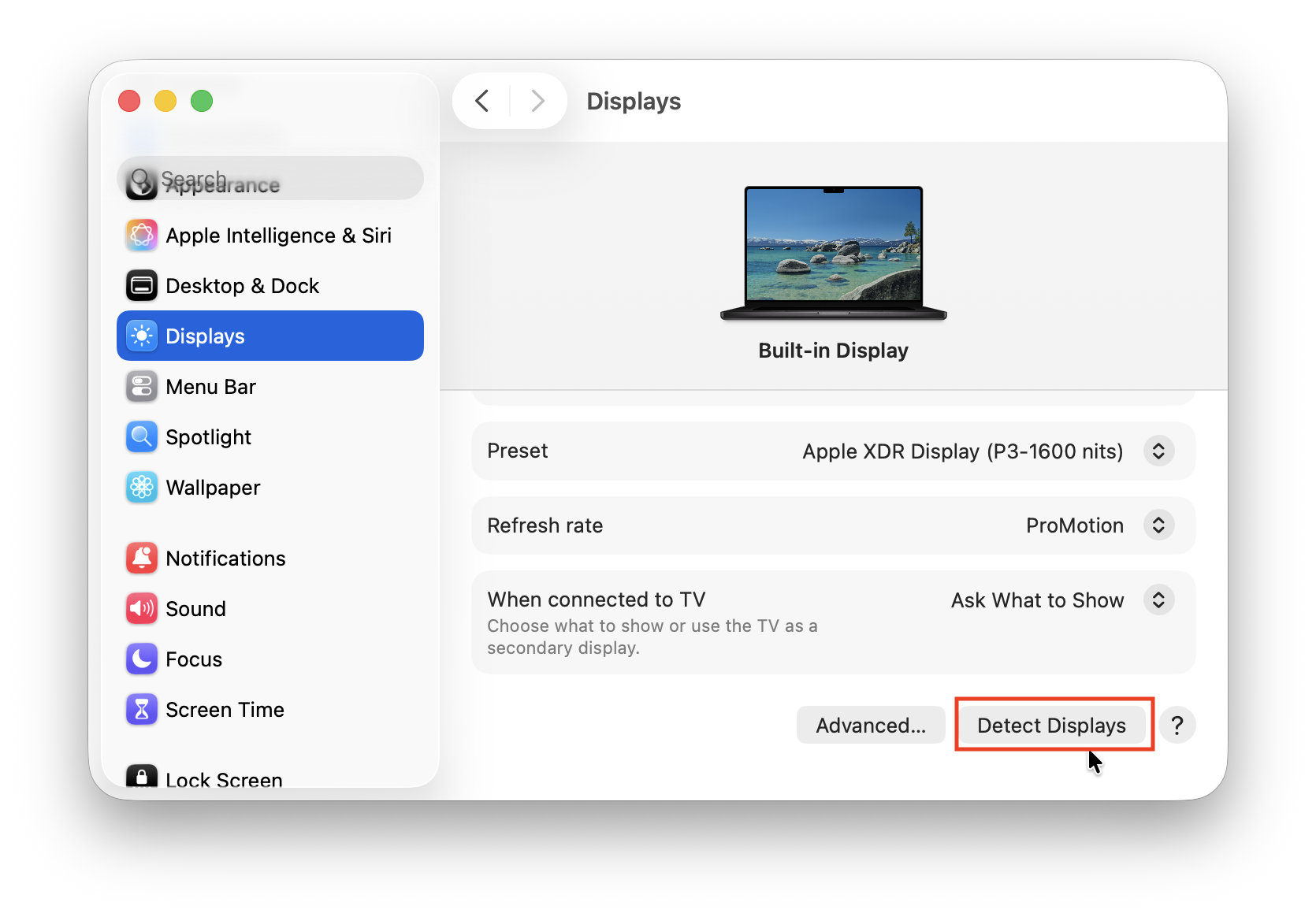
- Go to System Settings > Displays > Detect Displays (hold Option key)
- Update macOS to the latest version by going to System Settings > Software Update
If this doesn’t fix things and the external monitor connected to your Mac is still flickering, read on for a comprehensive guide to solutions.
Fix 1: Disable GPU Dithering
This is the most effective fix reported by users, especially on Apple Silicon Macs.
Why this works
macOS uses temporal dithering to simulate colors – but this can cause:
- Flickering (especially on dark backgrounds)
- Shimmering text
- UI instability (menu bar flicker, VS Code flicker, etc.)
Option A: Use StillColor
StillColor is a lightweight tool that disables dithering completely.
Steps:
- Download StillColor (from GitHub)
- Open the app
- Click Disable Dithering
- Enable Start at Login (important!)
In many cases, this completely stops flickering instantly. However, I found that it StillColor wouldn’t open in the latest version of macOS Tahoe but found an alternative method using BetterDisplay (see below).
Option B: Use BetterDisplay
BetterDisplay gives more control over display settings and is commonly used to fix external monitor resolutions issues on Macs.
Steps:
- Install BetterDisplay
- Open it and select your external monitor
- Go to Color Mode
- Disable:
- GPU Dithering
- (Optional) Switch to 10-bit color if available
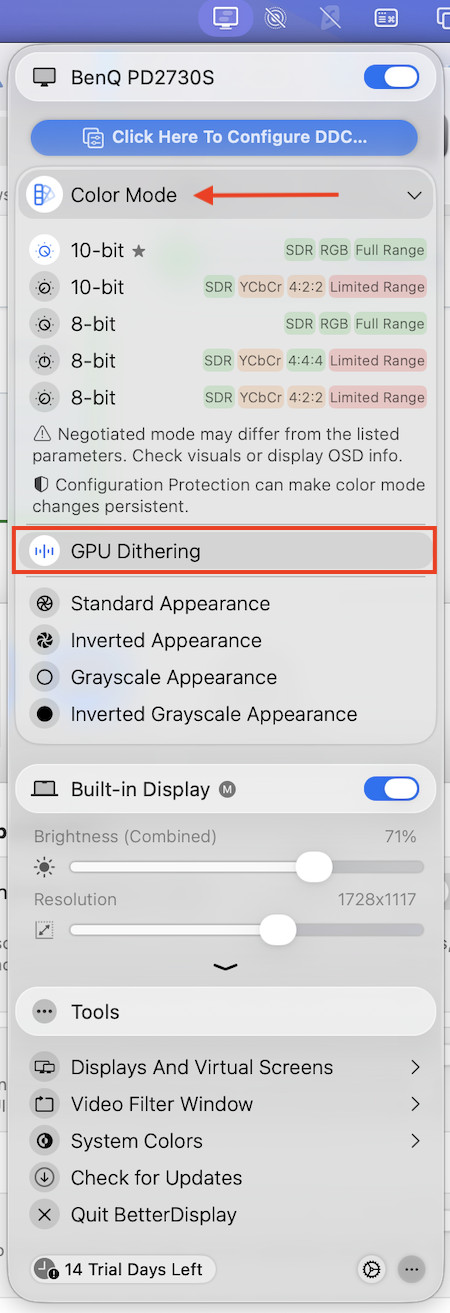
Note that in newer versions of BetterDisplay, dithering is under Color Mode, not Image Adjustments.
Important Note:
- This fix works best for:
- Dark mode flickering
- High refresh monitors (120Hz / 144Hz)
- It may reduce flickering rather than eliminate it entirely on some setups
Fix 2: Set Refresh Rate to 60Hz
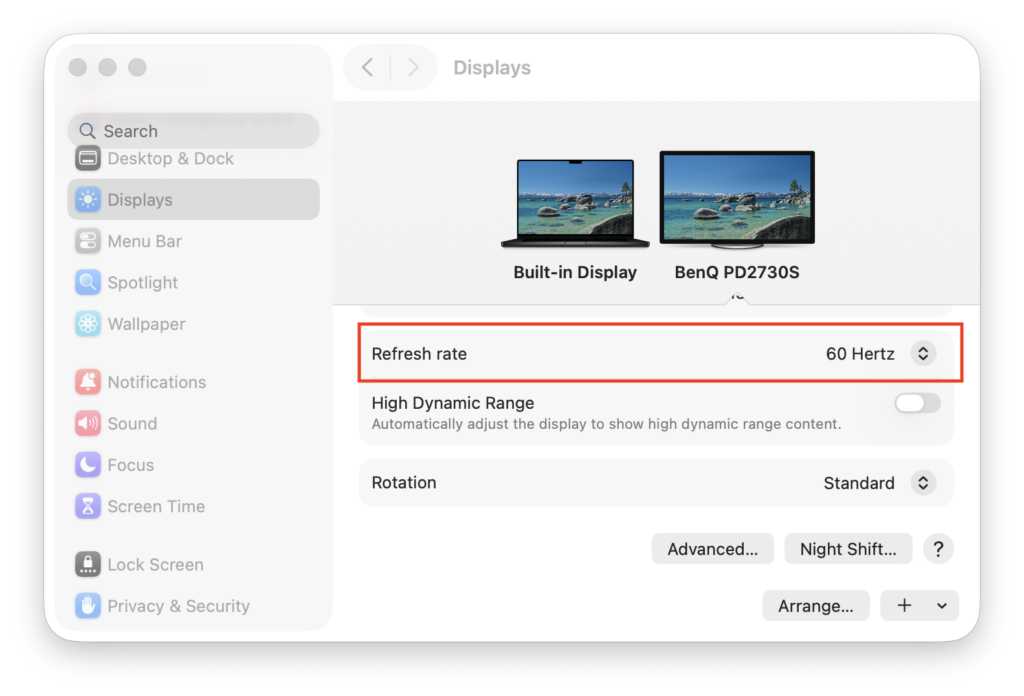
Many flickering issues come from variable refresh rates. Most monitors, other than those used for gaming, work best at a fixed 60Hz setting.
Steps:
- Go to System Settings > Displays
- Select your external monitor
- Change:
- Variable (50–60Hz)
- Set to 60Hz
This is especially important for:
- HDMI connections
- Budget 4K monitors
- Ultrawide displays
Fix 3: Force RGB Mode (For HDMI Users)
macOS sometimes outputs YCbCr instead of RGB, which causes flickering and washed-out colors.
Fix:
- Use tools like:
- SwitchResX
- Display utilities that force RGB output
Or:
- Try a USB-C to DisplayPort cable instead of HDMI. DisplayPort connections are far more stable on Macs so if possible, try that first.
Fix 4: Change Resolution (Hidden Fix)
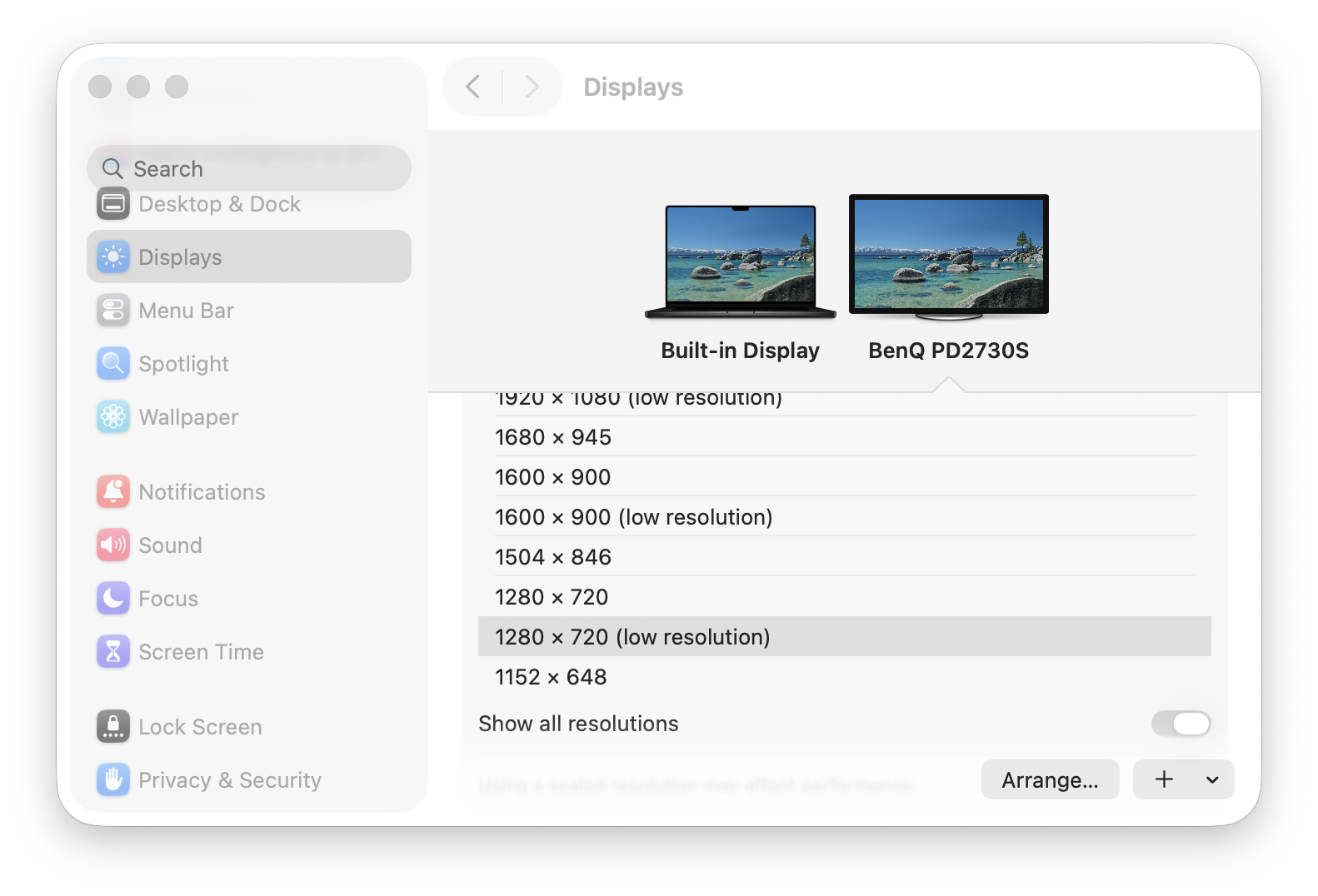
This workaround effectively disables certain GPU effects.
Steps:
- Go to System Settings > Displays
- Enable:
- Show all resolutions
- Try:
- A “low resolution” mode
Why this works:
- Reduces GPU scaling
- Can disable dithering indirectly
The downside of this however is that text may look slightly less sharp than usual.
Fix 5: Change Color Profile
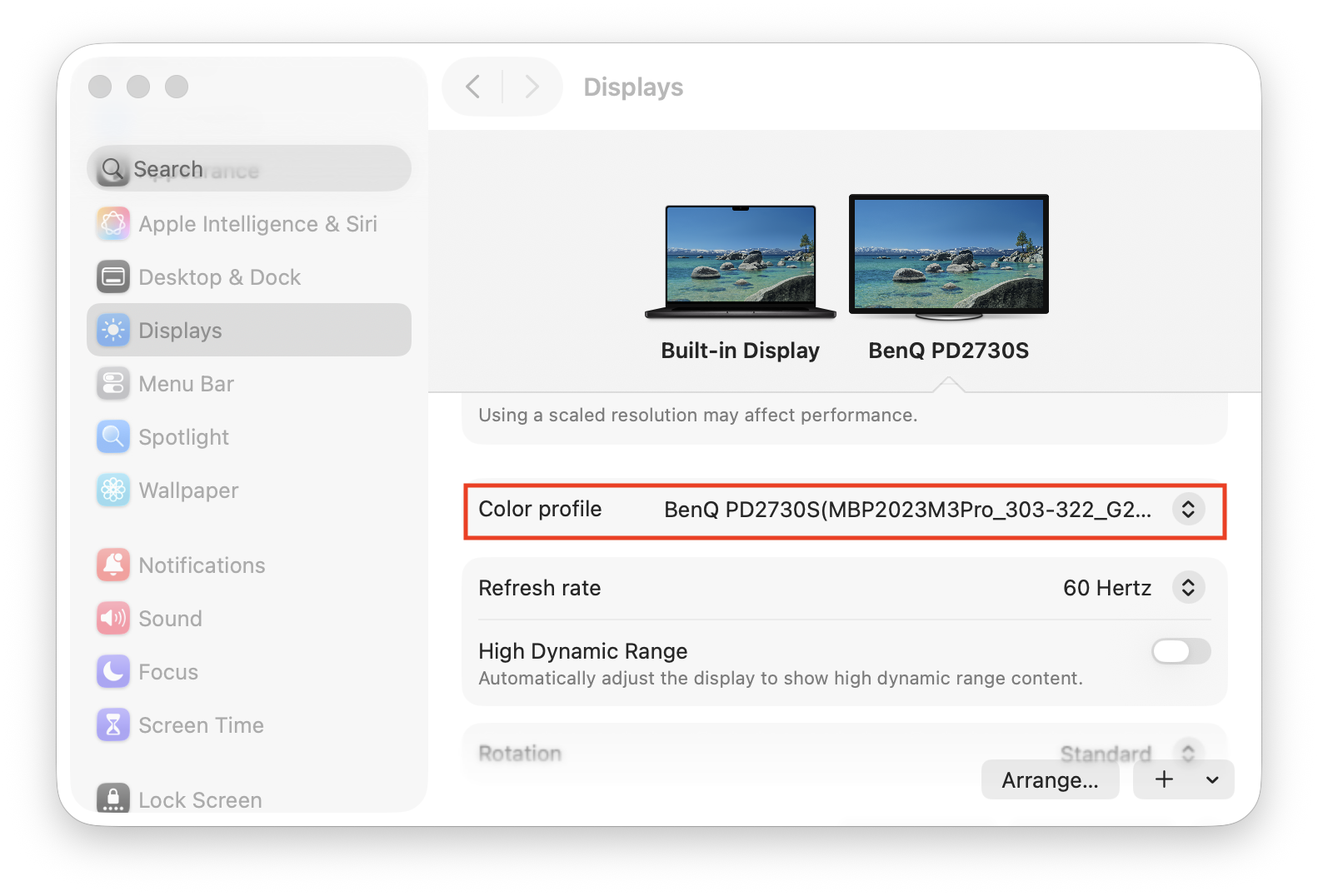
Incorrect or duplicated color profiles can cause flickering.
Steps:
- Go to Displays > Color Profile
- Try:
- sRGB IEC61966-2.1
- Remove duplicate profiles if present
This is often the solution for flickering on LG and BenQ monitors.
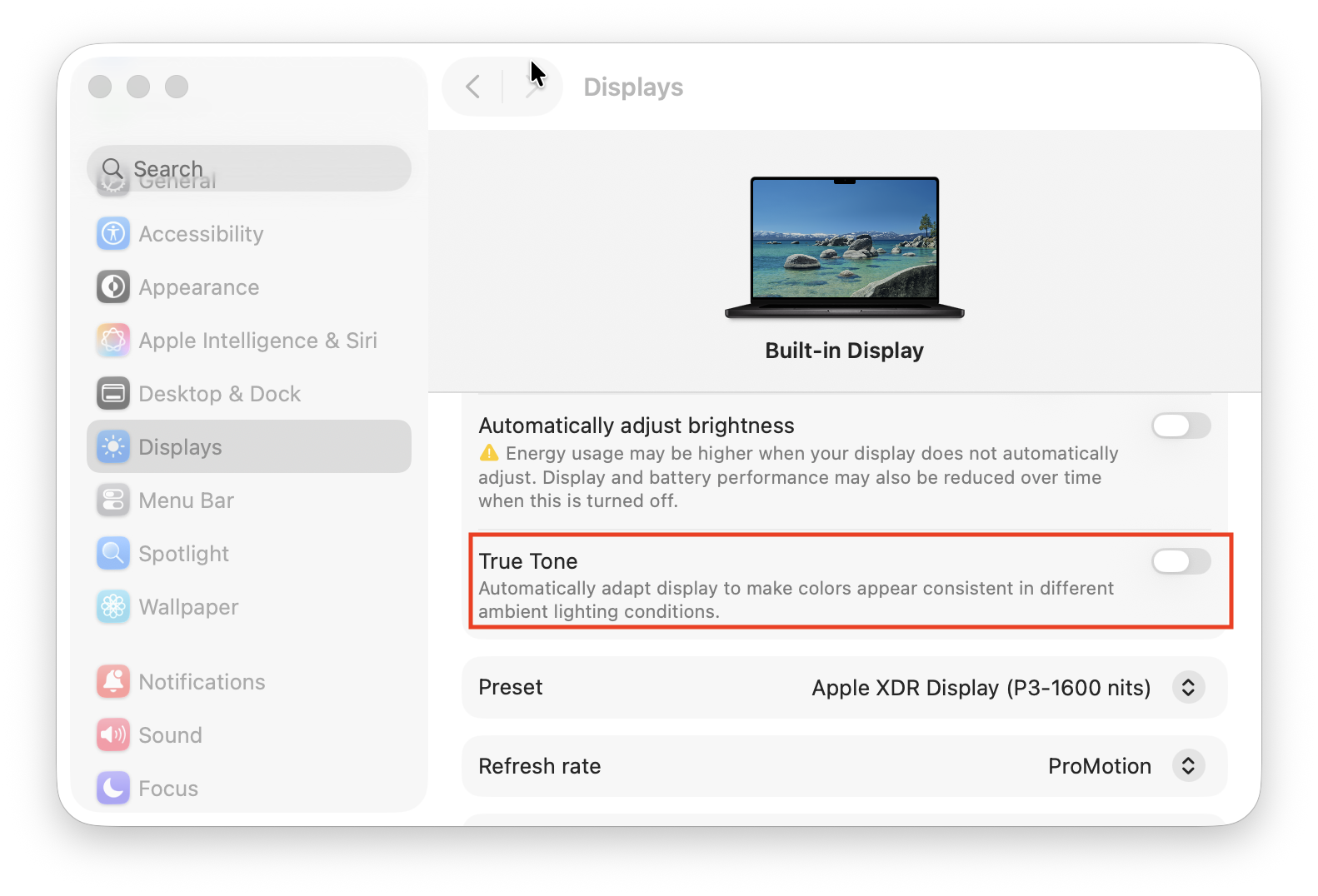
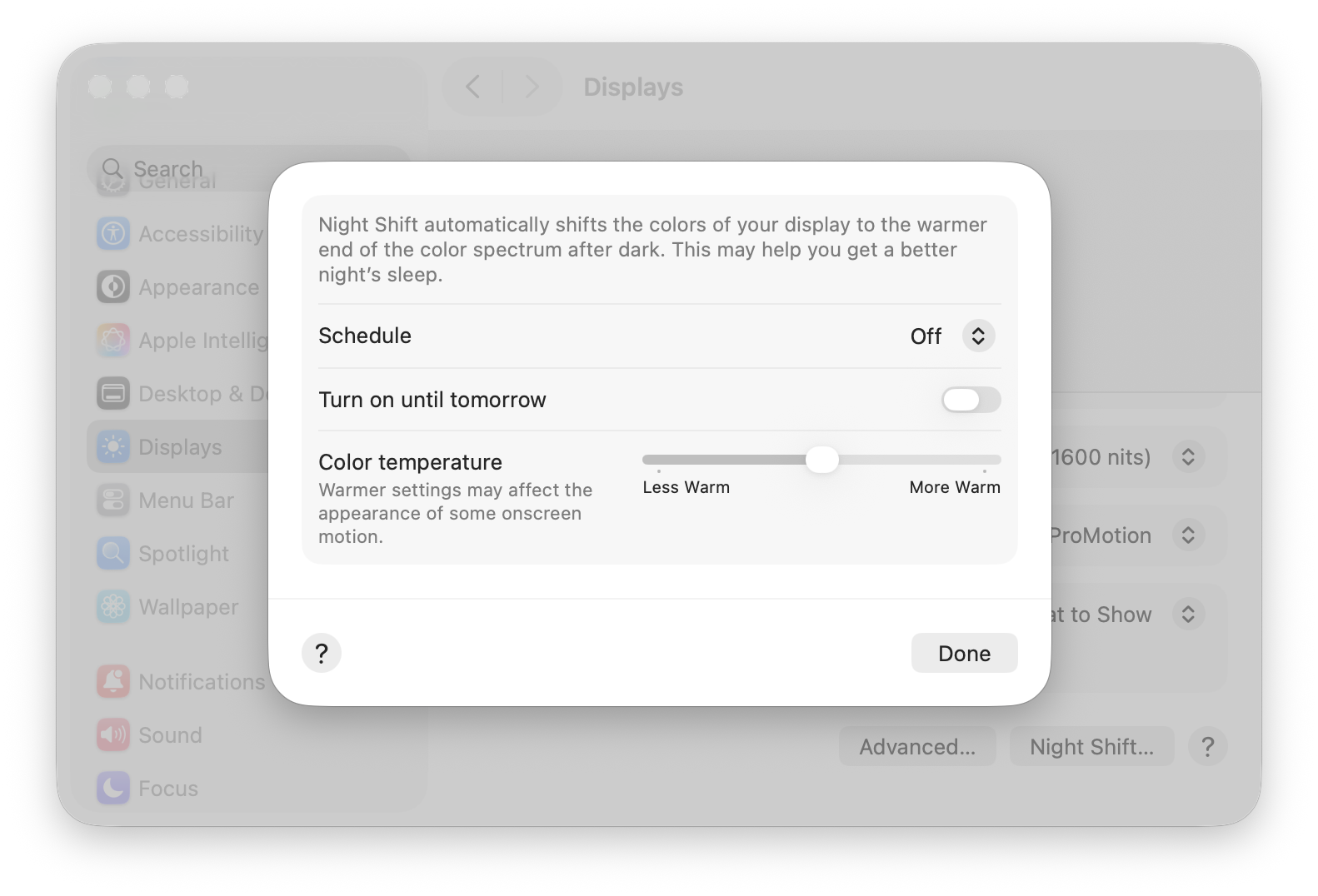
Fix 6: Turn Off True Tone & Night Shift
These features in macOS constantly adjust colors in real time and can conflict with external display calibration to cause flickering issues.
Disable:
- True Tone
- Night Shift
Fix 7: Replace the Cable
Even though many cases are software-related, cables still matter.
Use:
- USB-C → DisplayPort (best) as DisplayPort is more stable and should result in less flickering problems.
- Thunderbolt cables (for high-res monitors)
Avoid:
- Cheap HDMI cables
- Older HDMI standards (below HDMI 2.0)
Fix 8: Match Bit Depth (Advanced Fix)
Sometimes there can be a mismatch between:
- Framebuffer (10-bit)
- Display output (8-bit)
which can cause the external display to flicker.
Fix (via BetterDisplay):
- Set display to 10-bit color
- Disable dithering
Fix 9: Close and Reopen MacBook Lid
This might sound ridiculously simple but sometimes closing and reopening the lid on MacBooks can fix the problem instantly.
Flickering happens when using external display with lid closed and restarting with lid open, then closing it sometimes fixes it.
This is usually due to a macOS display initialization bug
Fix 10: Update or Downgrade macOS
Some versions of macOS versions introduce flickering bugs.
Try:
- Updating to latest macOS by going to System Setting > Software Update
- You can also try rolling-back macOS to a previous version although this is more complicated.
Are External Flickering Issues a Hardware Problem?
The number of issues Mac users are having with flickering external displays suggests that its mainly Apple Silicon Macs that are effected, especially on M1 / M2 Macs, High refresh monitors and HDMI connections.
However, most users fix it with software tweaks (especially dithering)
The Most Common Combination That Usually Works
For most users, this combo solves it:
- Disable GPU dithering (StillColor or BetterDisplay)
- Set refresh rate to 60Hz
- Use a USB-C → DisplayPort cable
- Switch to sRGB profile
FAQ
Why does flickering happen more in Dark Mode?
Dark UI makes dithering artifacts more visible, which is why flickering appears worse.
Does this affect M3 and M4 Macs?
Yes – less common, but still reported, especially with certain monitors.
Is there a permanent Apple fix?
As of 2026, there is no universal fix from Apple yet and the above workarounds are still required.