

Desktop publishing software gives you more control over page layout than a normal word processor. It is what you use to make a brochure, magazine, newsletter, book, catalogue, poster or print-ready flyer where precise typography, images, master pages, bleeds and colour matter.
The best choice for most Mac users in 2026 is Affinity. It is a genuinely professional page-layout app, is now free, and combines layout, vector and photo tools in one Mac application. Adobe InDesign remains the safest choice if you work with an established designer, publisher or commercial printer. For straightforward flyers, menus and newsletters, Swift Publisher is much easier to learn and costs far less.
Microsoft Publisher is being retired in October 2026, which makes choosing a replacement particularly important. If that is your starting point, see our dedicated guide to the best Microsoft Publisher alternatives for Mac too. It explains the difference between replacing Publisher for future work and recovering old .pub files.
At a glance
| Software | Best for | Price at the time of checking | Key Mac consideration |
|---|---|---|---|
| Affinity | Best overall professional DTP | Free | Current native Mac app; free Canva account required |
| Adobe InDesign | Print professionals and agencies | From £21.98/month in the UK on an annual plan | Subscription only |
| Swift Publisher | Beginners and Publisher-style layouts | From $19.99 one-time | Mac-only app with a gentle learning curve |
| QuarkXPress | High-end print and digital publishing | Paid perpetual licence or subscription | Universal Apple Silicon/Intel build |
| Scribus | Free, open-source print work | Free | Current downloads are available for both Intel and Apple Silicon Macs |
| iStudio Publisher | Simple Mac-only page layout | Free download; from £1.99/month or £12.99/year in the UK App Store | Requires macOS 14.2 or later |
| VivaDesigner | Advanced multilingual and format-conversion work | Free edition; paid full edition available | Current Apple Silicon build still uses Rosetta while native support is being developed |
| Canva | Fast template-led content and small teams | Free plan; paid upgrades available | Better for speed and collaboration than detailed prepress |
| Marq | Controlled brand templates for teams | Quote-based | Browser-based, with excellent customization |
| Apple Pages | Simple documents, posters and books | Free | Excellent for basics, but not a full print-production tool |
Prices, plans and compatibility can change quickly, especially after a major macOS release. Before committing to a subscription or moving a large archive, install the trial or free version and test a real document, its fonts and a print-ready PDF.
How we chose the best DTP software for Mac
A good desktop publishing app should do more than place text over an image. For this guide, we prioritised software that offers useful page-layout controls such as master pages, guides, text flow, styles, spreads, image placement and reliable PDF export. We also considered whether it is actively maintained for modern Macs, whether it suits a particular type of publication, and whether its price makes sense for the work it does.
If you send work to a commercial printer, always ask for its preferred PDF standard, bleed, crop-mark and colour-profile requirements. No recommendation can replace a proof copy of your own file.
1. Affinity — Best Overall Desktop Publishing Software for Mac
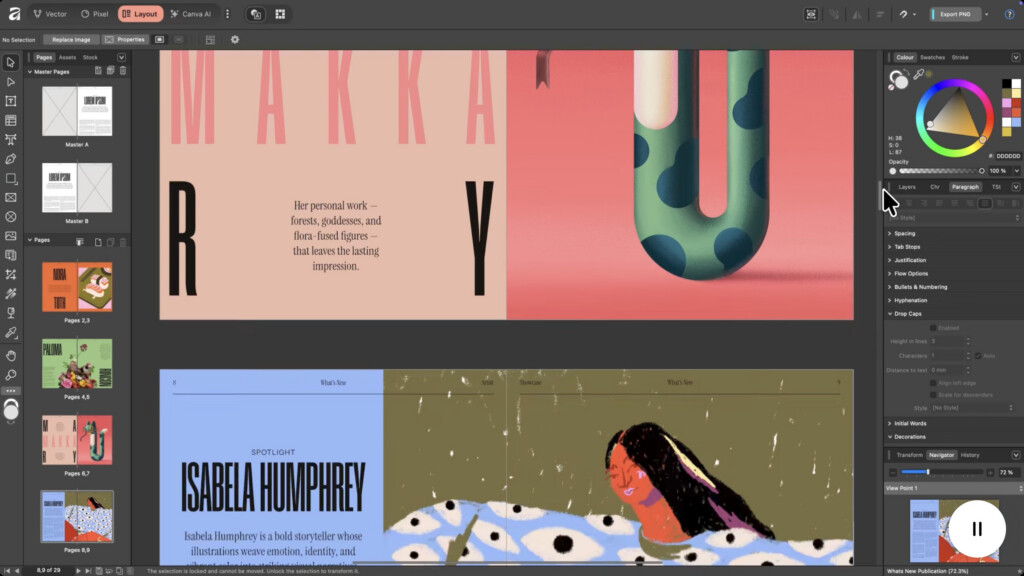
Affinity is our top choice for most people creating professional-looking print layouts on a Mac. Canva relaunched it in late 2025 as a single free creative app that combines the old Affinity Publisher, Designer and Photo apps. That means you can lay out a multi-page report or magazine, edit a placed photo and refine vector artwork without moving between three separate applications.
The Layout workspace is the part that replaces Affinity Publisher. It gives you smart master pages, shared text styles, detailed typography controls and flexible page layout for brochures, books, reports, catalogues and magazines. It can also work with common professional formats including PDF, SVG, TIFF, PSD, AI and IDML, so it is a much more credible InDesign alternative than a template-led browser tool.
The basic app is free rather than a restricted trial. Canva’s paid AI tools are optional, so you do not need a Canva subscription to use its core professional layout, image and vector features. You do need a free Canva account to download and activate it.
For a one-person project, that makes Affinity unusually good value. Its main limitation is collaboration: it is a proper desktop creative app, not a real-time, multi-user content-approval platform. Teams that need locked templates and approval features should look at Canva or Marq instead.
Price: Free
Pros:
- Professional page-layout, vector and image-editing tools in one app
- Free for everyone, with no stripped-down publishing edition
- Strong option for brochures, books, magazines, reports and marketing collateral
- Imports a useful range of design and image formats, including IDML
- Native Mac application rather than a browser-only tool
Cons:
- A free Canva account is required to activate it
- No built-in real-time co-authoring or approval system like Marq
- Existing Affinity V1/V2 users should test legacy files before switching fully; files saved in the newer app cannot be reopened in the older apps
2. Adobe InDesign — Best for Professional Print Work
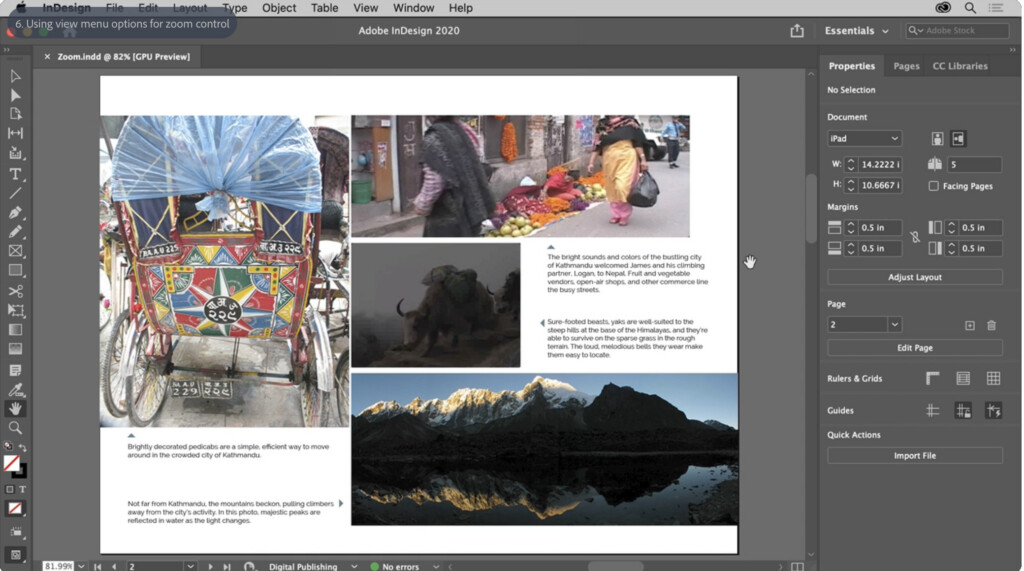
Adobe InDesign is still the industry standard for professional page layout. If a printer, agency, publisher or freelance designer expects an InDesign package or an IDML file, it is normally the least risky choice.
It has the deepest toolset here for long, complex publications: paragraph and character styles, master-page systems, book files, preflight checks, data-driven layouts, advanced typography and robust print/export tools. It is also a natural fit if your artwork already comes from Photoshop or Illustrator. Current versions also include Adobe’s PDF conversion tools, which can be useful when an old PDF is the only available starting point, although you should still proof the result carefully.
The downside is cost and complexity. InDesign is a specialist professional tool, not the quickest way to make a one-page school flyer. It is also subscription-only, so it is better value when it is central to your work rather than an occasional requirement.
Read our full Adobe InDesign review for a closer look. If you also need vector artwork, see our Adobe Illustrator review.
Price: From $22.99/month or £21.98/month in the UK on an annual, billed-monthly plan, including VAT. A free trial is available.
Pros:
- The safest choice for professional print and established publishing projects
- Excellent long-document, typography and preflight tools
- Strong integration with Photoshop, Illustrator, Adobe Fonts and Adobe Express
- Supports print, PDF, eBooks and interactive/digital layouts
- Regularly maintained for current Macs
Cons:
- Subscription-only
- Steeper learning curve than the more consumer-focused options below
- Overkill for simple posters, invitations and occasional newsletters
3. Swift Publisher — Best Easy Desktop Publisher for Mac
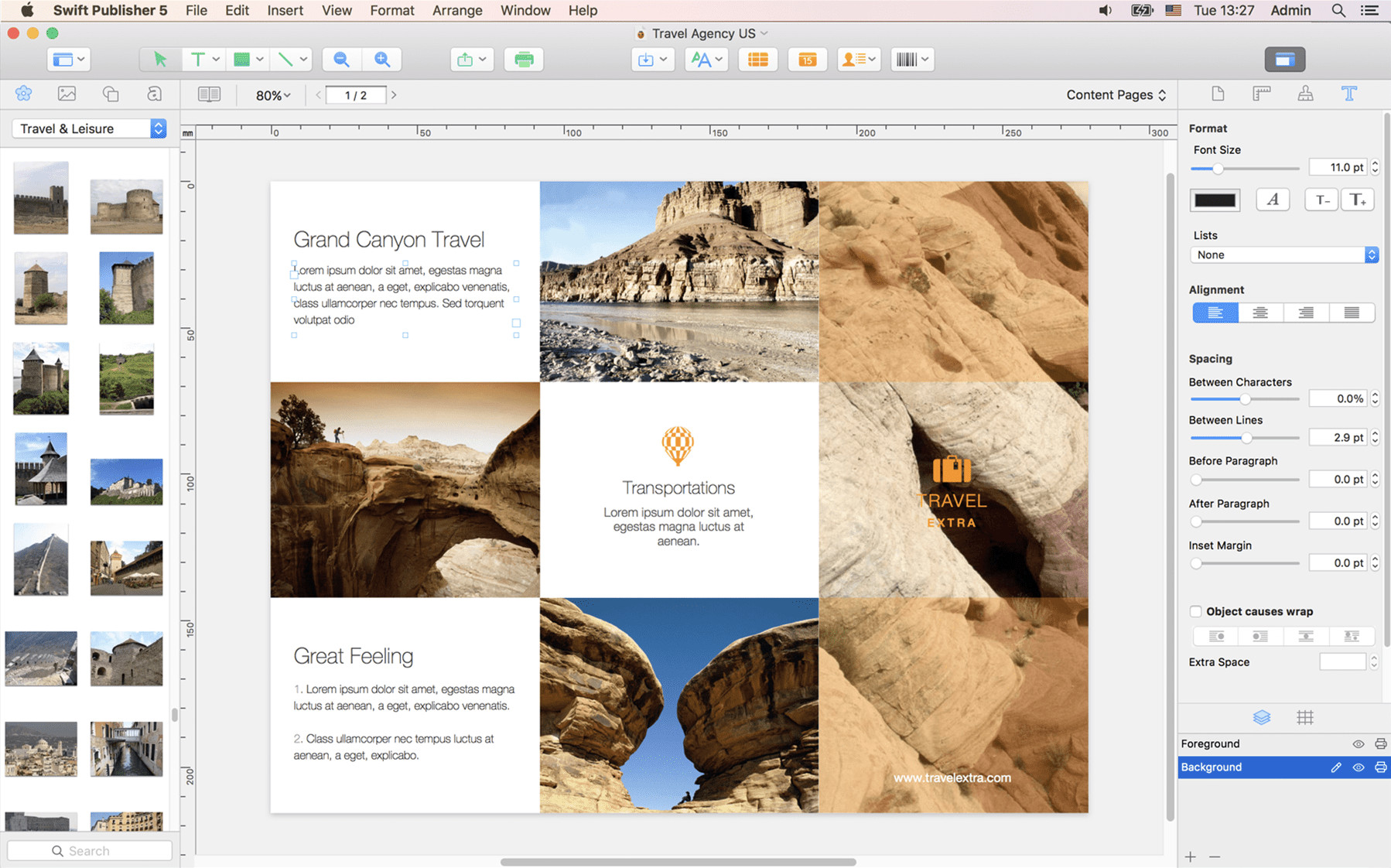
Swift Publisher is the best choice if you want the approachable, drag-and-drop feel that made Microsoft Publisher popular, but in a dedicated Mac app. It is particularly good for flyers, menus, certificates, newsletters, brochures, greetings cards and simple booklets.
It does not try to compete with InDesign feature-for-feature. Instead, it gives beginners the essential layout tools — templates, text boxes, layers, guides, master pages, tables and print settings — without making the interface intimidating. That makes it a far better fit than InDesign for a small business owner, club, school or home user who produces attractive print material occasionally.
Swift Publisher is actively maintained; version 5.7.6 was released in April 2026. It is a desktop app, so you are not dependent on a browser for the basic design work. Do not expect sophisticated image retouching or an enterprise collaboration system, however — pair it with a separate image editor if the photographs need substantial work.
Read our full Swift Publisher review for more.
Price: From $19.99 as a one-time purchase.
Pros:
- Easiest traditional DTP app here for newcomers
- Excellent value one-time purchase
- Strong choice for Publisher-style marketing materials
- Mac-native desktop application with templates and practical print tools
- Less daunting than Affinity, QuarkXPress or InDesign
Cons:
- Not designed for a high-volume professional publishing environment
- Image editing is basic
- Fewer exchange and collaboration options than the professional tools
4. QuarkXPress — Best High-End Perpetual-Licence Option
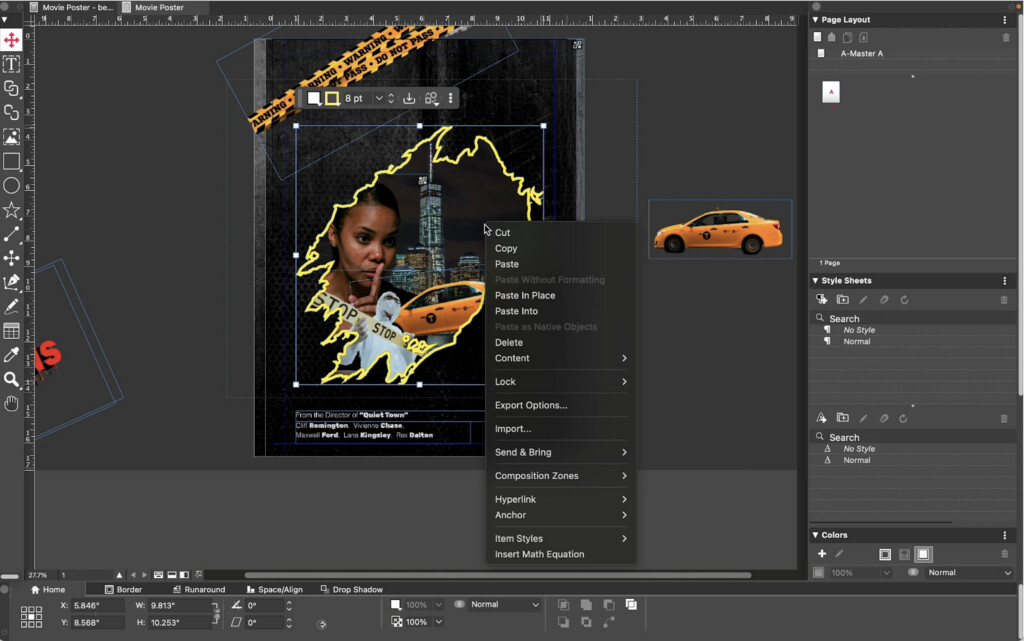
QuarkXPress remains a serious professional DTP application for people who prefer a perpetual licence to Adobe’s subscription model. It is especially worth considering for sophisticated print and digital publications, publishing departments and experienced designers who already know how it works.
QuarkXPress 2026 retains the kind of detail-oriented tools that justify its professional price: advanced page layout, typography, colour handling, digital publishing and output controls. It also supports a broad range of print and digital formats, and Quark offers both subscription and perpetual purchasing options.
Mac support is much better than it was with older versions. The 2026 installer is a Universal Binary that runs natively on both Apple Silicon and Intel Macs. Quark officially lists support for macOS Sonoma, Sequoia and Tahoe; if you are on a newer macOS release, check its compatibility page before buying.
Price: Paid perpetual and subscription plans are available. Use the Quark store for current regional pricing and a trial.
Pros:
- Powerful, mature professional publishing environment
- Perpetual licence option as well as a subscription
- Native Apple Silicon and Intel support in the current release
- Strong for complex print and digital publishing projects
Cons:
- Expensive for casual use
- Learning curve is comparable to InDesign
- A less common choice than InDesign when exchanging files with outside designers
5. Scribus — Best Free Open-Source DTP Software
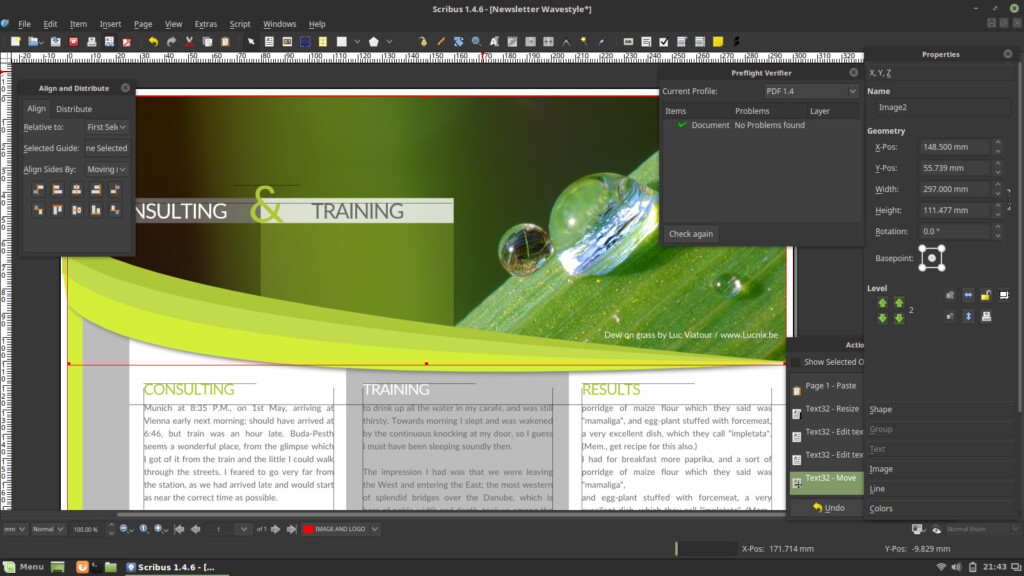
Scribus is the best free, open-source option if you need genuine page-layout controls rather than a browser template editor. It is particularly useful for budget-conscious users who want to create print-ready PDFs, newsletters, booklets, posters or small publications without taking on a subscription.
It is more capable than its plain interface first suggests. Scribus has the sort of features that matter for print: styles, master pages, precise object placement, colour-management tools and PDF export. Current releases provide separate downloads for Apple Silicon and Intel Macs, so the old warning that every Apple Silicon Mac must rely on Rosetta is no longer accurate.
The trade-off is usability. Scribus has fewer polished templates and tutorials than commercial tools, its interface can feel dated, and getting to grips with it is less forgiving for a first-time user. It is a great free option if you are prepared to learn it, but Affinity is usually the more pleasant free choice for most Mac owners.
Read our full Scribus review for more.
Price: Free
Pros:
- Completely free and open source
- Proper page-layout and print-PDF capabilities
- Current builds for both Apple Silicon and Intel Macs
- Good option for books, newsletters and technically minded users
Cons:
- Less intuitive and less polished than paid alternatives
- Limited commercial support and a smaller template ecosystem
- Not the best choice when you need seamless collaboration with an InDesign-based designer
6. iStudio Publisher — Best Simple Mac-Only Layout App
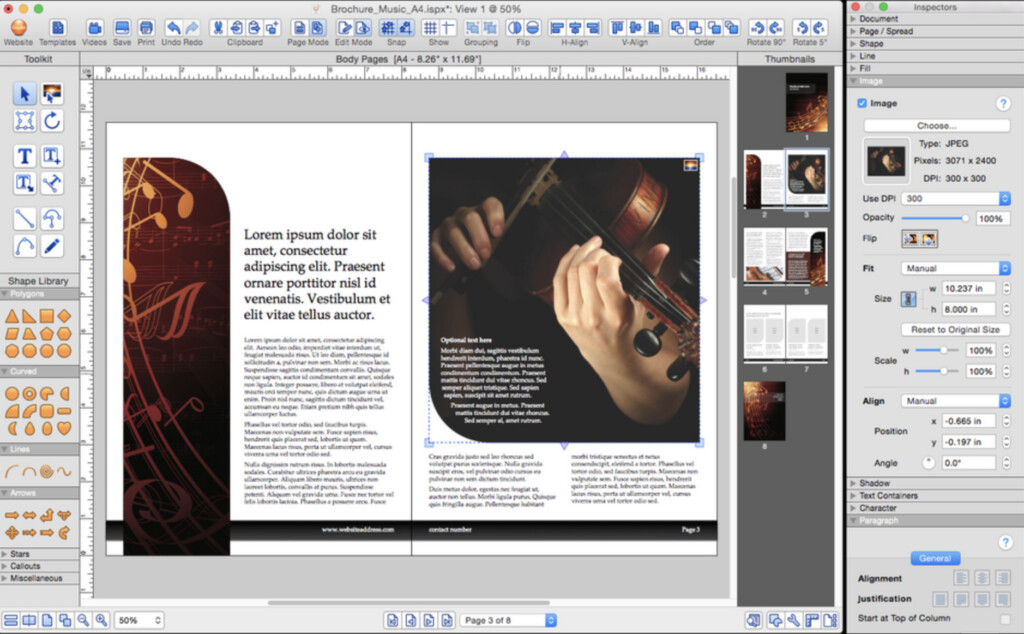
iStudio Publisher is a good middle ground between Pages and a professional DTP suite. It is designed exclusively for the Mac and makes it easy to create newsletters, brochures, adverts, flyers, booklets, invitations, menus, reports and yearbooks.
Its strengths are its straightforward Mac interface and genuinely useful page-layout features: master pages, two-page spreads, text flow, bleed and crop marks, booklet PDF export, templates and drag-and-drop media placement. It also lets you export to PDF, EPUB and RTF.
The current Mac App Store version is built for M-series Macs and supports Sonoma, Sequoia and Tahoe. It now uses a low-cost subscription model rather than the old one-time licence, and it requires macOS 14.2 or later. That makes it an appealing option for someone with a current Mac who wants simple, dedicated layout software without Affinity’s depth.
Price: Free download from the Mac App Store, with a free trial and UK in-app subscriptions from £1.99/month or £12.99/year.
Pros:
- Designed specifically for Mac users and easy to learn
- Useful print features including spreads, master pages, text flow and booklet export
- Native support for M-series Macs
- Very low entry cost and a free trial
Cons:
- Requires macOS 14.2 or later
- Now subscription-based for new users
- Does not support Chinese, Japanese or Korean text input
- Less suitable for agency-level file exchange than InDesign or Affinity
7. VivaDesigner — Best for Multilingual Layouts and Conversion Work
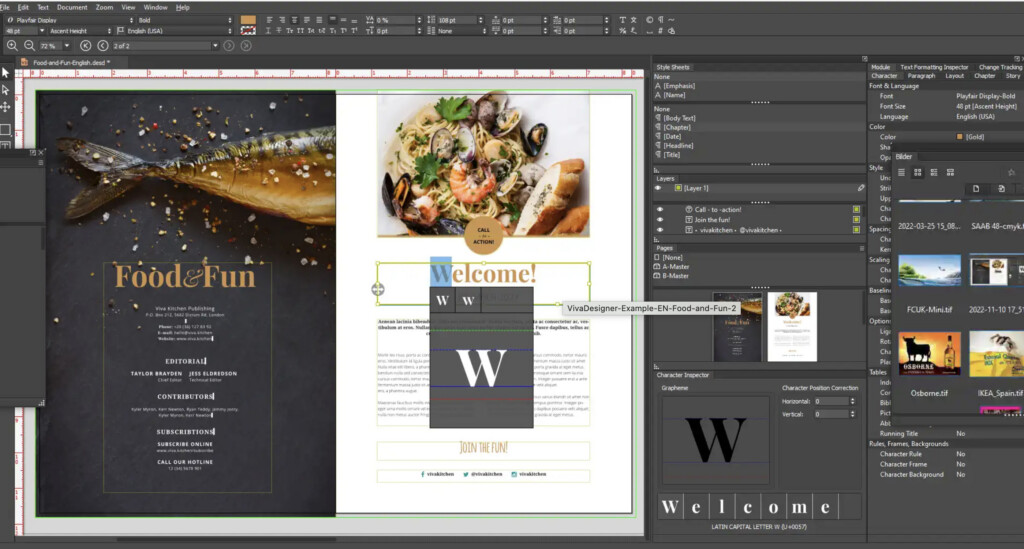
VivaDesigner is a lesser-known but unusually capable publishing application. It runs on macOS, Windows, Linux and the web, supports all writing directions and languages, and is worth a look for demanding multilingual typesetting, database-driven catalogues and controlled publishing environments.
It has a free lifetime edition plus paid full editions that can be bought or rented. The current Version 11 also offers InDesign import and, in its July 2026 update, introduced native Microsoft Publisher document import. That does not mean every complex legacy document will migrate perfectly, so use a representative .pub or IDML file for a trial before committing to it.
The important Mac caveat is performance. VivaDesigner says its current macOS version is required for Tahoe, but native Apple Silicon support is still in development. It can run on an M-series Mac through Rosetta, yet that is not as reassuring as a Universal or native Apple Silicon app if you expect to use it heavily for years.
Price: A free lifetime edition is available, with paid full editions and rentals for more advanced requirements.
Pros:
- Strong professional typesetting, language and writing-direction support
- Desktop and web across Mac, Windows and Linux
- Free edition available
- Useful InDesign and Publisher migration features
Cons:
- Smaller community and fewer beginner-friendly resources than the leading choices
- Current Mac version is not yet natively optimised for Apple Silicon
- More complex than most people need for ordinary flyers and newsletters
8. Canva — Best for Fast, Collaborative Template-Based Publishing
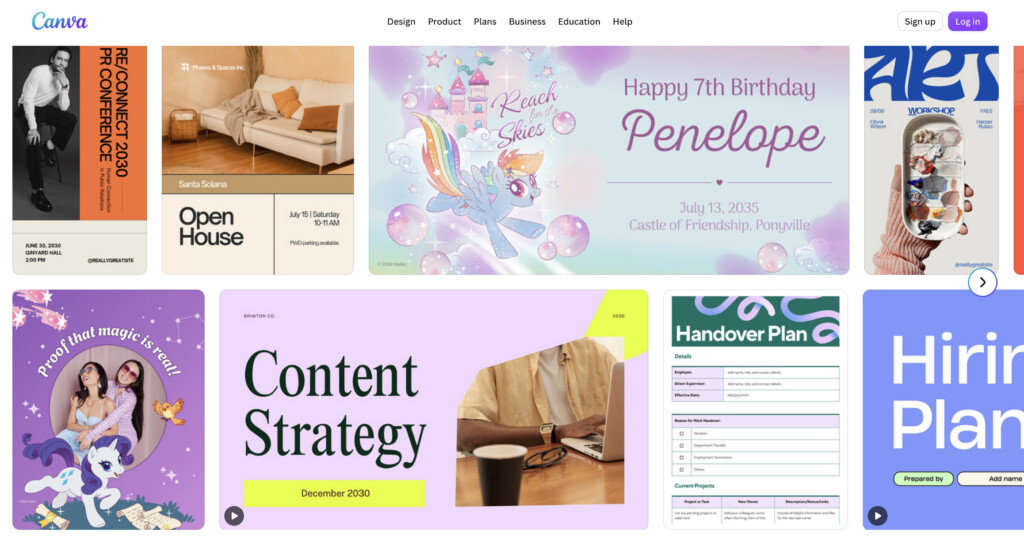
Canva is not a traditional desktop publishing package, but it is one of the quickest ways to make polished marketing materials on a Mac. It is ideal for posters, social graphics, simple brochures, invitations, presentations and branded content that several people need to edit.
Its strengths are templates, stock assets, real-time collaboration, brand kits and simple sharing. The free plan is enough for basic designs, while Canva Pro adds useful production features such as print-ready/CMYK export, more assets and greater brand control.
Choose Canva when speed, templates and team access are more important than deep typographic and prepress control. Choose Affinity, InDesign, Scribus or QuarkXPress when you need a complex magazine, book or press-ready layout where every detail matters.
Price: Free plan available; paid Pro, Business and Enterprise plans add advanced assets, print and brand features.
Pros:
- Very easy to start using
- Excellent templates, stock assets and collaboration tools
- Good for small businesses, schools, clubs and marketing teams
- Free plan is useful for simple layouts
Cons:
- Not a full replacement for professional page-layout software
- Fine typography, long-document and preflight controls are limited
- Cloud- and account-based approach will not suit everyone
9. Marq — Best for Brand-Controlled Team Publishing
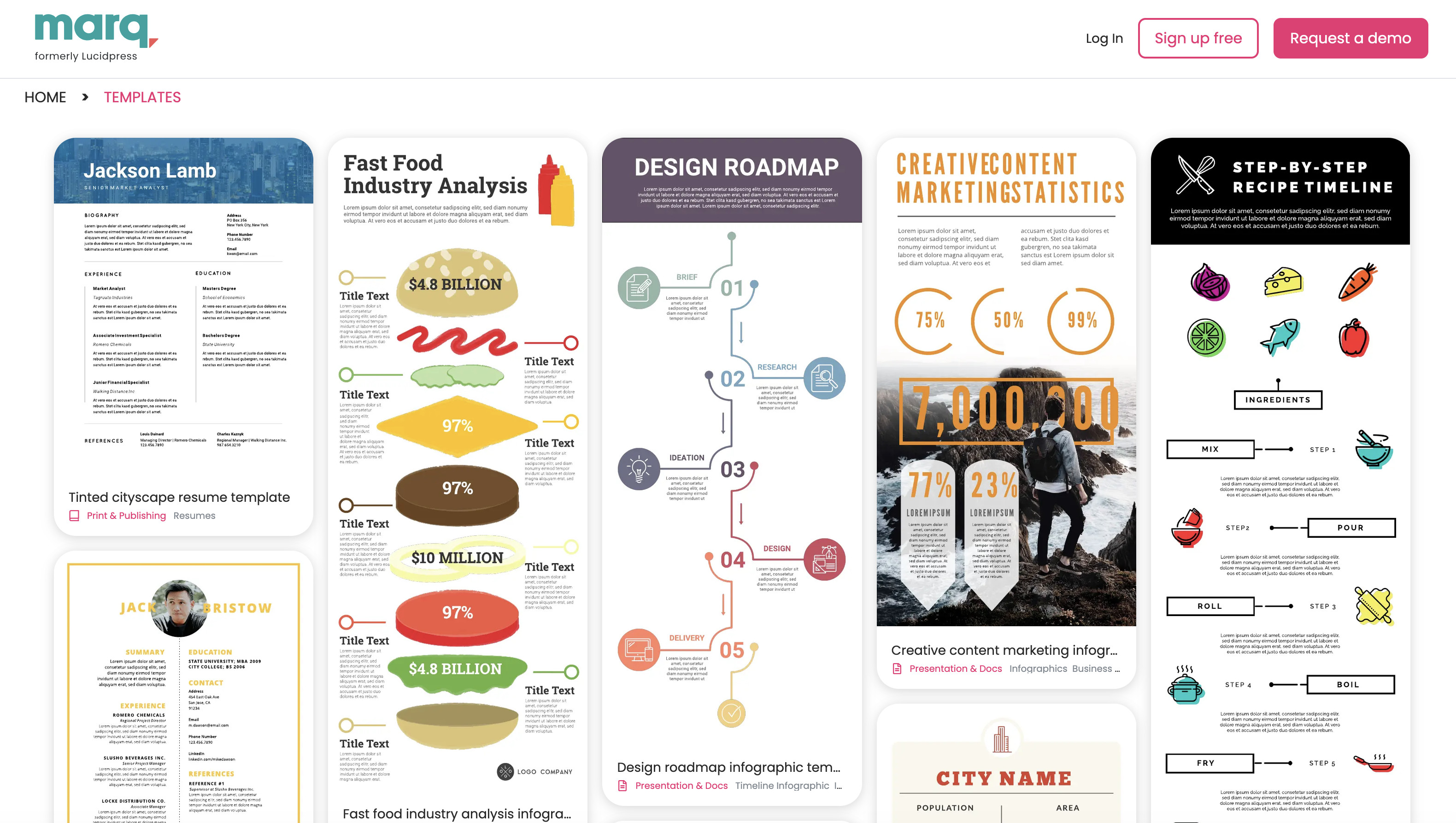
Marq — formerly Lucidpress — is a browser-based design and publishing platform built around keeping marketing material on-brand. It is a strong choice for a business that needs non-designers to produce brochures, flyers, newsletters, presentations and sales material without altering the critical parts of a template.
Instead of asking everyone to learn a professional layout app, a designer can create a template and lock the brand-sensitive sections. Colleagues can then update permitted text, images or fields, while the business keeps approvals, distribution and brand consistency under control.
That makes Marq more of a publishing system than a conventional desktop app. It is not the right purchase for a lone Mac user making a detailed print magazine, but it can save a marketing team a lot of time and prevent off-brand edits.
Read our full Marq review for more.
Price: Quote-based pricing that varies with features and the number of licences.
Pros:
- Excellent template locking and brand control features
- Works in a browser on Mac and PC
- Well suited to distributed marketing and sales teams
- Helps non-designers create consistent collateral
Cons:
- Not a native Mac app
- Overkill and potentially expensive for personal use
- Less flexible than InDesign or Affinity for detailed original design work
10. Apple Pages — Best Free Choice for Basic Mac Layouts
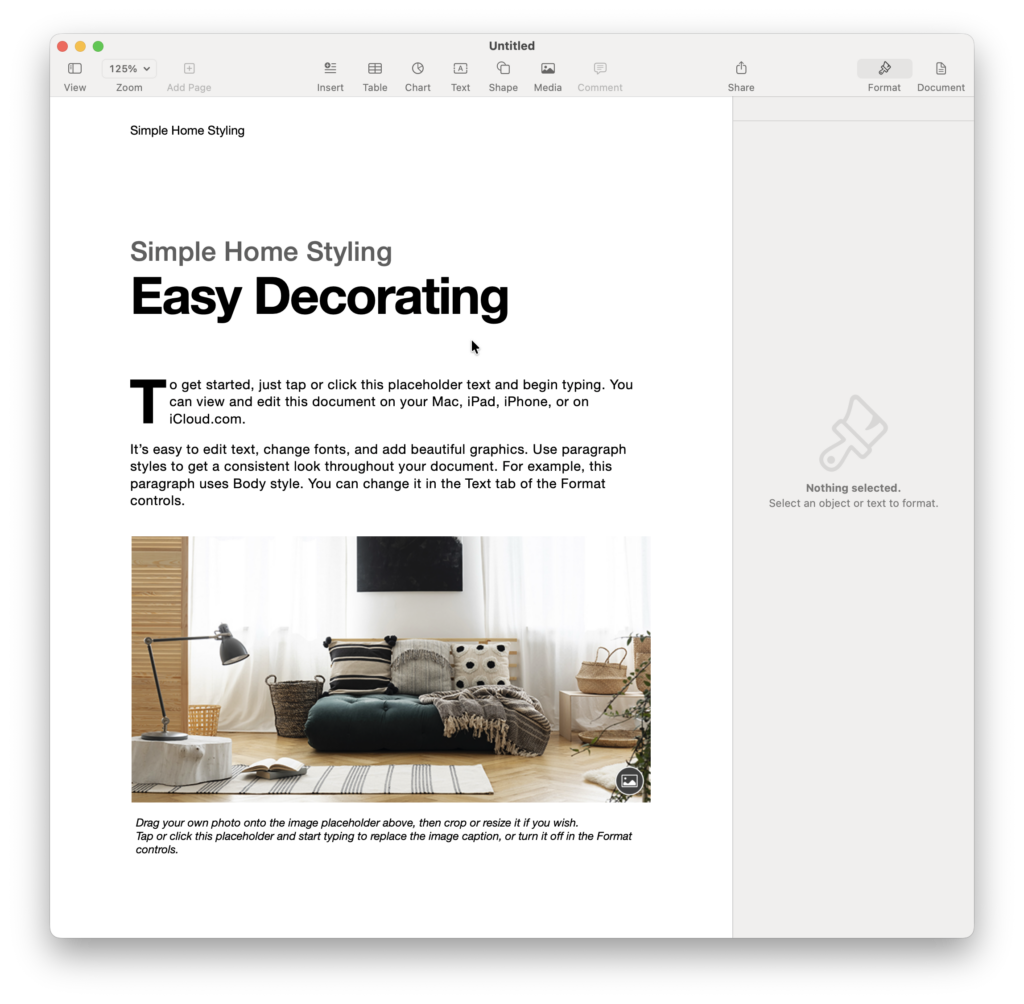
Apple Pages is primarily a word processor, but it is already free on most Macs and can handle light desktop publishing surprisingly well. It is a sensible choice for a one-off poster, CV, school newsletter, simple leaflet, invitation or basic book where you do not need commercial-print precision.
Pages has attractive templates, easy image placement, shapes, text boxes and straightforward PDF export. It is also a convenient starting point for self-publishing because Apple provides a direct route to prepare a book for Apple Books.
However, do not mistake Pages for an InDesign replacement. It lacks the granular typography, preflight, professional colour and complex publication-management features needed for serious DTP. It is best for light layout work that happens to live alongside a normal document.
Price: Free
Pros:
- Free and tightly integrated with macOS
- Easy to learn and good-looking templates
- Useful for simple posters, newsletters and self-published books
- Exports PDFs without extra software
Cons:
- Primarily a word processor, not a professional DTP suite
- Limited prepress and advanced typography tools
- Not suitable for complex magazines, catalogues or commercial-printing
Which desktop publishing software should you choose?
| If you need to… | Choose… | Why |
|---|---|---|
| Produce professional brochures, reports, magazines or books for free | Affinity | It offers real professional page layout, vector and image tools without a subscription. |
| Work with a printer, agency or InDesign-based designer | Adobe InDesign | It is the most widely recognised professional standard and has the deepest professional production features. |
| Make flyers, menus, newsletters and brochures without a steep learning curve | Swift Publisher | It is a low-cost, Mac-native, Publisher-style desktop app. |
| Avoid subscriptions but still need high-end publishing tools | QuarkXPress | It offers a perpetual-licence route and professional capabilities. |
| Use a completely free open-source app | Scribus | It is the strongest traditional free DTP option, provided you are happy to learn it. |
| Make straightforward layouts on a modern Mac | iStudio Publisher | It offers an easy Mac-only interface and useful print controls. |
| Give a whole team controlled, on-brand templates | Marq | It is built for locked templates, and brand governance. |
| Make quick, collaborative marketing material | Canva | It combines templates, assets and live collaboration, but is less precise for print production. |
| Create a simple document, poster or Apple Books project for free | Pages | It is already a good lightweight option on a Mac. |
A note about Microsoft Publisher and .pub files
Do not choose a new application solely because it claims to open .pub files. A Publisher document can depend on fonts, linked images and older layout behaviour that no alternative will reproduce perfectly.
Before Microsoft Publisher is retired, keep the original .pub files, export important documents to PDF for archival/printing, and make a list of the files that genuinely need to remain editable. For future work, pick a modern Mac-native app such as Affinity, Swift Publisher or iStudio Publisher and rebuild the few valuable templates properly. Our Microsoft Publisher alternatives for Mac guide covers the migration choices in more detail.
FAQ
What is the best free desktop publishing software for Mac?
Affinity is now the best free choice for most people because it provides professional layout, vector and photo tools in one application. Scribus is still the best fully open-source alternative. Pages is a useful free option for basic documents, but it is not a full DTP suite.
Is Affinity Publisher still available?
The separate Affinity Publisher app has been folded into the all-new Affinity app. Its Layout workspace now covers the page-layout role, alongside vector and photo tools, and the new Mac app is free. Existing Affinity V1 and V2 owners can still access their previous purchases, but should test their files and working procedures before moving wholesale to the new version.
Is Apple Pages desktop publishing software?
Pages can create simple posters, newsletters, flyers and books, so it is useful for light desktop publishing. It is fundamentally a word processor, though, and lacks the advanced typography, preflight, CMYK/prepress and long-document features needed for professional print production.
Can you use Microsoft Publisher on a Mac?
Microsoft Publisher has never had a native Mac version and Microsoft is retiring it in October 2026. If you need a replacement for new projects, use one of the Mac options above. If you need to preserve old Publisher files, export them to PDF and follow the migration advice in our Publisher alternatives guide.
What should I check before sending a document to a printer?
Ask the printer for its required PDF standard, page size, bleed, crop marks, colour profile and image-resolution guidance. Export a proof PDF, check every page at normal size and, where possible, order a physical proof before approving a large run.
Does desktop publishing software work on Apple Silicon Macs?
Yes, most current choices above do. Affinity, QuarkXPress, Swift Publisher, Scribus and iStudio Publisher have current Apple Silicon-friendly options. The main exception in this list is VivaDesigner, whose current Mac release can run through Rosetta while native M-series support is still being developed. Always check the developer’s compatibility page after a major macOS upgrade.
The bottom line
For most people, Affinity is now the best desktop publishing software for Mac because it offers professional layout tools free of charge. Adobe InDesign remains the best option when file compatibility, professional printers and industry-standard support are non-negotiable. If you simply want to make attractive flyers, brochures or newsletters without learning a complex design suite, Swift Publisher is the sensible low-cost alternative.