

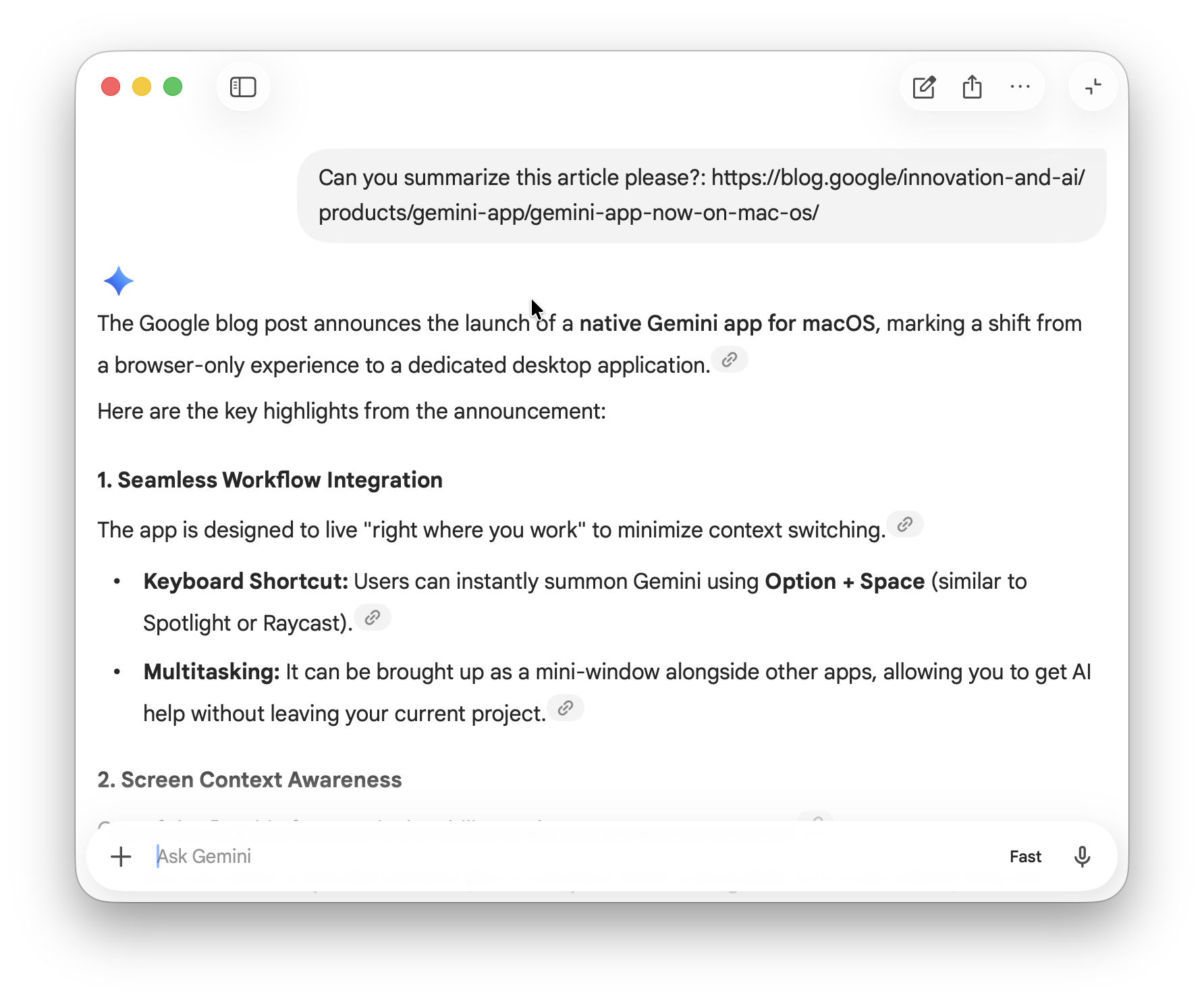
Google has finally released a native version of Google Gemini for macOS – and it’s far more powerful than just using it in a browser or via Google Workspace.
I’ve already used Gemini for Mac to do everything from analyze documents and images, to create music in a matter of seconds.
Instead of switching tabs or copying and pasting content, Gemini now sits directly on your Mac – ready to analyze whatever you’re working on in real time. And once you learn how to use it properly, it can become one of the most powerful AI apps on your Mac.
While inevitably there’s a lot of crossover with ChatGPT for Mac, Gemini definitely offers some extra features which are really cool.
In this guide, we’ll show you how to actually get value from Gemini on macOS, based on real-world usage and hands-on testing.
What is Google Gemini?
Google Gemini is Google’s AI-powered assistant designed to help with tasks like writing, research, coding, content creation, and everyday productivity.
It’s similar to tools like ChatGPT, but is deeply integrated with Google products, including Search, Docs, Gmail, and other services.
Gemini can:
- Answer questions and explain complex topics
- Summarize articles, documents, and videos
- Help write and edit content
- Generate images, videos and creative ideas
- Analyze files and on-screen content
On Mac, the biggest advantage is that Gemini is now available as a native app, meaning you can access it instantly without opening a browser – making it far more useful as a real-time assistant while you work.
How To Get Google Gemini for Mac
Getting Google Gemini on your Mac is quick and easy.
1. Download the Gemini Mac App
Go to the official Google Gemini website and download the macOS app.
2. Install the App
- Open the downloaded file
- Drag Gemini into your Applications folder
- Launch it like any other Mac app
3. Sign In With Your Google Account
You’ll need a Google account to use Gemini. Once signed in, you’ll have access to the free version immediately.
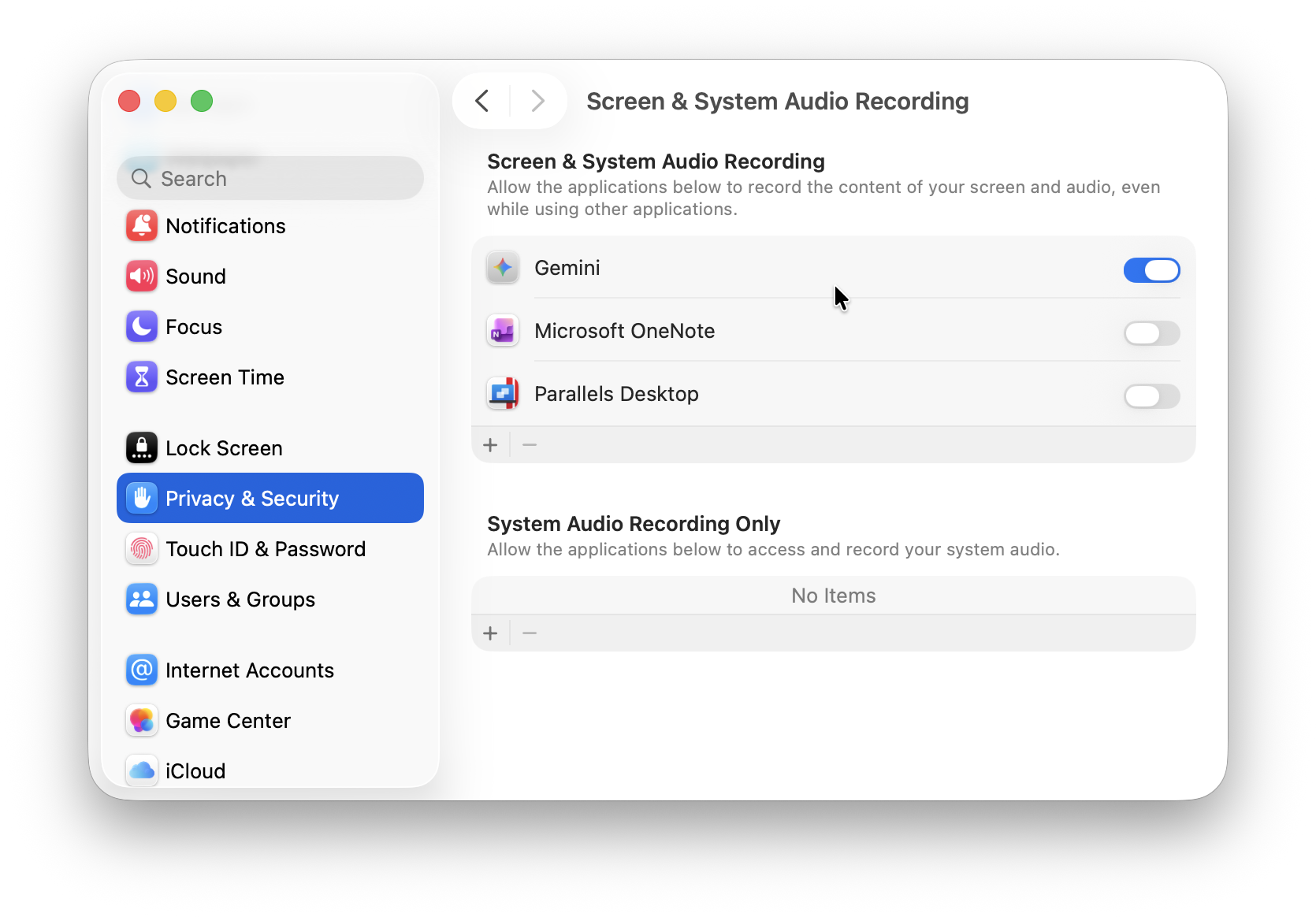
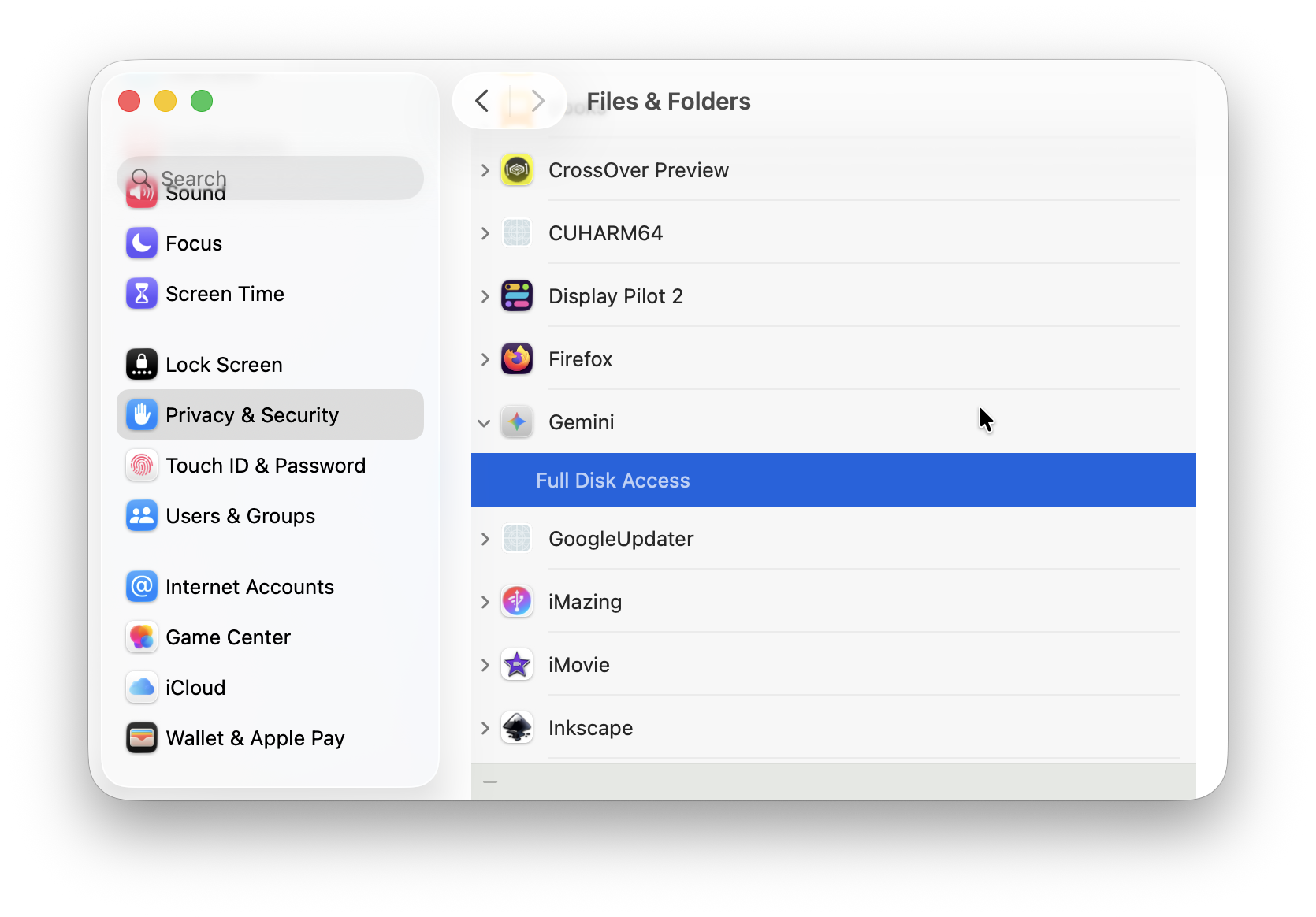
4. Enable Permissions (Important)
To unlock key features like screen analysis:
- Go to System Settings > Privacy & Security
- Enable:
- Screen Recording
- Files & Folders (if prompted)
5. Launch with the Keyboard Shortcut

By default, you can launch Gemini instantly using:
Option (⌥) + Space
This is one of the most convenient features of the app – it instantly brings-up the Gemini prompt on your screen without interrupting what you’re doing.
It’s best to keep Gemini running in the background so it’s always ready when you need it – this is what makes the Mac app significantly more powerful than using it in a browser.
How The Gemini Mac App Is Different
The biggest change isn’t just that Gemini is now an app – it’s how it can help you.
- You can launch it instantly with Option (⌥) + Space
- It can see and analyze your current window
- You can work with local files without uploading manually
- It eliminates the need to switch between apps or browser tabs
In testing, simply having Gemini available instantly makes a noticeable difference – quick access “while you’re working” turns it into a real assistant rather than something you open occasionally .
Here’s some tips I’ve learned since using Gemini for Mac to help you get the most out of it.
1. Use the Keyboard Shortcut For Instant Access
One of the handiest things about the Gemini Mac app is the keyboard shortcut which instantly reveals the Gemini prompt.
How to do it:
- Press Option (⌥) + Space
- Ask a question instantly (no app switching)
- Allows you to keep working without being as disruptive
This is one of the key advantages of the app in my opinion – it’s designed for instant productivity, not long chat sessions.
The best uses for this are:
- Quick explanations or info
- Writing help
- Instant summaries
- Brainstorming ideas mid-task
2. Analyze Anything on Your Screen
This is where Gemini on Mac really stands out.
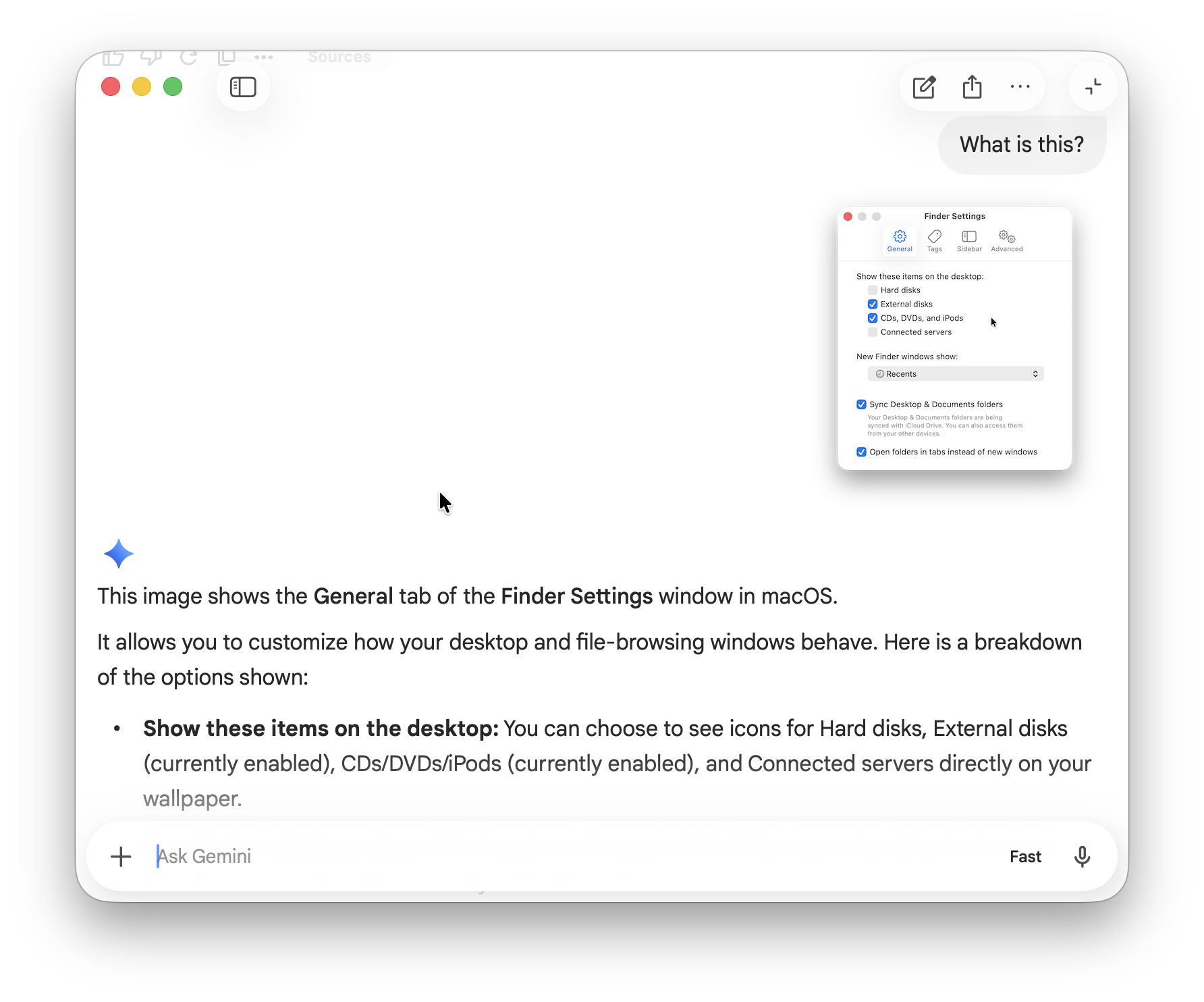
You can share your current window and ask questions about it – no screenshots or uploads required.
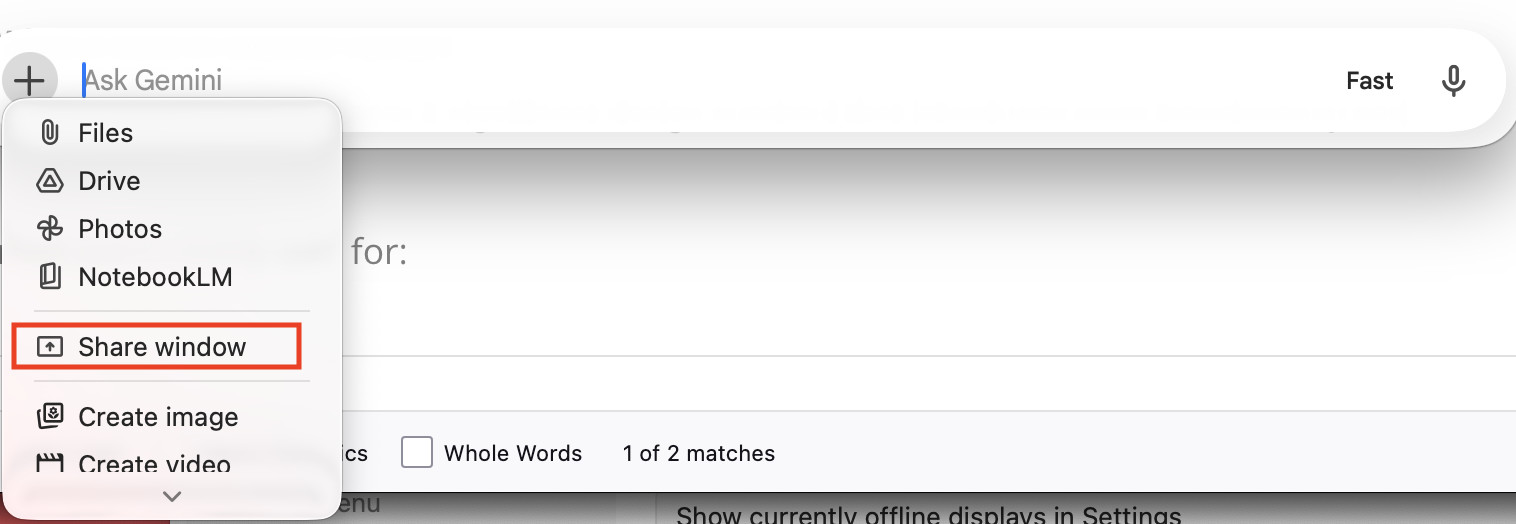
You can then simply select the application you want Gemini to analyze without having to upload anything.
Examples of what you can do include:
- Summarize an article that’s open in a browser on your Mac
- Summarize data in a chart or spreadsheet in Apple Numbers or Excel
- Ask Gemini to adapt or modify a photo open in Photos on your Mac
Gemini can interpret what’s on screen and respond contextually, saving time copying content manually or uploading.
In my testing, this worked particularly well for:
- News articles
- YouTube videos
- Documents and reports
- Even interpreting system settings in macOS
3. Replace Your Note Taking Apps
One thing that Gemini can also be used for is replacing note taking apps for extracting essential information.
Instead of saving things manually, you can use Gemini to:
- Summarize content
- Extract insights
- Generate ideas
- Expand rough thoughts
So for example:
- Hit Option + Space
- Upload an image
- Ask:
“Extract the essential information from this”
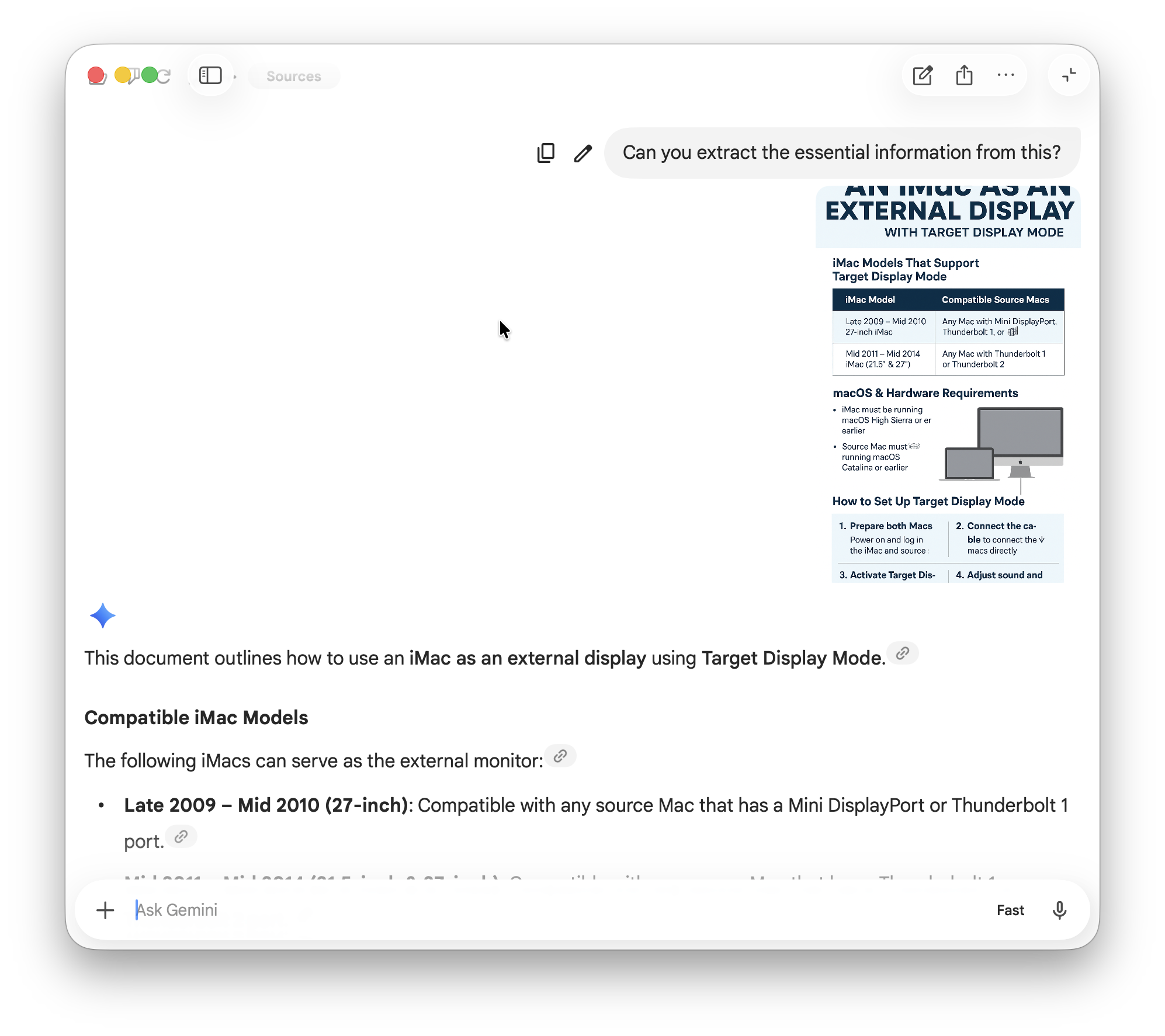
In this case, I asked Gemini to extract the essential data from an infographic about using an iMac as an external display and it did a pretty good job.
4. Use It for Real-Time Writing & Editing
Gemini can be used within word processing applications and desktop publishing software to assist you in-app.
For example:
- If you’re writing an article you can ask for improvements
- If you’re drafting emails you can ask for tone adjustments
- If you’re creating content you can ask for variations
Because it’s always accessible, I found I was more likely to refine content as I write, not after.
Some useful prompts I used with this were:
- “Make this clearer”
- “Rewrite for a professional tone”
- “Shorten this without losing meaning”
- “Suggest some improvements to this article”

5. Use Gemini for Creative Work
Like most AI assistants nowadays, Gemini isn’t just for text – it also supports:
- Image generation via Nano Banana
- Video creation via Neo
- Music generation
This is all built into the app.
This is useful for:
- Blog images
- YouTube thumbnails
- Ideas for visuals
- Content brainstorming
- Creating original music and videos
This is the result when I asked Gemini for Mac to create a song based on Macs vs PCs. In little more than 30 seconds, it had come-up with “Under The Table” complete with cover image.
It might not win a Grammy but it’s not a bad effort for something that was created in 30 seconds – for free (note sure what the cover image is supposed to symbolize though).
For those that have to create lots of visuals every day, this can save having to use multiple AI assistants or apps.
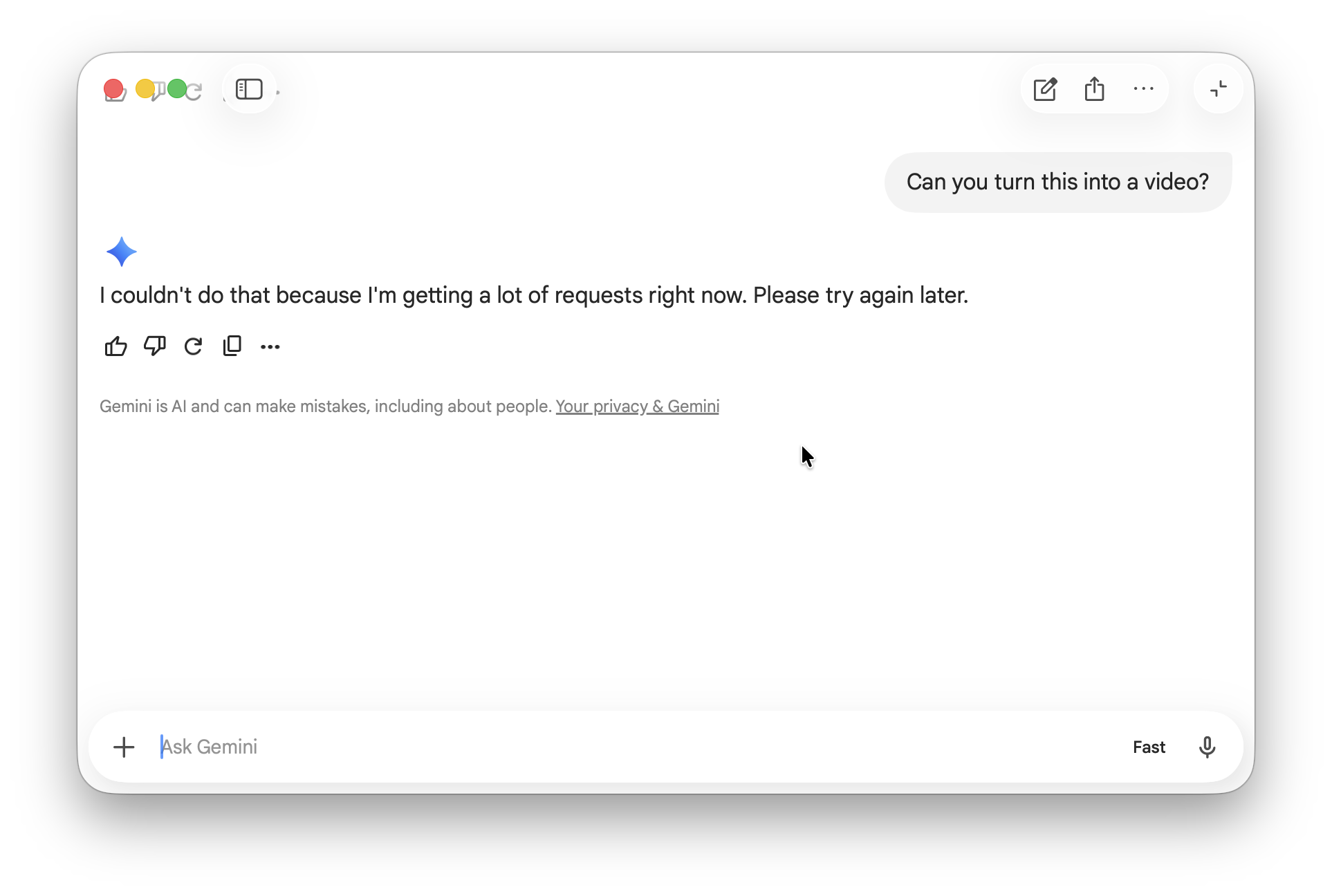
However, creating videos didn’t go so well and I frequently encountered “too many requests” errors when asking Gemini to generate one.
6. Advanced Gemini Tools on Mac
Another big differentiator between Google Gemini on Mac and ChatGPT are the built-in advanced tools available inside the app.
These turn Gemini into a research, writing, and learning workspace.
These can be accessed by clicking on the “+” button in the bottom left of Gemini and clicking on “More tools” apart from NotebookLLM which is the main context menu when you click “+”.
NotebookLLM Integration (AI Research Hub)
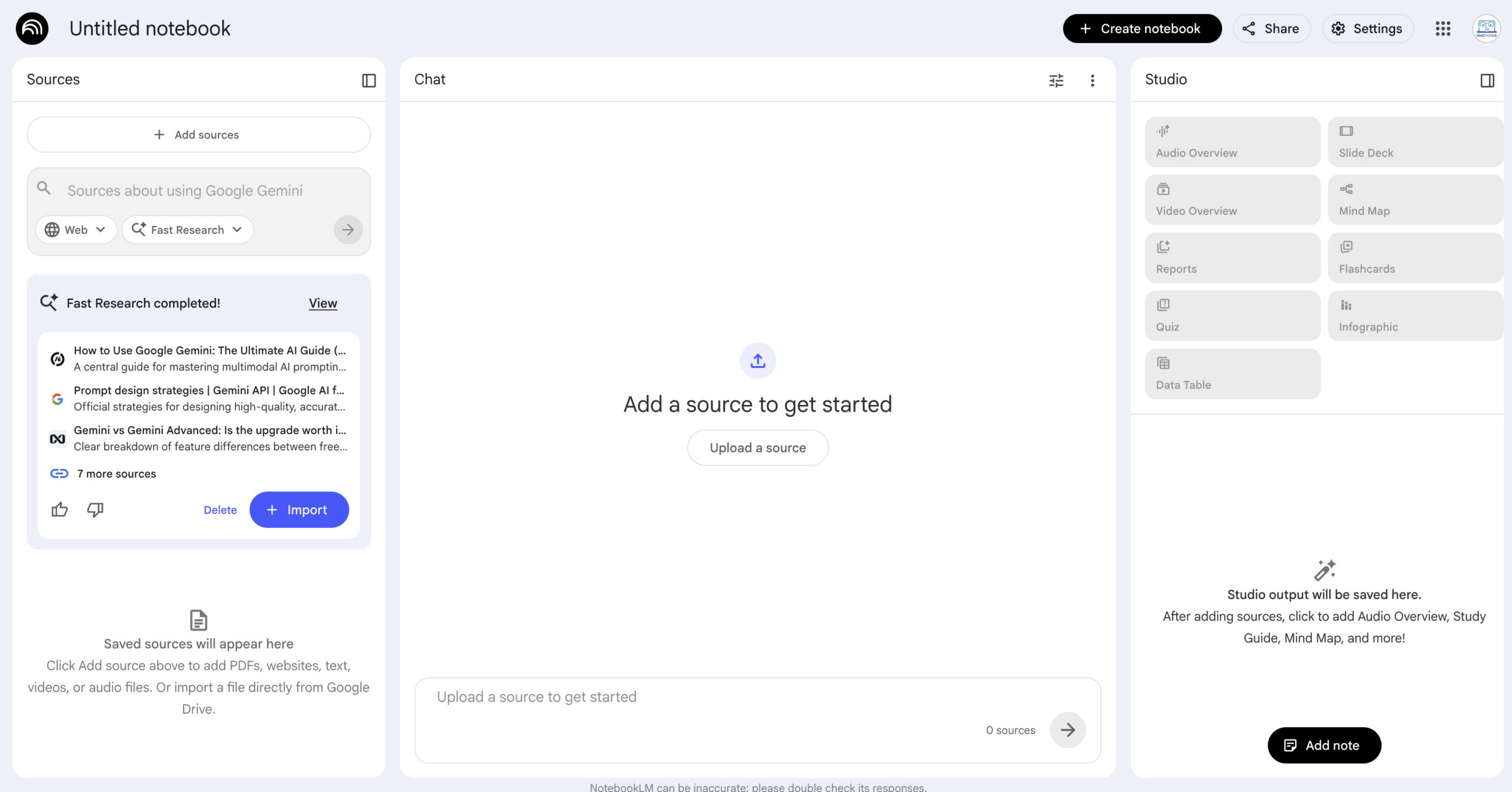
NotebookLLM is deeply integrated into Gemini as a note taking tool.
The first time you use NotebookLLM it will create a new Notebook for you, within which you can use Gemini to search for information.
So instead of starting from scratch every time you work on a project, you can:
- Upload documents, PDFs, and notes
- Ask questions based only on your sources
- Generate summaries, insights, and reports
- Keep long-term projects organized
Gemini now includes “Notebooks”, which sync directly with NotebookLLM, letting you organize chats, files, and research in one place.
So effectively Gemini could be used as a replacement for note taking apps such as OneNote, Notion etc.
This is especially useful for:
- Writing long-form content
- Research-heavy projects
- Managing ongoing work without losing context
Canvas (Real-Time Writing & Creation Workspace)
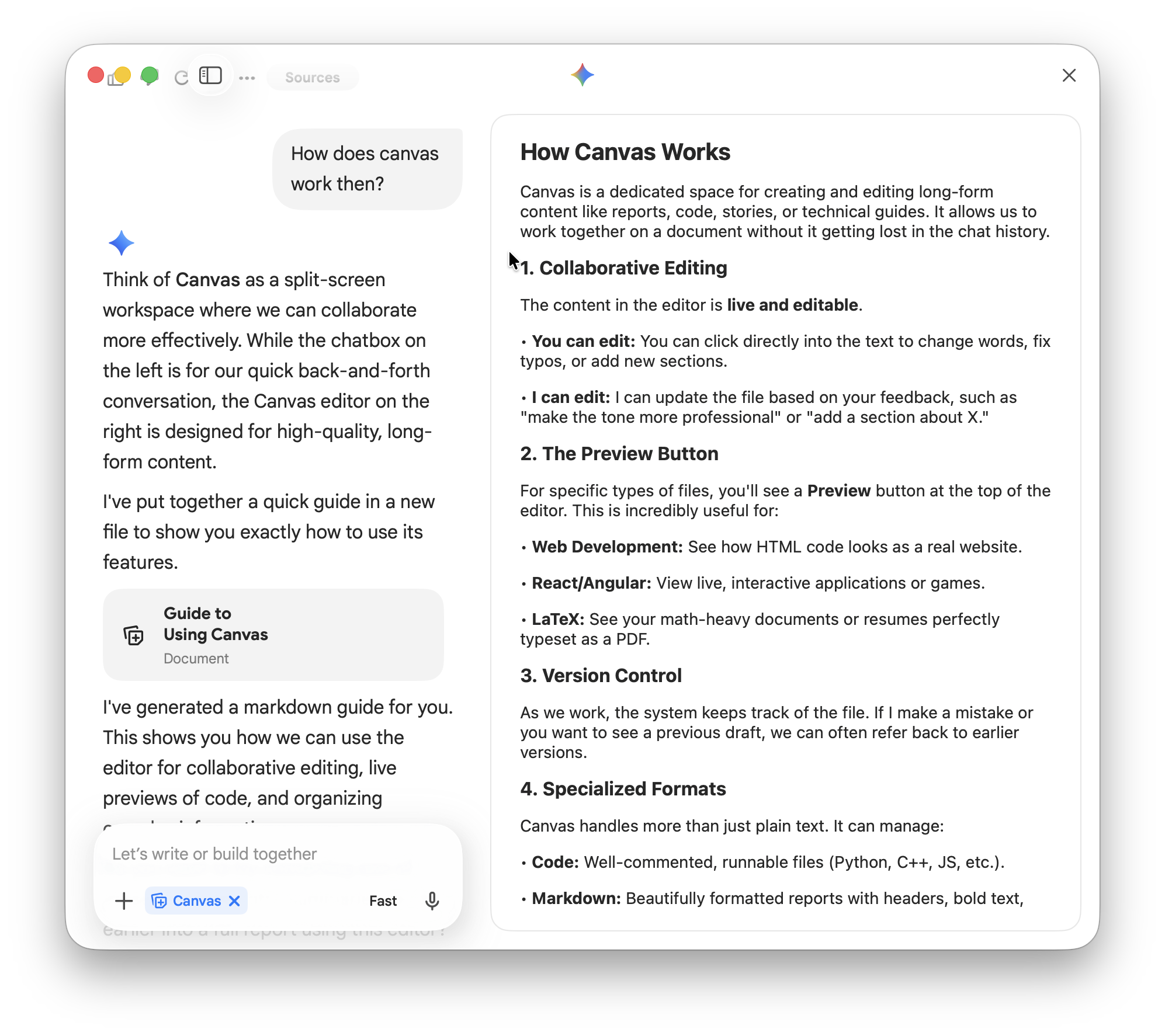
Canvas is a built-in workspace where you can create and refine content in real time.
Unlike normal chat responses, Canvas lets you:
- Edit documents interactively
- Work on code with live previews
- Iterate on content visually
It’s essentially Gemini’s version of a live editing environment, making it much better for:
- Blog writing
- Coding projects
- Structured documents
Instead of generating text and copying it elsewhere, you can work directly inside Gemini.
Deep Research (Multi-Source Analysis)
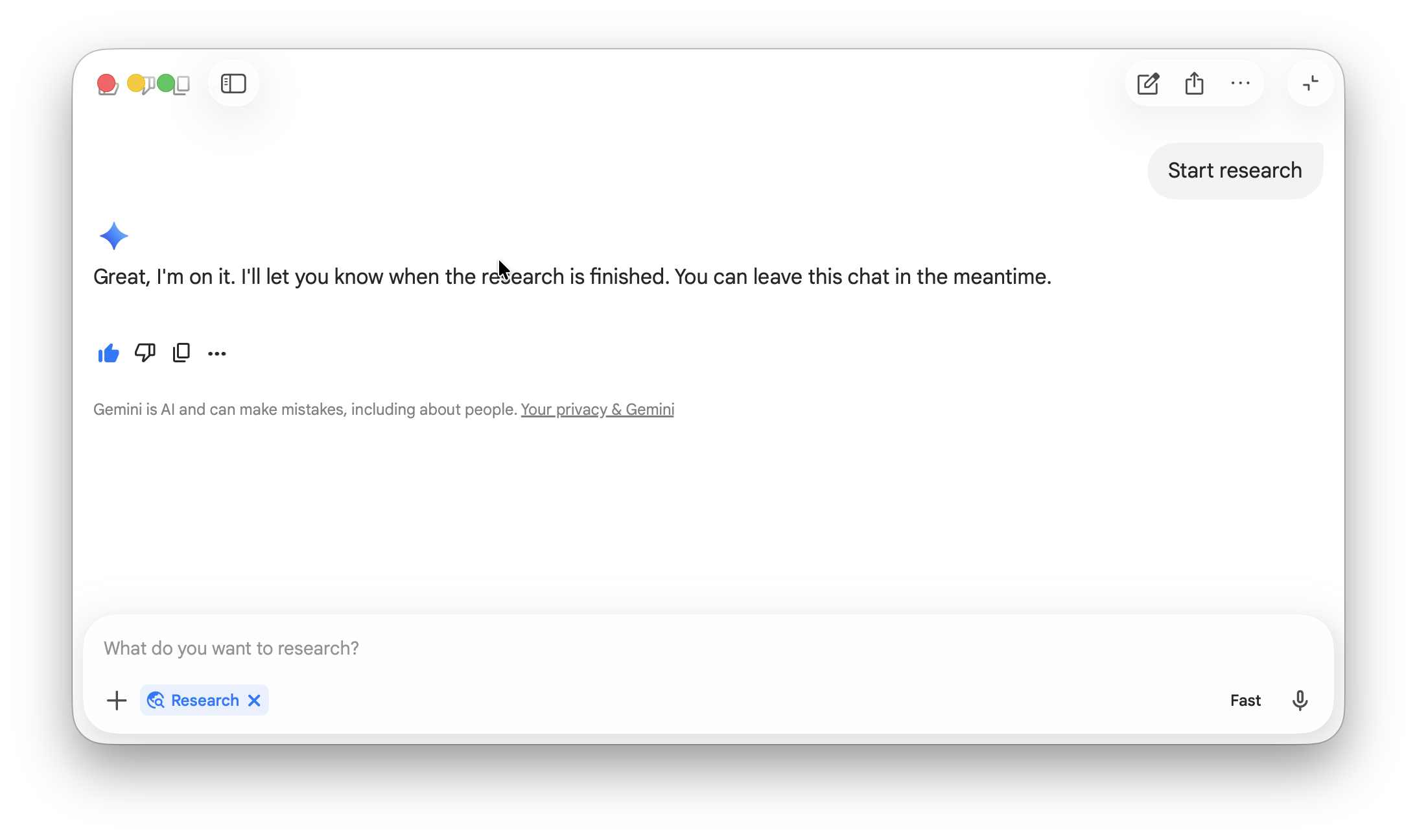
Deep Research is actually one of the most powerful features of Gemini.
It allows Gemini to:
- Analyze multiple sources at once
- Build structured research reports
- Identify patterns and insights across documents
Unlike normal prompts, it doesn’t just answer questions – it thinks across multiple inputs and produces more comprehensive results.
This can be useful for:
- Comparing multiple articles or reports
- SEO research and competitor analysis
- Summarizing large datasets or documents
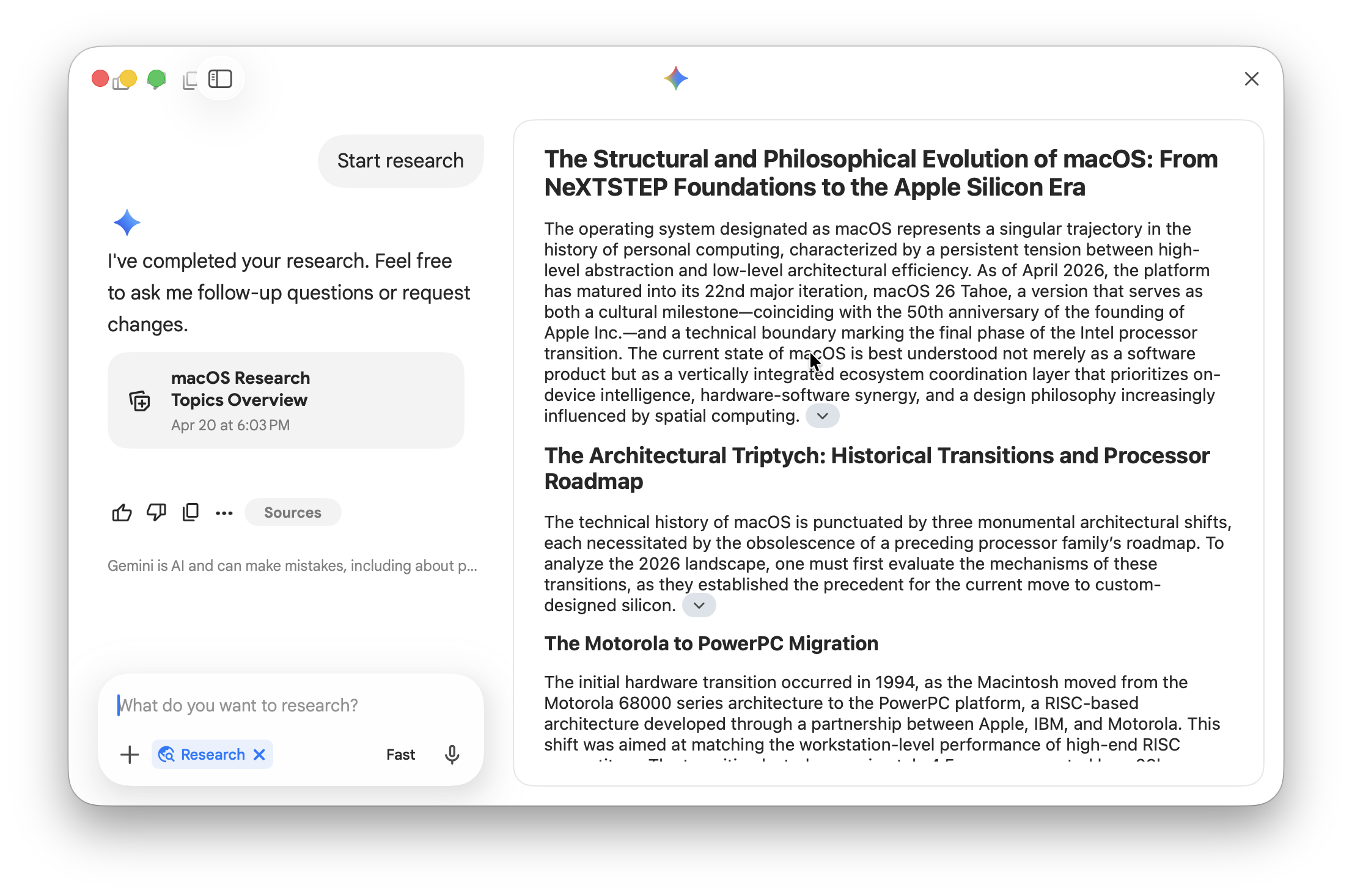
Deep Research takes a few minutes to conclude but reveals in incredibly in-depth analysis of your topic, in this case the history of macOS.
Guided Learning (Your AI Tutor)
Guided Learning turns Gemini into an interactive tutor, not just an answer engine.
Instead of simply giving you answers, it:
- Breaks topics into step-by-step lessons
- Asks you questions to test understanding
- Adapts to your level
- Generates quizzes and study plans
I can see how this would be useful for students and teachers although for most people that are not in education or academia, it won’t be of much interest.
Limitations To Gemini For Mac
Gemini on Mac is definitely one of the most powerful AI assistants I’ve tried but there’s less deep system control than competitors such as ChatGPT for Mac. For example, it doesn’t seem possible to tailor exactly how Gemini works with macOS although this may change with future releases.
The request limits as evidenced above were also frustrating and seemed to happen more in the app than in the browser version of Gemini.
Gemini For Mac: Free vs Paid
The free version is extremely capable but the paid Gemini plans unlock:
- More advanced models
- Higher usage limits
- Better creative tools
Unless you hit the limits imposed by the free plan and use it very frequently, the free version of Gemini for Mac should be fine.
System Requirements for Google Gemini on Mac
To run Google Gemini on macOS, you’ll need:
- macOS 15 Sequoia or later
- Apple Silicon Mac (M1, M2, M3 or newer)
- A Google account
- Internet connection
Intel-based Macs are not supported (see FAQ below for workarounds).
Summary: Is Gemini on Mac Worth Using?
I would say Google Gemini for Mac is definitely worth using. It’s much faster and more convenient than using it in a browser.
The native Gemini for Mac app turns it from a chatbot into something closer to a real-time assistant embedded in macOS.
Gemini for Mac Troubleshooting
If Google Gemini isn’t working properly on your Mac, here are the most common issues and how to fix them.
Gemini Shortcut (Option + Space) Not Working
If the keyboard shortcut doesn’t launch Gemini:
- Make sure the Gemini app is running
- Check for conflicts with Spotlight or other apps
- Go to Gemini settings and reassign the shortcut
Note: Some apps (like Alfred or Raycast) may override this shortcut – try changing it if needed.
Gemini Can’t See Your Screen or Window
If screen analysis isn’t working:
- Ensure you’ve granted Screen Recording permission
- Go to System Settings > Privacy & Security > Screen Recording
- Enable access for Gemini
- Restart the app
Without this permission, Gemini can’t analyze what’s on your screen.
Gemini Not Opening or Crashing on Mac
If the app won’t launch or keeps crashing:
- Restart your Mac
- Update macOS to the latest version
- Reinstall the Gemini app
- Check for app updates
This seems to be more common in early versions of the app as Google continues to refine it.
Gemini Responses Are Slow or Not Loading
If Gemini feels sluggish:
- Check your internet connection
- Try quitting and reopening the app
- Log out and back into your Google account
AI responses depend heavily on cloud processing, so performance can vary.
I noticed that requests for music and video took longer probably because the processing power required is more than simple document and data analysis.
Gemini Not Working With Files
If Gemini won’t analyze documents:
- Make sure the file format is supported (PDF, text docs, etc.)
- Check file permissions
- Try reopening the file and sharing it again
Gemini Isn’t As Accurate As Expected
If responses seem too generic or off:
- Be more specific with your prompts
- Provide context (e.g. “Summarize this for beginners”)
- Break complex requests into smaller questions
Like all AI tools, Gemini works best with clear, structured prompts.
Google Gemini for Mac FAQ
What is Google Gemini for Mac?
Google Gemini for Mac is a native macOS app that lets you access Google’s AI assistant directly on your desktop, without needing a browser.
Is Google Gemini available as a native Mac app?
Yes, Google now offers a native macOS app, allowing faster access, system integration, and features like screen analysis.
Is there an Intel version of Google Gemini for Mac?
No – currently, Google Gemini for Mac does not support Intel-based Macs.
The native Gemini app requires:
- macOS 15 (Sequoia) or later
- An Apple Silicon Mac (M1, M2, M3 or newer)
This means older Intel Macs are not compatible with the official desktop app.
Workaround for Intel Macs
If you’re using an Intel-based Mac, you can still use Gemini by:
- Accessing it via your browser at the Gemini website
- Installing it as a web app using browsers like Chrome
While this doesn’t offer the same deep integration (like screen sharing and keyboard shortcuts), it still provides full access to Gemini’s core features.
How do I open Gemini quickly on a Mac?
By default, you can launch it using:
Option (⌥) + Space
This works similarly to Spotlight and lets you access Gemini instantly.
Is Gemini free on Mac?
Yes, there is a free version with plenty of features.
However, Google also offers paid plans with:
- More advanced AI models
- Higher usage limits
- Additional creative tools
Can Gemini analyze my screen on Mac?
Yes. Gemini can analyze the content of your current window if you grant it screen recording permissions in macOS.
Does Gemini work offline on Mac?
No. Gemini requires an internet connection because it processes requests in the cloud.
Is Gemini better than using it in a browser?
For most users, yes.
The native app is faster, easier to access, and integrates better with your workflow – especially with keyboard shortcuts and screen sharing. It also means you don’t have to install Google Chrome just to use Gemini on your Mac.
Is Gemini safe to use on Mac?
Gemini is generally safe, but you should:
- Avoid sharing sensitive or confidential data
- Review Google’s privacy settings
- Be aware that some data may be used to improve AI responses
Can Gemini replace ChatGPT on Mac?
It depends on what you need it for.
Gemini is excellent for:
- Real-time assistance
- Screen-based analysis
- Google ecosystem integration
However, many users still prefer tools like ChatGPT for deeper reasoning, structured writing, and broader capabilities.
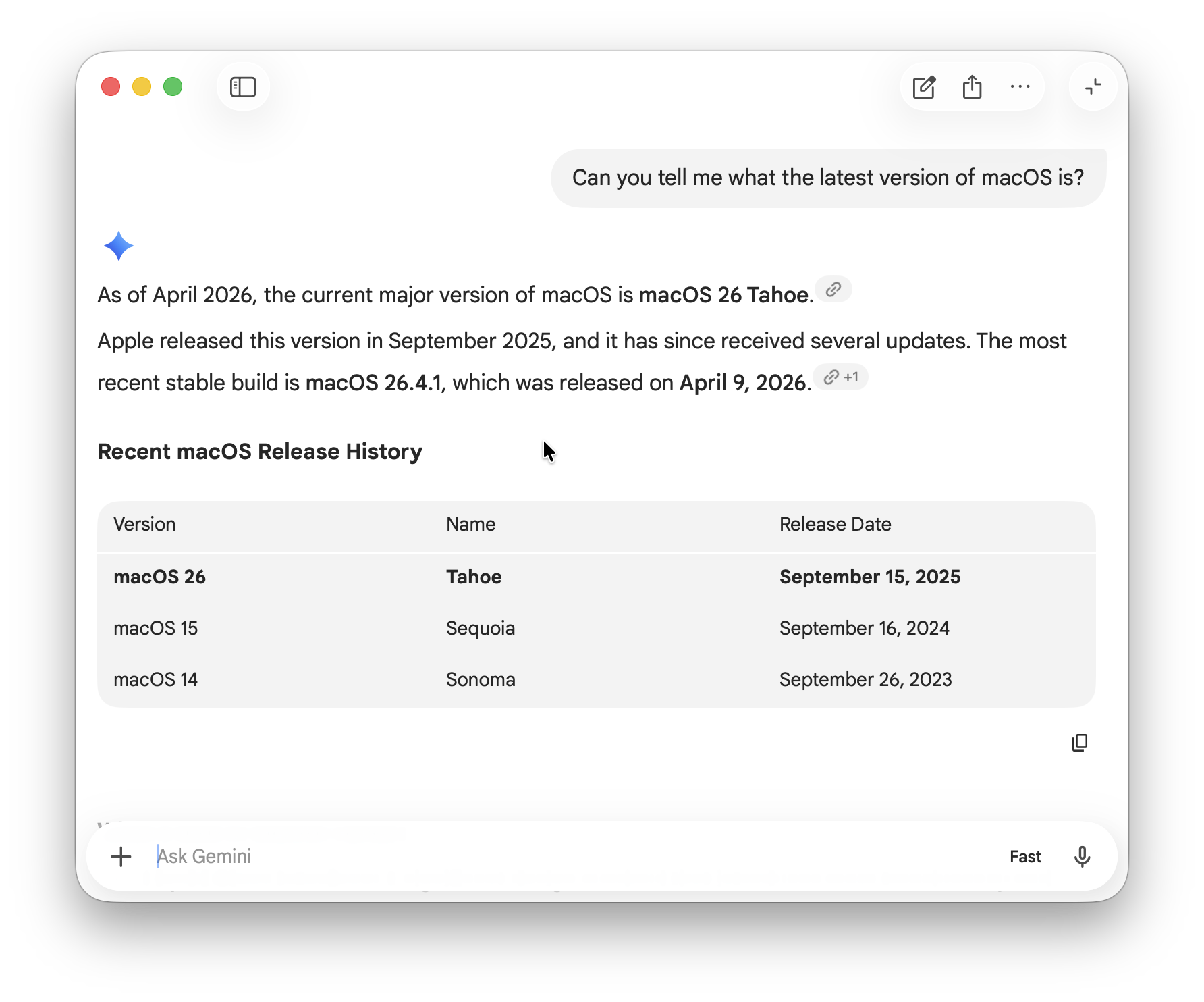
What version of macOS does Gemini work with?
Gemini for Mac requires macOS 15 (Sequoia) or higher. For the latest version of macOS check here.