

If you still use an Intel Mac—or rely on an old Intel application on an Apple Silicon Mac—the clock is now ticking on compatibility.
There is no single date on which every Intel Mac app will suddenly stop working. However, Apple has now made three important changes that bring the Intel era much closer to its end:
- macOS Tahoe is the final major version of macOS that runs on Intel Macs.
- Mac App Store developers can now stop providing Intel-compatible versions of their apps.
- Apple will provide full Rosetta support for Intel applications on Apple Silicon only through macOS 27 Golden Gate but Intel Macs won’t be able to run macOS Golden Gate at all.
The practical answer therefore depends on whether you are using an Intel Mac or an Intel-only application on an Apple Silicon Mac.
If you own an Intel Mac, your existing applications may continue working for years, but individual developers can stop delivering updates at any time. If you own an Apple Silicon Mac, Intel-only applications should continue working through Rosetta in macOS 27, but most should be assumed not to work after upgrading to macOS 28.
Here is what has changed, how to check your applications and what I recommend doing before support disappears.
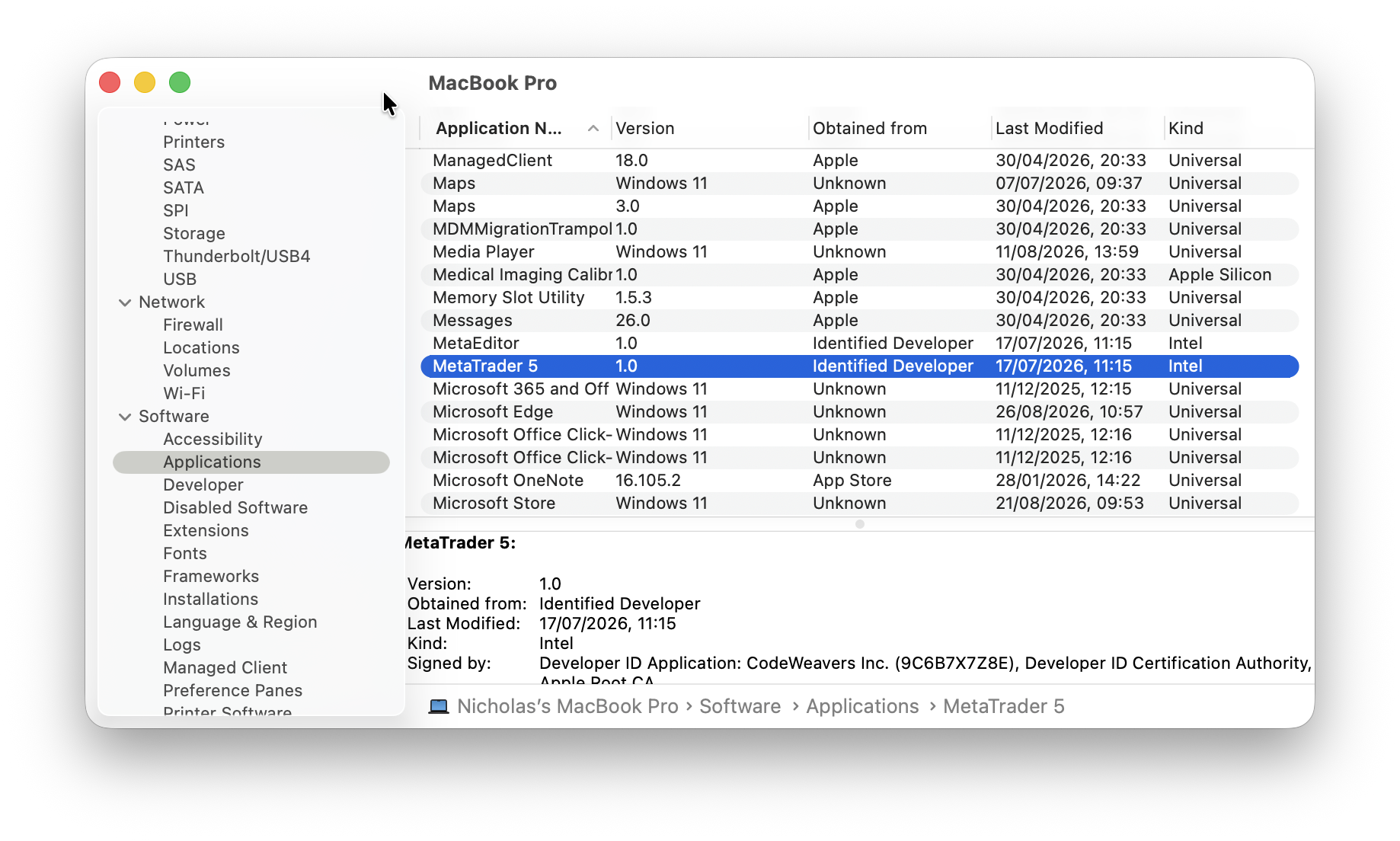
Intel Mac App Support At a Glance
| Your Mac and application | What to expect |
|---|---|
| Intel Mac running macOS Tahoe | Existing compatible apps should continue working, but developers may stop providing Intel updates |
| Intel Mac with an Apple Silicon-only app | The app cannot run |
| Apple Silicon Mac running an Intel app on macOS Tahoe or macOS 27 | The app should run through Rosetta, subject to its other system requirements |
| Apple Silicon Mac running macOS 28 | General-purpose Rosetta support ends; only certain older games receive limited support |
| Universal app | Runs natively on both Intel and Apple Silicon Macs |
| 32-bit Mac app | Already unsupported in macOS Catalina and later |
Why There Are Two Different Intel App Deadlines
The phrase “Intel app support” is used to describe two different compatibility problems.
The first affects people who still own a Mac with an Intel processor. These Macs need developers to continue including Intel code in new application releases.
The second affects people with an M-series Apple Silicon Mac who still use an application originally written for Intel. These applications currently run through Apple’s Rosetta translation technology.
They are opposite situations:
- An Intel Mac cannot run an application created solely for Apple Silicon.
- An Apple Silicon Mac can currently run many Intel applications through Rosetta.
The deadlines and possible solutions are therefore different.
How Long Will Apps Continue Working on Intel Macs?
An application already installed on an Intel Mac will not automatically stop opening simply because its developer releases an Apple Silicon-only version.
In many cases, the last compatible version will continue working for as long as the application remains compatible with your version of macOS. A self-contained application that works entirely offline could remain usable for many years.
However, you may no longer receive:
- New features
- Bug fixes
- Security patches
- Compatibility updates
- Support for new file formats
- Updates needed to connect to an online service
The application may therefore open normally but become less useful or less secure over time.
There is no universal end date because each developer decides how long to support its Intel build. Some will maintain older versions for years, while others will move quickly to Apple Silicon-only development.
Mac App Store Apps Can Now Drop Intel Support
On 1 September 2026, Apple informed developers that universal Mac App Store apps requiring macOS 13 or later can remove support for Intel-based Macs.
Developers can now build the application for the Arm64 architecture alone and submit it as an update. This reduces the size of the download and lets the developer stop testing and maintaining its Intel code.
If an application makes this change, Intel Mac users will stop receiving its latest updates. The last compatible version already installed on the Mac can continue working, but it will gradually fall behind the Apple Silicon edition. Read the details of Apple’s App Store change.
This change applies specifically to Mac App Store distribution. Developers selling applications directly from their own websites were already able to stop producing Intel versions whenever they chose.
The important point is that an Intel Mac can now lose access to application updates even if it is still running a supported version of macOS.
macOS Tahoe Is the Last Version for Intel Macs
macOS Tahoe is the final major macOS release that runs on Intel hardware.
Apple’s compatibility list for macOS 27 Golden Gate contains only Macs using Apple silicon. This includes M-series Macs and the A18 Pro-powered MacBook Neo, but no Intel models.
The last Intel Macs capable of running Tahoe include:
- MacBook Pro 13-inch with four Thunderbolt 3 ports from 2020
- MacBook Pro 16-inch from 2019
- iMac Retina 5K 27-inch from 2020
- Mac Pro from 2019
These computers will not stop working when macOS 27 is released. They can remain on macOS Tahoe, and Apple is still publishing Tahoe security updates.
However, Apple has not guaranteed an exact final date for every Intel security update. Its security releases page is the safest place to check whether Tahoe and your particular Mac are still receiving patches.
Remaining on Tahoe also becomes more restrictive as developers raise the minimum macOS version required by their applications. Even a developer that continues building for Intel may eventually require a version of macOS that an Intel Mac cannot install.
Which Intel Mac Apps Are Most Likely To Stop Working First?
Simple offline applications are generally the most likely to keep working. Software that depends on cloud services, security updates or deep integration with macOS is more vulnerable.
I would be particularly cautious with:
- Web browsers and password managers
- Banking, personal finance and trading software
- VPNs, antivirus software and firewalls
- Cloud-storage and synchronisation apps
- Printer, scanner and graphics-tablet drivers
- NTFS, RAID and disk-management utilities
- Audio interfaces and music-production plug-ins
- Video-editing and visual-effects plug-ins
- Licence managers and hardware activation tools
- Applications that use frequently changing online APIs
A cloud application can stop working even if its Mac software still opens. The developer might change its authentication system, discontinue an old API or require a newer client before allowing it to connect.
Drivers and system utilities are also risky because they interact closely with macOS. An old word processor or image editor may continue running, while an outdated storage driver or VPN client can fail after a relatively small system update.
Parallels Desktop virtual machine provides a current example of the transition. Parallels Desktop 27 is an Apple Silicon-native application and no longer supports Intel Macs. Parallels says Intel users will instead receive periodic security and compatibility updates to version 26.
That approach is likely to become increasingly common: Intel users retain an older maintenance version while new features go exclusively to Apple Silicon.
How Long Will Intel Apps Work on Apple Silicon Macs?
Apple Silicon Macs use Rosetta to translate compatible 64-bit Intel applications so that they can run on Arm-based Apple processors.
Rosetta works automatically in the background, and most users will notice little or no difference when opening a conventional Intel application.
Apple has confirmed that general-purpose Rosetta support will remain available throughout macOS 27 Golden Gate. An Intel-only application that currently works on an M-series Mac should therefore continue working after upgrading from Tahoe to Golden Gate, unless the application has another compatibility problem. Read Apple’s Rosetta support guidance.
The more important change comes with macOS 28 (which as yet doesn’t have a name).
Apple says that, beginning with macOS 28, Rosetta functionality will be available only for certain older, unmaintained games that rely on Intel-based frameworks.
Apple has not published a complete list of those games or exactly which Rosetta components will remain. Ordinary Intel-only productivity software, utilities, plug-ins and professional applications should therefore be treated as unlikely to work in macOS 28 unless their developers release Apple Silicon or Universal versions.
If you depend on an Intel-only application, do not upgrade to macOS 28 until its developer has confirmed compatibility or you have found a replacement.
Rosetta Does Not Help an Intel Mac Run Apple Silicon Apps
Rosetta works in only one direction: it translates Intel software for an Apple Silicon Mac.
It cannot translate an Apple Silicon application for an Intel processor. If a developer releases an app containing only Arm64 code, there is no Apple equivalent of Rosetta that will make it run on an Intel Mac.
Your options are then limited to:
- Continue using the final Intel-compatible version
- Find an alternative application that still supports Intel
- Use the service through a web browser, if available
- Move the workflow to an Apple Silicon Mac
How To Check Whether an App Is Intel, Universal or Apple Silicon
You can check an individual application in Finder:
- Open Finder and select Applications.
- Select the application you want to check.
- Press Command-I, or right-click and select Get Info.
- Look at the entry next to Kind.
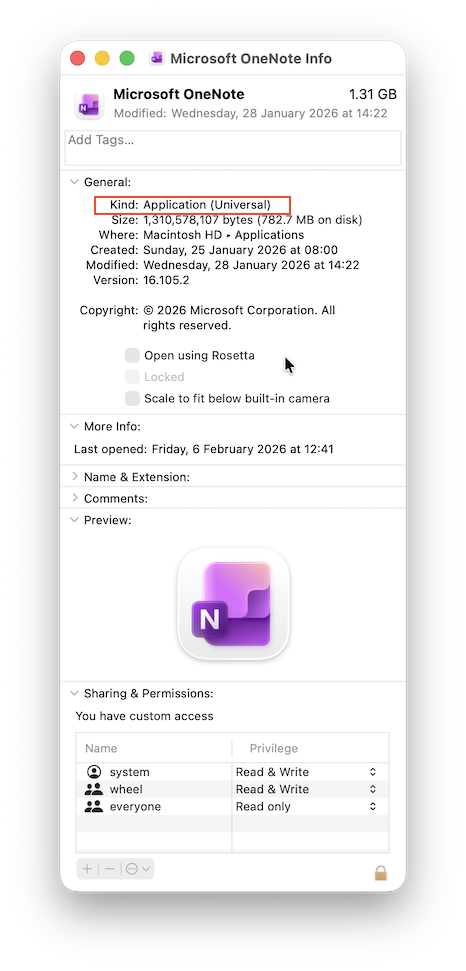
It will normally say one of the following:
- Application (Intel): The app requires an Intel Mac or Rosetta on Apple Silicon.
- Application (Universal): The app contains both Intel and Apple Silicon code.
- Application (Apple Silicon): The app runs only on Apple Silicon Macs.
Universal applications are the safest option during the transition because they run natively on both types of Mac.
On an Apple Silicon Mac, you may also see Open using Rosetta in the Get Info window for some Universal applications.
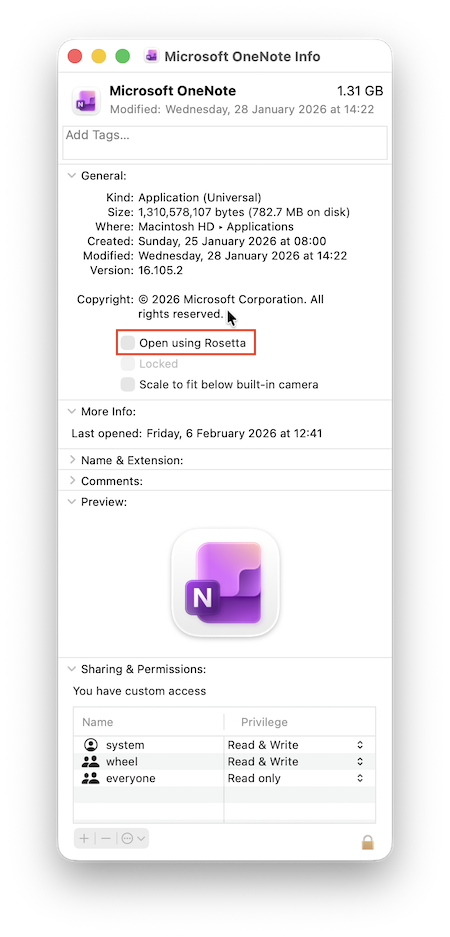
This option exists so that the app can use older Intel-only plug-ins or extensions. If you still need to select it, check those add-ons as well as the main application.
How To Find All Intel Apps on Your Mac
Checking applications one at a time is useful for essential software, but System Information provides a broader list:
- Hold down the Option key and open the Apple menu.
- Select System Information.
- Expand Software in the sidebar.
- Select Applications.
- Check the Kind column for Intel, Universal and Apple Silicon entries.
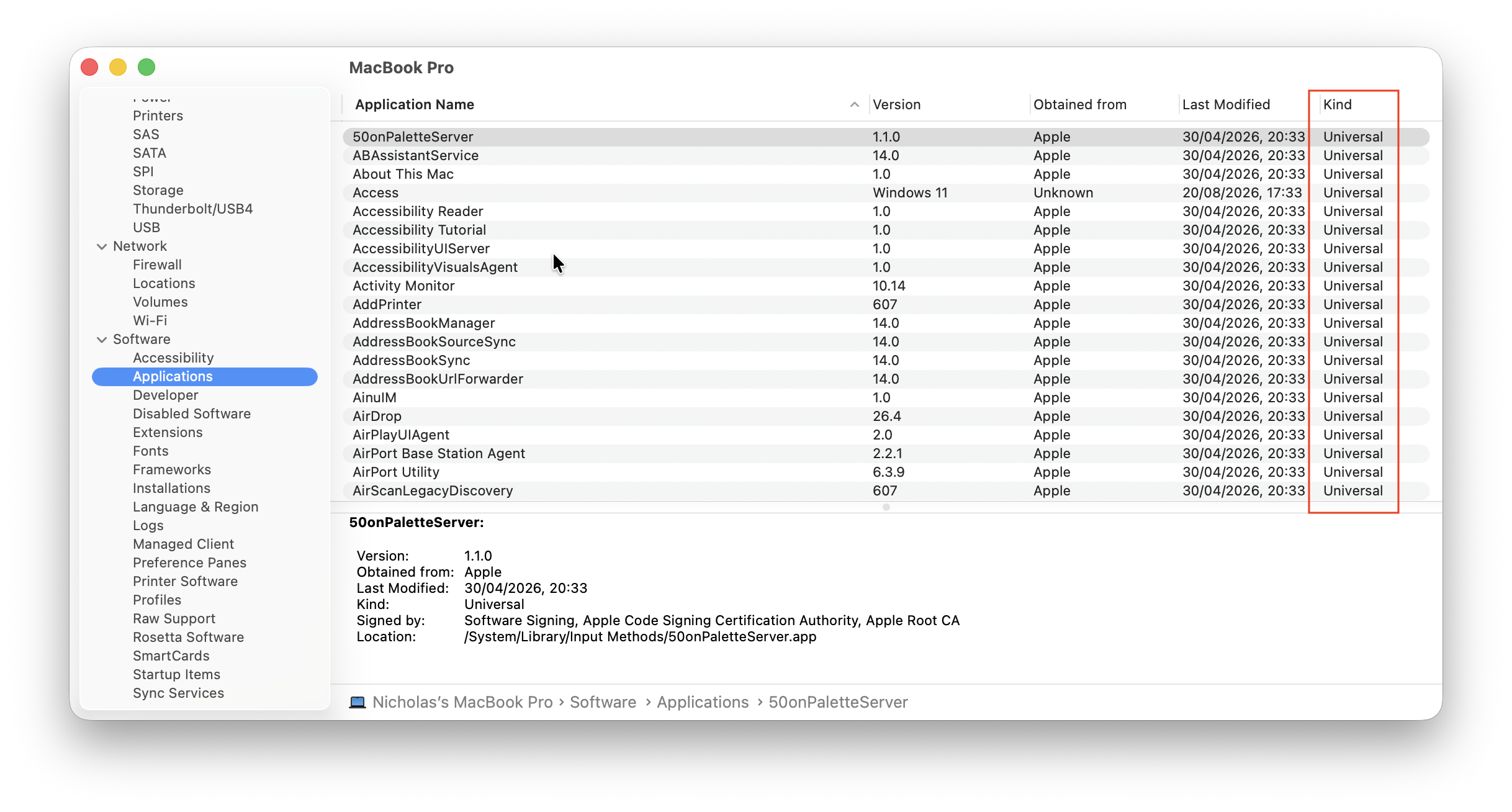
Concentrate on software you actually use. Old updaters, uninstallers and background components may appear in the list even if you no longer need their main application.
You should also check plug-ins and extensions separately. A Universal music or graphics application may still depend on an Intel-only plug-in that prevents an important project from opening correctly.
What To Do Before Intel Support Ends
If an Intel-only application is important to you, I recommend doing the following now:
- Check for an Apple Silicon or Universal update. Look in the App Store, use the application’s update command and check the developer’s website.
- Update plug-ins and extensions. The main application may already be native while an essential add-on still requires Intel code.
- Export important files. Save projects in standard formats that competing applications can open where possible.
- Keep installers and licence details. An application already installed may work even after its old installer disappears, although you must still comply with its licence terms.
- Confirm that you can reinstall it. Do not assume the App Store or developer will always offer the final Intel-compatible download after you erase the Mac.
- Make a complete backup. A Time Machine backup is useful, but keep a separate copy of irreplaceable documents and project files too.
- Identify a replacement before you need it. Test file conversion and workflow compatibility while the original application still works.
- Delay major macOS upgrades when necessary. In particular, do not move an essential Apple Silicon Mac to macOS 28 until every Intel dependency has been checked.
For professional work, it can be sensible to keep a dedicated Intel Mac or a Mac frozen on macOS 27 for one legacy application. However, I would avoid using an unpatched Mac for general web browsing, email or other internet-facing tasks once its security support ends.
Should You Replace an Intel Mac Now?
Not necessarily.
If your Intel Mac still does everything you need, its important applications receive updates and macOS Tahoe continues receiving security patches for it, there is no need to replace it immediately.
An Intel Mac used for writing, offline office work, media playback or a specialist legacy application may remain useful for years.
However, I would start planning an upgrade if:
- An essential application has already announced the end of Intel support.
- You depend on current browser, security or cloud-service updates.
- You need software being released only for Apple Silicon.
- Your workflow relies on Apple Intelligence or other Apple Silicon-only features.
- The Mac is no longer receiving security updates.
- You cannot export important files from an ageing application.
I would not recommend buying an Intel Mac in 2026 as a general-purpose computer, even if the price looks attractive. The exception is a cheap secondary machine purchased for a specific legacy application, Boot Camp installation or piece of hardware that you already know requires Intel.
The Bottom Line
Intel Mac applications will not all stop working together, but the transition has entered its final stage.
Owners of Intel Macs can remain on macOS Tahoe and continue using the final compatible versions of their applications. The growing problem will be lost app updates, online-service support and security fixes rather than an immediate system-wide failure.
Owners of Apple Silicon Macs have a clearer software deadline. Intel applications continue to receive full Rosetta support through macOS 27 Golden Gate, but general-purpose Rosetta support ends with macOS 28. Unless an application falls within Apple’s limited exception for certain older games, it will need to be updated for Apple Silicon.
The safest approach is to identify every essential Intel app now, update or replace it, export important files and avoid upgrading beyond macOS 27 until your critical workflow is fully Apple Silicon-native.
FAQ
Will Intel Mac apps suddenly stop working?
No. Applications already installed on an Intel Mac should not stop solely because the developer releases an Apple Silicon-only update. They may eventually fail because of macOS incompatibility, expired online services, licensing changes or the loss of security and compatibility updates.
Can Intel Macs continue using Mac App Store apps?
Yes, but developers can now stop supplying Intel-compatible updates for universal apps that require macOS 13 or later. Intel users can continue using the last compatible version, although continued access to downloads and online features should not be assumed indefinitely.
Is macOS Golden Gate compatible with Intel Macs?
No. macOS 27 Golden Gate supports Apple Silicon Macs only. Intel Macs must remain on macOS Tahoe or an earlier compatible release.
Does Rosetta still work in macOS 27?
Yes. Apple says Rosetta remains available as a general-purpose translation system throughout macOS 27.
Will Intel apps work in macOS 28?
Most ordinary Intel-only applications should be assumed not to work. Apple says macOS 28 will retain Rosetta functionality only for certain older, unmaintained games that rely on Intel-based frameworks.
Can Rosetta run Apple Silicon apps on an Intel Mac?
No. Rosetta translates Intel applications for Apple Silicon. It cannot make an Arm64 Apple Silicon application run on an Intel processor.
Do Universal apps need Rosetta?
No. A Universal application contains native code for both Intel and Apple Silicon. Some Universal applications offer an optional Rosetta mode to support older Intel-only plug-ins or extensions.
Do 32-bit Intel apps still work?
No. Apple removed support for 32-bit Mac applications in macOS Catalina. Rosetta supports compatible 64-bit Intel software; it does not restore normal support for old 32-bit Mac apps.
Can I keep using macOS Tahoe indefinitely?
You can keep it installed for as long as the Mac remains functional. However, once Apple and application developers stop providing security updates, using it for web browsing, email, banking or other internet-facing work will become increasingly risky.