

Using landscape planning software can save you a fortune compared to the cost of hiring a professional landscape designer or paying for Mac compatible CAD software so we tested and reviewed the best paid and free landscape design tools for Mac of 2026.
The average landscape project will easily set you back several thousand dollars although this can easily rise depending on the size and details of your garden or project.
Although many of the best home design software for Macs are excellent for creating interiors, they often lack extensive landscaping tools.
That’s why we’ve reviewed the best landscaping tools that can be used on Macs (many of them work on all platforms) that allow your imagination to run wild whether it’s for flagstone patios, swimming pools, a vegetable patch or a blooming flower garden.
Although many of the most popular professional landscaping software like VizTerra, Lands Design and Realtime Landscaping Pro are for Windows only, we found that there are also some excellent alternatives on Mac that can be used instead.
Most of the tools we reviewed offer a free trial and some of them even offer limited free forever versions.
They also work on the latest versions of macOS including Tahoe and Apple Silicon Macs.
Contents
- Landscape Design Software Comparison Table
- 1. SmartDraw
- 2. SketchUp
- 3. Live Home 3D
- 4. Neighborbrite
- 5. iScape For Mac
- 6. Cedreo
- 7. Home Designer Suite
- 8. Architect 3D
- 9. Punch Landscape Design
- 10. GardenPuzzle
- 11. Garden Planner
- 12. Houzz Pro
- Summary
- AI Features in Landscape Design Software (What’s New in 2026)
- What To Consider When Choosing Landscape Design Software
- How to Draw a Landscape Plan
Landscape Design Software Comparison Table
If you’re short on time, here’s a quick side-by-side comparison of our top picks first.
Each of these tools offers different strengths depending on your project needs, so keep reading for a closer look at what makes each one unique
| Software | Best For | Starting Price |
|---|---|---|
| SmartDraw | Fast, beginner-friendly 2D landscape plans, patios, pools, and concept sketches | Free / $7.95/month |
| SketchUp | Freeform 3D modeling and custom landscape designs (advanced users), extensive plant libraries | Free / SketchUp Go $10.75/month paid annually |
| Live Home 3D | Realistic 3D landscape design, terrain modeling, and 3D walkthroughs on Mac | Free Trial / Standard $49.99 / Pro $99.99 |
| Neighborbrite | AI-powered concept generation for quick landscape ideas | Free / Optional paid upgrades |
| iScape | Photo-based landscaping with AI plant suggestions; fast visualization on Mac | Free trial auto-renews to subscription $29.99/month or $299.99/year |
| Cedreo | Professional-grade 3D landscape visualization for client presentations | Free limited / Paid plans from $109/month |
| Home Designer Suite | Advanced 3D landscape and outdoor living design with terrain and plant libraries | Subscription $495/year or $79/month |
| Architect 3D | All-in-one home and landscape design with plant growth simulation | From $39.99 (no free trial) |
| Punch Landscape Design | Cross-platform home and landscape design with costing tools | From $59.99 (no free trial) |
| Garden Puzzle | Simple photo-based garden planning with seasonal previews | Free Demo / Premium $19 (6 months) |
| Garden Planner | Basic 2D garden sketches for mapping out layouts | Free web version / $48 desktop app |
| Houzz Pro | Landscape professionals who need design, estimates, and client management | Free Trial / Paid plans from $65/month |
1. SmartDraw
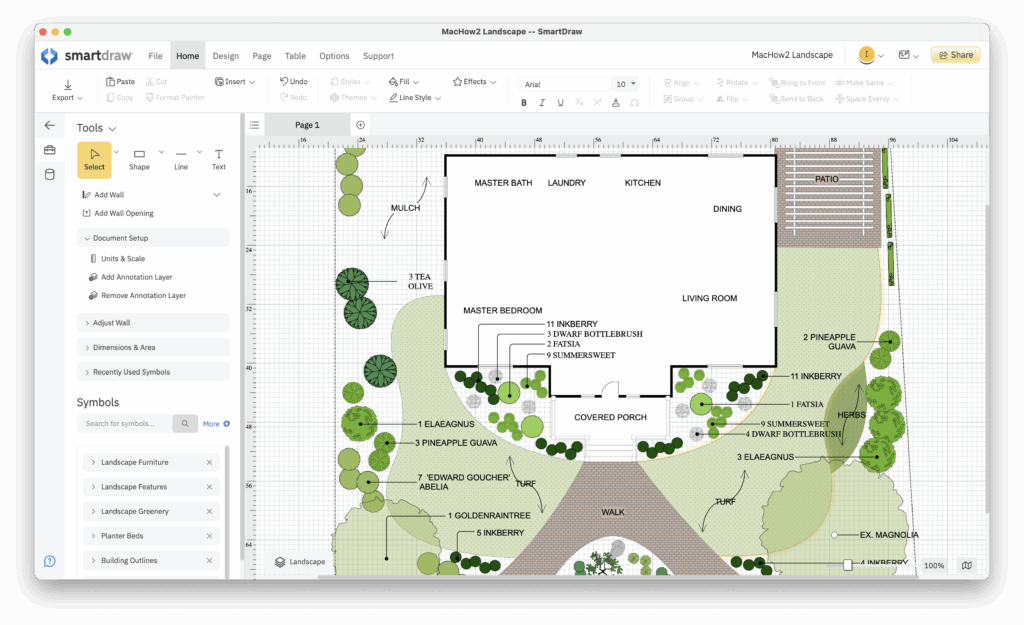
If you want to create landscape plans quickly as a beginner, then it doesn’t get much easier or quicker than SmartDraw.
SmartDraw is by far the fastest and easiest tool we’ve tried for sketching landscapes in 2D.
It also has a convenient Mac desktop app but it can also be used in any browser on both Windows and macOS.
SmartDraw has thousands of quick-start templates including many for landscape design and garden planning.
The choice of templates is by far the best we’ve seen in any landscaping app including layouts for gardens, patios, pools, decks and floor plans providing lots of inspiration.
In particular, there are lots of templates for building pools in your yard and making it also a very competent best pool design software we’ve tried.
There are thousands of symbols and shapes for both landscapes and backyards including the possibility to drag and drop flowers, grasses, sprinkler systems and even brick patterns.
SmartDraw is also suitable for professional landscape design as it has site plan templates for both commercial and residential planning.
SmartDraw goes far beyond just landscaping design into conceptual 2D planning, so it’s also useful for any other home design or renovation project.
You can start using SmartDraw for FREE to judge it for yourself.
You can also read more in our full SmartDraw review for a more in-depth look.
Pricing: Free to start / Starting from $7.95/month individuals, $6.95/month Teams of 3+, $5+/month Enterprise
Pros:
- Incredibly easy to create landscapes quickly
- Excellent Mac desktop access
- Amazing choice of residential and commercial landscape templates
- Simple drag and drop interface
- Thousands of objects, flora and other landscaping items
- Can also be used in any browser
Cons:
- Limited 3D/elevation tools
- No mobile app
- No AI assistance yet
2. SketchUp
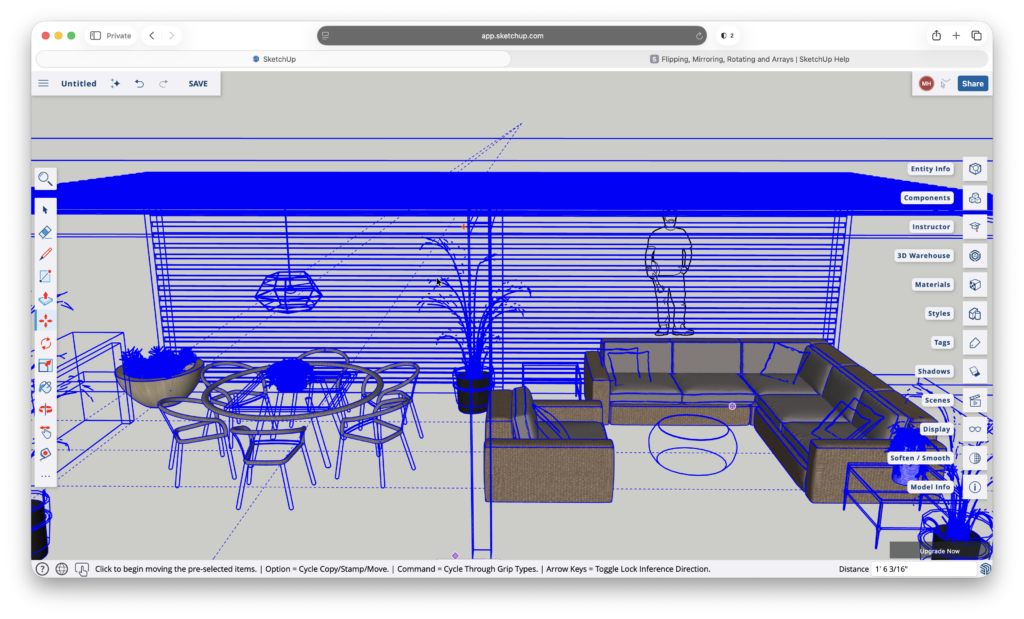
Although SketchUp isn’t marketed specifically as landscape design software, it’s one of the most powerful free tools available for landscaping on a Mac, especially if you want full creative control rather than guided templates.
SketchUp works particularly well for custom outdoor spaces such as gardens, patios, decks, driveways, retaining walls, pools, and terrain-based layouts. The free web-based version runs entirely in your browser, making it fully compatible with macOS and Apple Silicon Macs without installing any desktop software.
One of SketchUp’s biggest strengths for landscaping is its freeform 3D modeling approach. You’re not restricted to preset garden shapes or fixed layouts – instead, you can draw and sculpt landscapes exactly how you want them. This makes it ideal for irregular plots, sloped gardens, multi-level patios, and bespoke outdoor designs that simpler planners struggle with.
For landscaping specifically, SketchUp benefits enormously from the 3D Warehouse, which includes thousands of community-created models such as trees, shrubs, plants, fences, pergolas, garden furniture, outdoor lighting, water features, and paving materials. Many users also upload region-specific plant models, making it easier to visualize realistic planting schemes.
Terrain modeling is another area where SketchUp shines. You can import elevation data, manually sculpt terrain, or build slopes and contours from scratch, which is particularly useful for gardens with drainage considerations or uneven ground. Shadows and sun positioning tools also allow you to preview how sunlight will fall across your landscape at different times of day or year.
While SketchUp Free is excellent for concept design and visualization, it’s worth noting its limitations. The free version does not allow exporting files, and there are no built-in costing or plant-growth simulation tools. However, for homeowners and DIY users who want to explore landscaping ideas in 3D without paying anything, it’s one of the most capable options available.
Professional landscapers or users who need DWG/DXF exports, scaled construction drawings, or client ready blueprints will need to upgrade to a paid plan. But for personal use, SketchUp Free is one of the best landscaping tools you can use on a Mac in 2026.
Check out our full review of SketchUp for more.
Pricing: Free (web version) / SketchUp Go starts from $10.75/month paid annually
Pros:
- Completely free for personal use
- Excellent for custom garden and landscape layouts
- Huge library of plants and outdoor objects via 3D Warehouse
- Strong terrain and shadow modeling tools
- Runs in any browser on macOS (no installation required)
Cons:
- Steep learning curve for beginners
- No exporting in the free version
- No built-in plant growth, costing, or irrigation tools
- Advanced features require a paid subscription
3. Live Home 3D
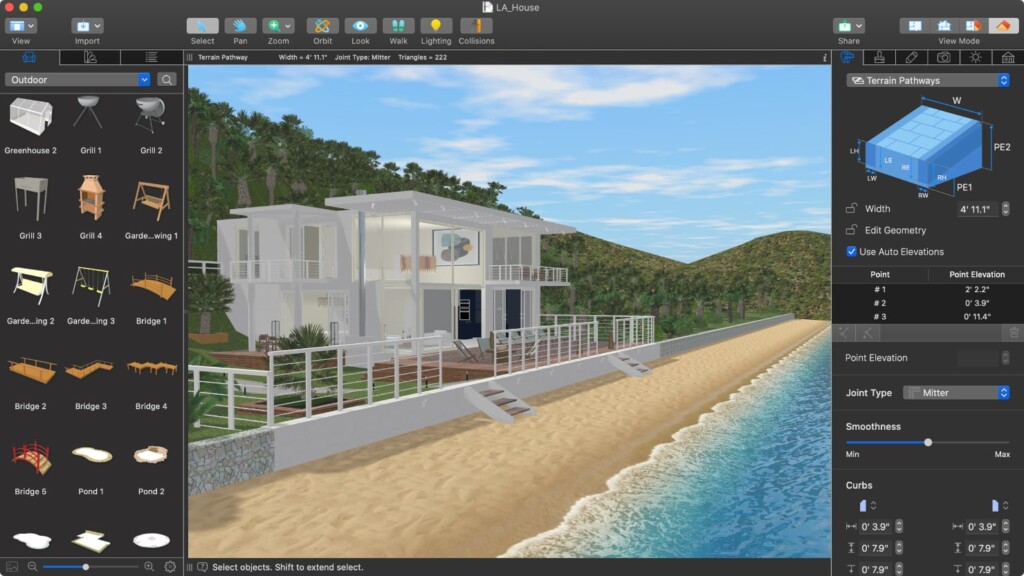
If you’re looking for the best native Mac desktop app for 3D landscape design, Live Home 3D is one of the strongest options available in 2026 – especially for homeowners who want realistic visuals without the complexity of professional CAD software.
Live Home 3D is designed for both home and landscape design, making it ideal if you want to plan gardens, patios, decks, pools, driveways, and terrain around an existing or planned house. Unlike browser-based tools, it runs fully offline on macOS and is fully optimized for Apple Silicon Macs.
One of Live Home 3D’s biggest strengths for landscaping is its real-time 2D/3D switching. You can sketch paths, lawns, planting areas, or hardscaping in 2D and instantly switch to 3D to see exactly how your outdoor space will look – with no rendering delays. This makes experimenting with layouts fast and intuitive.
The terrain editing tools in Live Home 3D Pro are particularly impressive. You can sculpt land, create slopes, hills, and valleys, and design gardens on uneven ground, which is essential for realistic landscape planning. The app also allows you to trace elevation curves from Google Maps, helping you recreate real-world terrain more accurately.
For planting and outdoor features, Live Home 3D includes a large library of exterior objects such as trees, shrubs, fences, paths, pergolas, garden furniture, and lighting. If you need more variety, you can import custom models in OBJ format or download thousands of outdoor items from the SketchUp 3D Warehouse, which integrates very well with Live Home 3D.
Pools, patios, and outdoor living areas are another strong point. You can create rectangular or custom-shaped pools, decks, terraces, and paved areas, then walk through them in immersive 3D. Lighting tools allow you to preview how your garden will look during the day or at night, which is especially useful for outdoor lighting plans.
Live Home 3D also excels at visual presentation. You can export landscape designs as high-resolution images, PDFs, or even 360-degree and walkthrough videos using HEVC encoding – ideal for sharing ideas with family, contractors, or clients.
While the Standard version is useful for basic layouts, it’s quite limited for serious landscaping. The Pro version is strongly recommended, as it unlocks terrain editing, unlimited levels, and advanced visualization features.
You can check-out our review of Live Home 3D for a more detailed look.
Pricing: Free Trial. Standard version $49.99. Pro version $99.99.
Pros:
- Excellent native Mac desktop app (offline use)
- Very strong 3D visualization and walkthroughs
- Powerful terrain and elevation tools (Pro version)
- Large outdoor object library + SketchUp model support
- Ideal for combining home and landscape design
Cons:
- Can feel overwhelming for first-time users
- Limited plant growth simulation compared to specialist tools
- No built-in generative AI features
- Standard version is too limited for complex landscaping
4. Neighborbrite
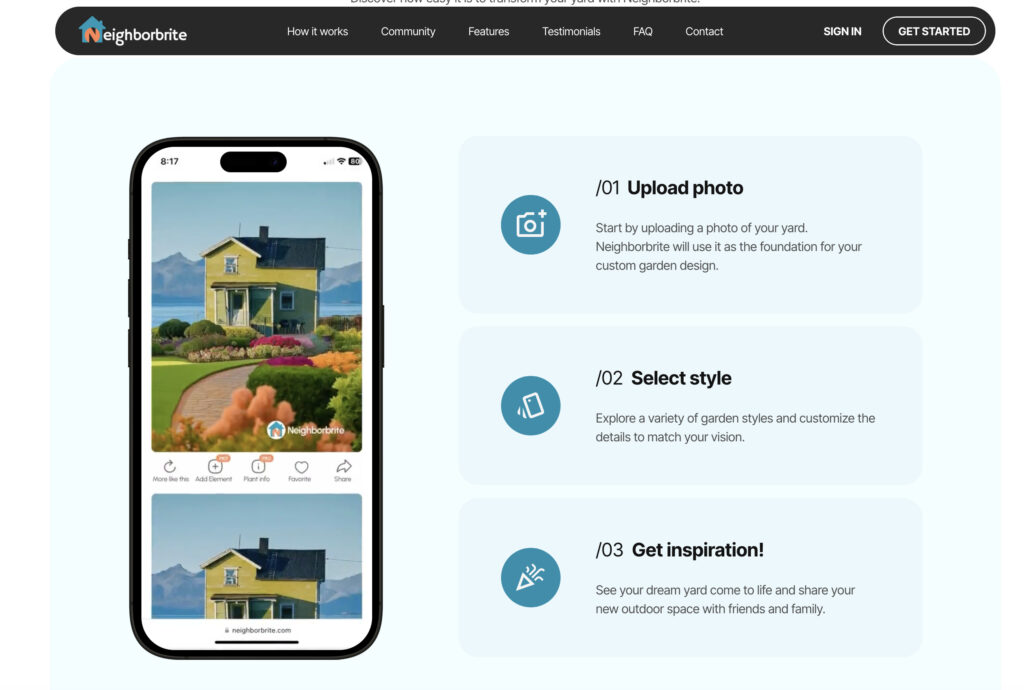
Neighborbrite is an AI-powered landscape design tool that helps homeowners quickly visualize how their yard or garden could look using artificial intelligence.
Unlike traditional landscape design software, Neighborbrite focuses on fast concept generation rather than precise technical plans.
The app works by allowing you to upload a photo of your yard, patio, or outdoor space and then select a design style. Neighborbrite’s AI analyzes the image and generates multiple landscaping ideas, including suggested plants, pathways, lawns, decorative features, and outdoor living elements.
This makes Neighborbrite especially appealing if you want ideas and inspiration before committing to a full landscaping project or investing time in more complex CAD-style software.
Because it’s browser-based, Neighborbrite works well on Macs without needing to install any desktop software. There’s also an iOS app, which means it can be used on iPhones, iPads, and Apple Silicon Macs that support iOS apps.
One of Neighborbrite’s standout features is its location-aware plant suggestions, which attempt to recommend plants suitable for your climate and region. You can generate multiple variations of a design in different styles, making it easy to compare looks and experiment with ideas.
However, its important to understand that Neighborbrite is not a full landscape planning tool. It doesn’t create scaled drawings, detailed construction plans, or cost estimates. Instead, it’s best used as a starting point by helping you decide what you like visually before moving on to more technical software or working with a professional landscaper.
You can try Neighborbrite for free to generate basic designs, with optional paid features for additional design variations and exports.
Pricing: Free to try / Optional paid upgrades (pricing varies)
Pros:
- Extremely easy to use with no design experience required
- AI-generated landscape ideas from real photos of your yard
- Useful plant suggestions based on location and climate
- Web-based, so it works well on Macs with no installation
- Great for inspiration and early-stage planning
Cons:
- Not suitable for detailed landscape plans or construction drawings
- Limited control compared to full 2D/3D landscape design software
- No terrain modeling, costing tools, or contractor-ready exporting
5. iScape For Mac
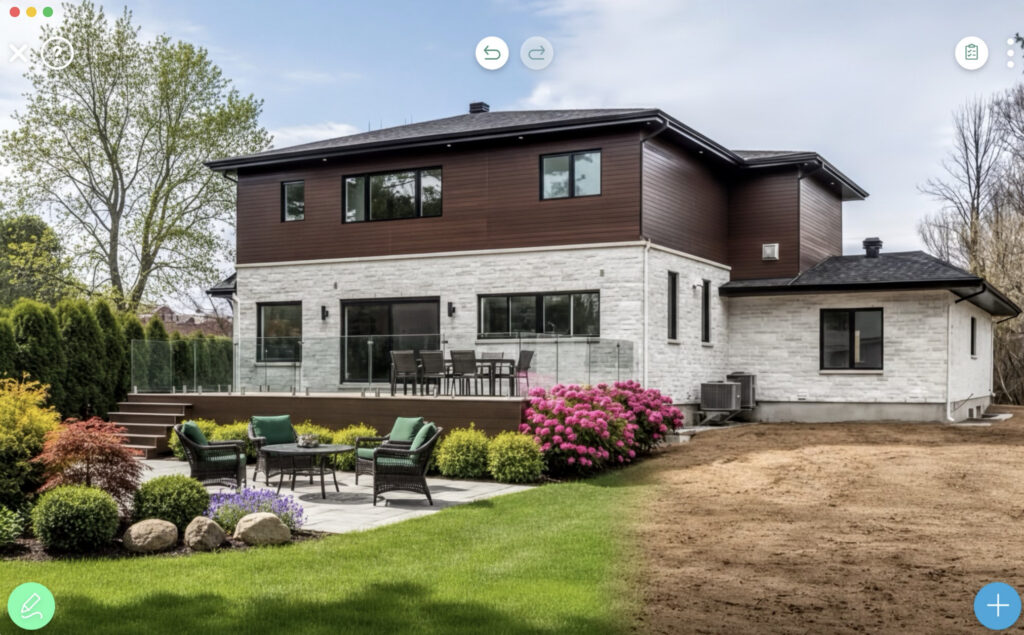
iScape is a photo-based landscape design app that now offers a native Mac version via the Mac App Store. It’s especially popular among homeowners and DIY enthusiasts who want fast visual results using real photos of their yard or property.
Unlike traditional scaled landscape tools, iScape focuses on concept visualization. You can upload a photo of your yard or garden and then add plants, paths, patios, outdoor furniture, and decorative elements directly onto the image. This makes it easy to experiment with ideas and see how changes will look in real life.
iScape also offers AI-assisted plant suggestions and design recommendations, helping beginners choose suitable plants for their region, climate, and sunlight conditions. It’s a browser-friendly and Mac-optimized experience that mirrors the iOS version in usability and features.
Note that the pricing for iScape is a bit confusing. Although it offers a “free version”, the reality is that you only get to try it free for 7 days before you have to subscribe to a paid plan.
It’s important to remember that the free trial will auto-renew as a subscription unless you cancel it before the end of the trial period.
Pricing: $29.99/ month or $299.99/year
Pros:
- Native Mac app optimized for Apple Silicon
- Simple, photo-based landscaping design
- AI-assisted plant suggestions
- Fast concept visualization, great for inspiration
- Works offline once photos are imported
Cons:
- More suitable for concept design than professional landscaping
- Free trial automatically converts to paid subscription if not canceled
- Limited technical features (no accurate scaling, cost estimation, or construction-ready plans)
- No terrain modeling or elevation tools
- Expensive for what it is
6. Cedreo
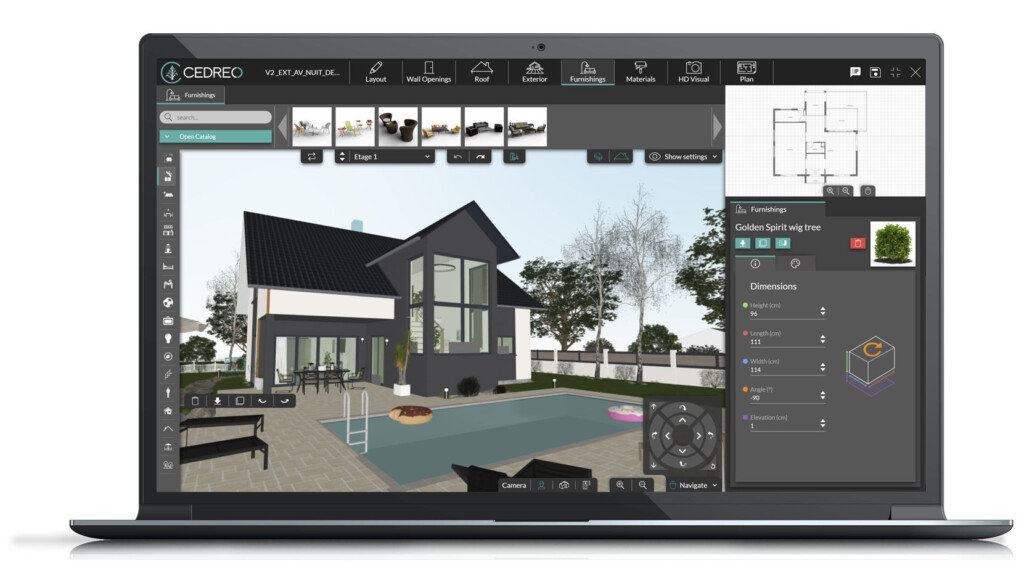
Cedreo is a professional-grade 2D and 3D landscape design tool designed primarily for architects, landscape designers, and construction professionals who need to create photo realistic outdoor spaces from scratch.
Unlike more casual landscape planning apps, Cedreo focuses on high-end visual presentation, making it particularly well suited for client proposals, marketing visuals, and professional walkthroughs rather than quick DIY garden sketches.
Cedreo allows you to import existing landscape blueprints or plans and trace over them, which is especially useful if you’re working from architectural drawings or site surveys. Once your layout is in place, you can choose from over 3,500 surfaces and 3,000+ outdoor furnishings, with a built-in product search tool that makes it easy to find specific materials and objects.
One of Cedreo’s standout features is its lighting and rendering engine. You can simulate sunrise, sunset, and exterior lighting to see how light and shadows will fall across your landscape at different times of day. The result is highly realistic 3D renderings and smooth walkthroughs that are ideal for presenting designs to clients.
While Cedreo does offer a free version, it’s best thought of as an extended trial rather than a true free plan, as it’s limited to a single project and a small number of renderings. The software also has a steeper learning curve than most DIY tools, although Cedreo provides a strong library of tutorials to help new users get up to speed.
If you need polished, professional landscape visuals, Cedreo is one of the best options available on a Mac – but it comes at a premium price.
You can also check out our full Cedreo review for a deeper look.
Pricing: Free limited version / Paid plans start at $109 per month
Pros:
- Excellent photo-realistic 3D renderings and walkthroughs
- Strong lighting tools including sunrise and sunset simulation
- Large libraries of surfaces and outdoor furnishings
- Ability to import and trace existing blueprints
- Well suited for professional client presentations
- Excellent visual exports for contractors
Cons:
- Expensive compared to DIY landscape design tools
- Free version is very limited (one project, few renderings)
- Takes time to learn, especially for beginners
- No DWG exports
7. Home Designer Suite
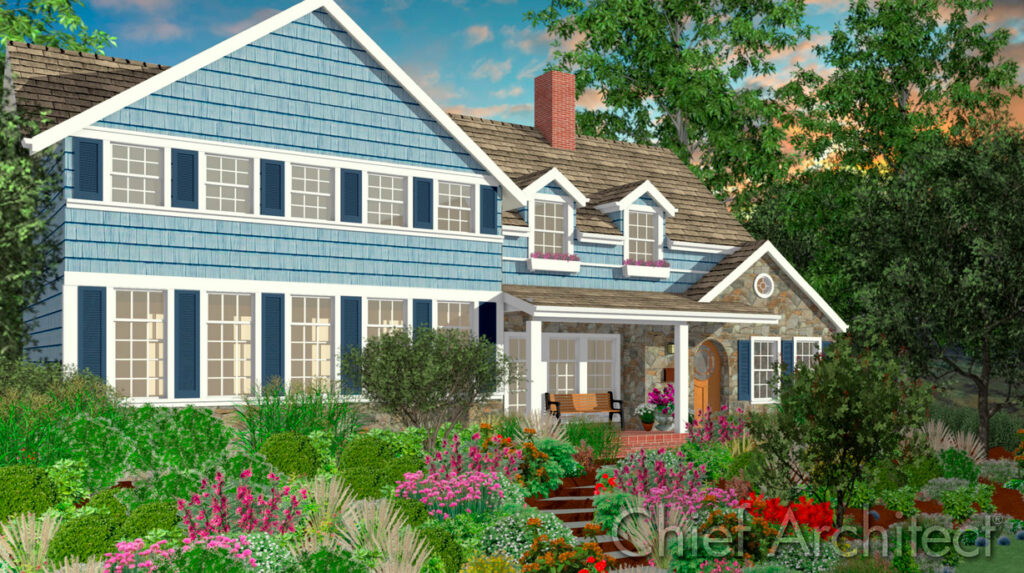
Home Designer is one of the most powerful all-in-one home and landscape design tools available for Mac, and in 2026 it sits firmly at the prosumer / semi-professional end of the market.
Developed by the same company behind Chief Architect, Home Designer is designed for users who want highly detailed, construction-aware landscape plans rather than simple visual sketches. It’s particularly well suited to large gardens, outdoor living spaces, decks, patios, retaining walls, and terrain-heavy projects that need more technical accuracy.
For landscaping, Home Designer excels in terrain and site planning. You can model elevation changes, slopes, contours, and lot grading, making it ideal for properties with uneven ground or drainage considerations. The software also allows you to show setbacks, boundary lines, and site dimensions, which is useful if you’re sharing plans with contractors or local authorities.
Planting tools are another strong point. Home Designer includes a large plant library with detailed botanical data, including USDA hardiness zones, mature plant sizes, and spacing guidance. This helps you design gardens that not only look good but also make sense long-term. Some editions also support plant growth visualization, allowing you to see how your landscape may evolve over time.
One standout landscaping feature is the Outdoor Kitchen and Exterior Living tools, which let you design patios, outdoor kitchens, fire pits, seating areas, and pergolas using real-world components and branded appliances. Combined with its powerful 3D engine, this makes Home Designer particularly strong for high-end residential landscape planning.
You can switch between precise 2D plans and detailed 3D walkthroughs, and the rendering quality is excellent – certainly good enough for presentations to builders or landscapers. Designs can be exported for sharing, and the software works well on Apple Silicon Macs.
That said, Home Designer is not beginner-friendly. The interface is dense, the learning curve is steep, and there’s no free trial, which makes it harder to test before committing. It’s also worth noting that starting with the 2026 version, Home Designer has moved to a subscription-only model, replacing the older one-time purchase licenses.
Home Designer is best suited to users who want near-professional landscape planning capabilities without stepping all the way up to full CAD software, and who are willing to invest time learning the tool.
You can check out our full Home Designer Suite review for more.
Pricing: No free trial. $495/year or $79/month
Pros:
- Very powerful terrain and site-planning tools
- Excellent for complex landscapes and outdoor living spaces
- Large plant library with hardiness zone data
- Strong 3D rendering and walkthroughs
- Well suited for contractor-ready plans
Cons:
- Steep learning curve
- No free trial
- Subscription pricing may deter DIY users
- Interface feels technical compared to modern web-based tools
- No built-in generative AI features
8. Architect 3D
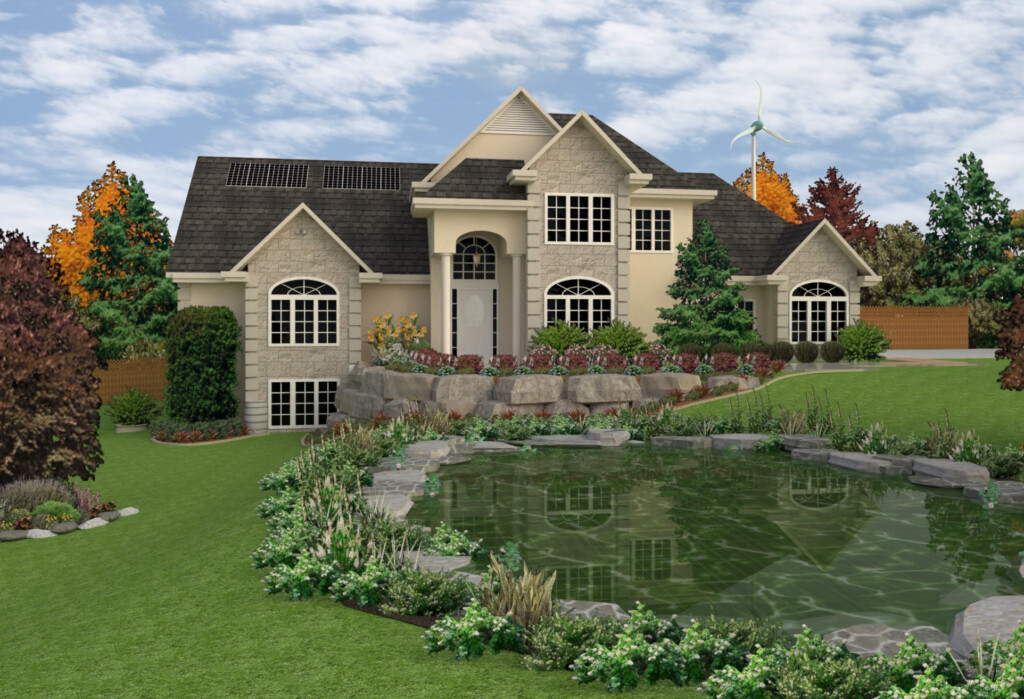
Architect 3D is an all-in-one home and landscape design tool that combines basic architecture capabilities with outdoor planning features, allowing you to create 2D plans and realistic 3D visualizations of gardens, yards, and exterior spaces.
Architect 3D is designed to be more accessible than professional CAD software, offering a drag-and-drop interface and a range of template layouts to help you get started quickly. While it doesn’t have the advanced precision of high-end tools, it does provide a solid feature set for DIY enthusiasts and semi-professional users who want something more capable than basic sketch tools.
One of the strengths of Architect 3D is its extensive plant and materials library – including thousands of shrubs, trees, flowers, hardscape materials, and outdoor elements like fountains, ponds, and swimming pools. The software also lets you import your own landscape outline or sketch to trace and build upon.
Architect 3D includes a growth simulator that allows you to visualize how trees and plants will develop over time, giving you a better sense of long-term garden evolution. Realistic 3D renderings help bring your ideas to life, and the ability to mix interior and exterior planning in one project makes it useful for whole-property design.
However, Architect 3D does have limitations. It does not yet offer native Apple Silicon support – it runs on Macs via Rosetta although performance is generally good. There’s also no free trial, so that you can test before buying. Many of the more advanced features are bundled into the higher-tier editions, meaning the base price doesn’t unlock everything.
Despite these downsides, Architect 3D remains a good option for Mac users who want a step up from basic sketch planners without paying for professional architectural software.
Pricing: No free trial. Express version starts at $39.99 (more advanced editions cost more)
Pros:
- Large plant and materials library (thousands of items)
- Growth simulator to visualize plant development
- Realistic 3D rendering and walk-through previews
- Drag-and-drop layout tools for quick design
- Ability to trace imported sketches or plans
Cons:
- No native Apple Silicon version (relies on Rosetta)
- No free trial available
- More powerful features locked behind more expensive editions
- Interface can feel dated compared with modern software
9. Punch Landscape Design
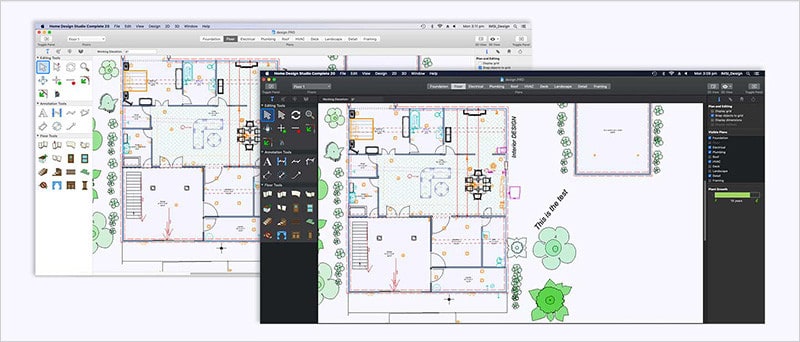
Punch! Home & Landscape Design is a powerful cross-platform desktop application for Mac and Windows that combines home design, landscaping, and cost estimation in one package. It’s aimed at serious DIY users and semi-professionals who want more control than basic sketch tools without moving into full CAD software.
Punch! allows you to design landscapes in both 2D and 3D, with support for aerial views, walkthroughs, and perspective previews. One of its standout features is the QuickStart topography tool, which lets you enter GPS coordinates to automatically retrieve terrain and elevation data for your property – a rare and useful feature for realistic landscape planning.
The software includes a large catalog of over 8,000 objects, plants, materials, and structures, covering everything from patios and retaining walls to trees, lighting, and outdoor furniture. Punch! also excels at budget planning, offering some of the strongest costing tools available in consumer landscape software. You can set a target budget, track material costs, and generate estimates as your design evolves.
Punch! supports photo-based design via its PhotoView tools, allowing you to import images of your property and overlay landscaping elements. Designs can be previewed in both 2D and 3D, although most object placement is done in 3D mode, which can take some getting used to.
While Punch! is feature-rich, it does have a steeper learning curve than simpler tools like SmartDraw or GardenPuzzle. The interface is more traditional and less polished than modern cloud-based apps, and there’s no free trial available. It also does not yet include native AI-assisted design features.
That said, if you want a desktop-based, cross-platform solution with strong terrain handling and excellent cost estimation, Punch! Home & Landscape Design remains one of the most capable all-in-one options available for Mac users in 2026.
Pricing: No free trial. Starts from $59.99 (one-time purchase, edition-dependent)
Pros:
- Works on both macOS and Windows
- GPS-based terrain and topography tools
- Large library of plants, objects, and materials
- Excellent built-in costing and budget tracking
- Supports both home and landscape design in one app
Cons:
- Steeper learning curve than beginner tools
- Interface feels dated compared to newer software
- No free trial available
- No native AI-assisted design features
10. GardenPuzzle
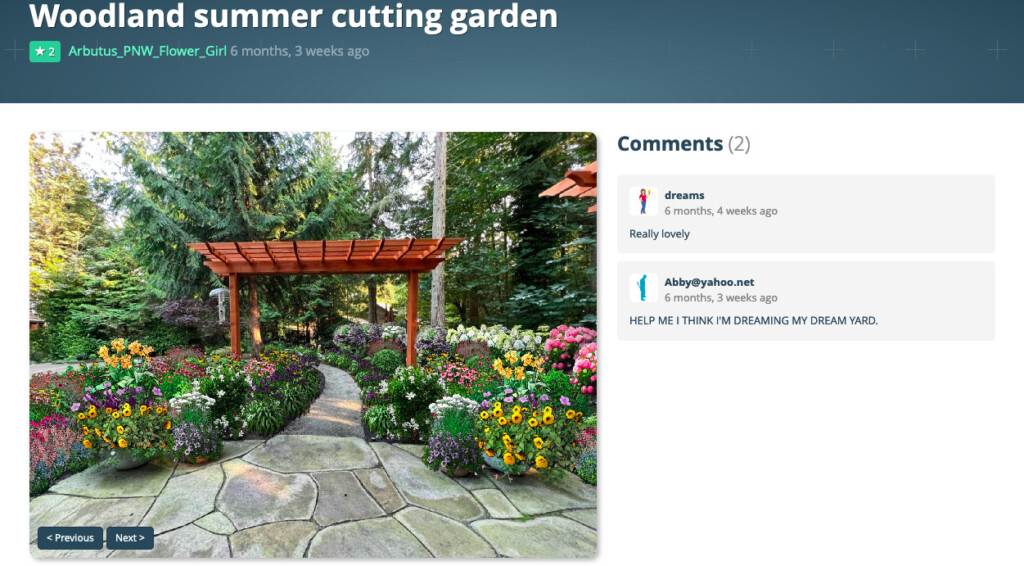
Garden Puzzle is a photo-based garden planning tool designed for homeowners who want to visualize changes to their garden using real photos of their own outdoor space, rather than starting from a blank plan.
Instead of working with scaled drawings or terrain models, Garden Puzzle allows you to upload a photo of your garden (or use one of the built-in sample scenes) and then drag and drop plants, paths, lawns, structures, and decorative elements directly onto the image. This makes it especially appealing if you want quick visual results without learning traditional landscape design software.
For planting, Garden Puzzle includes a library of around 800 plants, which can be filtered by size, climate zone, light requirements, and plant type. You can also preview how plants will look in different seasons, helping you avoid designs that only look good for part of the year. Herb and vegetable packs are available as optional add-ons, or included in higher-tier plans.
Garden Puzzle works online and offline and is available on Mac, Windows, iPhone, and iPad, although it’s worth noting that the desktop app is only included with Premium and Company plans. The interface is simple and beginner-friendly, making it suitable for users with no design or technical background.
However, Garden Puzzle is intentionally limited. There’s no accurate scaling, terrain modeling, irrigation planning, or construction-ready output, which means it’s best used for visual experimentation and inspiration, rather than detailed planning.
You can check out our review of Garden Puzzle for more.
Pricing: Free Demo. Plans starting from $19 for six months access but desktop app only in Premium and Company plans
Pros:
- Uses real photos of your garden or yard
- Very easy to learn and use
- Seasonal plant visualization
- Works online and offline across devices
Cons:
- No precise measurements or scaled drawings
- No terrain or elevation tools
- Very limited technical planning features
- Desktop version locked behind higher tiers
- No AI-generated designs
11. Garden Planner
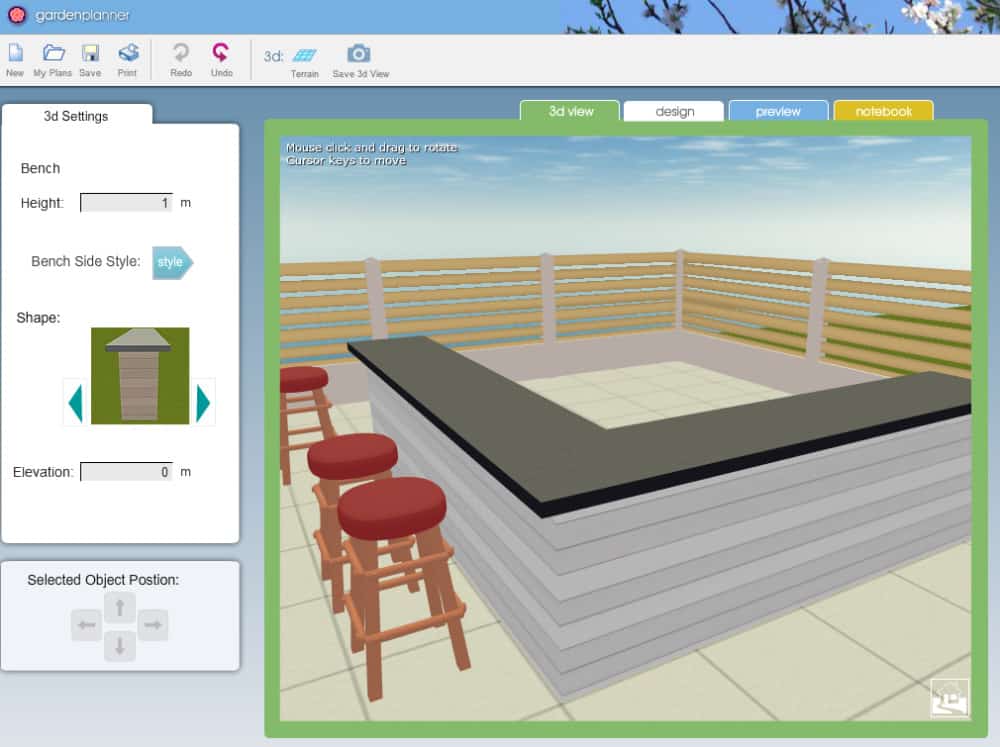
Garden Planner is the simplest landscaping tool featured in this guide and is best thought of as a basic 2D sketching app for garden layouts rather than full landscape design software.
It’s ideal if you just want to map out rough ideas – such as where lawns, flower beds, paths, patios, or vegetable plots might go – without worrying about technical accuracy or visual realism.
Garden Planner works entirely in 2D top-down view, although it does offer simple pseudo-3D walkthrough previews to help you get a sense of layout and spacing. The object and plant libraries are intentionally minimal, with generic symbols rather than realistic plant models, and there’s no way to select specific species or climate-aware plants.
You can use Garden Planner for free in your browser, but exporting or saving designs requires purchasing the desktop version. The desktop app allows you to save and export your plans and is available for a one-time fee.
Because of its simplicity, Garden Planner lacks many features found in more advanced tools – including terrain modeling, plant growth simulation, cost estimation, irrigation planning, or AI assistance. That said, its ease of use makes it a good starting point if you just want to sketch ideas quickly before moving to more capable software.
Pricing: Free but $48 for desktop app to save designs
Pros:
- Extremely easy to use
- Good for quick garden layout sketches
- No learning curve
- Affordable one-time pricing for desktop version
Cons:
- Very limited plant and object library
- No realistic 3D visualization
- No terrain, costing, or growth tools
- Not suitable for detailed landscape planning
- No AI features
12. Houzz Pro
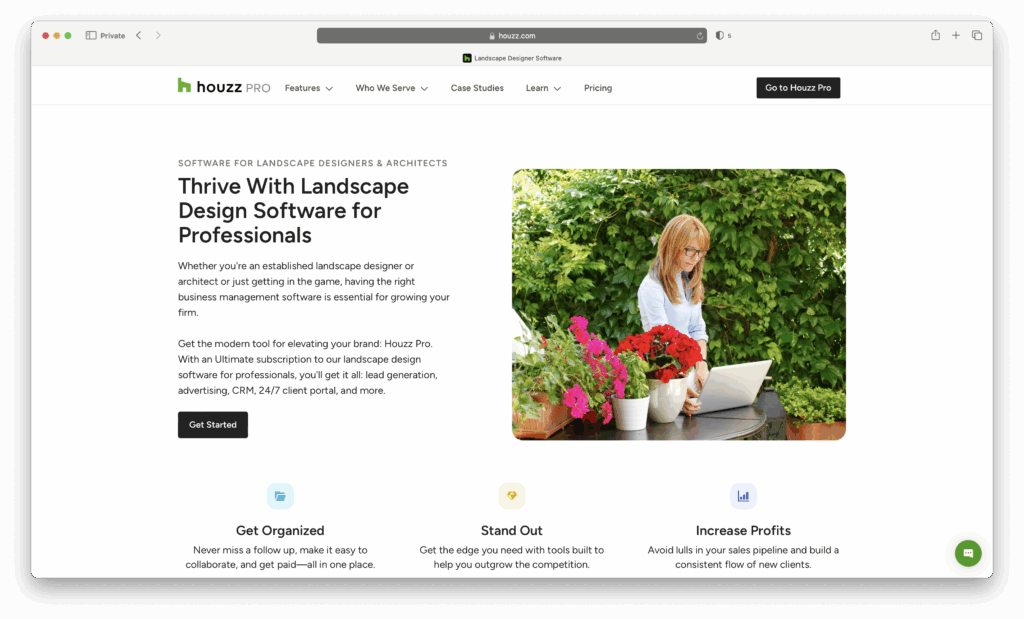
If you’re a professional landscape designer or contractor looking to manage both your design projects and clients in one place, Houzz Pro is one of the most complete landscape design tools I’ve used.
Houzz Pro isn’t just for drawing garden layouts – it’s an all-in-one platform that helps landscapers design, estimate, and manage every stage of a project from concept to completion.
The built-in 3D design tool allows you to create detailed outdoor spaces including patios, driveways, lawns, pools, and planting areas. You can visualize how your design looks in realistic 3D renderings and easily share them with clients for instant feedback.
Unlike many landscape design tools, Houzz Pro also integrates client communication, scheduling, invoicing, and payments, making it a complete business management suite for landscaping professionals.
You can also use the mobile app to take photos on-site, annotate them, and create estimates on the go – ideal for landscapers working with clients outdoors.
Because Houzz Pro is fully cloud-based, you can access your projects from any Mac or browser, and everything stays synced across your team.
It’s particularly useful if you already use Houzz to find clients, as the two platforms are integrated.
You can read our full Houzz Pro review for more.
Pricing: Free trial available / Paid plans from around $65/month (varies by feature bundle and region)
Pros:
- Combines landscape design and client management in one platform
- Realistic 3D visualization tools for outdoor spaces
- Cloud-based with full Mac and browser access
- Built-in estimating, billing, and client communication
- Excellent for growing landscaping businesses
Cons:
- More expensive than simple design-only tools
- Some features (like 3D rendering) require higher-tier plans
- Terrain modelling is limited compared to tools like Live Home 3D & Turbo Floor Plan
Summary
Choosing the right landscape design software for your Mac in 2026 depends on your goals, experience, and budget.
For casual DIY users or those who want quick, visual garden ideas, SmartDraw, SketchUp Free, Garden Puzzle, and Garden Planner offer simple, intuitive tools to experiment and plan without a steep learning curve.
Prosumers and serious hobbyists who want realistic 3D visualizations, terrain modeling, and more control over plant placement will find Live Home 3D, iScape, and Home Designer Suite to be powerful yet approachable options.
For professional landscapers, architects, or contractors managing client projects, Cedreo and Houzz Pro provide full-featured 3D renderings, detailed plant libraries, cost estimation, and project management tools to take designs from concept to completion.
By assessing your project needs, the level of detail you require, and whether AI assistance or collaboration features are important, you can pick the tool that best balances ease of use, creative freedom, and professional features.
AI Features in Landscape Design Software (What’s New in 2026)
AI in landscape design is still in its early stages, but some tools are beginning to offer helpful assistance for planning, plant selection, and layout. Here’s a breakdown of the main AI features currently available:
- AI Plant Suggestions
Some apps can recommend plants based on your region, climate, sunlight exposure, soil type, and garden size. This helps beginners make better choices without manually browsing large plant libraries. - Auto-Layout & Smart Design Assistance
Certain tools can suggest garden layouts, pathways, patios, or planting zones based on your yard’s dimensions. While not a replacement for professional planning, this speeds up the design process and provides a helpful starting point. - Sun, Shade & Environmental Optimization
Advanced software can simulate sun paths, seasonal lighting, and shadows. AI is beginning to analyze this data to recommend optimal plant placement, warn about unsuitable lighting, and help plan seasonal changes. - AI-Assisted Cost Estimation
Some tools now use AI to forecast project costs. They can flag designs that exceed budget, suggest alternative materials, or predict how changes in plant density or terrain affect overall spending.
Tools currently experimenting with AI: Neighborbrite, iScape, SketchUp (via plugins).
Note that at the moment, AI tools are best used for inspiration and early planning, not final construction or contractor-ready drawings.
What To Consider When Choosing Landscape Design Software
To help you decide which landscaping app to go for, there are a few useful things to consider before diving in.
- Do you want a 2D or 3D landscaping tool?
- Do you want to be able to upload a photo of your home or garden?
- Do you need costing features built-in?
- Do you need the software to pull GPS coordinates for contractors to view?
- Do you want to be able to do 3D photo-realistic walk-throughs of your finished designs?
- Do you need a sprinkler system layout planner built-in?
- Does the app have a detailed database of plants, shrubs and other garden related objects?
- Are there plenty of quick start templates to customize and help get things done quickly?
- Can the software project how changes in seasons, sunlight and shadows will affect your design?
- Can the app show you how plant growth will look years down the line?
- Do you need to be able to easily share your yard plans with others?
- Do you need home design and landscape design rolled into one?
- Do you want AI assistance when creating landscapes?
How to Draw a Landscape Plan
Taking on a landscaping project can be daunting, but breaking it down into clear steps makes it much easier. Follow these steps to create an accurate and implementable landscape plan:
1. Measure Your Property
Accurate measurements are essential for scaling and costing your landscape map. Use a long tape measure (at least 100 feet recommended) or refer to your property’s original blueprints or deed map if available.
2. Map Existing Objects
Take note of all existing elements you want to keep, such as trees, fences, outbuildings, patios, hedges, and vegetable gardens. Consider the climate, sunlight, and seasonal shadows when recording their positions.
3. Draw Boundaries in Software
Using your landscaping software, outline the boundary of your property and the position of your home. Make sure your house and other permanent structures are placed accurately on the plan.
4. Add Plants, Paths, and Structures
Place all new landscaping elements onto your plan, including plants, flower beds, lawns, patios, walkways, and water features. Include distances between elements to ensure proper spacing.
5. Include Layers for Irrigation & Lighting
If your software allows, create separate layers for irrigation systems, lighting, or other utilities. Layering helps keep your plan organized and makes it easier to modify specific components later.
6. Check Local Regulations
Before implementing your plan, review local zoning laws, property regulations, and HOA rules. Ensure your design complies with any restrictions on structures, fencing, setbacks, or planting.