

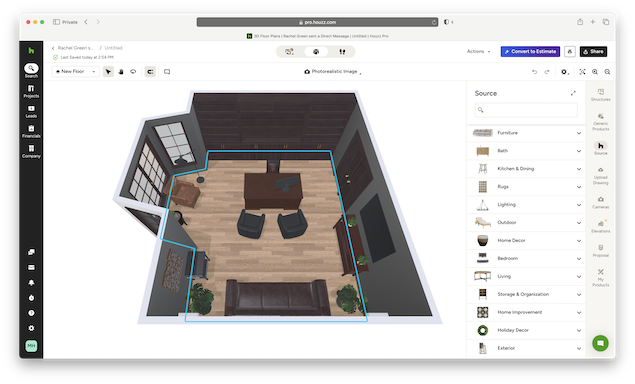
I’ve tried a lot of floor plan and home design software on Macs over the years and I was intrigued to see what Houzz Pro could bring to the table.
Houzz Pro is different from most floor planning/building design apps as it also provides a platform for contractors to not only showcase their skills and generate leads, but manage the project from beginning to end.
So for example, if someone wants some landscaping done on their home, they can search the Houzz platform for a designer in their area.
Houzz Pro highlights you as a suitable match, the customer gets in touch and you send a design proposal complete with costing and even a detailed project timeline of how long it will take.
If the customer then decides to contract you, you can request payment via Houzz Pro and even offer loans to clients via Intuit Loans.
So you effectively get not just a 3D floor planner but client-presentation tools and integrated business/management tool that’s squarely aimed at contractors, interior designers and re-modelers.
But does it live up to this hype? Here’s my experience using Houzz Pro along with pros, cons, and tips for those using it on a Mac.
Getting Started
Houzz Pro is browser based so there’s no Mac desktop client. You can get going instantly by signing-up for the 30 day free trial.
When you first login, there’s a “Get Started With Houzz Pro” menu that introduces you to all the main things you need to get going: Setting up a Profile, 3D Floor Plans, Proposal Generation and Taking Online Payments.
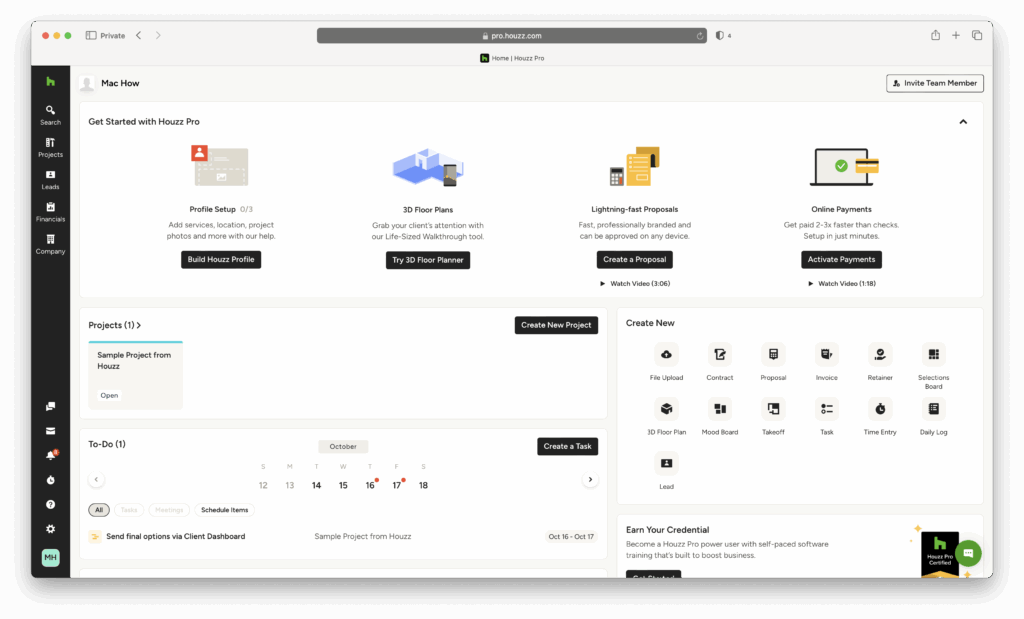
In general, the Houzz UI looks polished and modern. Panels, sidebars, tool icons are all clear and accessible with options such as file uploading, contracts, invoices and even mood boards easy to find.
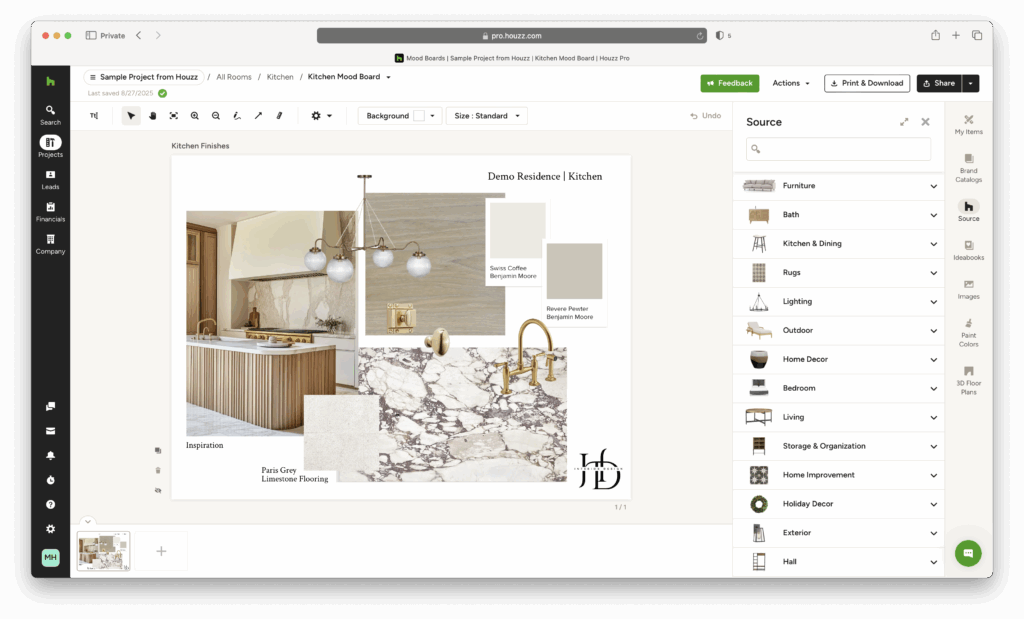
As already mentioned, once you’ve filled-in your profile, if you’re a professional designer or contractor, you also get placed in the Houzz network for your local area making you findable by home owners where you live.
Using Houzz Pro’s Tools
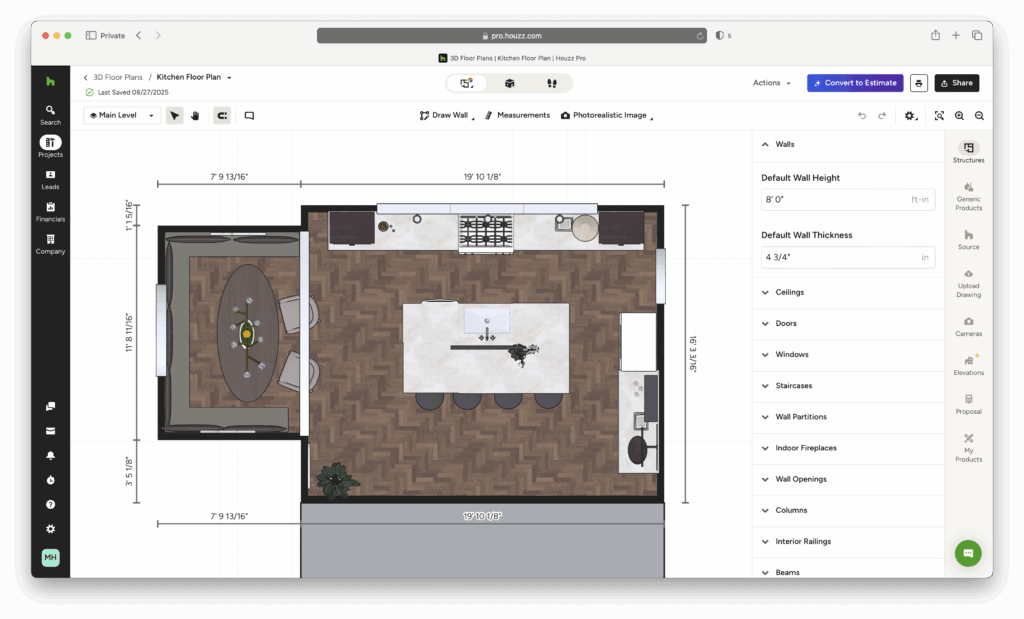
For basic floor plan and home design, the built-in tutorials, templates, tooltips, and the help sidebar were all very useful. However, I did find that some essentials (such as snapping walls, locking dimensions and aligning furniture) were not as easy to find as they should be.
The first few times I tried to draw walls or open a room layout, I found myself asking “why won’t the wall snap to this dimension?” However, once I figured out how the snapping grid, constraints, and “edit wall” modes worked, things became clearer.
I also found that switching between design modes (2D to 3D to “walkthroughs”) was sluggish. You of course expect lag when software has to render designs but Houzz Pro definitely takes its sweet time over it.
Here we’ll take a closer look at this in more detail.
Floor Planning, 3D Rendering, and Layout
Floor Plan Creation (2D to 3D)

You can start with a blank room, or import something – e.g. a rough sketch, or perhaps an image -and “trace over” it. The Houzz Pro drawing tools allow you to easily place walls, doors, windows, and openings.
In 2D mode, you get dimension readouts, constraints, and “snap to grid / wall endpoint” assistance, which is useful to avoid misalignments.
Once the 2D shell is in place, you can “extrude” or lift walls, set ceiling height, and flip to 3D view. As mentioned, the transformation is a bit slow, even on the M3 MacBook Pro I was using, and I imagine that on older Intel Macs would take even longer, especially if you add textures or lighting.
If you’ve already got a PDF of a 2D floor plan, Houzz Pro can also turn into 3D using “AutoMate AI” or manually trace over it.
3D / Walkthrough / Visualization
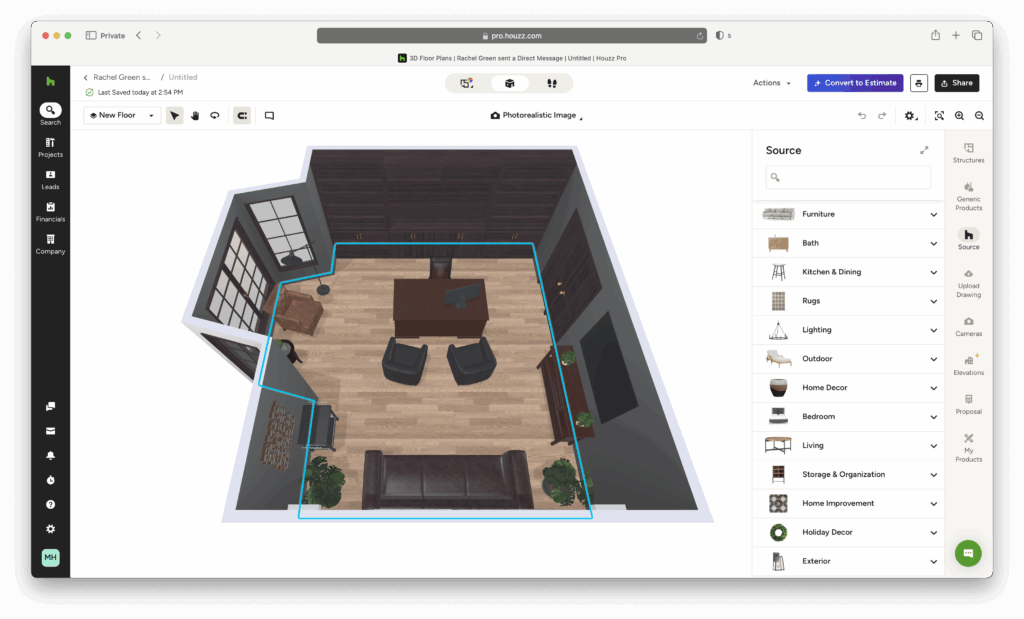
The 3D view is where Houzz Pro really shines. You can orbit around, pan, zoom, and switch between different “view modes” (wireframe, shaded, photorealistic).
There is also a “life-sized walkthrough / AR” mode that lets a client or you “walk through” the design on site or virtually. This isn’t unique to Houzz but the walkthroughs are some of the best I’ve seen compared to other interior design apps that offer it.
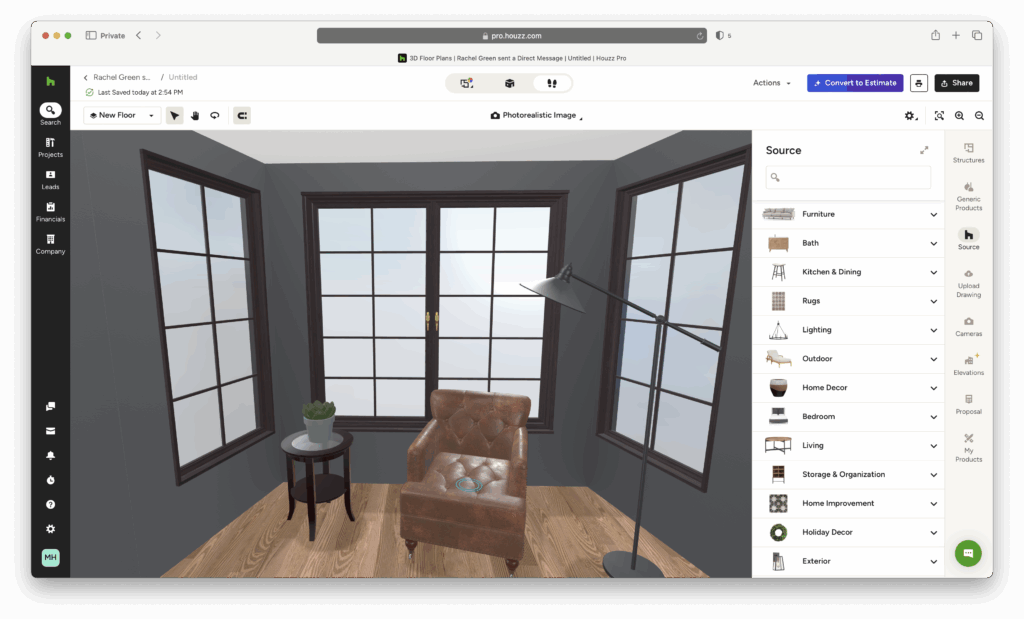
You can also drop in furniture, fixtures, finishes, windows, lighting, and change them on the fly. Want to see tile vs wood flooring? Swap it instantly and see how it looks.
Object library and materials
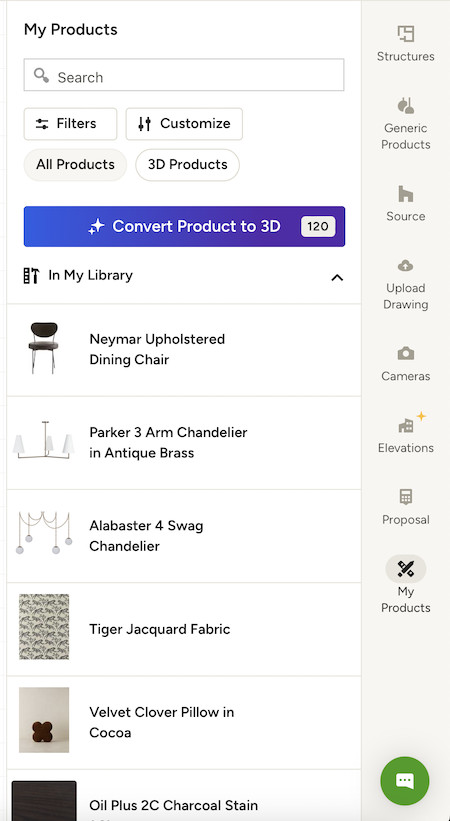
Houzz Pro includes an extensive library of furniture, appliances, lighting fixtures, materials, and finishes. However many of these are all very generic so it also links to (or allows you to “clip” from) real products for more authenticity.
Material swapping is usually smooth, though I encountered some textures that didn’t scale well (e.g. certain tiles or wood planks zoomed in looked blurry).
One nice touch is that objects and materials can carry metadata (cost, SKU, etc.), so you can tie your design to your proposal/estimates.
Performance & limitations
With “light” rooms and moderate furniture, performance is fine. But once I started adding a bunch of decorative elements, plants, glass partitions, lighting, and shadows, things slowed a bit. On my M3 MacBook Pro, I noticed delays when rotating or changing texture although some of this may have be down to internet connection latency.
There were also occasional rendering artifacts – flickers, slight texture misalignment, or momentary blank patches until the engine “caught up.”
For extremely complex multi-room houses with lots of detail, Houzz Pro’s 3D engine felt less responsive compared to dedicated 3D rendering tools but this is to expected since it’s not primarily a rendering tool.
Projects, Client Tools, Proposals & Business Features
One of Houzz Pro’s big selling points is that it’s not just a design tool – it’s also designed to manage your estimates and invoicing to customers.
Project dashboard & client portal
For each project, the dashboard gives you a summary: floor plans, to-do list, materials list, change orders, and client communications.
You can also invite a client to a shared portal where they can comment on design, view renders, approve or request changes, and see a time-lapse of design changes.
On mobile, the Houzz Pro mobile app lets you show designs or scan rooms on the go. However, according to reviews on the App Store, several users warn that the app experience can be inconsistent or buggy.
Proposals, estimates, and cost linking

One of the cleverest aspects of Houzz is that any item (furniture, finish, fixture) you place in the design can be tied to proposal line items automatically.
You can then easily export proposals, invoices, change orders, and integrate with accounting software such as QuickBooks.
For my test project, I generated a proposal directly from the 3D plan: the material costs, labor, and markup were all included so my imaginary client could see the design and cost together.
Although I’ve tried other home design apps that support this, Houzz does it very well and is the best floor planning and home design tool I’ve tried in terms of costing.
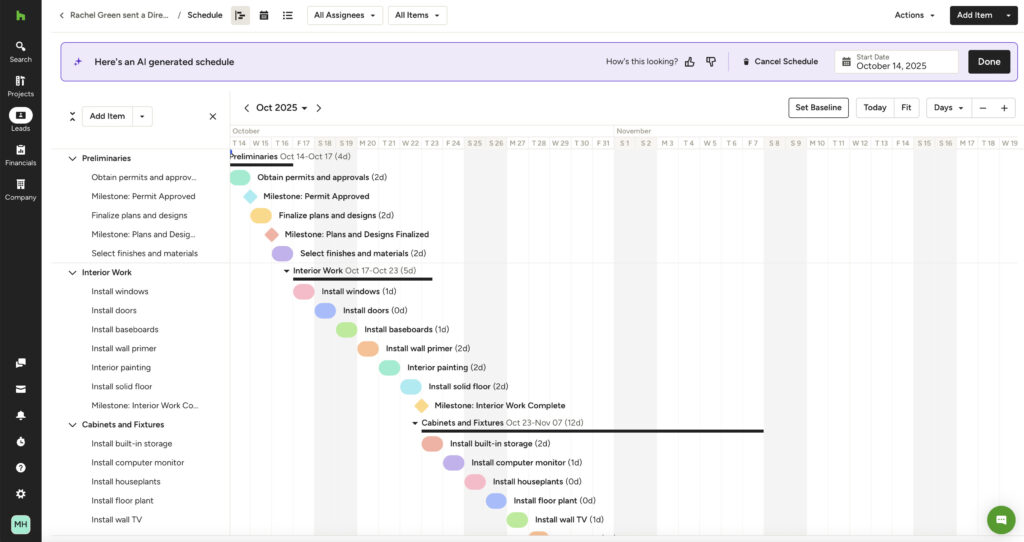
Not only this, but Houzz Pro can even create a project schedule to give you a Gantt chart view of how long it will take. This is a really cool feature and avoids the need to use project management software or Gantt chart makers to manage the project.
Lead generation, marketing, and CRM
In the more expensive Custom Houzz Pro subscriptions, you also get access to leads, advertisements, and marketing tools (pages on Houzz, local leads) as part of the package.
This allows potential customers that are searching on the Houzz platform, to get in touch and hopefully contract your services.
To be included in this, you obviously need to setup a profile with location details with some information about your company or skills.
It’s not enough to “turn on leads” and expect traffic however – you need to actively manage your profile, upload photos, get positive reviews, etc.
Obviously, I wasn’t able to test this but Houzz provides an example templates of what a potential client getting in touch would look like.
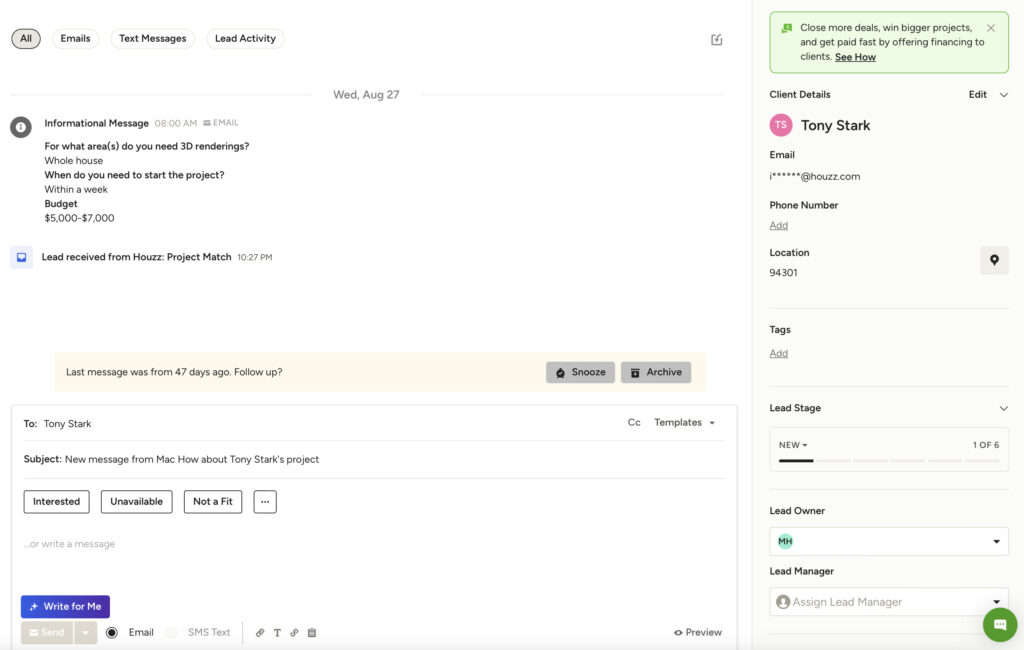
Houzz Pro includes its own CRM module that allows you to log communications, track leads, follow up, and sync contacts. This CRM module is particularly useful, avoiding the need to use an expensive external CRM software for managing client contact.
You can of course accept payments however you want but if you want to keep things under one roof, you can take payments via Houzz Pro and import transactions by linking it to QuickBooks accounting software.
You can even offer clients loans thanks to a link-up deal that Houzz Pro has done with Intuit Loans and Credit Karma.
What I Liked Most About Houzz Pro
To summarize, here are the things I really liked about using Houzz Pro on a Mac.
- All-in-one design and costing – You don’t need multiple apps to design, propose, invoice, and manage clients.
- Client 3D / AR walkthroughs – Superb for selling and showing ideas. Clients can “see” rather than imagine designs.
- Easy swaps and feedback – Changing finishes, furniture, repositioning walls is relatively fast and instant feedback helps you get it right.
- Metadata linking – The ability to link items to costs, SKUs and proposals giving you and your client a better idea of how much your design will really cost
- Web-based (cross-platform support) – Even though I used Houzz Pro on a Mac, everything worked via a browser so there’s no dependency on Windows.
- Community & integration – There’s a thriving community of users and experienced designers on the Houzz Pro platform.
What Needs Improving
- Performance under load
- On more complex scenes, the 3D renderer lags, textures glitch, and navigation could become sluggish, especially on Intel Macs.
- Discoverability of tools / UI quirks
- Some operations (locking a wall, aligning objects to walls, grouping, hiding objects) were not obvious or required trial and error to find them.
- Pricing transparency
- Houzz Pro doesn’t publish pricing on its website. Instead you have to request a demo and then pricing is done on quotation depending on the size of your project. Many advanced features are also behind higher pricing tiers (e.g. lead generation, accounting integrations etc). You can however request a free trial of the Pro version to try it first.
- Mobile App quality concerns
- The mobile app, while useful for showing designs or scanning, has mixed reviews (lag, crashes, poor usability) from real users.
- Features limited vs specialized CAD software
- Compared with heavy-duty CAD tools (Revit, Archicad, Blender), Houzz Pro is less suitable for architectural-level detail (e.g. complex roof forms, structural elements, parametric editing).
Can You Cancel Houzz Pro Subscriptions?
I have read reddit threads (such as this one) with customers claiming they could not cancel their Houzz Pro subscription when they wanted to.
It should be highlighted that these threads are a few years old now and it seems that Houzz Pro has a clear policy on cancellations, including a 7 day grace period if you forget to cancel your subscription when your trial period is up.
The cancellation policy is clearly accessible from within the Houzz Pro app by clicking on the chat dialog in the bottom right, so it seems the company has taken these complaints seriously.

Who Houzz Pro Is For
If you are:
- designing moderately sized homes or interiors,
- want to present to clients in 3D/AR form,
- and need business integration (CRM, proposals, invoicing)
then Houzz Pro is absolutely worth it and I wouldn’t hesitate to recommend the 30 day free trial to try it for yourself.
However, if you:
- require highly detailed architectural modeling or structural elements,
- have extremely complex render scenes,
- depend on flawless mobile app experience,
- just want to do the odd one-off floor plan,
- or need to know exact pricing up front before starting the trial
then you may want to try on of these alternatives to Houzz Pro.
I’d also recommend using a pretty high-end Mac – at least an Apple Silicon model – to handle the demands of the 3D rendering and walkthroughs.