

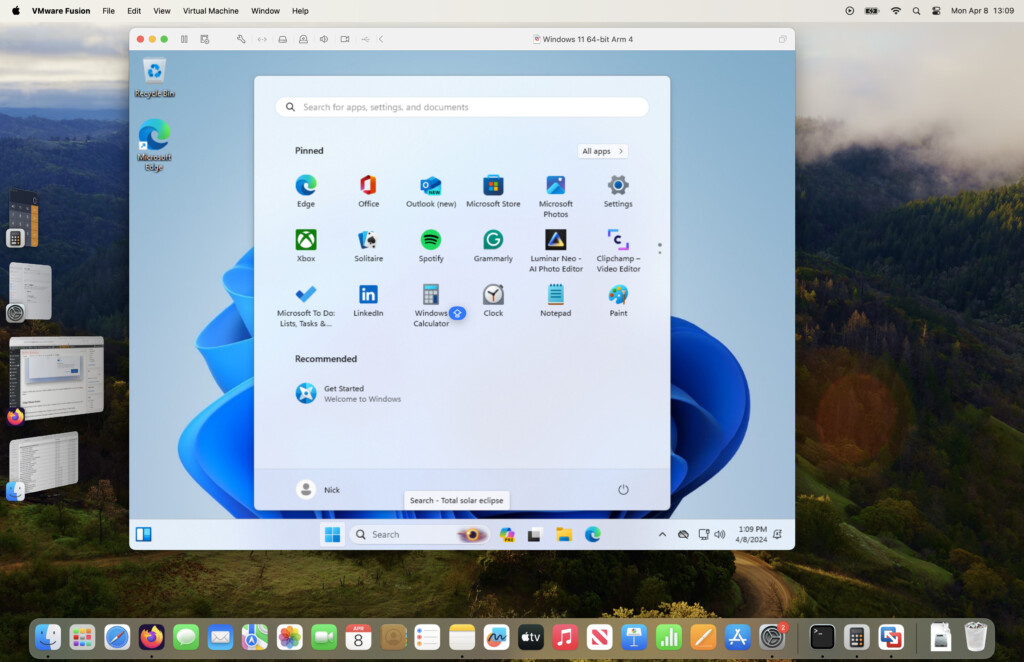
Looking to run Windows on your Mac in 2026? Whether you’re using an Intel Mac or a newer Apple Silicon model, there are multiple ways to run Windows efficiently – from productivity apps to gaming.
We’ve tested the latest solutions, including virtual machines, compatibility layers, and remote access tools, to help you find the method that fits your needs. Some options let you run Windows side-by-side with macOS, others allow you to play Windows games without installing a full copy of Windows, and some provide access to a remote Windows PC.
In this guide, we break down the strengths, limitations, and pricing of each approach, including the latest updates for Apple Silicon Macs. By the end, you’ll have a clear picture of which method is best for your setup, whether your priority is productivity, gaming, or occasional Windows access.
Table of Contents
- Windows on Apple Silicon Macs: What You Need to Know (Windows ARM Explained)
- 1. Virtual Machines (Best For Beginners)
- 2. Crossover (Best For Windows Only Gaming)
- 3. Boot Camp (Best For Intel Macs Only)
- 4. Wine (Best For Tech Savy Users)
- 5. Remote Desktop Software (Best For Remote Windows Access)
- FAQ
- Future Outlook: Running Windows on Macs in 2026 and Beyond
Windows on Apple Silicon Macs: What You Need to Know (Windows ARM Explained)
Firstly, it’s essential to understand that if you’re using an Apple Silicon Mac (M1-M5 or newer), these Macs do not run the standard x86 version of Windows used on most PCs.
Instead, Apple Silicon Macs run Windows on ARM.
Windows ARM is a version of Windows designed specifically for ARM-based processors like Apple’s M-series chips. While it looks and behaves just like regular Windows 11, there are some important compatibility differences.
Most modern Windows applications work on Windows ARM thanks to Microsoft’s built-in x86 and x64 emulation. This means popular software such as Microsoft Office, many productivity tools, and a large number of games will run without issue.
However, some software still doesn’t work properly on Windows ARM, including:
- Older Windows programs that rely on legacy drivers
- Games with kernel-level anti-cheat systems (such as some competitive online titles)
- Certain hardware drivers and low-level utilities
- Some professional software that hasn’t been updated for ARM compatibility
This is why performance and compatibility can vary depending on how you run Windows on a Mac.
- Virtual machines (like Parallels Desktop or VMware Fusion) run Windows ARM directly on Apple Silicon
- Compatibility layers (like CrossOver or Wine) bypass Windows entirely and translate Windows apps into macOS instructions
- Remote desktop tools give you access to a full x86 version of Windows running on another PC
Understanding this distinction helps explain why some Windows apps and games work perfectly on a Mac, while others don’t – even when using the latest hardware.
To kick things off then, here’s a convenient side-by-side of the tools we tested followed by overviews of each one.
| Method | Best For | Pricing |
|---|---|---|
| Parallels Desktop | Seamless macOS + Windows use, productivity apps, light gaming | $99.99/yr (Standard) |
| VMware Fusion Pro | Productivity apps, tech-savvy users; free alternative to Parallels | Free |
| UTM | Running Windows ARM on Apple Silicon for experimentation | Free |
| CrossOver | Running Windows apps/games without installing Windows; Apple Silicon compatible | $74/yr or Lifetime option |
| Boot Camp | Native Windows performance on Intel Macs; gaming and GPU-heavy apps | Free (Windows license required) |
| Wine | Advanced users running niche or older apps | Free |
| Remote Desktop (e.g., Microsoft Remote Desktop, RemotePC) | Accessing a Windows PC remotely | Mostly Paid (some free options like Chrome Remote Desktop) |
1. Virtual Machines (Best For Beginners)
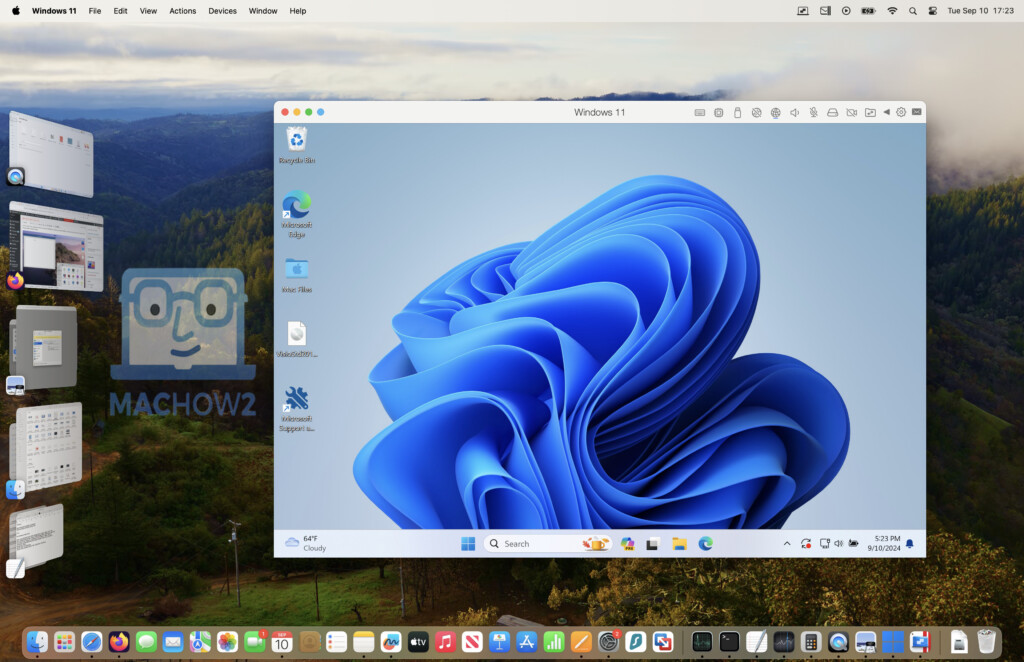
For most Mac users, the simplest and most seamless way to run Windows is with a virtual machine. This lets you use Windows and macOS side-by-side – without restarting your Mac.
A virtual machine (VM) is software that creates a virtual Windows computer inside your Mac. You can run Windows apps in their own window, copy and paste between macOS and Windows, and even share files between the two operating systems.
There are a few virtual machines available for Macs, the best ones being:
- Parallels (Paid)
- VMware Fusion Pro (Free)
- UTM (Free)
- VirtualBox (Free)
Parallels Desktop is by far the slickest and most well integrated with macOS, requiring just a few clicks to install Windows.
It now even supports DirectX 11 and is the only virtual machine to support partial DirectX 12 (via Metal) although gaming anti-cheat systems are usually unsupported.
VMware Fusion is a close second and while not quite as easy to setup and as well integrated with macOS, it’s completely free to use.
UTM is the most limited and hardest to setup but again, it is free.
VMware Fusion works on both Intel and Apple Silicon Macs, but graphics performance on M-series Macs still trails Parallels, making it better suited to productivity apps than gaming.
For a full look at all virtual machine options, check our guide to the best virtual machines for Mac.
✔️ Pros
- Some options (like VMware Fusion, UTM or VirtualBox) are completely free
- Simple installation process for Windows on macOS
- Run Windows and macOS side-by-side – no need to reboot
- Ideal for running Windows apps and lightweight games
- Supports Windows keyboard shortcuts on your Mac
- Great for IT teams deploying Windows environments across Macs
❌ Cons
- Won’t run games with anti-cheat protection
- DirectX 12 support in Parallels is only partial
- Some apps like Parallels require a subscription
- Not as fast for gaming – limited GPU acceleration compared to Boot Camp
2. Crossover (Best For Windows Only Gaming)
💡 MacHow2 Exclusive: Get 15% off Crossover with our reader coupon (14-day free trial available)
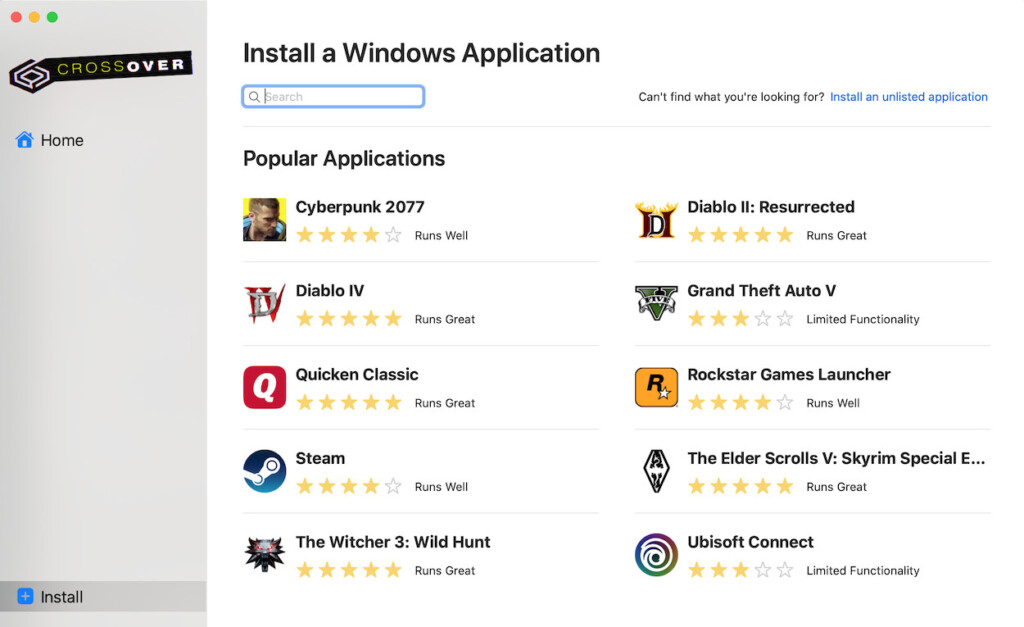
If you’re looking to run Windows games or apps on your Mac without actually installing Windows, Crossover is one of the smartest and no-fuss solutions – especially for Apple Silicon Macs.
In fact we voted it the best way to play Windows games on a Mac too.
Crossover works by translating Windows commands into macOS-compatible instructions in real-time. It’s based on the open-source Wine project, but comes wrapped in a much more user-friendly interface, regular updates, and professional support.
Crossover is continually improving support for modern games and AAA titles – especially ones that won’t run in virtual machines or need advanced graphics support.
For example it supports many DirectX 12 games via VKD3D, though compatibility and performance vary by title.
The preview version of Crossover is also available to subscribers to try and often allows you to play games that aren’t yet supported by the official version.
Note that Whisky, a now-discontinued tool similar to CrossOver, was once popular for gaming on Macs but CrossOver has since become the actively maintained alternative and in 2026, we strongly recommend Crossover over Whisky.
You can watch-us playing installing and playing Where Winds Meet on a Mac using the Preview version of Crossover below.
Pricing for Crossover starts at $74 per year but you can get an exclusive 15% off here.
Read our full Crossover for Mac review for more.
✔️ Pros
- No Windows installation required
- No reboot needed – run Windows apps and games directly in macOS
- Apple Silicon compatible
- Supports DirectX 12 and DXVK for better game performance
- Lifetime plan available for long-term value
❌ Cons
- Requires a subscription (or upfront lifetime purchase)
- Doesn’t work with all Windows games/apps (check the full compatibility list first)
- Updates can lag slightly behind major macOS releases
3. Boot Camp (Best For Intel Macs Only)
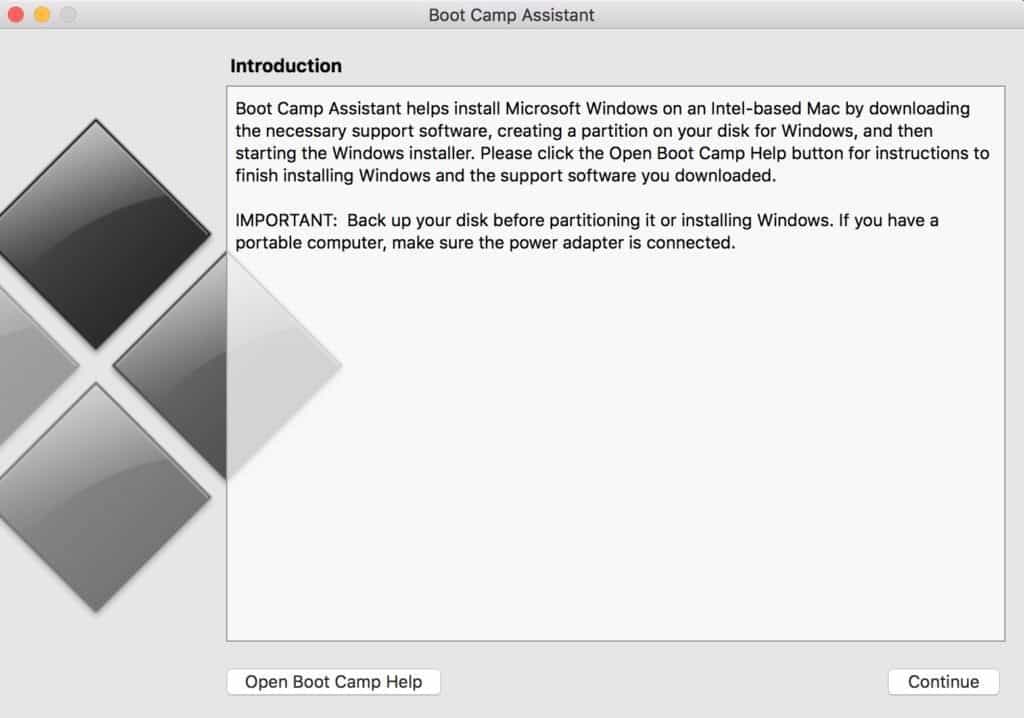
If you’re using an older Intel Mac, Boot Camp was once the go-to method for running Windows natively on your Mac.
Boot Camp lets you install Windows directly on your Mac’s hard drive in a separate partition. When you start up your Mac, you choose to boot into either macOS or Windows.
However, Boot Camp is no longer available on Apple Silicon Macs and is effectively legacy software limited to older Intel hardware.
If you do still have an Intel Mac, simply search for “Boot Camp” on your Mac to get going with it.
You can also check out our guide on how to install Windows for free with Boot Camp.
✔️ Pros
- Free and built into macOS (on Intel Macs only)
- Gives Windows direct access to all Mac hardware
- Best option for GPU-heavy games and performance-demanding apps
- Works with anti-cheat software and supports DirectX 12
❌ Cons
- Not compatible with Apple Silicon Macs
- Requires a reboot every time you switch between macOS and Windows
- Takes up hard drive space with a dedicated Windows partition
- Lacks the convenience of virtualization (can’t run both operating systems at once)
4. Wine (Best For Tech Savy Users)
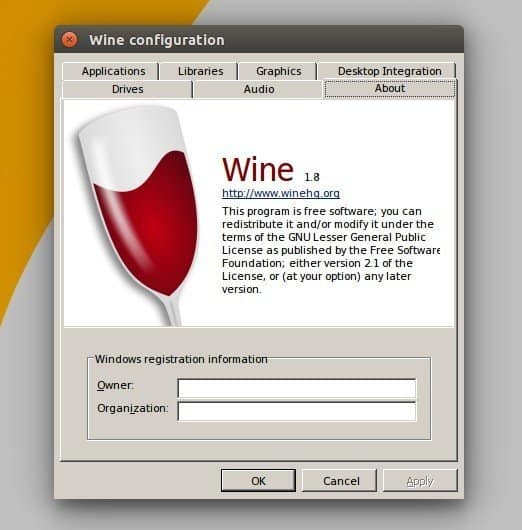
Wine – short for “Wine Is Not an Emulator” – is a completely free and open-source way to run some Windows apps and games on your Mac without installing Windows or using a virtual machine.
Wine is actually the basis upon which Crossover has been built although it’s a lot less basic on its own.
Instead of emulating Windows, Wine acts as a compatibility layer: it translates Windows system calls into macOS commands in real time.
Wine can run Windows apps natively within macOS with no full Windows installation required
While Wine has improved a lot in recent versions, it’s still best for advanced users comfortable with Terminal, manual configuration, and troubleshooting.
Experimental DirectX 12 support is available via VKD3D, but reliability is inconsistent and setup is complex.
If raw Wine is too technical (we think it is), you can also consider using Wine-based tools like:
- Sikarugir (formerly Kegworks) – macOS-native Wine bundle with less setup
- PlayOnMac – GUI-based Wine tool aimed at simplifying app management
✔️ Pros
- Completely free
- No Windows license needed
- Works on Intel and Apple Silicon Macs
- Can run some older or niche Windows apps
❌ Cons
- Difficult to install and configure
- Not compatible with many modern Windows programs
- Breaks often with macOS updates
- DirectX 12 support is unreliable
- Little to no support for high-performance gaming
5. Remote Desktop Software (Best For Remote Windows Access)
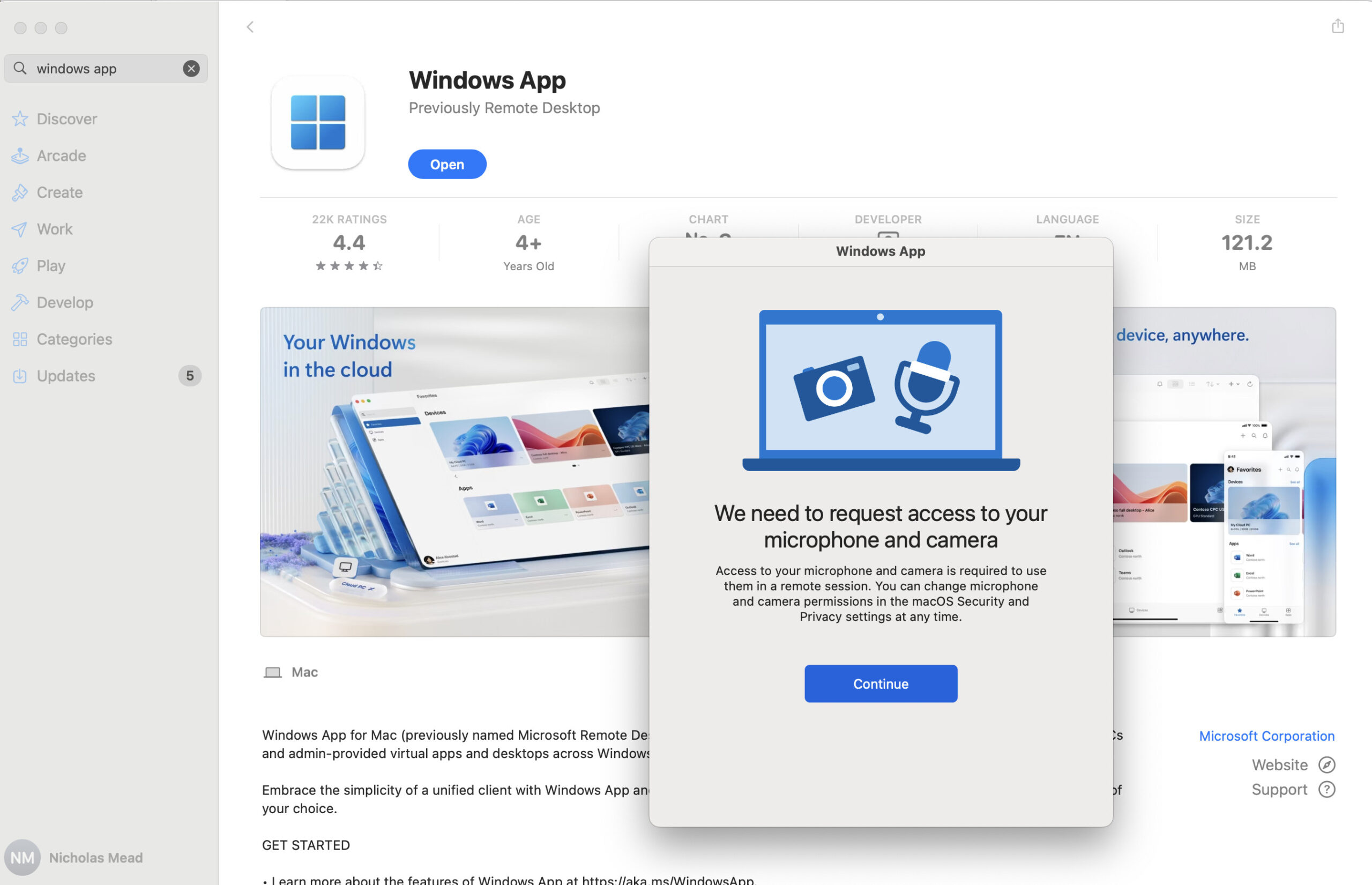
If you already have a Windows PC and just need occasional access to it from your Mac, remote desktop software can be a simple, cost-effective solution – especially for business use.
Instead of running Windows natively or virtually on your Mac, remote desktop apps allow you to connect to a PC remotely and control it as if you were sitting in front of it.
This is particularly handy for Apple Silicon Macs since it allows them to access the standard version of Windows since they can only run Windows ARM using virtual machines.
They allow you to open and edit files, transfer documents, and even print remotely.
While remote desktop apps can be very handy, they don’t offer the speed or responsiveness of local virtualization tools like Parallels or VMware Fusion.
We’ve looked in detail at the best remote desktop software for Macs but some suggestions include:
- Windows App – Microsoft’s official tool, now rebranded and optimized for M-series Macs.
- Chrome Remote Desktop – Free and simple for light use
- RemotePC and ZohoAssist – Good for commercial and cross-platform remote access
✔️ Pros
- No need to install Windows on your Mac
- Access real Windows apps from anywhere
- Great for business, IT support, and document access
- Allows Apple Silicon Macs to access any version of Windows
- File transfers, remote printing, and remote DirectX 12 app support
❌ Cons
- Laggy performance, especially with slow internet
- Not suitable for gaming or heavy 3D graphics
- Some apps require subscriptions for full features
- Requires access to an existing Windows PC
FAQ
Can I run Windows on an Apple Silicon Mac?
Yes, you can run Windows on Apple Silicon Macs with the M1-M5 chips using virtualization tools like Parallels Desktop, VMware Fusion, CrossOver, and UTM.
However, note that Apple Silicon Macs can only run Windows ARM using virtual machines and Boot Camp is not available for them.
Which method is best for running Windows on a Mac?
The best method depends on your needs:
- Virtual Machines: Either Parallels Desktop (best for seamless switching between macOS and Windows) or VMware Fusion (similar to Parallels with slower performance but free).
- Boot Camp: Best for native performance but only available for Intel Macs.
- CrossOver: Best for running specific Windows applications without installing Windows.
- Wine: Best if you’re comfortable configuring and setting-up open source software.
- Remote Desktop: Best if you have access to a Windows PC remotely.
Do I need a Windows license to run Windows in macOS?
Yes, you need a valid Windows license to install and run Windows on your Mac using Boot Camp, Parallels Desktop, VMware Fusion, or UTM.
Will running Windows on my Mac affect performance?
Running Windows on your Mac using virtualization tools can slightly impact performance compared to running it natively on a Windows PC.
However, Apple Silicon Macs are more powerful than the previous generation of Intel Macs and performance issues are much less of an issue than they were.
Boot Camp offers the best performance since it runs Windows natively.
Can I run Windows games on a Mac?
Yes, you can run Windows games on a Mac using any of these methods although we wouldn’t recommend remote desktop software (too much lag) or the UTM virtual machine (no 3D graphics acceleration) for this.
For more on this, check out our guide on the best ways to run Windows games on a Mac.
Are there any free methods to run Windows on Macs?
Yes, the following methods are completely free to use:
- VMware Fusion Pro is now free to use for personal, educational and commercial usage.
- UTM is a free virtualization tool for Apple Silicon Macs. Boot Camp is also free, but it requires a valid Windows license.
- Wine is free if you can set it up properly. If you can’t, Sikarugir (formerly Kegworks) is an adaption of Wine that makes things a bit easier.
- Whisky is another popular free tool to play Windows only games on a Mac and is based on Crossover but is no longer being developed so we don’t recommend it anymore.
- There are also free Remote Desktop apps if you already have access to a Windows PC.
How can I transfer files between macOS and Windows?
Most of the methods we have covered allow you to exchange files and folders but we found that Parallels Desktop and VMware Fusion are the only ones that make it easy to share folders, allowing you to easily transfer files between macOS and Windows.
Are there any risks installing Windows on my Mac?
There are absolutely no risks running or accessing Windows on your Mac. All of the methods we have covered effectively isolate the rest of your Mac from any potential problems with viruses, malware or adware.
If a Windows installation on a virtual machine or Boot Camp were to get a virus or corrupted in some way, it wouldn’t damage macOS. You can simply delete the Windows installation and reinstall it.
If you choose to access Windows remotely with remote desktop software then there’s even less risk as Windows isn’t even hosted on your Mac.
However, we always recommend backing-up your Mac with Time Machine before trying any of these methods to be on the safe side.
Is installing Windows on a Mac legal?
Installing Windows on any Mac (or any other computer) is perfectly legal.
In fact, Apple actively encourages it by providing Boot Camp in Intel Macs and there’s no issues with the Windows EULA installing it on Macs using any of these methods.
You can also use both Windows 10 and Windows 11 for free perfectly legally. Microsoft only requires you to purchase a product key for Windows if you want to personalize things like the desktop wallpaper, theme and other minor tweaks.
Future Outlook: Running Windows on Macs in 2026 and Beyond
The landscape of running Windows on Macs continues to evolve, especially with Apple Silicon shaping what’s possible:
- Apple Silicon gaming is improving via Metal – Virtualization tools like Parallels are now translating DirectX 12 commands through Metal, allowing more Windows games to run smoothly on M-series Macs. Performance is still not native, but the gap is narrowing.
- CrossOver remains the primary go-to for Windows apps and gaming – Actively maintained and updated for Apple Silicon, CrossOver offers a stable, user-friendly way to run Windows applications without installing a full Windows OS.
- Whisky is discontinued – While it was once popular for gaming, Whisky is no longer supported. Existing installs may work for older titles, but CrossOver is now the recommended solution for both apps and games.
- Virtualization tools unlikely to fully support anti-cheat systems – For competitive gaming, native Windows installations (via Boot Camp on Intel Macs) still offer the best performance. On Apple Silicon, anti-cheat remains a major limitation.
- Boot Camp is effectively legacy – Only Intel Macs can use it, and Apple Silicon Macs have no native dual-boot option. Moving forward, virtualization and compatibility layers will dominate Windows-on-Mac solutions.