

If you’ve recently switched from Windows to a Mac, you may be wondering how to place shortcuts to apps, files, folders or websites on the desktop.
You can do this in macOS, although Apple calls a shortcut an alias. An alias points to the original item without moving or duplicating it.
The quickest way to create one is to select an app, file or folder in Finder, use the keyboard shortcut Command (⌘) + L, and then drag the new alias to the desktop.
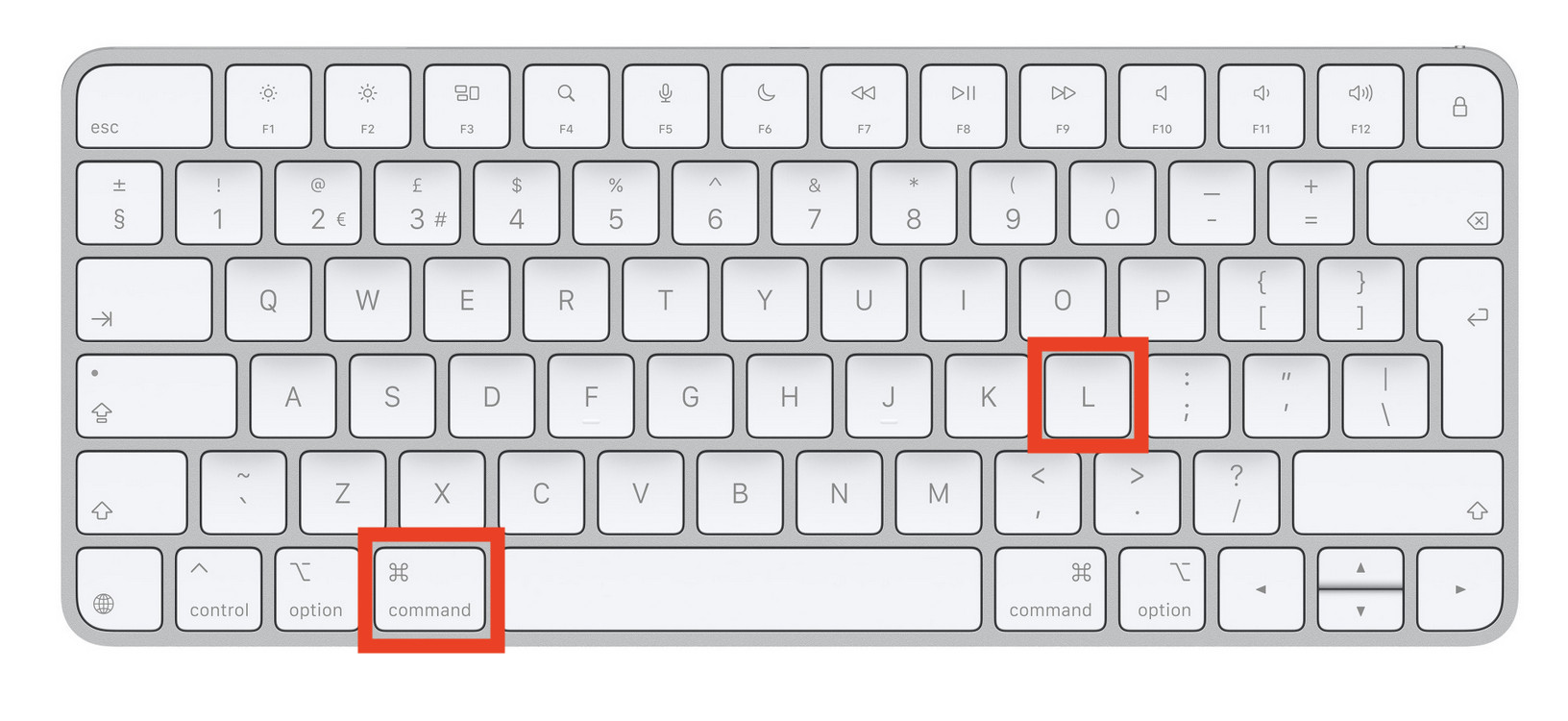
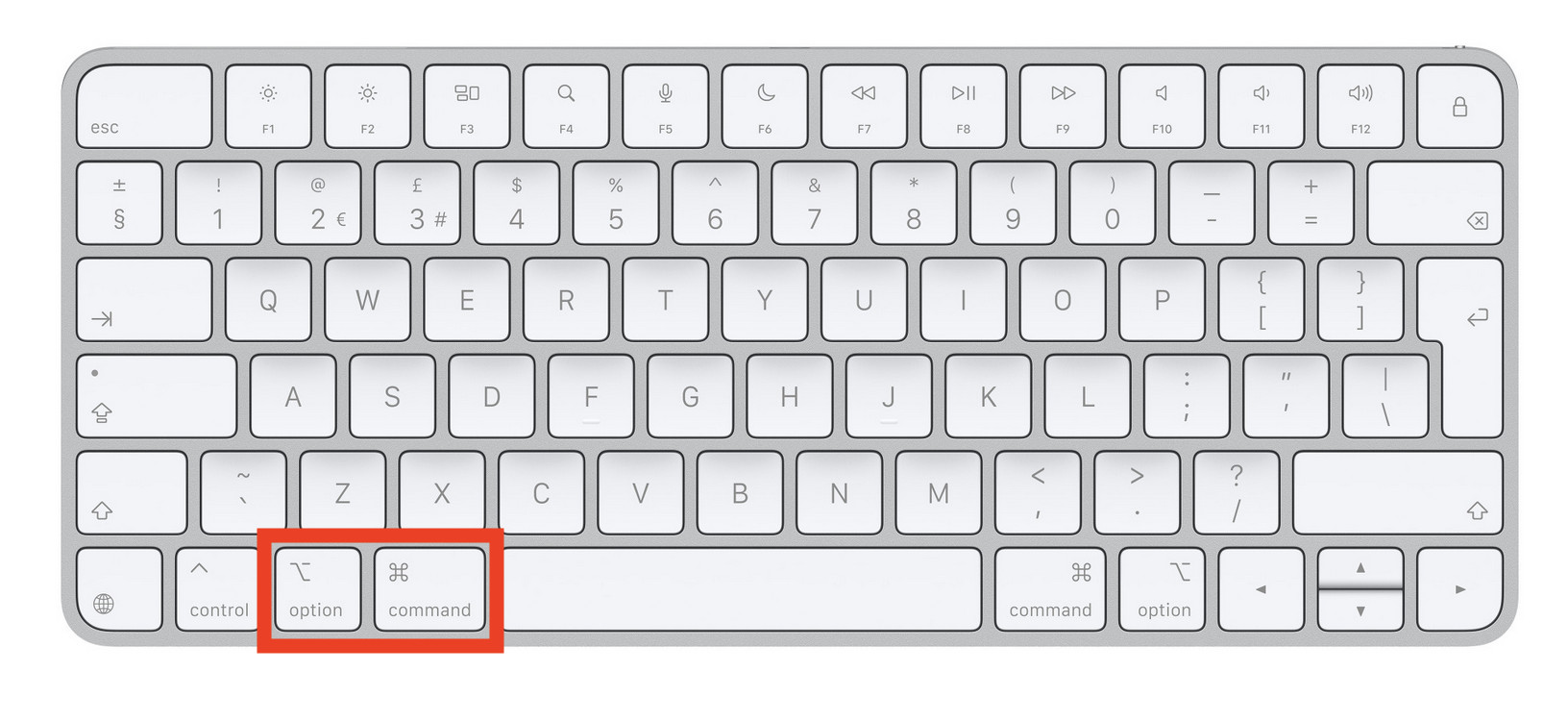
You can also create an alias in one step by holding Option (⌥) + Command (⌘) while dragging an item to the desktop.
In this guide, we show you how to create desktop shortcuts for apps, files, folders and websites on any recent Mac, including both Apple silicon and Intel models.
Quick Answer: How To Create a Desktop Shortcut on a Mac
To create a shortcut on a Mac:
- Open Finder and locate the app, file or folder.
- Select it and press Command (⌘) + L.
- Finder creates an alias in the same location.
- Drag the alias to your desktop.
- Rename it if you want to remove the word “alias”.
Alternatively, hold Option (⌥) + Command (⌘) while dragging the original item directly to the desktop.
| What you want to add | Fastest method |
|---|---|
| App | Drag it from the Applications folder to the desktop |
| File or folder | Select it, press Command + L and move the alias to the desktop |
| File or folder in one step | Hold Option + Command while dragging it to the desktop |
| Website | Drag its address from the browser to the desktop |
| Frequently used app | Drag it to the Dock instead |
What Is a Shortcut Called on a Mac?
What Windows calls a shortcut, macOS calls an alias.
An alias is a small link that opens the original app, file, folder or disk. It does not create another copy of the item and therefore uses very little storage space.
You can recognize an alias by the small arrow that appears on its icon. Finder may also add the word “alias” to its name, although you can safely rename it.
The original item remains in its normal location. This means you can delete an alias from the desktop without deleting the app, file or folder to which it points.
Apple provides more information in its guide to creating and removing aliases in macOS.
1. How To Create a Desktop Shortcut for an App
The easiest way to put an app icon on your Mac desktop is to drag it from the Applications folder.
- Open Finder.
- Click Applications in the Finder sidebar.
- Find the app you want to add.
- Drag its icon from the Applications folder onto the desktop.
When you drag an app out of the Applications folder, macOS creates an alias rather than moving the original application. The app remains safely installed in Applications.
Double-click the new desktop icon whenever you want to open the app.
If you cannot see Applications in the sidebar, choose Go > Applications from the menu bar or press Shift + Command (⌘) + A.
For more help navigating files and applications, see our complete guide to using Finder on a Mac.
Alternative Method: Use Make Alias
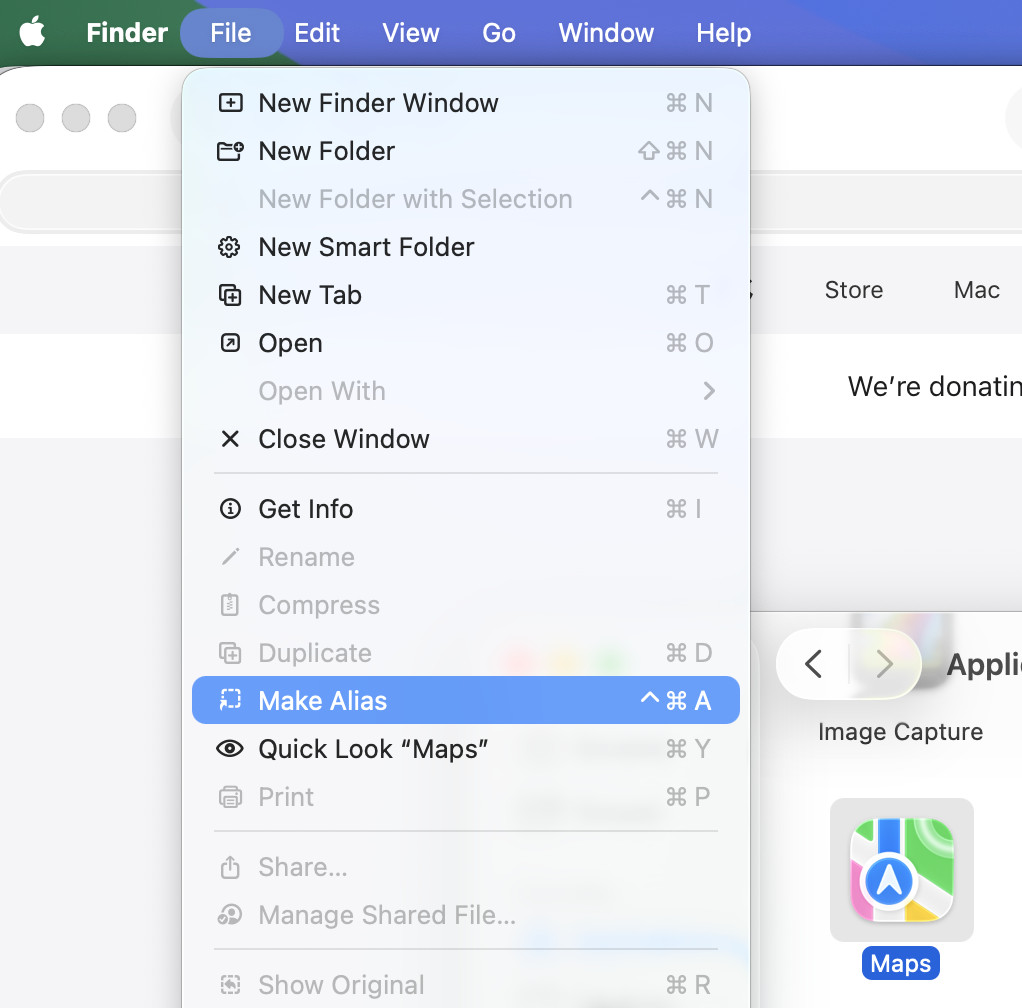
You can also create the app shortcut manually:
- Select the app in Finder.
- Choose File > Make Alias from the menu bar, or press Command (⌘) + L.
- Drag the newly created alias to the desktop.
- Rename the alias if required.
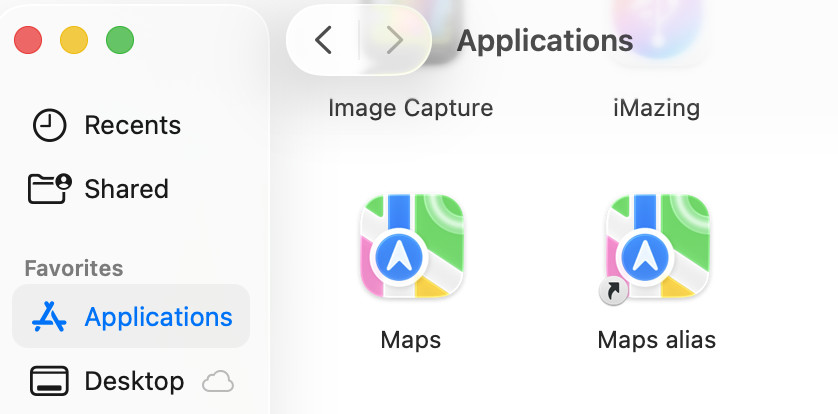
This method is also useful when an app is stored somewhere other than the main Applications folder.
2. How To Create a Shortcut to a File or Folder
The safest way to create a desktop shortcut to a document or folder is to use Make Alias.
- Open Finder and locate the file or folder.
- Click it once to select it.
- Choose File > Make Alias from the menu bar.
- Drag the resulting alias to the desktop.
You can also press Command (⌘) + L after selecting the item instead of using the File menu.
Do not simply drag an ordinary file or folder to the desktop without holding any keys. Unlike an app in the Applications folder, doing this may move the original item instead of creating a shortcut.
Creating an alias is particularly useful for folders buried several levels deep in Finder, documents you open every day or files stored on an external drive.
Note that a shortcut to an external drive or a file stored on one will only work when that drive is connected to your Mac.
3. Create a Desktop Shortcut in One Step
There is also a faster drag-and-drop method that creates the alias directly on your desktop:
- Find the app, file or folder in Finder.
- Hold down Option (⌥) + Command (⌘).
- Keep both keys pressed while dragging the item to the desktop.
- Release the mouse or trackpad, followed by the keys.
The small arrow beside the pointer indicates that macOS will create an alias rather than move or copy the original item.
This is the quickest method once you remember the key combination. You can find it and many more useful combinations in our Mac keyboard shortcuts guide.
4. How To Create a Website Shortcut on a Mac Desktop
You can also create a desktop shortcut that opens a specific website in your default browser.
Using Safari
- Open the website in Safari.
- Click the address bar so that the complete web address is visible.
- Drag the website address or the small page icon beside it onto the desktop.
- Rename the new shortcut if required.
This creates a small .webloc file. Double-clicking it opens the website in whichever browser is currently set as your default.
Using Google Chrome
Chrome also includes its own website shortcut tool:
- Open the website in Chrome.
- Click the three-dot menu in the top-right corner.
- Select Cast, save and share > Create shortcut.
- Give the shortcut a name and click Create.
Depending on the version of Chrome, the resulting shortcut may appear with your Chrome apps rather than directly on the desktop. If so, locate it in Finder and create an alias using the methods above.
Turn the Website Into a Mac App Instead
If you want the website to open in its own window rather than as a normal browser tab, Safari can turn it into a web app:
- Open the website in Safari.
- Click the Share button in the toolbar.
- Select Add to Dock.
- Edit its name if necessary and click Add.
The website will appear in the Dock and Spotlight and will behave more like a standalone application. Our guide to turning any website into an app on a Mac explains this in more detail.
Desktop Shortcut vs Dock: Which Is Better?
You do not necessarily need to put shortcuts on the desktop. The Dock and Finder sidebar can provide quicker access while keeping the desktop uncluttered.
To add an app to the Dock, drag it to the app section on the left side of the divider. Files and folders should be dragged to the right side, near the Bin.
To add a folder to the Finder sidebar, open Finder and drag it into the Favourites section.
These are also aliases, so removing an item from the Dock or Finder sidebar does not delete the original.
We recommend:
- The desktop for a small number of files, folders or apps that you need immediately.
- The Dock for apps you use every day.
- The Finder sidebar for frequently accessed folders and storage locations.
- Spotlight for apps or files that you only open occasionally.
If you are still getting accustomed to macOS, our guide to the essential first steps after switching from Windows to Mac explains the biggest differences.
How To Remove a Desktop Shortcut
To remove an alias, drag it from the desktop to the Bin or select it and press Command (⌘) + Delete.
Only the alias is removed. The original app, file or folder remains in its existing location.
Before deleting an icon, check that it really is an alias. An alias normally has a small arrow on its icon. You can also select it, press Command (⌘) + I and look beside Kind in the information window.
If it says Alias, it is safe to remove without affecting the original item.
What To Do If a Desktop Shortcut Stops Working
An alias may stop opening if the original item has been deleted, an external drive is disconnected or the file is no longer accessible.
Try the following:
- Make sure the original app, file or folder still exists.
- Reconnect any external drive on which it is stored.
- Select the alias and choose File > Show Original in Finder.
- If Finder cannot locate the original, delete the broken alias and create a new one.
If you use iCloud Drive to sync your Desktop folder, remember that an alias may appear on another Mac without the original item being available there. The target must also exist in an accessible location for the shortcut to work.
Desktop Shortcut FAQ
What is the keyboard shortcut for creating an alias on a Mac?
Select an app, file or folder in Finder and press Command (⌘) + L. Finder creates an alias in the same folder, which you can then move to the desktop.
Can I put app icons on a Mac desktop?
Yes. Open the Applications folder in Finder and drag an app to the desktop. macOS creates an alias, allowing you to open the app without moving its installation files.
Will deleting a desktop shortcut uninstall the app?
No. Deleting an alias only removes the shortcut. It does not delete or uninstall the original application. Check for the small arrow on the icon if you are unsure whether it is an alias.
Can I create a desktop shortcut to a website?
Yes. Drag the website address from Safari onto the desktop to create a .webloc shortcut. Chrome also has a Create shortcut command under Cast, save and share.
What is the difference between an alias and a symbolic link?
Both point to another item, but an alias is the normal user-friendly shortcut used by Finder. A symbolic link is a lower-level filesystem link generally created through Terminal and used by developers, scripts and certain applications. For ordinary desktop shortcuts, use an alias.
Does an alias take up storage space?
An alias uses only a tiny amount of space because it does not duplicate the original app, file or folder.