

If you’ve just setup your first Mac after years of using Windows, you’re not alone in probably feeling both excited and a just a little bit lost.
macOS looks sleek and intuitive, but it doesn’t always behave the way you expect if you’re coming from a Windows PC.
But before you give-up and resort to installing Windows on your Mac, here’s a clear step-by-step guide to what you should do on day one with your new Mac.
Think of it as a survival kit for Windows users making the switch.
Table of Contents
- 1. Get Familiar with Finder (Your New File Explorer)
- 2. Learn the New Keyboard Shortcuts
- 3. Install Essential Apps (and Their Mac Equivalents)
- 4. Connect Your Accounts & Sync Data
- 5. Explore System Settings (Instead of Control Panel)
- 6. Master the Dock & Mission Control
- 7. Understand How macOS Installs & Uninstalls Apps
- 8. Learn the Power of Spotlight Search
- 9. Set Up Backups with Time Machine
- 10. Make macOS Feel Like Home
- Conclusion
- Handy Shortcut Table: Windows Feature vs Mac Equivalent
- FAQs About Moving from Windows to Mac
1. Get Familiar with Finder (Your New File Explorer)
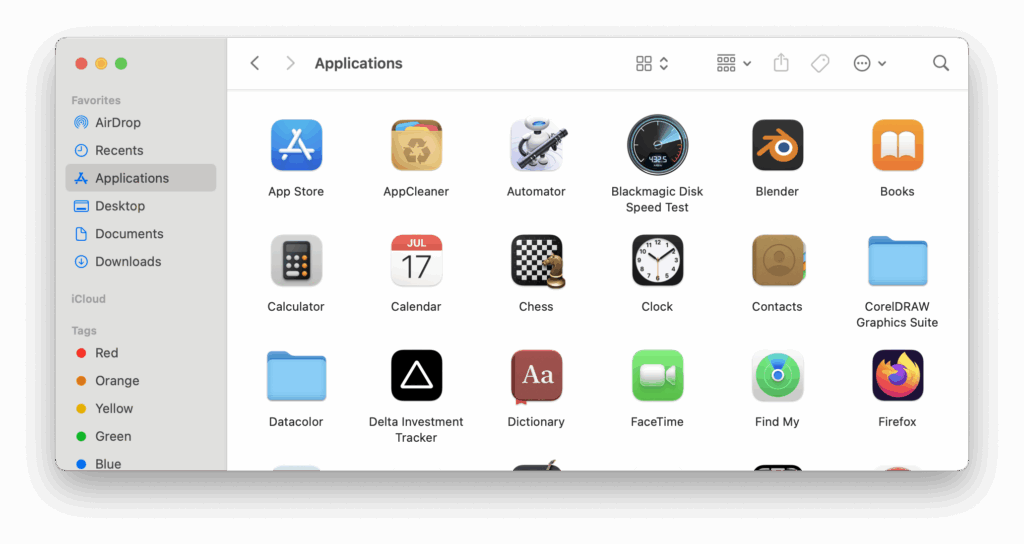
Windows users use File Explorer a lot, but on a Mac, that role is played by Finder. It’s where you’ll manage files, connect drives, and organize your folders.
- The left sidebar is your quick access to Desktop, Downloads, and external drives.
- Instead of a “C: drive,” you’ll see Macintosh HD or whatever you name your Mac.
- To quickly preview a file without opening it, hit the spacebar (Quick Look).
Useful tip: Turn on the path bar in Finder (View > Show Path Bar) so you always know where your files live, very handy if you’re used to navigating Windows directories.
2. Learn the New Keyboard Shortcuts
Your muscle memory from Windows won’t always translate. For instance:
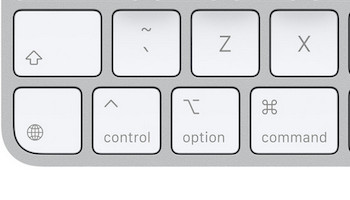
- Command (⌘) replaces Control (Ctrl).
- Copy = ⌘C, Paste = ⌘V, Select All = ⌘A.
- Alt is now Option (⌥).
- Backspace = Delete (and to forward delete, press
Fn + Delete).
It’s worth spending a few minutes learning the basics, because mastering Mac shortcuts will instantly make your new machine feel more natural.
We have a full guide on How To Use Familiar Windows Commands on a Mac if you want to dig even deeper.
3. Install Essential Apps (and Their Mac Equivalents)
Not all your favorite Windows apps will run on macOS, but there are excellent Mac-native alternatives.
- Office apps: Microsoft Office (not Microsoft 365) works fine on Mac, but there are also some excellent alternatives to Office for Mac. There are also some slick Apple products like Pages, Numbers, and Keynote that are free to use.
- Task manager: Instead of Windows Task Manager, use Activity Monitor. Activity Monitor gives you a real-time snapshot of exactly what’s going on on your Mac and is far more powerful than Task Manager.
- Right-click tools: Download a utility like BetterTouchTool or Rectangle if you miss Windows snapping and right-click features. Although there are various ways to right-click on a Mac, it may not offer everything that it does on a PC. Windows snapping has been introduced from macOS Sequioa onwards although many former Windows users may feel they need a third party app for more control.
- Project management & productivity: Project management software like Monday.com and CRM software like Close CRM both work smoothly on Mac both via desktop apps and the web. There are also many productivity apps to help optimize your time behind a Mac.
4. Connect Your Accounts & Sync Data
Windows users are used to signing into a Microsoft account. On Mac, the equivalent is iCloud.
- Go to System Settings > Apple ID to sign in.
- Enable iCloud Drive for file syncing.
- Turn on iCloud Keychain for password management (a big time saver if you used Chrome/Edge password sync).
If you’re moving from OneDrive, you can install the OneDrive app on Mac or migrate files into iCloud, Dropbox, or Google Drive.
5. Explore System Settings (Instead of Control Panel)
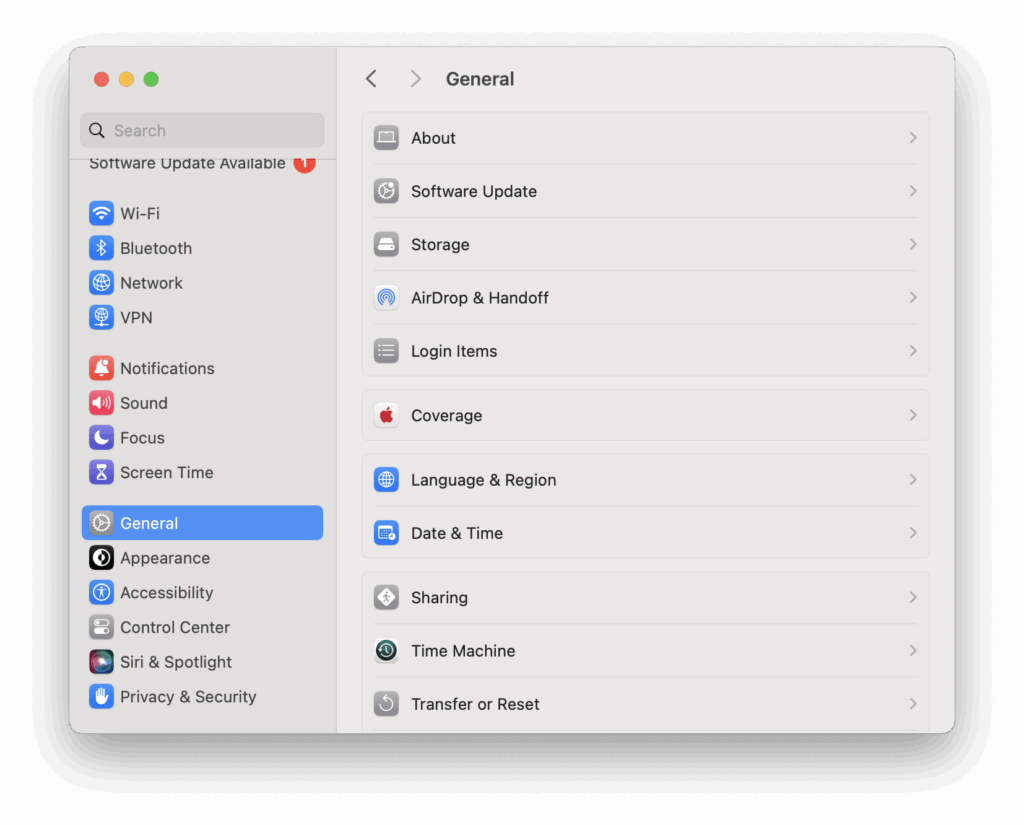
The Control Panel and Settings app you know from Windows are replaced by System Settings in macOS.
Here you’ll:
- Set up Wi-Fi, Bluetooth, and printers.
- Manage updates under General > Software Update.
- Tweak accessibility, trackpad gestures, and notifications.
The search bar at the top of System Settings is a lifesaver if you can’t remember where a setting lives.
6. Master the Dock & Mission Control
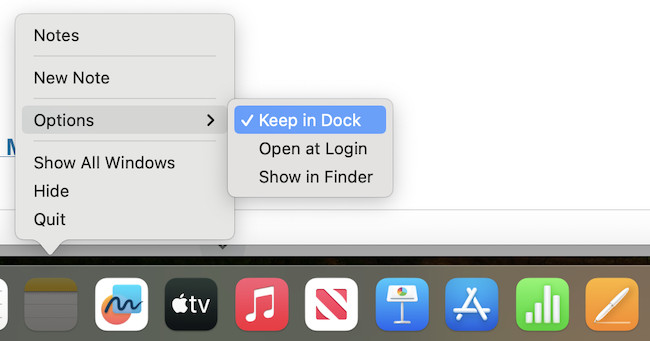
Instead of the Windows taskbar, you get the Dock at the bottom of your screen.
- Drag apps into the Dock for quick launching.
- Right-click an icon to set “Options > Keep in Dock.”
- Use Mission Control (F3 or swipe up with 3 fingers) to see all your open windows.
If you’re used to Windows virtual desktops, macOS has them too, but on a Mac they’re called Spaces. Swipe left/right with three fingers to move between them.
7. Understand How macOS Installs & Uninstalls Apps
Forget about .exe installers. On a Mac, apps usually come as .dmg files:
- Drag the app into the Applications folder.
- To uninstall, just drag it to the Trash although note that this may not completely remove every file associated with an app.
For more, check our guide on How To Uninstall Apps on a Mac.
8. Learn the Power of Spotlight Search
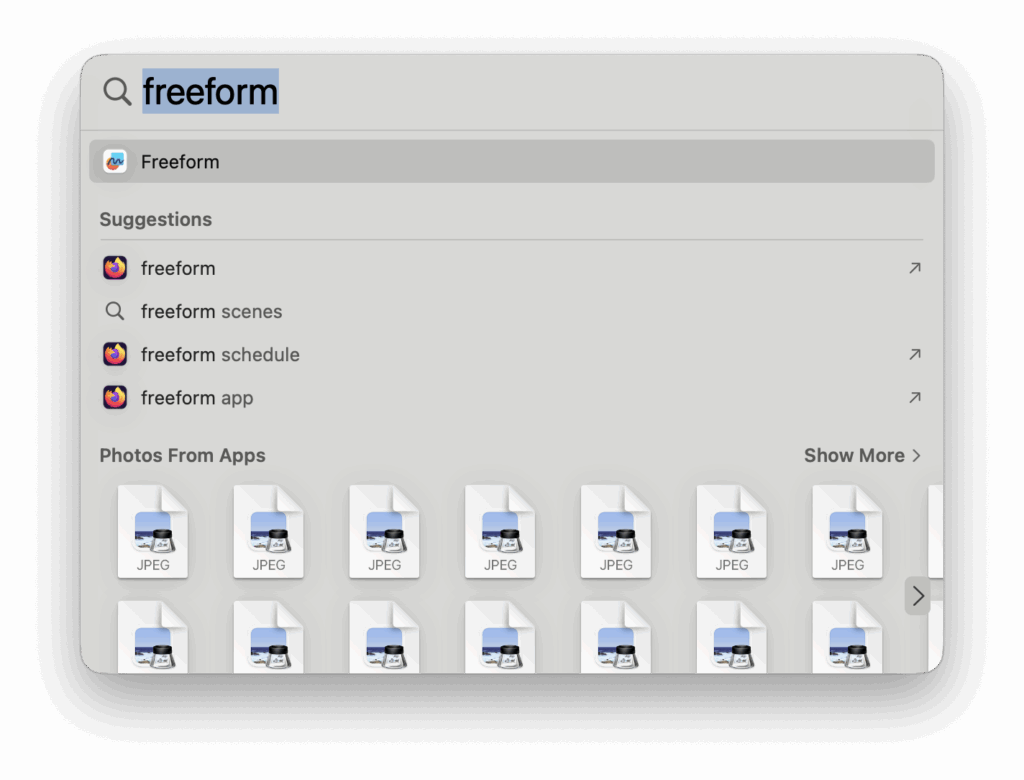
Think of Spotlight as Windows Search on steroids.
Hit Command + Spacebar and type anything – apps, documents, calculations, even currency conversions. It’s one of the fastest ways to navigate your Mac without digging through menus.
9. Set Up Backups with Time Machine
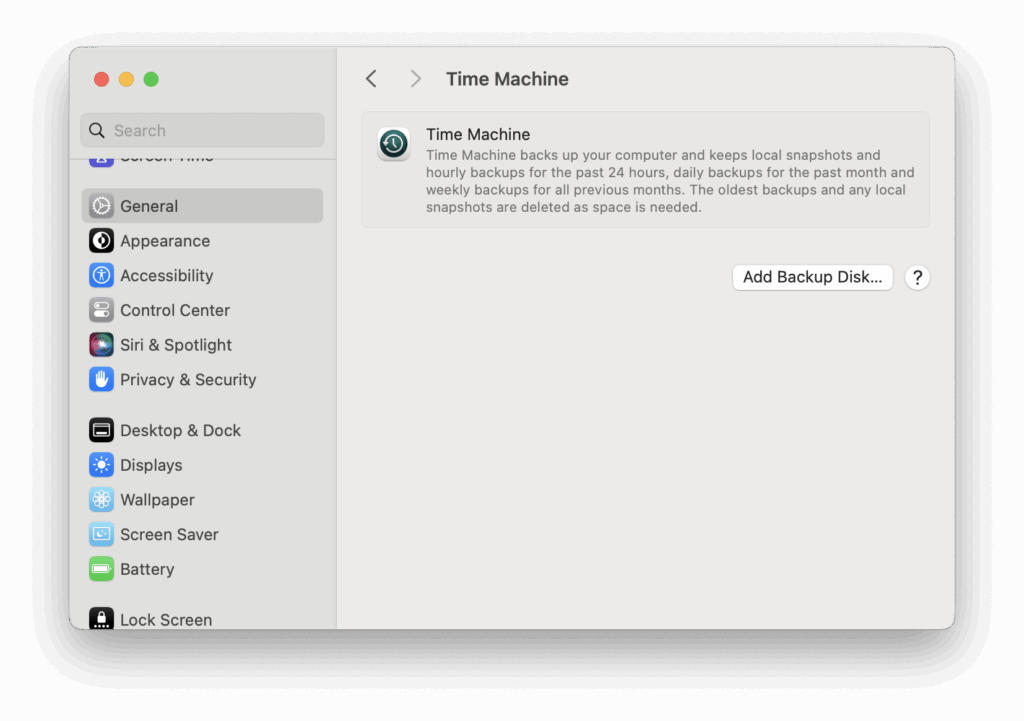
Where Windows users might rely on File History or manual backups, macOS has the ingenious and free Time Machine built in.
Time Machine is literally that – it allows you to easily revert back to an earlier state in case anything goes wrong with macOS, an application or you accidentally delete something important.
- Plug in an external drive, ideally an SSD drive or a thunderbolt drive.
- Go to System Settings > Time Machine.
- macOS will automatically back up everything, including system files, so you can restore your Mac at any time.
For more, check out our guide on how to backup a Mac with Time Machine.
10. Make macOS Feel Like Home

Finally, customize it.
- Add widgets to Notification Center.
- Adjust trackpad gestures under System Settings > Trackpad.
- Change your wallpaper and Dock size to match your style.
Small tweaks make a big difference in making macOS feel less foreign and more like your own workspace.
Conclusion
Switching from Windows to Mac is less about relearning everything and more about understanding the different logic behind macOS.
Once you’ve spent a day or two adjusting, you’ll find the system not only intuitive but often more efficient.
Day one may feel overwhelming, but by following the steps above, you’ll set yourself up for a smooth transition, and unlock the best of what your Mac can do.
If you’re still struggling with some of the Windows-to-Mac quirks, you can also check our our full guide to The Most Common Questions Windows Users Have When Moving to Mac.
Handy Shortcut Table: Windows Feature vs Mac Equivalent
| Windows Feature | Mac Equivalent | Notes / Tips |
|---|---|---|
| File Explorer | Finder | Use Quick Look (spacebar) to preview files instantly. |
| Task Manager | Activity Monitor | Force quit apps with ⌥ + ⌘ + Esc. |
| Start Menu | Dock & Spotlight | Dock for pinned apps, Spotlight (⌘ + Space) for search. |
| Control Panel / Settings | System Settings | Use the search bar to quickly find options. |
| Right-click | Two-finger click / Secondary click | Enable in System Settings > Trackpad. |
| Snap Assist | Third-party apps (Rectangle, Magnet) | macOS doesn’t natively support full snapping. |
| Backspace / Delete | Delete (⌫) | Use Fn + Delete for forward delete. |
| Windows Key | Command (⌘) | Works for copy, paste, select all, etc. |
| Alt Key | Option (⌥) | Used for shortcuts and special characters. |
| File History / Backup | Time Machine | Automatic hourly backups to an external drive. |
FAQs About Moving from Windows to Mac
Can I run Windows programs on a Mac?
Yes. The easiest way is to use a Virtual Machine, like Parallels Desktop or VMware Fusion Pro, which lets you run Windows and macOS side by side. If you only need a few apps or especially of you want to play Windows only games on your Mac, CrossOver may work without needing a full Windows installation. Intel-based Macs also support Boot Camp, though this isn’t available on Apple Silicon models.
Do Macs need antivirus software?
macOS has strong built-in security with XProtect and Gatekeeper, so most users don’t need antivirus. However, if you download apps outside the Mac App Store or want extra peace of mind, tools like Intego Mac Internet Security or Bitdefender for Mac are worth considering.
Where is the Task Manager on Mac?
Instead of Task Manager, Mac uses Activity Monitor. You can find it under Applications > Utilities, and it shows you CPU, memory, energy, and network usage. To force quit apps quickly, press Option + Command + Esc.
How do I right-click on a Mac?
Most Mac trackpads support a two-finger click for right-click. You can enable it in System Settings > Trackpad > Secondary Click. If you’re using a mouse, a standard right-click works on most third-party models.
Can I use my old Windows keyboard and mouse with a Mac?
Yes, most USB and Bluetooth keyboards and mice work fine. Just note that the Windows key = Command (⌘) and Alt = Option (⌥) on a Mac. You can also remap keys in System Settings > Keyboard if needed.
How do I install or uninstall programs on Mac?
Most apps come as .dmg files, just drag them into the Applications folder. To uninstall, drag them to the Trash. For a more thorough removal, you can use free tools like AppCleaner.
Can I use OneDrive, Google Drive, or Dropbox on Mac?
Absolutely. All major cloud storage services work on macOS. If you’re coming from Windows, you can install OneDrive on Mac and keep everything synced as you would on a Windows PC.