

Love them or loathe them, Emojis are everywhere nowadays and the good news is they are built directly into macOS via keyboard shortcuts. Here’s exactly how to use emojis on a Mac keyboard, including MacBook Air and MacBook Pro without installing anything.
Quick Answer: How to Use Emojis on a Mac Keyboard
Press Control (⌃) + Command (⌘) + Space to open the emoji picker on a Mac and select an emoji.
In this full guide to using emojis on a Mac, you’ll learn:
- The fastest emoji keyboard shortcuts
- How to use emojis in apps like Google Docs and Word
- How to fix emoji keyboard issues
- Copy/paste tricks and advanced tips
The Fastest Way To Use Emojis on a Mac Keyboard
The quickest method works in almost every app.
Emoji keyboard shortcut (Mac)
Press:
Control (⌃) + Command (⌘) + Space
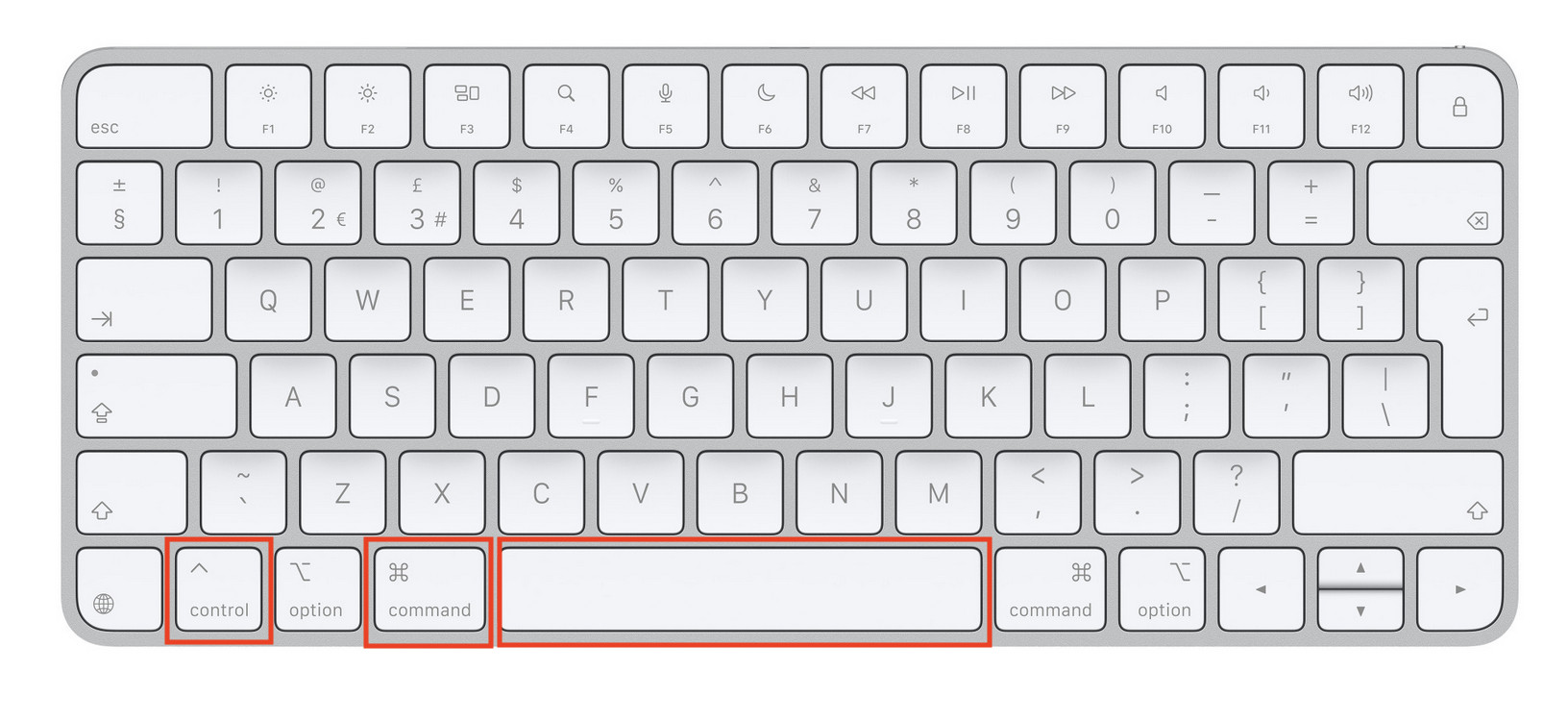
This instantly opens the emoji picker wherever your cursor is so you can search for any emoji.
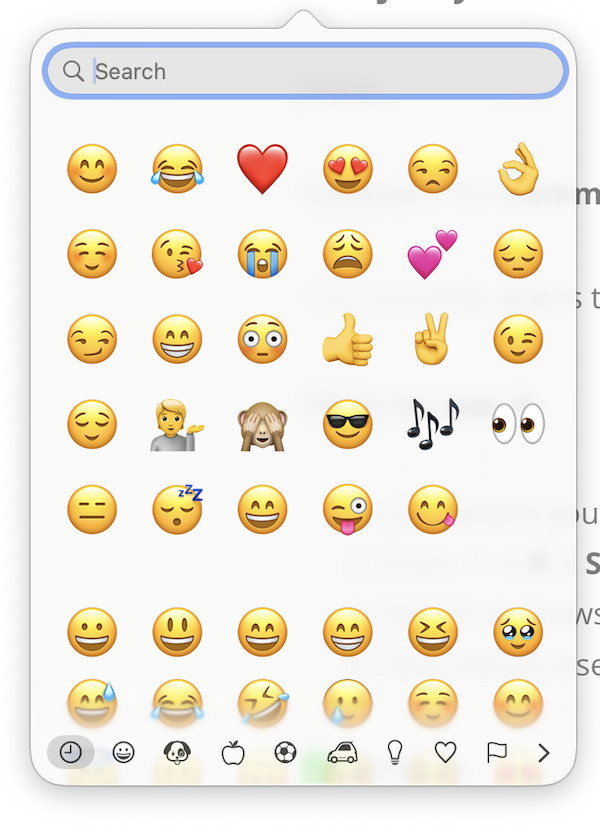
How to use it:
- Click where you want the emoji
- Press Control (⌃) + Command (⌘) + Space
- Search or browse emojis
- Click one to insert it
You can also expand the emoji picker by clicking in the top right corner:
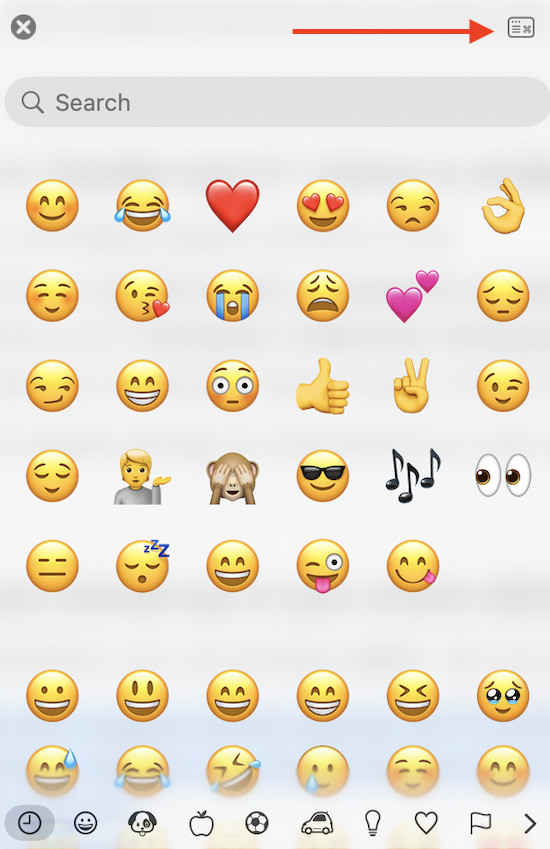
This will reveal more emoji categories and allow you to add the emojis to your Favorites (Frequently Used) list. It will also allow you to select symbols and accented characters.
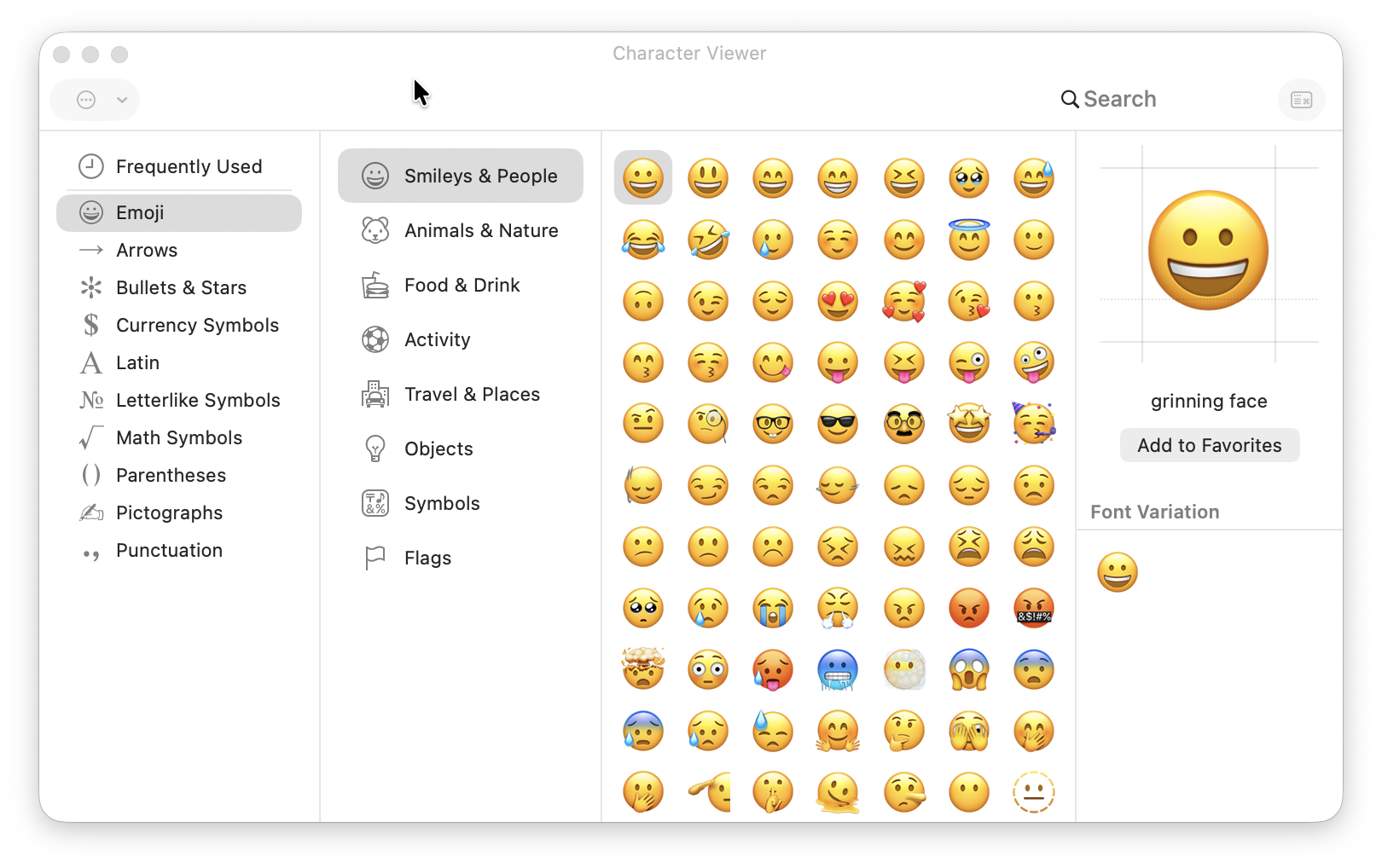
You can also change the skin color and tone of people by clicking and holding on them.

This works in pretty much anything on your Mac including:
- Safari / Chrome
- Notes
- Most apps
Even Faster: Use the Fn / Globe Key
On newer Macs, there’s an even quicker method.
Press the Fn (🌐) key

- Tap once → Opens emoji picker
- Some guides suggest double-tapping the Fn key to open the full emoji panel, but this doesn’t work on most Macs. Instead, you need to expand the emoji picker manually by clicking in the top right or open the Character Viewer from the menu bar.
You can also:
- Type a word (like “smile”)
- Press Fn + E to insert emoji suggestions
How To Get Emoji Suggestions As You Type
macOS can automatically suggest emojis while typing, which most users don’t know about.
How it works:
- Type “heart” → press Fn + E heart
- macOS suggests ❤️

If no suggestions appear, the Character Viewer opens instead.
How To Enable Emojis If You Can’t See Them
As we’ve seen, emojis are already built into macOS but in some cases, you may have to enable them to see them on some Macs and MacBooks.
To enable them:
- Go to Apple menu > System Settings
- Click Keyboard
- Ensure:
- “Show Emoji & Symbols” is selected
- That the Fn (🌐) key is set to open the emoji picker
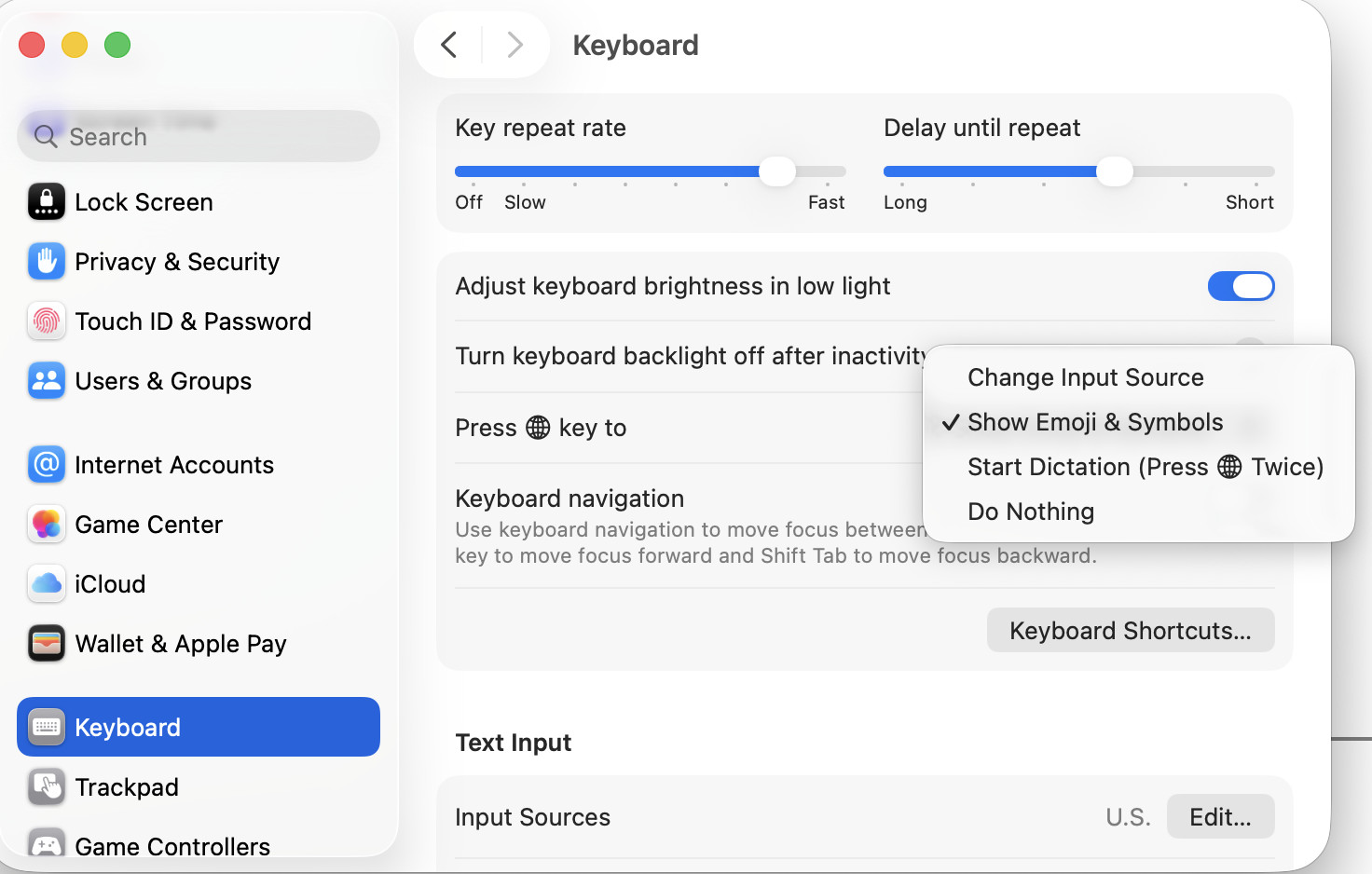
Once enabled, you can use:
- Keyboard shortcut (Control (⌃) + Command (⌘) + Space)
- Fn (🌐) key
- Menu bar emoji picker
How To Get Emojis on Mac in Google Docs
This is where things get tricky.
Option 1 (usually works)
- Press Control (⌃) + Command (⌘) + Space

Option 2 (always works)
Type a colon : then a word:
:smile
:thumbsup

Google Docs shows emoji suggestions (similar to Slack)
Option 3 (if all else fails)
Some browsers or settings can block the keyboard shortcuts in Docs. In which case, the easiest way to insert emojis into your Google Docs document is:
- Go to Insert > Emoji
- Search for the emoji you want

How To Insert Emojis in Word on Mac
Microsoft Word supports emojis, but slightly differently.
Method 1 (usually works)
- Press Control (⌃) + Command (⌘) + Space
Method 2 (menu method)
- Click Edit
- Select Emoji
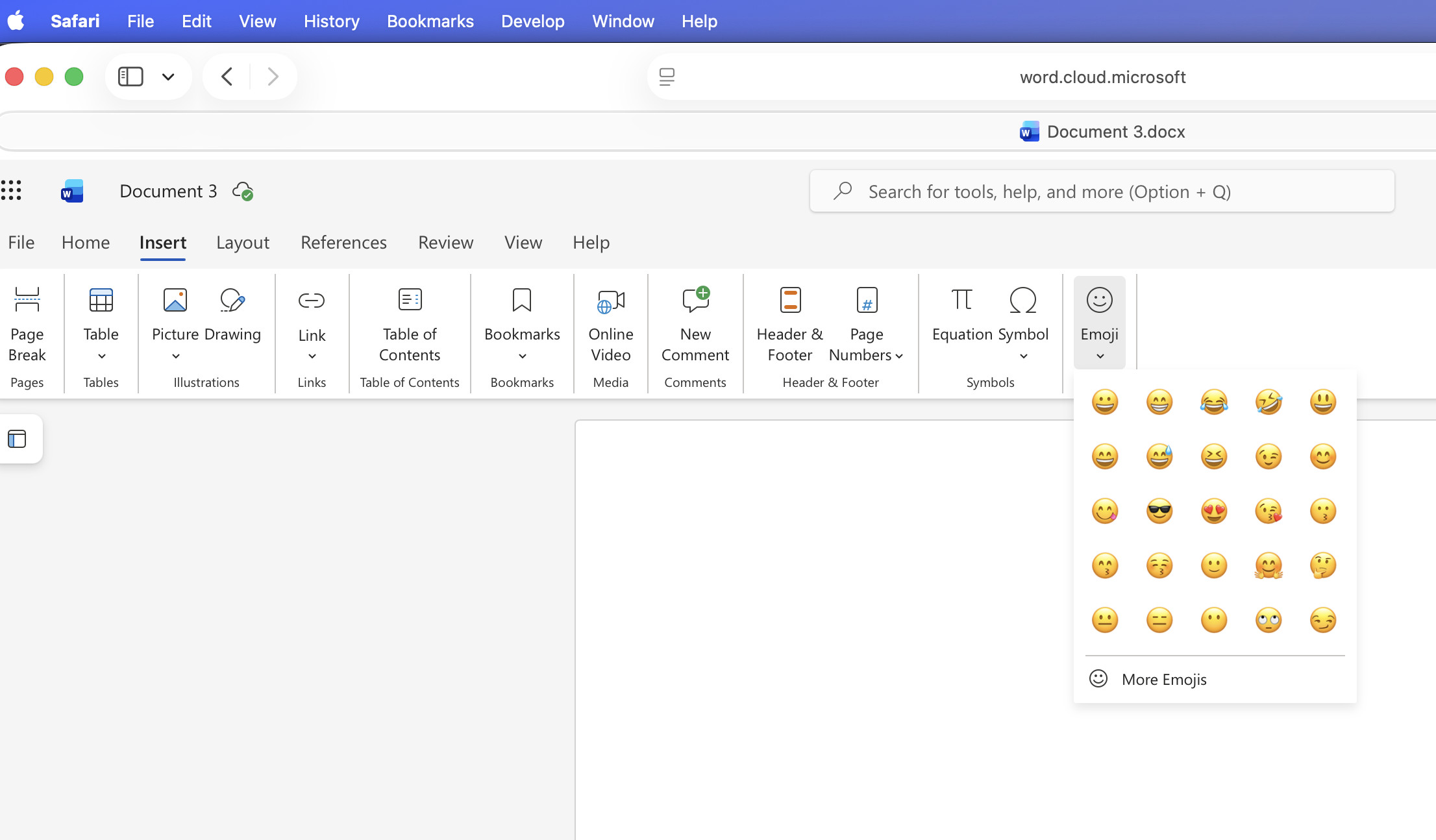
Method 3 (copy/paste)
- If any of the above fail, you can simply copy an emoji from elsewhere (such as Emojipedia or GetEmoji) and it should paste into Word.
Mac Emoji Keyboard Shortcut Not Working (Fix)
If the emoji shortcut Control (⌃) + Command (⌘) + Space doesn’t work, try these fixes:
1. Check keyboard settings
- Go to System Settings > Keyboard
- Ensure emoji viewer is enabled
2. Check input source
- Use “ABC” or correct language layout
3. Restart your Mac
- Fixes most temporary glitches
4. Try the Fn key instead
- Often still works even if shortcut fails
5. Check app compatibility
Some apps (like Google Docs in certain browsers) block the shortcut
How To Get Emojis on MacBook Pro Touch Bar
If your Mac has a Touch Bar:
How to use emoji on Touch Bar:
- Start typing in an app
- Tap the emoji icon on the Touch Bar
- Swipe through emojis
- Tap to insert
The Touch Bar shows emoji suggestions automatically in supported apps.
How To Create Custom Emoji Shortcuts on a Mac
You can create your own emoji shortcuts on a Mac simply by going to:
- System Settings > Keyboard > Text Replacements
Example:
- Type
:ty→ inserts 👍

How To Create Custom Emojis on Mac (Genmoji)
On newer versions of macOS with Apple Intelligence, you can create custom emojis (Genmoji).
- Generate emojis from text descriptions
- Use them in supported apps
- Personalize messages
This feature is still rolling out, but it’s worth knowing about for future versions of macOS.
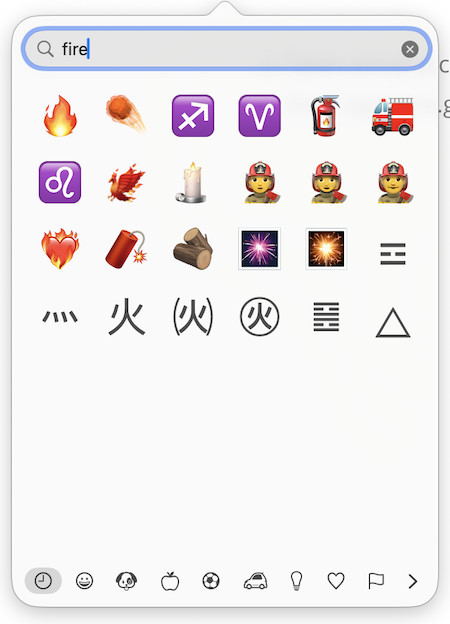
How To Search For Emojis Instantly
- Open the emoji picker on your Mac
- Start typing (e.g. “fire” 🔥)
How To Customize the Emoji Viewer on Mac
If you use emojis regularly, it’s worth customizing the Character Viewer to make it easier to find the symbols and emojis you use most often.
To customize the Emoji Viewer:
- Open the emoji picker by pressing Control (⌃) + Command (⌘) + Space, or press the Fn (🌐) key.
- Click the Expand button in the top-right corner to open the full Character Viewer.
- Click the Action (•••) menu in the upper-left corner.
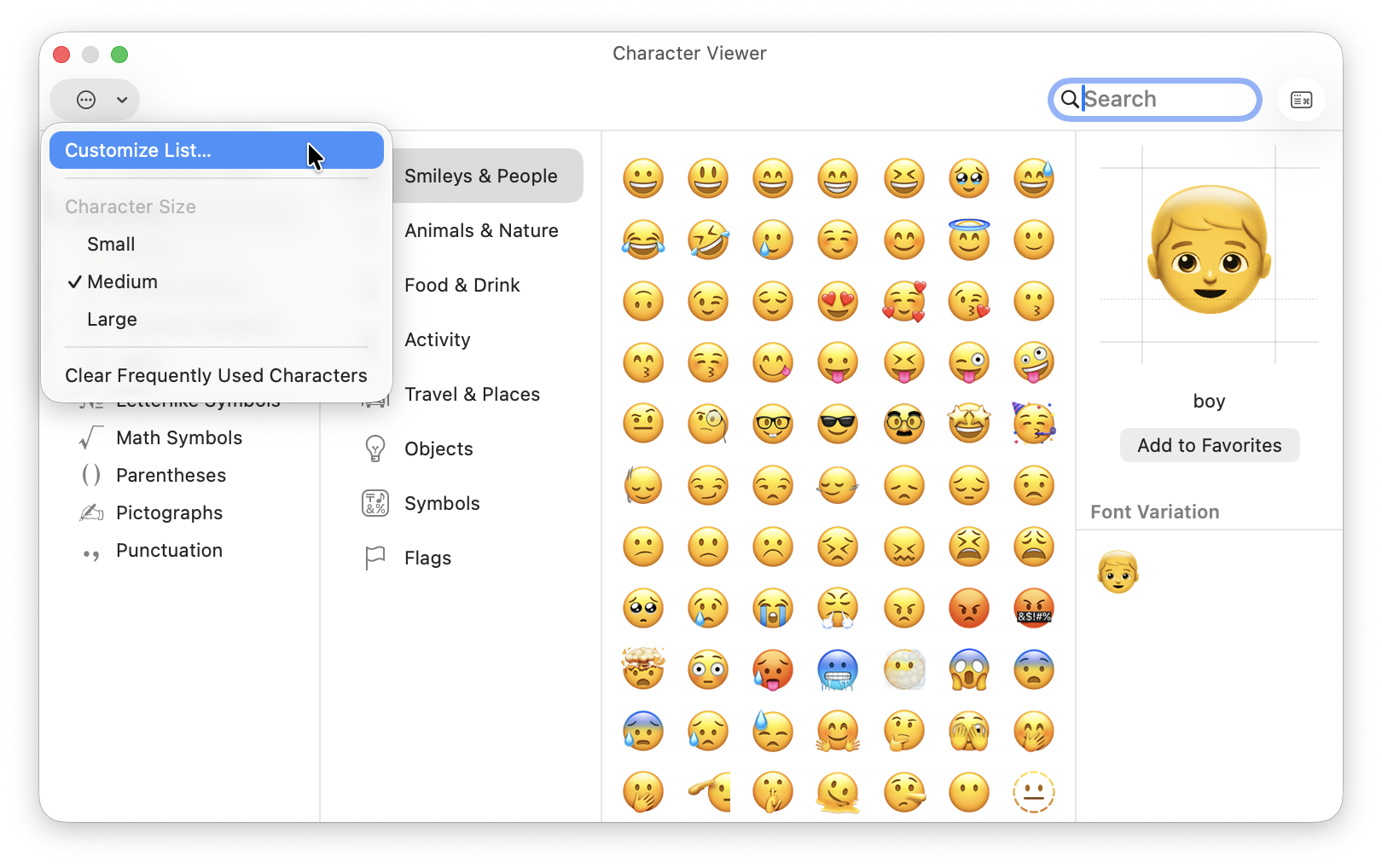
From here you can:
- Customize the categories displayed in the sidebar, hiding any you never use.
- Change the size of emojis and symbols by choosing Small, Medium or Large.
- Clear your Recently Used emojis if you want to reset the suggestions that appear at the top of the picker.
- Add the Input menu to the menu bar, giving you one-click access to the Character Viewer from anywhere in macOS.
These options can make the Character Viewer much quicker to use, especially if you frequently insert symbols, accented characters or emojis for work.
Best Third-Party Emoji Apps for Mac
Although macOS includes an excellent built-in emoji picker, there are a few third-party apps that offer additional features if you use emojis every day.
Rocket
Rocket lets you insert emojis by typing a colon followed by an emoji name, just like Slack or Discord.
For example:
:smile:rocket:thumbsup
It’s particularly useful if you spend a lot of time writing in browsers or productivity apps.
Emojipedia
While not an app, Emojipedia is the best online resource for finding, copying and learning about emojis. It’s especially useful for discovering new emojis and checking what they’ll look like across different platforms.
TextExpander
If you already use TextExpander, you can create your own emoji shortcuts and snippets, making it faster to insert commonly used emojis or combinations without opening the emoji picker.
For most Mac users, however, the built-in emoji keyboard is more than sufficient and doesn’t require installing any extra software.
FAQ
How do I use emojis on a Mac keyboard?
Press Control (⌃) + Command (⌘) + Space to open the emoji picker and select an emoji.
How do I get emojis on a MacBook Air?
They’re built-in – use Control (⌃) + Command (⌘) + Space or the Fn (🌐) key to access them.
How do I get emojis on Mac Google Docs?
The Control (⌃) + Command (⌘) + Space shortcut will usually work. Alternatively, type “:” followed by a word (e.g. :smile) or use Insert > Special characters from the Menu bar.
Why is my Mac emoji shortcut not working?
Check keyboard settings, app compatibility, or use the Fn key instead.
How do I insert emojis in Word on Mac?
Use Control (⌃) + Command (⌘) + Space or go to Edit > Emoji.
Can I copy and paste emojis on Mac?
Yes – use the emoji picker or copy from websites and paste anywhere.
When does Apple release emoji updates?
Apple doesn’t have a fixed annual schedule for adding new emojis, but they usually arrive in a macOS update several months after the Unicode Consortium approves a new emoji set.
Typically, the process works like this:
- The Unicode Consortium announces a new batch of approved emojis, usually around September each year.
- Apple designs its own versions of those emojis.
- The new emojis are then included in a later macOS, iOS and iPadOS software update rather than waiting for the next major version of macOS.
To get the latest emojis as soon as they’re available, keep your Mac updated by going to Apple menu > System Settings > General > Software Update.