


Apple Intelligence is built into modern versions of macOS, but macOS 27 Golden Gate makes it far more useful on a Mac. Its biggest addition is Siri AI (Beta): a more conversational Siri that can search your personal context, answer questions about what is on screen and help with writing.
If you have a compatible Apple-silicon Mac, the quickest way to start is to update your version of macOS to Golden Gate, go to System Settings > Siri, then choose Try Siri AI (Beta).
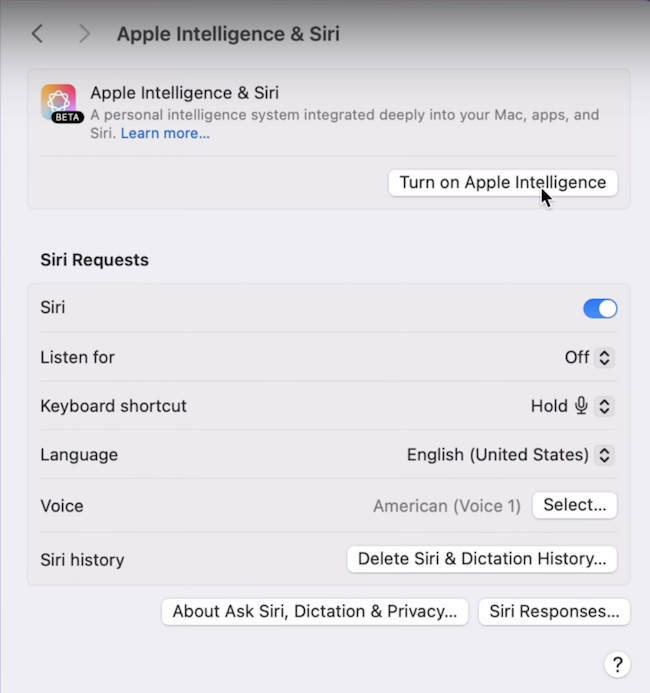
This guide explains exactly what you need, how to turn it on, what the new features actually do and how to control or switch off the parts you do not want.
Important: Apple Intelligence is not the same thing as a single chatbot app. It is a set of AI features spread across macOS, Siri, Photos, Safari, Mail, Messages, Notifications and other apps. Siri AI is the new, more capable assistant powered by Apple Intelligence in Golden Gate.
It’s also not a direct replacement for tools like Microsoft Copilot (see our Apple Intelligence vs Copilot article) or other AI software like ChatGPT although it can do many of the same things.
What You Need To Use Apple Intelligence on a Mac
To use the latest Apple Intelligence features, including Siri AI in macOS Golden Gate, you need:
- A Mac with M1 or later, or the A18 Pro-powered MacBook Neo.
- macOS 27 Golden Gate for Siri AI and the newest Apple Intelligence features.
- Siri and your Mac set to a supported language. English is supported, although feature availability can vary by language and region.
- An internet connection for Siri and features that use Apple’s cloud-based models.
Apple Intelligence does not work on Intel Macs. Golden Gate itself is also Apple-silicon-only, so an Intel Mac cannot be upgraded to macOS 27.
If you are not sure which Mac you have or whether it can run the new system, see our complete macOS 27 Golden Gate compatibility guide. We also track the latest version of macOS and the Macs it supports.
For help on updating your Mac, check out our guide to how to update macOS.
How To Turn On Apple Intelligence and Siri AI on a Mac
In macOS 27 Golden Gate, the new Siri AI setup is now under Siri in System Settings. This is different from the older Sequoia and Tahoe wording, which referred to Apple Intelligence & Siri.
- Click the Apple menu in the top-left corner of the screen and choose System Settings.
- Click General in the sidebar, then select Software Update.
- Install the latest available macOS 27 update. Do not look in the App Store: Mac system updates are installed from Software Update.
- Go back to System Settings and click Siri in the sidebar. You may need to scroll down.
- If Siri is off, click Turn On Siri, then choose Try Siri AI (Beta). If Siri is already on, simply click Try Siri AI (Beta).
- Follow the onscreen prompts to finish setup.
Once enabled, Siri AI can be used from its own app, Spotlight, the menu bar and supported context menus.
How To Open Siri AI
You can start using Siri AI in several ways:
- Press Command–Space to open Spotlight, then choose Ask Siri when it appears as the top result.
- Click the Siri AI icon in the menu bar.
- Press and hold the Dictation/Microphone key on an Apple keyboard.
- Say “Siri” or “Hey Siri” if voice activation is enabled in Siri settings.
- Control-click selected text, an image or a file, then choose Ask Siri where that option is available.
The dedicated Siri app is useful if you want to keep a conversation going, revisit an earlier chat or start a fresh request.
Do You Need To Change Your Language or Region in the UK?
No. The old advice to switch a Mac to English (United States) or change the Mac’s region was only relevant during Apple Intelligence’s limited early rollout in 2024.
In 2026, Apple Intelligence is available in English and many other languages, and it is available in most regions. UK users should normally leave their region set to the United Kingdom and use English as their Mac and Siri language.
Siri AI is still rolling out in beta in English, so not every feature will necessarily be available at the same time. If Try Siri AI (Beta) does not appear, first check that:
- Your Mac has an M-series chip or a MacBook Neo with A18 Pro.
- You have installed the current version of macOS 27.
- Both the Mac’s device language and Siri language are set to a supported language.
- Screen Time, work-device management or another restriction is not blocking Siri or Apple Intelligence.
Changing your country or region to the US is not a reliable fix and can create unnecessary issues with dates, currency, the App Store and other services.
1. Ask Siri AI to Find Information on Your Mac
Siri AI can use personal context to help find information across supported apps such as Mail, Messages, Photos and Calendar.
For example, you can ask it to:
- Find photos from a particular trip, person or date.
- Locate a restaurant recommendation that someone sent in a message.
- Find a flight number, booking reference or delivery detail buried in email.
- Pull up a note or reminder when you remember the subject but not its exact name.
- Turn a rough instruction into a reminder, event or message.
This is the most significant step beyond the older Siri. Rather than needing the exact app and search terms first, you can phrase a request naturally and refine it with follow-up questions.
It is still beta software, so check important answers, dates, bookings and instructions before acting on them.
2. Use Siri AI in Spotlight
Spotlight is still the best built-in tool for finding an ordinary document on your Mac. In Golden Gate, you can either type the document name to use normal Spotlight search or choose Ask Siri for a broader question.
Do not assume that Ask Siri can search every arbitrary file in Finder simply because it is stored on your Mac. In the current Siri AI beta, Finder document integration is not consistently available; Siri may say that Finder is “not set up for it.”

That is a current Siri AI limitation, not a Finder permission or switch that you can turn on. Use normal Spotlight or Finder search for local documents.
For example, instead of opening Mail and trying several searches, you might ask Siri AI to find the hotel confirmation from a particular trip. Instead of opening a browser, you can ask a general question and continue the conversation if the first answer needs refining.
3. Ask Siri About a Screenshot, Image or PDF
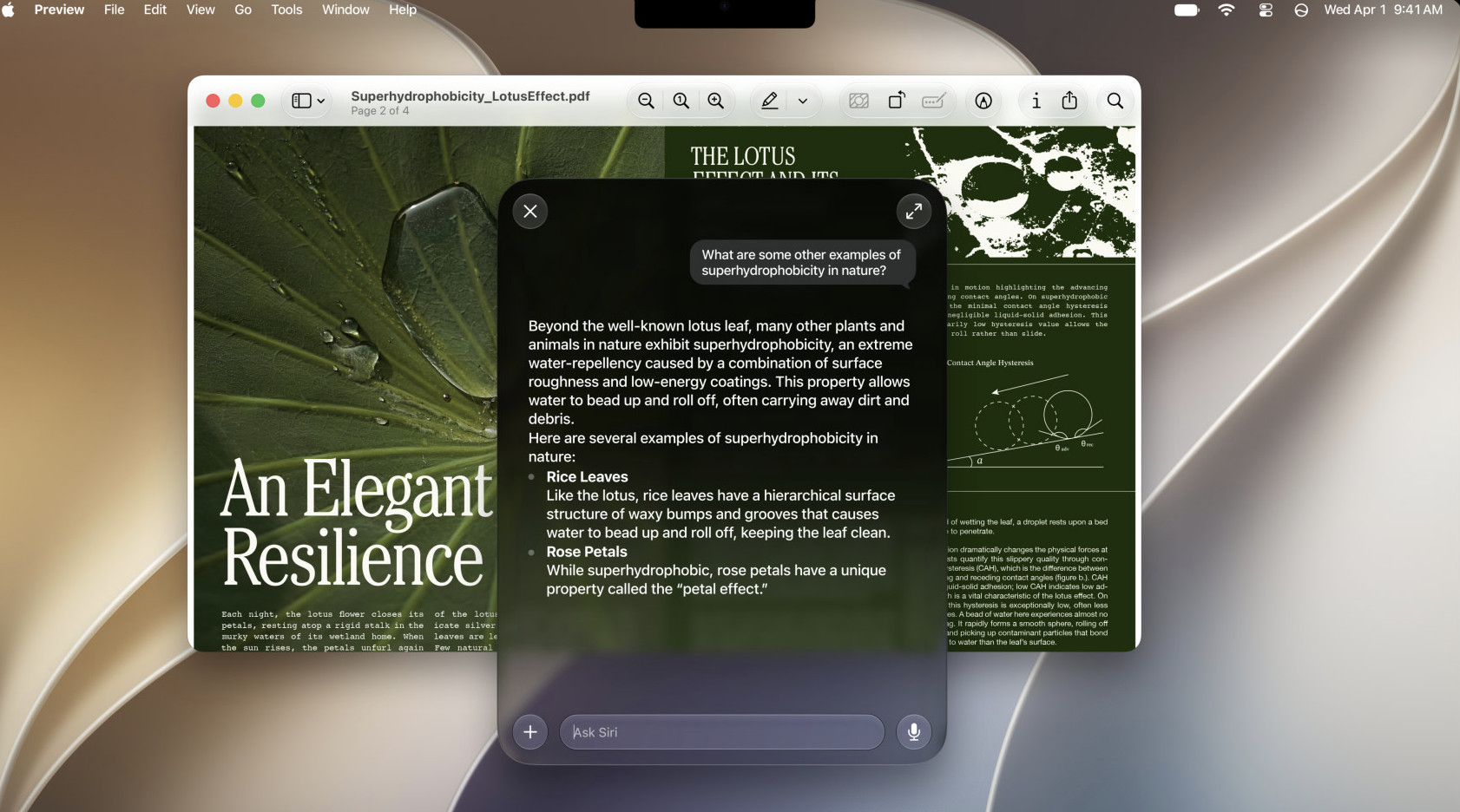
Golden Gate adds Visual Intelligence to the Mac. It lets you capture part of what is on screen, then ask Siri AI about it, search for similar images or take a relevant action.
The shortcuts are:
- Command–Shift–Space to select a window.
- Command–Shift–6 to select part of the screen.
After making the selection, choose Ask Siri, Search Image or another relevant action from the options that appear.
This is useful for quickly asking about an image, interpreting a diagram, looking up an item in a photo or getting help with a PDF that is open on your screen.
These are Siri AI screen-capture shortcuts, not replacements for the normal Mac screenshot shortcuts. For ordinary screenshots, see our guides to taking a screenshot on a Mac and copying a screenshot to the Clipboard.
4. Write, Rewrite and Summarize Text
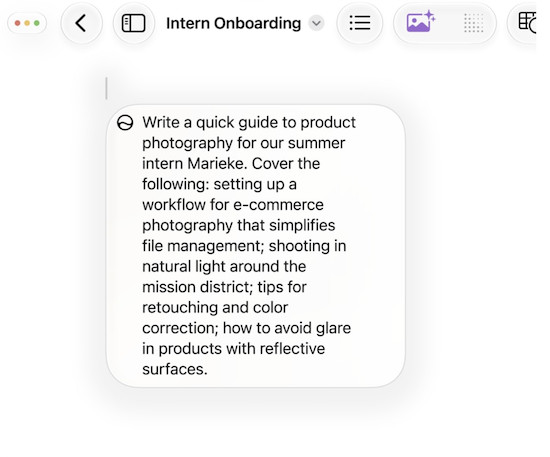
Apple Intelligence can help you draft, proofread, rewrite and summarize text in many Apple apps, third-party apps and websites.
To use the standard Writing Tools:
- Select the text you want to improve.
- Control-click it.
- Choose Writing Tools > Show Writing Tools.
- Choose an option such as Proofread, Rewrite, Friendly, Professional, Concise or Summarize.
With Siri AI enabled, you can also ask it directly to draft something, explain what is unclear or suggest a different tone. It is particularly handy for polishing a short email, turning notes into a usable first draft or reducing a long passage to key points.
Do not treat it as a substitute for judgement. It can change meaning, miss context or make up details, especially when you ask it to summarize something important.
5. Use Apple Intelligence in Photos
Apple Intelligence powers several photo tools in macOS 27, including more capable ways to remove distractions, extend an image beyond its original frame and adjust its perspective.
In Photos, open an image, click Edit, then click Tools to see the available options. These are designed for quick everyday edits rather than replacing a dedicated image editor.
You can also create images and Genmoji with Image Playground, although Apple says some server-based creative features are subject to daily usage limits.
For more powerful generative tools and a wider choice of styles, see our guide to the best AI art and image generators for Mac.
6. Use Smarter Safari, Mail, Messages and Notifications
Apple Intelligence increasingly appears in the Apple apps that many people use all day:
- Safari: Organize tabs by topic, create custom extensions and use Notify Me to receive an alert when a webpage changes, such as a price drop or restock.
- Mail and Messages: Use writing help, summaries, smart replies and suggested actions where available.
- Notifications: Turn on notification summaries to make busy stacks easier to scan. You can also use the Reduce Interruptions Focus to surface notifications that may need prompt attention.
- Calendar and Reminders: Create an event, reminder or shortcut from a plain-English description.
Availability varies by feature. If something is missing, make sure both macOS and the individual app are up to date before assuming that your Mac is not supported.
How To Use ChatGPT With Apple Intelligence
ChatGPT is optional. You do not need a ChatGPT account or the ChatGPT extension to use Apple Intelligence or Siri AI.
However, Apple lets you connect Siri to ChatGPT for requests where you want a separate generative AI service to help. To set it up in Golden Gate:
- Open System Settings > Siri.
- Click Set Up Extensions, then choose ChatGPT.
- Turn on Use Extension and follow the prompts.
- Choose whether to sign in to a ChatGPT account.
You can decide when to send a request to ChatGPT. If you use the extension while signed in, your ChatGPT account settings and OpenAI’s data policies apply. It is therefore best to treat it as a separate service, particularly when the request includes a document, photo or sensitive information.
For a fuller comparison of the two approaches, see Apple Intelligence vs Microsoft Copilot on a Mac.
How To Turn Off Apple Intelligence or Siri AI on a Mac
Golden Gate gives you more control than simply leaving every AI feature on or off. You can switch off Siri AI, return to the older Siri or disable individual features such as notification summaries.
Turn Off Siri AI
- Open System Settings > Siri.
- Click Turn Off Siri and confirm.
If you prefer the older non-AI version, turn Siri back on and select Use Siri Classic when given the choice.
Turn Off Individual Apple Intelligence Features
You can also control features separately:
- Notification summaries: Go to System Settings > Notifications > Summarize Notifications and turn it off globally or per app.
- Messages summaries: Open Messages > Settings and turn off Summarize Messages.
- Mail summaries: Open Mail > Settings > Viewing and turn off Summarize Message Previews.
- Personalized Smart Replies in Mail: Open Mail > Settings > Composing and turn off Personalize Smart Replies.
- ChatGPT extension: Go to System Settings > Siri > Extensions > ChatGPT and turn off Use Extension.
For a child’s Mac, family organizers can also use Screen Time > Content & Privacy Restrictions > Siri to restrict Siri AI and individual capabilities such as writing help, image creation and broad-world-knowledge responses.
Is Apple Intelligence Private?
Apple Intelligence is designed to process many requests directly on your Mac. For more complex requests, it can use Private Cloud Compute, Apple’s cloud system that runs on Apple silicon servers.
Apple says data sent to Private Cloud Compute is processed only to fulfil the request, is not stored or made accessible to Apple and can be independently inspected by security researchers.
That is a stronger privacy position than sending everything to a general AI chatbot, but it does not mean every Apple Intelligence feature is completely offline. If you use a third-party extension such as ChatGPT, different data-handling rules apply.
My practical advice is simple: use Apple Intelligence freely for ordinary writing, searching and organization, but do not send confidential client information, passwords, financial data or sensitive family material to any AI feature unless you understand exactly where it is being processed.
Why Apple Intelligence or Siri AI May Not Be Working
| Problem | What to check |
|---|---|
| You cannot see Try Siri AI (Beta) | Confirm that you are on macOS 27 Golden Gate, have an M1-or-later Mac or MacBook Neo, and have a supported Siri and device language. |
| You have an Intel Mac | Apple Intelligence and macOS Golden Gate are unavailable on Intel Macs. You can remain on an earlier supported version of macOS, but not use the new Siri AI features. |
| Siri says Finder is “not set up for it” | This is a current Siri AI beta limitation, not a Finder setting you have missed. Use normal Spotlight or Finder search for local documents; ask Siri AI to search supported sources such as Mail, Messages, Photos and Calendar. |
| Spotlight cannot find the document either | Go to System Settings > Spotlight > Search Privacy and make sure the document’s folder or disk is not excluded. Give macOS time to finish indexing after changing the setting. |
| A feature is missing | Apple Intelligence features do not all arrive in every language and region at the same time. Check for macOS and app updates, then check Apple’s feature-availability information. |
| Siri AI has stopped responding | Check your internet connection, then turn Siri off and back on in System Settings > Siri. |
| You have reached a usage limit | Some server-based features, including Siri AI and certain image-generation tools, have daily limits that can vary with demand and request complexity. |
| A work or family Mac is restricted | Check Screen Time restrictions and ask the administrator if the Mac is managed by an employer or school. |
FAQ
Is Apple Intelligence free on a Mac?
Apple Intelligence is included with compatible Macs and supported macOS versions; there is no separate app to buy. However, Apple says some server-based features have daily limits, and expanded access to certain capabilities may be included with eligible iCloud+ plans.
Does Apple Intelligence work on Intel Macs?
No. Apple Intelligence requires Apple silicon. Intel Macs cannot run macOS 27 Golden Gate either.
Can I use Apple Intelligence in the UK?
Yes. You should not need to change your Mac’s region to the United States. Keep the Mac and Siri set to a supported language, such as English, and make sure you have the latest macOS update. Individual features may still vary by language and region.
Is Siri AI the same as Apple Intelligence?
No. Apple Intelligence is the wider system of AI features across macOS. Siri AI is the new conversational assistant powered by Apple Intelligence in macOS Golden Gate.
Do I need ChatGPT to use Apple Intelligence?
No. ChatGPT is an optional extension. Apple Intelligence, Writing Tools, Siri AI, Visual Intelligence and the other built-in features can be used without a ChatGPT account.
Does Apple Intelligence replace Microsoft Copilot or ChatGPT?
Not completely. Apple Intelligence is best thought of as a built-in Mac assistant that works across Apple’s system and apps. Microsoft Copilot remains more useful if most of your work is in Word, Excel, PowerPoint, Outlook and Teams, while ChatGPT may be preferable for a standalone conversational AI workflow.
The Bottom Line
The first version of Apple Intelligence in macOS Sequoia felt like a promising collection of small AI features. In macOS 27 Golden Gate, it becomes much more practical thanks to Siri AI, Visual Intelligence, better writing help and deeper links with the apps you already use.
If you have an Apple-silicon Mac, enable it, then start with one or two everyday tasks: asking Siri to find something, proofreading an email or using Visual Intelligence on an image or PDF. That is the quickest way to see whether it fits your workflow without handing every task to an AI assistant.