

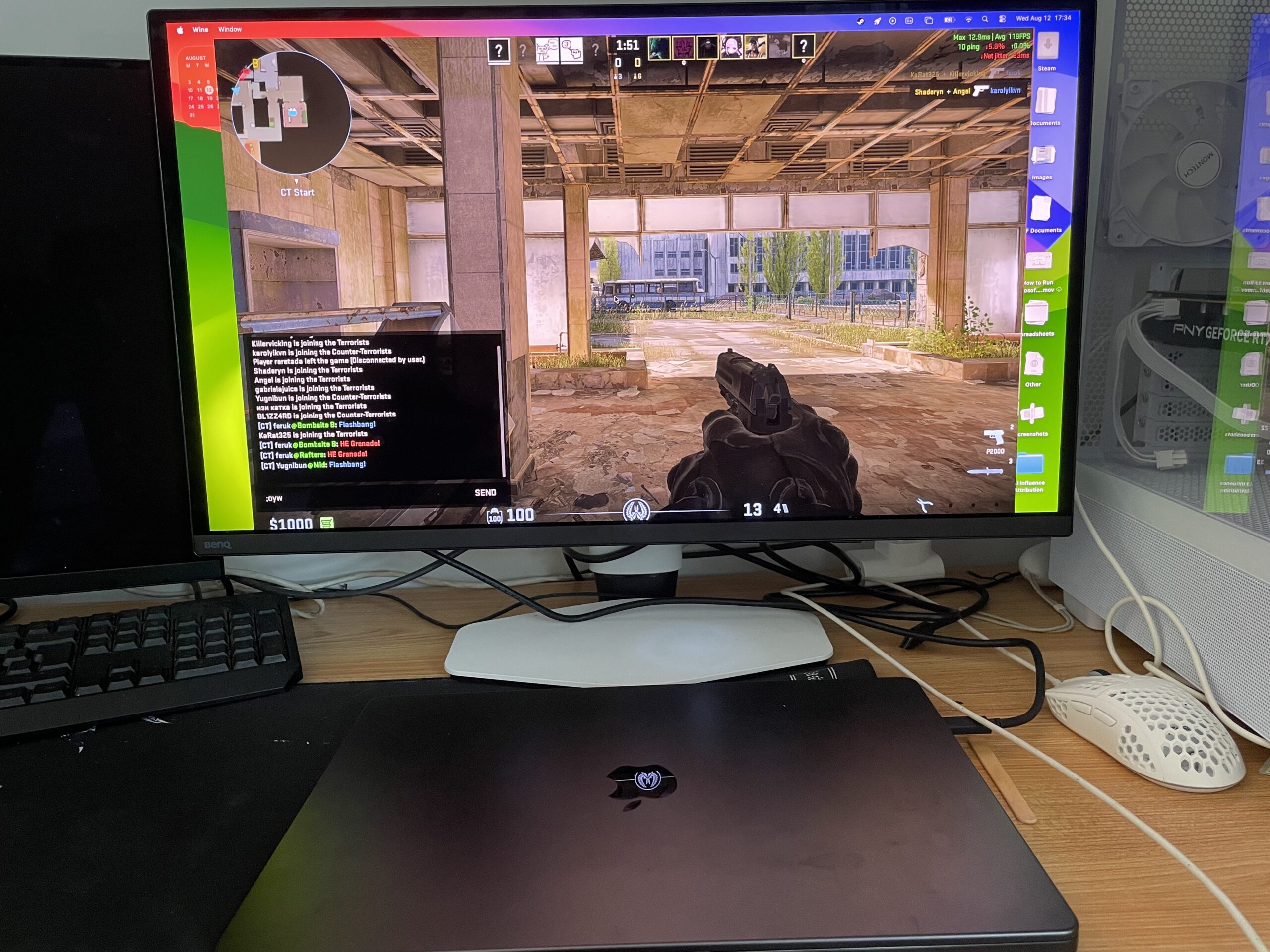
The BenQ MOBIUZ EX271UZ is a premium 27-inch 4K QD-OLED gaming monitor with an extremely fast 240Hz refresh rate.
Even the best Mac compatible 5K monitors usually only have a refresh rate of around 60Hz, the MOBIUZ EX271UZ offers 4 times that to handle even the most demanding games.
Most 27-inch monitors designed specifically for Macs focus on 5K resolution and productivity but remain limited to around 60–70Hz. The EX271UZ takes the opposite approach: it sacrifices some pixel density in favor of OLED contrast, HDR and much smoother motion.
However, although BenQ markets it primarily at PC and console gamers, it also has several features that make it particularly interesting for Mac users. These include USB-C video connectivity with 90W charging, Display P3 colour, a built-in USB hub and a KVM switch for sharing peripherals between two computers.
I tested the EX271UZ with an M3 MacBook Pro with Max chip running macOS Tahoe, connected by both a USB-C and HDMI cable, to see whether this gaming-focused display also works well as an everyday Mac monitor.
Note that at the time of writing, I found that pricing for the display was much cheaper on Amazon than direct from BenQ because it was discounted by almost 15%.
BenQ MOBIUZ EX271UZ Specifications
| Specification | BenQ MOBIUZ EX271UZ |
|---|---|
| Display size | 26.5 inches, marketed as 27 inches |
| Panel | Fourth-generation QD-OLED |
| Resolution | 3840 × 2160 (4K UHD) |
| Pixel density | 166 PPI |
| Refresh rate | Up to 240Hz |
| Response time | 0.03ms GtG claimed |
| Colour gamut | 99% P3 claimed |
| HDR | VESA DisplayHDR True Black 400; HDR10 |
| Brightness | 250 nits typical; up to 1,000 nits peak HDR claimed |
| USB-C | DisplayPort Alt Mode, data and up to 90W Power Delivery |
| Other video inputs | 2 × HDMI 2.1, 1 × DisplayPort 1.4 |
| USB hub | 2 × USB-A, 1 × downstream USB-C and 1 × data-only upstream USB-C |
| KVM | Yes |
| Audio | 3.5mm headphone output and HDMI eARC; no internal speakers |
| Stand | 100mm height, -5° to 15° tilt and 15° left/right swivel |
| Mount | 100 × 100mm VESA |
What’s In The Box?
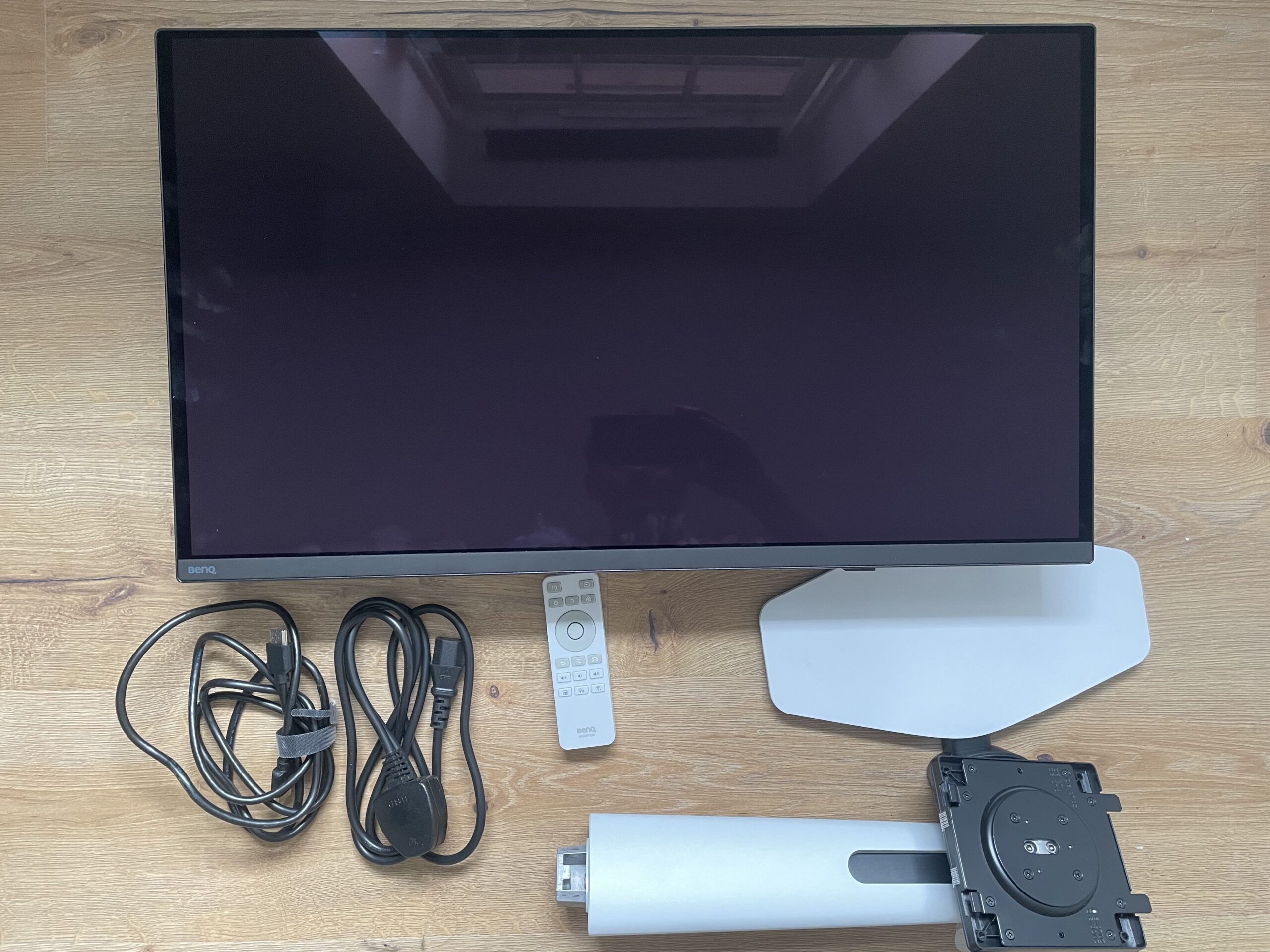
Inside the box for the BenQ EX271UZ you get:
- The BenQ Mobiuz EX271UZ display
- Stand arm plus base plate
- Power cable
- HDMI 2.1 cable (note there is no USB-C cable included)
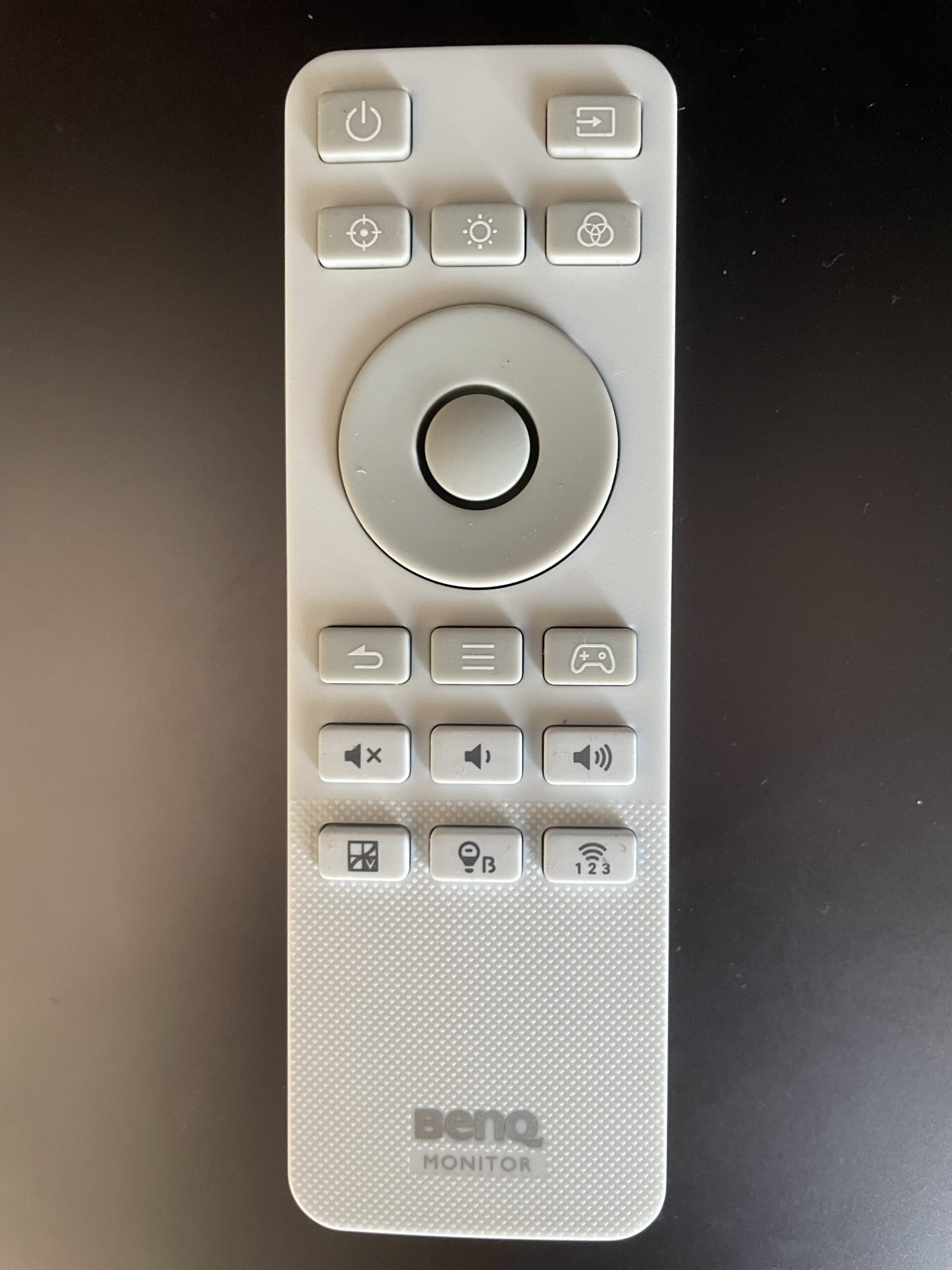
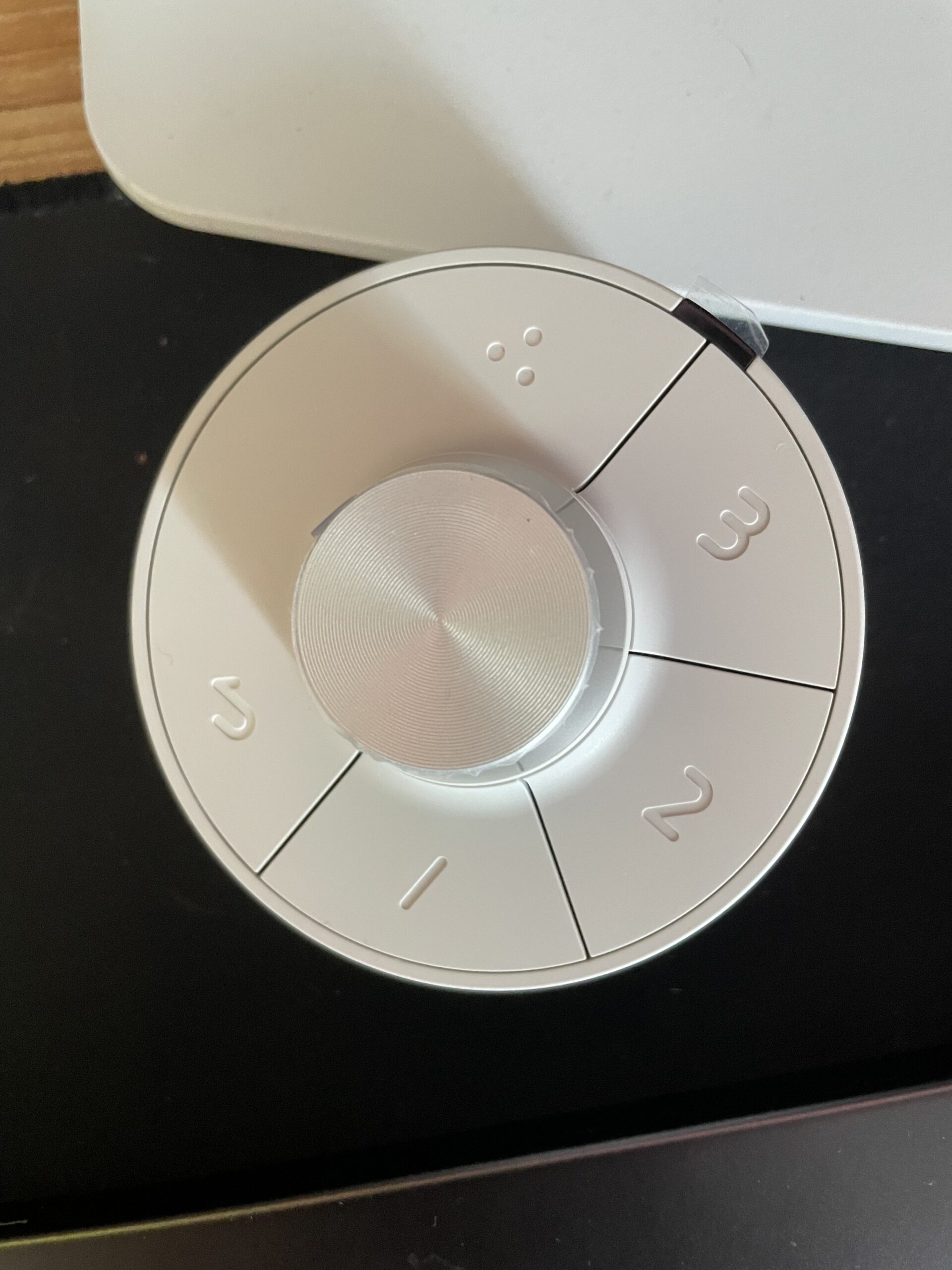
- Remote control
It is a little bit annoying that there’s no USB-C cable included as for Mac users, this provides charging from the monitor to the MacBook so make sure you have one available or buy one separately.
Design and Build Quality
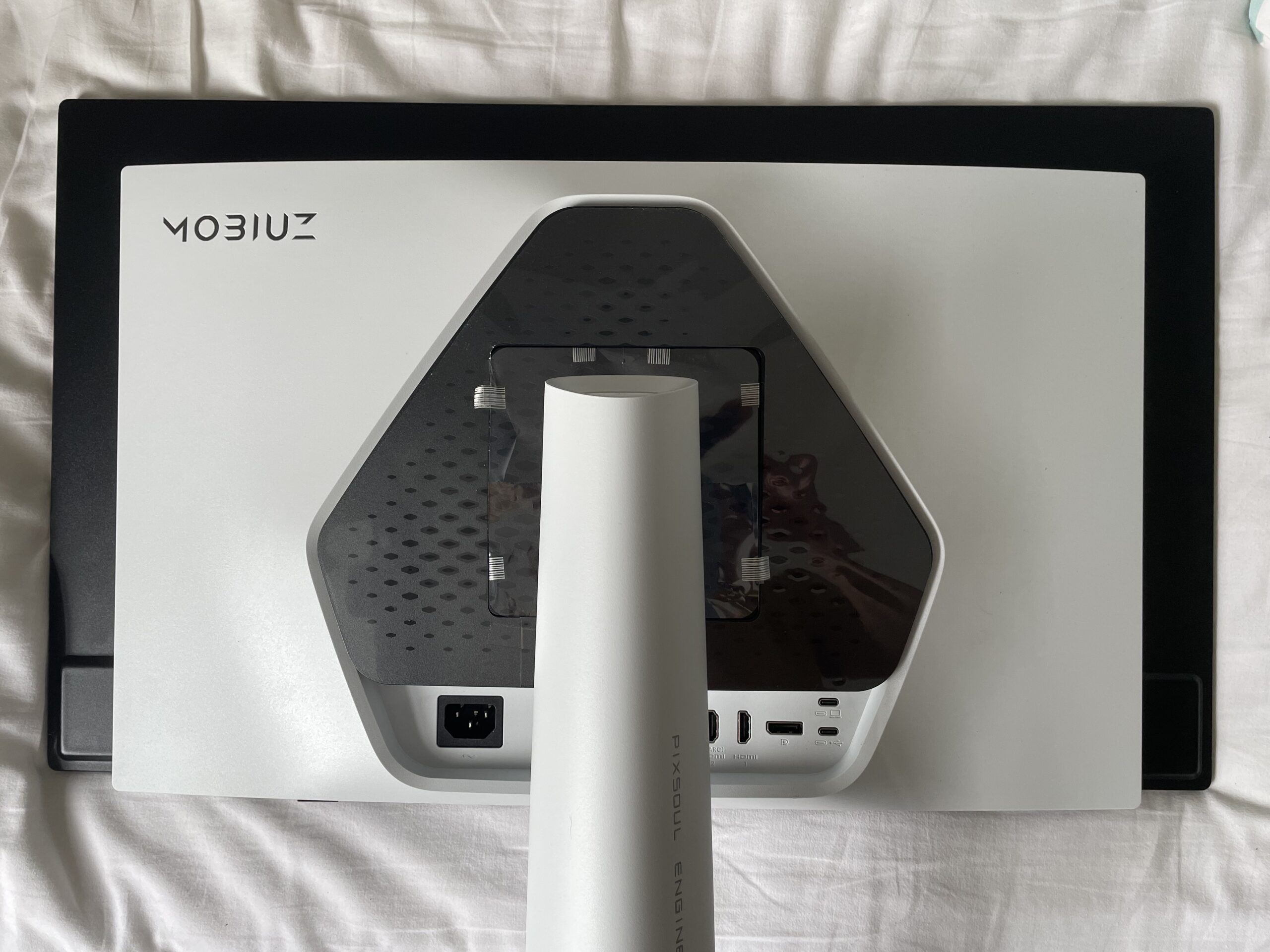
The EX271UZ has a white and black design that looks more distinctive than a typical office monitor without being covered in RGB lighting.
The stand feels very sturdy (but surprisingly heavy) and provides 100mm of height adjustment, tilt from -5 to 15 degrees and 15 degrees of swivel in either direction. It does not rotate into portrait orientation, although a 100 × 100mm VESA mount is available if you want to use a monitor arm.
At 7.43kg with its stand, it is reassuringly substantial. The base is relatively shallow for a gaming monitor, although you should still measure its 223mm depth if desk space is limited.
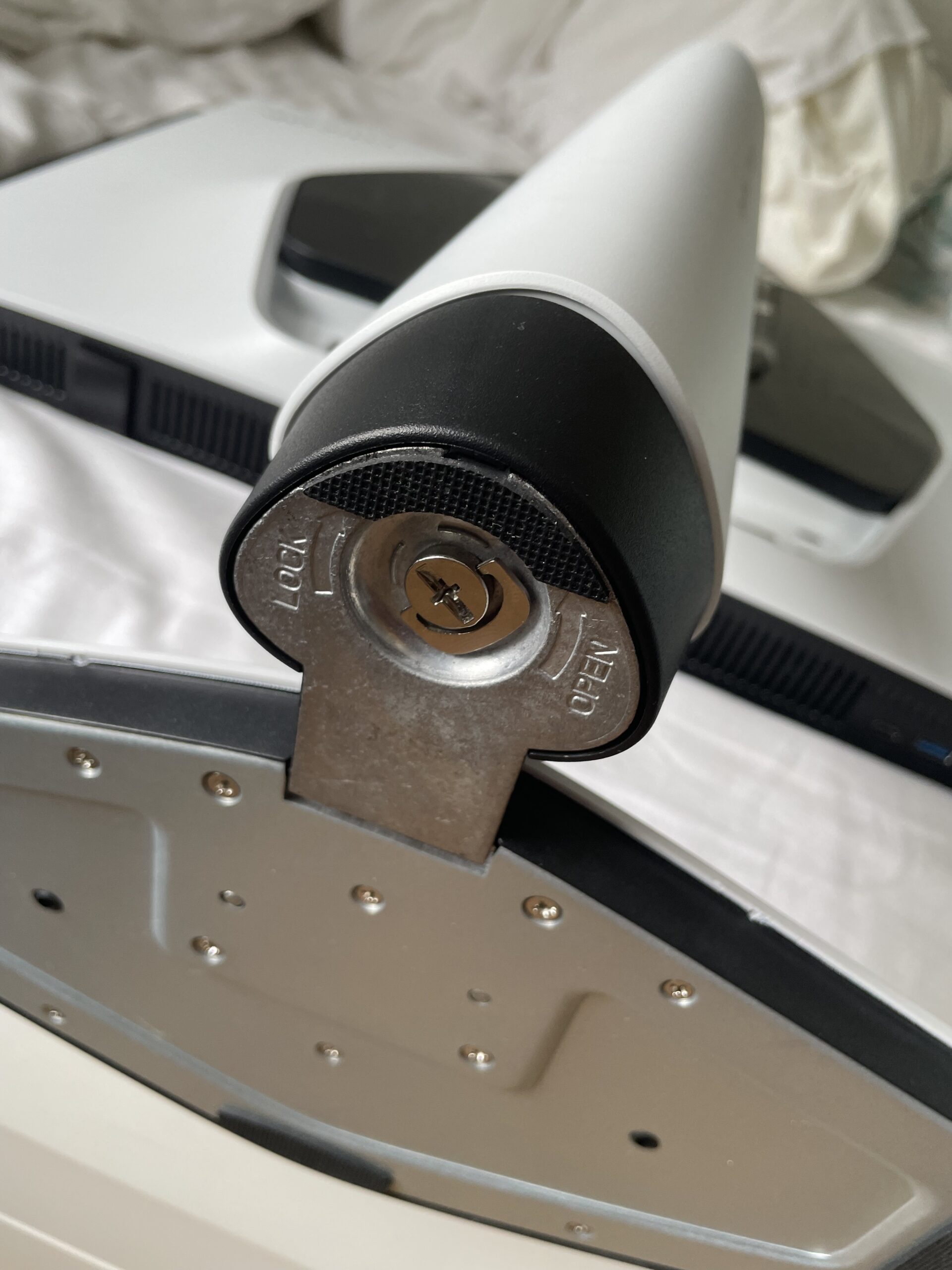
Like all BenQ monitors, the stand is easy to put together – simply use the turnkey to screw it into the base plate.
BenQ includes a small remote control that provides quick access to brightness, color modes, volume and gaming features. A remote can sound unnecessary for a 27-inch desktop monitor, but I found it genuinely quicker than having to awkwardly reach under the monitor to blindly access the mini-joysticks for the OSD settings.
There are no internal speakers. This is disappointing on a premium monitor used with a Mac, although it has a headphone output and one HDMI 2.1 port supports eARC for a compatible soundbar or receiver.
Fortunately, the speakers on Apple Silicon MacBook Pros are excellent and I was happy to use them for sound while gaming.
Connecting the EX271UZ to a Mac
The simplest way to connect a MacBook is by USB-C. A single connection can carry the display signal and USB data while supplying up to 90W of power to the Mac.
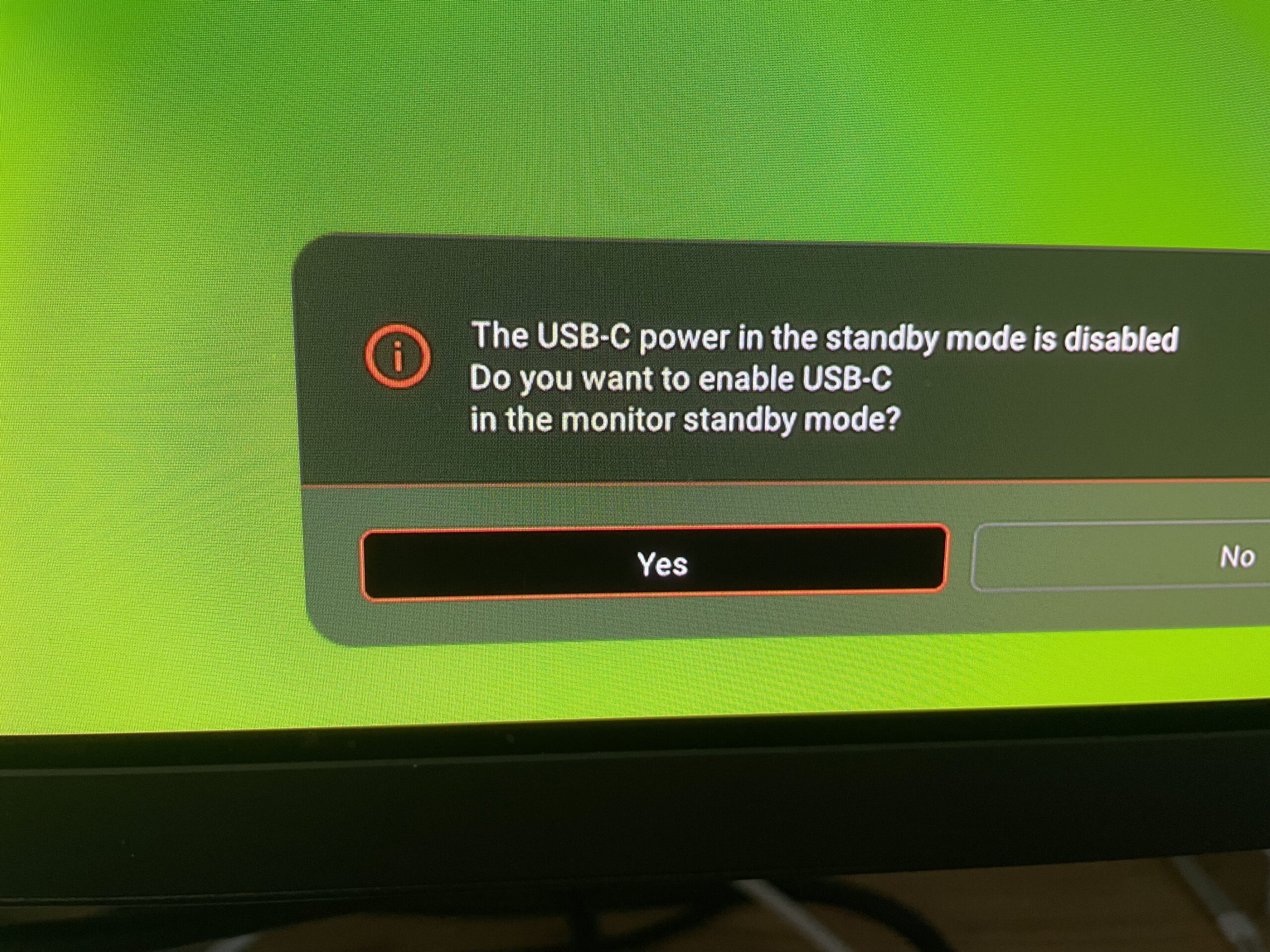
I connected my M3 MacBook Pro by testing both a USB-C cable and HDMI cable, and for both connections, macOS recognized the monitor at 240Hz and a resolution of 3840 x 2160. With either cable, the monitor woke from sleep quickly and the USB-C cable charged my MacBook.
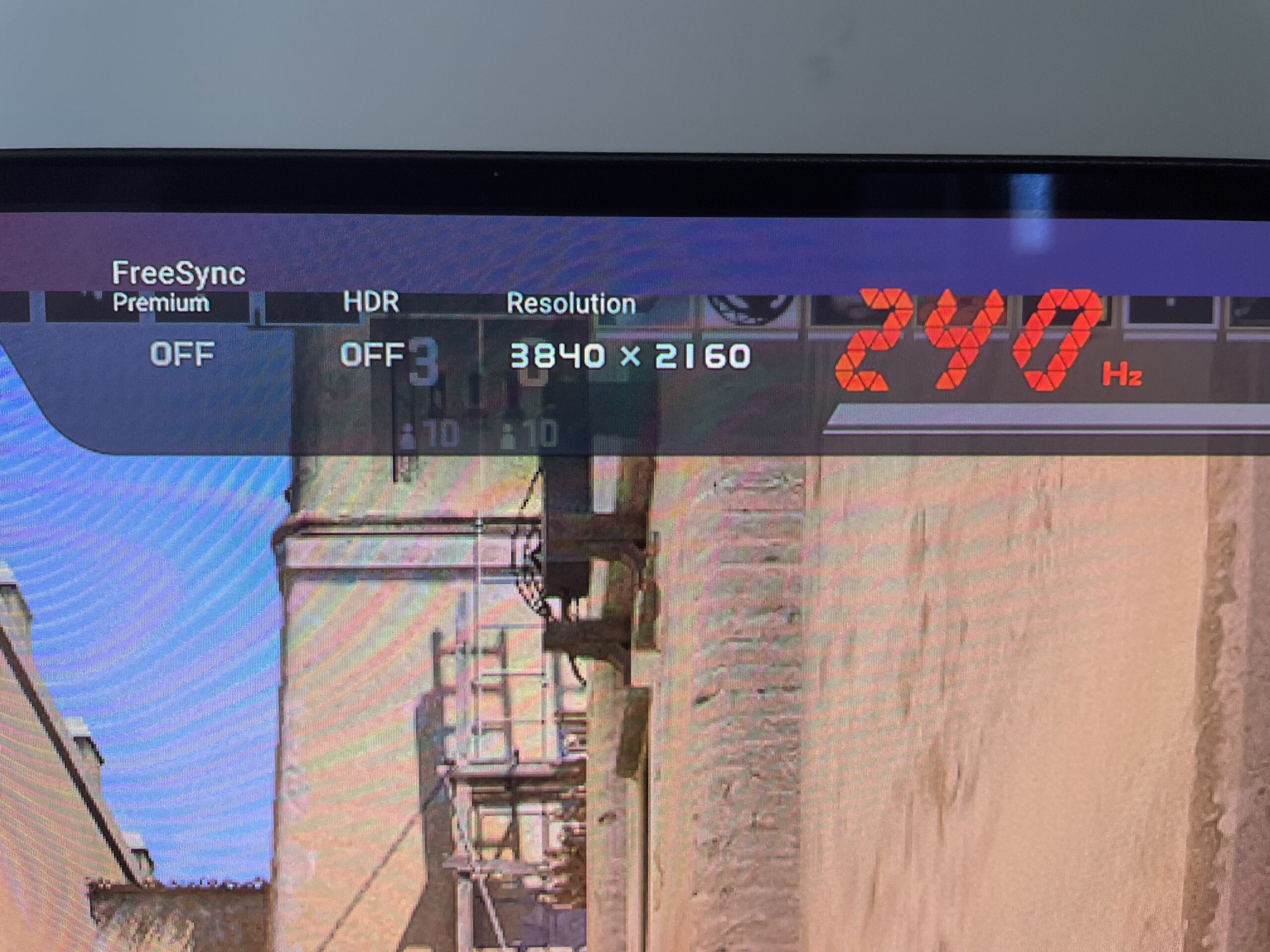
BenQ only lists an HDMI 2.1 cable as the supplied signal cable, although box contents can vary by region. If your unit does not include USB-C (mine did not), you will need a full-featured cable capable of carrying the display signal rather than a charging-only USB-C cable.
The 90W power delivery is enough for most MacBooks in normal use. Owners of larger MacBook Pro models that ship with higher-output Apple adapters should check whether the battery continues charging during sustained gaming or rendering.
Does the EX271UZ Run at 4K 240Hz on all Macs?
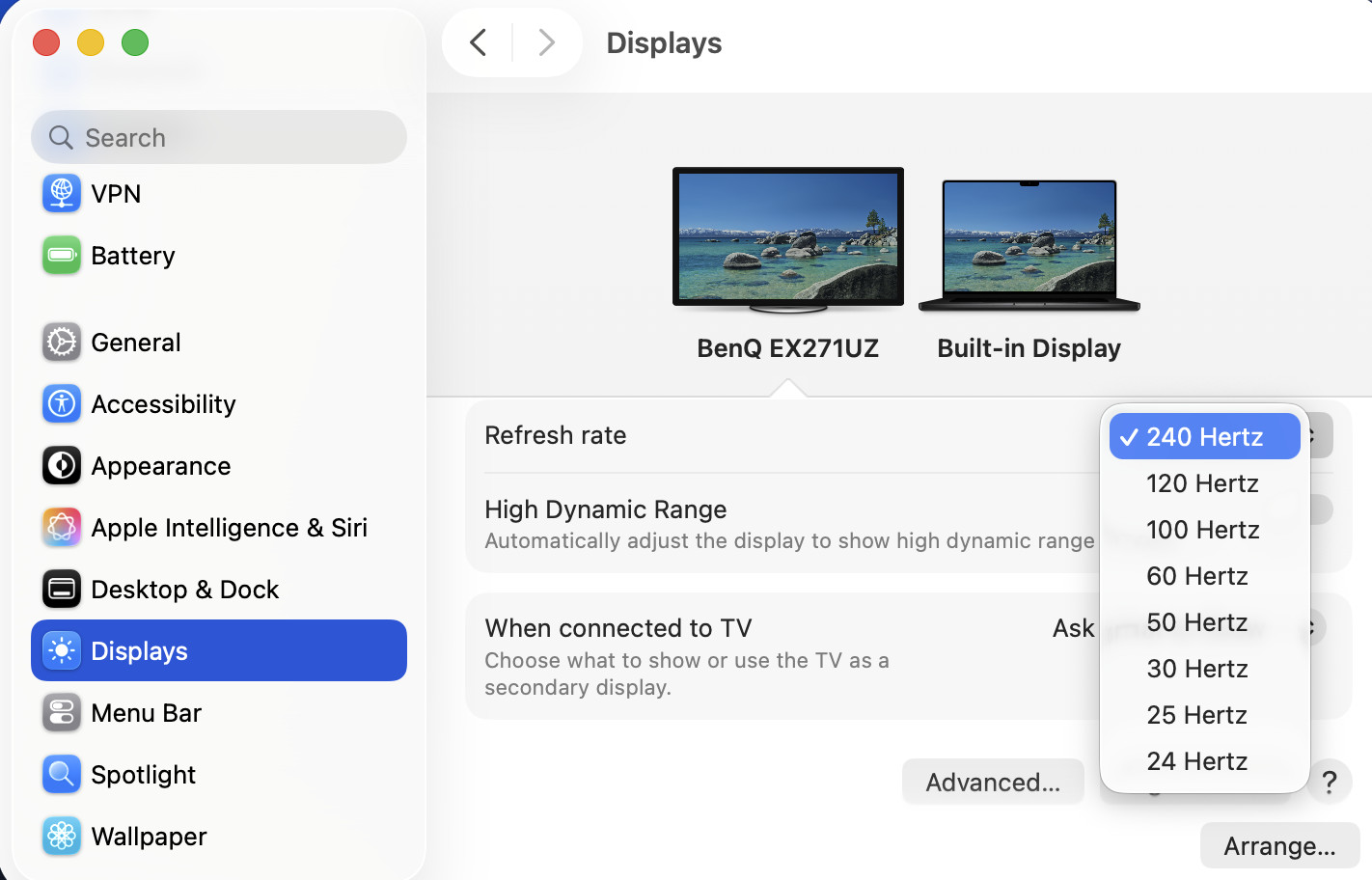
On supported Macs it can. Apple lists support for a single external display at 4K and 240Hz on many new Apple Silicon Macs, over Thunderbolt or HDMI. Older Macs may be limited to 60Hz, 120Hz or 144Hz depending on their chip and connection. Depending on which Mac you are using, you may need a Max or Pro chip to benefit from it.
On my M3 MacBook Pro, the available fixed refresh rates ranged from 240Hz to 24Hz, over both USB-C and over HDMI.
Be careful buying the EX271UZ purely for 240Hz without checking the display specifications for your exact Mac. The number and resolution of any other connected displays can also reduce the maximum supported refresh rate.
4K Resolution and macOS Scaling
The biggest compromise for Mac users is the 4K resolution. The EX271UZ packs 3840 × 2160 pixels into its 26.5-inch panel, giving it a density of 166 pixels per inch. This is sharper than a 27-inch 1440p monitor, but considerably below the roughly 218 PPI of a 27-inch 5K display and the high pixel density of MacBook Retina displays.
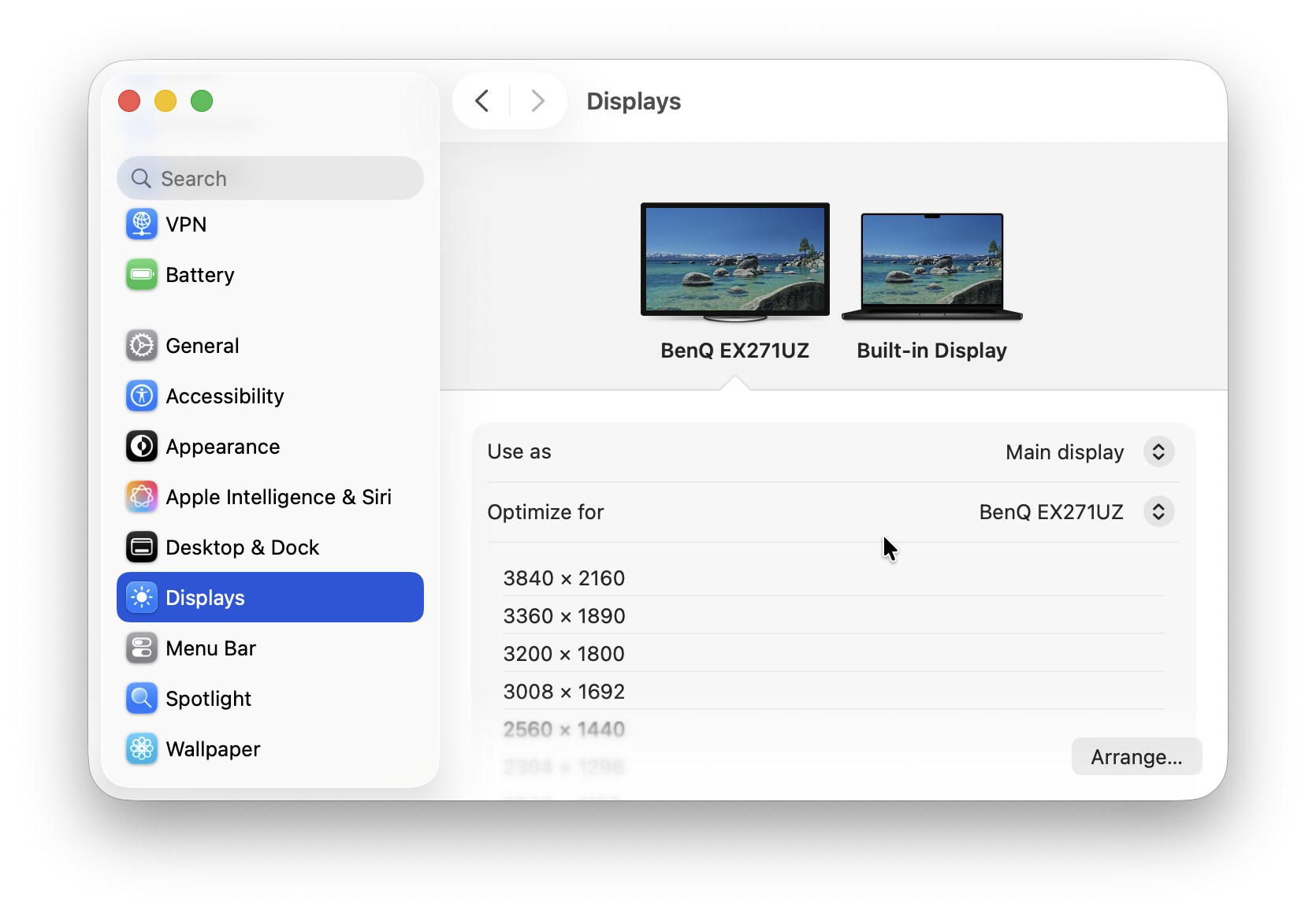
At the default pixel-doubled “Looks like 1920 × 1080” setting, text is crisp but interface elements can feel rather large. The “Looks like 2560 × 1440” setting provides a much more useful amount of desktop space, but macOS has to render and scale the image rather than map every logical pixel perfectly to four physical pixels.
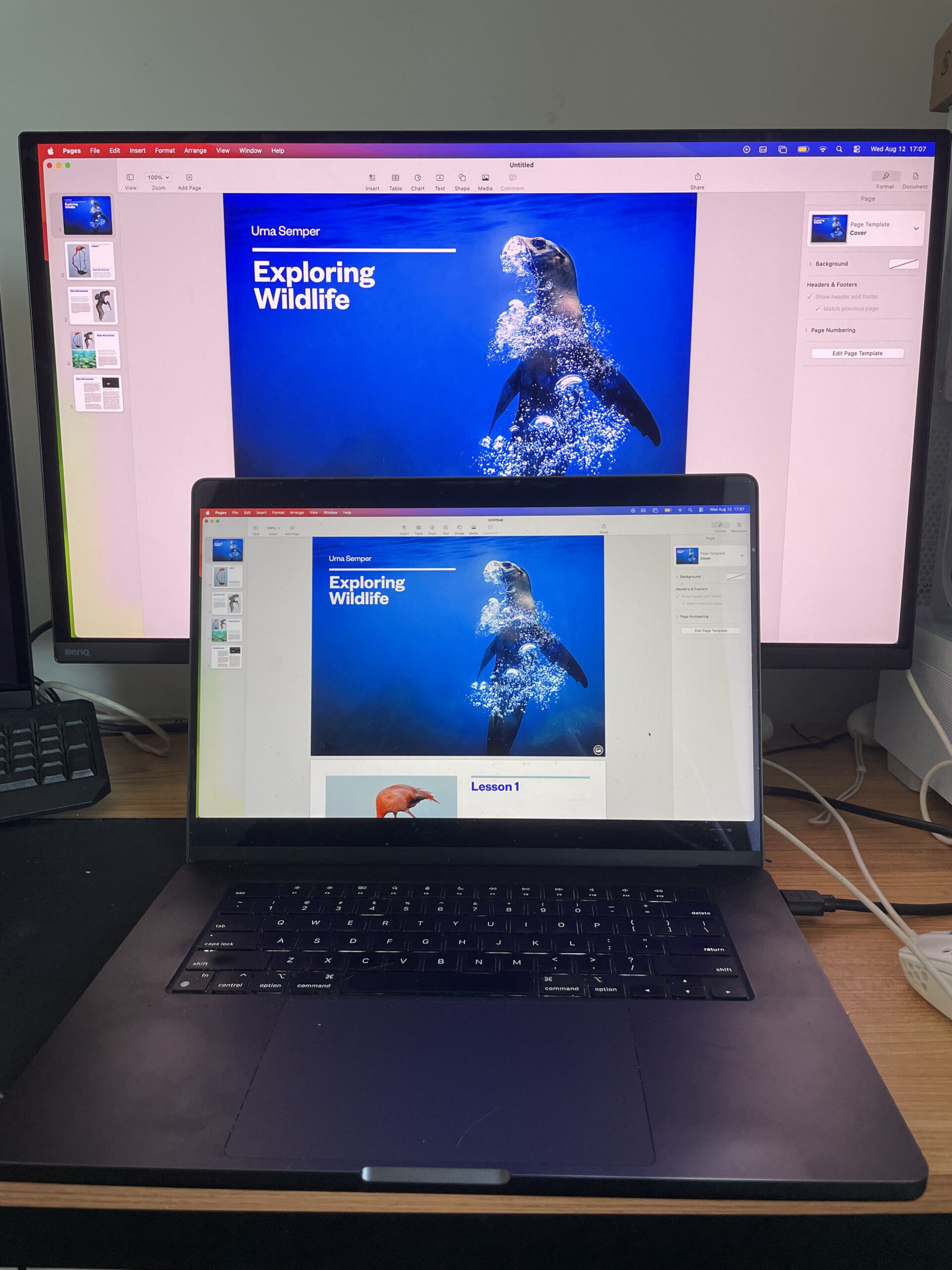
This mismatch between 4K monitors and Macs can be improved with third party tools, the best one I’ve tried being BetterDisplay.
This is where a 5K monitor such as the BenQ MA270S has a structural advantage. Its 5120 × 2880 panel maps perfectly to a “Looks like 2560 × 1440” workspace at 2× scaling. It contains approximately 14.7 million pixels compared with 8.3 million on the EX271UZ – around 78% more physical pixels overall – and its pixel density is about 31% higher.
I found the text clarity on the EX271UZ was very good although of course, not as good as a 5K display which you’ll see if you really look close-up (see below).

QD-OLED panels also use a different subpixel arrangement from a conventional IPS monitor. This can produce slight color fringing around very small high-contrast text. The high 166 PPI density helps to reduce the effect, but when I compared it directly with the 5K BenQ MA270S, there’s a definite difference in clarity. A photo may not do it justice but you can see below how sharp the image quality and color reproduction is on the MA270S.
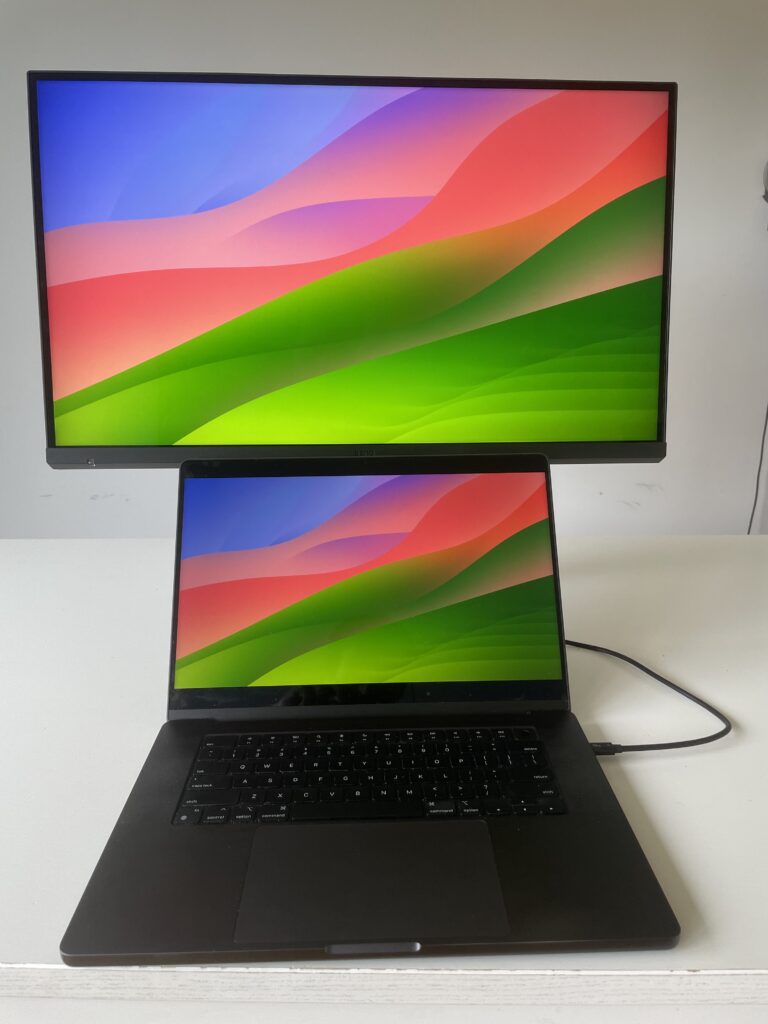
The fourth-generation QD-OLED panel is relevant because text rendering is better than on some earlier OLED displays. However, panel generation and pixel density are separate issues: it cannot make a 166 PPI 4K screen resolve the same amount of fine detail as a 218 PPI 5K screen.
This distinction matters far more in a Mac review than it does in a gaming benchmark. Games, photos and video look exceptionally detailed, but a writer, programmer or spreadsheet user may still prefer the cleaner text of a 5K IPS display.
BenQ EX271UZ vs MA270S: Which Is Better for Mac Users?
This is likely to be the most important buying question for many Mac users because both are premium 27-inch BenQ displays with glossy panels, wide P3 colour and one-cable MacBook connectivity, but they prioritize very different things.
The MA270S is designed specifically for Macs. I was really impressed in my review of it and if it’s image sharpness you want, it’s one of the best alternatives to the Apple Studio Display I’ve tried.
It uses a 5120 × 2880 IPS panel with 218 PPI, a 70Hz refresh rate, up to 96W charging and Thunderbolt 4. The EX271UZ uses a 3840 × 2160 QD-OLED panel with 166 PPI, a 240Hz refresh rate, 90W USB-C charging and a KVM switch.
| BenQ EX271UZMA | BenQ MA270S | |
| Best for | Gaming, HDR, films and mixed Mac/PC use | Coding, writing, design and everyday Mac productivity |
| Resolution | 3840 × 2160 | 5120 × 2880 |
| Pixel density | 166 PPI | 218 PPI |
| Physical pixels | Approximately 8.3 million | Approximately 14.7 million |
| “Looks like 2560 × 1440” | Scaled and downsampled | Exact 2× Retina mapping |
| Panel | Fourth-generation QD-OLED | Nano Gloss IPS |
| Refresh rate | Up to 240Hz | Up to 70Hz |
| Typical brightness | 250 nits | 450 nits |
| Blacks and contrast | Perfect OLED blacks in controlled lighting | Brighter in daylight, but weaker IPS blacks |
| Text and small UI elements | Generally sharp unless very close up | Extremely sharp |
| Mac connection | USB-C with 90W charging | Thunderbolt 4 with up to 96W charging |
| Other strengths | KVM, remote, HDR and gaming features | Mac colour tuning, Display Pilot 2 and tighter Mac integration |
| Static desktop use | OLED protection required; some burn-in risk | Better suited to persistent menus and application interfaces |
Is the EX271UZ Noticeably Softer Than the MA270S?
At the same “Looks like 2560 × 1440” setting, the MA270S looked noticeably sharper. The greatest difference was visible in text, while the difference in photos, video and games was less pronounced
From a normal viewing distance however, I could not see the difference without deliberately looking for it. After a full working session, the EX271UZ did not feel meaningfully softer or more tiring for text-heavy work.
The fact is, fourth-generation QD-OLED has decent text clarity and 5K IPS is sharper but the EX271UZ is sharp enough for most needs – especially gaming – even if it can’t equal the MA270S pixel for pixel.
Which Is Better in a Bright Room?
Another important distinction is bright-room use. If there is a lot of natural light falling on the monitor, the IPS-based MA270S may be the safer choice.
Both screens have glossy finishes, but the MA270S is rated at 450 nits typical brightness compared with 250 nits for the EX271UZ. QD-OLED blacks can also appear raised rather than perfectly black when strong ambient light reaches the panel.
In my daylight test, I definitely noticed more glare from the EX271UZ’s glossy screen and the MA270S’s extra brightness is an advantage. At night or with the room lighting controlled, there’s really little difference.

Which One Should You Buy?
- Choose the MA270S if your priority is coding, writing, spreadsheets, web work or the sharpest possible macOS interface; if the monitor will face substantial daylight; or if you want Thunderbolt 4 and Mac-specific integration.
- Choose the EX271UZ if gaming, HDR video, black levels and motion clarity are at least as important as productivity; if you also connect a gaming PC or console; or if 240Hz and a KVM matter more than Retina-level text.
- If your use is evenly divided, the deciding test is whether you personally notice the EX271UZ’s softer text at your normal viewing distance which you can only really decide by testing them yourself.
OLED Image Quality
The reason to choose the EX271UZ over a conventional Mac monitor is its QD-OLED panel.
Because each pixel produces its own light, black pixels can switch off completely. Dark scenes therefore have far greater depth than on an IPS display, with no backlight glow or blooming around bright objects. The effect is particularly striking in games, films and HDR video.
Colour is equally impressive. BenQ claims 99% coverage of the P3 gamut and supplies a factory calibration report. For general Mac use, I found Display P3 the most natural wide-colour mode, while sRGB is useful when you want to restrict the display to standard web colour.
The default Fantasy mode is designed to make games more dramatic rather than reproduce colour neutrally. However, some reviewers have commented that the Display P3 and sRGB modes are substantially more accurate than Fantasy, so I would not use Fantasy for photo, design or video work without checking it carefully.
The screen has a glossy finish. This gives images more clarity and punch than a grainy matte coating, but reflections are much more visible. In a controlled room the result is beautiful; opposite a bright window or under direct lighting, it does reflect quite a lot.
Brightness and HDR on a Mac
BenQ quotes 250 nits typical brightness and a peak of up to 1,000 nits in HDR. As with most OLED displays, that peak figure only applies to a very small bright area rather than the whole screen.
That makes it much more convincing in a darker room than its modest full-screen brightness suggests, but it is not as consistently bright as a high-quality IPS or Mini-LED monitor in strong daylight.
macOS adds a High Dynamic Range switch in Display settings when the connection supports it. With HDR enabled, I found SDR desktop content became slightly dimmer.
For HDR films and games, the DisplayHDR mode was the most color accurate I tried. The other Cinema, Fantasy, Realistic and Sci-fi HDR modes are creative interpretations and may look more dramatic, but they are not necessarily closer to the source. You can see me scrolling through the different settings while playing Counter Strike 2 on a Mac below.
240Hz, Adaptive Sync and Mac Gaming
The EX271UZ can refresh up to 240 times per second, four times as often as a conventional 60Hz Mac monitor. Even outside games, fast scrolling, Mission Control and window animation look noticeably smoother.
The difference I noticed between 60Hz, 120Hz and 240Hz was significant. The jump from 60Hz to 120Hz is usually much easier to see than the jump from 120Hz to 240Hz, but the latter can still improve motion clarity and responsiveness.
The panel has a claimed 0.03ms grey-to-grey response time. Total input lag is about 18ms and motion performance competitive with other 240Hz OLED monitors.
The monitor supports AMD FreeSync Premium Pro. Apple Silicon Macs support Adaptive Sync in macOS, although Apple recommends connecting through a Thunderbolt port using USB-C or another DisplayPort-enabled cable rather than HDMI.
On my Mac, the Refresh Rate menu did not offer a Variable or Adaptive option.
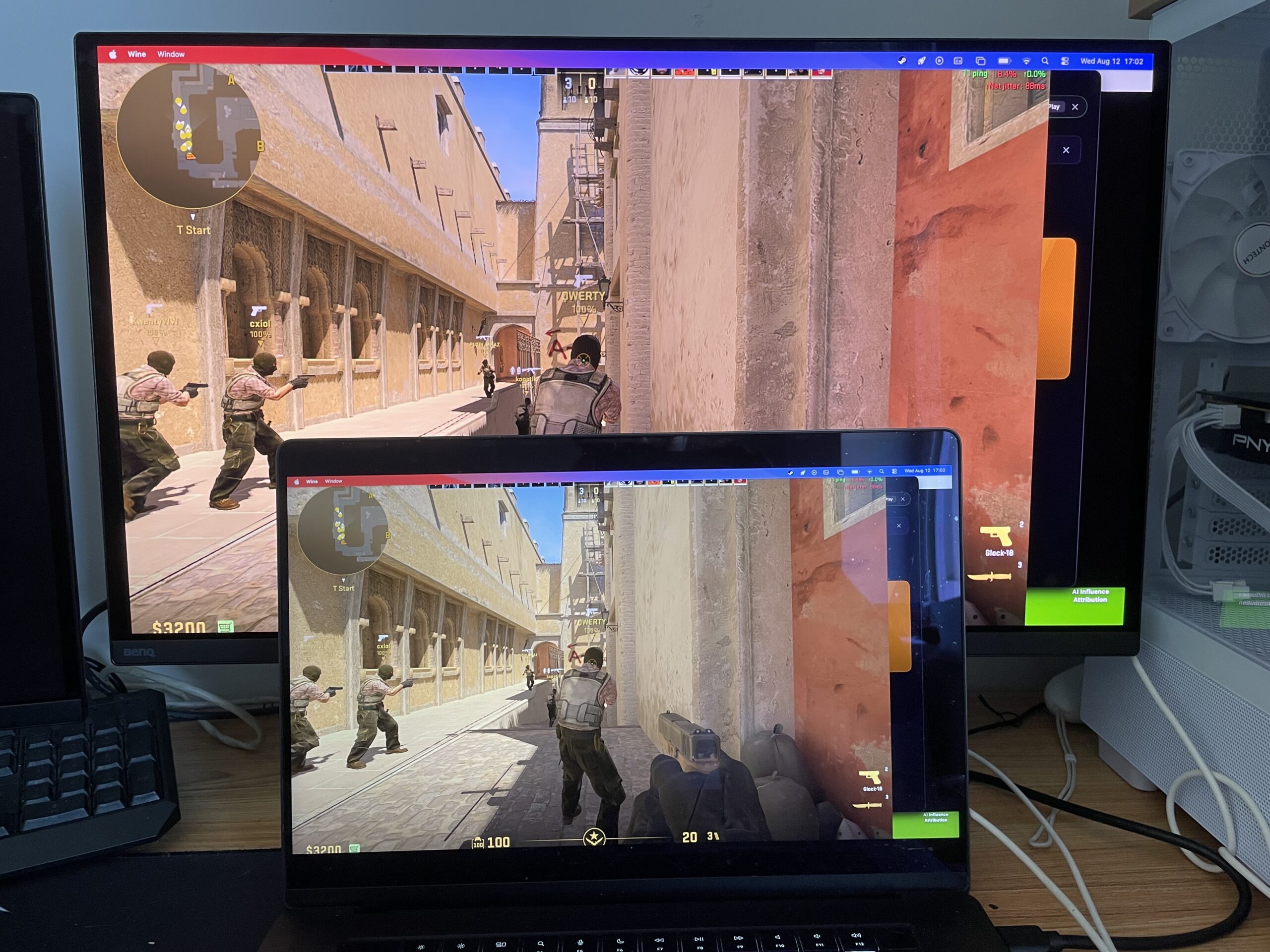
Of course, a 240Hz monitor does not mean every Mac game will run at 240 frames per second at 4K. Performance depends on the Mac, the game and its settings, while most cloud gaming services top out below 240fps. I tested Counter Strike 2 and achieved consistently 240 frames per second as you can see in the video below.
USB Hub and KVM Switch
The KVM is one of the EX271UZ’s most useful features for a mixed Mac and PC desk.
I connected the Mac both through the main USB-C port and another Mac via HDMI. A keyboard and mouse connected to the monitor’s two USB-A ports could then follow the active computer.
Switching is fast with the KVM swtich and the peripherals reconnected reliably including waking from sleep.
The hub operates at 5Gbps, which is adequate for keyboards, mice, webcams and ordinary external storage but is not a replacement for a Thunderbolt dock. There is no Ethernet or SD card reader.
Controls and Mac Software
The monitor can be configured using its joystick or the supplied remote. The on-screen display is unusually extensive, with accurate color standards, stylized game modes, HDR presets, gaming aids and four custom memories. You can see just how many settings there are as I scroll through them in the video below.
BenQ also offers Color Shuttle for macOS 13 or later. It can apply downloadable profiles designed for individual games, including the Smart Game Art features supported by the EX271UZ. This is more useful for gaming than for normal Mac productivity.
Unlike BenQ’s MA-series Mac monitors, the EX271UZ is not primarily designed to mirror MacBook controls or behave like an Apple display. The remote partly compensates by making brightness and input changes quick, but it’s not integrated with the Mac keyboard brightness controls like the MA270S is.
OLED Burn-in and Desktop Use
OLED can suffer permanent uneven wear when static elements remain in the same place for long periods. This matters more on a Mac desktop than it does when watching varied video because the menu bar, Dock, browser toolbars and application interfaces can remain visible all day.
BenQ addresses this with graphene and aluminum heat-dissipation layers plus an OLED Protection Suite. Its Pixel Refresh balances panel luminance, Idle Dimmer reduces brightness during inactivity, Logo Dimming targets static elements and Pixel Shift moves the image by a tiny amount.
These measures reduce the risk but do not make an OLED panel immune to burn-in. During my review, I didn’t notice any dimming, pixel shifting or refresh prompts though.
I would leave the protection features enabled, use a short screen-off timeout and avoid leaving the same bright desktop visible unnecessarily.
Some reviews and retailer listings describe three-year burn-in cover, but BenQ’s current UK warranty page does not clearly promise this and excludes normal wear.
Price and Value
The EX271UZ launched as a premium monitor, although its street price has already fallen at some retailers. At the time of writing it was available in the US for $1049.99 and in the UK for around £799.99. However, you’ll often find it discounted for less than this on Amazon and BenQ also run seasonal offers.
It is expensive compared with a standard 4K IPS monitor, but the value depends on what you would otherwise buy. The 5K MA270S offers sharper text, a 70Hz refresh rate, higher full-screen brightness and Thunderbolt 4, but it cannot approach the EX271UZ’s OLED blacks, HDR or motion clarity. A cheaper gaming monitor may offer 144Hz or 240Hz but often lacks OLED, USB-C charging, a KVM and Mac-friendly Display P3 colour.
For someone who would otherwise need a productivity monitor and a separate OLED gaming display, the EX271UZ can justify its price. It is harder to recommend for someone who only occasionally plays games and spends most of the day working with text.