

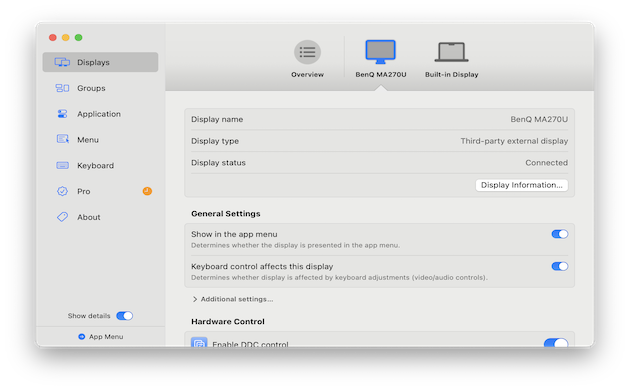
If text, icons or menus look blurry on an external monitor connected to your Mac, BetterDisplay can give you much better control over scaling, resolution, brightness and display settings.
However, it is important to set expectations first: BetterDisplay can improve the way macOS scales an external display, but it cannot add pixels to a low-resolution monitor. A 27-inch 1440p screen will never look as sharp as a 27-inch 5K display such as the Apple Studio Display or BenQ MA270S.
The best approach is to first check your Mac’s own display settings, then use BetterDisplay only when you need extra scaling options or more control.
You May Also Like:
- Best 5K Monitors For Mac
- Best Apple Studio Display Alternatives
- Best 4K Monitors For Mac
- How To Use an iMac as an External Monitor
Quick Answer: The Best Way To Use BetterDisplay
For most Mac users, this is the best order to follow:
- Open Apple menu > System Settings > Displays and confirm that your monitor is using its native resolution.
- Turn on Show all resolutions if your preferred option is not visible.
- If the text is still too large, too small or slightly soft, install BetterDisplay.
- Use Flexible HiDPI Scaling for a properly connected monitor when macOS does not offer a comfortable scaling option.
- Only use a virtual display if flexible scaling is unsuitable or you need a specialist setup.
BetterDisplay is especially useful with 4K monitors, 1440p displays, ultrawides, TVs and mixed-monitor setups. It is usually unnecessary for a good 27-inch 5K monitor running at its normal resolution.
Why Some External Monitors Look Blurry on a Mac
There are several possible causes, and only some of them are things BetterDisplay can improve.
- Low pixel density: A 27-inch 1440p monitor has around 109 PPI. It can look perfectly usable, but text will not have the fine, Retina-like edges of a 27-inch 5K display at 218 PPI.
- Non-integer scaling: macOS may render an interface at one resolution and scale it to fit the monitor. This gives you more workspace, but can make text slightly softer than an exact 2× HiDPI mode.
- An incorrect resolution or refresh rate: Your Mac may be using a lower-resolution fallback mode because of a cable, dock, adapter or monitor setting.
- TV-style image processing: A large TV can apply overscan, sharpening or chroma settings that make desktop text look worse. Enable its PC mode if available.
- A connection limitation: HDMI is not automatically worse than DisplayPort or USB-C, but the cable, port and dock must all support the monitor’s required resolution and refresh rate.
Before changing BetterDisplay settings, make sure the monitor looks correct at its native resolution.
| Display type | Best starting point on a Mac | What BetterDisplay can realistically improve |
|---|---|---|
| 27-inch 5K | “Looks like 2560 × 1440” / default scaling | Brightness, inputs, shortcuts and multi-monitor control rather than sharpness |
| 27-inch 4K | Start with “Looks like 1920 × 1080” for the sharpest 2× scaling; try more space if needed | Easier access to alternative scaling and display controls |
| 27-inch 1440p | Native 2560 × 1440 for maximum workspace; 1280 × 720 HiDPI for larger, cleaner UI | Better scaling choices, but it cannot create 5K-level text clarity |
| 34-inch 3440 × 1440 ultrawide | Native resolution first | Custom scaling and correctly proportioned virtual displays |
| 4K TV | Native 4K, PC mode and the highest stable refresh rate | Brightness, input control and scaling convenience |
For a broader checklist of cables, docks, resolution detection and monitor settings, see our guide to fixing blurry external displays on a Mac.
What BetterDisplay Can — and Can’t — Do
BetterDisplay is a Mac display-management app that adds controls Apple does not expose clearly in System Settings.
It can help you:
- Access and save useful scaled resolutions.
- Enable Flexible HiDPI Scaling on compatible displays.
- Adjust monitor brightness, volume and inputs through DDC controls when supported.
- Create virtual displays for advanced scaling, remote access and headless-Mac setups.
- Check refresh rate, connection details and display diagnostics.
- Keep multi-monitor layouts, brightness levels and other settings consistent.
It cannot:
- Turn a 1080p or 1440p panel into a true 4K or 5K display.
- Fix a poor-quality cable, an underpowered dock or a faulty monitor.
- Make every scaled resolution perfectly sharp.
- Replace proper colour calibration for professional photography or video work.
Is BetterDisplay Free?
BetterDisplay has useful free features for personal, non-business use, including basic display controls, DDC brightness control, custom scaled-resolution editing and virtual-screen creation.
However, Flexible HiDPI Scaling requires BetterDisplay Pro after the 14-day trial. At the time of writing, BetterDisplay Pro costs $21.99 / €19.99 and is a perpetual licence for the current major version, rather than a subscription.
Business users need a licence after the trial, including for free features.
Is BetterDisplay Safe?
Yes, provided you download it from the official BetterDisplay website or its official GitHub page.
BetterDisplay does not alter your monitor’s firmware. Its advanced features do, however, deliberately change macOS display configuration settings: Flexible Scaling and custom resolutions can require an administrator password and a restart. Those software settings can be reversed in BetterDisplay if you do not like the result.
macOS may also ask for Accessibility permission and, for features such as virtual-display mirroring, Picture in Picture or local streaming, Screen Recording permission. Grant only the permissions you need; you can revoke them later in System Settings > Privacy & Security.
Before You Start: Check Your Cable
Before changing software settings, make sure the connection can deliver your monitor’s advertised resolution and refresh rate.
USB-C, Thunderbolt, DisplayPort and modern HDMI can all work well. The weak point is more often an older HDMI cable, a low-spec adapter or a dock that does not have enough bandwidth for the display.
If the Mac will not offer the monitor’s native resolution or preferred refresh rate, test a direct connection to the Mac. Switching from a limited HDMI or dock setup to USB-C or DisplayPort can help, but HDMI itself is not inherently blurry.e scaling problems by itself.
How To Install BetterDisplay on a Mac
Download BetterDisplay only from the official BetterDisplay website or its official GitHub page. Avoid third-party download sites and lookalike pages.
BetterDisplay 5 is the current version for macOS Golden Gate and Tahoe. The developer also provides older compatible releases for Sequoia, Sonoma and Ventura.
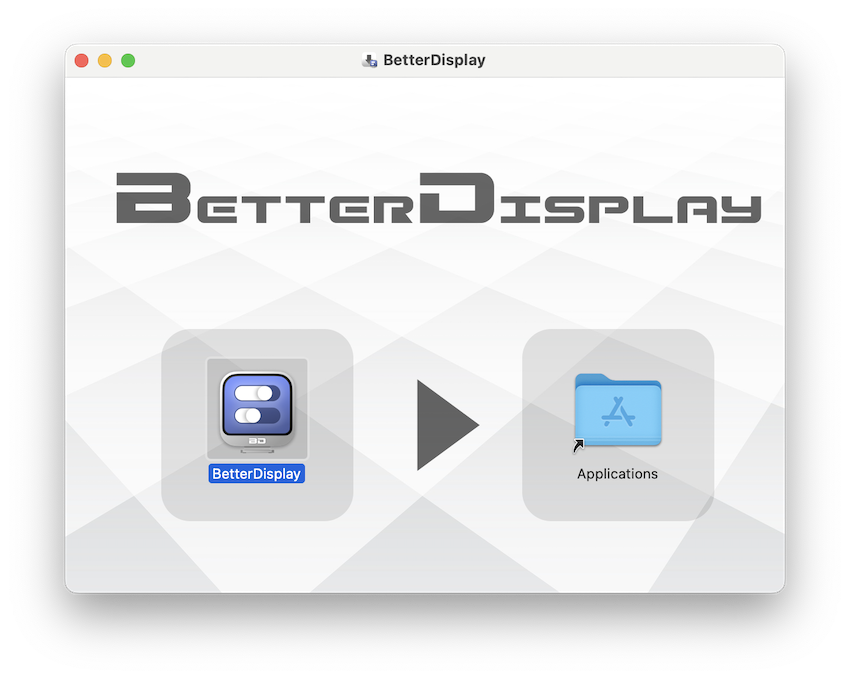
- Download BetterDisplay and open the
.dmgfile. - Drag BetterDisplay into your Applications folder.
- Launch it from Applications, Launchpad or Spotlight.
- Click its menu-bar icon to view your connected displays.
- Grant only the permissions required for the features you use.
BetterDisplay may ask for Accessibility access. Screen Recording permission is normally needed only for features such as virtual-display mirroring, Picture in Picture or local streaming.
Start With macOS Display Settings
Before enabling BetterDisplay’s advanced features, establish a clean baseline.
- Go to Apple menu > System Settings > Displays.
- Select the external monitor.
- Choose the display’s native resolution or the closest default option.
- If you need more choices, turn on Show all resolutions.
- Check that the preferred refresh rate is selected.
Do not confuse the monitor’s physical panel resolution with the size of the desktop macOS presents. For example, a 4K monitor can receive a 3840 × 2160 signal while showing a desktop that looks like 1920 × 1080. If the monitor’s true resolution is missing entirely, test a direct connection to your Mac before changing scaling settings. A dock or adapter can sometimes limit resolution, refresh rate or DDC controls.
How HiDPI Scaling Actually Works
HiDPI describes the way macOS renders the interface, not a way of increasing the monitor’s physical resolution.
On a 27-inch 5K monitor, macOS can show a 2560 × 1440-sized workspace while using all 5120 × 2880 physical pixels. That is a clean 2× relationship: each logical pixel is drawn with four physical pixels, which is why text looks so sharp.
On a 27-inch 4K monitor, the clean 2× option is a desktop that looks like 1920 × 1080. A roomier setting such as “looks like 2560 × 1440” can still look very good, but it is a non-integer scale and may be a little softer.
On a 27-inch 1440p monitor, a true 2× HiDPI desktop looks like only 1280 × 720. That can make text and interface elements cleaner but leaves much less workspace. BetterDisplay can offer more scaling choices, but it cannot make a 1440p panel physically as sharp as a 5K one.
How To Enable Flexible HiDPI Scaling in BetterDisplay
Flexible HiDPI Scaling is BetterDisplay’s best feature for users who need more control than macOS provides. It is normally preferable to creating a virtual display because it works directly with the physical monitor.
In BetterDisplay:
- Click the BetterDisplay icon in the menu bar, then open Settings.
- Select Displays and choose the physical monitor you want to configure.
- Enable the option to edit the display model’s default system configuration.
- Enable Flexible Scaling when it appears.
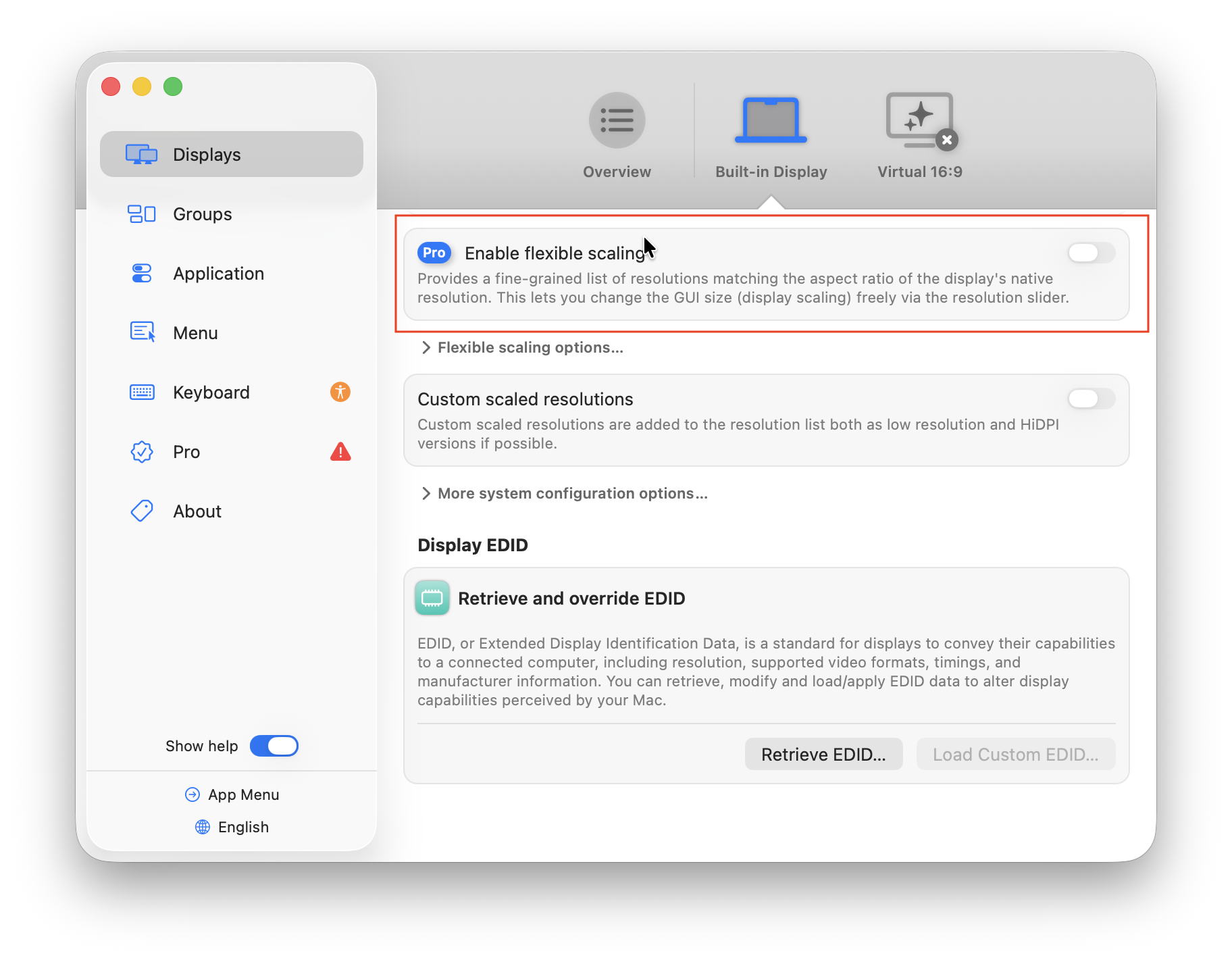
- Click Apply, enter your Mac administrator password if requested, then restart your Mac.
- After restarting, use BetterDisplay’s resolution slider to choose a comfortable “looks like” resolution.
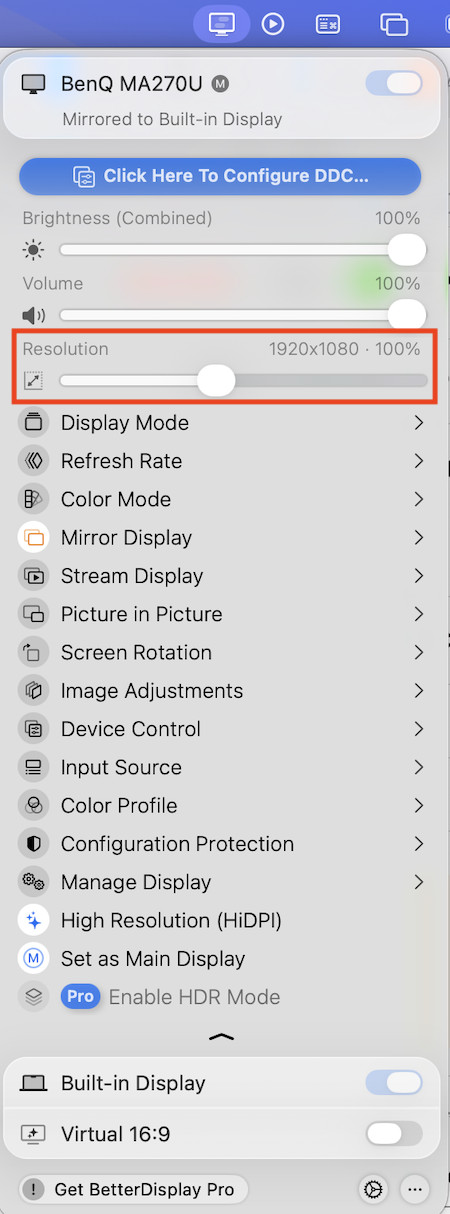
The exact wording can vary slightly between BetterDisplay versions, but the controls are found under the selected display’s settings.
Do this on one display first. Flexible Scaling changes the way macOS handles that monitor, so it is better to test it before applying it across a multi-monitor setup.
If the result is worse, simply return to the same settings, disable Flexible Scaling, apply the change and restart.
If You See “High Resolution (HiDPI)” in the BetterDisplay Menu
Some displays also show a High Resolution (HiDPI) command in BetterDisplay’s menu. This is a quick way to select an available HiDPI configuration; it is not a magic sharpening mode and does not add pixels to the monitor.
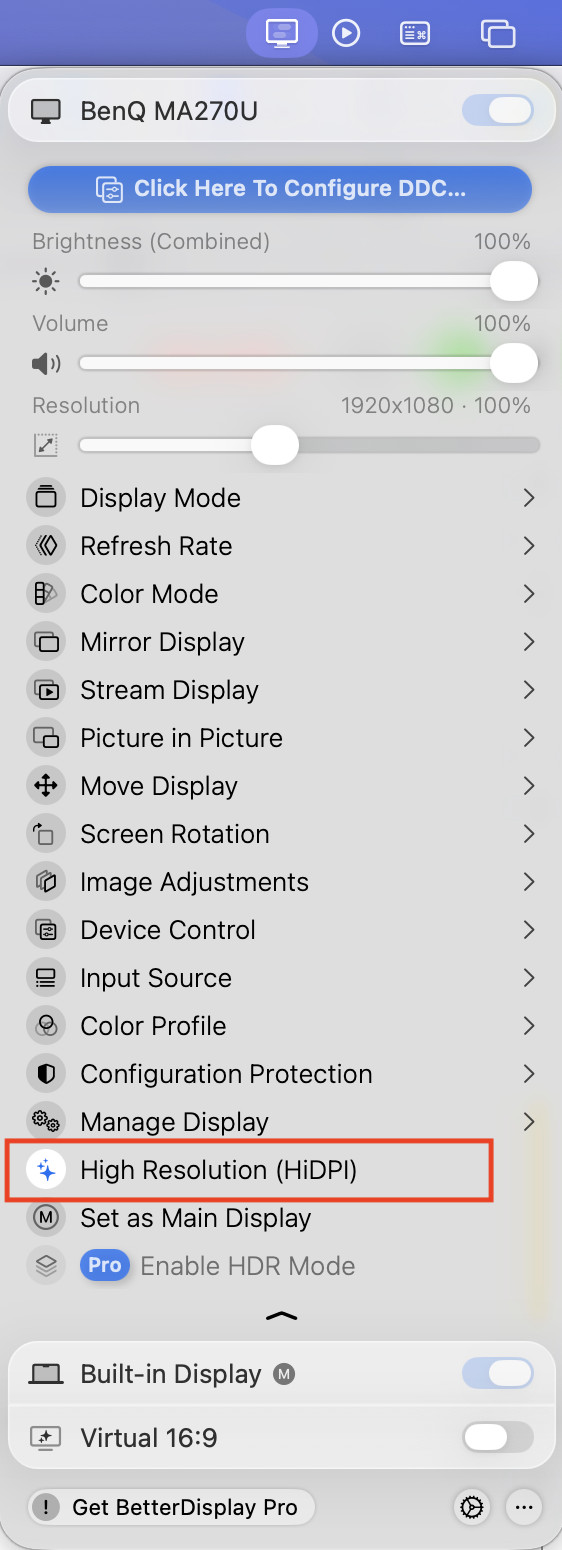
Use it if the resulting desktop size, text clarity and refresh rate all suit you. If it makes everything too large, offers too little workspace or does not provide the resolution you need, choose a specific resolution or use Flexible Scaling instead. Think of the menu command as a convenient HiDPI preset, while Flexible Scaling gives you a wider range of choices.
In our testing with the BenQ MA270S connected to an M3 MacBook Pro, BetterDisplay detected the monitor correctly and enabled the appropriate HiDPI configuration automatically as you can watch below. On a true 5K monitor, HiDPI preserves the correct 2560 × 1440-sized workspace at the panel’s full 5120 × 2880 resolution; it does not make an already sharp 5K screen sharper.
On a lower-resolution display, compare the result with native resolution and keep the setting that gives you the best practical balance of clarity and usable workspace.
When To Use a Virtual Display Instead
A virtual display is an advanced workaround, not the first solution to try.
BetterDisplay creates a virtual Retina-style desktop, then mirrors or streams it to the real monitor. This can help with unusual ultrawides, DisplayLink-based setups, remote-access workflows, headless Macs and some lower-resolution displays.
To create one:
- Open BetterDisplay and go to Settings > Displays > Overview.
- Choose Create New Virtual Screen.
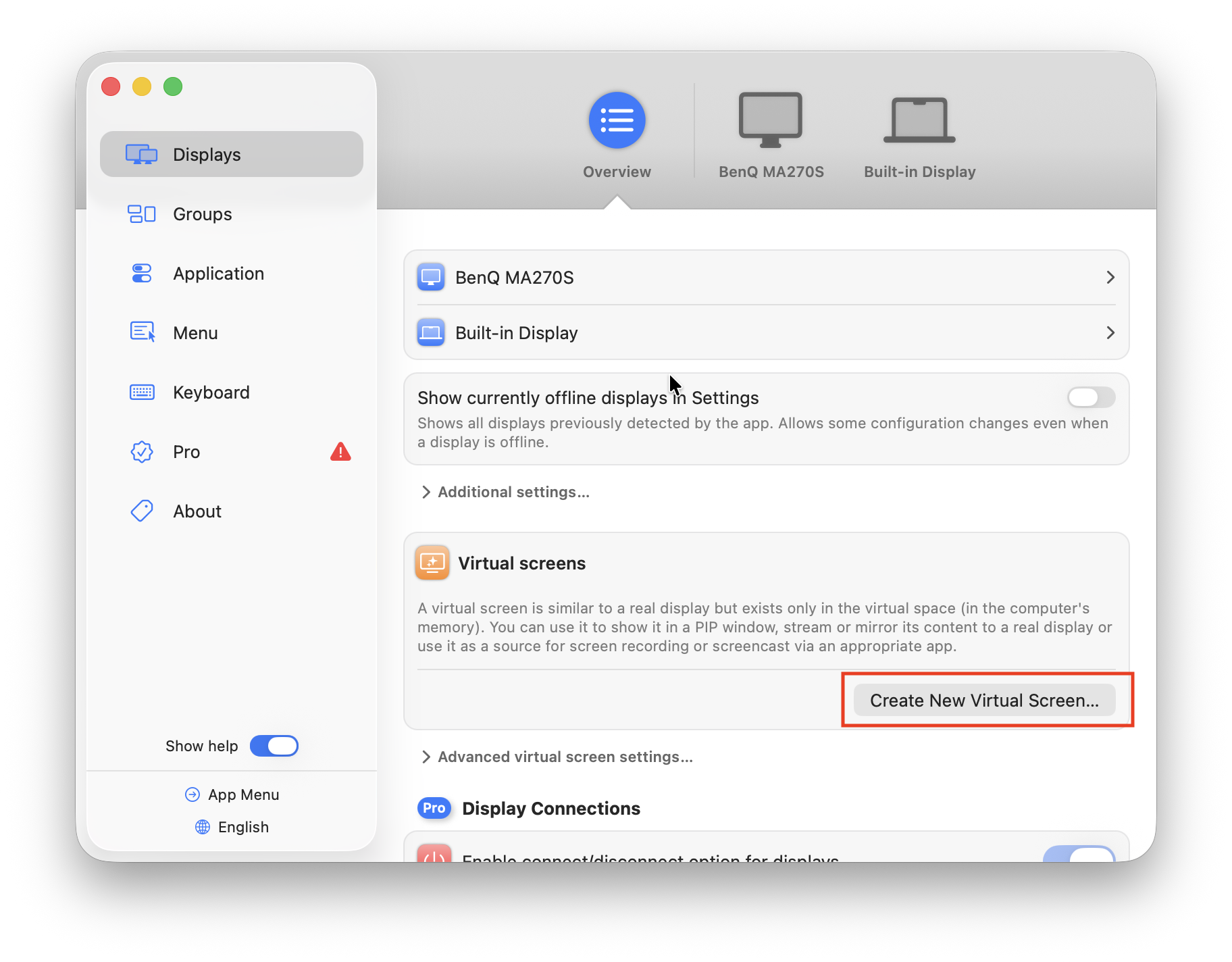
- Select the option to match and associate the virtual screen with your physical display.
- Match the aspect ratio of the real display: 16:9 for most standard monitors, or 21:9 for a 3440 × 1440 ultrawide.
- Choose virtual-screen mirroring when prompted.
- Confirm the mirroring arrangement in System Settings > Displays if BetterDisplay does not complete it automatically.
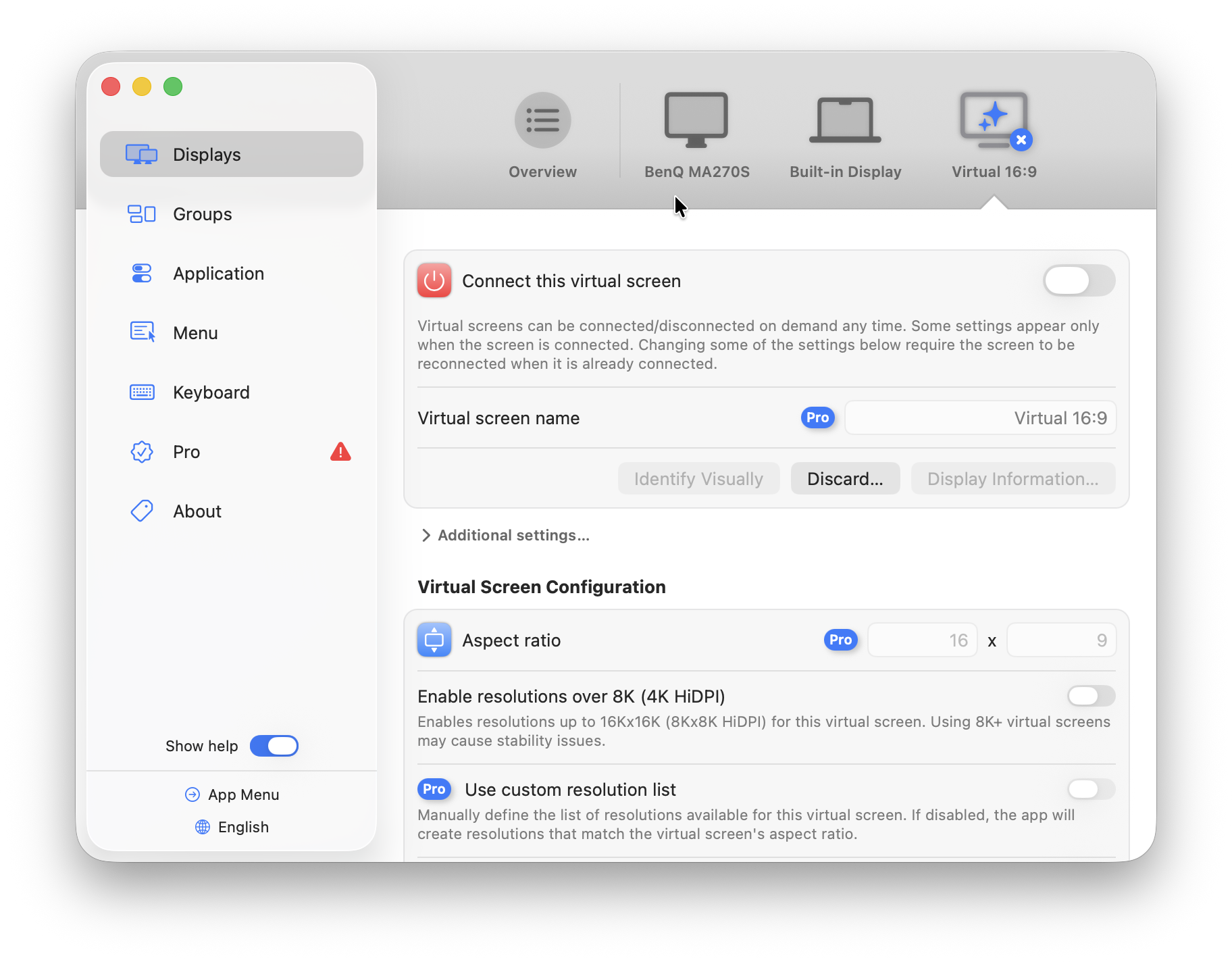
- Use BetterDisplay’s slider to test different virtual-display resolutions.
Do not automatically create a 16:9 virtual display for an ultrawide monitor. It can cause stretching, letterboxing or an awkward desktop layout.
Virtual-display mirroring also has drawbacks. Depending on your Mac and connection, it can affect colour handling, HDR, refresh rate, sleep/wake reliability or cursor behaviour. If Flexible Scaling works well, use that instead.
Best BetterDisplay Settings for Different Monitors
27-inch 5K monitors
A 27-inch 5K monitor is already the ideal match for macOS scaling. It can show a comfortable 2560 × 1440-sized desktop while rendering it at a clean 2× Retina scale.
Use BetterDisplay for brightness controls, monitor inputs, display groups or keyboard shortcuts—not to chase sharper text.
For recommendations, see our guides to the best 5K monitors for Mac and Apple Studio Display alternatives.
27-inch 4K monitors
A 4K monitor can look very good on a Mac, although it does not have the pixel density of a 27-inch 5K panel.
Start with the largest-text scaling option, often equivalent to “looks like 1920 × 1080”. This is the cleanest 2× mode. If you need more workspace, try higher scaled resolutions gradually and keep the one that balances sharpness with usable desktop space.
BetterDisplay is useful here because it makes alternative resolutions easier to access and save.
27-inch 1440p monitors
A 27-inch 1440p monitor is one of the most difficult combinations for macOS. At native resolution, it offers plenty of workspace but has much lower pixel density than a Retina display. A true 2× HiDPI mode would look like 1280 × 720, which many people find too cramped.
BetterDisplay can make the compromises easier to manage, but it cannot eliminate them. Try native resolution first, then Flexible Scaling if you need larger text or a different balance. If crisp text is your main priority, upgrading to a 4K or 5K monitor is the more meaningful solution.
Ultrawide monitors
With a 3440 × 1440 ultrawide, start at the monitor’s native resolution. If menus and text feel too small, try Flexible Scaling before creating a virtual display.
If you do use a virtual screen, match the ultrawide’s 21:9 aspect ratio. A standard 16:9 virtual display is rarely the right choice.
Large 4K TVs
For a 42-inch or 48-inch 4K TV, use its native 4K resolution, enable PC mode if the TV offers it, and make sure the connection supports the desired refresh rate.
BetterDisplay can be useful for DDC brightness controls, HDMI-CEC TV controls and quick refresh-rate changes, but it cannot compensate for poor text rendering caused by TV image processing.
For more help, see our guide on using a TV as a Mac monitor.
Other Useful BetterDisplay Features
Once your scaling is correct, BetterDisplay can also make an external monitor more pleasant to use every day.
- DDC brightness and volume control: Lets your Mac keyboard adjust supported external monitors.
- Input switching: Change between a Mac, PC or console without using the monitor’s on-screen menu, where supported.
- Display groups: Sync brightness and other controls across two or more monitors.
- Refresh-rate controls: Quickly check or change available refresh rates.
- Display diagnostics: Useful when a monitor is unexpectedly limited to 1080p, 60Hz or a reduced colour mode.
- Layout protection: Helps preserve a preferred multi-monitor arrangement after sleep or reconnecting devices.
Some advanced features require BetterDisplay Pro and some depend on the display, cable and dock supporting the relevant controls.
BetterDisplay Troubleshooting
Flexible Scaling or HiDPI options are missing
Make sure you are using the current compatible BetterDisplay version and looking at the physical monitor’s settings. Flexible Scaling is a Pro feature after the trial and works best with natively connected displays.
If you are using a DisplayLink dock, a complex adapter chain or a wireless display, try a direct USB-C, Thunderbolt, DisplayPort or suitably capable HDMI connection first.
Text is still blurry
Return to System Settings > Displays and confirm the monitor is using its true native resolution.
If the display is 1440p or lower, some remaining softness is a pixel-density limitation rather than a BetterDisplay fault. Try native resolution, a larger HiDPI mode or app-level text zoom before relying on virtual-display mirroring.
The monitor only offers 1080p
Check Show all resolutions in macOS Display settings. Then test another cable, port or direct connection without the dock. The issue is often the connection rather than the monitor itself.
The screen does not wake reliably
Virtual-display mirroring can occasionally complicate sleep and wake behaviour. Disable the virtual screen temporarily and test native scaling or Flexible Scaling instead. Also update both macOS and BetterDisplay before changing more advanced settings. The latest version of BetterDisplay 5.1.1 arrived on 6 October with fixes for display recovery after sleep.
Brightness controls do nothing
Your monitor, cable, dock or adapter may not pass DDC commands. Connect the display directly to the Mac if possible. If DDC still does not work, use the monitor’s physical controls instead. The latest version of BetterDisplay 5.1.1 also adds fixes for brightness and volume-key handling, native audio control and picture-in-picture positioning.
FAQ
Does BetterDisplay make a low-resolution monitor Retina?
No. BetterDisplay can improve scaling and offer cleaner-looking choices, but it cannot increase a monitor’s physical pixel density. A 27-inch 1440p monitor will not look like a 27-inch 5K display.
Does BetterDisplay work on Apple Silicon and Intel Macs?
Yes, BetterDisplay supports both, although available features depend on your Mac, macOS version, display and connection. Download the version recommended on the official BetterDisplay site for your version of macOS.
Do I need BetterDisplay with an Apple Studio Display or 5K monitor?
Usually not for scaling. A good 27-inch 5K monitor already matches macOS’s preferred Retina scaling. BetterDisplay can still be useful for brightness, inputs, multi-monitor layouts and shortcuts.
Is BetterDisplay safe?
BetterDisplay is a well-established Mac utility, but download it only from its official site or GitHub page. Its advanced scaling feature deliberately changes the display configuration and can request administrator access; it does not flash or alter your monitor’s firmware.
Can BetterDisplay reduce a high-refresh-rate monitor to 60Hz?
It should not normally do so, but a cable, dock, virtual-display setup or unsupported mode can. Check the refresh rate in both BetterDisplay and System Settings > Displays after making changes.
Final Thoughts
BetterDisplay is one of the best Mac display utilities available, especially if macOS does not offer a comfortable scaled resolution for your monitor.
Its real value is control: it can expose better scaling options, simplify external-monitor brightness controls and solve awkward multi-display setups. Just do not expect it to overcome the physical limitations of a low-PPI panel.
If you spend long days reading, writing or editing on your Mac, a 27-inch 5K monitor remains the best long-term answer for truly sharp text. Otherwise, start with your monitor’s native resolution, use BetterDisplay’s Flexible Scaling only when needed, and treat virtual displays as the advanced fallback they are.