

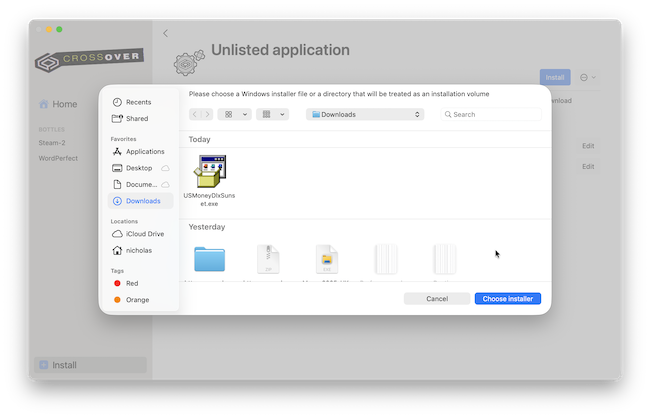
If you’ve just switched to Mac, downloaded an EXE file in macOS and double-clicking it does nothing, don’t worry – that’s completely normal.
EXE files are Windows applications and macOS cannot run them natively. However, there are several ways to open EXE files on a Mac depending on what type of app you want to run.
After testing multiple methods on both Apple Silicon Macs (M1-M5) and older Intel Macs, I found that using a Windows virtual machine – which allow you to run Windows alongside macOS – is by far the easiest and most reliable solution for most users.
However I also explored methods that don’t require any kind of Windows installation at all.
In this guide, I’ll show you the best ways to run EXE files on a Mac, including free methods, lightweight compatibility tools and full Windows virtualization solutions.
Can Macs Open EXE Files Natively?
No. macOS cannot open EXE files by itself because EXE is a Windows executable format.
Unlike Windows PCs, Macs use completely different system libraries and architectures, especially modern Apple Silicon Macs powered by Apple chips.
That means when you try to open an EXE file on macOS, you’ll usually see one of these messages:
- “There is no application set to open the document”
- “You can’t open the application because Microsoft Windows applications are not supported on macOS”
- Nothing happens at all
To run EXE files on a Mac, you need one of the following:
- A Windows virtual machine – either a paid one like Parallels or a free one like VMware Fusion
- A compatibility layer like Wine or CrossOver
- Cloud-based Windows access
- Remote desktop access to a Windows PC
The best option depends on what kind of EXE file you’re trying to open.
Best Ways To Open EXE Files on Mac
1. Use a Virtual Machine (Best Overall Method)
If you want the easiest and most reliable way to run EXE files on a Mac, I strongly recommend using Windows in a virtual machine.
The best solution I’ve tested is Parallels Desktop because it allows you to run Windows apps directly inside macOS without rebooting your Mac.
As you can see in the video above where I open an EXE file to install Microsoft Money on a Mac, it works just as if you were using a real Windows PC.
With Parallels Desktop you can:
- Install Windows 11 in minutes
- Open almost any EXE file
- Run Windows games and business apps
- Use Windows apps alongside Mac apps
- Open EXE installers exactly like on a PC
It works particularly well on Apple Silicon Macs because Parallels automatically installs the ARM version of Windows 11 which can still run many traditional x86 Windows applications.
Why I Recommend It
After testing Wine, CrossOver and several free methods, Parallels consistently offered:
- The best compatibility
- The fewest crashes
- Easiest setup
- Best performance
- Full Windows support
It’s especially useful if you regularly need to run:
- Microsoft Access
- Engineering software like AutoCAD Architecture
- Business apps like Visio on a Mac
- Legacy Windows software like Microsoft Money
- EXE installers
- Steam games
Downsides
The main disadvantage is that Parallels Desktop is paid software and Windows also requires a license for long-term use.
You can also try using VMware Fusion however which is a free virtual machine, although not as smooth and easy to use as Parallels.
However, if you frequently use EXE files on your Mac, Parallels is easily the most stable option.
You can also read my full guide to running Windows on Mac for more details and my full Parallels review for a closer look at what it can do.
2. Use Wine (Best Free Method)
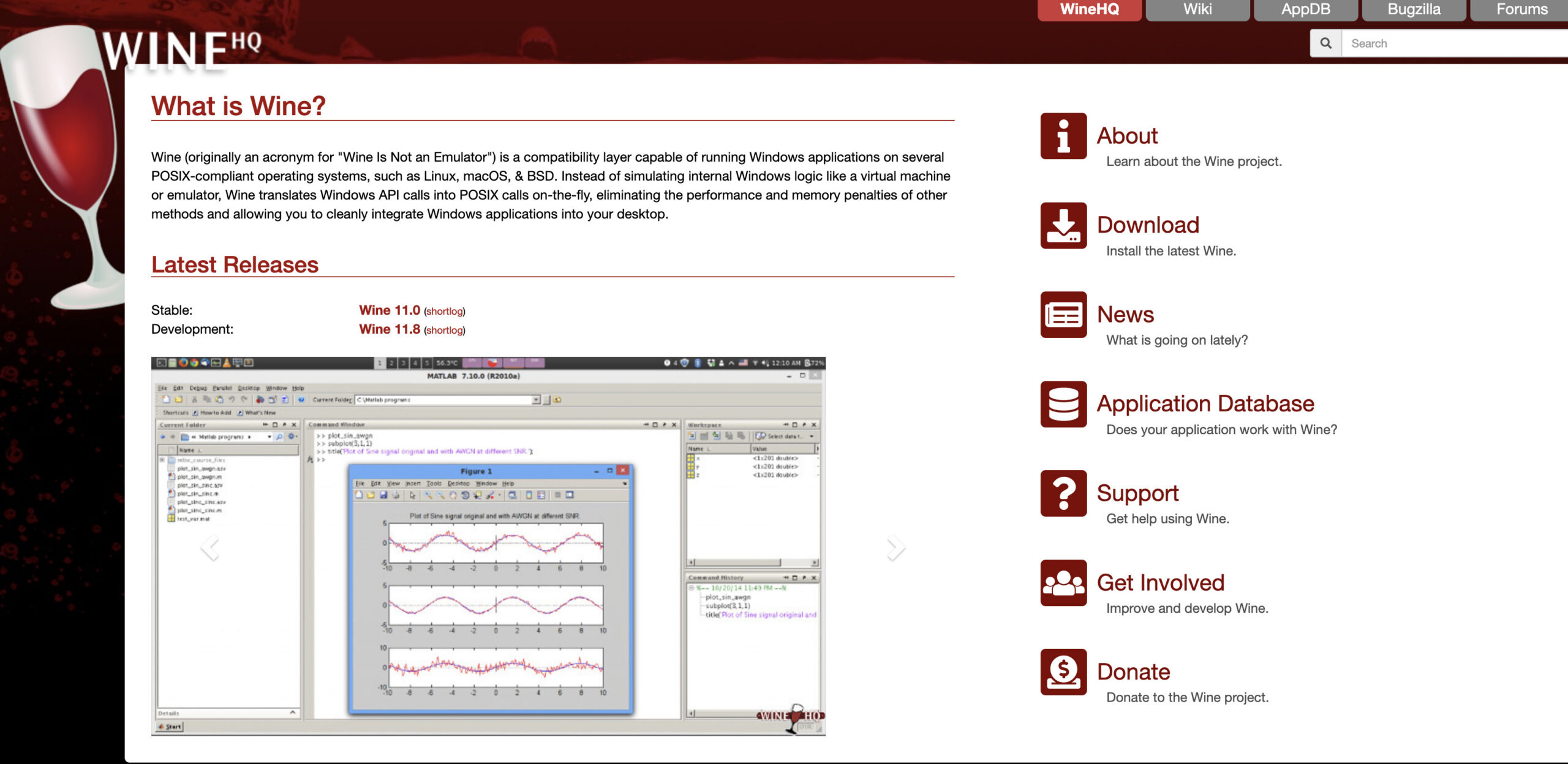
If you only occasionally need to open lightweight EXE files, Wine can sometimes work well.
Wine is not a virtual machine. Instead, it translates Windows API calls into macOS-compatible instructions.
That means:
- No full Windows installation required
- Lower system resource usage
- Faster startup times
- Completely free
The Problem With Wine in 2026
Wine is much more complicated on modern Macs than it used to be.
On Apple Silicon Macs:
- Compatibility can be inconsistent
- Some EXE files won’t launch at all
- 32-bit Windows apps often fail
- Setup is far more technical
Many older tutorials online no longer work properly because Apple removed 32-bit support from macOS years ago (check our guide on how to run 32-bit apps on a Mac for help with this).
Wine is best for:
- Small utilities
- Older games
- Lightweight Windows apps
- Users comfortable with technical setup
It’s not ideal if you need guaranteed compatibility.
3. Use CrossOver (Best Balance of Simplicity & Performance)
If you like the idea of Wine but want something easier to use, CrossOver is a good middle ground.
CrossOver is built on Wine but provides:
- Easier installation
- Better Apple Silicon support
- Automatic app configurations
- Improved gaming support
- Better compatibility management
It’s particularly popular for:
- Steam games
- Older Windows software
- Productivity tools
- Running EXE installers without Windows
CrossOver still doesn’t support every EXE file, but it’s significantly easier than manually configuring Wine.
Read my full Crossover review for a closer look.
4. Use a Remote Windows PC
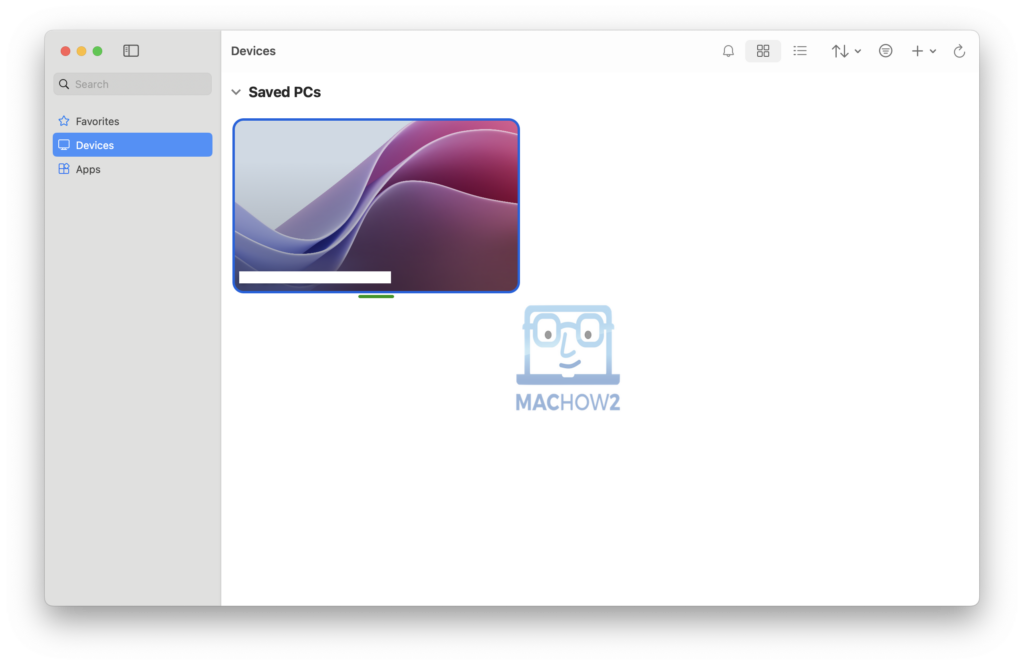
If you already own a Windows computer, another option is to remotely access it from your Mac.
Using remote desktop software allows you to:
- Open EXE files on the Windows machine
- Control the PC from your Mac
- Avoid installing Windows locally
Popular options include:
- Windows App (formerly Microsoft Remote Desktop)
- TeamViewer
- AnyViewer
This works well if:
- You only occasionally need Windows apps
- The EXE software is resource intensive
- You already have access to a PC
The downside is that performance depends heavily on your internet connection.
Checkout my guide to the best remote desktop software for Mac for a full lowdown.
5. Use Cloud Windows Services

Another lightweight option is using a cloud Windows PC.
Services like:
- Microsoft Windows 365
- Amazon Web Services AppStream
- Shadow PC
allow you to stream a Windows desktop to your Mac through a browser.
These are often use for game streaming on Macs but can also be used for
This can be useful for:
- Temporary Windows access
- Business software
- One-off EXE installations
- Low-powered Macs
However, subscription costs can add up over time.
6. Run EXE Files Using Terminal (Advanced Method)
If you’re comfortable using macOS Terminal, you can run some EXE files using command-line tools like Wine.
This method doesn’t make macOS capable of running EXE files natively, but it allows you to launch Windows programs through a compatibility layer directly from Terminal.
Step 1: Install Wine via Homebrew
First, install Homebrew (if you don’t already have it), then install Wine:
brew install wineThis installs Wine, which allows macOS to interpret many Windows applications.
Step 2: Navigate to Your EXE File
Use the cd command to go to the folder where your EXE file is stored:
cd DownloadsStep 3: Run the EXE File
Now run the file using Wine:
wine yourfile.exeReplace yourfile.exe with the actual filename.
When This Method Works Best
This Terminal method is most useful for:
- Small, simple Windows utilities
- Older EXE applications
- Testing Windows apps quickly
- Users who prefer command-line workflows
Limitations
While this is a flexible approach, there are important drawbacks:
- Many modern EXE files will not run correctly
- Apple Silicon Macs may require additional configuration
- No guaranteed GUI integration with macOS
- Some apps may crash or fail to launch entirely
- Gaming or heavy software is not suitable
Running EXE files through Terminal is essentially a manual way of using Wine. It’s powerful for technical users, but for most people, tools like Parallels Desktop or CrossOver will be far more reliable.