

As someone who spends most of the day working on a Mac, I wasn’t entirely convinced I needed a dedicated digital notebook.
Like many Mac users, I already have note taking software, whiteboard apps, OCR tools and digitization software – not to mention an iPad for all that. In theory, they should cover every possible note-taking scenario.
The reality is a bit different.
When I’m researching articles, sketching out ideas or sitting in meetings, I still find myself reaching for a pen and paper. It’s simply quicker to start jotting things down rather than trying to organize my thoughts on a screen.
That’s what made the Huion Note E an interesting compromise to me.
Unlike the original Huion Note, which combines an innovative physical paper notebook with digital capture, the Note E is a fully digital Android based writing tablet. It’s essentially designed to replace the piles of paper while still giving you a natural handwriting experience.
It’s important not to confuse the Huion Note E with the Huion Ink which is slightly bigger and designed for a more paper-like experience and e-reading.
Huion Note E Specifications
The specifications of the Huion Note E are as follows:
- Display: 8.4-inch soft-light display, 1920*1200 resolution (270 PPI).
- Core Hardware: Helio G99 CPU, 6GB RAM + 128GB ROM.
- Camera & Audio: 8MP rear camera (for document scanning), built-in microphone and
- speaker.
- Connectivity: Bluetooth 5.2, 2.4GHz+5GHz Dual-band Wi-Fi
What’s In The Box?
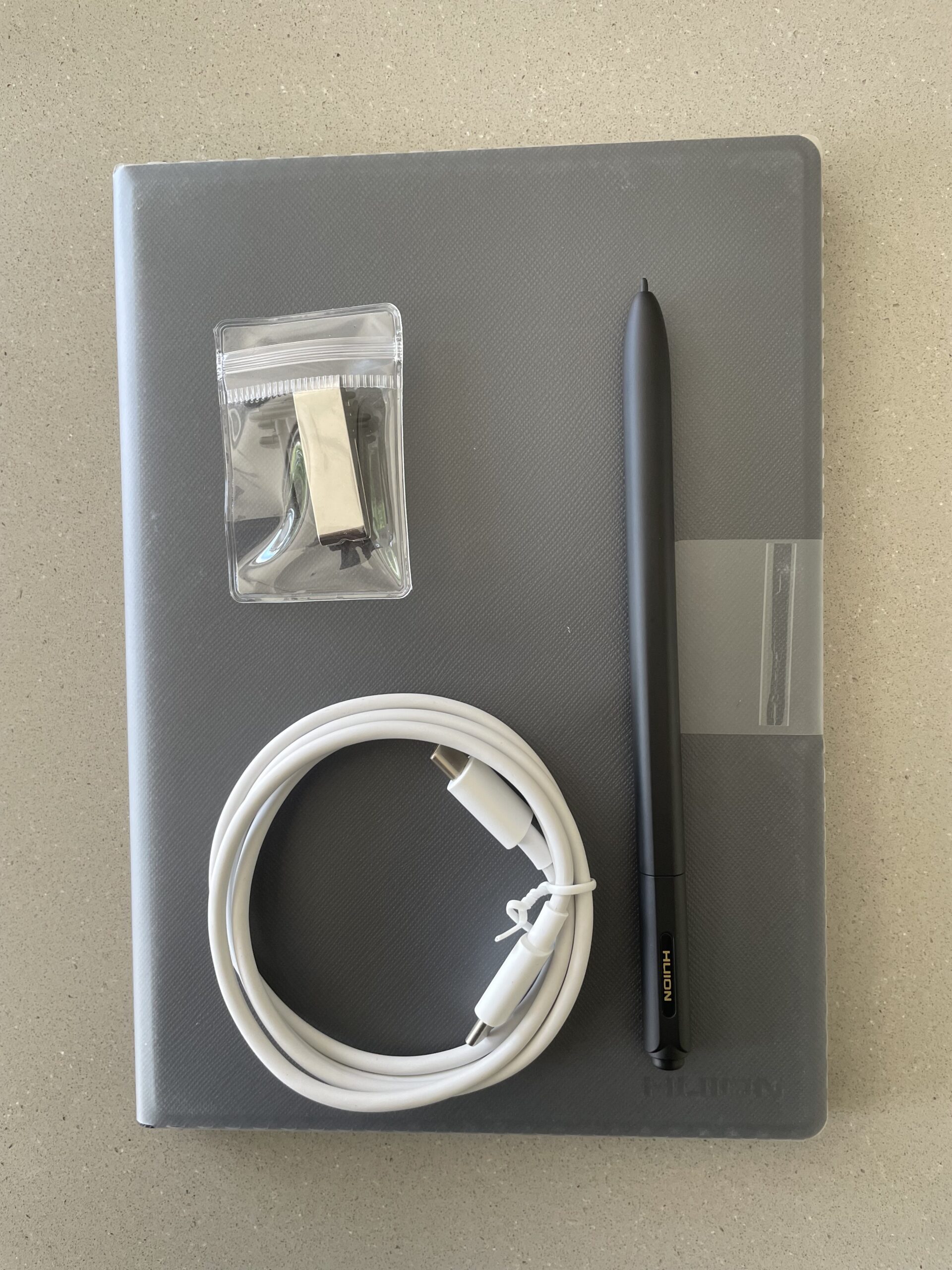
- Huion Note E
- Magnetic Battery-free EMR Pen PW510
- Felt Nibs × 10
- Pen Nib Clip
- USB-C Charging Cable
- Quick Start Guide
Using The Huion Note E
The first thing that struck me was how lightweight and compact it is.
At 8.4 inches and just 348 grams it feels much more like carrying around a small notebook than a tablet. It slips into the same pocket of my MacBook bag as my MacBook without adding much bulk, and I found myself taking it about with me and to meetings where I probably wouldn’t have bothered carrying an iPad.
The included EMR (Electro-Magnetic Resonance) stylus means it’s always ready to write. Because it doesn’t need charging, it’s always ready to use.
In fact, one of the best features of the Huion Note E is the EMR stylus rather than a battery-powered pen.
Unlike Bluetooth styluses, an EMR pen doesn’t contain a battery or need charging. Instead, the display itself generates a tiny electromagnetic field that powers the pen and detects its position, pressure and tilt. This is the same underlying technology used in many professional drawing tablets from companies including Wacom tablets.
For everyday note-taking, the biggest advantage is convenience. You never have to worry about the stylus running out of battery halfway through a meeting or remembering to recharge yet another device.
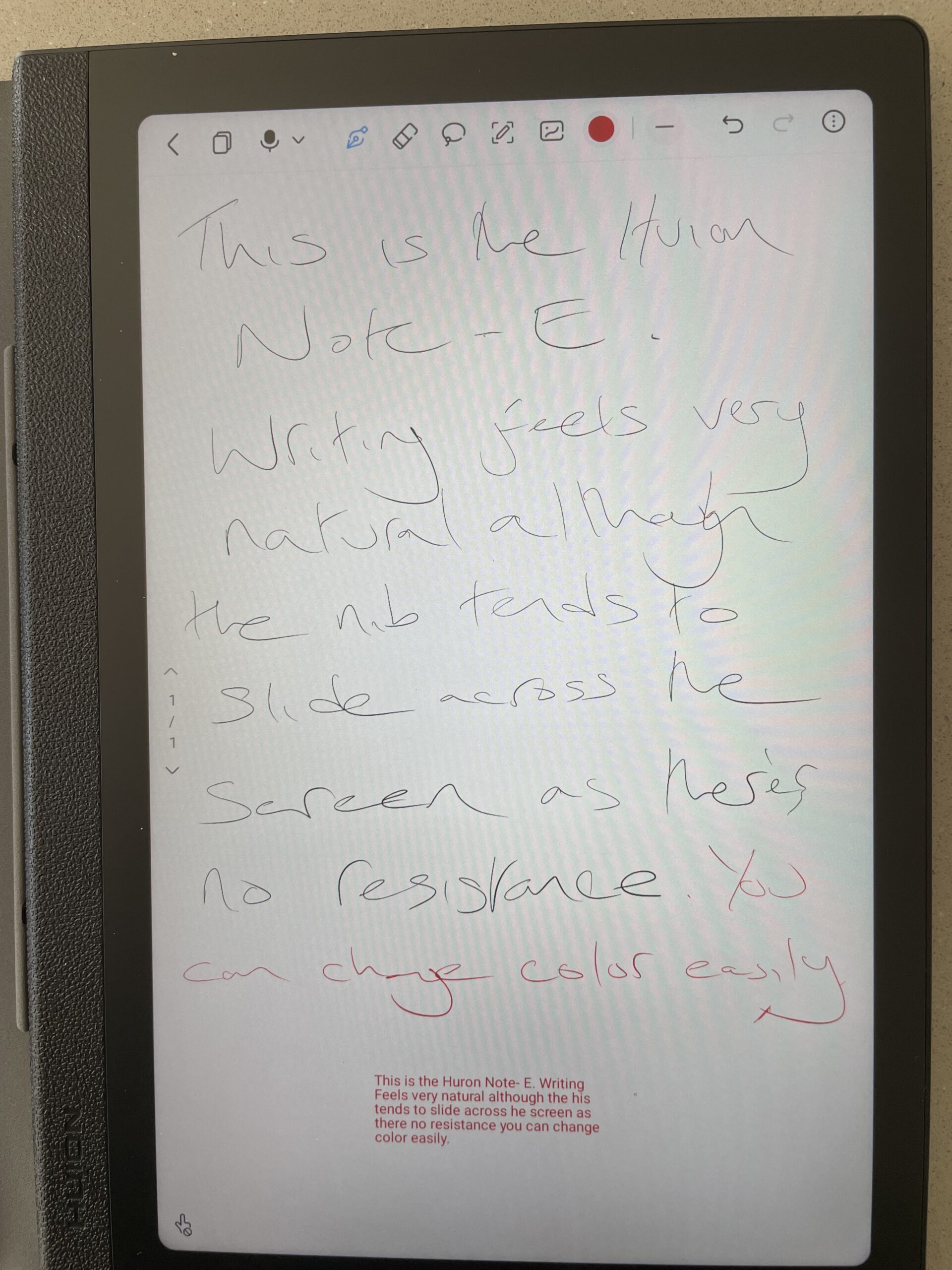
In terms of pressure sensitivity, it’s also impressive. The PenTech 3.0 stylus offers 8,192 levels of pressure sensitivity, tilt support, and excellent palm rejection.
However, I did find it a bit “unnatural” writing on glass. There’s enough texture on the screen to avoid the pen sliding all over the place but I personally did it a bit lacking in resistance.
A convenient magnet holder keeps it securely attached to the side of the Huion Note E when you’re not using it too.
The screen is fitted with anti-glare protection and also has an anti-fingerprint finish to prevent it getting grubby.
How Well Does It Work With a Mac?
This was the part I was obviously most interested in and generally, it was a bit disappointing.
The good news is that you don’t really need a dedicated macOS app (as there isn’t one) to make the Huion Note E useful. I simply used it to write notes and then export them as PDFs or images before transferring them to my Mac through iCloud.
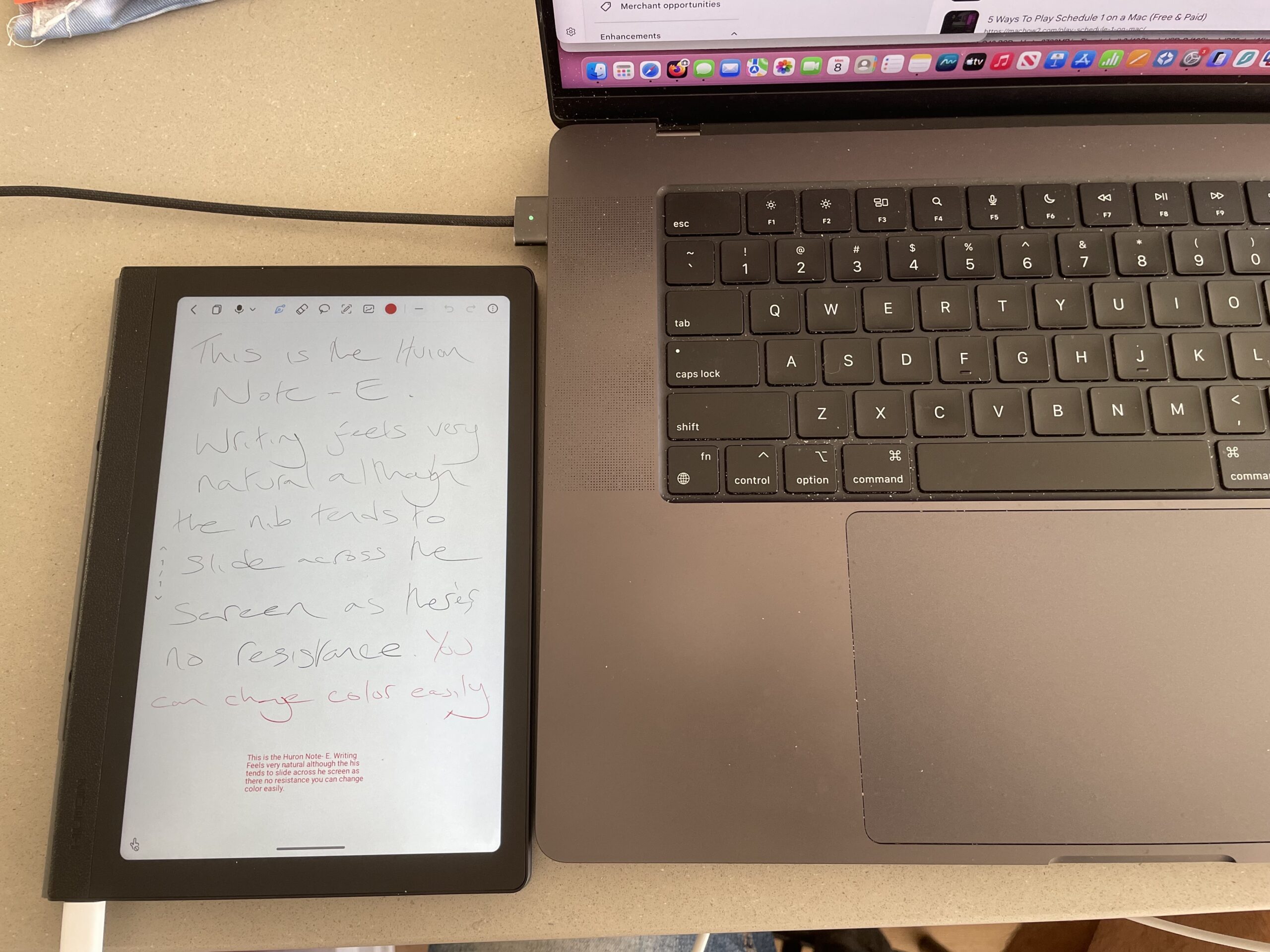
For researching articles, this worked extremely well. I could make handwritten notes while reading, or annotate PDFs and then have everything available on my MacBook a few moments later.
It was particularly useful alongside PDF documents. Rather than printing pages to scribble over, I could mark them up directly and keep everything digital.
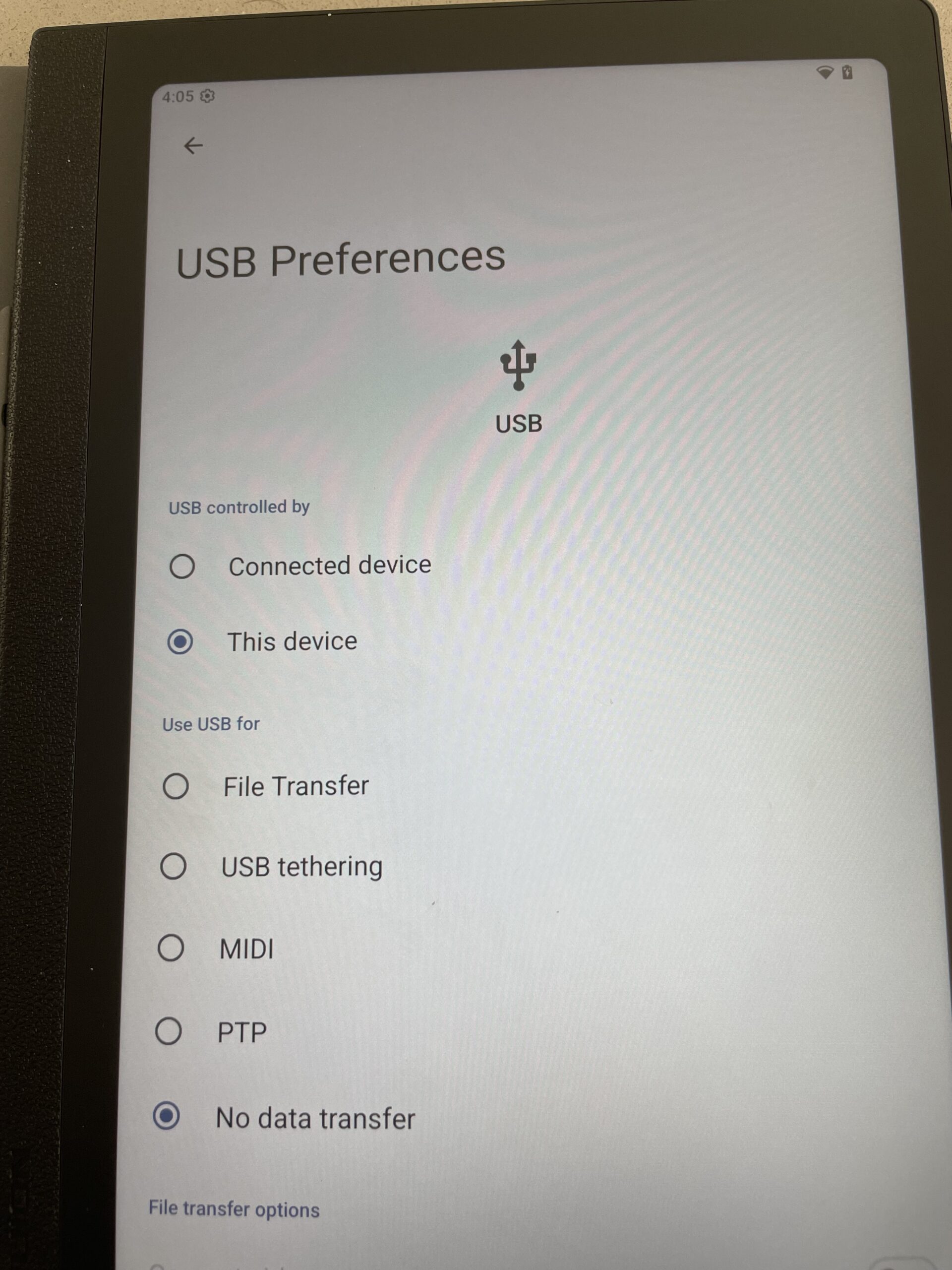
However, there’s little point connecting the Huion Note E to a Mac other than to charge it.
When you connect the Huion Note E to your Mac via the provided USB-C cable, it does nothing other than charge the Note E. There is an option to enable “File Transfer” in the USB settings but for me it did nothing…
So if you use an iPad or Apple Notes a lot then you’ll probably miss deeper integration. Like many Android devices, the Note E isn’t designed to slot neatly into Apple products and app in the same way an iPad does.
But if your goal is simply to capture handwritten ideas and get them onto your Mac via Cloud storage, it does the job without much fuss.
Using The Huion Note E As a Drawing Tablet
While the Huion Note E be used as a drawing tablet, I certainly wouldn’t do so myself.
There are much better Mac compatible drawing tablets for the job that have a much bigger canvas, better pen sensitivity and more drawing features.
As the name suggests, the Huion Note E is primarily an E-notepad rather than a drawing tablet.
OCR Features
The Huion Note E also features in-built handwriting OCR with support for up to 34 languages.
You simply click on the three dots in the top right corner of the screen and select “Handwriting Recognition (Current Page). Incidentally, for left handed users, you’ll also notice a “Left Hand Mode” at the bottom too.
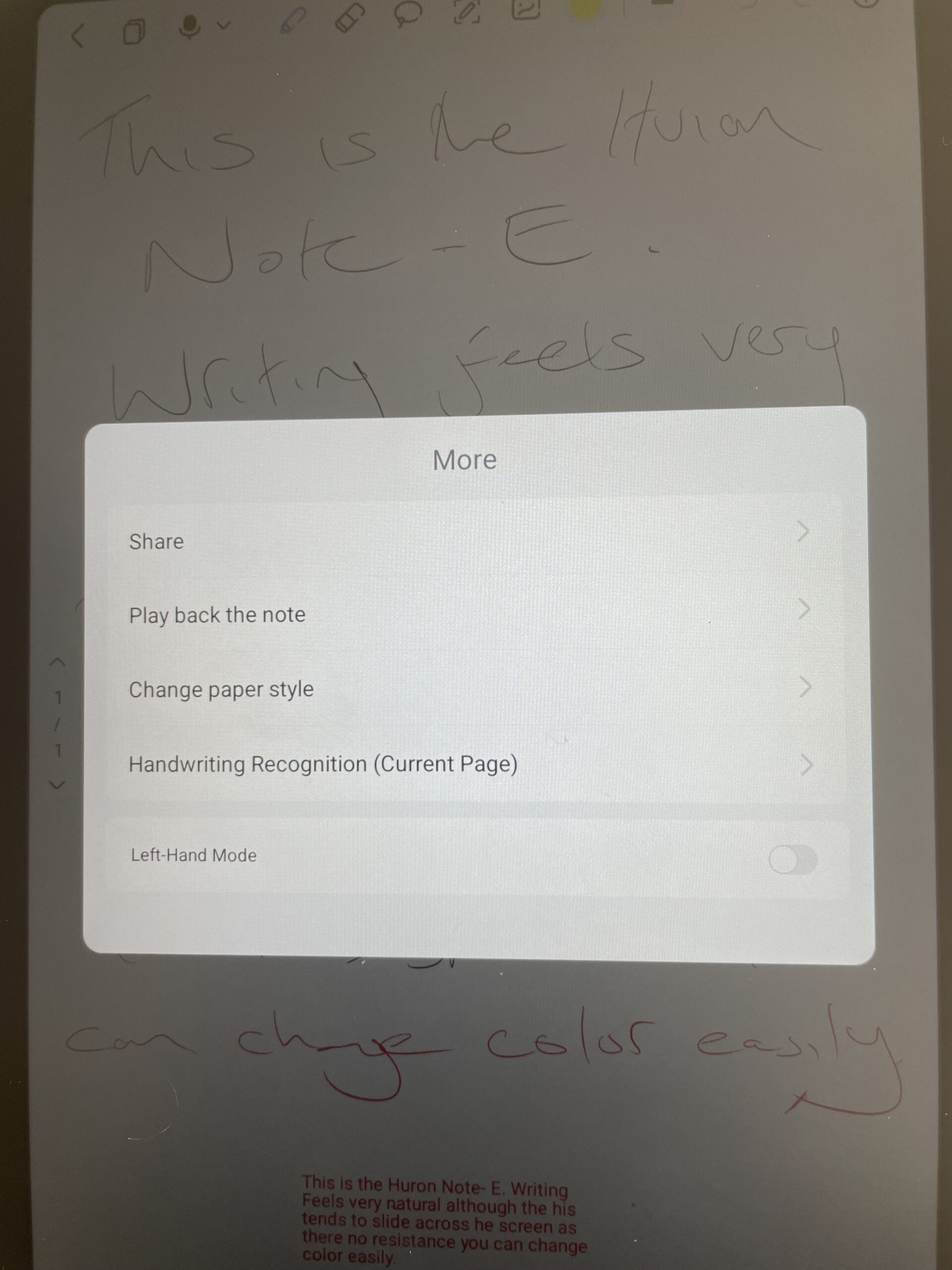
The handwriting is then converted instantly into plain text which you can drag and drop anywhere.
It’s actually pretty accurate and the errors it made (see below) were mainly due to my appalling handwriting!
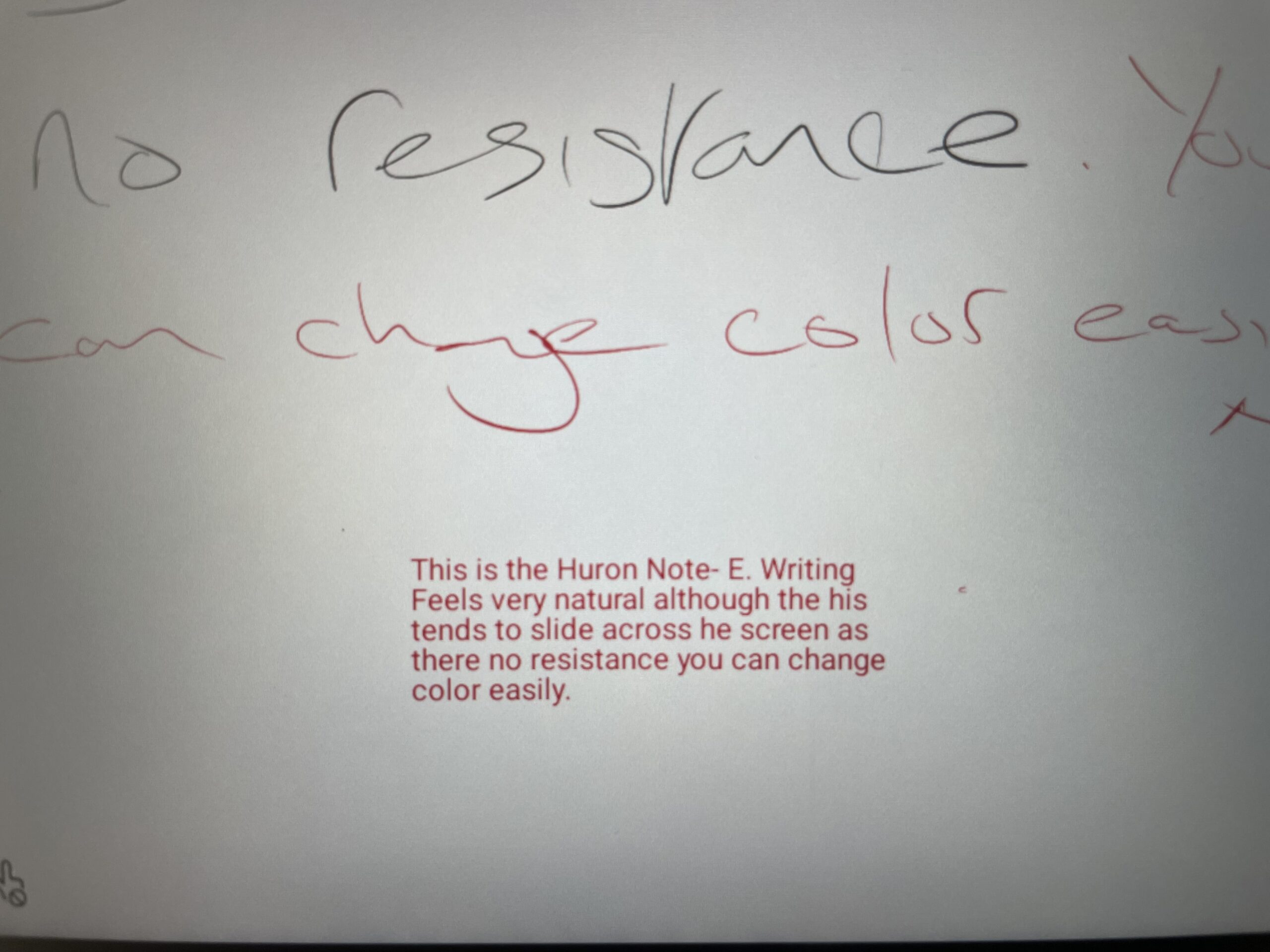
However, as this is a very specialized area of OCR, there are better handwriting OCR software for Mac that do a better job in my opinion.
The Huion Note E also allows you to upload and annotate PDFs. While it can’t edit PDFs, this is still a nice feature and something I would use a lot for highlighting and editing documents.
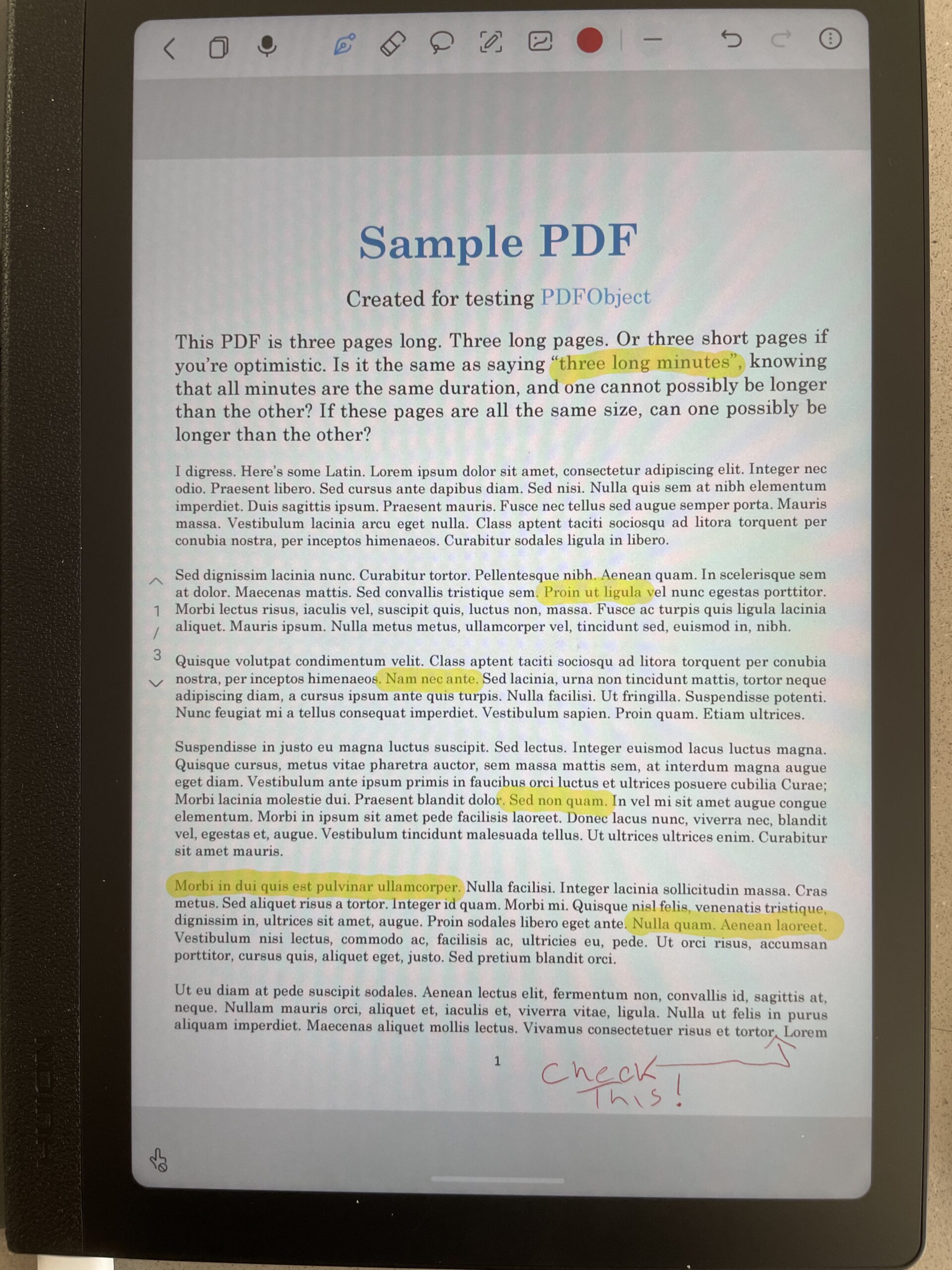
You can also record audio while note taking which is useful for meetings, lectures and any situation where sound or audio are useful to enrich your notes.
Is It Better Than Using an iPad?
This is probably the biggest question most Mac users will have.
If you already own an iPad and Apple Pencil, the answer is probably no.
The iPad remains the more versatile device. You can browse the web, answer emails, run productivity apps and take notes all on the same machine.
But that’s also its biggest weakness.
When I use my iPad for note-taking, it’s very easy to become distracted by notifications or the temptation to quickly check something else.
The Huion Note E is more focused. You pick it up, write, organize your thoughts and put it down again. It’s much more like a traditional notebook, which I actually found helped me concentrate.
What I Liked
- Lightweight and easy to carry with a MacBook.
- Natural writing feel thanks to the EMR stylus (which never needs recharging)
- Simple way to digitize handwritten notes.
- Great for brainstorming articles, meetings and research.
What Could Be Better
I’d obviously still love to see better native macOS integration with the Huion Note E.
An official desktop companion app that automatically synced notes would make it feel much more Apple compatible rather than a separate device.
Currently, the only way to transfer files to your Mac is via Cloud storage services such as Google Drive, iCloud or DropBox.
I also don’t think it replaces an iPad for most people. If you already own an iPad and mainly want to take occasional handwritten notes, you probably don’t need another device.
Pricing
At around $369 (or roughly £329 in the UK), the Huion Note E sits in an interesting part of the market.
It’s considerably more expensive than the original Huion Note, which can now often be found for under $100, but it’s also significantly cheaper than buying a new iPad and Apple Pencil combination if your main goal is digital handwriting.
That said, if you already own an iPad with an Apple Pencil and are happy using Apple Notes or Freeform, it’s difficult to justify adding another device purely for note-taking. The iPad remains the more versatile option.
Where the Huion Note E starts to make more sense is if you’re looking for a dedicated distraction-free workspace. I see it less as a tablet and more as a premium digital replacement for the stack of notebooks that accumulates around my desk.
For writers, researchers, students and anyone who spends their day moving between handwritten ideas and a Mac, there’s genuine value in having a device that simply opens, writes and syncs your notes without the temptation of emails, social media or dozens of open browser tabs.
I also like that Huion includes the battery-free EMR pen in the box, so there are no hidden extras to budget for.
Overall, I think the price is fair for what you’re getting, but it’s a product that makes the most sense if you specifically want a focused digital notebook rather than another all-purpose tablet.
Huion Note E Alternatives
The Huion Note E occupies a slightly unusual position in the market. It isn’t quite an e-reader, isn’t a full Android tablet and isn’t trying to compete directly with the iPad either. Depending on how you plan to use it alongside your Mac, there are several strong alternatives worth considering.
Kobo Libra Colour
If your main goal is reading and annotating books or PDFs, the Kobo Libra Colour is probably the closest alternative I’d recommend for Mac users.
Its 7-inch colour E Ink display is much easier on the eyes than a traditional LCD screen during long reading sessions, and Kobo’s support for a wide range of ebook formats makes it far more flexible than Amazon’s Kindle.
The handwriting features aren’t as advanced as the Huion Note E, but if you already spend a lot of time reading technical PDFs, ebooks or research papers on your Mac, the Libra Colour offers an excellent balance between reading and light note-taking.
It’s also considerably cheaper at around $259, making it a good option if you don’t need a dedicated digital notebook.
Kindle Scribe
The Kindle Scribe remains one of the best devices if you primarily use Amazon’s products.
Its large 10.2-inch E Ink display provides a superb writing experience, and the battery life is measured in weeks rather than days. The latest software updates have also made its notebook features much more useful, allowing you to organize handwritten notes and export them for use elsewhere.
That said, I still find the Kindle Scribe feels first and foremost like an ebook reader that happens to support note-taking. The Huion Note E feels more like a notebook from the ground up.
Mac users who already own a large Kindle library will probably appreciate the Scribe’s seamless integration, but those looking for a more flexible productivity device may prefer Huion’s approach.
reMarkable Paper Pro
If budget isn’t your primary concern, the reMarkable Paper Pro is arguably the premium option in this category.
Its larger colour E Ink display offers one of the closest experiences to writing on real paper that I’ve used, and the minimalist interface makes it incredibly easy to focus without distractions.
The reMarkable ecosystem also works well with Macs, allowing you to sync notes across devices and access them from a desktop app.
The downside is cost. Once you factor in the Marker pen and optional subscription features, it’s one of the most expensive digital notebooks available.
iPad Air with Apple Pencil
For many Mac owners, the biggest competitor to the Huion Note E is actually a device they may already own.
An iPad Air paired with an Apple Pencil offers excellent handwriting recognition, seamless syncing with Apple Notes and Freeform, and deep integration with macOS through features like Universal Clipboard and Continuity.
If you want one device that can handle note-taking, web browsing, media consumption and productivity apps, the iPad is still the obvious choice.
However, I found that the Huion Note E has one major advantage: focus. Because it isn’t trying to do everything, it’s surprisingly good at helping you simply sit down and write without notifications or endless distractions competing for your attention.
Onyx Boox Note Air
The Onyx Boox Note Air series sits somewhere between the Kindle Scribe and the Huion Note E.
Running Android, it supports a huge range of apps while retaining the paper-like qualities of an E Ink display. It’s particularly popular with students and researchers who annotate large numbers of PDFs.
For Mac users who need advanced document markup and don’t mind a slightly steeper learning curve, it’s one of the strongest alternatives available.
Which Alternative Is Best?
After spending time with the Huion Note E, I don’t think there’s a single “best” option – just the one that best matches what you mainly use it for.
- Choose the Kobo Libra Colour if reading is your priority.
- Choose the Kindle Scribe if you use predominately Amazon’s products.
- Choose the reMarkable Paper Pro if you want the closest thing to writing on real paper.
- Choose an iPad Air and Apple Pencil if you want maximum versatility and integration with your Mac.
- Choose the Huion Note E if you simply want a dedicated digital notebook that helps bridge the gap between traditional handwriting and your Mac without becoming another all-purpose tablet.