

Yes, you can use WhatsApp on a Mac. The best way is the official WhatsApp Mac app, which gives you a proper desktop experience with messaging, voice and video calls, notifications and screen sharing. If you only need occasional access, WhatsApp Web is the simpler no-download alternative.
There is no longer any reason to install an Android emulator, BlueStacks, VirtualBox or an unofficial WhatsApp wrapper on a Mac. Those workarounds add unnecessary third party software and even pose a security risk without giving you anything the official app does not.
WhatsApp on Mac at a glance
| Best for | Method | What you need | Why choose it |
|---|---|---|---|
| Most people | Official WhatsApp Mac app | macOS 12.1 Monterey or later, plus an existing WhatsApp account to link | The complete desktop option, including calls and screen sharing |
| Occasional use or an older Mac | WhatsApp Web | A current desktop browser, plus an existing WhatsApp account to link | No installation required |
Can you download WhatsApp on a Mac?
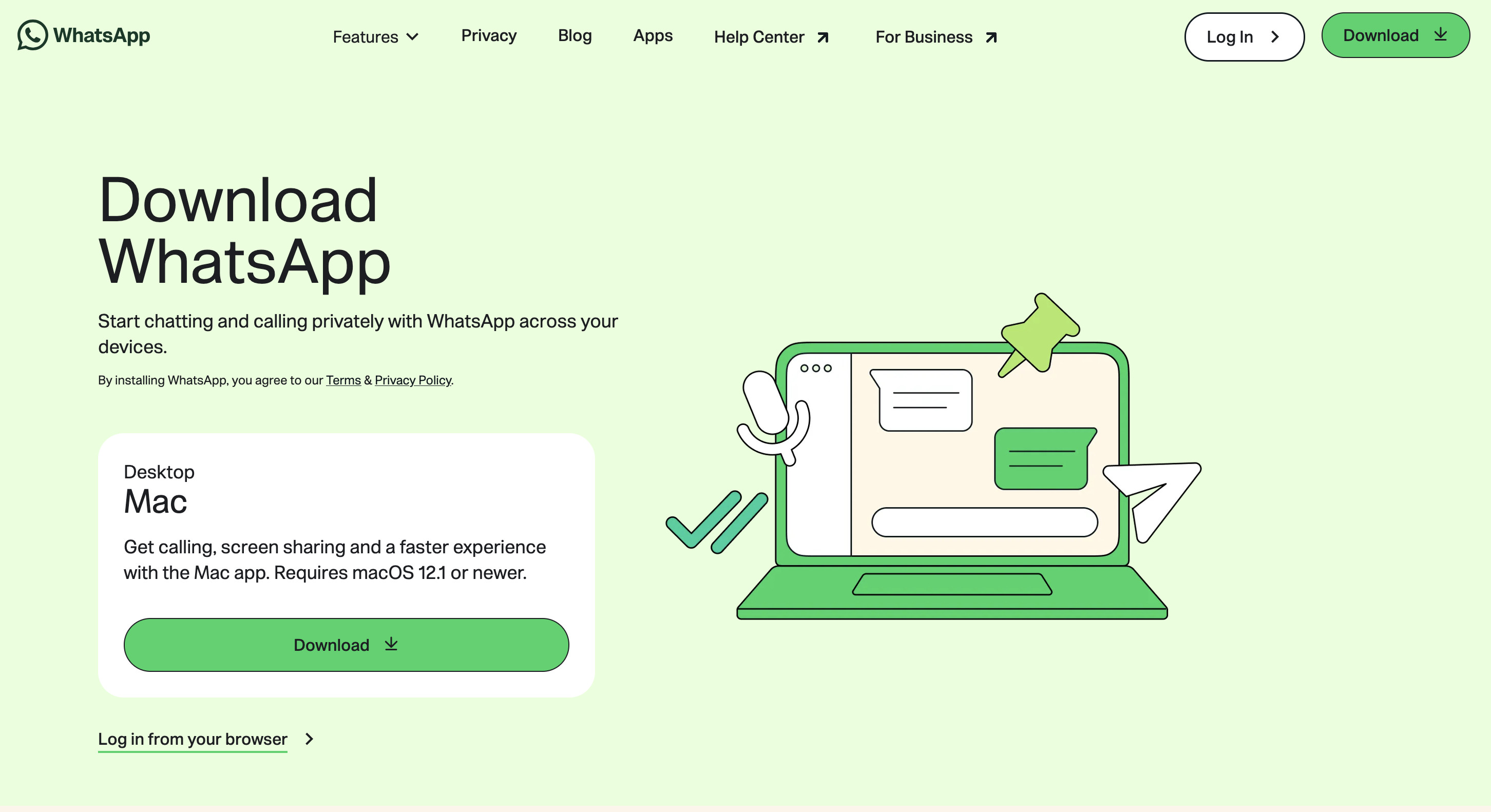
Yes. WhatsApp has an official Mac app that requires macOS 12.1 Monterey or later. That covers current Apple-silicon Macs and compatible Intel Macs running Monterey or a newer version of macOS.
Download it from the official WhatsApp download page, rather than an unofficial “WhatsApp for Mac” app or a browser wrapper. The official app is the right choice if you use WhatsApp regularly, particularly for calls, notifications and sharing your screen.
If your Mac cannot run macOS 12.1 or later, try WhatsApp Web in a current browser instead. Do not try to get around the operating-system requirement by installing an Android emulator.
How to install and set up WhatsApp on a Mac
Setting up WhatsApp on a Mac takes a minute or two. You will need an existing WhatsApp account on an iPhone or Android phone for the initial link.
- Go to WhatsApp’s official download page and download the Mac app.
- Open the downloaded app and follow the installation prompt.
- Launch WhatsApp on your Mac. A QR code will appear.
- On an iPhone, open WhatsApp > Settings > Linked Devices > Link a Device. On Android, open the three-dot menu in WhatsApp, then choose Linked devices > Link a device.
- Unlock your phone if asked, then scan the QR code shown on your Mac.
- Allow notifications, camera and microphone access when macOS asks, particularly if you intend to make calls.
Your chats should then appear on the Mac.
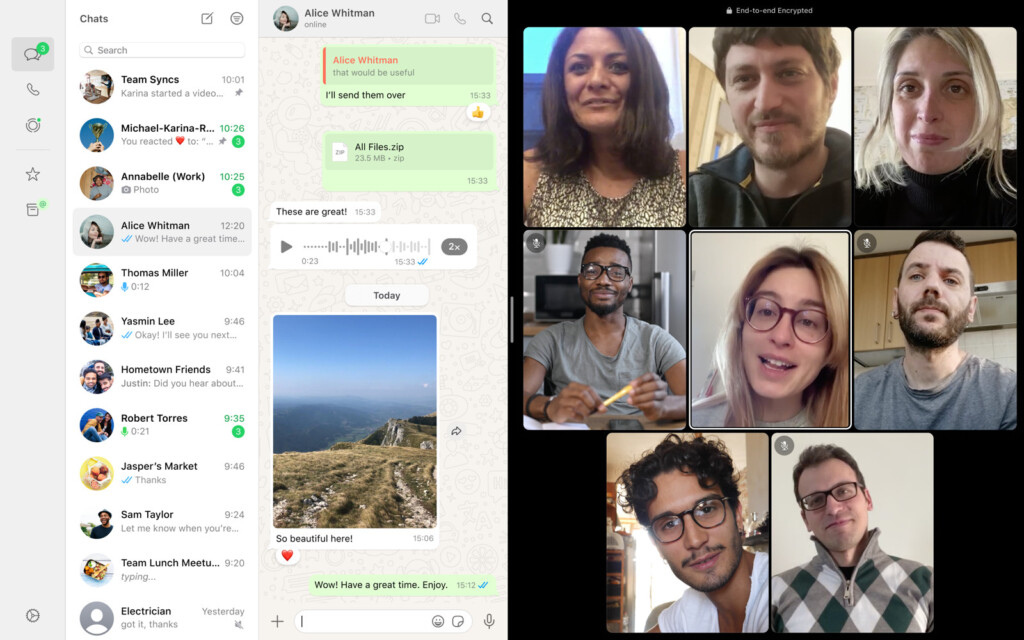
WhatsApp uses linked-device support, so your Mac does not need to be tethered to your phone all day in the old way WhatsApp Web once did. Your phone is still important for registering the account, linking new devices and managing security settings.
How to use WhatsApp Web on a Mac
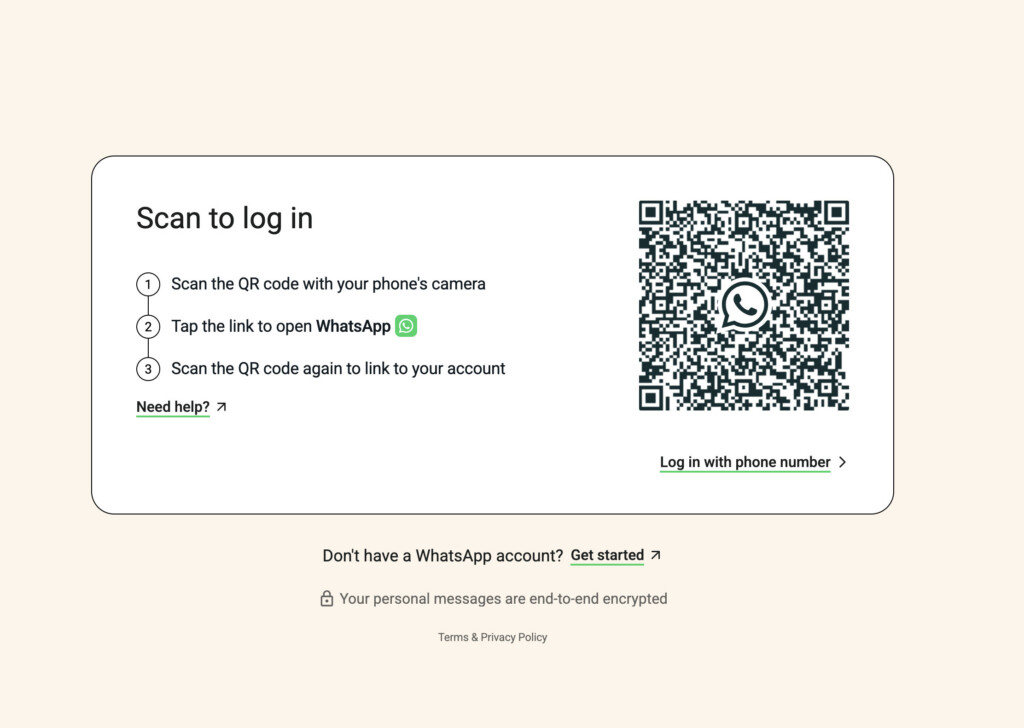
WhatsApp Web is useful if you are using a work Mac, do not want to install an app or only need WhatsApp briefly.
- Open web.whatsapp.com in a current desktop browser.
- On your phone, open Linked Devices using the same steps above.
- Choose Link a device and scan the QR code in the browser.
- Keep the tab open while you use WhatsApp.
WhatsApp Web is still an official option, but the Mac app is better for regular use. WhatsApp specifically lists calling and screen sharing as Mac-app features, and the app also feels more at home alongside your other Mac applications.
If you use a shared or public Mac, log out afterwards. On your phone, go to Linked Devices, select the browser session or Mac, then choose Log Out.
Can you use WhatsApp on a Mac without an iPhone?
Yes. WhatsApp on Mac is not limited to iPhone owners: you can link it to an Android phone too.
However, it is not a separate Mac-only account. You still need a phone number and an existing WhatsApp account to get started, then link the Mac with a QR code or, where offered, WhatsApp’s phone-number linking option. After it has been linked, the Mac app can continue working when your phone is not actively connected to the internet, although you should keep the phone app updated and use it periodically.
Making WhatsApp voice and video calls on a Mac
The official Mac app supports voice calls, video calls and screen sharing. It is a far better choice than an emulator if you want to use WhatsApp for family calls or work conversations from a MacBook, iMac, Mac mini or Mac Studio.
If a call cannot access your webcam or microphone:
- Open System Settings > Privacy & Security.
- Check Camera and Microphone and allow WhatsApp access.
- For screen sharing, approve the screen-recording permission macOS requests.
- Quit and reopen WhatsApp after changing a permission.
Also check System Settings > Notifications > WhatsApp if message or call alerts are not appearing. A Focus mode can silence notifications too.
What not to use in 2026
Older versions of this guide included Android emulators such as BlueStacks and VirtualBox, plus third-party wrappers. They are no longer sensible recommendations for WhatsApp on a Mac.
- Android emulators: unnecessary for a service with an official Mac app and web client. They need more storage, more maintenance and can complicate account verification.
- BlueStacks: should not be treated as a reliable route to WhatsApp on Mac. It does not solve the need for a phone-number-based WhatsApp account or make desktop use easier than the official app.
- VirtualBox and Android-x86: an outdated, cumbersome route that creates more opportunities for failed updates and insecure APK downloads.
- Unofficial WhatsApp wrappers: avoid giving a third party access to a private messaging session when WhatsApp already supplies its own app and website.
Use the official app or WhatsApp Web instead.
If WhatsApp Won’t Work on Your Mac
If you’re having trouble getting WhatsApp to work on your Mac, try a few of the following solutions.
The Mac app will not install
Check that your Mac is running macOS 12.1 Monterey or later. If it cannot be updated that far, use WhatsApp Web in a current browser rather than downloading an old copy of the app from a third-party site.
The QR code will not scan
Update WhatsApp on your phone, refresh the QR code on the Mac and try again from Linked Devices. Make sure you are scanning a code in the official WhatsApp app or at web.whatsapp.com, not a code sent to you in a message or email.
WhatsApp disconnects on the Mac
Check your Mac’s internet connection, update WhatsApp on both devices and review the list in Linked Devices. Logging out the stale Mac session and linking it again usually resolves a persistent connection problem.
I am not getting Mac notifications
Make sure WhatsApp is allowed under System Settings > Notifications, and check that macOS Focus is not silencing it. You may also need to allow notifications inside WhatsApp’s own settings.
Calls cannot use my microphone or camera
Grant WhatsApp access under System Settings > Privacy & Security > Microphone and Camera, then restart the app. If you are using an external webcam or microphone, check that it is selected in WhatsApp before you call.
FAQ
Is there an official WhatsApp app for Mac?
Yes. WhatsApp provides an official Mac app from its download page. It requires macOS 12.1 Monterey or later.
Does WhatsApp work on Apple-silicon Macs?
Yes. The official app works on current Macs running macOS 12.1 or later, including Apple-silicon Macs. The relevant requirement is the macOS version, not whether your Mac has an Intel or Apple chip.
Does WhatsApp Web work on Safari?
WhatsApp Web is designed to be used in a current desktop browser. Go to web.whatsapp.com and link it from your phone using Linked Devices.
Do I need to keep my phone connected to use WhatsApp on a Mac?
Not constantly. Once linked, WhatsApp’s linked-device system lets the Mac app or web session continue independently in normal use. You still need your phone and phone number to set up and manage the account.
Can I make WhatsApp video calls from a Mac?
Yes. Use the official Mac app, allow camera and microphone access in macOS and place the call from the relevant chat.
Is WhatsApp for Mac free?
The official app and WhatsApp Web are free to use. Your internet or mobile-data provider may still charge for the connection you use.
The bottom line
For almost everyone, download the official WhatsApp Mac app and link it to your existing account. It is free, supports modern Macs running macOS 12.1 or later and is the option to use for calling and screen sharing.
Use WhatsApp Web when you need quick browser access or cannot install the app. Remove the old emulator and unofficial-wrapper methods from this page entirely: they are no longer useful answers to the question of how to use WhatsApp on a Mac.