

If you’re switching from Windows and wondering where File Explorer is on a Mac, it’s called Finder. Finder is the built-in file manager in macOS and works in a very similar way and here we’ll show you how it works and how to open Finder on Mac with keyboard shortcuts.
The Finder on Mac computers is the core file management system in macOS. Whether you want to learn how to find a file on Mac, organize folders, or fix issues like Mac Finder search not working, this guide covers everything you need – from beginner basics to advanced features. It also covers the Finder additions in the latest versions of macOS including macOS Golden Gate 27.
What Is Finder on Mac?
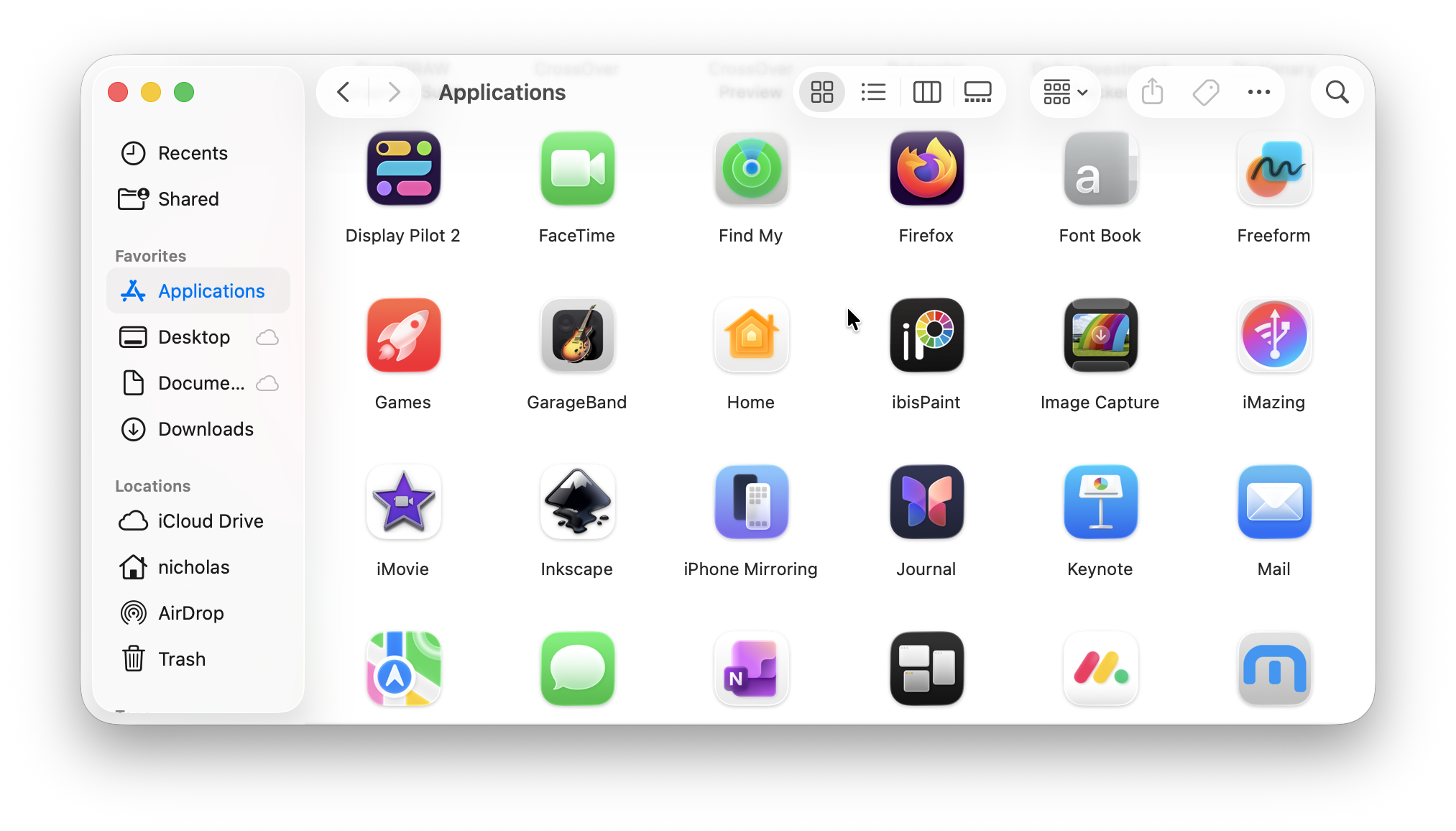
The file Finder on Mac (often just called Finder) is the default file manager in macOS – the equivalent of File Explorer in Windows.
It allows you to:
- Browse files and folders
- Open apps and documents
- Search your Mac
- Organize files using folders and tags
Finder is always running in the background and is essential for navigating your MacBook Finder system.
What’s New in Finder in macOS Golden Gate?
Golden Gate adds Apple Intelligence features for naming files and asking questions about documents.
Intelligent Filename Suggestions
Finder can suggest filenames when you create or rename documents. Apple also documents suggestions in supported save and editing workflows.
To control this feature:
- Make Finder active.
- Choose Finder > Settings from the menu bar.
- Open General.
- Turn Suggest file names on or off. The label may appear as Suggest filenames in some language settings.
Suggestions require Apple Intelligence and are subject to language, region and usage availability. You can continue entering your own names when suggestions are enabled.
Ask Siri About Documents
With Siri AI (Beta) enabled, you can ask questions about documents selected in Finder.
For example, select two documents, Control-click one of them and choose Ask Siri to ask about their contents or compare information between them.
This requires an Apple Intelligence-enabled Mac and a supported language and region. Check important answers against the original documents.
Where Is Finder on Mac?
If you’re asking where is Finder on MacBook, it’s always visible:
📍 Dock (bottom of screen) → Blue smiling face icon
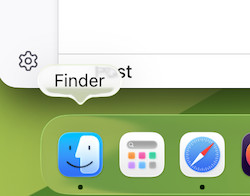
📍 Top menu bar → Appears when Finder is active
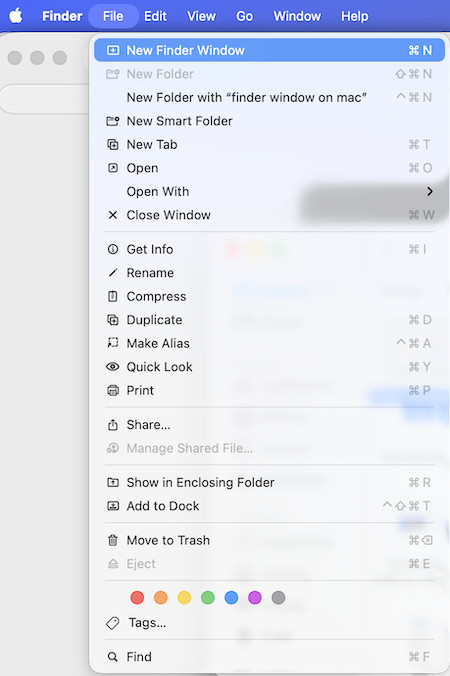
Note that Finder cannot be removed – it’s a permanent part of macOS Finder.
How To Open Finder on Mac
Here are all the ways to open Finder:
Click the Dock Icon
Click the blue Finder face icon in the Dock.
Click the Desktop
Click anywhere on the desktop to activate Finder.
How to Open Finder on Mac With Keyboard Shortcuts
If you prefer shortcuts:
- Command (⌘) + Tab → Switch to Finder
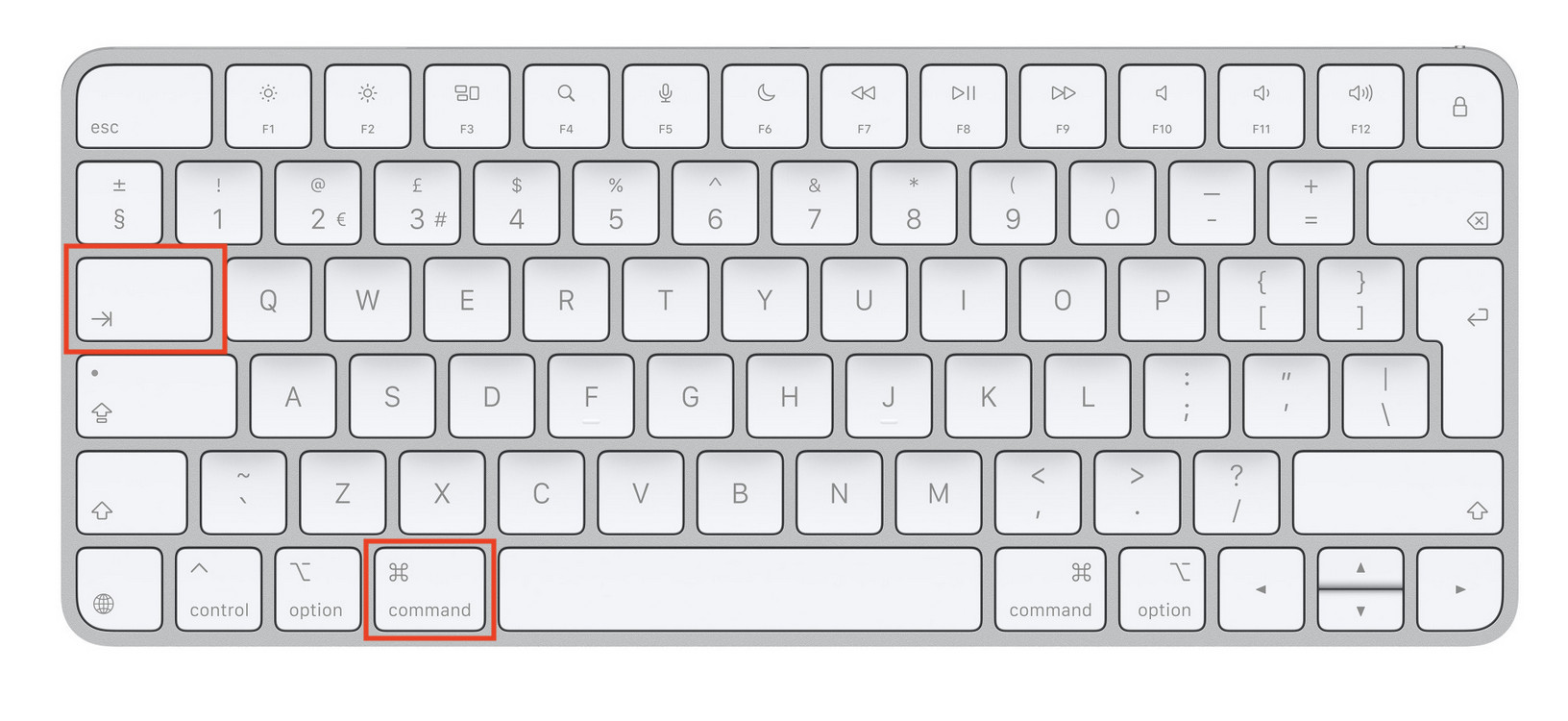
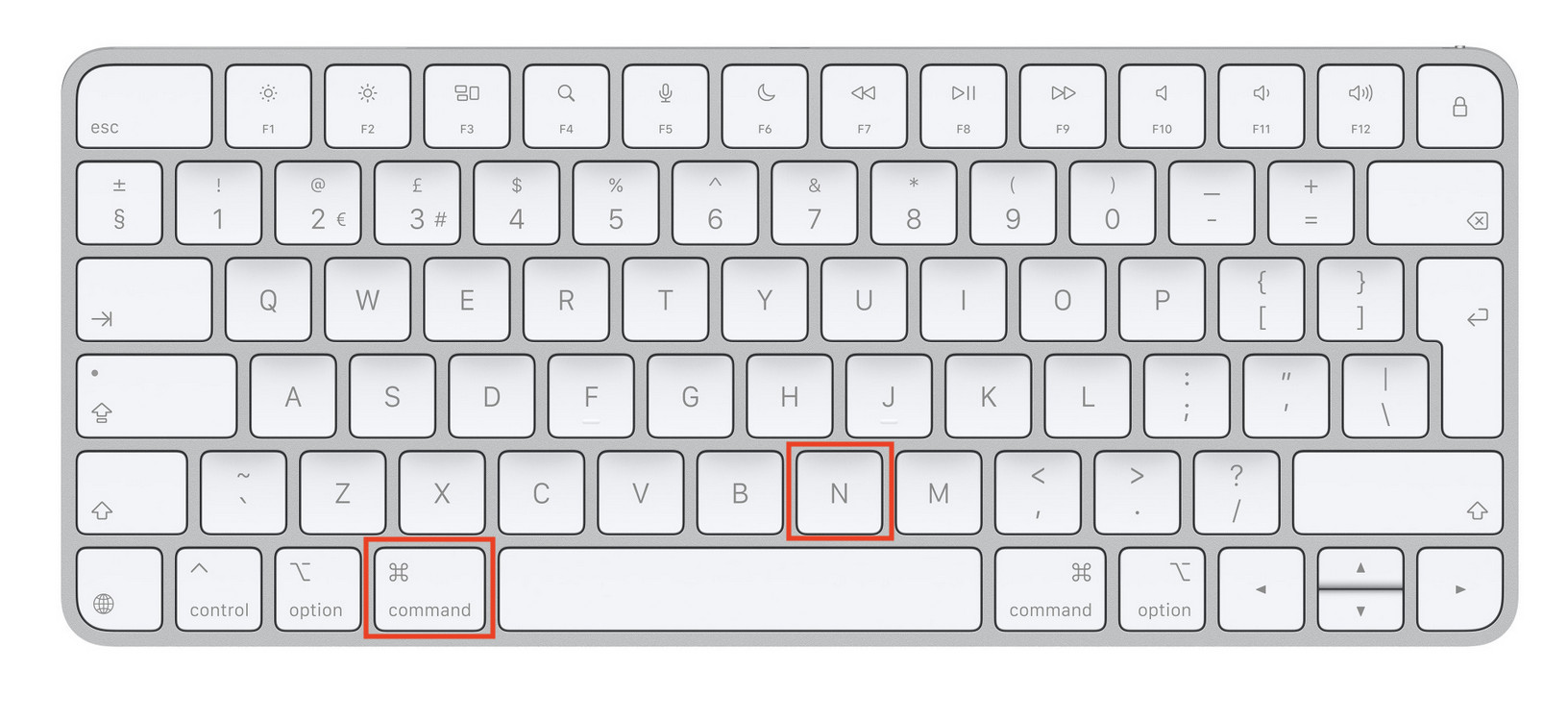
- Command (⌘) + N → New Finder window
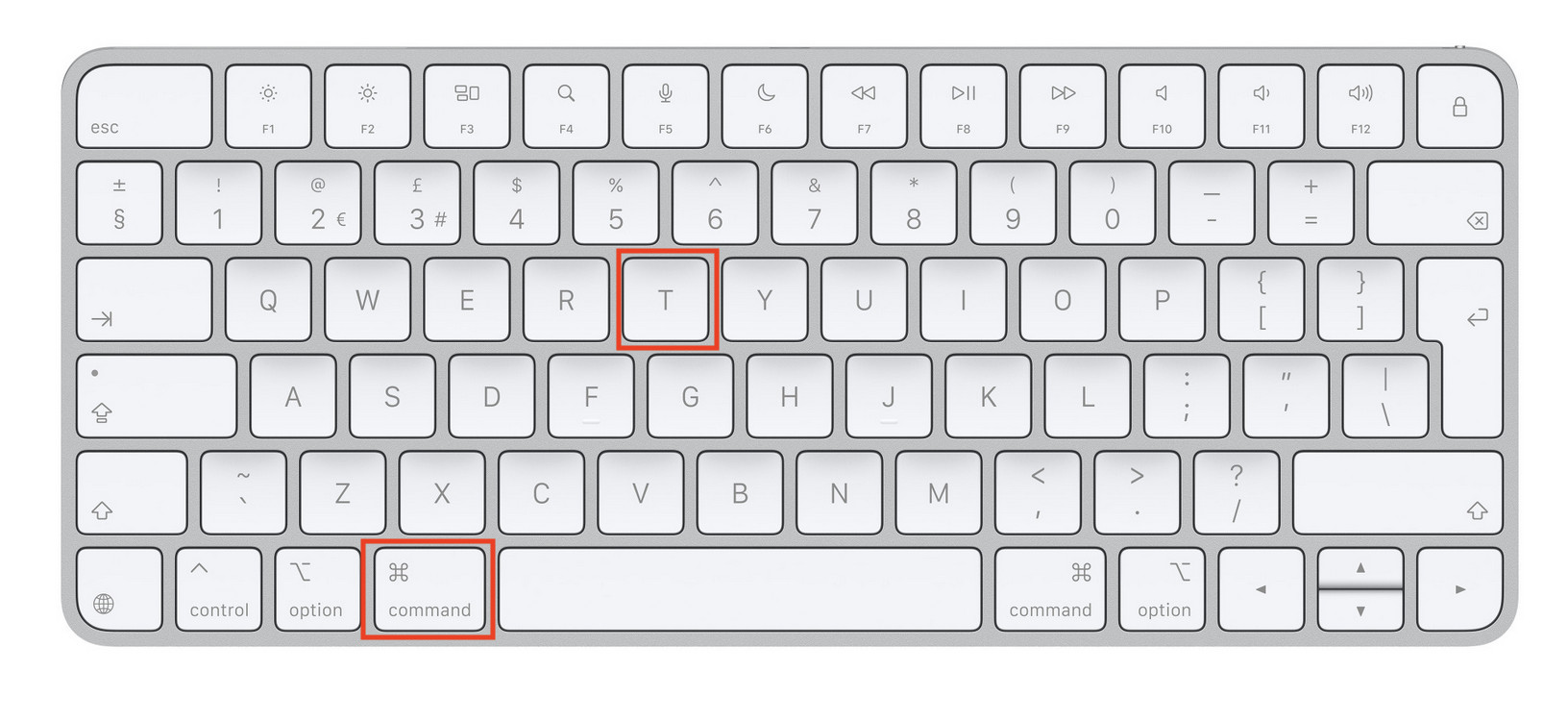
- Command (⌘) + T → New tab
Understanding the Finder Window on Mac
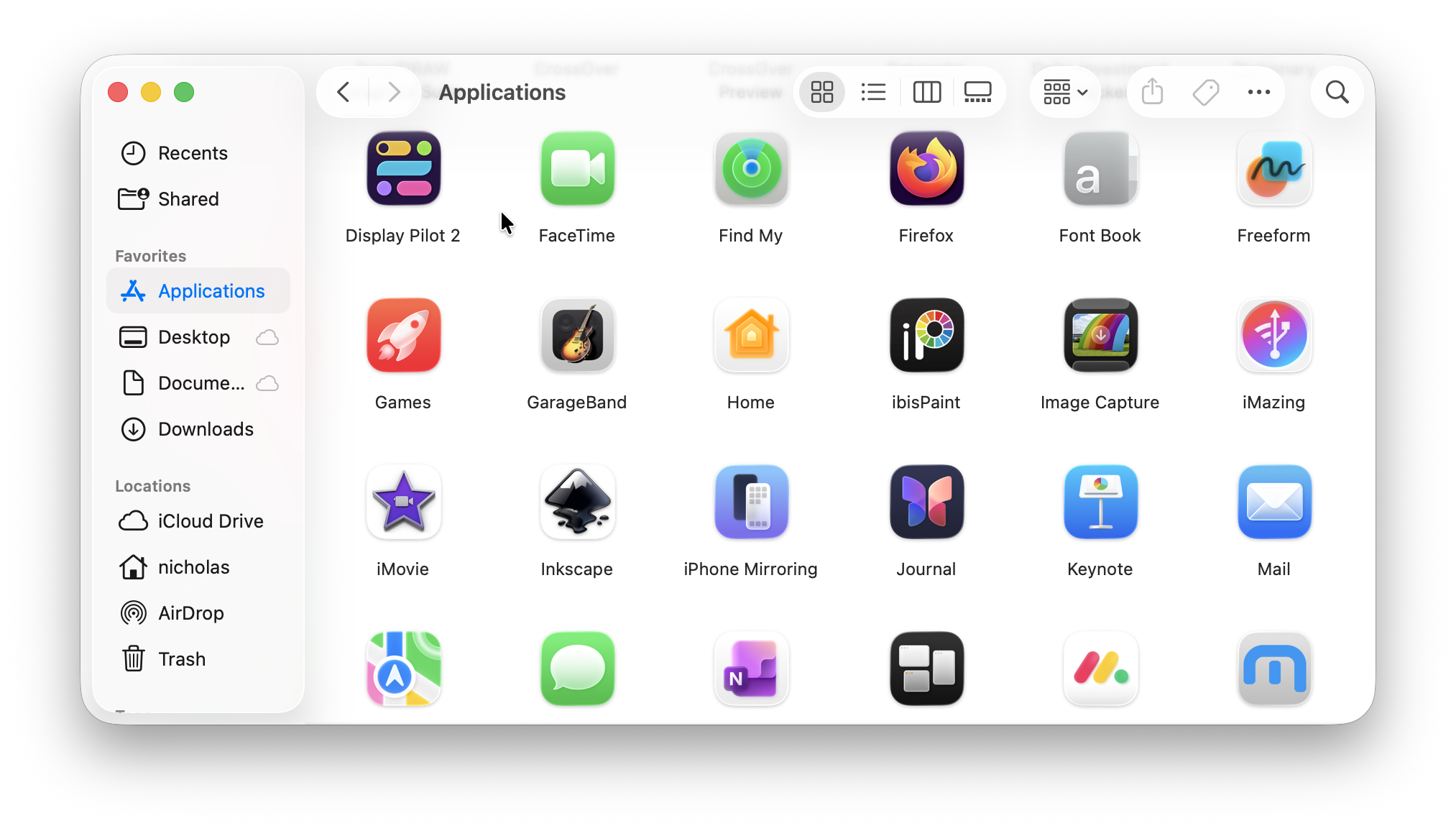
A typical Finder window on Mac includes:
- Sidebar → Quick access to folders – If the sidebar is missing, choose View > Show Sidebar
- Toolbar → Navigation and view controls
- Main panel → Files and folders
- Search field → Find files instantly
- Preview pane → Shows a preview and information about a selected item when enabled
Use the Sidebar
The sidebar gives quick access to:
- Applications
- Desktop
- Documents
- Downloads
- External drives
You can drag any folder into the sidebar to add it to Favorites.
To remove a shortcut, Control-click it and choose Remove from Sidebar.
Use Finder > Settings > Sidebar to choose which standard locations and devices appear.
Move Between Folders
Use the toolbar’s Back and Forward buttons to revisit locations. To open the folder containing your current folder, press Command + Up Arrow.
Finder Views Explained
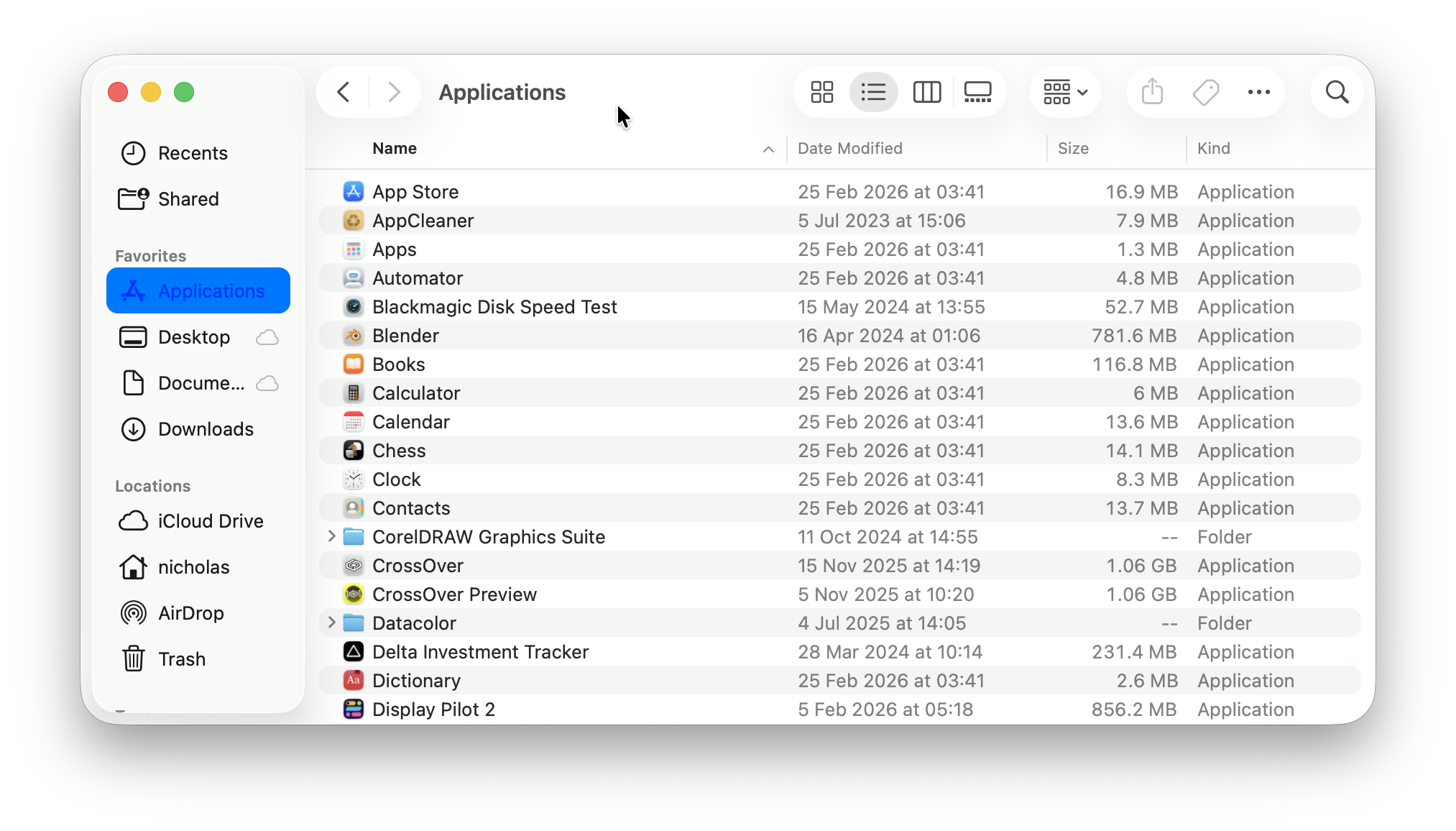
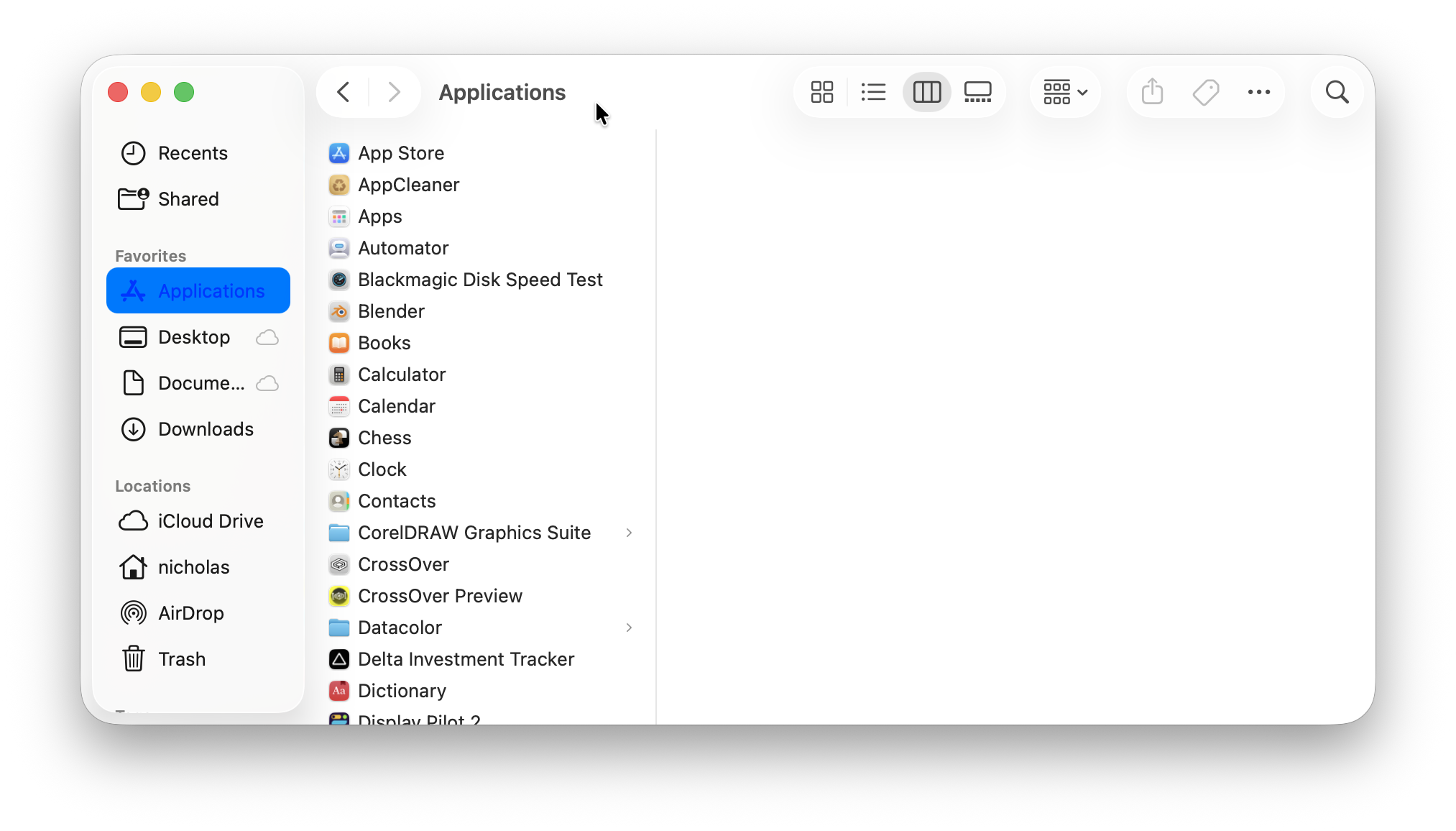
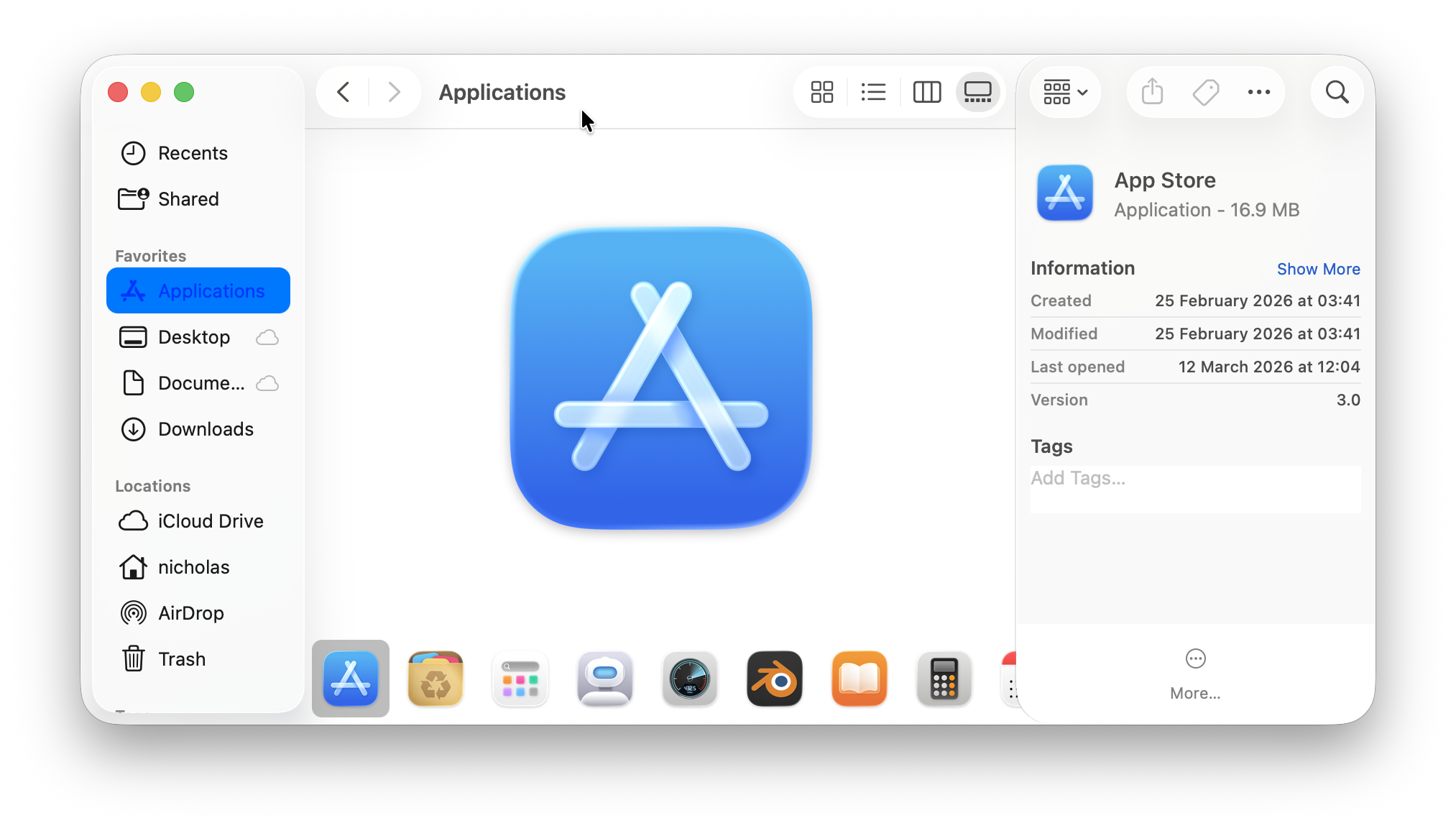
You can switch between views using either the toolbar buttons across the top or shortcuts:
- Command + 1 → Icon view
- Command + 2 → List view
- Command + 3 → Column view
- Command + 4 → Gallery view
When To Use List View
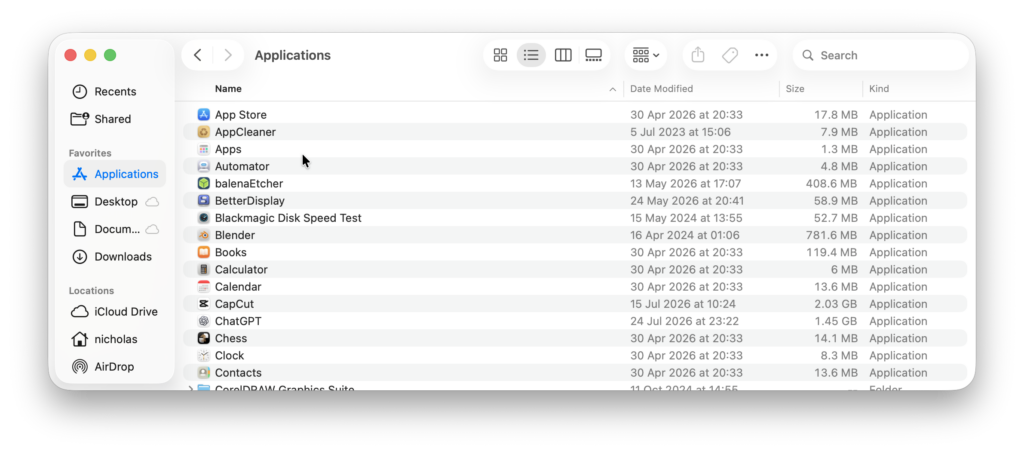
List view is useful for Downloads and other folders containing many files. Click a column heading, such as Name or Date Modified, to sort by it. Click again to reverse the order.
Control-click a column heading to choose which information columns appear.
Why Column View Is Best
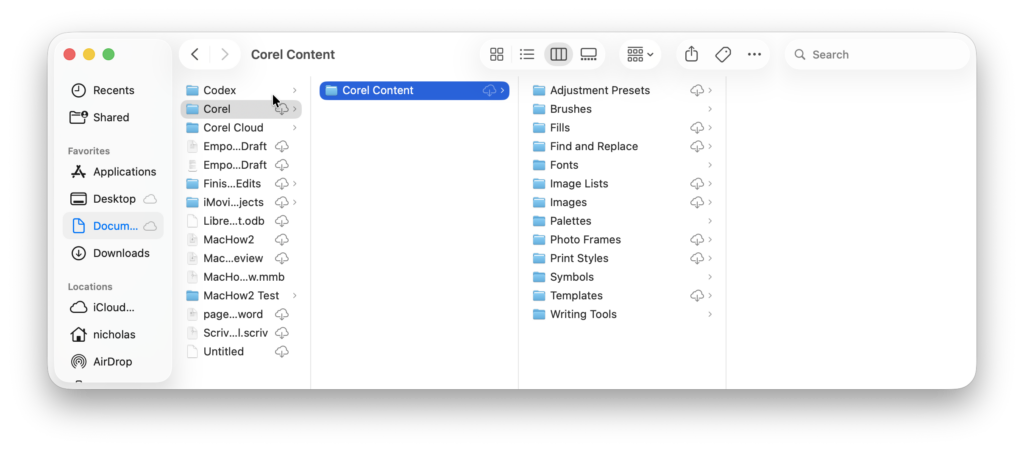
Column view is ideal for navigation:
- Click a folder → contents appear in the next column
- Use arrow keys:
- ➡ Right → open folder
- ⬅ Left → go back
When To Use Gallery View
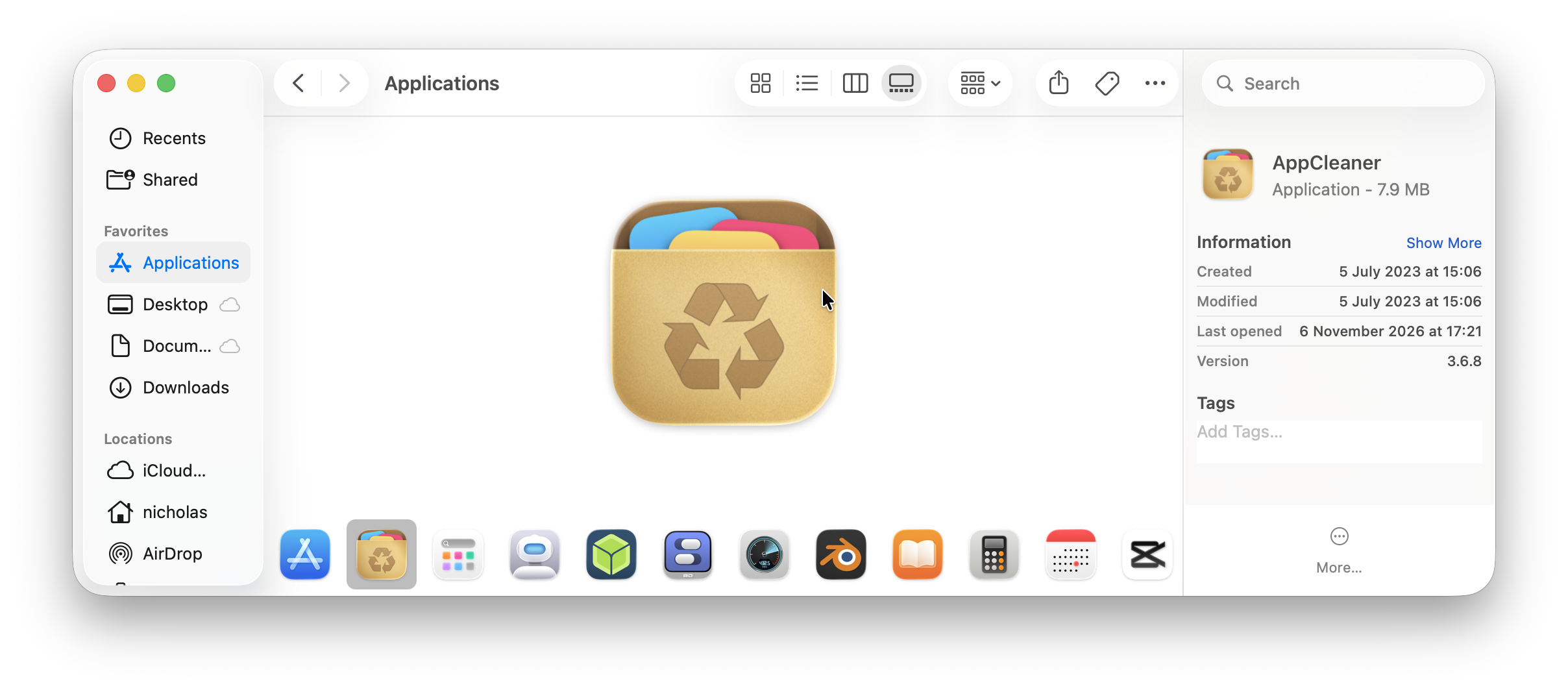
Gallery view gives the selected item a large preview, making it useful for browsing images and other supported documents.
How To Find a File or Application on Mac
If you want to know how to find a file or application on Mac, Finder makes it easy:
Method 1: Search Bar
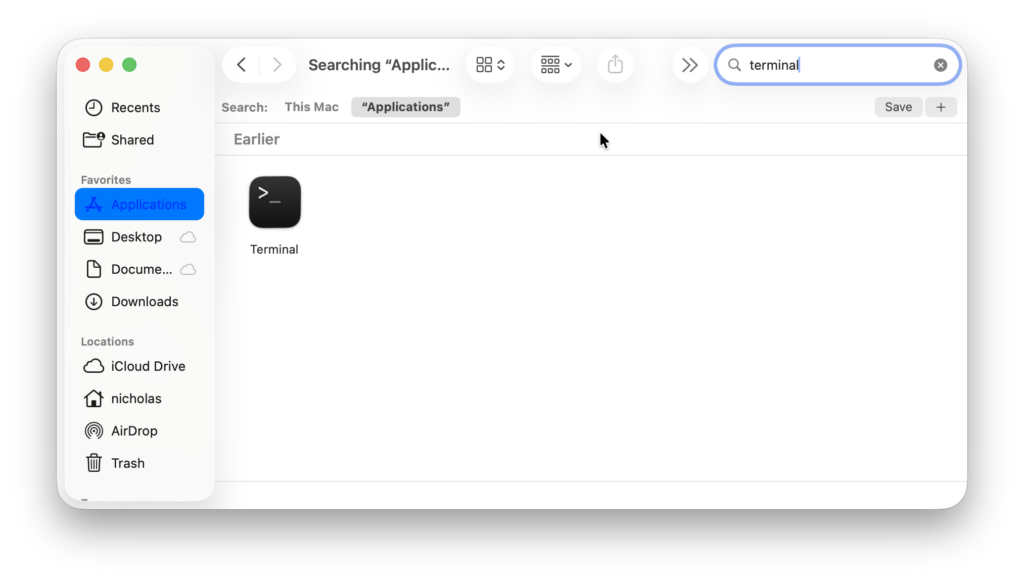
- Click the search icon (top-right)
- Enter your query
Method 2: Keyboard Shortcut
- Press Command (⌘) + F which is the equivalent of Ctrl + F on Windows.
Method 3: Use Spotlight

Press Command + Space, type the name of an app or document and open the matching result.
Spotlight also searches other kinds of information and offers actions. Finder is useful when you want to browse folders or work with a filtered set of files.
If you want to find a word inside an open webpage or document, use that app’s Find command instead. Our guide to the Control + F equivalent on a Mac explains the difference.
Use Advanced Finder Search Filters
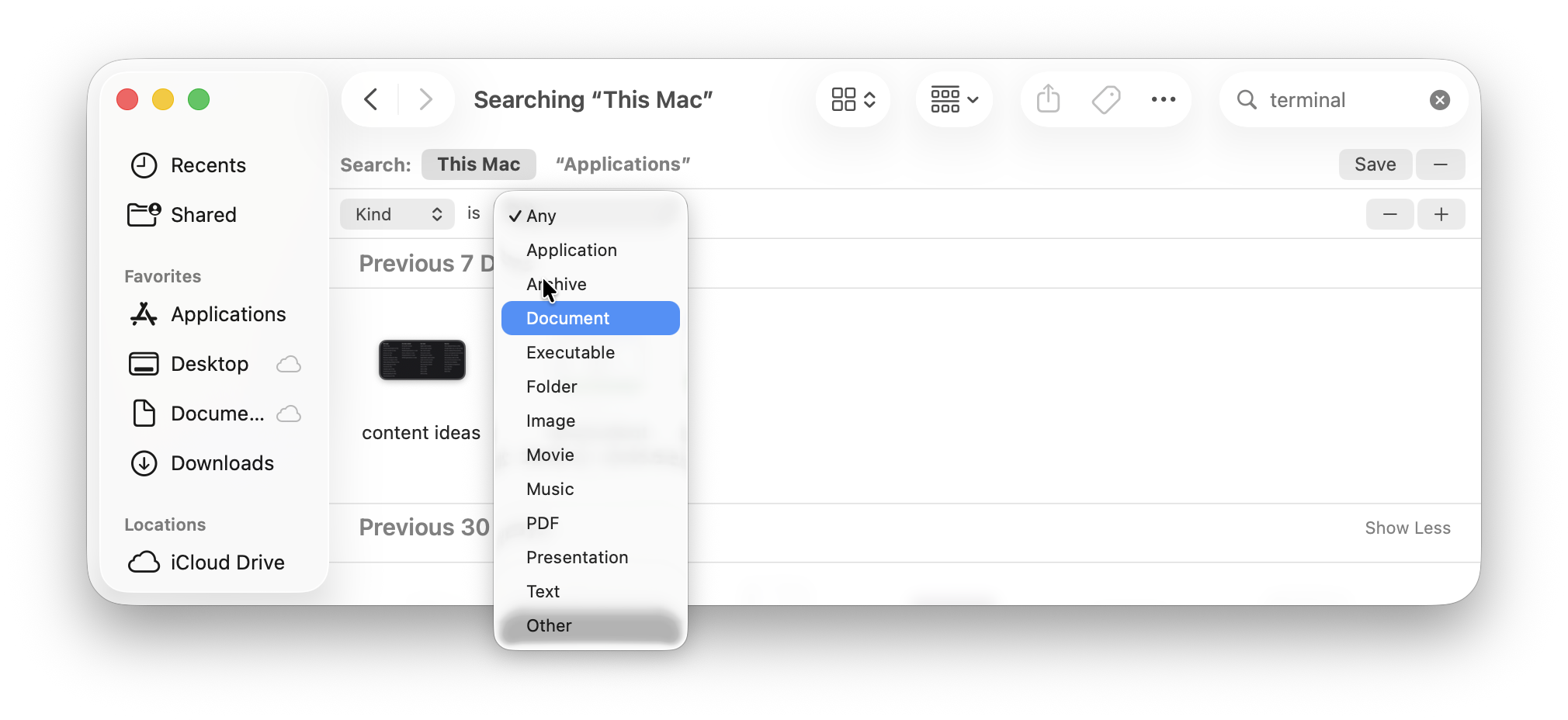
To refine results:
- Search for a file or application
- Click the + button on the right
- Add filters such as:
- File type
- Date modified
- Name
- Tags
This is essential if you have lots of files.
Save a Search as a Smart Folder
Once you have a useful search, click Save below the search field. Give it a name and select Add To Sidebar if you want a shortcut to it.
A Smart Folder is a saved search. Its results update as files match the criteria, while the original files remain in their existing folders.
What To Do If Mac Finder Search Is Not Working
If you’re experiencing Mac Finder search not working, try:
1. Relaunch Finder
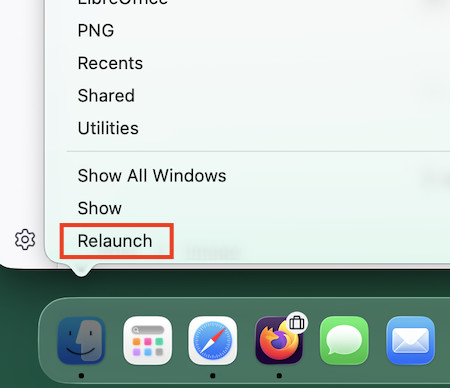
- Right-click Finder icon
- Hold Option → Click Relaunch
2. Rebuild Spotlight Index
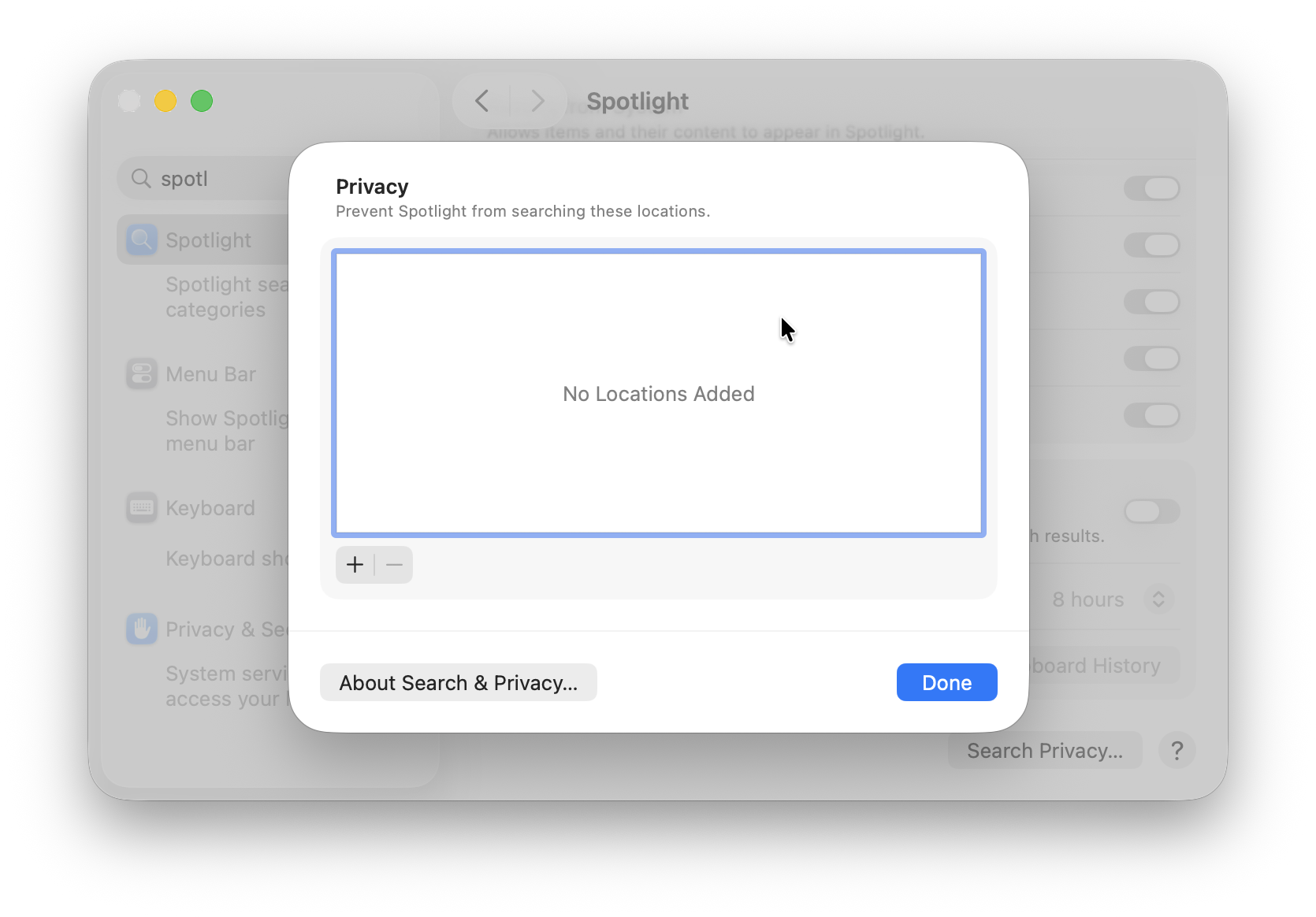
- System Settings > Spotlight > Privacy
- Add and remove your drive
3. Restart Your Mac
4. Check search filters
How To Preview Files Without Opening Them
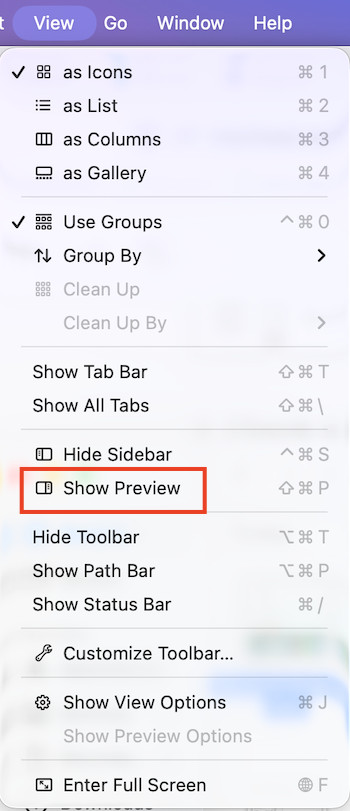
The Preview Pane lets you see files without opening them.
Enable it:
- Go to View > Show Preview
You can preview:
- Images
- PDFs
- Videos
- Documents
- Applications
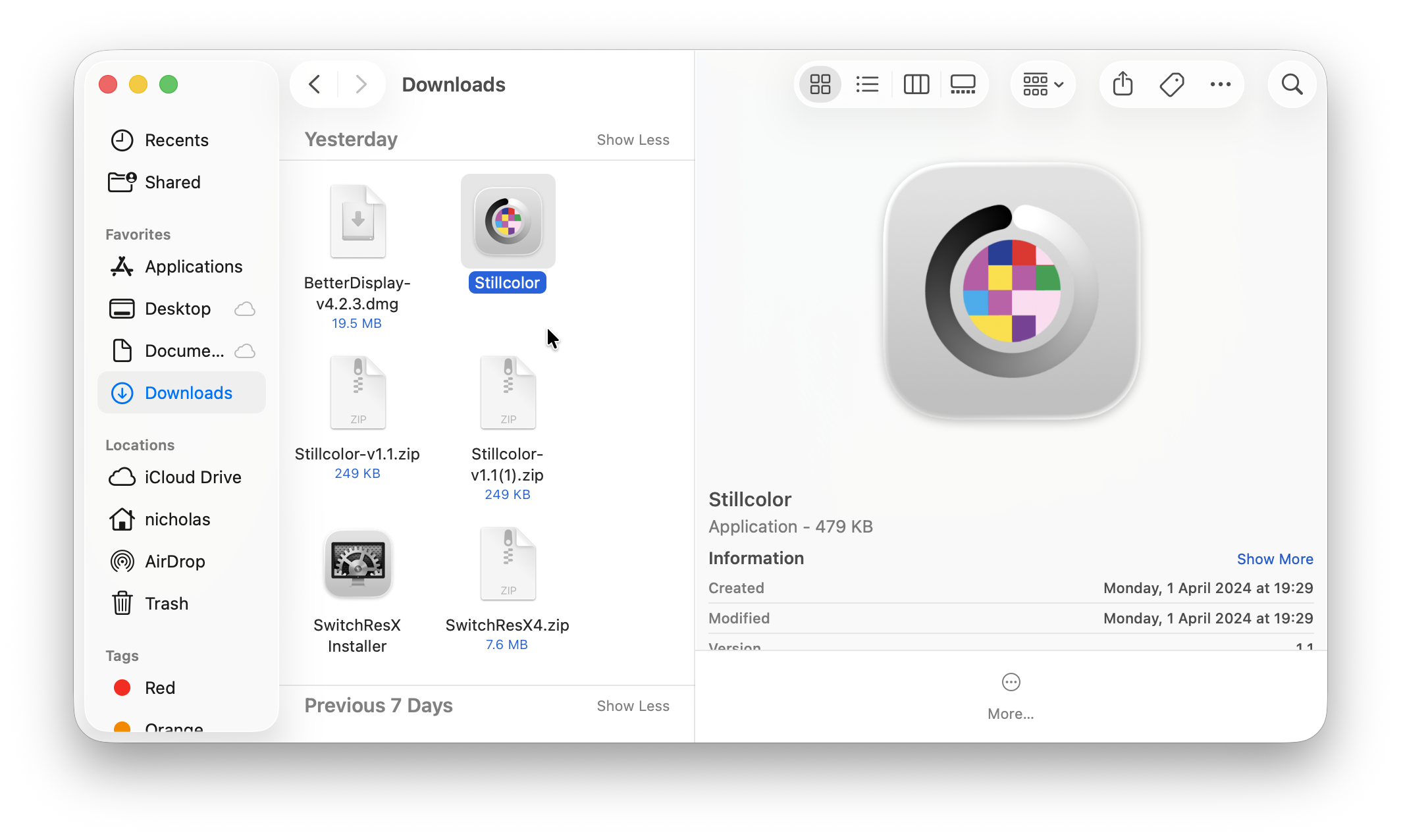
This is a huge time saver when browsing files.
How To Create, Copy, Move and Delete Files
Create a Folder
Open the location where you want the folder, then press Shift + Command + N. Enter its name and press Return.
Copy Files With the Keyboard
Select the files, press Command + C, open the destination folder and press Command + V.
The originals remain in their existing location.
Move Files With the Keyboard
To move files between ordinary local folders:
- Select the files and press Command + C.
- Open the destination folder.
- Press Option + Command + V.
This moves the files from their original location. Finder uses this copy-then-move workflow for files instead of the Windows-style Ctrl + X sequence.
Copy or Move by Dragging
For ordinary local files and drives, the usual behaviour is:
| Action | Result |
|---|---|
| Drag to another folder on the same disk | Moves the item. |
| Drag to another disk | Copies the item. |
| Hold Option while dragging | Copies the item. |
| Hold Command while dragging to another disk | Moves the item. |
Cloud services have additional sync behaviour, so read the iCloud section below before moving files out of iCloud Drive.
Delete Files and Restore Them
Select a file and press Command + Delete to move it to the Trash, called the Bin in some language settings.
To restore it before it is permanently removed, open the Trash, select the item and choose File > Put Back.
Emptying the Trash permanently deletes its contents. Finder also has an optional setting to remove items after 30 days; items deleted from iCloud Drive have their own 30-day removal behaviour.
How To Rename Files in Finder
Rename One File
Select the file, press Return, type its new name and press Return again.
Unlike in Windows File Explorer, pressing Return on a selected file in Finder starts renaming it. To open the file, double-click it or press Command + O.
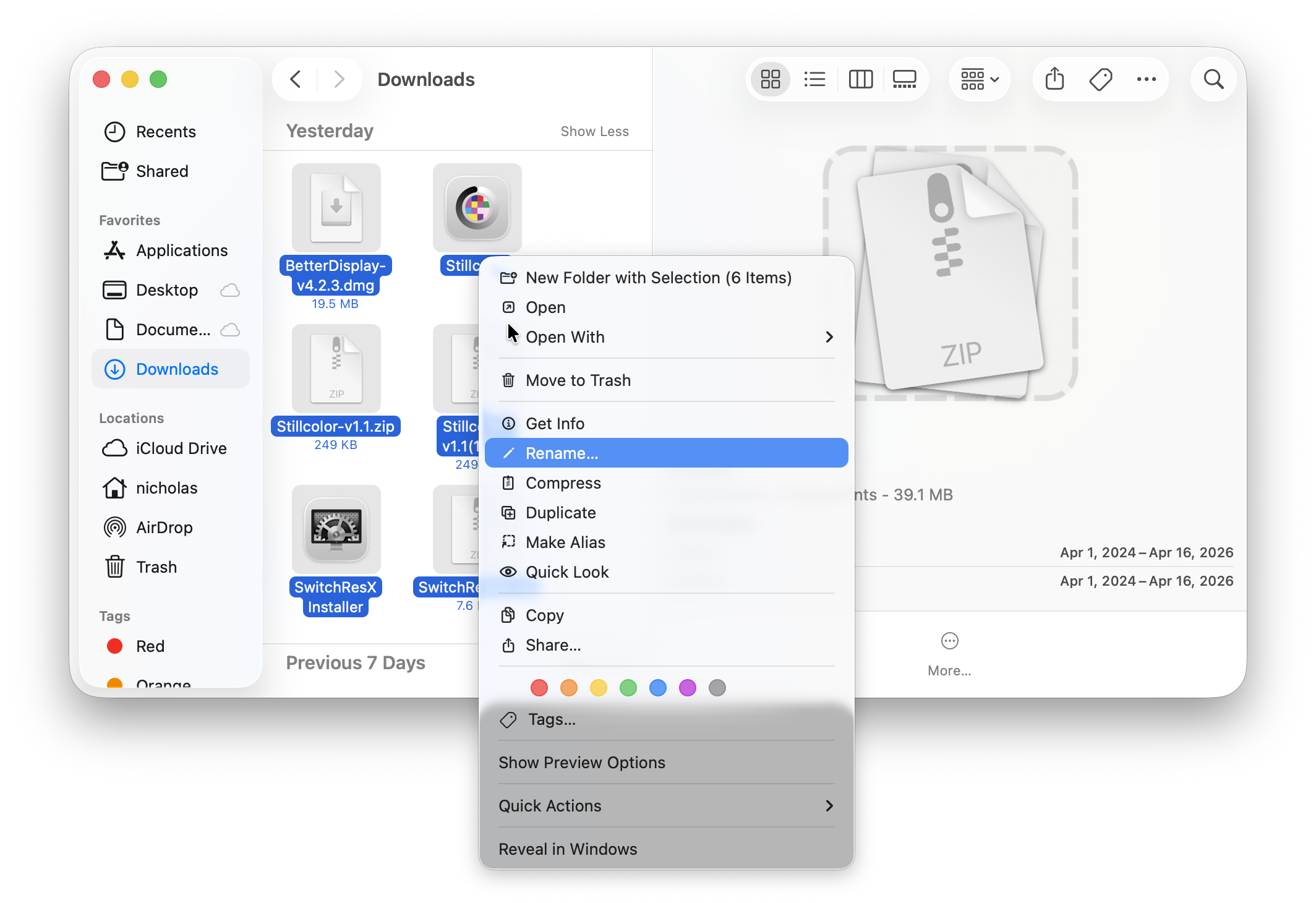
How To Rename Multiple Files in Finder
- Select multiple files
- Right-click → Rename
- Choose:
- Replace text
- Add text
- Format (e.g. name + number)
Undo with Command + Z
How To Manage iCloud Drive Files in Finder
Click iCloud Drive in the sidebar to browse synced files. If Desktop and Documents syncing is enabled, those folders are also stored in iCloud Drive.
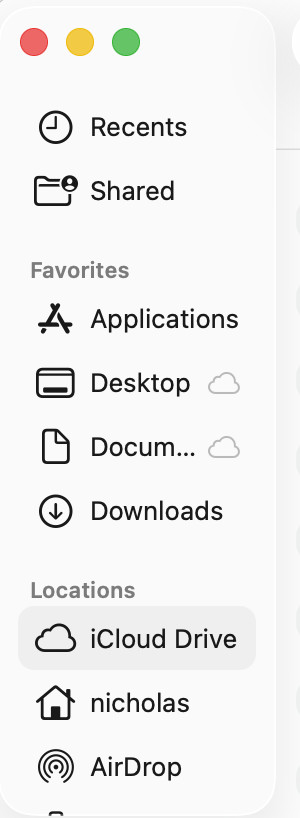
A file listed in Finder may be stored in iCloud without having a complete local copy available for offline use. Status icons beside filenames help show whether items are downloaded or still uploading.
Download a File
Control-click an online-only item and choose Download Now. Once downloaded, it can be used without an internet connection.
Keep Important Files Available Offline
Control-click an iCloud file or folder and choose Keep Downloaded.
This keeps a local copy available even when Optimise Mac Storage would otherwise remove older downloads to make space. It is useful for documents you need while travelling.
Remove a Local Download
Choose Remove Download to free the space used by a downloaded copy while keeping the item in iCloud. If the item is marked Keep Downloaded, turn that option off first.
Moving an iCloud file to the Trash deletes the synced file, including on other devices using the same Apple Account. Moving an item out of iCloud Drive into a local folder can also remove it from iCloud and your other synced devices. To retain both copies, copy it to the local destination instead.
Tabs & Windows in Finder
- New tab → Command + T
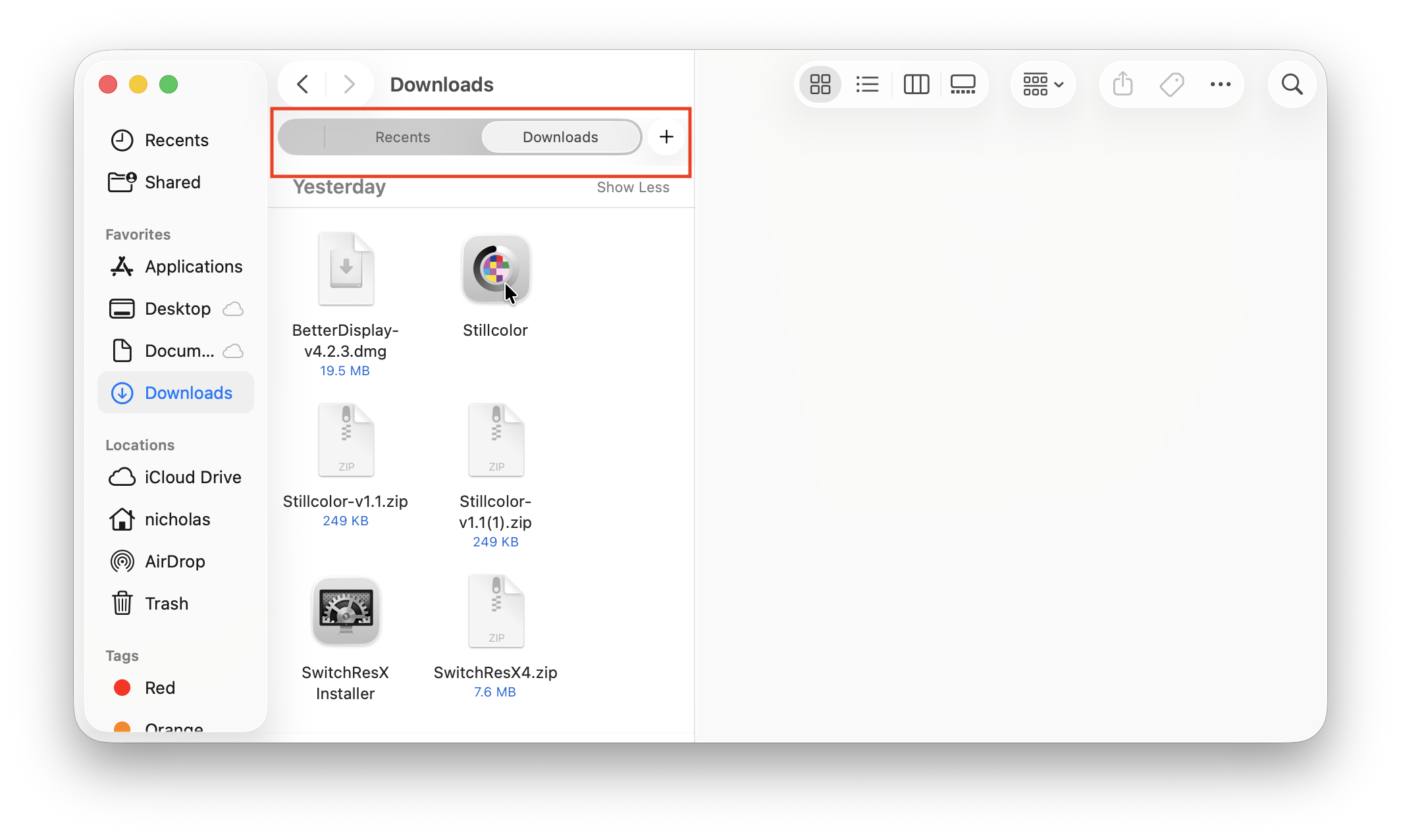
- New window → Command + N
Tabs help keep Finder organized.
Using Tags in Finder
Tags help you organize files across folders.
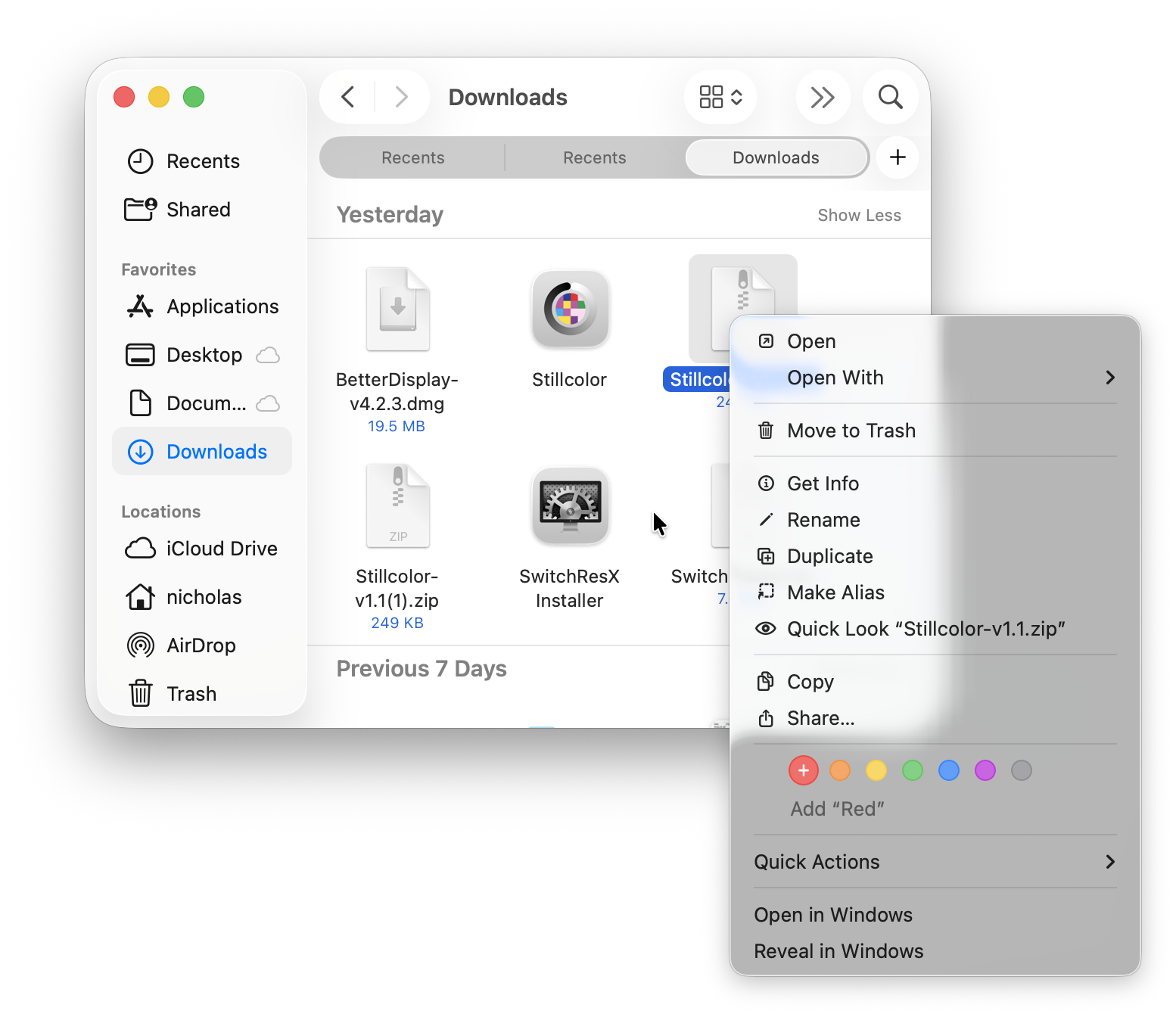
To add a tag:
- Right-click file → select color tag
Introduced with macOS Tahoe 26 and available in Golden Gate, folder customisation also lets you give folders a more recognisable appearance.
Select a folder, open the toolbar’s Action menu and choose Customize Folder. Pick a colour, symbol or emoji.
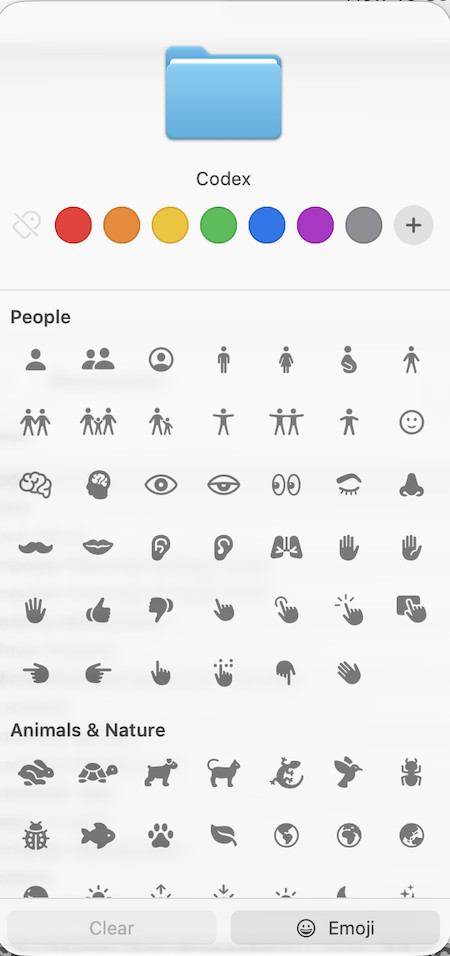
Some standard system folders cannot be customised. Folder appearance and tag behaviour can also interact; Golden Gate includes a Tint folders based on tags option in Finder’s Tags settings.
How To Use Tabs and Multiple Windows
With Finder active, press Command + T for a new tab or Command + N for a new window.
Tabs are useful for keeping several locations together. Separate windows can be more convenient when comparing two folders or dragging files between them.
To combine open Finder windows, choose Window > Merge All Windows.
How To Use “Go To Folder” on Mac
This is a powerful feature many users miss.
Open it:
- Press Command + Shift + G

Examples:
~/Downloads~/Documents~/Library
Great for accessing hidden or deep system folders.
Finder Menu on Mac Explained
The Mac Finder menu includes:
- File → New windows, folders
- Edit → Copy, paste
- View → Change layout
- Go → Jump to locations
- Finder → Settings
Customizing Finder
Customize Sidebar
- Drag folders in or out
Change Finder Settings
Go to:
Finder > Settings
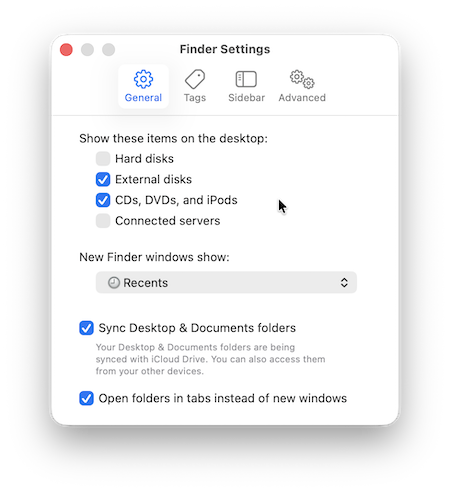
You can:
- Choose default folder
- Show drives or disks
- Customize sidebar
How To Change the Default Finder Folder
- Go to Finder > Settings
- Click General
- Change:
- “New Finder windows show”

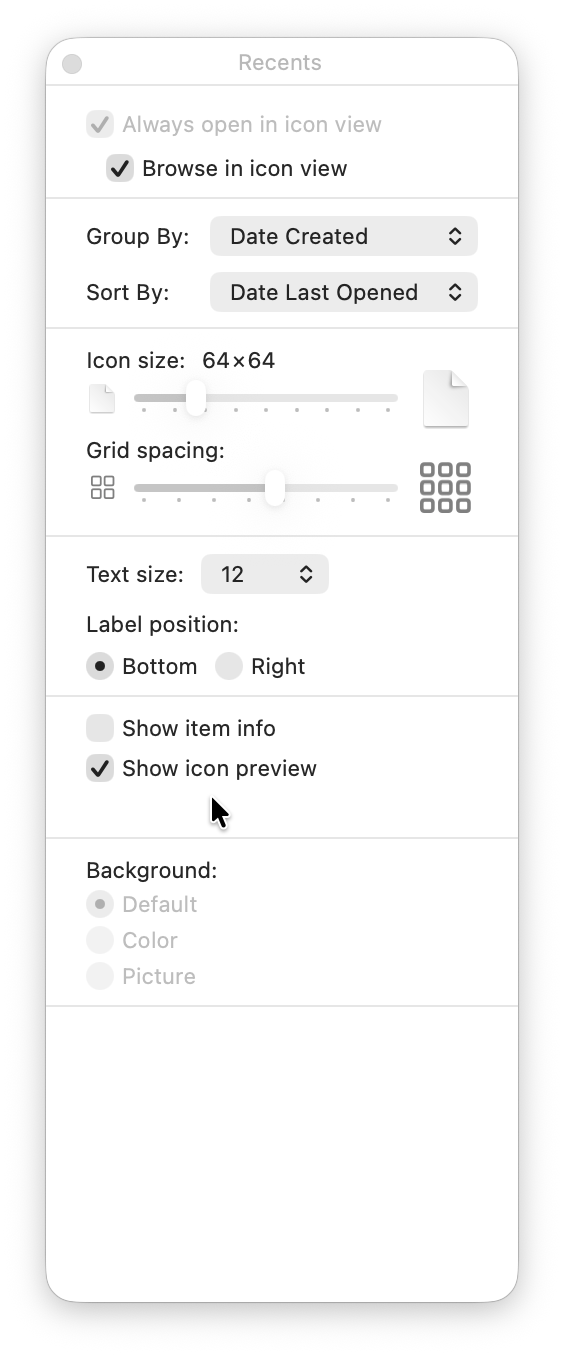
Adjust View Options
Press:
- Command + J
Change:
- Icon size
- Grid spacing
- Layout preferences
How To Organize Files in Finder
Use built-in tools:
- Sort by → Name, Date, Type
- View > Clean Up By → Automatically arrange files
Useful Finder Keyboard Shortcuts
Use these with Finder active unless otherwise stated.
| Action | Shortcut |
|---|---|
| Open a Finder search window from another app | Option + Command + Space |
| New Finder window | Command + N |
| New tab | Command + T |
| Create a folder | Shift + Command + N |
| Search in Finder | Command + F |
| Preview a selected file with Quick Look | Space |
| Rename a selected file | Return |
| Open a selected file | Command + O |
| Copy files | Command + C |
| Paste copies | Command + V |
| Move copied files to the current folder | Option + Command + V |
| Move an item to the Trash | Command + Delete |
| Get Info | Command + I |
| Open Go to Folder | Shift + Command + G |
| Open the home folder | Shift + Command + H |
| Open Downloads | Option + Command + L |
| Open Documents | Shift + Command + O |
| Open Desktop | Shift + Command + D |
| Open iCloud Drive | Shift + Command + I |
| Open Recents | Shift + Command + F |
Fix Finder Not Responding or Slow
If Finder is slow or frozen:
Quick Fixes
- Relaunch Finder
- Restart your Mac
- Free up storage
Advanced Fix
- Open Activity Monitor → Restart Finder
Terminal (Optional)
- Run:
killall Finder
Summary
Learning how to use Finder properly is one of the most important steps in mastering macOS.
Whether you’re trying to:
- Learn how to open Finder Mac
- Understand where Finder is on MacBook
- Fix Mac Finder search not working
…this guide gives you everything you need to use Finder efficiently in 2026.
FAQ
Is Finder the Same as File Explorer on Windows?
Finder is the macOS equivalent of File Explorer. Both let you browse storage and organise files, although their menus, shortcuts and some behaviours differ.
How Do I Open Finder With the Keyboard?
Hold Command and press Tab until Finder is selected, release Command, then press Command + N for a new window. Option + Command + Space opens a Finder search window directly.
Why Does Command + N Open Something Else?
Command + N acts in the currently active application. Switch to Finder first or click an empty area of the desktop, then use the shortcut.
Why Does Return Rename a File Instead of Opening It?
Return starts renaming the selected item in Finder. Double-click the file or press Command + O to open it.
How Do I Cut and Paste Files on a Mac?
Select the files and press Command + C. Open the destination, then press Option + Command + V to move them there.
Why Can I See an iCloud File but Not Open It Offline?
The file may be stored only in iCloud. Connect to the internet and choose Download Now, or use Keep Downloaded for files you want to retain on your Mac.
How Do I Turn Off Finder’s AI Filename Suggestions?
In macOS Golden Gate, open Finder > Settings > General and disable Suggest file names. The feature’s availability depends on Apple Intelligence support and language and region settings.