

Hidden files and folders on a Mac are normally concealed in macOS Finder to prevent important system files from being accidentally modified or deleted. However, there are times when you may need to view them, such as troubleshooting macOS problems, accessing app settings, or recovering hidden files.
In this guide, we’ll show you several ways to reveal hidden files on a Mac, including the quickest keyboard shortcut, Terminal commands, and how to hide them again afterward.
These tips work for all the latest versions of macOS.
Quick Answer
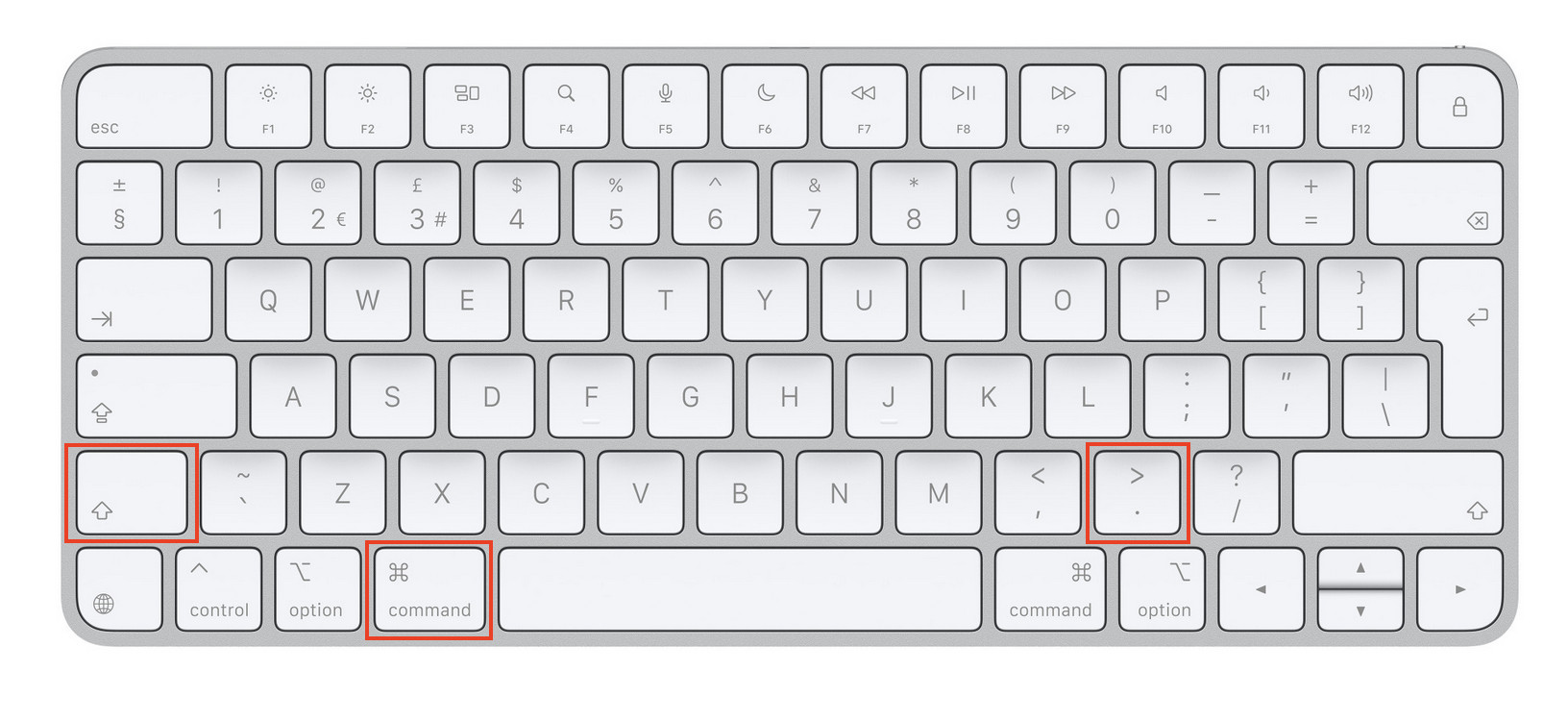
The fastest way to show hidden files in Finder is using the keyboard shortcut:
Command (⌘) + Shift + Period or Full Stop (.)
Press the same shortcut again to hide them.
This works in Finder on the latest versions of macOS, including macOS Tahoe, Sequoia, Sonoma, Ventura and Monterey as you can see in our demo video below:
For more useful tips like this, check out our guide to the best Mac keyboard shortcuts.
| Method | Difficulty | Best For |
|---|---|---|
| Keyboard shortcut | Easy | Most users |
| Terminal | Medium | Permanent visibility |
| Library folder | Easy | Accessing app files |
Method 1: Show Hidden Files Using the Keyboard Shortcut
This is the easiest method.
Step 1: Open Finder
Click the Finder icon in the Dock.
Step 2: Open Any Folder
You can open your Home folder, Documents folder, or Macintosh HD.
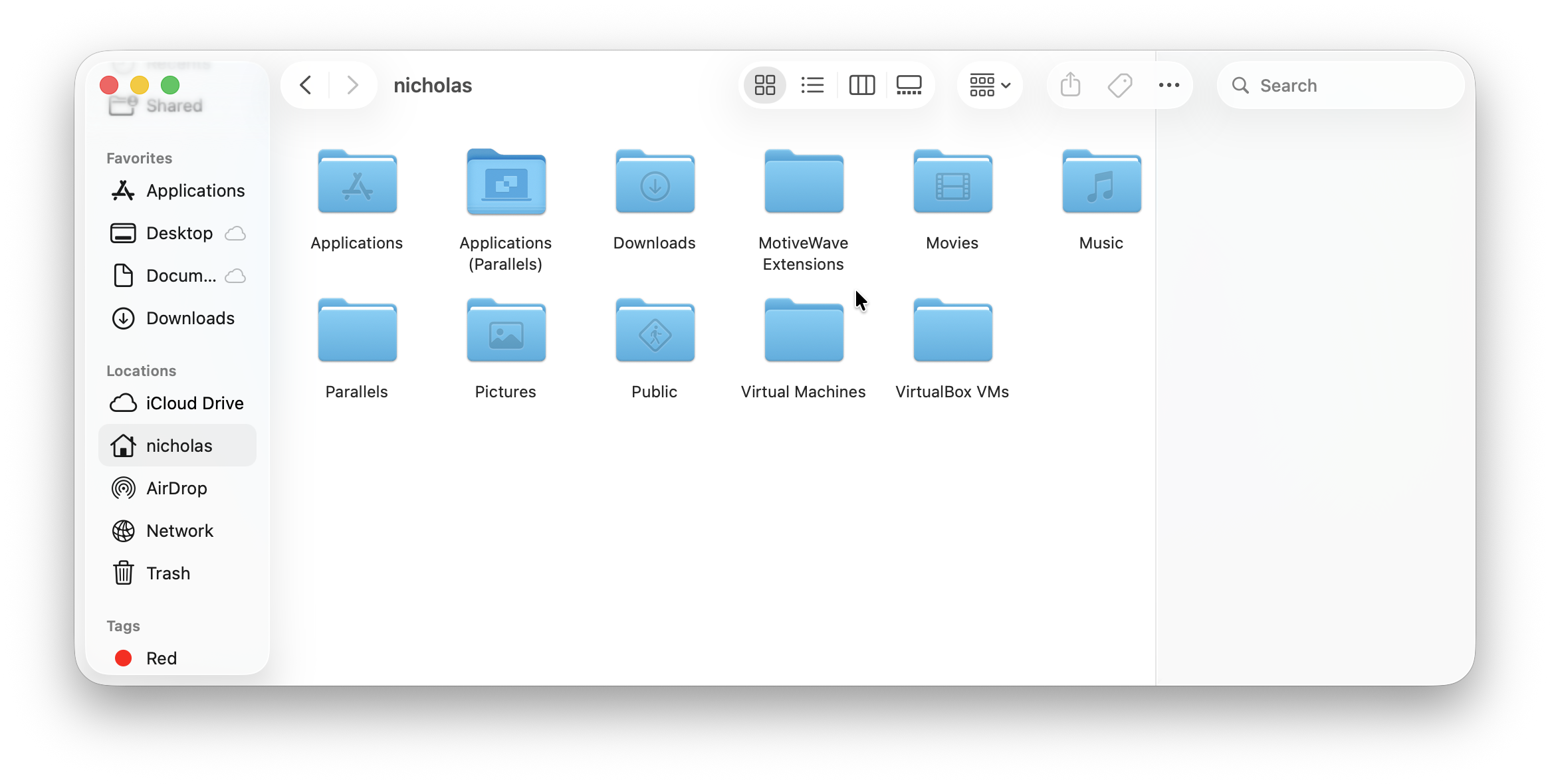
Step 3: Press:
Command (⌘) + Shift + . (Period or Full Stop)
Hidden files and folders will immediately appear as if by magic:
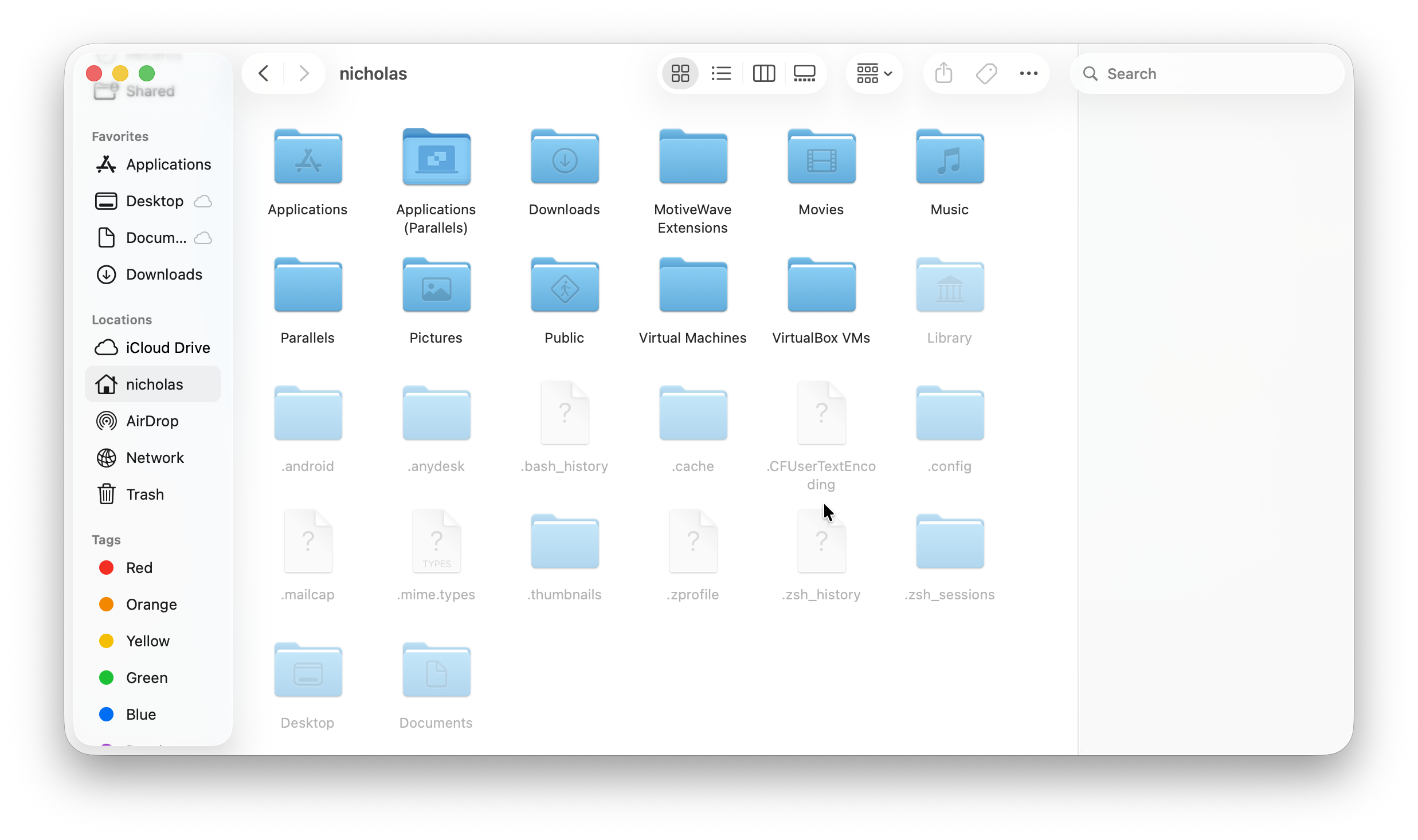
They usually appear:
- Slightly faded or translucent
- With a period or full stop (.) at the beginning of the filename
- Inside Library and system folders
Press the shortcut again to hide them. If no hidden files or folders appear it simply means that there aren’t any in the folder you are inspecting.
Why This Method Is Best
- No Terminal commands required
- Works instantly
- Safe for beginners
- Doesn’t permanently change macOS settings
Method 2: Show Hidden Files Using Terminal
If the keyboard shortcut doesn’t work, you can reveal hidden files using Terminal.
Step 1: Open Terminal
Applications > Utilities > Terminal
Step 2: Enter This Command
defaults write com.apple.finder AppleShowAllFiles TRUE
killall Finder
Finder will restart and hidden files become visible.
To Hide Files Again
Enter:
defaults write com.apple.finder AppleShowAllFiles FALSE
killall Finder
Method 3: Show the Hidden Library Folder
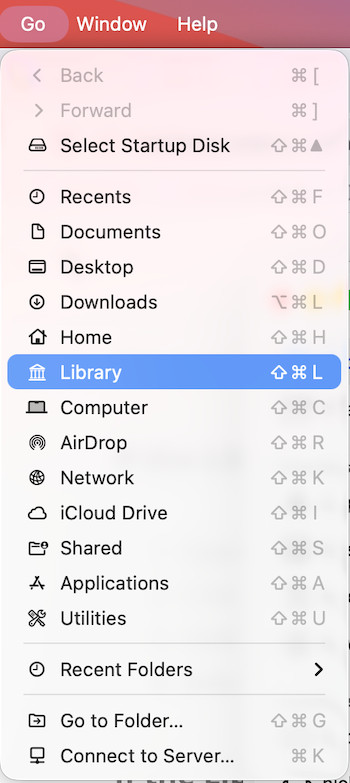
The user Library folder contains application settings, Mail data, caches, and preferences.
If the Library Folder Is Hidden
- Open Finder.
- Click Go in the menu bar.
- Hold down the Option key.
- Select Library.
If the Library Folder Is Already Visible
Open your Home folder by clicking: Finder > Go > Home
If you already see Library there, no further action is needed.
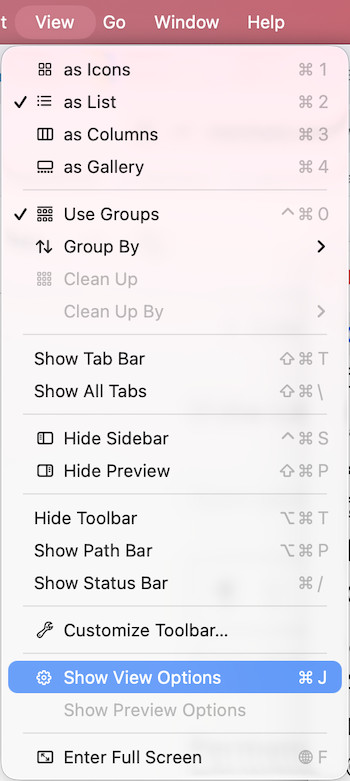
Permanently Show the User Library Folder
Enable Show Library Folder.
Open your Home folder.
Select View > Show View Options.
What Hidden Files Are on a Mac?
Common hidden files include:
- .DS_Store
- .bash_profile
- .zshrc
- .gitignore
- Library folders
- Application support files
- Cache files
- System configuration files
macOS hides these files because changing or deleting them can cause problems running macOS and other software.
Why Would You Need to Show Hidden Files?
You may need to access hidden files to:
- Troubleshoot Mac problems
- Delete application leftovers and fully uninstall apps
- Access configuration files
- Recover hidden documents
- Recover disk space after using a disk analyzer
- Find cached data
- Modify developer files
- Access the Library folder
- View Git project files
How to Hide Files Again
After finishing your work, it’s generally a good idea to hide system files again.
Keyboard Shortcut
Press: Command + Shift + .
Terminal Command
defaults write com.apple.finder AppleShowAllFiles FALSE
killall Finder
Troubleshooting
If The Shortcut Doesn’t Work
Try:
- Click inside a Finder window first.
- Make sure Finder is the active application.
- Restart Finder.
- Restart your Mac.
If Hidden Files Still Don’t Appear
Run the Terminal command method.
Finder Keeps Showing Hidden Files
You may previously have enabled the Terminal setting. To prevent them showing, use the command:
defaults write com.apple.finder AppleShowAllFiles FALSE
killall Finder
Is It Safe to Show Hidden Files?
Yes. Simply viewing hidden files is completely safe.
However, deleting or modifying hidden system files can cause apps or macOS itself to stop working correctly.
Unless you know exactly what a file or folder does, avoid moving or deleting them.
FAQ
What is the shortcut to show hidden files on Mac?
Press: Command + Shift + . (period or full stop)
Press it again to hide them.
Why are files hidden on a Mac?
macOS hides certain files to protect system components and application settings from accidental changes.
Can I permanently show hidden files?
Yes. The Terminal command enables hidden files until you disable the setting.
Does this work on Apple Silicon Macs?
Yes. These methods work on M1, M2, M3, M4 and M5 Macs.
Can hidden files contain viruses?
Malware can sometimes hide files, but most hidden files on your Mac are legitimate system files created by macOS or applications.
How do I show hidden folders in Finder?
Open a Finder window and press:
Command + Shift + .
Hidden folders will appear alongside hidden files.