

AI note-taking on a Mac has moved on quickly. The best tools no longer just turn a recording into a transcript: they can identify speakers, create a useful meeting summary, extract actions and make past conversations searchable.
The biggest change for Mac users is that you no longer need to choose between a browser tab and an intrusive meeting bot. Several of the best options now have a proper Mac app that captures your computer audio locally, while Apple Notes can record and transcribe audio inside a note on compatible Macs.
After comparing Mac support, recording methods, summaries, privacy controls, integrations and free-plan limits, these are the AI note-taking apps I recommend in 2026.
Quick Picks
- Best overall: Notta — the most rounded choice for online meetings, uploaded recordings and multilingual work.
- Best bot-free Mac app: Granola — polished native Mac meeting notes without a bot joining the call.
- Best free option: Fathom — a genuinely useful free plan for Zoom, Google Meet and Microsoft Teams.
- Best built-in option: Apple Notes — audio recording, transcription and optional Apple Intelligence summaries on compatible Macs.
- Best for privacy: MacWhisper — local transcription and meeting recording without uploading sensitive audio.
Prices and plan limits below were checked on 6 October 2026. They change regularly, so use the linked pricing pages before buying.
AI Note-Taking Apps vs Dictation Software
AI note-taking apps and dictation software overlap slightly, but they are designed for different jobs.
Dictation software is for one person speaking into a text field. It is ideal for writing an email, document, message or rough draft faster than typing.
AI note-taking apps are for capturing a conversation: a meeting, interview, lecture, sales call or brainstorming session. They normally add speaker labels, summaries, action items, searchable transcripts and sharing tools.
If you mainly want to speak your own words into Pages, Word, Mail or an AI writing tool, see our guide to the best dictation software for Mac. If you want a dependable record of a multi-person conversation, keep reading.
At a Glance: The Best AI Note-Takers for Mac
| App | Best for | Mac support | How it captures meetings | Free option |
|---|---|---|---|---|
| Notta | All-round transcription and multilingual meetings | Native Mac app, web and mobile | Desktop recording, browser tools or meeting assistant | Yes, but limited |
| Granola | Bot-free notes for regular meetings | Native Mac app | Captures computer audio; no bot joins the call | Yes, with 30-day history |
| Fathom | The strongest free meeting ai note taker | Native Mac app, Zoom app and Chrome extension | Desktop capture or meeting-assistant | Yes |
| Apple Notes | Simple personal notes, lectures and in-person meetings | Built into macOS | Record audio directly in a note | Yes |
| MacWhisper | Offline and private transcription | Native Mac app | Local microphone or app-audio/meeting recording | Yes |
| Otter.ai | Live collaborative meeting notes | Web, iPhone and iPad | Calendar-connected meeting assistant | Yes |
| Fireflies.ai | Sales teams and CRM integrations | Web and desktop tools | Calendar-connected meeting assistant | Yes |
| Krisp | Calls with background noise | Native Mac app | Virtual microphone/speaker and meeting capture |
Which AI Note-Taker Should You Choose?
Choose Notta if you need one app for calls, interviews, recordings and multilingual transcription.
Choose Granola if you spend much of the day in meetings and do not want a bot appearing in front of clients or colleagues.
Choose Fathom if you want to try AI meeting notes without immediately paying a subscription.
Choose Apple Notes if you want a simple, private-feeling way to record a lecture, one-to-one or in-person meeting on a compatible Mac.
Choose MacWhisper if the recording is sensitive, you need offline processing or you prefer a one-time purchase over another monthly subscription.
Choose Fireflies or Otter if your team needs a shared, cloud-based archive of meetings and follow-up actions.
How I Chose These Apps
For this guide, I prioritised tools that solve the actual Mac meeting-notes problem rather than every app that can convert speech to text. The key criteria were:
- A reliable Mac compatible app whether through a native app or a well-designed web app.
- Live or near-live transcription of multi-speaker conversations.
- Useful summaries, decisions and action items rather than a bare transcript.
- A clear distinction between a meeting bot and bot-free computer-audio capture.
- Privacy, retention and export controls that are understandable before you upload sensitive recordings.
- A usable free plan or a paid plan that earns its cost.
No transcription service is perfect. Overlapping speech, poor microphones, names, jargon and strong background noise can still cause errors, so always review an important transcript before circulating it.
1. Notta — Best Overall AI Note-Taker for Mac
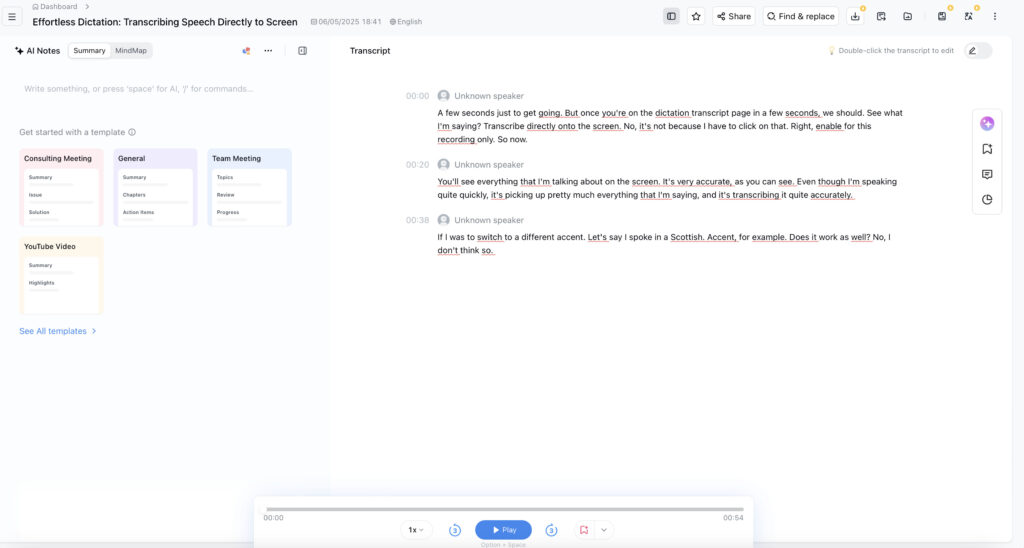
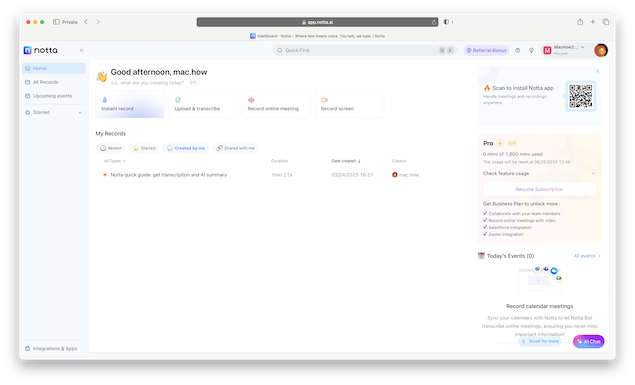
Notta is my best overall pick because it covers more situations than most alternatives without becoming needlessly complicated. It can record or transcribe online meetings, handle uploaded audio and video, create AI summaries, recognise speakers and translate transcripts for multilingual work.
Crucially, the old “web-only” description is no longer accurate. Notta now has a Mac desktop app for Apple silicon and Intel Macs. It can record and transcribe meetings without a bot joining the call, although it still needs an internet connection for transcription and syncing. Its system-audio capture requires macOS Ventura or later.
Notta is particularly strong for consultants, journalists, students and remote workers who move between Zoom, Google Meet, Microsoft Teams, Webex, interviews and voice memos. The transcript editor is straightforward, and you can export or share the result rather than leaving it trapped inside the app.
The compromise is its free plan. It is useful for testing, but its short per-conversation limit means regular users will usually need Pro.
Best for: The most complete Mac transcription and meeting-notes tool, especially where multiple languages matter.
Price: Free plan; Pro is US$13.49 monthly or the equivalent of US$8.17 per month when billed annually.
Mac compatibility: macOS 11 Big Sur or later; Apple silicon and Intel supported.
What I like
- Native Mac app as well as browser, iPhone and Android access.
- Supports live meetings, uploaded media and in-person recordings.
- Strong translation and transcript-management tools.
- AI summaries, speaker identification and exports make it useful after the call, not just during it.
Things to consider
- It is a cloud service, so it is not the right choice for recordings that must stay entirely on your Mac.
- The free tier is restrictive for regular meetings.
- Screen-recording features can have browser-specific requirements.
Read our full Notta review for a closer look at how it works on a Mac.
2. Granola — Best Bot-Free AI Note-Taker for Mac
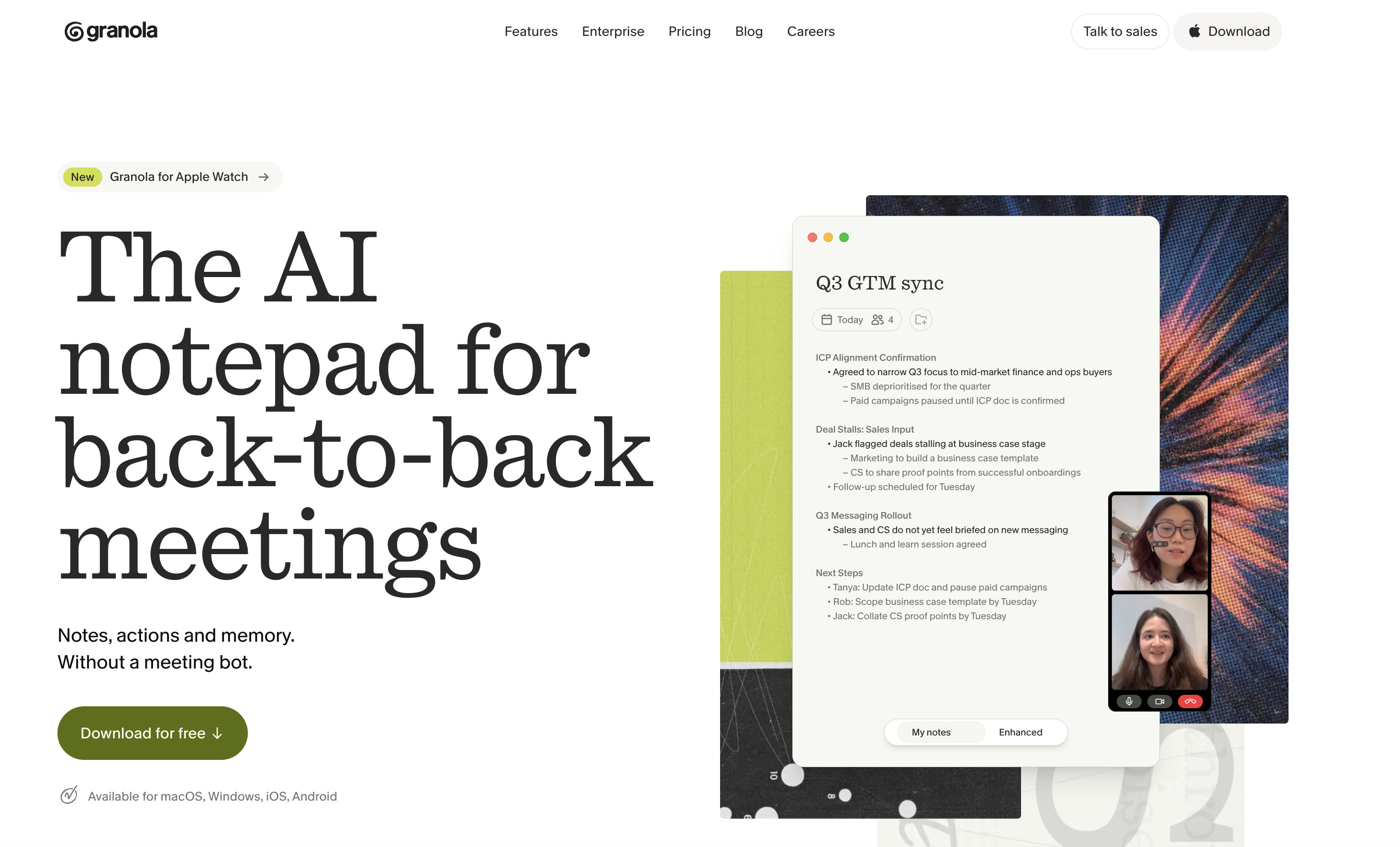
Granola is the most polished choice for people who are in meetings all day and do not want to invite a recording bot into every call. Its Mac app uses your computer audio in the background, so it works with Zoom, Google Meet, Microsoft Teams and other meeting apps without becoming another participant in the room.
What makes Granola different is that it is built around your own notes as well as the transcript. You can type a few prompts, decisions or questions while the meeting is happening, and Granola turns the combined context into a cleaner set of notes, actions and follow-up material afterwards.
It is especially good for product, client-service and leadership meetings where a generic transcript is not enough. Granola can also pull context from earlier notes, which is useful when the same project or client comes up repeatedly.
Granola is not an offline tool. Bot-free capture does not mean that the information never reaches the cloud, so it is still important to review its retention and sharing settings before using it for confidential calls.
Best for: Regular Mac meetings where you want discreet, bot-free capture and better-written notes.
Price: Basic is free with a 30-day history; Business is US$14 per user per month.
Mac compatibility: Native macOS app.
What I like
- No bot joins the call.
- Works across the main meeting platforms instead of being tied to one.
- Excellent for turning rough personal notes into clear actions and follow-ups.
- Free plan includes AI meeting notes rather than only a token trial.
Things to consider
- Free history is limited to 30 days.
- It is designed around meetings, not long-form media-file transcription.
- You still need to tell participants that the meeting is being recorded or transcribed.
3. Fathom — Best Free AI Note-Taker for Mac
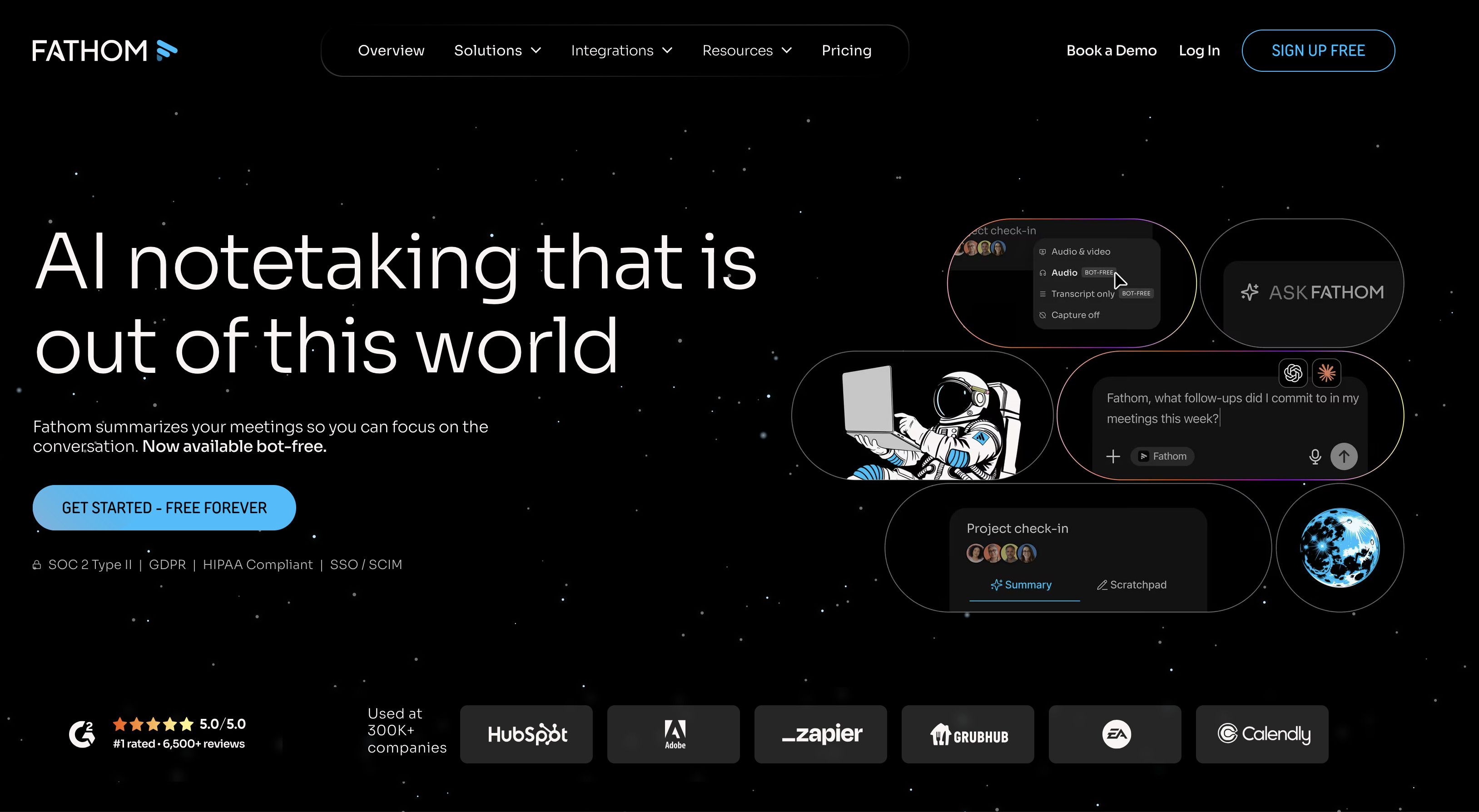
Fathom is the best free starting point for most people who take regular online meetings. Its free plan includes unlimited recordings, storage and transcription, which is unusually generous compared with many competitors.
Fathom supports Zoom, Google Meet and Microsoft Teams and has a proper Mac desktop app. It can create a transcript, highlight key moments and prepare a meeting summary without requiring you to spend the whole call taking notes.
The free plan is most compelling for one-person use. Fathom limits some of its more advanced summary and team features, so paid plans make more sense once you need standardised note templates, richer follow-up work or team-wide visibility.
Fathom has also been moving towards bot-free desktop capture. Check the capture mode in the Mac app before an external meeting so you know whether a meeting assistant will appear to participants.
Best for: Individuals who want useful automatic meeting notes without an immediate subscription.
Price: Free plan available; Premium starts at US$15 per user per month.
Mac compatibility: Native macOS desktop app, plus Zoom and Chrome integrations.
What I like
- Excellent free tier for personal meeting notes.
- Clear summaries and shareable meeting highlights.
- Works with the three most common business video-call platforms.
- Proper Mac app rather than a browser-only workaround.
Things to consider
- Advanced AI summaries are more limited on the free plan.
- Team, CRM and management features are where the paid plans become more compelling.
- Check your organisation’s recording policy before enabling automatic capture.
4. Apple Notes — Best Built-In AI Note-Taker for Mac
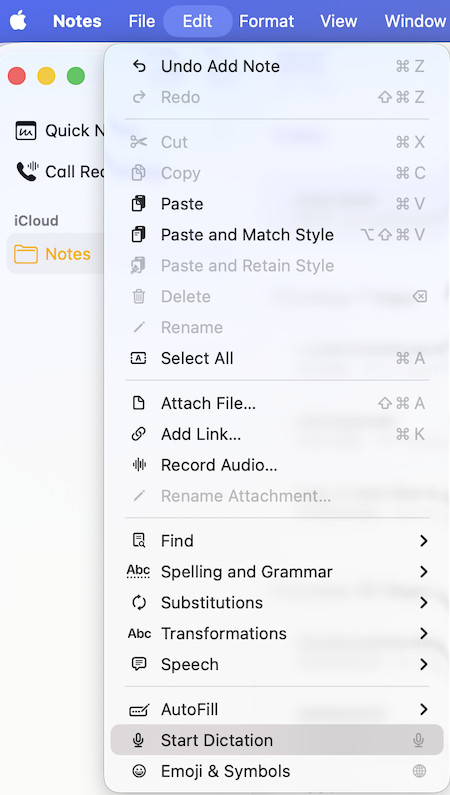
With Apple Notes on compatible Macs, you can record audio directly inside a note, view a live transcript, search it, copy it into the note and save or share the audio afterwards.
If Apple Intelligence is available on your Mac, language and region, Notes can also generate a summary of the recording. That makes it a surprisingly good choice for a lecture, interview, one-to-one, brainstorming session or in-person meeting where you want the recording and your written notes to live together.
It is not a replacement for Notta, Granola or Fathom. Apple Notes does not automatically join a Zoom call, organise a shared meeting archive or provide the same level of speaker labelling, CRM integrations and team projects. It is, however, the easiest no-cost option if your needs are personal and you already work in Apple’s ecosystem.
Audio transcription in Notes requires a Mac with an M1 chip or later and is limited to supported device languages. Apple Intelligence summaries have separate hardware, language and regional availability requirements.
Best for: Free, simple recording and transcription of personal, in-person or lecture notes.
Price: Free with macOS.
Mac compatibility: Audio transcription requires an M1 Mac or later and a supported device language.
What I like
- Already installed on every Mac.
- Keeps audio, transcript, checklists, attachments and written notes together.
- Searchable transcripts and Apple Intelligence summaries on supported setups.
- No subscription and easy iCloud syncing across Apple devices.
Things to consider
- Not an automatic online-meeting assistant.
- No specialised team workspace, CRM support or calendar-based recording.
- Apple Intelligence and transcription availability varies by Mac, language and region.
For quick one-person speech-to-text in any text field, use macOS Dictation instead.
5. MacWhisper — Best Offline and Private AI Note-Taker for Mac
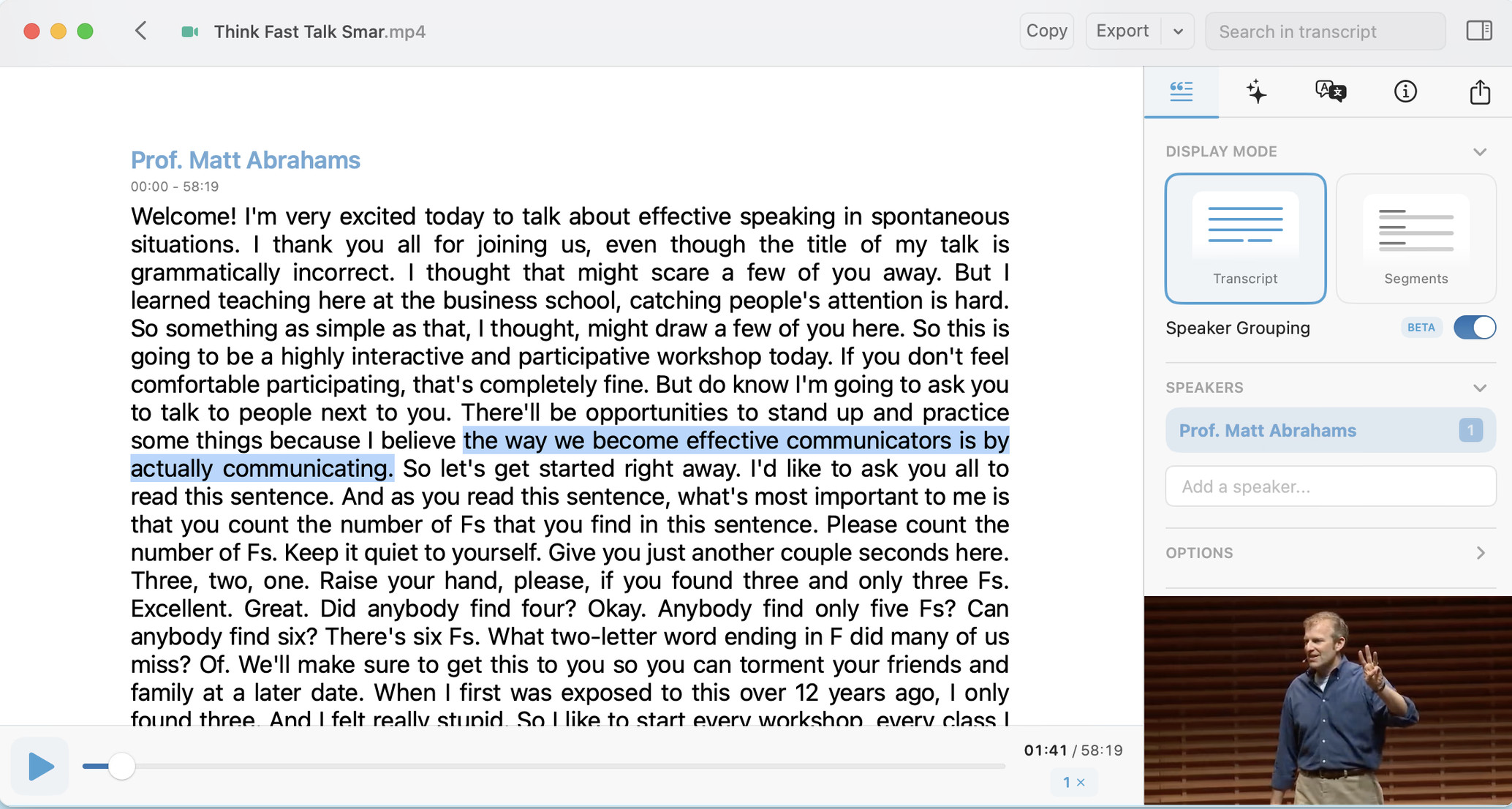
MacWhisper is the strongest option when a recording should stay on your Mac. It can use local speech-recognition models to transcribe audio and video offline, without sending the file to a third-party transcription service.
It is more capable than the old “upload a file and wait” description suggests. The direct Mac app can capture audio from your microphone or another Mac app, detect and record online meetings, identify speakers, create transcripts in more than 100 languages and export the result in useful formats such as TXT, Markdown, PDF, DOCX, SRT and VTT.
For private client calls, research interviews, legal material or any work where cloud recording would be uncomfortable, MacWhisper is a very good fit. Its direct-download Pro version also offers system-wide dictation and optional AI tools, but keep in mind that cloud summaries or external AI providers are no longer fully offline.
Best for: Local transcription, sensitive recordings and people who prefer a one-time purchase.
Price: Free version available; MacWhisper Pro is €64 as a one-time direct-purchase licence.
Mac compatibility: Native macOS app; Apple silicon is strongly preferable for faster local models.
What I like
- Local/offline transcription is excellent for privacy.
- Can capture app audio and record online meetings without a bot.
- One-time Pro licence rather than a mandatory subscription.
- Powerful exports and speaker-recognition options.
Things to consider
- It is a transcription-first tool, not the smoothest shared meeting-workspace experience.
- Larger local models need more memory and work best on Apple silicon.
- AI summaries and chat can involve a cloud or bring-your-own API if you enable them.
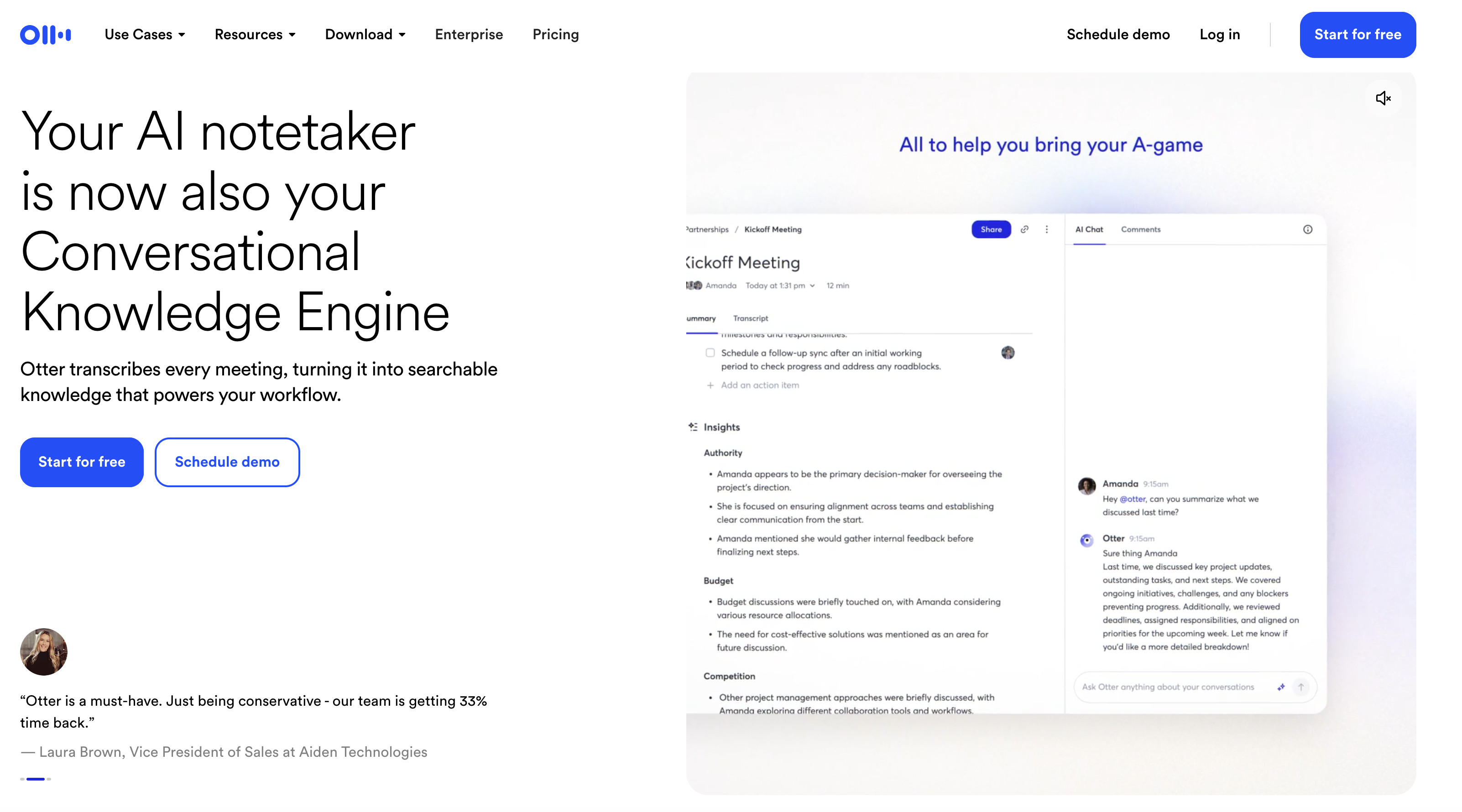
Otter.ai remains a strong choice for teams that want a searchable, collaborative record of their meetings. Its meeting assistant can connect to a Google or Microsoft calendar, join Zoom, Google Meet and Microsoft Teams calls, transcribe them live and generate a summary, action items and searchable notes.
Otter is particularly good when several people need to revisit the same calls. Team members can comment on the live transcript, assign actions and search across prior conversations. Slide capture can also be useful in presentation-heavy meetings.
The downside for Mac users is that Otter is primarily a web, iPhone and iPad experience rather than a full native Mac application. Its automated assistant can also be more visible to external participants than a bot-free app such as Granola.
Best for: Shared live transcripts and a searchable archive for a collaborative team.
Price: Basic free plan includes 300 transcription minutes a month; Pro is US$8.33 per month when billed annually.
Mac compatibility: Web app on macOS, plus iPhone and iPad apps.
What I like
- Mature live-transcription and team-collaboration
- Calendar connections and automatic meeting joining.
- Search, comments, actions and slide capture make long-running projects easier to revisit.
- Free plan is useful for light use.
Things to consider
- Not a native Mac desktop app.
- Cloud-based and usually bot-led, so it is less discreet than a local tool
- Free plan keeps only 25 recent meetings.
7. Fireflies.ai — Best for Sales Teams and CRMs
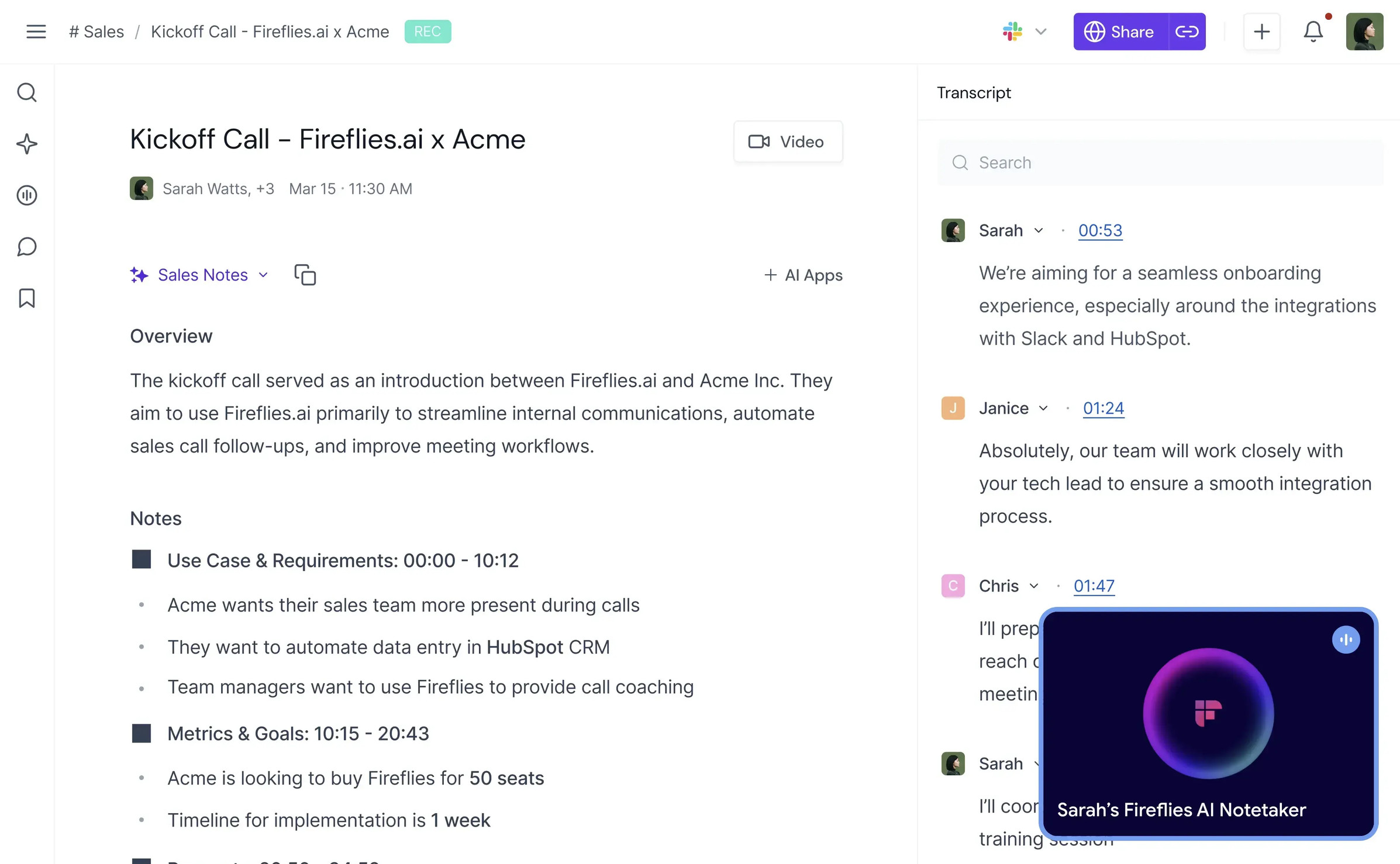
Fireflies.ai is best suited to teams that want their meeting notes to feed a wider sales, support or customer-success process. Its meeting assistant can join calls, create transcripts and recaps, and connect with tools such as HubSpot, Salesforce, Slack and other business systems.
Fireflies is less elegant than Granola for a single Mac user, but it is more useful when the goal is to make meetings operational: log calls against accounts, share highlights, find customer objections, build follow-up tasks and create repeatable team summaries.
The main pricing caveat is important. Standard transcription and meeting recaps are included with plans, but some newer AI features use separate, usage-based AI credits. Check the current price and credit allowance for the exact features your team expects to use before committing.
Best for: Sales, support and customer-success teams that need CRM integrations.
Price: Free plan available; paid plans and AI-credit costs vary by feature and usage.
Mac compatibility: Web app and desktop tools for Mac users.
What I like
- Strong CRM and business-tool integrations.
- Useful shared search, soundbites and follow-up tasks
- Handles live meetings and uploaded files.
- Better suited to a team archive than a personal notes app.
Things to consider
- Less simple than the best personal options.
- A visible meeting assistant will not suit every external call.
- AI-credit pricing makes it important to check the total cost, not just the base plan.
8. Krisp — Best AI Note-Taker for Noisy Calls
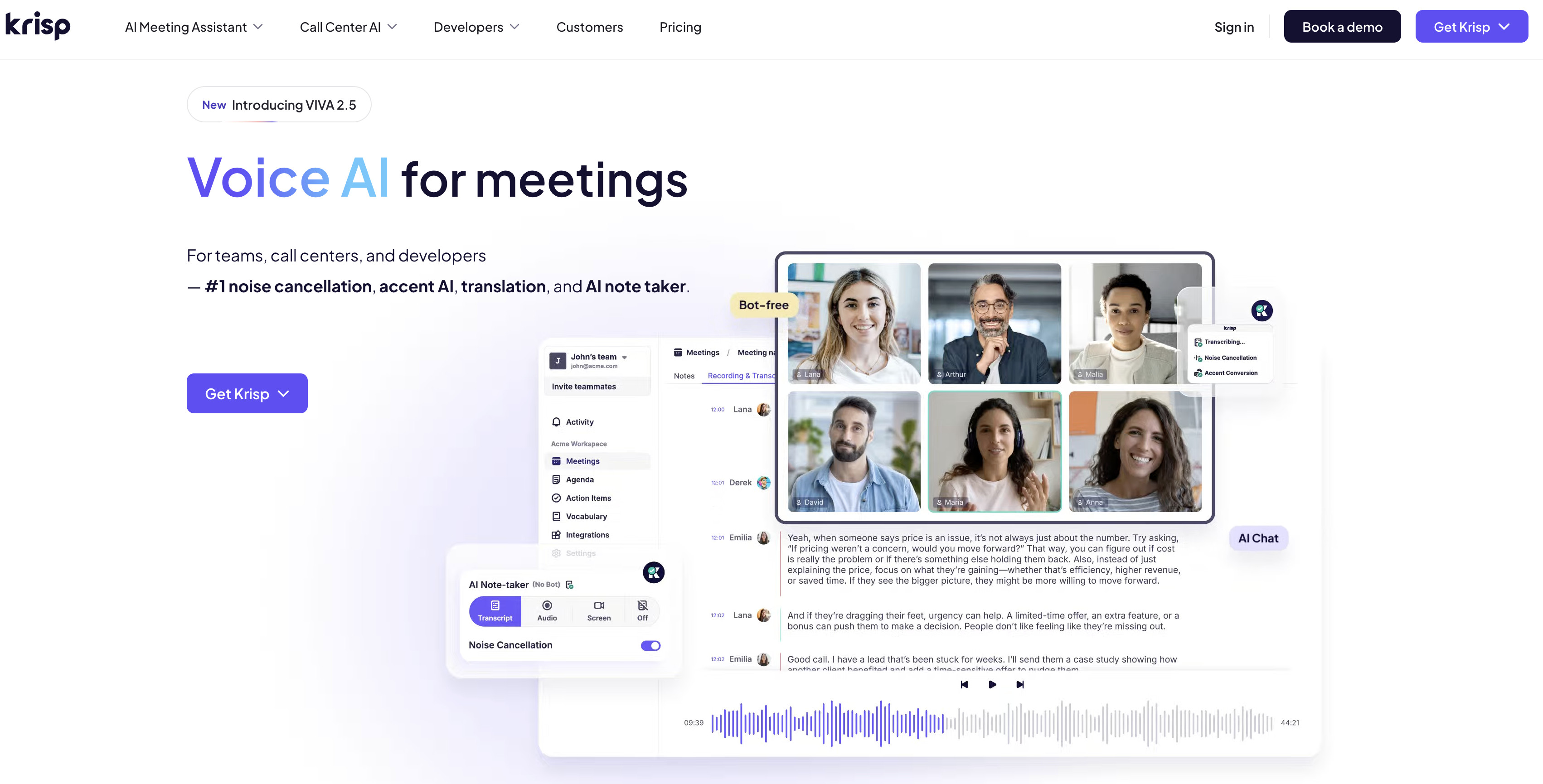
Krisp started as a noise-cancellation app, and that is still the reason it stands out. Its Mac app creates Krisp microphone and speaker options inside your video-call software, helping to reduce background noise while also recording, transcribing and summarising the conversation.
That combination is valuable if your home office is noisy, you take calls from changing locations or you regularly struggle with poor audio from other participants. It works with major call apps rather than tying you to a particular browser or conferencing service.
Krisp offers more than transcription, including notes, action items, sharing and support for in-person meetings. But it is more of a communications utility than a dedicated meeting-knowledge platform, so it is not my first pick if you mainly need a deeply searchable team archive.
Best for: Clearer calls and usable meeting notes when background noise is a problem.
Price: Free plan available; paid Meeting AI plans are available for heavier use.
Mac compatibility: Native Mac app.
What I like
- Noise cancellation and AI notes in one Mac app.
- Works with major meeting services without a browser extension.
- Can transcribe and summarise meetings as they happen.
- A good option for hybrid workers and busy home offices.
Things to consider
- Notes can still miss nuance when people talk over each other.
- It is a cloud-connected service, so review data settings for sensitive calls.
- Less focused on CRM and long-term team knowledge than Fireflies or Otter.
Also Worth Considering: Tactiq
Tactiq is still worth a look if nearly all of your calls take place in Chrome or Edge. It can use a meeting platform’s captions to create a transcript, then turn that transcript into summaries, action items and answers with AI.
Tactiq now also offers a Mac app, but its biggest strength is still browser-led. It is a useful alternative when you want a bot-free capture method for Google Meet, Zoom or Teams in a supported browser, but it is less flexible than Granola, Notta or Krisp for Mac compatiblity.
Privacy, Recording Consent and AI Meeting Notes
An AI note-taker can make a meeting easier to remember, but it does not remove your responsibility to handle the recording properly.
- Tell participants when a meeting is being recorded or transcribed, especially when an assistant or bot will join the call.
- Follow your employer’s policy and any client, school or professional confidentiality rules.
- Check where a service stores audio and transcripts, how long it keeps them and whether it uses data to improve its models.
- Use local transcription such as MacWhisper when recordings are especially sensitive.
- Review important transcripts and summaries before acting on them; an AI-generated action item is not a substitute for a confirmed decision.
FAQ
What is the best free AI note-taking app for Mac?
Fathom is the best free choice for regular online meetings because its free plan includes unlimited recordings, storage and transcription. Apple Notes is the best fully built-in free option for recording and transcribing a lecture, interview or in-person conversation on a compatible Mac.
Do I need a meeting bot to take AI notes on a Mac?
No. Granola, Notta Desktop, Fathom’s desktop capture mode, MacWhisper and Krisp can all provide bot-free or local-app capture options. Always check the app’s current capture mode and make sure participants know the meeting is being recorded.
Can Apple Notes transcribe meetings on a Mac?
Apple Notes can record audio inside a note and show a live transcript on M1 Macs or later in supported device languages. It is excellent for in-person recording and simple personal notes, but it does not automatically join online meetings or offer the same shared meeting features as a specialist app.
What is the best private AI note-taker for Mac?
MacWhisper is the best choice when you want local transcription and do not want to upload sensitive files to a cloud service. Make sure you use local models and do not enable an optional cloud AI provider if keeping the material offline is essential.
Are AI note-taking apps the same as dictation apps?
No. Dictation apps turn one person’s voice into written text as they speak. AI note-taking apps are built to capture a conversation, identify speakers, create summaries and surface actions. For writing by voice, see our guide to the best dictation software for Mac.
Conclusion
For most Mac users, Notta is the best all-round choice because it handles online calls, uploaded recordings and multilingual work in one place.
Choose Granola if a polished, bot-free Mac app matters most. Choose Fathom if you want the best free way to try AI meeting notes. And choose MacWhisper when privacy and local transcription are more important than automation and team collaboration.
The right choice ultimately depends on how you meet: bot-led versus bot-free, personal notes versus team tools, and cloud convenience versus local control.