

If you’re new to Mac or switching from Windows, one of the first things you’ll need to understand is the Command key (⌘).
It’s the most important key on a Mac keyboard, used for almost all the most useful Mac keyboard shortcuts including for copying and pasting, searching for files in Finder and taking screenshots.
In this guide, you’ll learn:
- Where to find the Command key
- What it looks like
- How to use it (with real examples)
- What to do if you’re using a Windows keyboard
What Is the Command Key on a Mac?
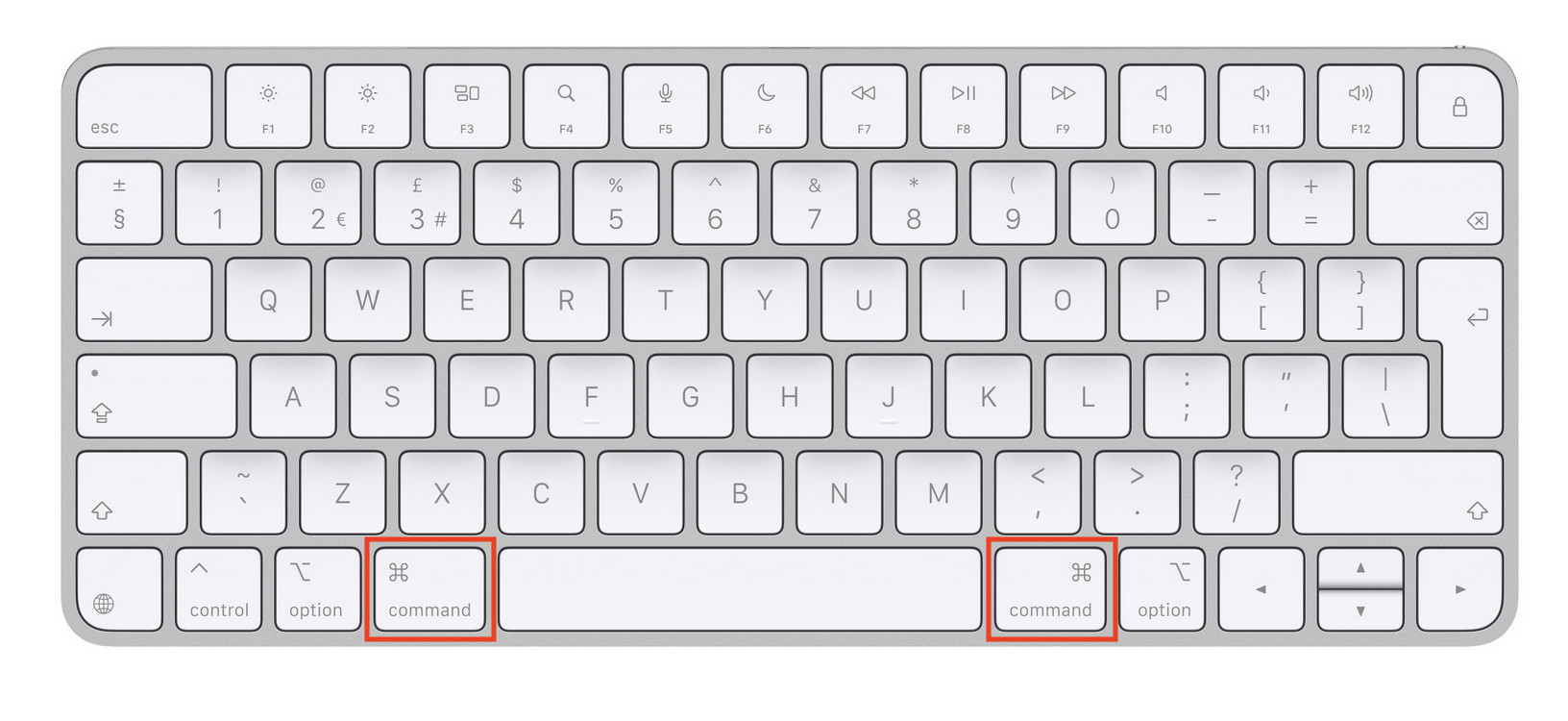
The Command key (⌘) is a modifier key, meaning it works in combination with other keys to perform actions quickly.
Think of it as:
- The Mac equivalent of the Ctrl key on Windows
- The shortcut key behind almost every action in macOS
For example:
- ⌘ + C → Copy
- ⌘ + V → Paste
- ⌘ + S → Save
Instead of clicking through menus, you can perform tasks instantly using Command key shortcuts.
Where Is the Command Key on a Mac Keyboard?
The Command key is always located next to the space bar.
Standard Mac keyboard layout:
- One Command key on the left of the space bar
- One Command key on the right of the space bar
This makes it easy to use shortcuts with either hand.
Tip:
Most users primarily use the left Command key, especially for shortcuts like copy/paste.
What Does the Command Key Look Like?
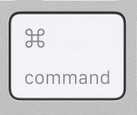
The Command key has a unique symbol:
⌘
You may also see it labeled as:
- Cmd
- Command
Fun fact:
The ⌘ symbol (called the “looped square”) was chosen by Apple designer Susan Kare and is inspired by Nordic symbols used to mark places of interest.
How To Use the Command Key (Step-by-Step)
Using the Command key is simple:
- Press and hold the Command (⌘) key
- Press another key
- Release both keys
Example:
- Hold ⌘
- Press C
- Release → Text is copied
This is how all Mac shortcuts work.
Most Useful Command Key Shortcuts
There are literally tons of useful Mac keyboard shortcuts but here are a few essential ones every Mac user should know:
Everyday shortcuts
- ⌘ + C → Copy
- ⌘ + V → Paste
- ⌘ + X → Cut
- ⌘ + Z → Undo
File and system shortcuts
- ⌘ + S → Save
- ⌘ + P → Print
- ⌘ + Q → Quit app
- ⌘ + W → Close window
Navigation shortcuts
- ⌘ + Tab → Switch between apps
- ⌘ + Space → Open Spotlight search
These shortcuts replace many mouse clicks and can dramatically speed up repetitive tasks.
Command Key vs Control Key (Important Difference)
This is where many beginners get confused.
On Windows:
- Ctrl = main shortcut key
On Mac:
- Command (⌘) = main shortcut key
- Control (Ctrl) = secondary functions
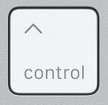
For example:
- Windows: Ctrl + C
- Mac: ⌘ + C
The Control key on Mac is mostly used for things like right-clicking (Ctrl + click) and other less important actions.
Where Is the Command Key on a Windows Keyboard?
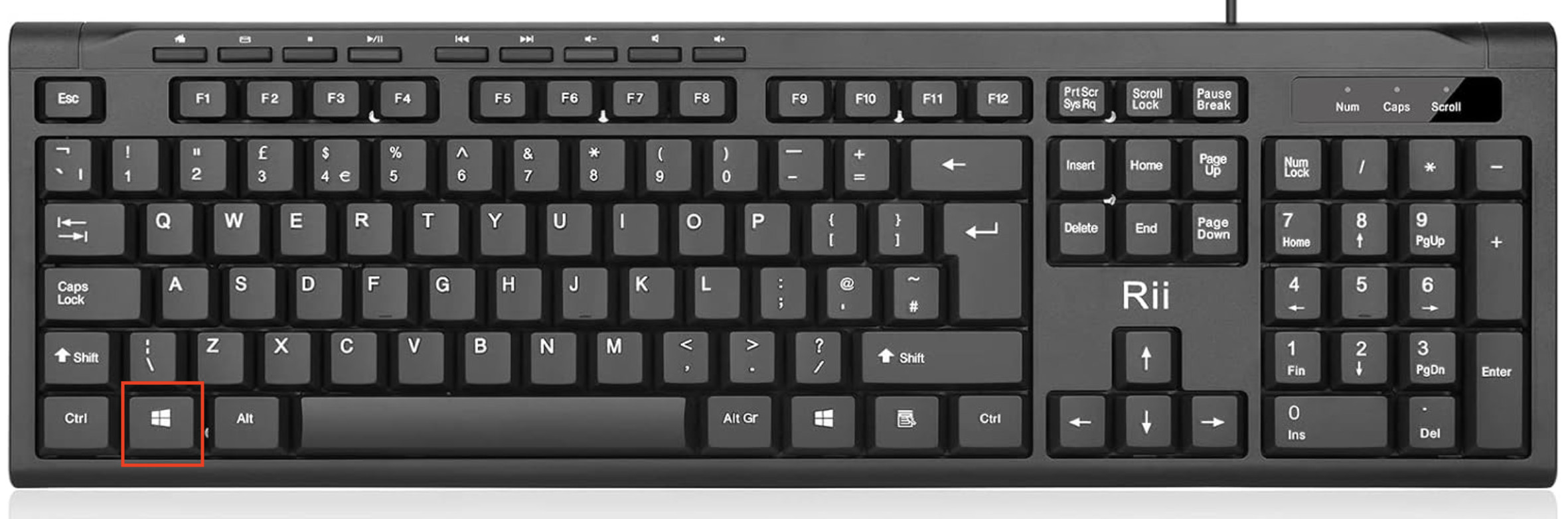
If you’re using a Windows keyboard with a Mac, the Command key is usually:
The Windows key (⊞)
Quick mapping:
- Windows key → Command
- Alt key → Option
This is crucial if you’re using third-party keyboards or gaming keyboards with macOS.
Why the Command Key Is So Important
The Command key is central to how macOS works because:
- It powers nearly all keyboard shortcuts
- It appears in menus to show available actions (⌘ symbols next to options)
- It helps you work faster without using a mouse
Once you learn it, using a Mac becomes significantly easier.
Common Problems (And Fixes)
1. Command key not working
- Check System Settings > Keyboard Shortcuts > Modifier Keys
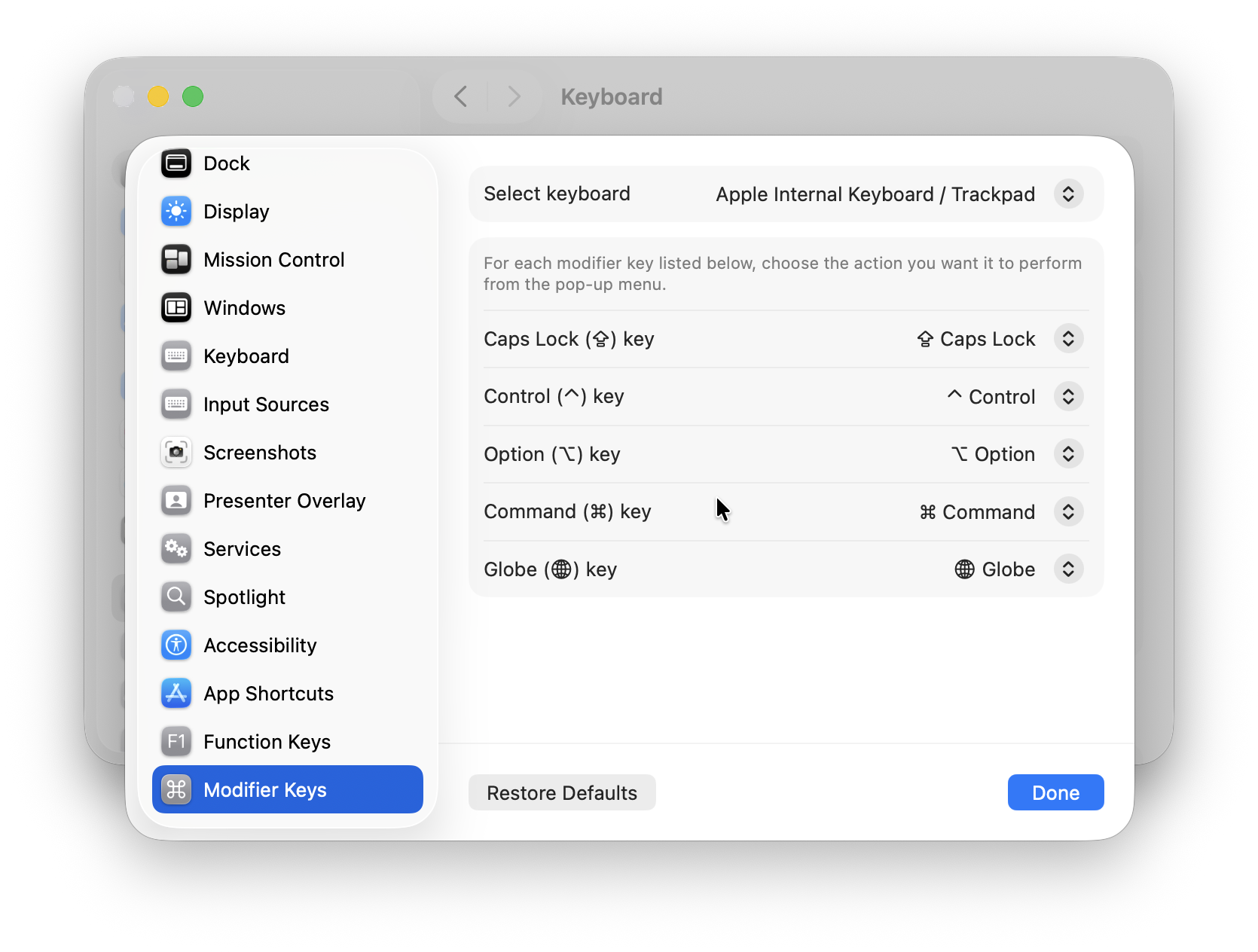
- Try another keyboard
2. Wrong key acting as Command
- Happens with Windows keyboards
- Fix via macOS keyboard settings
3. Shortcuts not working
- Make sure you’re pressing Command, not Control
Tips for Using the Command Key
- Learn keyboard shortcuts gradually (start with copy/paste/save)
- Use ⌘ + Tab constantly to switch apps
- Watch for the ⌘ symbol in menus – it shows available shortcuts
- Combine with Shift or Option for advanced shortcuts
FAQs
Is Command the same as Ctrl on Mac?
No. Command replaces Ctrl for shortcuts, but the Control key still exists and has different uses.
Why are there two Command keys?
So you can use shortcuts comfortably with either hand.
What does ⌘ mean?
It’s the Command symbol used across macOS to indicate shortcuts.
Summary
The Command key (⌘) is essential on a Mac. Once you know where it is and how to use it, you’ll:
- Work faster
- Use fewer mouse clicks
- Navigate macOS more efficiently
If you’re switching from Windows, just remember: Command = Ctrl (but better integrated into macOS).