

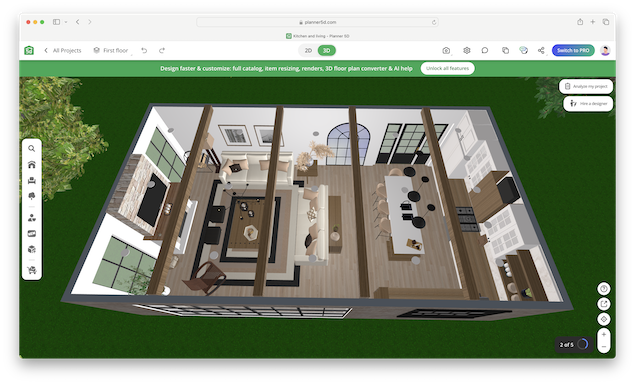
If you want to bring your 2D floor plan design to life then converting it into 3D is a great way to do so.
There are various ways to turn a 2D PDF floor plan into a 3D model but the best method depends on exactly what you’re doing it for such as for visualization, VR walkthroughs, CAD, or quoting contractors.
Below I’ll walk you through some practical ways to do it from beginner to pro, show the AI/automatic options, and give you some troubleshooting and export tips.
Table of Contents
Quick Overview
These are the best ways of turning a 2D floor plan PDF into 3D depending on ability and needs:
- Fast & simple (beginners): Use an home design software that automatically recognizes walls from a PDF (I recommend something like Planner 5D, Houzz Pro, Cedreo, or Floor Plan Creator). These are all great for visualizing and furniture layout.
- Accurate & flexible (intermediate): Import the PDF as an image into a tool like SketchUp or Sweet Home 3D scale it, trace walls, then extrude and add details.
- Professional / BIM (advanced): Recreate the plan in Revit or AutoCAD for Mac or use LiDAR capable apps like MagicPlan on-site to capture exact measurements, then generate 3D BIM geometry for construction. You can also then use rendering software such as Blender and 3DS Max for high-end renders.
Before You Start: Prepare The PDF
There’s a few useful tips that will help you get the best results from your PDF:
- Check format & quality. If the floor plan is vector PDF (from CAD), you can often export DXF/DWG straight from the source. If it’s a scanned raster PDF, export to a high-resolution PNG/JPEG (300–600 dpi) to preserve details.
- Clean the image. Crop out margins, remove notes or stamps that may distort recognition, and rotate so the plan’s north/axis is level. Simple image editors such Preview or graphic design software like Photoshop, GIMP are fine for this.
- Get one confirmed horizontal measurement. If the PDF lacks scale, you must supply a real-world dimension (e.g., door width = 0.9 m) to scale the plan accurately when imported. This will save a lot of hassle later, trust me.
Here’s a closer look at all the ways you can turn a 2D floor plan PDF into 3D.
Option 1: Automatic AI/Upload converters (fastest)
When to use: You want a usable 3D model quickly for visualization or rough planning.
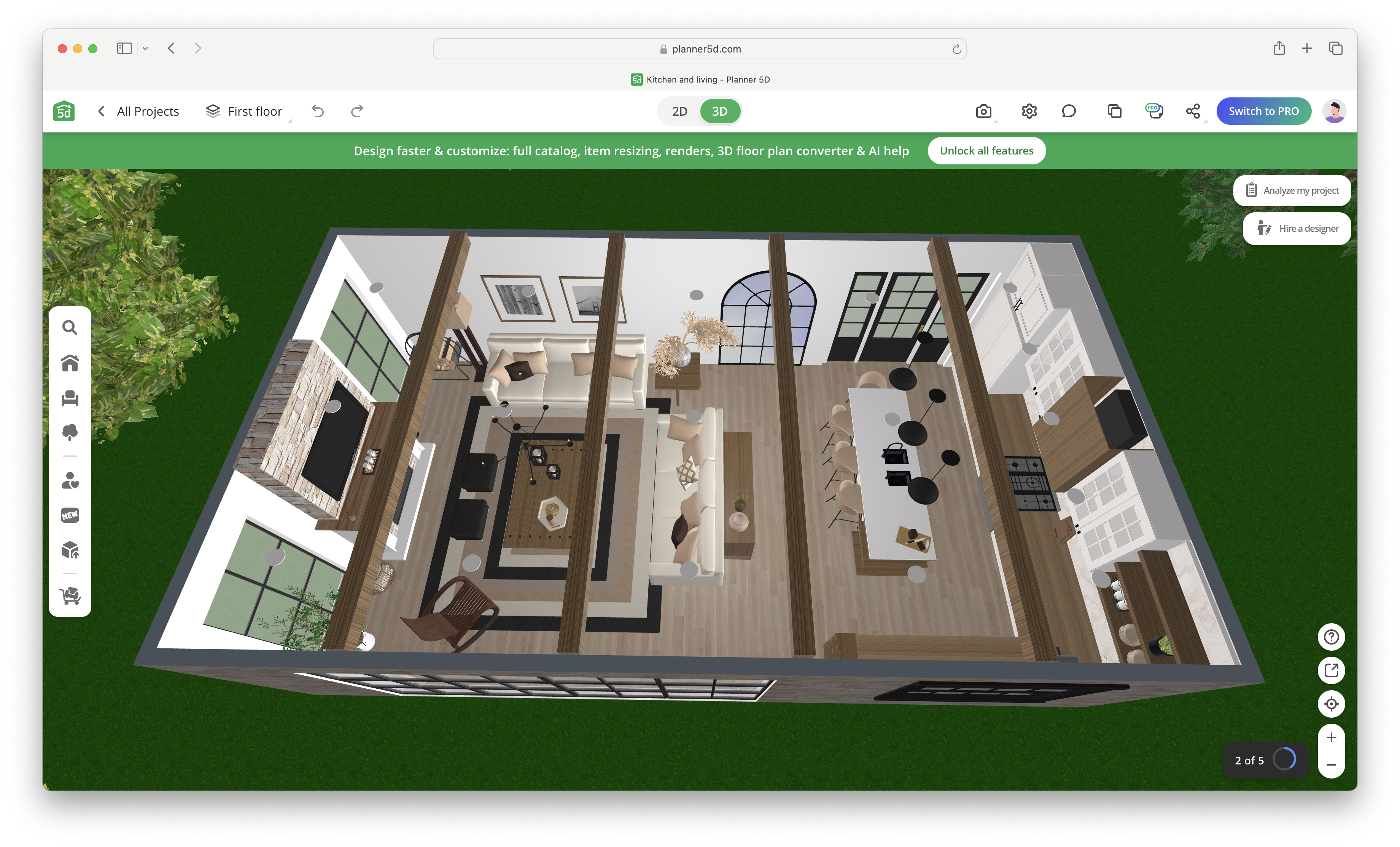
Tools: I used Planner 5D (Upload a Plan / AI), and similar services let you upload JPG/PNG/PDF and they parse walls then create 3D. Many provide editable 3D scenes after recognition.
Steps

- Sign up for Planner 5D and click on New Project > Upload Floor Plan.
- Upload your PDF or exported image. Ensure the file meets the file size and single-floor requirements (it can only handle one floor at a time).
- Supply scale information where requested (at least one known measurement).
- Planner 5D will then scan it – you’ll usually get an automated wall/room skeleton in minutes.
- Clean things up: fix missed walls, correct room types, add missing doors/windows, set floor/ceiling heights.
- Switch to 3D view, add furniture and materials, then export screenshots, 3D tours, or model files as supported.
Pros:
- Very fast and easy to do
- Good for marketing
Cons:
- May not recognize faint lines, odd symbols or multi-floor plans
- Less control/precision than manual tracing
- Usually requires a subscription or premium plan or purchasing credits with most services

Option 2: Manual import & trace
When to use: You want more control/accuracy and plan to refine the model (or export to contractors).
Best tools: SketchUp (free/Pro), Sweet Home 3D (free) and Blender for final visualization. SketchUp is the best option – import the plan as an image, scale, trace with walls, then extrude. There’s an excellent video tutorial made by SketchUp on exactly how to do this which I recommend watching below:
SketchUp step-by-step (concise)
- Export the PDF page as PNG/JPEG (high res).
- In SketchUp go to:
File > Import> choose the image and import as an image. - Scale the image: Use the Tape Measure tool: click two points that correspond to a known dimension, type the true length, press Enter. SketchUp will ask to resize the image. Confirm.
- Trace walls: Use Line/Rectangle tools to draw wall centerlines or wall outlines over the image. Keep everything on a single layer or tag to start.
- Make walls 3D: Use Push/Pull to give wall thickness and height (e.g., 2.7 m). Add windows/doors by cutting openings or using components.
- Add floors/ceilings/furniture: Import or place components from the 3D Warehouse.
- Export: For better visuals, use SketchUp’s renderer extensions or export to formats (.dae, .fbx, .obj) for import into Blender or other renderers.
Extra Tips:
- Work on a copy of the imported image. Lock that reference layer so you don’t accidentally move it.
- Use groups/components for walls, doors and furniture to keep the model tidy.
- If the PDF was vector CAD and you can export DWG/DXF, import that into SketchUp Pro for direct geometry import (this is more precise than just importing a PDF).
Option 3: Mobile capture + LiDAR (best for reality capture)

When to use: You have access to the space and want accurate, measured models quickly.
Tools: MagicPlan, RoomScan, and other apps that use LiDAR (modern iPhones/iPads) or camera-based scanning. These apps can produce floor plans, point clouds and 3D models you can export to CAD/BIM.
The ways to use this are generally the same for most LiDAR apps:
- Use the mobile app to scan rooms (follow the app prompts). For LiDAR devices you’ll get better accuracy.
- The app generates measured floor plans and often a basic 3D model.
- You can then export to formats like .obj, .fbx, .dxf or IFC for refinement in 3D modelling software like Revit/SketchUp/Blender.
- Merge and align with your PDF plan if needed.
Note: These give better real-world accuracy than guessing dimensions from a PDF, but you’ll need to correct occlusions and furniture occluding walls.
Option 4: Pro/BIM Apps (AutoCAD, Revit, Vector PDFs)

When to use: You need professional construction-level accuracy, schedules, or a BIM model and are comfortable using CAD software.
How it works:
- If you have a vector PDF (exported from CAD), convert it to DWG/DXF using CAD software or a converter. Import into Revit/AutoCAD and set up levels/walls.
- If your PDF is raster only, import it as a background and trace polylines precisely using snapping and known dimensions.
- In Revit, create walls from lines, set wall types (thicknesses, materials), place windows/doors and generate schedules.
Advantage of BIM: Revit/BIM allows you to extract area, volumes, and generate construction documentation, not just pretty renders making it suitable for real-life construction blueprints.
Export Formats
The format you export your 3D design will also depend on which software and method you use.
- For realtime viewers / web: .glTF/.glb, .fbx, or hosted tours (Planner 5D/RoomSketcher).
- For 3D editors / renders: .obj, .fbx, Collada (.dae).
- For CAD/BIM handoff: DWG/DXF, IFC, or Revit (.rvt) exports (if supported).
- For contractors / prints: Export scaled elevation or dimensioned plan PDFs directly from your modelling tool.
Common Problems
There are various glitches and errors you may encounter when using some of these methods. Some of the most common I’ve encountered.
- Auto converter misses walls or misinterprets text. Clean the image before upload (erase notes), use high contrast, and supply a scale.
- Imported image is the wrong scale. Use one known measurement (door, room length) to re-scale after import.
- Thin / broken lines confuse AI. Increase image contrast or trace manually in SketchUp.
- Multiple floors in one PDF page. Split pages; most automatic tools expect single-floor images.
Conclusion
- Automatic conversion works very well for simple, clean plans (single-floor, clear lines). For complex or old scanned plans, you’ll likely need a mix of auto-recognition and manual correction.
- Accuracy depends on input. If you need pinpoint accuracy for build work, consider on-site measurement (LiDAR) or redrawing in CAD/BIM rather than relying solely on an automatic converter.
- Try multiple tools. Upload the same plan to one AI converter and also import into SketchUp – compare results and choose the best starting point.