

Apple’s Target Display Mode (TDM) was a clever feature that let certain older iMacs double as external monitors for another Mac, including MacBooks.
While this feature is now discontinued, if you own a compatible non-Retina Intel iMac, you can still make use of it in with the right setup.
Here’s everything you need to know – including which models work, what cables you need, macOS requirements, and important limitations.
Contents
- iMac Models That Support Target Display Mode
- Why Apple Removed Target Display Mode
- macOS & Hardware Requirements For Target Display Mode
- How to Set Up Target Display Mode with an iMac
- Setting up Multiple iMacs With Target Display Mode
- Troubleshooting
- Limitations of Using an iMac as a Monitor
- Alternatives To Target Display Mode in 2025
- Summary
iMac Models That Support Target Display Mode
Only specific Intel-based iMacs manufactured between 2009 and 2014 support Target Display Mode:
| iMac Model | Compatible Source Macs | Connection Type |
|---|---|---|
| Late 2009 – Mid 2010 27-inch iMac | Any Mac with Mini DisplayPort, Thunderbolt 1, or Thunderbolt 2 | Mini DisplayPort cable |
| Mid 2011 – Mid 2014 iMac (21.5″ & 27″) | Any Mac with Thunderbolt 1 or Thunderbolt 2 | Thunderbolt cable |
⚠️ Not Supported:
- Retina iMacs (Late 2014 onward) – Apple removed TDM when Retina displays arrived because their 4K/5K resolution exceeded Thunderbolt 2’s bandwidth.
- Apple Silicon Macs (M1/M2/M3/M4) – These cannot use Target Display Mode, even with adapters. For alternative methods compatible with M-series Macs check here.
- Intel Macs with Thunderbolt 3/USB-C only – Technically possible if macOS and cabling allow, but results are unstable and we really don’t recommend trying this.
Why Apple Removed Target Display Mode
When the Retina iMacs launched in late 2014, their higher resolutions required more bandwidth than Thunderbolt 2 could handle. Rather than redesigning the ports or compromising quality, Apple quietly retired Target Display Mode – much to the disappointment of iMac owners.
macOS & Hardware Requirements For Target Display Mode
To successfully use Target Display Mode in 2025:
- iMac OS version: macOS High Sierra (10.13) or earlier for best compatibility. Some users report success up to Catalina (10.15), but Big Sur or later will not work on either Mac.
- Source Mac OS version: macOS Catalina (10.15) or earlier. Later versions of macOS removed software support for TDM.
- Cables:
- Mini DisplayPort to Mini DisplayPort (for 2009–2010 iMacs).
- Thunderbolt 2 cable (for 2011–2014 iMacs).
- If your source Mac only has Thunderbolt 3/USB-C, you’ll also need an Apple Thunderbolt 3-to-Thunderbolt 2 adapter.
Tip: Thunderbolt is preferable to Mini DisplayPort if both are available as its faster and more stable.
How to Set Up Target Display Mode with an iMac
Once you’ve confirmed compatibility, follow these steps:
- Prepare both Macs
- Make sure both the iMac (display) and the source Mac are powered on.
- Log into both Macs. Some users recommend leaving the iMac on the login screen if detection fails.
- Connect the cable
- Use the appropriate Mini DisplayPort or Thunderbolt cable to connect the two Macs directly. Avoid hubs or adapters other than Apple’s Thunderbolt adapters.
- Activate Target Display Mode
- On the iMac keyboard, press Command (⌘) + F2.
- If nothing happens and your keyboard is set to use function keys as standard keys, use Command (⌘) + Fn + F2 instead.
- Adjust sound and brightness
- Sound: On the source Mac, go to Apple Menu → System Preferences → Sound → Output, and select the iMac to use its speakers.
- Brightness: Use the brightness keys on the source Mac’s keyboard to control the iMac’s display brightness.
- Exit Target Display Mode
- Press Command (⌘) + F2 again or simply disconnect the cable.
Setting up Multiple iMacs With Target Display Mode
You can use more than one iMac with Target Display Mode but it does put a lot of demand on your Mac’s GPU and older Intel Macs will definitely struggle pushing it beyond one iMac.
Unfortunately, you cannot daisy chain multiple iMacs to use them as external displays via Target Display Mode (TDM) as it requires a direct connection and TDM will not “forward” a connection to another Mac.
To connect multiple iMac displays using TDM:
- Connect Each iMac Individually
Plug a separate Thunderbolt/Mini DisplayPort cable from the source Mac to each iMac. - Turn on All iMacs
Boot them into macOS and make sure they are at the login screen or logged in. - Activate Target Display Mode on Each iMac
On each iMac, press Command + F2 (or Command + Fn + F2 if function keys are set as standard).
The source Mac’s desktop should extend to each iMac. - Arrange Displays
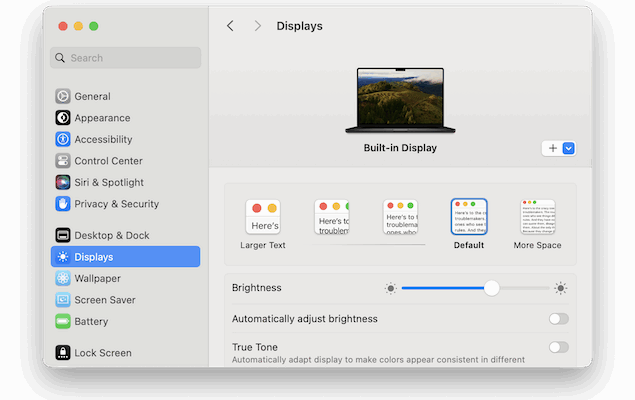
On the source Mac, go to System Preferences > Displays > Arrangement to position the screens correctly.
Troubleshooting
If the iMac doesn’t display the source Mac’s screen:
- Restart both Macs.
- Disconnect and reconnect the cable.
- Try logging out of the iMac and leaving it at the login screen.
- Confirm that both Macs meet the OS version restrictions.
- Use genuine Apple Thunderbolt cables or adapters – cheap third-party cables often fail.
Limitations of Using an iMac as a Monitor
While convenient, Target Display Mode has several drawbacks compared to a dedicated external display:
- No Camera or Ports: The iMac’s iSight/FaceTime camera, USB ports, and SD card slot are not accessible to the source Mac.
- High Power Usage: The iMac continues to run macOS in the background, consuming more electricity and generating more heat than a normal external monitor.
- No Windows Support: TDM does not work with Boot Camp or any Mac running Windows.
- Resolution Limits: There’s No 5K support. Even supported iMacs top out at their native resolution (typically 2560×1440 for 27″ pre-Retina models). You are limited to the iMac’s native resolution and scaling options are minimal.
- No Speaker Sharing: The iMac’s speakers (unless manually selected in Sound preferences) aren’t shared with the source Mac.
Alternatives To Target Display Mode in 2025
Since Target Display Mode is officially discontinued and limited to aging hardware, you’re better-off using an alternative way to use an iMac as an external display with a Mac or MacBook.
In a nutshell, your options are:
- AirPlay in macOS: Available if you have an iMac from 2019 with a compatible version of macOS
- Luna Display or Duet Display: Third-party apps/hardware to repurpose an iMac or iPad as a secondary screen over USB or Wi-Fi.
- OpenCore Legacy Patcher: Adapts modern older Intel Macs to support Target Display Mode but can be tricky to get working.
- Replace your iMac Controller Board: Very technical and requires opening-up your iMac.
- Sell and Replace: Selling an old iMac and buying a dedicated 5K monitor may be more practical for long-term use.
Summary
If you own a 2009–2014 Intel iMac and a pre-2019 Intel Mac running Catalina or earlier, you can still use Target Display Mode to turn the iMac into a monitor in 2025. But it requires the right cables, older macOS versions, and patience with quirks.
For newer Macs or Retina iMacs, modern third party software/hardware solutions like Luna Display, Duet Display or simply buying a dedicated eternal external monitor are far better options.