

Switching from Windows to Mac is a bit like moving into a brand new apartment – initially you’re thrilled by the modern design, the smooth finishes, and all the cool new features.
macOS just feels so slick: it’s stable, fast, visually clean, and the integration with iPhones, iPads, and even the Apple Watch beats anything that Windows, Chromebooks and Android can offer.
But looking back, Windows wasn’t all that bad.
For years, I relied on it for its flexibility, customizability, and sheer familiarity. And after a while, I actually found myself missing certain features.
It could be a simple feature, like a snappy Start Menu or a powerful right-click context menu, or it could be a niche app that doesn’t have a Mac version meaning I have no choice but to run Windows on my Mac instead.
Nowadays macOS has matured to the point where almost anything you miss from Windows can be replaced, or even improved, through clever apps, tweaks, or cloud-based solutions.
Here I’ll take you through what I still miss about Windows, and exactly what I use instead to replace it on my still, beloved Mac.
1. The Start Menu & Quick App Launch → Alfred + Spotlight
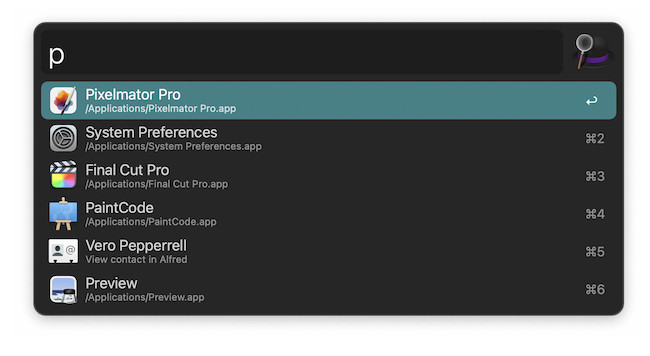
The Windows Start Menu is deceptively useful and one of its most underrated features in my opinion. It’s not just for launching apps; it’s a central point for files, web searches, and shortcuts. On a Mac, Spotlight is fast and built-in, but to get the full Start Menu experience, I use Alfred.
Alfred lets you:
- Search apps, files, and the web instantly.
- Launch custom workflows to automate repetitive tasks.
- Integrate with scripts or system commands.
Over time, I found Alfred become a productivity upgrade. You can perform calculations, control music, and even search Amazon or Wikipedia without opening a browser. For someone used to the usefulness of Windows’ Start Menu, this is a tool I now can’t live without.
2. Snipping Tool → CleanShot X & Native Shortcuts
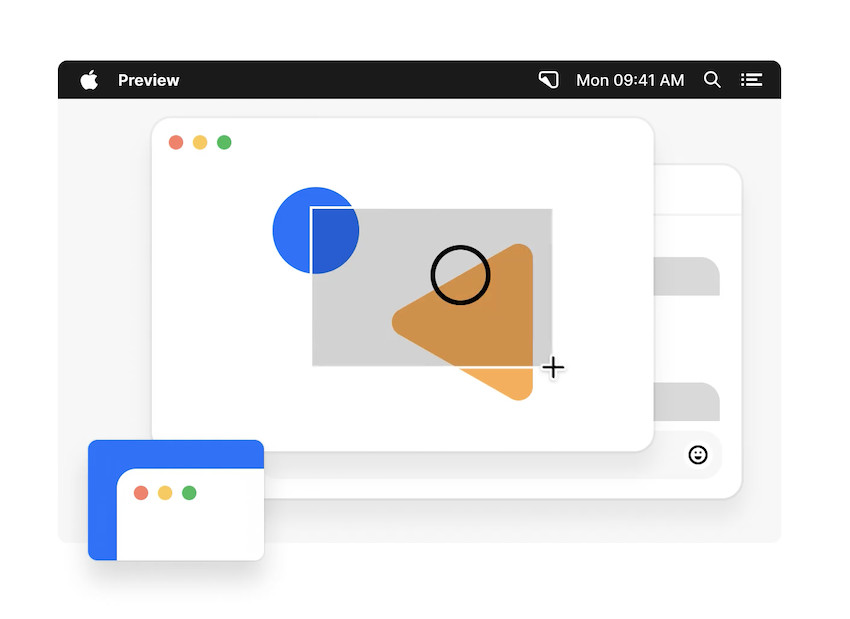
Windows’ Snipping Tool is simple, intuitive, and always reliable to take screenshots. On Macs, macOS screenshots work fine, but it lacks features for power users. CleanShot X fixes that.
With CleanShot X you can:
- Capture full, partial, or scrolling window screenshots.
- Record screen video with audio.
- Annotate, blur sensitive info, and instantly share links.
It’s a tool I didn’t know I needed until I tried it. Even if you stick to native shortcuts (Cmd + Shift + 4), adding annotation tools like Preview or Markup can help replicate the same functionality.
There are of course many other ways to take screenshots on a Mac but CleanShot X is my favorite.
3. Taskbar → uBar
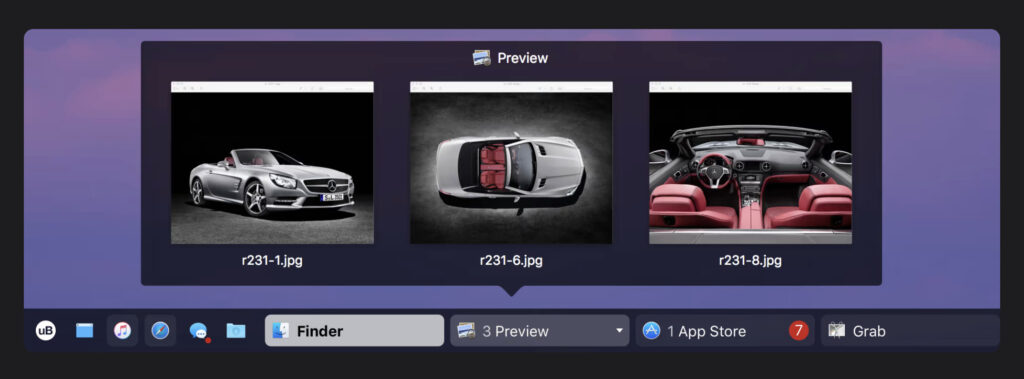
The Dock is fine, but it’s not the same as the Windows Taskbar. With uBar, I can:
- Pin frequently used apps like I did on Windows.
- Track open windows with live thumbnails.
- Customize the bar’s appearance and placement.
It maintains my familiar way of working while still feeling sleek and modern on a Mac. For anyone missing the simplicity of Windows’ Taskbar, uBar is an excellent alternative.
4. File Explorer → Path Finder
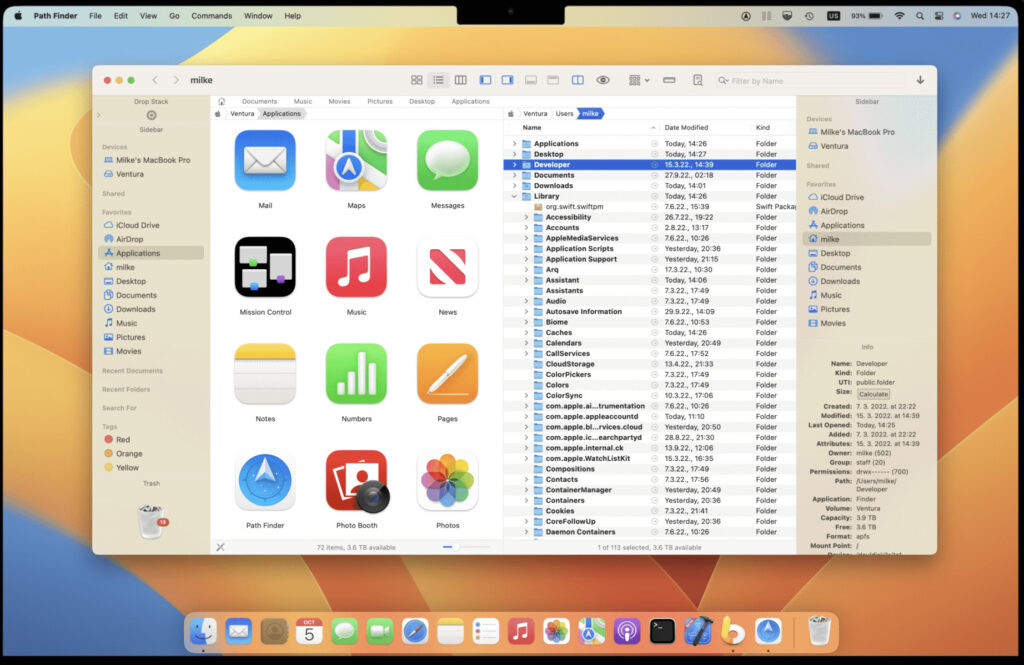
Finder is elegant, but Windows File Explorer always felt more powerful to me for managing complex files. Path Finder enhances macOS file management with:
- Dual-pane navigation for easy drag-and-drop.
- Advanced search filters and file previews.
- Batch rename, folder syncing, and customizable views.
For heavy file managers or creatives handling dozens of files at once, Path Finder makes macOS feel just as efficient as Windows File Explorer.
5. Right-Click Menus & Custom Actions → BetterTouchTool
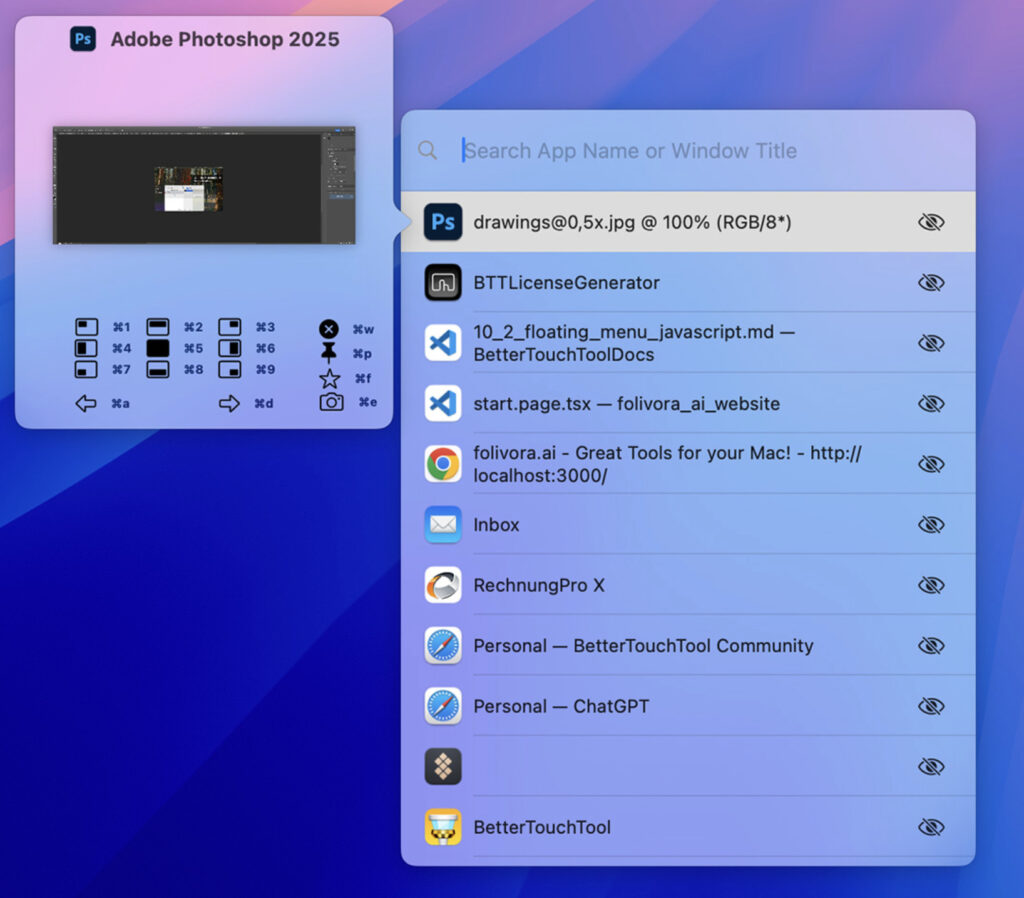
Windows right-click menus are surprisingly powerful. On Mac, you can replicate that flexibility with BetterTouchTool.
It lets you:
- Map gestures to launch apps, scripts, or actions.
- Customize trackpad and keyboard shortcuts.
- Build contextual menus for actions you use most.
I’ve found that BetterTouchTool is actually more powerful than Windows custom actions once you invest the time to configure it.
6. Windows-Only Apps → CrossOver & Virtual Machines
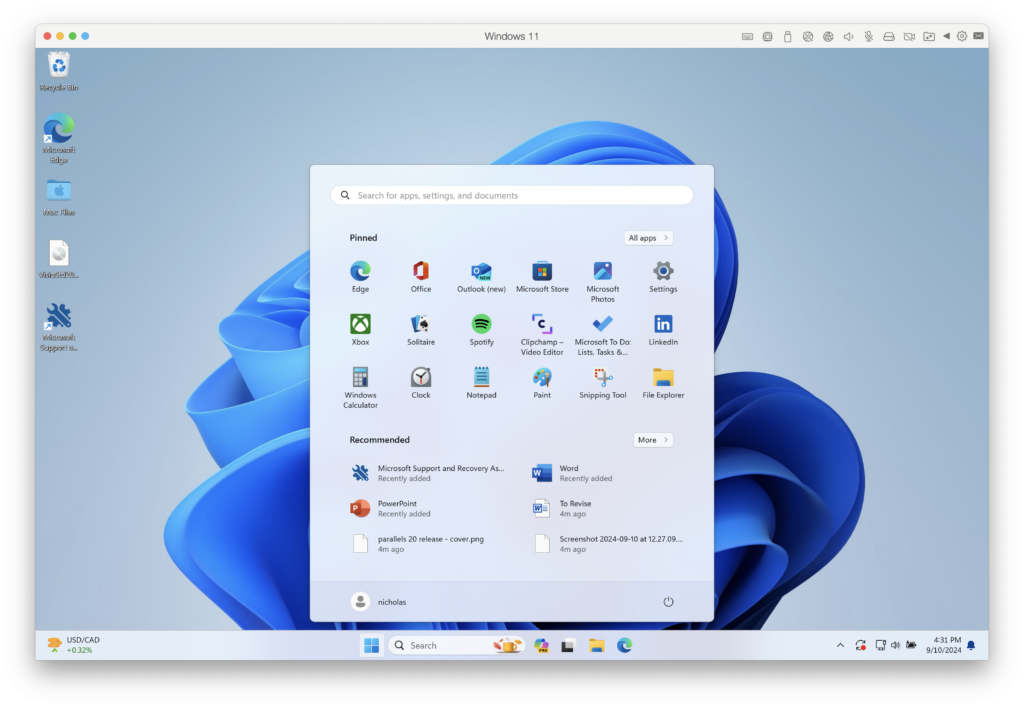
Certain Windows apps (and games) don’t have Mac versions. There are various ways to run Windows on a Mac but my favorite solutions are:
- CrossOver: Run many Windows games and apps directly on macOS.
- Parallels Desktop: Full Windows virtual machine for heavy-duty apps.
- Boot Camp (Intel Macs only): Native Windows performance if you need it.
These tools mean I don’t have to carry a second PC or switch back to Windows just for one tool.
7. Gaming → Steam, Cloud Gaming & Workarounds
Gaming has always been better on Windows than on Macs. macOS has improved, but the gap is still there. That said, I’ve found a few ways to enjoy modern titles without a dedicated Windows PC:
1. Native Mac Games:
Platforms like Steam and Epic Games Store now offer a huge catalog of macOS-compatible games. While the library isn’t as vast as Windows, indie games, strategy titles, and some AAA games run perfectly.
2. Cloud Gaming:
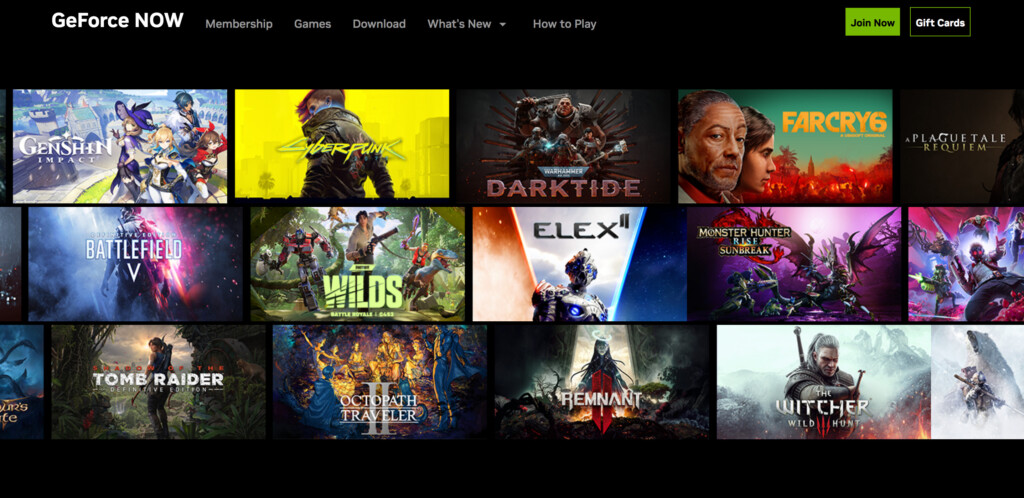
Services like GeForce Now, Xbox Cloud Gaming, and Shadow allow you to stream Windows games to your Mac. It’s not exactly the same as a gaming rig, but the experience is surprisingly smooth, even for competitive games. Latency can be an issue for first-person shooters, but for most strategy, RPG, and casual games, it works amazingly well.
3. Windows Virtual Machines for Gaming:
If a game absolutely requires Windows, I sometimes run Parallels. It’s not ideal for high-end AAA titles and it won’t work with those that have anti-cheat or Direct X, but for moderate games, it’s enough to bridge the gap.
4. Keyboard & Controller Support:
Another plus: Macs now support Xbox and PlayStation controllers natively, so you don’t need extra adapters. It makes cloud or Mac-native gaming far more enjoyable and its easy to connect them via Bluetooth.
While I still miss the performance and sheer breadth of Windows gaming, these solutions let me enjoy the majority of my favorite titles, and sometimes even discover new ones optimized for macOS.
8. Customization → macOS Tweaks & Automation
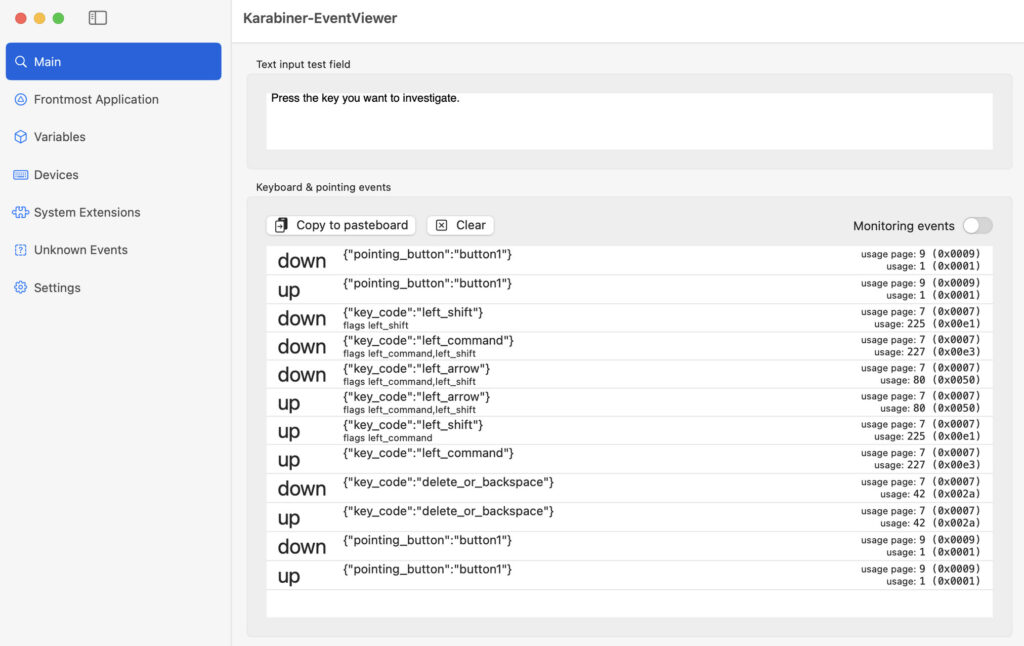
Windows always felt customizable, hotkeys, themes, and advanced tweaks were easy to setup. macOS may feel locked down, but apps like:
- BetterTouchTool (gestures & shortcuts)
- Karabiner-Elements (keyboard remapping)
- Hammerspoon (automation scripts)
have allowed me to recreate that freedom.
9. Old Habits Die Hard
Some things are Windows-only habits I still occasionally miss:
- Dragging files between multiple Explorer windows.
- Certain enterprise or legacy apps without Mac alternatives.
- Right-click context tools built into Windows apps.
For these cases, workarounds like Path Finder, Parallels, or CrossOver can plug the gap.
Conclusion
My experience switching to Mac has mostly been a major win: a smoother interface, better hardware integration, and a more reliable system. But certain Windows habits linger. The key is finding macOS-friendly replacements´, or smarter ways of working, that make your Mac feel like home while still keeping the features you loved in Windows.
For me, Alfred, CleanShot X, Path Finder, and virtual Windows solutions close the gap considerably. Some days I miss Windows, but most days I feel like I’ve found some great compromises.
FAQ
Do I really need all these apps to enjoy macOS?
Not at all. macOS is fully functional out of the box. Spotlight, Finder, and the Dock handle most daily tasks for casual users. The apps I mention – Alfred, CleanShot X, Path Finder – are simply for those who want a smoother transition from Windows or need more advanced productivity tools. If you’re a power user, these apps are game-changers. If you’re a casual user, the built-in tools are enough.
Are these apps expensive?
Some are free or have free versions (Spotlight, Alfred, Steam), while others require a one-time purchase or subscription. For example, CleanShot X is a one-time purchase, Path Finder is paid, and Parallels requires a subscription for full features.
Can I run Windows apps on a Mac without installing Windows?
Yes! CrossOver lets you run many Windows applications natively on macOS without a full Windows installation. Some apps may still need Parallels or Boot Camp, especially complex enterprise software or specialized programs.
What about gaming? Can I play Windows-only games on a Mac?
Yes, there are lots of ways to play Windows games on a Mac. The three main options are:
- Native Mac games via Steam/Epic – small but steadily growing library.
- Cloud gaming (GeForce Now, Xbox Cloud Gaming, Shadow) – stream games from Windows servers to your Mac. Works well for most genres except very latency-sensitive FPS titles.
- Windows virtual machines (Parallels, Boot Camp) – allows running some Windows games directly, but performance may be limited compared to a dedicated gaming PC.
Is macOS less customizable than Windows?
Out of the box, yes. Windows offers more built-in customization for themes, hotkeys, and system tweaks. But with apps like BetterTouchTool, Karabiner-Elements, and Hammerspoon, you can customize macOS far beyond what Windows allows. It just takes some setup.
Q: Do I need a Mac-specific version of apps I used on Windows?
Usually yes, but often there are excellent alternatives. For example:
- Microsoft Office (now Microsoft 365) works natively on Mac.
- For file management, Path Finder is a great replacement for advanced Explorer features.
- For automation, Alfred and BetterTouchTool can mimic many Windows features.
If a Windows app has no Mac equivalent, CrossOver or a virtual machine can usually fill the gap.
Are there any free alternatives to these tools?
Yes, some apps have free or built-in alternatives:
- Spotlight instead of Alfred.
- Preview & macOS screenshot shortcuts instead of CleanShot X.
- Finder instead of Path Finder (with fewer advanced features).
How long does it take to adjust from Windows to Mac?
It varies. Casual users can adjust in a few days. Power users or those with who have used Windows their entire life take a few weeks to fully adapt. Using the apps and tips in this article can dramatically shorten that transition period and make macOS feel like home faster.
What if I still need Windows occasionally?
You can easily run Windows on a Mac – the most common way is with a virtual machine but nowadays there are also Cloud based solutions.