

If your external drive works normally in Windows but is read-only on your Mac, it is probably formatted as NTFS.
macOS can open, browse and copy files from an NTFS drive, but it cannot natively add, edit, rename or delete files on one. That is still the case in macOS 27 Golden Gate, macOS 26 Tahoe and earlier versions of macOS.
The good news is that you do not have to erase a working Windows drive just to use it on a Mac. The simplest route is to install a reputable NTFS driver, which makes the drive work in Finder much like a normal Mac disk.
If you are setting up a drive that will regularly move between Macs and PCs, however, exFAT is usually the better long-term format. Both macOS and Windows can read and write exFAT without extra software.
Quick Answer: The Best Way to Write to an NTFS Drive on a Mac
- Best for macOS 27 Golden Gate: iBoysoft NTFS for Mac. Its current product page explicitly lists macOS Golden Gate support.
- Best established one-time NTFS driver: Microsoft NTFS for Mac by Paragon Software. It currently offers a Golden Gate preview, so check for final support before relying on it after a major macOS upgrade.
- Best value for several Macs: Microsoft NTFS for Mac by Tuxera. One personal licence covers up to five Macs, but its compatibility page currently lists support through macOS 26 Tahoe rather than Golden Gate.
- Best free option for technical users: macFUSE with NTFS-3G. It is workable, but setup and maintenance are considerably less straightforward.
- Best option for a new shared drive: Reformat it as exFAT after backing up its files.
Before installing anything, make sure you have a current backup of important files. NTFS drivers work at the file-system level, so it is sensible to test copying a few non-essential files before moving or deleting anything valuable.
NTFS Driver Comparison for Mac
| Option | Best for | macOS 27 Golden Gate status* | Price* | Main drawback |
|---|---|---|---|---|
| iBoysoft NTFS for Mac | The most current macOS support | Listed as supported | US$19.99/year or US$49.99 lifetime through the Mac App Store | Paid software |
| Microsoft NTFS for Mac by Paragon Software | A polished, established NTFS driver | Preview available | US$29.95 one-time | Final Golden Gate support should be confirmed before purchase |
| Microsoft NTFS for Mac by Tuxera | One licence for up to five Macs | Not yet listed on its compatibility page | US$28.95 / €28.95 one-time | Official compatibility list currently stops at macOS 26 Tahoe |
| macFUSE + NTFS-3G | Experienced users who specifically want a free route | macFUSE supports macOS 12–27 | Free | Command-line setup, no simple commercial support path |
| Use Windows | Occasional file management when you already have Windows | Not applicable | Free if you already have Windows | Does not make the drive writable in Finder |
| Reformat as exFAT | A drive that will regularly move between Mac and Windows | Native support | Free | Erases the drive and is not suitable for every use case |
*Compatibility and prices checked on 16 September 2026. Prices, trials and support status can change, particularly just after a major macOS release.
What Is NTFS?
NTFS, short for New Technology File System, is Microsoft’s standard file system for Windows. It is commonly used on Windows PCs, external hard drives, SSDs and USB sticks.
It supports large files, file permissions, encryption and other Windows-specific features. The downside for Mac users is that Apple includes only read-only NTFS support in macOS.
That means a Mac can usually:
- Open files stored on an NTFS drive
- Copy files from the NTFS drive to the Mac
- Browse folders in Finder
But, without extra software, it cannot:
- Copy files from the Mac to the NTFS drive
- Edit and save a file directly to the drive
- Rename, move or delete files on the drive
This is not usually a permissions problem or a fault with the drive. It is simply how macOS handles NTFS by default.
1. Use an NTFS Driver for Mac
For most people, a dedicated NTFS driver is the best way to keep an existing Windows-formatted drive and make it writable in Finder.
Once installed, the driver mounts compatible NTFS drives in read-write mode. You can then copy, edit, rename and delete files from Finder without using Windows or reformatting the disk.
Only install one NTFS driver at a time. If you have an old version of Paragon, Tuxera, iBoysoft, Mounty or another NTFS utility installed, remove or disable it before testing a different driver. Two drivers trying to manage the same drive can cause mounting problems.
iBoysoft NTFS for Mac — Best for macOS Golden Gate
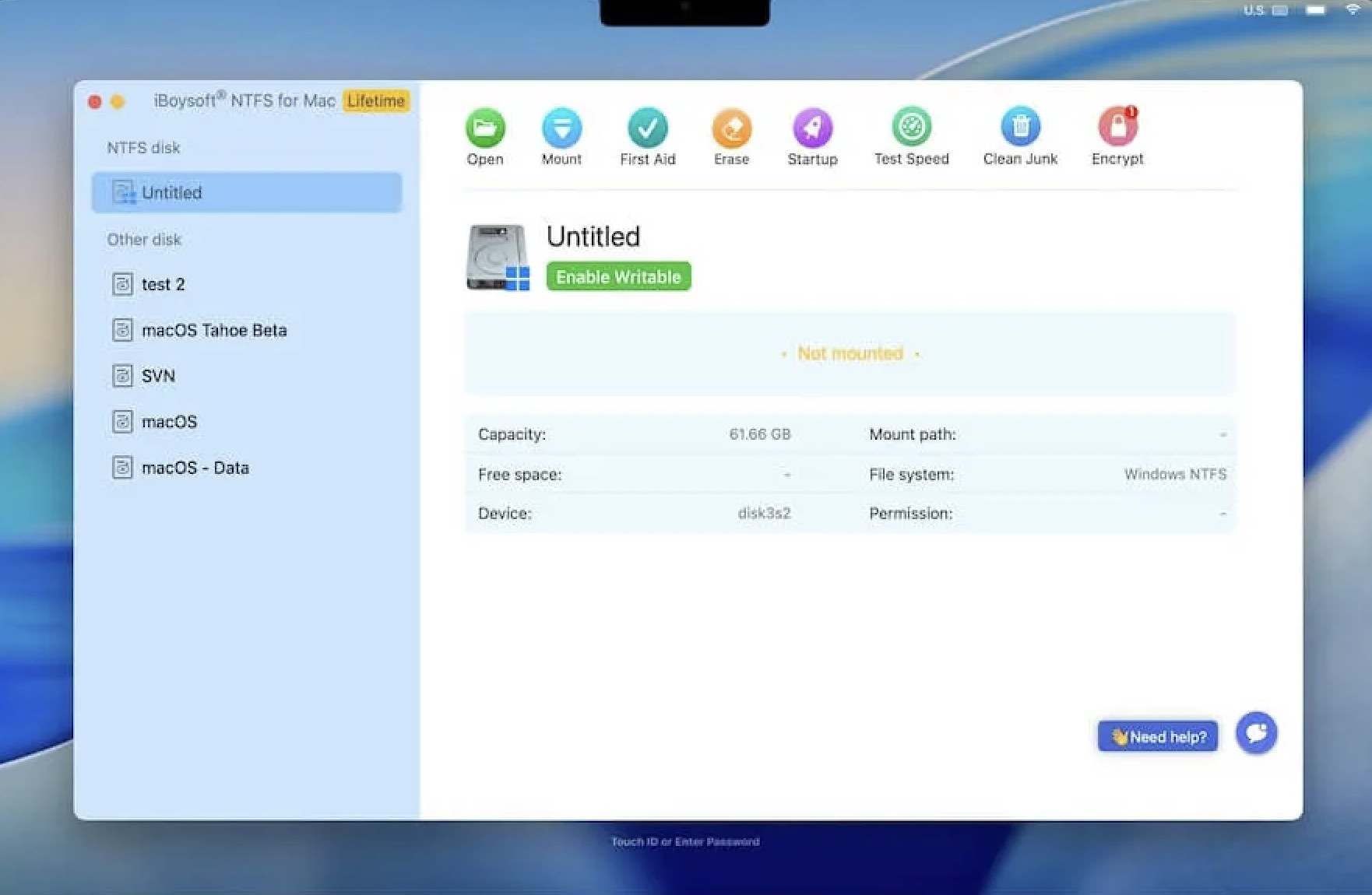
iBoysoft NTFS for Mac is the strongest option here if you have already updated to macOS 27 Golden Gate. At the time of writing, it is the only one of the three main commercial drivers below that lists full Golden Gate support rather than a preview or no listed support.
It automatically mounts NTFS external hard drives, SSDs, USB drives and SD cards in read-write mode. It also includes basic disk-management tools, so you can mount, unmount and format supported drives from its interface.
It supports both Apple silicon and Intel Macs on supported macOS versions. Golden Gate itself only runs on Apple silicon Macs, but the app can also be useful on older Intel Macs still running Tahoe, Sequoia or an earlier compatible release.
Pros:
- Explicitly lists macOS Golden Gate support
- Lets NTFS drives work normally in Finder
- Supports Apple silicon and Intel Macs
- No need to erase or reformat an existing NTFS drive
- Includes a free trial before you buy
Cons:
- Paid software
- macOS may require you to approve a system extension during installation
- A standard NTFS driver does not automatically unlock a BitLocker-encrypted drive
Microsoft NTFS for Mac by Paragon Software — Best Established Alternative
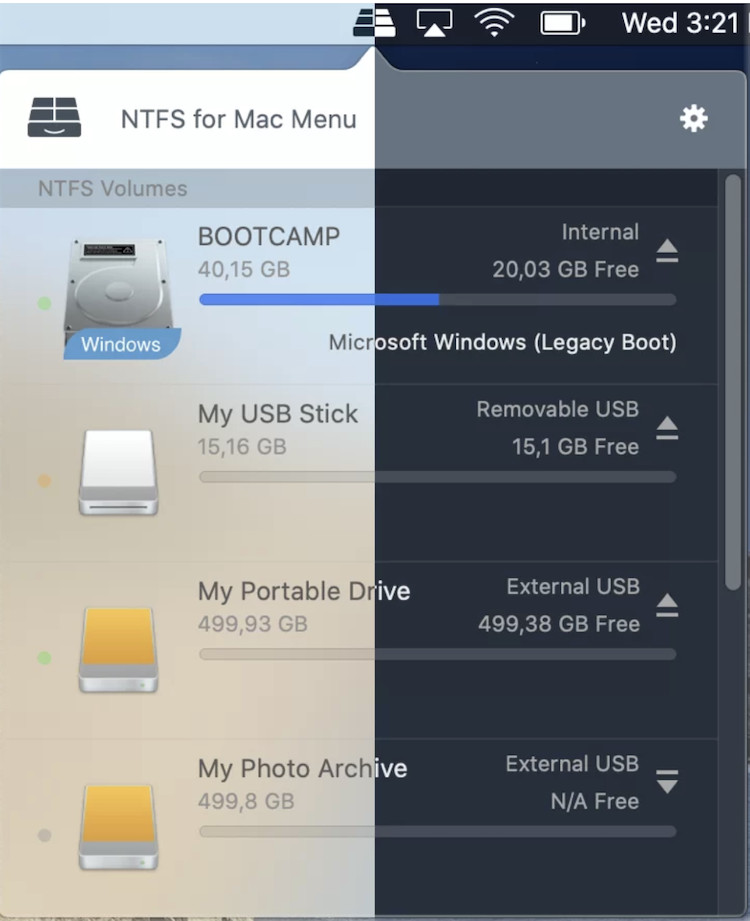
Microsoft NTFS for Mac by Paragon Software is a long-established option that provides read-write access to NTFS drives in Finder. It can also mount, unmount, verify and format NTFS volumes from its menu-bar and disk-management interface.
It supports Apple silicon and Intel Macs, Windows 11 NTFS volumes, and it works with external drives as well as compatible Boot Camp partitions. Paragon currently lists a preview of its driver for macOS 27 Golden Gate, while its main compatibility list confirms macOS 26 Tahoe and earlier releases.
That makes it a good choice if you are on Tahoe or are happy to check that the Golden Gate release has moved out of preview before you depend on it for important work.
Pros:
- Polished Finder integration
- Useful mount, unmount, verify and formatting controls
- Supports Apple silicon and Intel Macs
- Ten-day trial available
- One-time licence rather than an annual subscription
Cons:
- Paid software
- Golden Gate support was still described as a preview when this article was updated
- Do not install it alongside another NTFS driver
Microsoft NTFS for Mac by Tuxera — Best for Up to Five Macs
Microsoft NTFS for Mac by Tuxera is another capable commercial NTFS driver. A personal licence covers one person using up to five home Macs, which can make it good value for a household with several machines.
Tuxera gives Finder full read-write access and includes Tuxera Disk Manager for formatting, checking and repairing NTFS volumes. It also supports use with virtual machines and dual-boot Windows setups.
Its own compatibility list confirms Apple silicon and Intel Macs through macOS 26 Tahoe. Until Tuxera adds macOS 27 Golden Gate to that list, we would use it on Tahoe or earlier rather than buy it specifically for a Golden Gate Mac.
Pros:
- One personal licence covers up to five Macs
- One-time purchase with free updates according to Tuxera
- Includes disk-management tools
- Supports Apple silicon and Intel Macs on its listed macOS releases
Cons:
- Paid software
- Golden Gate is not yet listed in its official system requirements
- Not the best choice if you need confirmed support for the newest macOS today
2. Use macFUSE and NTFS-3G for a Free Solution
If you are comfortable maintaining developer tools, macFUSE and the open-source NTFS-3G driver can provide NTFS read-write access without paying for a commercial app.
macFUSE is the layer that allows macOS to use third-party file systems. The macFUSE project currently lists support for macOS 12 Monterey through macOS 27 Golden Gate. NTFS-3G is a free read-write NTFS driver that can be installed through a package manager such as MacPorts.
This route is best treated as an advanced project, not a plug-and-play solution. It can involve installing a package manager, approving macFUSE in macOS security settings and mounting volumes manually. It also lacks the straightforward support and automatic updates of a commercial driver.
For that reason, we would only use it if you are already comfortable with Terminal and understand how to identify, mount and safely unmount disks. Do not copy generic commands from an old tutorial that tells you to unmount and remount /dev/disk... volumes: disk identifiers can change, and a mistake can target the wrong drive.
Pros:
- Free and open source
- macFUSE currently supports macOS 12 through macOS 27
- Suitable for technically confident users who want control over the setup
Cons:
- More complicated to install and maintain
- Requires Terminal and security approval
- No simple one-click troubleshooting or commercial support
- Not the best route for irreplaceable data or occasional users
For the current components and installation documentation, see macFUSE and the NTFS-3G package for MacPorts.
Why I Do Not Recommend the Old Terminal Force-Mount Method
Many older guides suggest editing /etc/fstab or using a command such as mount -t ntfs -o rw to force macOS to write to an NTFS drive.
Do not rely on these instructions in 2026. They do not turn macOS’s built-in read-only NTFS support into a fully supported, modern NTFS driver. They can fail after a macOS update, make a drive mount somewhere unexpected, or create a confusing and potentially risky setup.
If the files matter, use a current dedicated NTFS driver, work with the drive in Windows, or copy the data elsewhere and reformat it as exFAT.
3. Use Windows for Occasional NTFS File Management
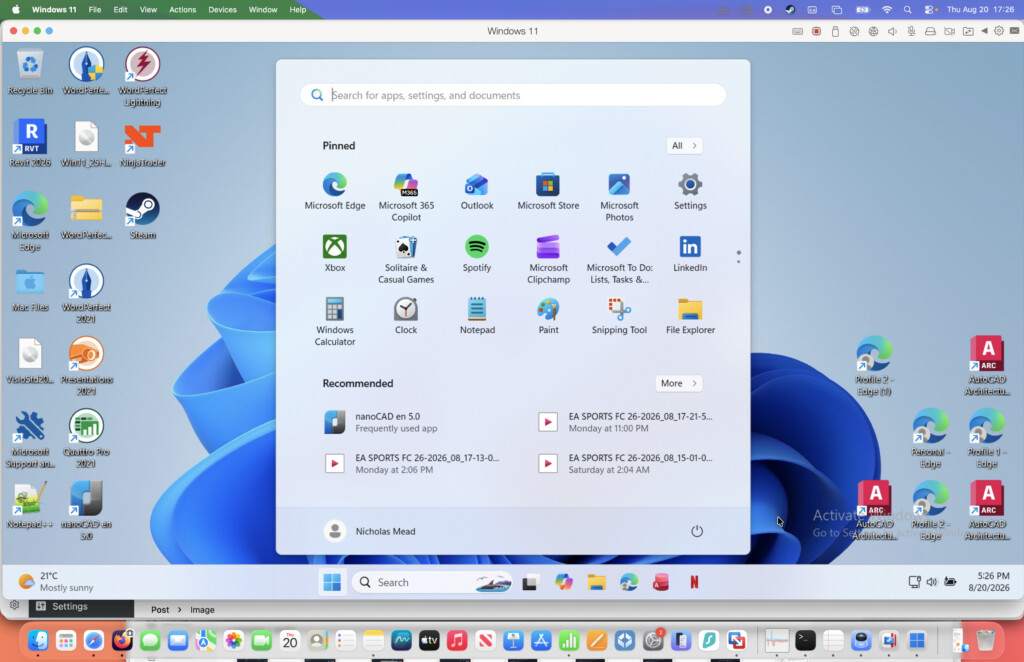
If you only need to make occasional changes to an NTFS drive, you do not necessarily need an NTFS driver on your Mac.
You can connect it to a Windows PC, or pass the physical USB drive through to Windows running in a virtual machine on your Mac. Once Windows has control of the drive, it can read and write NTFS normally.
This is useful if you already run Windows for another reason. You can use a virtual machine on a Mac, such as Parallels Desktop or VMware Fusion, then assign the external drive to Windows rather than macOS.
However, it is not a good dedicated solution for most people. You need Windows, the drive will not be writable in Finder while Windows has it attached, and transferring a large amount of data through a VM can be less convenient than using a native driver.
Boot Camp can also access NTFS normally, but it only works on Intel Macs. Apple silicon Macs cannot use Boot Camp, and it is far too cumbersome to set up solely to edit an external NTFS drive. If you do have an Intel Mac and need Windows for other reasons, see our guide to installing Windows with Boot Camp.
Pros:
- No NTFS driver needed in macOS
- Works well if you already use Windows
- Keeps the drive in its existing NTFS format
Cons:
- Does not make the drive writable in Finder
- Requires a Windows PC, Windows VM or an Intel Boot Camp installation
- Unnecessary overhead if all you need is to copy a few files
4. Reformat the Drive as exFAT for Mac and Windows
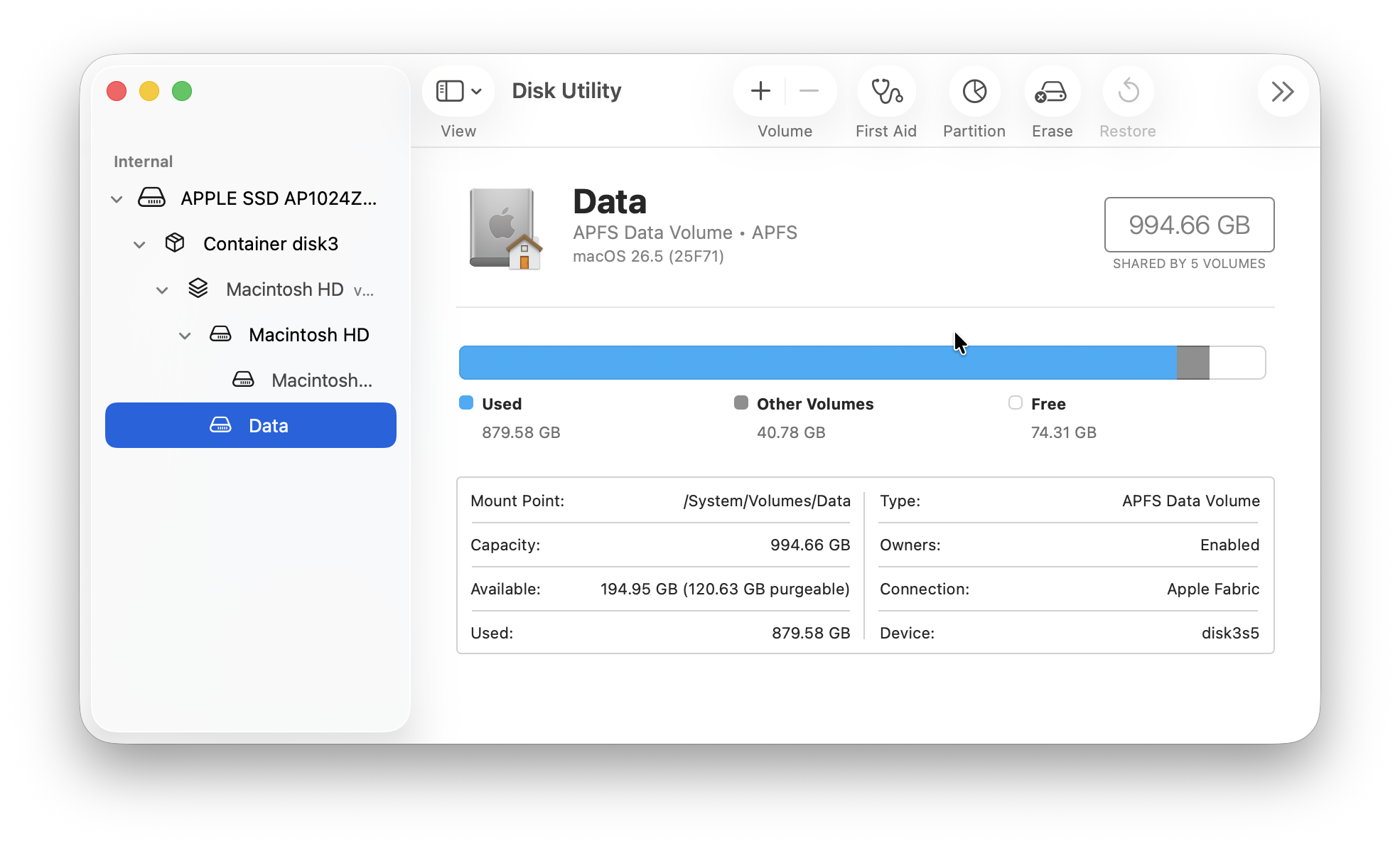
If the drive is not tied to Windows-only software and you want to use it regularly with both Mac and Windows, exFAT is normally the best answer.
Both operating systems can natively read and write exFAT. It also supports files larger than 4 GB, unlike FAT32, which makes it suitable for video files, disk images and large archives.
Apple’s Disk Utility specifically offers exFAT as a Windows-compatible format for drives over 32 GB.
The important catch is that reformatting erases everything on the drive. Copy its contents to a safe location first, ideally checking that your backup opens correctly before erasing the original.
How to Format an External Drive as exFAT on a Mac
- Back up every file on the drive. Formatting removes all partitions and files on the disk you select.
- Connect the drive to your Mac.
- Open Disk Utility. You can find it in Applications > Utilities, or search for it with Spotlight.
- Choose View > Show All Devices in the menu bar.
- Select the physical external drive in the sidebar, not just one of its indented volumes. Be very careful to select the correct drive.
- Click Erase.
- Give it a name, choose ExFAT for the format, and choose GUID Partition Map for use with modern Macs and Windows PCs. Use Master Boot Record only if a particular older device specifically requires it.
- Click Erase, wait for the process to finish, then copy your files back.
For a fuller walkthrough, see our guide on how to format an external drive on a Mac.
Do not use exFAT for a Time Machine backup drive. Use APFS for a modern Mac backup disk instead. exFAT is designed for simple cross-platform file exchange, not as a replacement for every Mac or Windows file-system feature.
Which Format Should You Use?
| How you will use the drive | Best format | Why |
|---|---|---|
| Only with modern Macs | APFS | Best integration with macOS and modern Mac backup features |
| Regularly move files between Mac and Windows | exFAT | Native read-write support on both platforms and no 4 GB file limit |
| Keep a Windows system or working drive unchanged | NTFS | Best for Windows, but use a Mac NTFS driver when writing from macOS |
| Use with older cameras, TVs or legacy devices | FAT32, if required | Broad compatibility, but individual files are limited to 4 GB |
Troubleshooting an NTFS Drive That Is Still Read-Only on a Mac
If you have installed an NTFS driver but cannot write to the drive, work through these checks:
- Confirm that the drive is actually NTFS. Select it in Disk Utility and check the format. A read-only drive may also be encrypted, corrupted, protected by hardware, or formatted in another way.
- Reconnect the drive or restart your Mac. Many drivers mount a disk in read-write mode only when it is connected after installation.
- Complete the macOS approval step. A driver may need you to approve its system extension or restart before it becomes active. Follow the developer’s current installation instructions for your version of macOS.
- Remove competing NTFS tools. Do not leave an old trial or a second driver installed. Use the developer’s own uninstaller, then restart before trying the new driver.
- Check for BitLocker encryption. A BitLocker-protected Windows drive is not an ordinary NTFS drive. Connect it to Windows, or use a Mac utility that specifically supports BitLocker, before expecting to access its files.
- Repair the drive in Windows if it was not ejected properly. If Windows reports errors, use its disk-repair tools first. Do not ignore a repair warning and keep writing files to the drive.
- Rule out a cable, hub or power problem. This is particularly important with portable hard drives that need more power than a hub can supply.
FAQ
Can a Mac read an NTFS drive?
Yes. macOS can read NTFS drives by default, so you can open and copy files from them in Finder without installing anything.
Can a Mac write to an NTFS drive without software?
Not reliably. macOS’s built-in NTFS support is read-only. To add, edit, rename or delete files, use a supported NTFS driver, access the drive in Windows, or reformat it as exFAT after backing up its contents.
Do NTFS drivers work on Apple silicon Macs?
Yes, but check the individual driver’s current compatibility page before installing it. iBoysoft, Paragon and Tuxera support Apple silicon on their listed macOS releases. At the time of writing, iBoysoft explicitly lists macOS 27 Golden Gate, while Paragon lists a Golden Gate preview and Tuxera lists support through Tahoe.
Is it safe to use an NTFS driver on a Mac?
A reputable, current driver is the most practical way to write to an existing NTFS drive on a Mac, but it is still software working at a low level with your data. Keep a backup, install only one NTFS driver at a time, and test it with a few copies before doing a large transfer or deleting original files.
Will an NTFS driver work after a macOS update?
It may need an update. This is why it is worth checking the developer’s compatibility page before installing a major macOS upgrade, especially if the drive contains work or the only copy of important files.
Can I convert NTFS to exFAT without losing data?
No. In normal use, moving from NTFS to exFAT means copying the data elsewhere, erasing the drive as exFAT, then copying the files back. Do not start until you have a verified backup.
Can I use an NTFS drive for Time Machine?
No. A Time Machine drive should be formatted for macOS, normally APFS. An NTFS driver is useful for accessing a Windows drive; it does not make NTFS the right format for a Mac backup disk.
How do I uninstall an NTFS driver?
Use the uninstaller supplied by the developer, then restart your Mac. Do not simply drag the app to the Bin, because a driver may also install a system extension or supporting components.
The Bottom Line
If you need to keep an existing Windows-formatted drive, use a current NTFS driver rather than relying on obsolete Terminal workarounds. For a Mac already running macOS 27 Golden Gate, iBoysoft NTFS for Mac is the clearest current choice because it explicitly lists support for it.
If you have not yet updated to Golden Gate, Paragon and Tuxera remain credible alternatives on their officially supported macOS versions.
For a drive that will continually travel between Mac and Windows, back it up and reformat it as exFAT. It is the simplest way to avoid this problem altogether.