

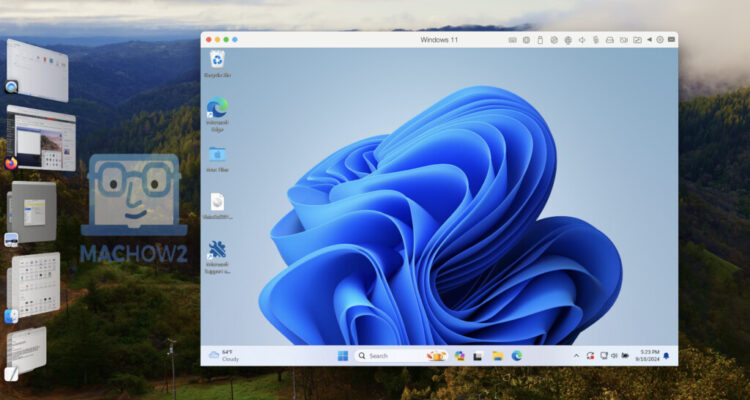
Running Windows or another operating system on a Mac is much easier than it used to be thanks to virtual machines.
Modern virtual machines (also known as virtual environments or “VMs”) let you run Windows, Linux, or even another version of macOS directly on your Mac without even rebooting.
Running Windows on a Mac still comes with its pros and cons but the options available and performance are so much better nowadays than they used to be.
Whether you want to run Windows-only software, play PC only games, test apps in another operating system, or access legacy programs, virtual machines open up a whole world of possibilities.
In this guide we’ve tested the best virtual machines for Mac in 2026, including both free and paid tools that work on both Intel Macs and Apple Silicon Macs (M1–M5).
In our testing of each product, we found that some VMs are faster and more polished, while others are free or better suited for developers and gamers.
We’ve also included some powerful alternatives that let you run Windows apps on a Mac without even installing Windows at all.
If you want to explore all methods – including remote desktop apps and other approaches outside of virtualization – see our best ways to run Windows on a Mac guide.
Quick Picks: Best Ways to Run Windows on a Mac
If you want the short answer, these are the best options:
- Best overall virtual machine: Parallels Desktop
- Best free virtual machine: VMware Fusion
- Best open-source VM: UTM
- Best for Windows gaming including Steam: CrossOver
- Best free gaming option for Steam: Pixel Port
- Best for Intel Macs: VirtualBox
- Best for developers: Wine
- Best cloud Windows PC: Windows 365
Virtual Machines on Apple Silicon M5 Macs
If you’re using an Apple Silicon M5 MacBook Air, MacBook Pro, iMac, Mac mini, Mac Studio or Mac Pro, the virtualization landscape is largely unchanged from M4 Macs.
Parallels Desktop and VMware Fusion both support M5 Macs and can run Windows 11 ARM with excellent performance. In our testing, everyday Windows productivity apps such as Microsoft Office, accounting software and business applications run smoothly, often feeling close to native performance.
The main limitation remains Microsoft’s ARM version of Windows rather than Apple’s hardware. Although Windows 11 ARM now includes excellent x86 and x64 app translation, some specialist software, older drivers and anti-cheat gaming systems may still not work correctly.
For most users looking to run Windows apps on an M5 Mac, Parallels Desktop remains the easiest and most reliable solution.
- Parallels Desktop – fastest and most polished
- VMware Fusion – best free virtualization
- UTM – best open-source emulator
Note: VirtualBox currently has limited or experimental support for Apple Silicon Macs and we don’t recommend it for modern Macs.
What’s Changed in 2026?
The biggest changes in Mac virtualization over the last year include:
- VMware Fusion is now completely free for personal and commercial use.
- Windows 11 ARM compatibility has improved significantly thanks to Microsoft’s enhanced x64 emulation.
- Parallels Desktop continues to lead in graphics performance and ease of use on Apple Silicon Macs.
- Whisky is no longer actively developed, making CrossOver a safer long-term choice for gaming although Pixel Port is emerging as an innovative new free solution.
- VirtualBox remains behind Parallels and VMware Fusion on Apple Silicon Macs due to limited ARM support.
How We Tested These Apps
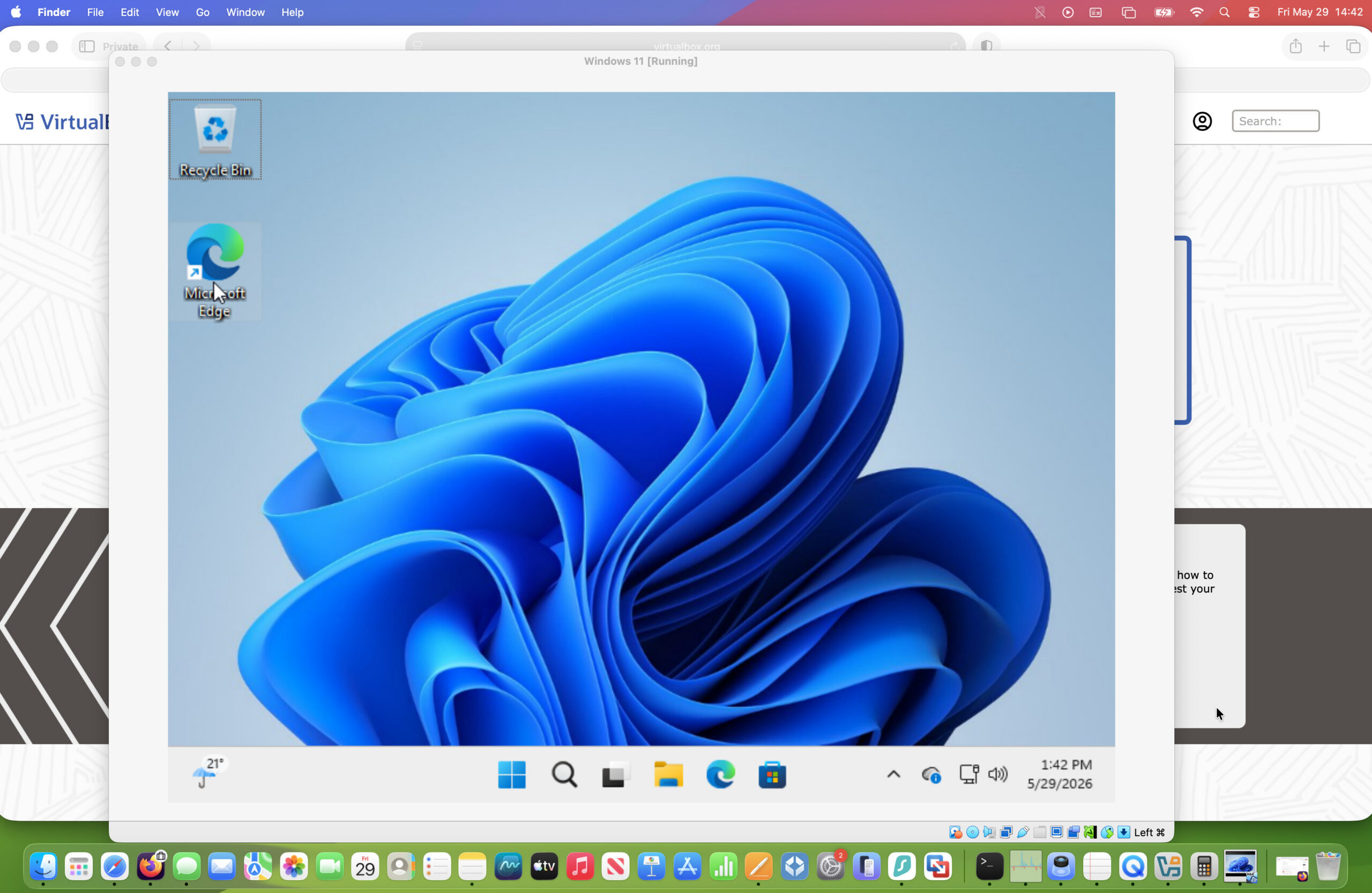
We tested each virtual machine on both Intel and Apple Silicon Macs running the latest version of macOS. We installed Windows 11 ARM, Microsoft Office, web browsers, development tools and several Windows-only applications to evaluate setup difficulty, performance, graphics acceleration, compatibility and overall usability. We also tried games including those on Steam although for a closer look at this, check out our guide the best way to play Windows games on Mac.
We then rated them based on performance, speed, stability and ease of use.
For more check our policy on our selection process.
Here then are the detailed results of our testing of the best virtual environments for Mac in 2026.
Virtual Machines For Mac: Comparison Table
| Tool | Best For | Apple Silicon Support | Windows Version | Ease of Use | Price |
|---|---|---|---|---|---|
| Parallels Desktop | Best overall VM | Yes | Windows 11 ARM | Very Easy | $99/year (currently 45% off) |
| VMware Fusion | Best free VM | Yes | Windows 11 ARM | Easy | Free |
| CrossOver | Best for gaming | Yes | Not required | Easy | $74 (currently 15% off) |
| UTM | Best open source VM | Yes | Windows ARM / emulation | Moderate | Free |
| Pixel Port | Free gaming layer | Apple Silicon | Not required | Very Easy | Free |
| VirtualBox | Intel Mac virtualization | Limited | Windows x86 | Hard | Free |
| Wine | Developers / advanced users | Yes | Not required | Hard | Free |
| Windows 365 | Cloud Windows PC | Yes | Full Windows | Very Easy | $32+/month |
1. Parallels Desktop (Best Overall Virtual Machine)
Parallels Desktop is the best virtual machine for Mac thanks to its performance, ease of use, and excellent integration with macOS.
After extensive testing, we found that it was by far the easiest to setup, the most well integrated with macOS and the most stable virtual solution we tried.
Parallels has always been ahead of the curve and was the first VM to support Windows on Apple Silicon Macs, and even Microsoft officially endorses it for running Windows 11 ARM on Macs.
Installation is one of its standout points. Parallels automatically downloads and installs Windows 11 with just a few clicks – there’s no need to manually download a Windows ISO or create a bootable USB drive.
Once installed, you can run Windows apps alongside Mac apps using Coherence Mode, which makes Windows programs appear like native macOS apps in your Dock.
Parallels also offers the best macOS integration of any virtualization tool, including:
- drag-and-drop files between systems
- shared clipboard
- automatic device detection
- optimized graphics performance
Recent versions also support Metal-accelerated DirectX 11 graphics, making it one of the best options for Windows gaming on a Mac (although it’s not the best option for gaming in general on a Mac).
Compared to its closest competitor VMware Fusion (see below), Parallels is easier to setup, use and performs better on the latest Apple Silicon Macs – you can see why in our look at Parallels vs VMware Fusion.
For more on what Parallels can do, you can also check out our full Parallels review or watch us install it in the video above.
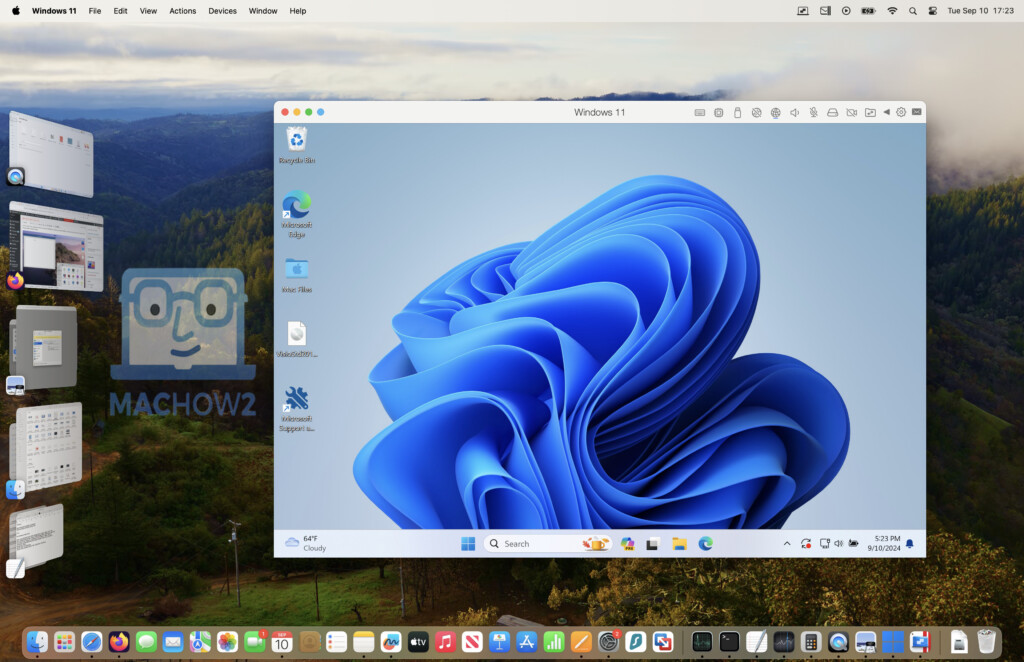
Pricing: Free Trial / Prices normally starting from $99.99 (£89.99) or $219.99 (£154.99) one time purchase. Currently 45% off subscriptions.
Pros:
- Easiest Windows installation on Mac
- Best macOS integration
- Excellent performance on Apple Silicon
- Ideal for productivity apps and gaming
Cons:
- Paid subscription
- Windows license required
- DirectX 12 not supported (DirectX 11 is though)
2. VMware Fusion (Best Free Virtual Machine)
VMware Fusion is easily the leading free alternative to Parallels and is completely free for personal and commercial use.
Like Parallels, it can automatically download and install Windows 11 ARM on Apple Silicon Macs although the setup process isn’t quite as seamless as with Parallels.
Although its macOS integration isn’t quite as good as Parallels, VMware Fusion still offers powerful virtualization features including:
- Metal-accelerated graphics
- Windows and Linux support
- enterprise-grade virtualization tools
- strong developer features
VMware Fusion is particularly popular among developers and IT professionals thanks to its advanced configuration options.
You can read more in our full VMware Fusion review for more.
Or check out our in-depth comparison of Parallels vs VMware Fusion to see how it measure up to our top choice.
You can also watch us using Microsoft Office and running Visio on a Mac in the video above using VMware Fusion.
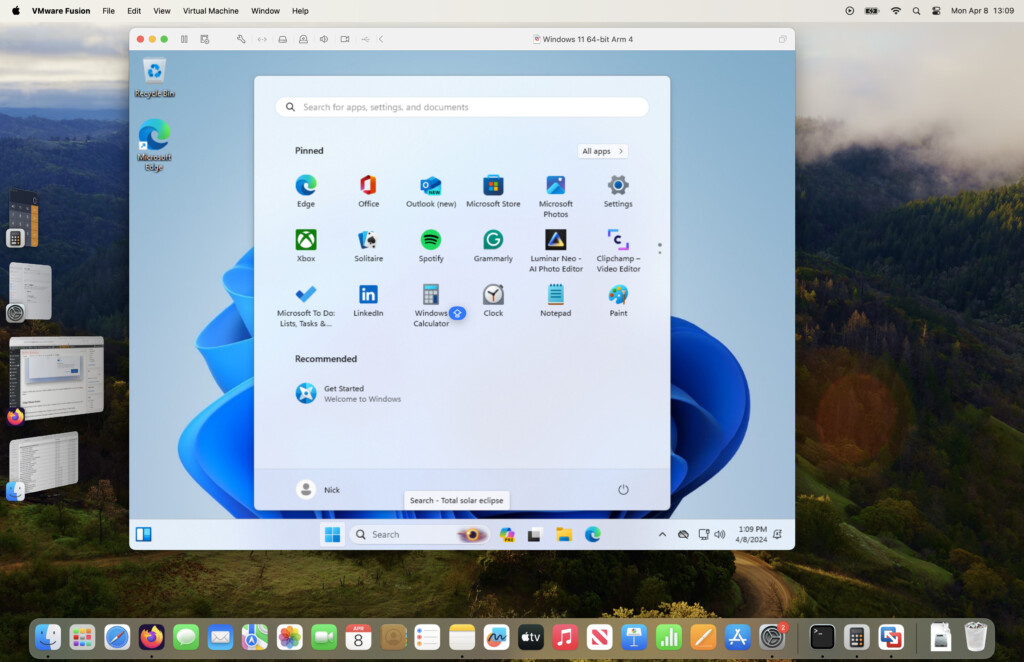
Pricing: Free for personal, educational and commercial use
Pros:
- Completely free
- Supports Apple Silicon Macs
- Good Windows performance
- Enterprise-level virtualization tools
Cons:
- Slightly less polished than Parallels
- Limited official support
- No DirectX 12 support
3. CrossOver (Best for Windows Gaming)
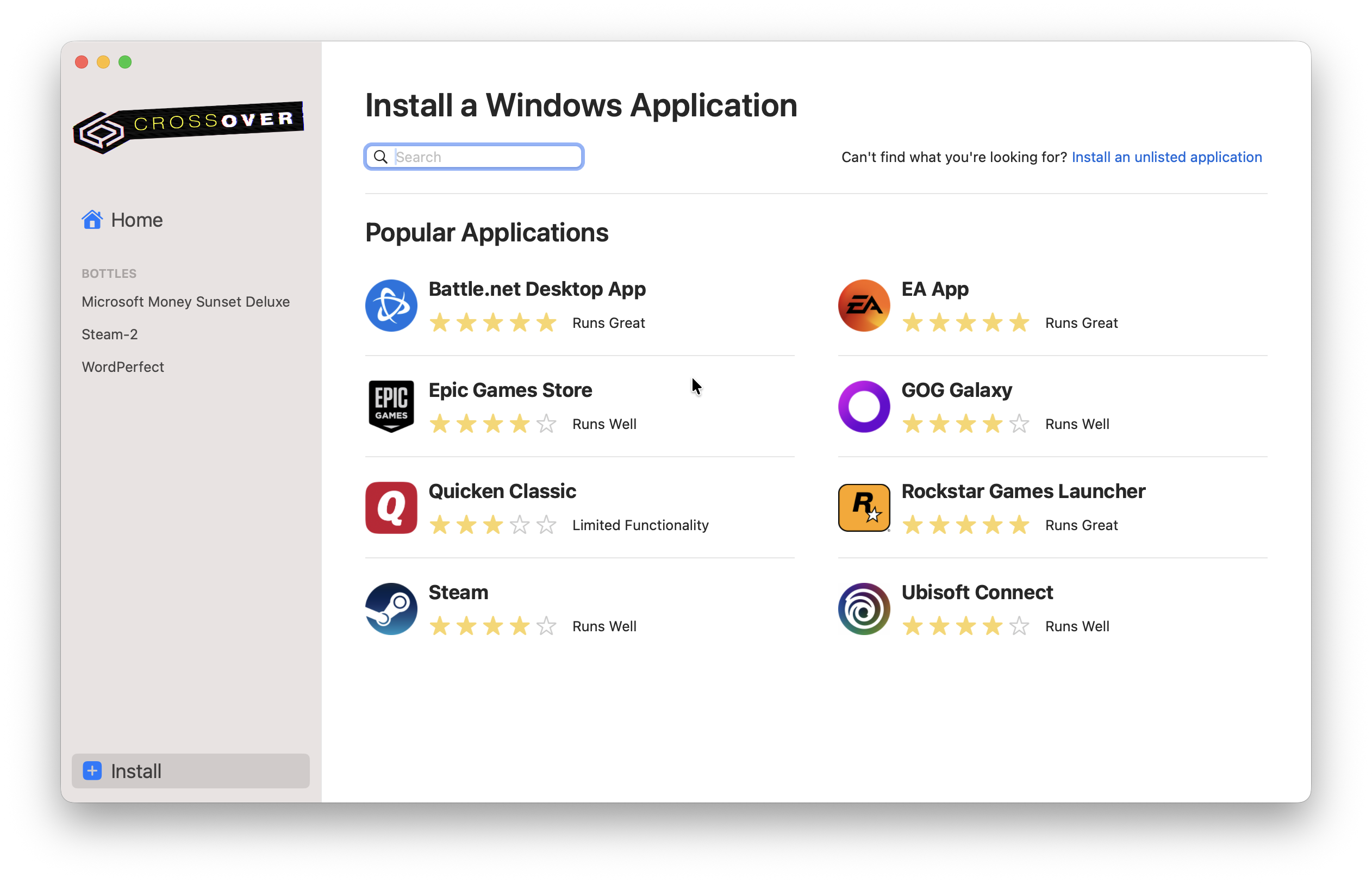
CrossOver takes a completely different approach to running Windows apps in macOS and is our choice as the best way to play Windows PC games on a Mac.
Instead of installing Windows, it translates Windows API calls so apps can run directly in macOS but it’s not a full VM.
This makes CrossOver extremely lightweight and often faster than virtual machines for gaming.
Thanks to Apple’s Game Porting Toolkit, CrossOver can run many modern Windows games including titles that require DirectX 11 and even experimental DirectX 12 support.
However, it does not provide a full Windows desktop environment.
You can also watch us playing Where Winds Meet on a Mac using Crossover in the video above.
Check out our full review of Crossover for more.
Pricing: Starts at $74 per year but you can get 15% off here with a free trial. $494/£414 for a lifetime license.
Pros:
- No Windows installation required
- Excellent performance for games
- Easy setup
- Supports DirectX12
Cons:
- Not all apps work
- No full Windows environment
4. UTM (Best Open Source VM)
UTM is a free open-source virtualization tool based on QEMU.
It allows you to run multiple operating systems including:
- Windows
- Linux
- macOS
- older legacy systems
UTM is particularly interesting because it can emulate x86 Windows on Apple Silicon Macs, although performance is slower than native virtualization.
It’s a powerful option for hobbyists and developers, but requires more manual setup than commercial solutions.
You can watch us running Windows on a Mac using UTM in the video above or check out our full UTM review here.

Pricing: Free
Pros:
- Free and open source
- Works on Intel and Apple Silicon Macs
- Supports many operating systems
Cons:
- Setup can be complicated
- Limited performance compared to commercial VMs
5. Pixel Port (Best Free Option for Windows Steam Games)
Pixel Port is one of the easiest ways to play Windows games on a Mac without installing Windows.
Similar to Crossover, Pixel Port is a new compatibility layer that makes it much easier to run Windows Steam games on Apple Silicon Macs. Rather than requiring you to manually configure Wine or Apple’s Game Porting Toolkit, it automates almost the entire setup process behind a simple interface.
Like CrossOver, Pixel Port isn’t a virtual machine. Instead, it translates Windows system calls into macOS equivalents, allowing many Windows games to run without a full Windows installation.
This makes it particularly well suited to gaming, where avoiding virtualization often results in better performance than running Windows inside a VM.
One of Pixel Port’s biggest strengths is its simplicity. You don’t need to install or configure Wine, create bottles, or understand compatibility settings – it handles most of the technical work automatically, making it one of the most beginner-friendly ways to play Windows only Steam games on a Mac.
As a relatively new application, however, Pixel Port doesn’t yet have the extensive compatibility database or long development history of more established solutions like CrossOver. It’s designed primarily for gaming rather than running general Windows productivity software.
However, because similar (and more complicated workarounds) like Whisky are no longer being developed, Pixel Port looks like the more promising free way of playing PC only Steam games on a Mac.
If you’d like to know more, check out our full Pixel Port review or watch our demonstration video above.
Pricing: Free during beta (paid plans expected after launch)
Pros:
- Extremely easy to set up and use
- No Windows licence required
- Excellent gaming performance on Apple Silicon Macs
- Automatically configures Wine and Apple’s Game Porting Toolkit
- Ideal for Steam and many other Windows games
Cons:
- Not a full Windows virtual machine
- Primarily designed for games rather than Windows applications
- Compatibility is still expanding as the platform matures
- Newer product with a smaller user community than CrossOver
6. VirtualBox (Best for Intel Macs)
VirtualBox is a long-standing open-source virtualization platform supported by Oracle.
It supports many operating systems including Windows, Linux, and Solaris.
VirtualBox works well on Intel Macs, but Apple Silicon support remains experimental although as you can see in our video tutorial above, you can still install Windows on M-series Macs with it – but it’s nowhere near as smooth and easy as with Parallels or VMware Fusion.
For modern Macs it’s generally not the best option unless you specifically need open-source virtualization.
Checkout our full VirtualBox review with full instructions how to install it too.
Pricing: Free
Pros:
- Completely free
- Supports many operating systems
Cons:
- Apple Silicon support is sketchy
- A lot of manual configuration required
7. Wine (Best for Developers)
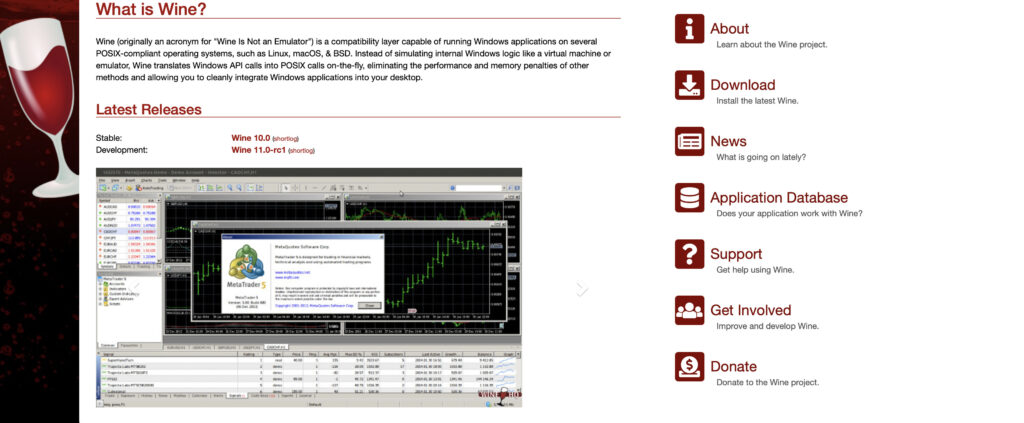
Wine is the open-source compatibility layer that powers many tools like CrossOver, Pixel Port and Whisky.
It allows Windows apps to run without installing Windows by translating system calls into macOS equivalents.
Wine is powerful but difficult to configure, making it best suited to developers or advanced users.
Pricing: Free
Pros:
- Free and open-source
- Lightweight and fast – no Windows installation needed
- Highly configurable for advanced users
Cons:
- Not user-friendly – requires manual setup for many apps
- No full Windows desktop environment
- Compatibility varies – some apps may not work at all
- No official customer support
8. Windows 365 (Best Cloud Windows PC)
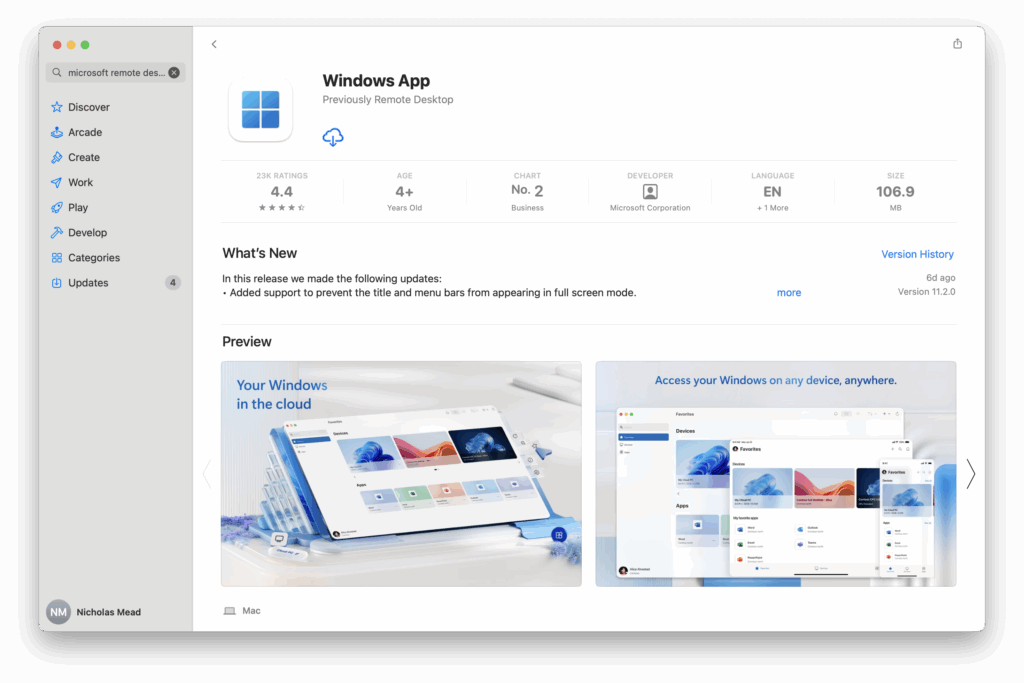
Windows 365 is Microsoft’s cloud-based Windows PC service accessed on a Mac via “Windows App”.
Instead of running Windows locally, you stream a full Windows desktop from Microsoft’s cloud.
This approach works on any Mac, including low-spec machines, because the computing happens remotely.
It’s particularly popular with businesses that need reliable access to Windows apps from multiple devices.
However, at the moment it’s limited to those on Windows 365 business plans so isn’t available to all.
Check out our full review of Windows App for more.
Pricing: Typical Business plans start at $32.00 per user for 4GB of RAM and 64GB storage
Pros:
- Full, official Windows environment streamed directly from Microsoft
- Works on any Mac, including Apple Silicon Macs
- No need to install or configure Windows locally
Cons:
- Business plans only
- Not ideal for gaming or GPU-intensive apps
Which Virtual Machine Is Fastest on a Mac?
If performance is your top priority, here’s how the most popular virtual machines stack up on modern Macs:
- Parallels Desktop – The fastest overall VM on both Intel and Apple Silicon Macs for most productivity and gaming tasks. Optimized for Windows 11 ARM, it offers near-native performance for productivity apps and many Windows games. Metal-accelerated DirectX 11 support ensures smooth graphics for most gaming and CAD applications.
- VMware Fusion – Slightly slower than Parallels, but still performs well, especially on Apple Silicon Macs. Free for personal and educational use, making it a great balance of speed and cost.
- UTM – Uses emulation for x86 Windows on Apple Silicon, which can make it noticeably slower than Parallels or VMware. Best for hobbyists and testing older OS versions rather than heavy workloads.
- VirtualBox – Fastest on Intel Macs for casual use, but Apple Silicon support is limited and performance can be unstable.
- CrossOver & Pixel Port – Not true virtual machines, but their lightweight Windows API translation often runs specific apps and games faster than some VMs, especially on Apple Silicon Macs. Best suited for gaming or individual app use rather than full Windows desktops.
Summary: For the fastest all-around experience, Parallels Desktop is the clear leader. VMware Fusion is a strong free alternative, and CrossOver or Pixel Port can outperform VMs for select games.
Parallels vs VMware Fusion
The two most popular virtualization tools remain Parallels Desktop and VMware Fusion.
Parallels generally offers:
- better performance
- tighter macOS integration
- easier setup
VMware Fusion’s main advantage is that it’s free, making it an attractive alternative for many users.
For most people, Parallels is still the best overall experience, while VMware Fusion is the best free option.
For a more detailed comparison, check out our full look at Parallels vs VMware Fusion.
What Is a Virtual Machine?
A virtual machine allows you to run another operating system inside macOS.
Instead of rebooting your Mac into Windows, virtualization software creates a virtual computer environment where Windows runs alongside macOS.
This allows you to:
- run Windows-only software
- test apps in other operating systems
- run legacy software
- isolate programs for security
Advantages of Using Virtual Machines
Virtual machines offer several benefits:
- Flexibility
You can run multiple operating systems on the same Mac.
- Security
Virtual machines isolate the guest operating system, meaning malware inside the VM won’t affect macOS.
- Compatibility
VMs allow older or incompatible software to run on modern hardware.
Disadvantages of Virtual Machines
There are also some limitations:
- Performance overhead compared to native systems
- Limited support for DirectX 12 games
- Anti-cheat systems often block VMs
- Requires significant RAM and storage
- Can only run Windows ARM on Apple Silicon Macs
FAQs
Can you run Windows on Apple Silicon Macs?
Yes. Tools like Parallels Desktop, VMware Fusion, and UTM allow Apple Silicon Macs to run Windows 11 ARM.
Are there free virtual machines for Mac?
Yes. VMware Fusion, UTM, and VirtualBox are free options.
Which virtual machine is best for gaming?
Parallels Desktop and VMware Fusion offer the best virtualization performance, although CrossOver and Pixel Port often perform better for games.
For more on this check out our guide on the best way to play Windows games on a Mac.
How much RAM do you need for a VM?
Most virtualization tools recommend:
- 8GB minimum
- 16GB for comfortable performance
- 32GB for heavy workloads such as CAD software
What’s The Best Alternative To Parallels For Mac?
If you don’t want to pay for Parallels then VMware Fusion is easily the best free alternative to it. Although it’s not as slick and polished as Parallels, it features similar one click installation of Windows and features.
Is Parallels Worth Paying For Over VMware Fusion?
For most Mac users, yes.
Although VMware Fusion is free, Parallels Desktop offers easier setup, better macOS integration, faster graphics performance and more polished features. If you regularly use Windows applications on a Mac, the extra cost is usually justified.
Why can Apple Silicon Macs only run Windows ARM?
Apple Silicon Macs use M-series chips which are built on the ARM architecture. The standard version of Windows only runs on machines with Intel chips such as older Macs.
Windows ARM is very similar to the standard versions of Windows but some programs, apps and games won’t work natively in it.
Windows ARM can however “translate” most software to work with it thanks to something called x86 emulation although this doesn’t always work for all apps and sometimes results in slower performance.
Is it possible to run macOS in a virtual machine?
Yes, tools like Parallels Desktop, VMware Fusion Pro, and UTM support running macOS as a guest operating system, provided you comply with Apple’s licensing agreements.
How does virtualization impact Mac performance?
Running a virtual environment consumes resources (CPU, RAM, and disk space), which can make your Mac run slow. Allocating too many resources to the VM can slow down your Mac. It’s essential to find a balance based on your Mac’s specifications and usage needs.
Can You Use Boot Camp on Apple Silicon Macs?
No. Apple’s Boot Camp Assistant only works on Intel Macs.
If you own an M1, M2, M3, M4 or M5 Mac, the only practical ways to run Windows are:
- Virtual machines such as Parallels Desktop or VMware Fusion
- Compatibility layers such as CrossOver
- Cloud services such as Windows 365
For most users, a virtual machine provides the closest experience to using a dedicated Windows PC.
Can I transfer files between macOS and Windows with a VM?
Yes, most virtualization tools support shared folders or drag-and-drop functionality, allowing you to transfer files between macOS and the virtual machine easily.
Can I use external hardware with these on a Mac?
Yes, you can use external hardware such as USB devices, SSD drives, Thunderbolt drives, printers, and even GPUs (with compatible software) with your virtual machines. Most virtualization software support peripheral device integration but we found that Parallels makes this easier than any other VM.