

One of the biggest annoyances for Mac users with external monitors is that the brightness keys on a Mac keyboard usually don’t work with non-Apple displays.
While the brightness keys on a MacBook can instantly adjust the built-in display, external monitors often require you to use awkward physical buttons hidden underneath the screen.
Fortunately, there are several ways to control an external monitor’s brightness on a Mac – including using your keyboard brightness keys just like on a MacBook.
In this guide, we’ll show you the easiest ways to do it in macOS.
Why Mac Keyboards Can’t Normally Control External Monitor Brightness
Apple’s built-in brightness keyboard controls only fully support:
- MacBook displays
- Apple displays such as the Studio Display
- Some LG UltraFine monitors and BenQ monitors designed specifically for Macs
Most third-party monitors from BenQ, Dell, ASUS, Samsung and others use their own internal brightness controls instead.
This means pressing the F1/F2 brightness keys on a Mac keyboard usually does nothing.
However, many modern monitors support a technology called DDC/CI, which allows macOS apps to communicate directly with the display and control brightness through software.
Normally all you have to do is grant the apps keyboard permissions to control the display.
Here are the best ways to control the brightness of an external monitor from a Mac keyboard.
Method 1: Use MonitorControl (Best Simple Free Option)
For most Mac users, the easiest solution is the free app MonitorControl.
As you can see in the video above, it easily allows you to:
- Control external monitor brightness using Mac keyboard brightness keys
- Adjust volume on monitors with built-in speakers
- Sync brightness across multiple displays
- Use the Control Center brightness slider in macOS
How To Set Up MonitorControl
- Download and install MonitorControl
- Open the app and grant the requested keyboard permissions in macOS
- Connect your external monitor
- Press the brightness keys on your keyboard
If your monitor supports DDC/CI, the brightness should now change directly from your Mac keyboard.
When MonitorControl Works Best
MonitorControl works particularly well with:
- BenQ monitors
- Dell UltraSharp displays
- LG monitors
- ASUS ProArt displays
- Many USB-C and Thunderbolt monitors
However, some HDMI adapters, docks or older monitors may block DDC communication.
It also does not dim the screen completely black – for this I recommend using BetterDisplay (see below).
Method 2: Use BetterDisplay (Best Free Advanced Solution)
BetterDisplay is primarily known for improving display scaling and HiDPI support on Macs, but it can also control brightness on many external monitors.
Features include:
- Brightness and contrast controls
- Virtual display support
- Custom resolutions and scaling
- Display color adjustments
- DDC monitor controls
To use BetterDisplay to adjust the brightness on your Mac you can watch our video tutorial above or follow these instructions:
- Download and install BetterDisplay
- Launch BetterDisplay from the Applications folder
- Click the BetterDisplay icon in the macOS menu bar
- Select your external monitor from the dropdown list
- Use the Brightness slider to adjust the display brightness
To use your Mac keyboard brightness keys:
- Open BetterDisplay Settings
- Enable Accessibility Permissions so BetterDisplay can access your keyboard
- Toggle on keyboard brightness control support
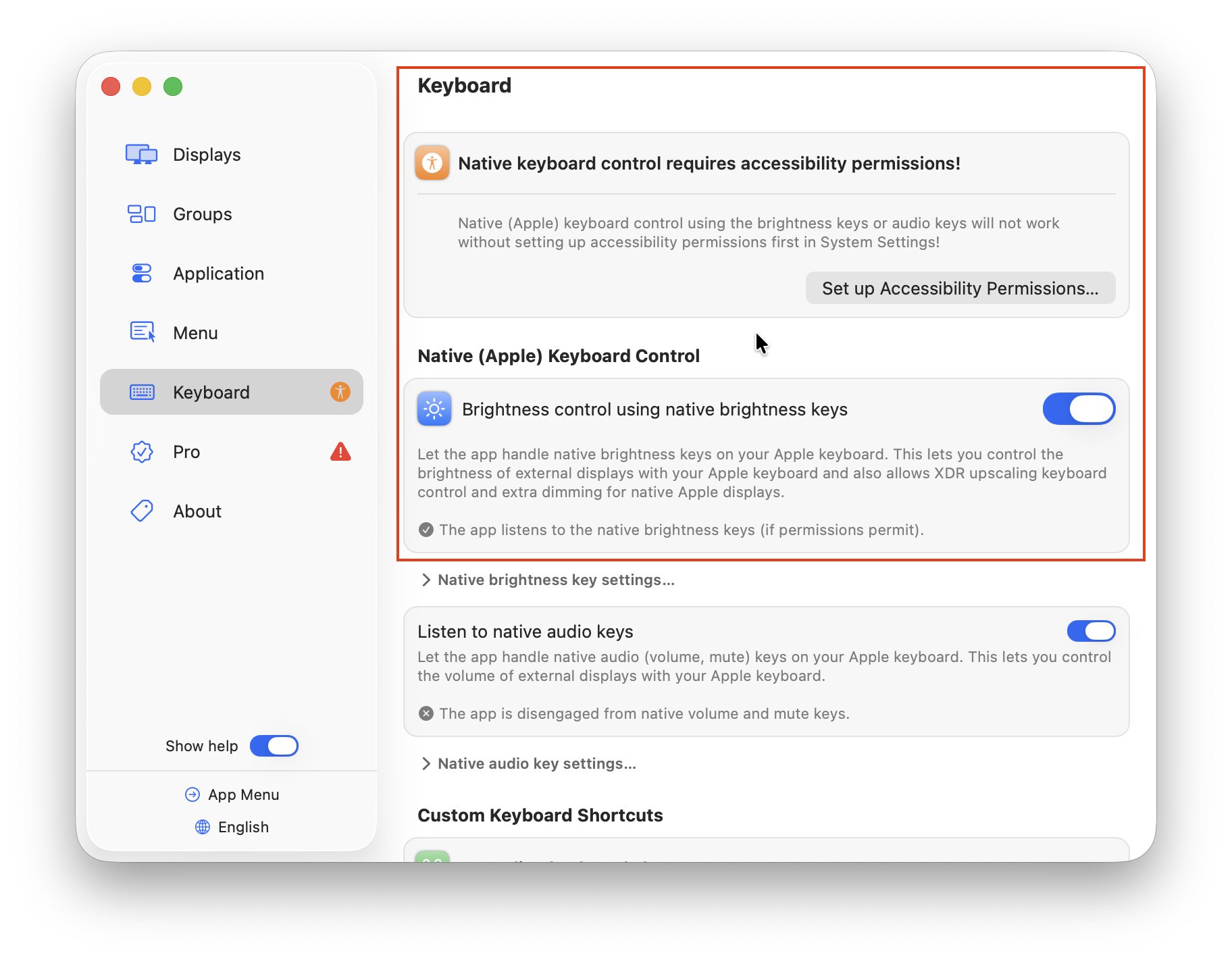
If brightness control doesn’t work:
- Make sure that you have granted keyboard permissions to BetterDisplay in macOS
- Restart BetterDisplay
- Make sure that the external monitor is selected in the BetterDisplay Menu bar and not a virtual display.
- Try connecting the monitor directly via USB-C or DisplayPort instead of through a dock or HDMI adapter
BetterDisplay is particularly useful if you already use it for fixing blurry scaling on 4K monitors or budget displays.
However, for simple brightness control alone, MonitorControl is usually easier and lighter.
Method 3: Use Lunar (Best Paid Advanced App)
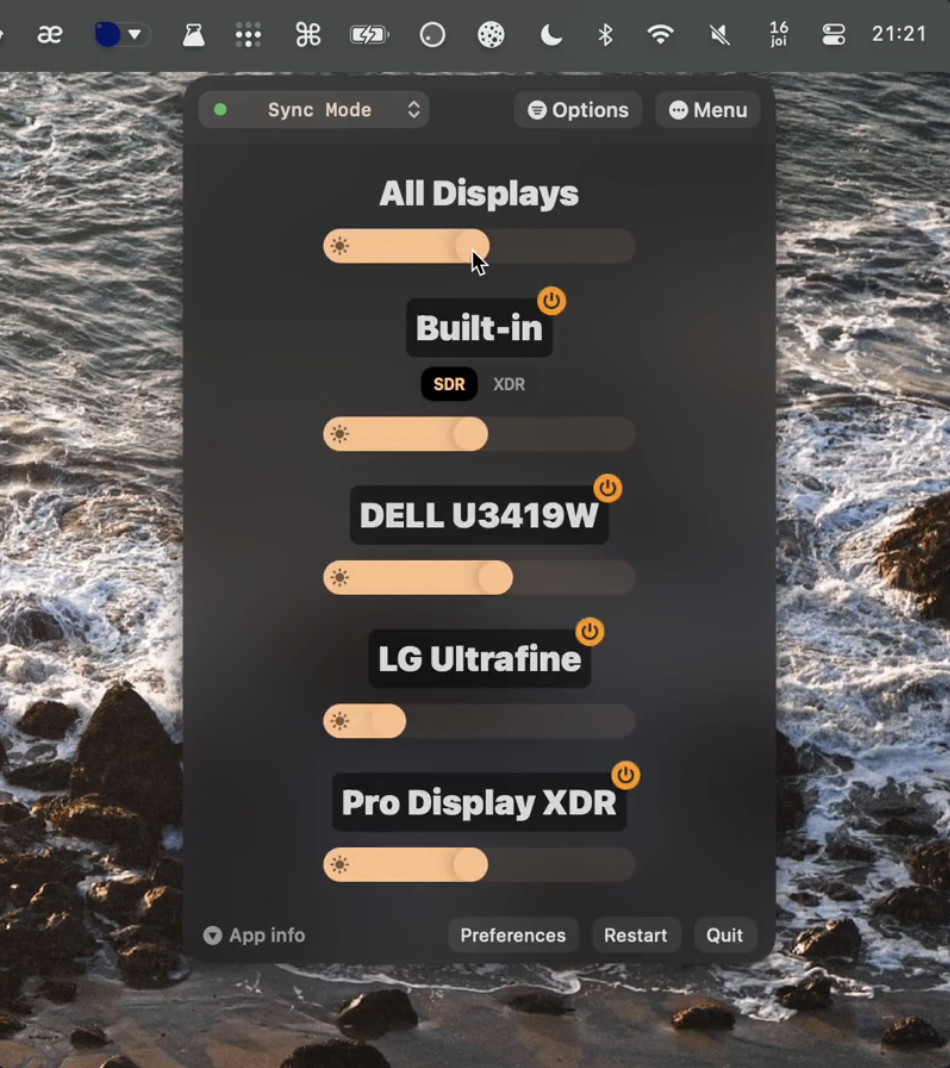
Another popular option is Lunar. However, it isn’t free although it does offer a free trial.
Lunar offers more advanced features than MonitorControl, including:
- Automatic brightness matching between MacBook and external displays
- Time-of-day brightness adjustments
- Ambient light syncing
- BlackOut mode for disabling displays without unplugging them
Lunar is especially popular with users running multiple monitors.
Unlike MonitorControl, Lunar also includes software-based dimming for displays that don’t support hardware brightness control.
Method 4: Use macOS Display Settings
Some monitors support native brightness adjustment directly in macOS.
To check:
- Go to Apple menu > System Settings > Displays
- Select the external monitor
- Look for a Brightness slider
This works with:
- Apple Studio Display
- LG UltraFine 4K Display
- LG UltraFine 5K Display
- Some newer BenQ monitors designed for Mac users
Certain BenQ monitors such as the PD2730S offer Mac compatibility features can also integrate partially with macOS brightness controls, especially Thunderbolt models.
Method 5: Use the Monitor’s Physical Controls
If software control doesn’t work, you’ll need to use the monitor’s built-in controls.
Most monitors include:
- Physical buttons
- A joystick controller
- An on-screen display (OSD) menu
Brightness settings are usually found under:
- Picture
- Display
- Brightness/Contrast
Although less convenient, this always works regardless of macOS compatibility.
Why Brightness Control Sometimes Doesn’t Work
Even with apps like MonitorControl or Lunar, brightness control can fail for several reasons.
Common Causes
- The monitor does not support DDC/CI
- DDC/CI or keyboard accessibility is disabled in the monitor settings
- Certain HDMI adapters block DDC communication
- Some USB-C hubs and docks interfere with monitor controls
- AirPlay or Sidecar displays do not support hardware brightness control
Check That DDC/CI Is Enabled
Many monitors require DDC/CI to be manually enabled in the monitor menu.
Look for settings called:
- DDC/CI
- Display Control
- Monitor Control
- Keyboard accessibility
This option is usually inside the monitor’s System or General settings menu.
Best Monitors for Mac Brightness Control
The best experience comes from monitors specifically designed for Macs.
Popular options include:
These displays generally offer better integration with macOS features including brightness and volume control.