

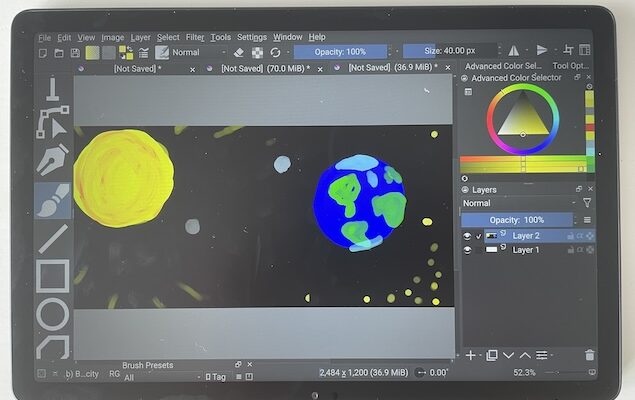
As someone who spends time designing in graphic design software with a drawing tablet and occasionally doing light 3D designs in Blender, I approached the Huion Kamvas Slate 11 with both interest and skepticism.
Huion’s Android-based drawing tablets have been promising, but having reviewed both the Huion Kamvas 13 and Kamvas 16, I’ve seen good specs disappoint in real-world use – especially when it comes to pen accuracy, display quality, and smoothness.
The Kamvas Slate 11 is a slightly different beast to the Kamvas 13 and 16 however. It’s a standalone Android tablet with a screen that can be used independently from a Mac.
It’s important to understand from the start that the Kamvas Slate cannot be used to draw on a Mac. You can of course import and export images/drawings from it to your Mac but it can’t be used with graphic design apps on your Mac like the Huion Kamvas 16.
The Kamvas Slate 11 is designed to be used on its own without a Mac or PC
After several weeks drawing, sketching, and editing using the Kamvas Slate, here’s my thoughts on how it performs – and whether it really can rival more expensive tablets or displays.
What the Slate 11 Offers (Specs & Features)
Here’s a summary of what the Slate 11 delivers on paper:
- Display: 10.95-inch matte glass (nano-etched soft light screen), 1920×1200 resolution (≈ 207 PPI), 99% sRGB.
- Refresh Rate: 90 Hz – smooth for animations and pen input.
- Processor and Memory: MediaTek Helio G99 SoC, 8 GB RAM.
- Storage: 128 GB built-in, expandable via microSD up to 1 TB.
- Battery Life: Huion claims up to 11 hours light usage with the 8,000 mAh battery (lab test at 50% brightness) for the Slate 11.
- Pen: H-Pencil, 4,096 levels of pressure, ±60° tilt.
- Other hardware: Matte/glass finish to cut glare, anti-sparkle/anti-glare (“soft light”) finish helps reduce eye strain. 4 speakers (better stereo separation than dual-speaker tablets), front camera, rear camera.
What’s In The Box?
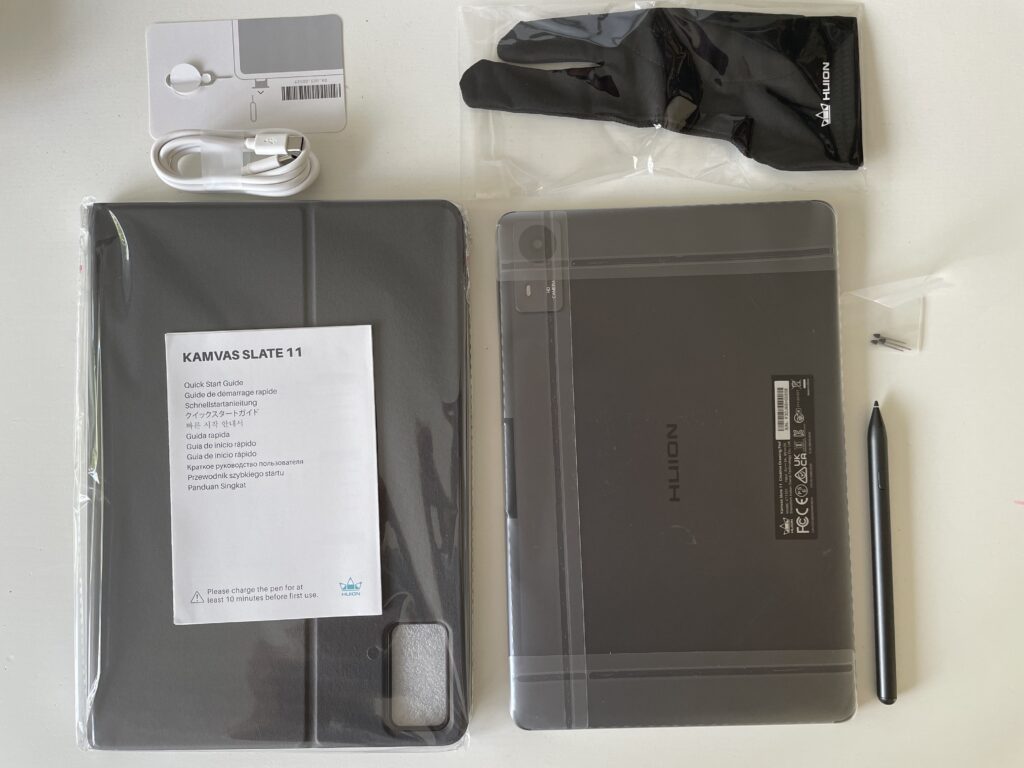
With the Kamvas Slate 11, you get the following:
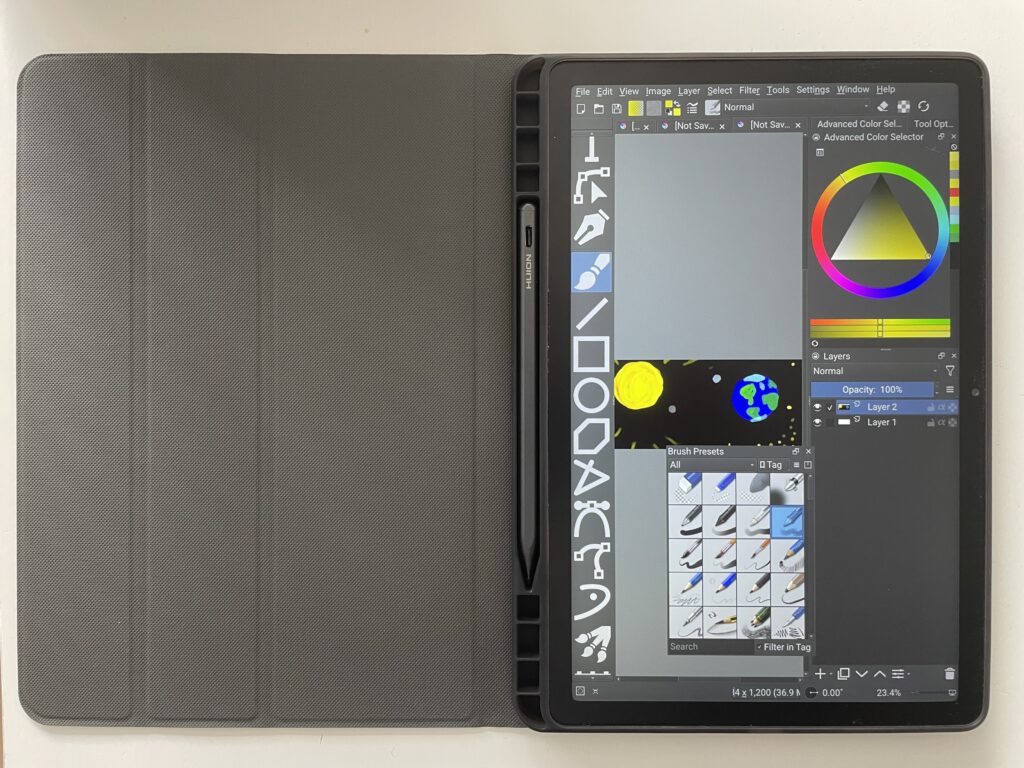
- Slate 11 Drawing Tablet
- Huion’s H-Pencil
- Drawing Glove
- Spare Stylus Nibs
- Case
- Stylus
- USB-C Charging Cable
- Card Ejection Tool
After configuring the tablet with regional settings and choosing whether or not to sign-in with your Google Account, you’re presented with the Slate 11 home screen.
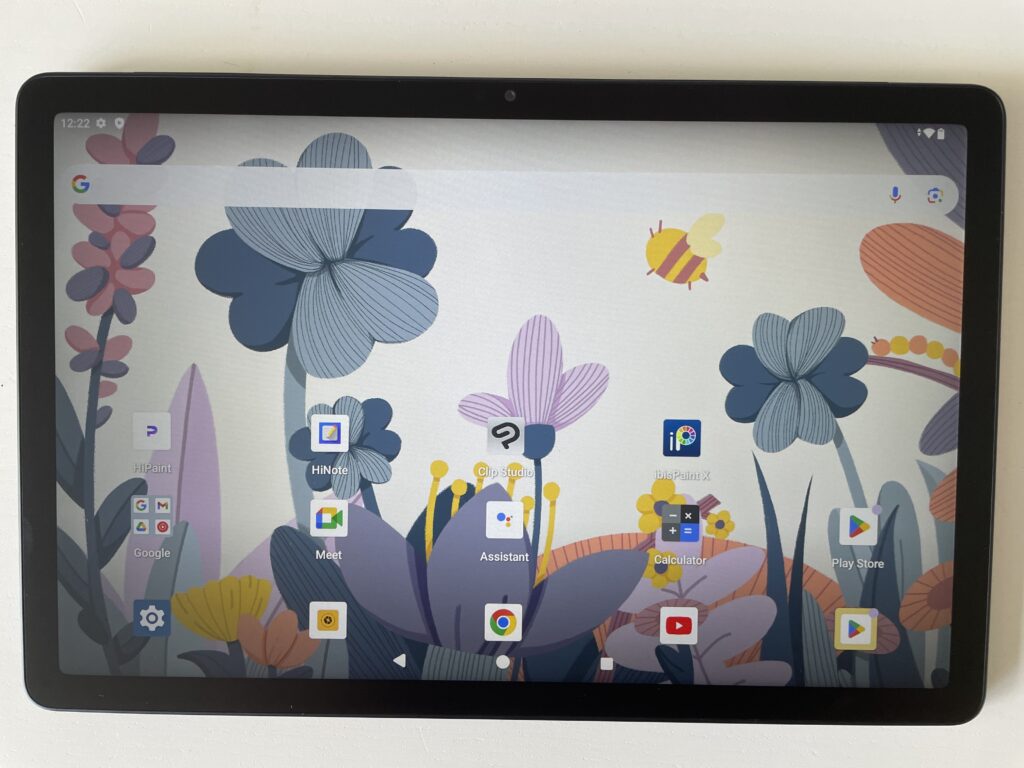
By default, ibisPaint X, HiPaint and Clip Studio are installed already but you can of course download your favorite drawing app from the Google Play Store.
I downloaded the excellent free Krita app to test out the Slate 11.
Drawing & Design Experience – Strengths & Weaknesses
One important thing to note is that the H-Pencil needs charging before first use otherwise it will not work. This was not mentioned at all in the rather unhelpful “Quick Start” guide when it really should have been. The pen charges via a USB-C cable that is included with the tablet.
Here’s some thoughts as to how the Huion Kamvas 11 held up when drawing.
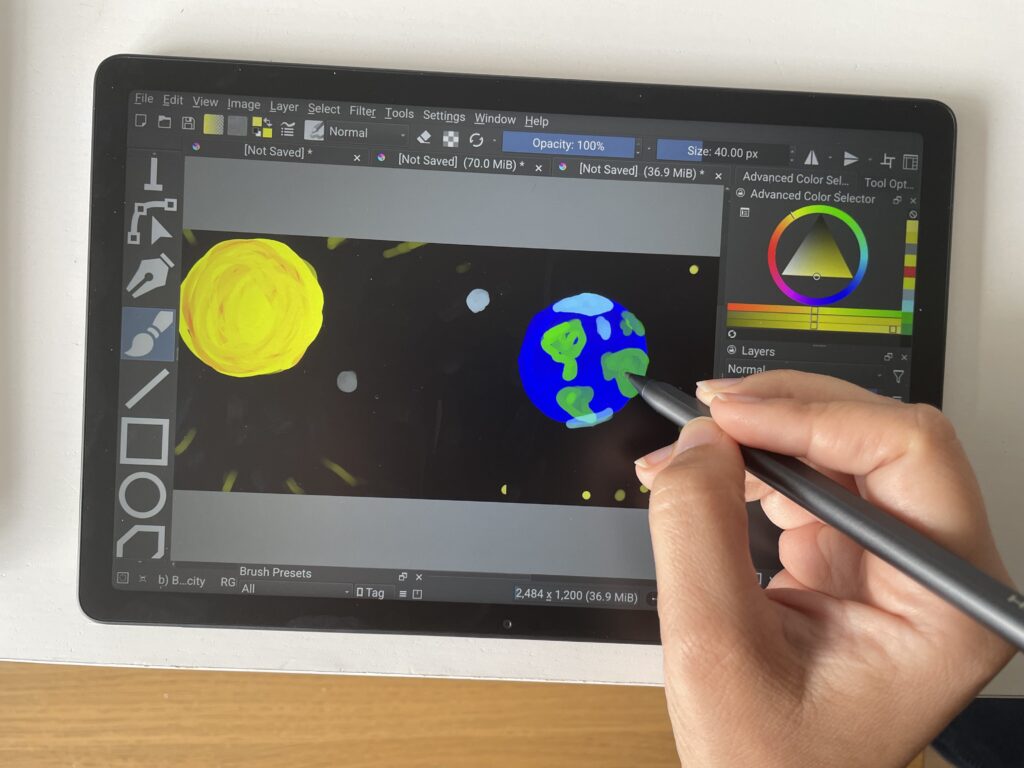
👍 What it gets right
- Smooth visuals with 90 Hz
Animations, scrolling, and brush strokes feel significantly more fluid than 60 Hz panels. This refresh rate is noticeable when panning or doing quick sketching. - Display finish & feel
The matte/glass surface (or as Huion calls it a “Nano-etched surface”) gives a satisfying tactile feedback – not glass-slippy, but not overly toothy either. The soft-light matte finish, which is fully laminated, avoids harsh reflections, especially under daylight. - Build and portability
At 500 g and a thin 7.5 mm body, it feels more like a premium notebook than a bulky tablet with a solid aluminum-alloy back. Great for carrying in a bag or using on the go. There’s a carry case included for free which is a nice touch and strongly recommended to both keep your pen safe and protect the camera on the back. - Color accuracy for starting work
With 99% sRGB, it produces clean, accurate colors to start sketches, mockups, UI work. For color-critical work, calibrating helps to tame any overbright highlights. - 13 MP Camera with LED Torch/Flash
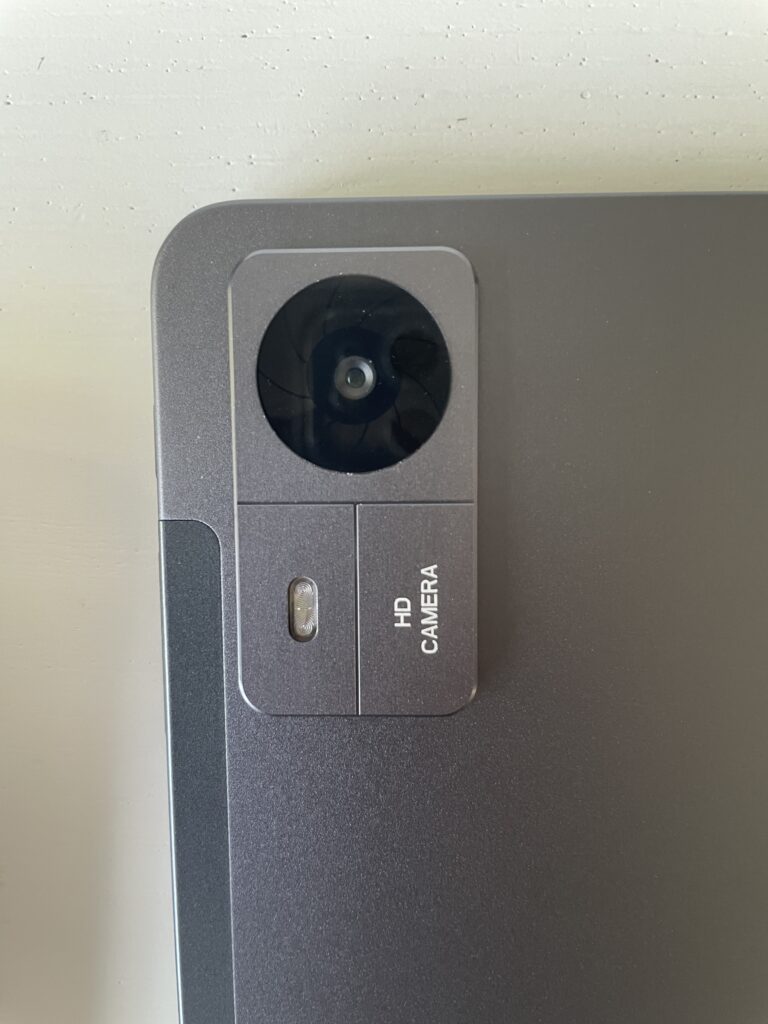
The Slate 11 has a camera and LED on the back although these do protrude a bit and can get scratched easily if resting it on a hard surface without the protective case. - High quality H-Pencil
Huion’s H-Pencil feels premium quality and although it’s plastic, it does have a metallic feel and finish with a nice weight to it. There is of course a preset button to configure your favorite shortcuts. As mentioned, make sure you charge it before you use it for the first time with the USB-C cable (you can do this simply by connecting it to your Mac’s Thunderbolt ports). - Battery life
Real usage (drawing, note taking, light video reference) gave me about 9–10 hours at moderate brightness. Not quite the full lab spec, but solid. - Smooth performance with most graphic design apps
I tested the Slate 11 with both Inkscape and Krita, two excellent free graphic design apps. Performance was quick with little lag working with JPEG images. Using Adobe Photoshop Express with RAW file images definitely pushed it however and I suspect the bigger the app, the more it will struggle.
⚠️ Where it struggles
- Pen activation force / light strokes
Getting very thin hairlines or gentle pressure strokes with Huion’s H-Pencil is difficult. The “initial activation force” is relatively high, so light pressure sometimes fails to register. This matters if your style depends on fine line weight variation. - Wobble/jitter for slow diagonal lines
When drawing slowly (say, refining details or doing inking), diagonal lines sometimes wobble slightly. Faster strokes hide this more. Post-processing (vector-based pen stabilization) helps but should not be needed ideally. - Palm rejection inconsistent
If you rest your palm on the screen, sometimes unintended input happens. The included glove helps, but software/app support matters: some apps handle palm rejection better than others. - Brightness & contrast in bright light
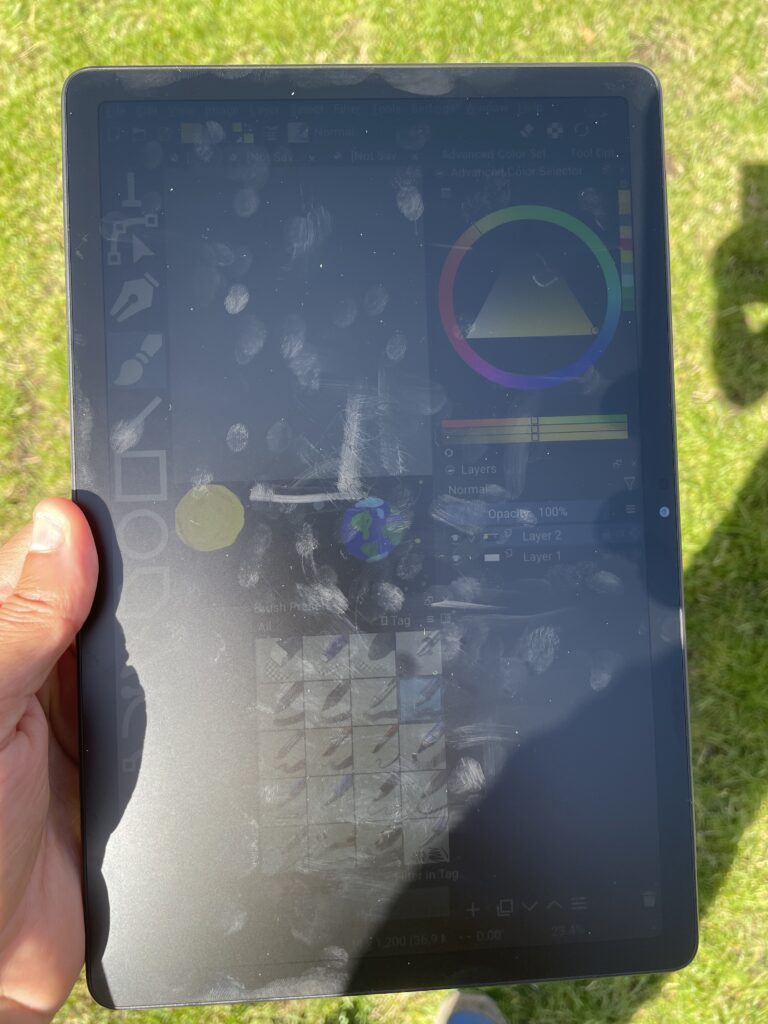
While advertised brightness (350 nits) is decent, it’s not great in bright outdoors or direct sunlight. Highlights tend to clip, and contrast looks flatter in very bright lighting. Especially when compared to the iPad Pro, both brightness and colors look flat. - App latency on certain apps
Android drawing apps are smooth, but there’s a lot more latency if you want to screen mirror it on your Mac’s screen with a third party app (due to wireless or USB delays). For quick sketches, it’s manageable; for detailed line work, less so. When using the Slate 11 for doing anything other than drawing, such as browsing the play store or internet, I did find it a bit laggy at times.
Mac Compatibility
The Slate 11 is an Android tablet with a built-in pen display, not a traditional Huion pen display monitor (like the Kamvas Pro).
When you connect it to your Mac with USB-C, the Mac doesn’t treat the Slate as a second display or Sidecar device. Instead, the connection is mainly for file transfer, charging, or debugging.
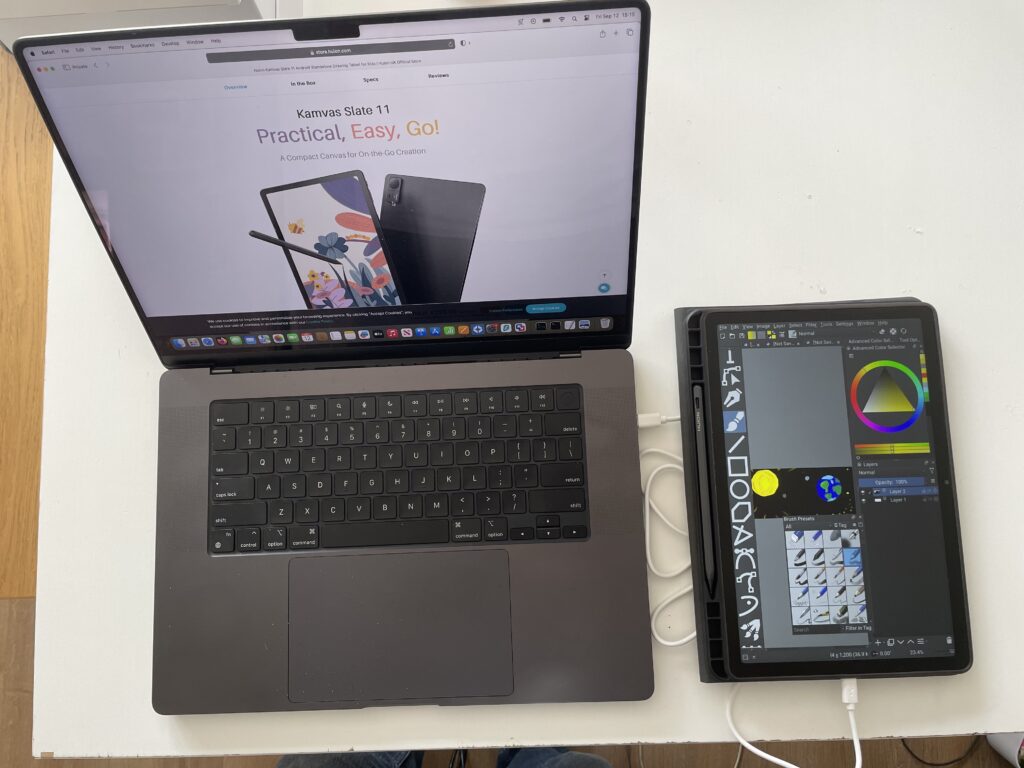
Huion themselves state that the hardware display mode isn’t supported – meaning the Slate 11 cannot act like a normal external monitor for macOS.
So while the USB-C connection makes integration smoother for file sharing and charging, it doesn’t enable Sidecar-style functionality.
To use with a Mac, you’d still need to:
- Work directly on the Slate 11 using Android drawing apps (Clip Studio Paint, Krita, etc.), then export to your Mac.
- Use screen-sharing/mirroring apps (like Duet Display, Spacedesk, or Splashtop) to extend your Mac’s screen to the Slate – but with more latency and less accuracy than Sidecar.
Because it runs Android, file exchange (Dropbox, cloud storage) works well. You can export layered PSDs, PNGs, etc., and edit them in Mac apps. Of course, you can’t run Mac native apps on the Slate.
The following are some suggestions to get the most out of the Slate 11 when connected to your Mac.
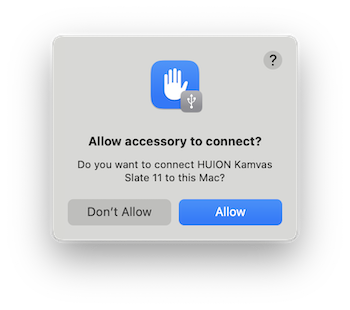
1. Connect via USB-C
- Use the included USB-C cable for fast charging and file transfer.
- Your Mac will recognize the Slate 11 as an external device, allowing you to drag and drop artwork files between macOS and Android apps.
2. Choose Cross-Platform Drawing Apps
Install apps on the Slate 11 that work well on Macs. Some of the best graphic design apps you can use are:
- Clip Studio Paint → Cloud sync between Mac & Android.
- Krita (free) → Files can be shared back and forth.
- Medibang Paint → Cloud project sync, lightweight.
- Infinite Painter → Android-only, but exports to PSD for Mac.
This way you can draw on the Slate → save as PSD/PNG → open instantly on your Mac in apps such as Photoshop or Affinity Photo.
3. Use Cloud Sync for Smooth Handoff
- Enable Google Drive, Dropbox, or iCloud Drive on the Slate.
- Save/export directly to cloud storage so files appear on your Mac instantly.
- Clip Studio Paint’s built-in cloud sync is the smoothest option if you use it on both Mac & Android.
4. Turn the Slate into a Secondary Display
While the Slate can’t be used natively like Sidecar, you can still mirror/extend your Mac screen:
- Duet Display (wired, lower latency than wireless).
- Spacedesk or Splashtop Wired XDisplay (wireless or wired).
Note that latency and pen pressure accuracy won’t match a true pen display like a Kamvas Pro – this is more for quick sketching, not precision work.
5. Export & Polish on Mac
- Do detailed touch-up work on the Mac with apps like Photoshop, Illustrator, or Affinity Designer.
- Use the Slate 11 for mobility and sketching, then Mac for final production and refinement.
Other Reviews of the Slate 11
Reading around other reviews of the Slate 11, I found that many of them highlighted great spec-cards: matte glass, 90 Hz, Android 14, etc. Many also highlighted downsides – most commonly the high activation force, wobble and less than impressive color and contrast.
My experience confirms many of those observations but I was equally interested in how it paired with a Mac drawing apps, how it holds up under strong lighting, and under different levels of usage (sketch vs inking vs color work vs long sessions).
I found that for graphic design tasks where precision matters, you’ll need patience and possibly post-processing workarounds, but for concept sketching, storyboarding, note taking, and general design it more than delivers for its price.
Who Should Buy It – and Who Should Look Elsewhere
| If you want this … | Then Slate 11 is a good pick |
|---|---|
| Portable size, matte finish, solid spec under $350 | Yes |
| Drawing on the go, sketching, storyboarding, concepting | Yes |
| Great speakers, decent battery, Android for light work | Yes |
| If you want this … | Consider alternatives |
|---|---|
| Ultra-precise ink-style line work with no activation lag | Larger pen displays like Huion Kamvas Pro, or Apple iPad Pro / iPad Air with Apple Pencil, or Wacom displays |
| Color grading or print proof-level calibration | Larger 4K / 5K displays with P3 or AdobeRGB, possibly paired with caliber tools |
| Full macOS app usage directly on tablet | Pen-displays designed as monitors such as the Huion Kamvas Pro 16. |
Comparison Table
Below I’ve compared the Slate 11 against some other tablets its often considered against to see how it matches-up side-by-side, including pricing.
I’ve included the slightly bigger Huion Kamvas Slate 13, Apple iPad Air (M2) and a Huion Kamvas Pro 16.
| Feature | Kamvas Slate 11 | Kamvas Slate 13 | iPad Air (M2) + Pencil | Kamvas Pro 16 (2023) |
|---|---|---|---|---|
| Display | 10.95″ matte, 1920×1200 (207 PPI) | 12.8″ matte, 2560×1600 (227 PPI) | 10.9″ Liquid Retina, 2360×1640 (264 PPI) | 15.6″ matte, 2560×1440 (185 PPI) |
| Refresh Rate | 90 Hz | 144 Hz | 60 Hz (ProMotion 120 Hz only on iPad Pro) | 120 Hz |
| Colour Gamut | 99% sRGB | 145% sRGB (≈95% DCI-P3) | P3 wide colour | 145% sRGB (≈95% AdobeRGB) |
| Processor & OS | MediaTek Helio G99, Android 14 | MediaTek Helio G99, Android 14 | Apple M2, iPadOS 18 | Uses Mac/PC GPU (pen display, no OS) |
| RAM / Storage | 8 GB / 128 GB + microSD | 8 GB / 256 GB + microSD | 8 GB / 128 GB+ (no microSD) | N/A (runs on Mac/PC) |
| Pen | H-Pen, 4,096 levels, tilt | H-Pen, 4,096 levels, tilt | Apple Pencil (2nd Gen), tilt + pressure, near-zero latency | PW517 Pen, 8,192 levels, tilt |
| Activation Force | Higher (harder for fine strokes) | Lower, smoother | Very low, excellent for light strokes | Very low, professional grade |
| Battery Life | 9–11 hrs | 8–10 hrs | 10–12 hrs typical | N/A (external display) |
| Weight | 500 g | 620 g | 460 g (tablet only) | 1.2 kg |
| Price (2025) | $329 | $449 | From $599 + $129 Apple Pencil Pro | $599 |
| Best For | Budget portable sketching, note-taking, Android apps | Larger, smoother drawing, better color – best for digital artists on a budget | Best balance of precision, color, app ecosystem, and resale value | Professional Mac/PC artists needing a calibrated pen display |
What we can take from this is that:
Kamvas Slate 11 → Compact, very affordable, great for beginners or as a secondary sketchpad.
Kamvas Slate 13 → Big step up in color, refresh rate, and drawing smoothness – better choice if you’re serious about digital art but still want Android portability.
iPad Air (M2) → More expensive but gives you Apple Pencil precision, iPadOS ecosystem (Procreate, Affinity Photo, etc.), and seamless Mac integration via Sidecar/Continuity.
Kamvas Pro 16 → Not a standalone tablet, but if you want studio-quality drawing directly on your Mac with high color accuracy, it’s the best “serious artist” option.
Final Thoughts
If I were ranking all tablets in the under-$400 / under-600 g class, this sits near the top. It doesn’t quite beat the best in every area, but it offers one of the strongest balances between portability, feature set, finish, and price – especially for creatives who need a reliable travel or sketch tool. Just don’t expect to use it as a drawing tablet on your Mac.
The best deals for the Kamvas Slate 11 are usually from either Amazon or direct from Huion.