

A good Mac for graphic design should make typography, image editing, vector artwork and layout work feel effortless. That means more than choosing the newest chip: the best setup also needs enough unified memory for your usual project, useful storage, a comfortable display and the right connections for your tablet, drives and monitor.
Apple’s latest range makes the decision more interesting. The redesigned MacBook Pro with M5 Pro or M5 Max and a PROLED XDR display is available from 6 November 2026 alongside the M6 MacBook Pro and M6 iMac. The M6 and M5 Pro Mac mini and the M5 Max and M5 Ultra Mac Studio are already available.
For most professional designers who need a laptop, the 14-inch MacBook Pro with M5 Pro, 24GB of unified memory and a 1TB SSD is the best overall choice. It combines a high-quality built-in display, useful ports and enough headroom for demanding Adobe, Affinity and Figma work without forcing everybody into an M5 Max configuration.
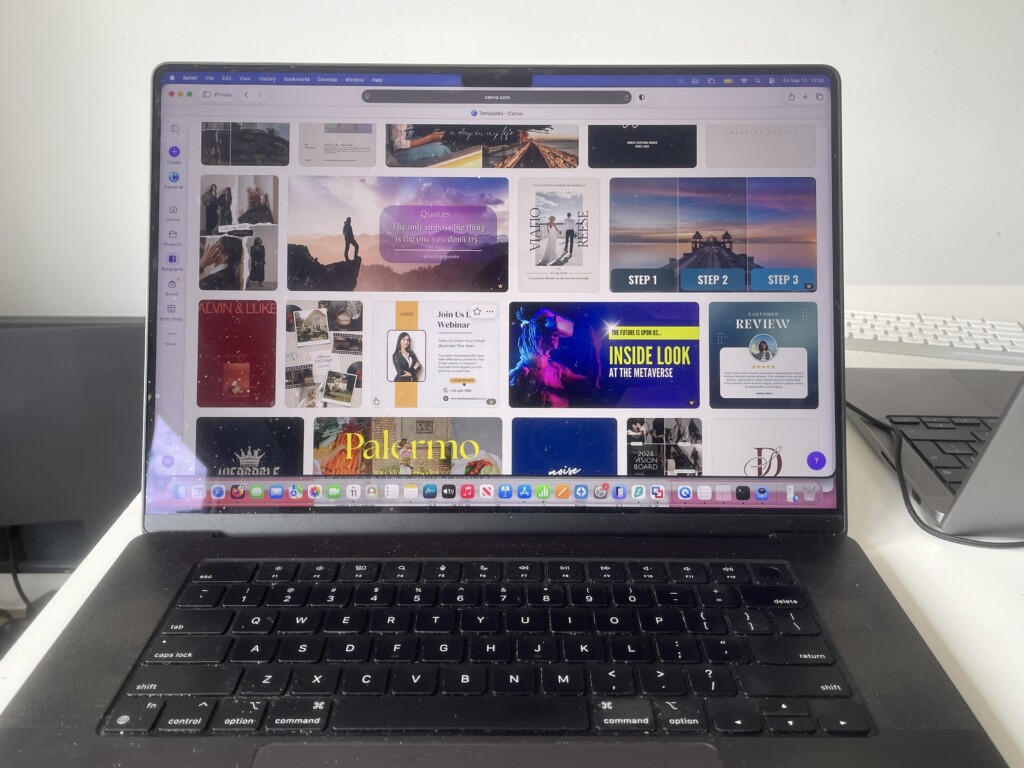
Best Macs for Graphic Design at a Glance
| Mac | Best for | Configuration to consider | Why it stands out |
|---|---|---|---|
| 14-inch MacBook Pro with M5 Pro | Professional designers who need a laptop | 24GB memory, 1TB SSD | New PROLED XDR display, pro ports and strong headroom in a portable Mac |
| Mac mini with M5 Pro | Best-value desktop setup | 24GB memory, 1TB SSD | Spend on a monitor you genuinely like while keeping a capable professional desktop |
| 15-inch MacBook Air with M5 | Light, portable 2D design | 24GB memory, 512GB or 1TB SSD | Quiet, light and excellent for layout, illustration, web design and routine image editing |
| 24-inch iMac with M6 | The simplest complete design desk | 12-core model, 24GB memory, 512GB or 1TB SSD | A sharp 4.5K display, camera, speakers and Mac in one tidy setup |
| Mac Studio with M5 Max | 3D, motion graphics and demanding creative production | 64GB memory, 1TB SSD | Greater graphics performance, memory capacity and connectivity for specialist work |
| 14-inch MacBook Pro with M6 | A more affordable compact pro laptop | 24GB memory, 1TB SSD | Active cooling, XDR display and ports for designers who do not need a Pro or Max chip |
How to Choose a Mac for Graphic Design
The right Mac depends on the kind of design you make. Logos, editorial layouts, web assets and everyday retouching place very different demands on a computer from large photographic composites, 3D scenes, motion graphics and local AI image generation.
These are the buying decisions worth prioritising:
- Memory is more important than a small chip-number difference. Unified memory cannot be upgraded later, and it determines how comfortably Photoshop, Illustrator, InDesign, a browser, fonts, assets and background apps can run at once.
- A great display can be worth more than an over-specified chip. If you design at one desk, a Mac mini plus a carefully chosen 5K or colour-accurate monitor can be better value than a more expensive all-in-one.
- Choose M5 Pro before M5 Max for most 2D design. The Max is for a proven graphics, 3D, motion or memory requirement — not simply because it is the highest specification.
- Buy enough internal storage for the way you work. Design applications, fonts, linked assets, scratch disks and active projects quickly make a nearly full SSD frustrating.
- Choose by complete setup, not starting price. A monitor, keyboard, tablet, dock, storage and backup can significantly change the value of a desktop Mac.
For application recommendations, see our guide to the best graphic design software for Mac.
1. MacBook Pro with M5 Pro — Best Professional Laptop
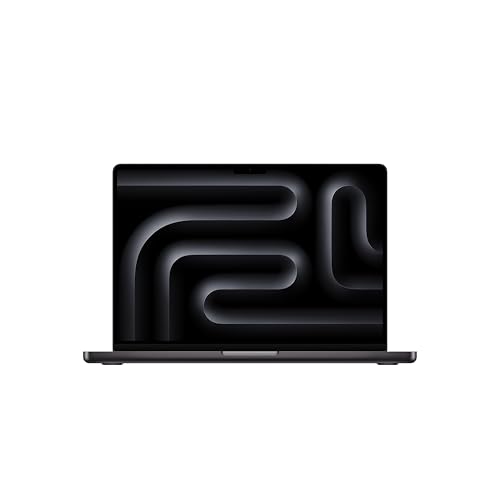
The 14-inch MacBook Pro with M5 Pro is the best all-round laptop for professional graphic designers. It is small enough to carry regularly, but its display, active cooling, memory options and connections make it more comfortable as a main work machine than a MacBook Air.
The new PROLED XDR display is a meaningful upgrade for colour-conscious visual work. It uses tandem OLED technology, supports P3 and Adobe RGB, has a 120Hz variable refresh rate and reaches up to 2,000 nits of HDR and SDR brightness. That does not remove the need for a calibrated external reference display or a managed print project but it gives designers a genuinely excellent screen for work away from the desk.
We would choose 24GB of unified memory and a 1TB SSD. That is a sensible professional starting point for Photoshop, Illustrator, InDesign, Figma, Affinity, browser-based tools and everyday multitasking. Consider more memory if you frequently work with large layered files, heavy retouching, lots of linked assets, After Effects, 3D applications or several Adobe applications open together.
Should you choose the 14-inch or 16-inch model?
Choose the 14-inch if you travel regularly or use an external monitor at your desk. It is the more practical laptop to carry and retains the same class of display technology and pro connectivity.
Choose the 16-inch if you commonly design directly on the MacBook screen for long periods. The extra space is useful for a document, layers panel, tool palettes and reference material without feeling cramped.
Do you need M5 Max?
For most graphic-design work, start with M5 Pro. It is more than enough for typical 2D design, desktop publishing, illustration, image editing and web design.
M5 Max makes sense when a substantial part of your paid work is GPU-heavy 3D, motion graphics, rendering, large local AI workloads or exceptionally memory-hungry projects. If the work does not make you wait, a Max chip is usually better spent on memory, storage, a monitor or a robust backup setup.
The M5 Pro and M5 Max models include Thunderbolt 5, HDMI, an SDXC card slot, MagSafe and a headphone jack. That makes it easier to connect displays, fast drives, cameras and card readers without building an elaborate dock setup.
Strengths: Exceptional built-in display, portable, useful connections and professional memory headroom.
Main drawback: The total rises rapidly as you add M5 Max, more memory and more storage. A desktop setup can be better value if it will rarely leave your desk.
For a larger workspace, see our guide to the best monitors for MacBook Pro.
2. Mac mini with M5 Pro — Best Desktop Value for Graphic Design
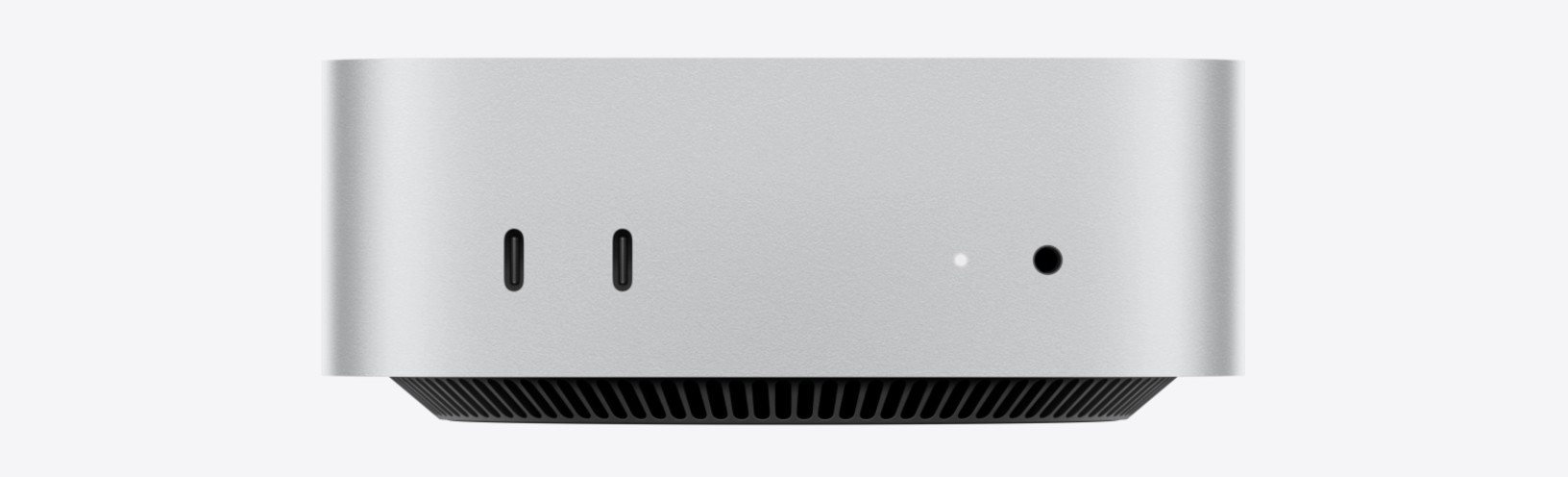
The Mac mini with M6 or M5 Pro is the desktop that most graphic designers should compare first. It lets you choose the display size, colour capability and ergonomics that suit your work, instead of accepting a built-in panel you may outgrow.
For a main design computer, we would choose M5 Pro with 24GB of unified memory and a 1TB SSD. That configuration suits regular Photoshop, Illustrator, InDesign, Affinity, Figma, large browser sessions and the usual collection of fonts, assets and creative utilities. Consider 48GB or 64GB if you have measured memory pressure on your current Mac, frequently edit huge images or combine graphic design with motion work and 3D.
M5 Pro adds more graphics headroom, higher memory capacity and Thunderbolt 5 compared with M6. It is the better desktop for a designer who expects the Mac to remain their main workstation for several years. The standard M6 Mac mini remains a capable choice for everyday 2D work, but configure it with enough memory and storage rather than being tempted by the base price.
The Mac mini has no display, keyboard, mouse, USB-A ports or SD card reader. That is not a weakness if you already have good peripherals; it is simply why you must compare complete workstation cost rather than the computer alone.
Strengths: Flexible display choice, compact form factor and strong professional value.
Main drawback: You need to buy the supporting equipment separately, and its ceiling is lower than a Mac Studio for serious 3D and motion work.
See our Mac mini vs Mac Studio comparison before choosing a desktop.
3. 15-inch MacBook Air with M5 — Best Lightweight Laptop for 2D Design
The 15-inch MacBook Air with M5 is the right choice for designers who value portability and whose work is mostly 2D: illustrations, branding, page layout, web design, social assets and ordinary image editing.
We would choose 24GB of unified memory and at least 512GB of storage, moving to 1TB if it will be your main work computer. The 15-inch model gives noticeably more room for a canvas and panels than the 13-inch version. Choose the 13-inch only when the smaller size is more useful to you than the larger workspace.
The Air is fanless, so it stays completely quiet. That is ideal for long design sessions but makes it less appropriate for sustained heavy work such as extended 3D rendering, repeated large exports or long motion-graphics processing. It can perform those tasks; a MacBook Pro simply maintains performance better when the load continues.
The Air supports two external displays while keeping its own display active. It has only two Thunderbolt 4 ports, however, so an external drive, display and card reader may make a quality hub or dock worthwhile.
Strengths: Light, silent, spacious 15-inch option and lower cost than a MacBook Pro.
Main drawback: Fewer ports, fanless cooling and less headroom for 3D, animation and prolonged intensive processing.
4. 24-inch iMac with M6 — Best All-in-One for Graphic Design
The 24-inch iMac with M6 is the easiest way to buy a neat, capable design desk. Its 4.5K Retina display, camera, speakers, keyboard and mouse are all included, which can make it a more attractive complete purchase than a Mac mini once accessories are counted.
For a design workstation, choose the 12-core CPU and 12-core GPU model with 24GB of memory and at least 512GB of storage. It has four Thunderbolt 4 ports and greater external-display flexibility than the entry iMac, which matters if you use a tablet, fast external storage, scanner, card reader or a second screen.
The 24-inch 4.5K screen is sharp, bright and a good fit for day-to-day design, typography and image work. It is not a substitute for a larger 5K, wide-gamut or hardware-calibrated display when your work demands one. If you already know you want 27 inches or more, a Mac mini or Mac Studio with a separate monitor is usually a wiser route.
Strengths: A tidy, complete design setup with a sharp 4.5K display and minimal fuss.
Main drawback: The screen cannot be replaced or enlarged, and iMac does not offer Pro or Max chip configurations.
5. Mac Studio with M5 Max — Best for 3D, Motion Graphics and Demanding Production

The Mac Studio with M5 Max and M5 Ultra is a specialist desktop for designers whose workload extends well beyond static 2D work. M5 Max is the better place to start for significant 3D scenes, real-time rendering, motion graphics, heavy image generation, product visualisation and other graphics-intensive production.
We would consider 64GB of memory and a 1TB SSD for a professional M5 Max configuration. More memory makes sense when the work demonstrably needs it: complex 3D scenes, huge image assets, demanding motion work or several resource-heavy applications at once. M5 Max supports up to 128GB of unified memory and provides substantial Thunderbolt 5 connectivity for fast drives, PCIe expansion and expansive displays.
M5 Ultra is not the default recommendation for graphic designers. Its up-to-512GB unified memory, much larger GPU and extreme performance are intended for very demanding VFX, 3D, computational and local-AI projects. If your work is mainly Photoshop, Illustrator, InDesign or Figma, choose a Mac mini or MacBook Pro and improve the rest of the workstation instead.
Strengths: Exceptional graphics and memory headroom, extensive ports and excellent potential for a multi-monitor production desk.
Main drawback: High total cost after adding a monitor and accessories, with little value for ordinary 2D work.
For screen recommendations, see the best monitors for Mac Studio.
6. 14-inch MacBook Pro with M6 — Best Compact Pro Laptop for Designers
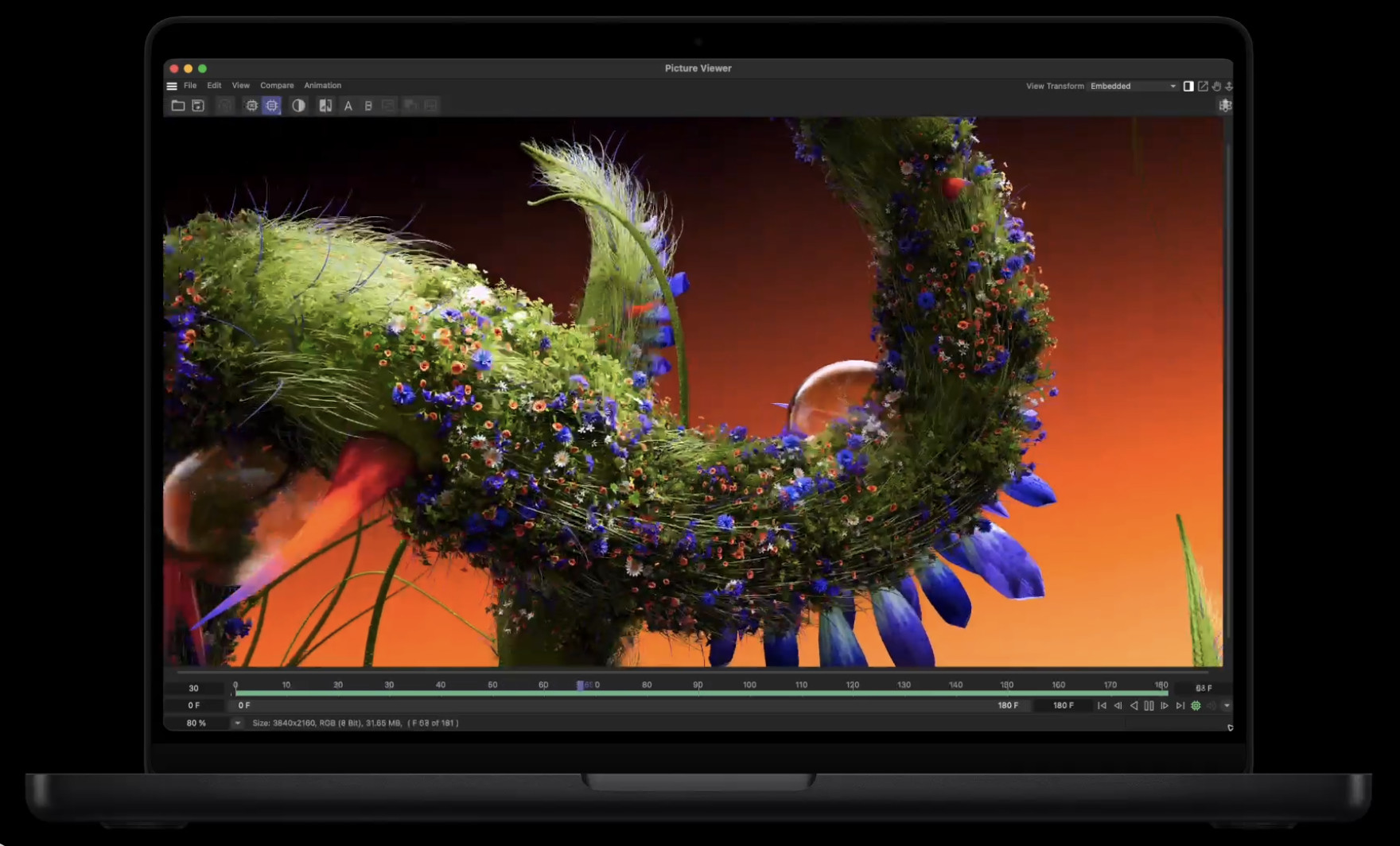
The 14-inch MacBook Pro with M6 is a strong middle ground between the MacBook Air and the M5 Pro or M5 Max MacBook Pro. It brings active cooling, a Liquid Retina XDR display, HDMI, SDXC and three Thunderbolt 4 ports in a compact design, with up to 32GB of unified memory.
It is a sensible choice for designers who want more sustained performance and connectivity than an Air but do not need the M5 Pro’s higher memory ceiling or Thunderbolt 5. We would choose 24GB of memory and a 1TB SSD if it will be your primary work machine.
Do not let the chip number make the decision for you. M6 is newer, but M5 Pro and M5 Max are higher-tier chips with more professional memory, graphics and connectivity options. Choose M6 for portability and value; choose M5 Pro or M5 Max when your work needs their ceiling.
Strengths: Active cooling, excellent XDR display and useful ports in a smaller pro laptop.
Main drawback: It is limited to 32GB of unified memory, which is less future-proof for graphics-heavy or production-focused work.
How Much Memory Do You Need for Graphic Design?
Unified memory cannot be upgraded after purchase, so it is one of the most important decisions when ordering a Mac. The right amount depends on your typical documents, image sizes, number of layers, open applications, plug-ins and use of 3D or motion tools.
| Unified memory | Who it suits |
|---|---|
| 16GB | Students, light projects and a small number of applications open together |
| 24GB to 32GB | Most professional 2D design, including regular Photoshop, Illustrator, InDesign, Affinity and Figma work |
| 48GB to 64GB | Large layered images, demanding multitasking, motion graphics, substantial 3D work and memory-intensive plug-ins |
| More than 64GB | Specialist 3D, VFX, local AI or demonstrably memory-heavy professional workloads |
Adobe’s published minimum is not a complete buying recommendation. A Mac can meet an application’s basic requirement yet still struggle when you have a large layered document, browser tabs, cloud-sync tools, font utilities and several creative applications open at once.
On your present Mac, open a representative project and use Activity Monitor > Memory. Persistent yellow or red memory pressure, extensive swapping and real-world slowdowns are strong evidence that you should buy more memory.
How Much SSD Storage Should You Choose?
For a main design Mac, we would normally choose at least 512GB and would prefer 1TB if you keep active projects locally. Design applications, fonts, assets, previews, scratch files and local cloud folders can consume a small drive much faster than expected.
External SSDs are excellent for project libraries, archives and transfers. They are not a replacement for a separate backup. Use a sensible backup routine for both the Mac and your active client files, whether you work from internal or external storage.
Choosing a Display for Graphic Design
The display can have more impact on everyday design work than a processor upgrade. Screen size, resolution, colour behaviour, ergonomics and calibration influence every hour you spend looking at your work.
For a desktop, a 27-inch 5K monitor is often the sweet spot for typography, layout and detailed artwork because it provides comfortable macOS scaling and high pixel density. A good 4K monitor can also be a sensible choice, especially when budget or a larger physical screen matters more than pixel density.
For colour-conscious work, remember these points:
- Resolution and colour accuracy are different things. A sharp display can still be poorly calibrated.
- Wide P3 coverage is useful but does not automatically guarantee accurate print matching. Use the correct document and output profiles for the work you are preparing.
- Turn off True Tone and Night Shift when assessing colour. They are useful comfort features, but they intentionally change the appearance of the display.
- Soft-proof for print where appropriate. A good monitor helps you evaluate colour, but it cannot remove the need for a managed print setup and communication with the printer.
The new MacBook Pro’s PROLED XDR panel adds Adobe RGB support, while the M5 Air and iMac use P3 displays. That is useful context, but the right monitor, calibration and output profile are still more important than treating any built-in screen as an automatic print reference.
See our guide to the best 5K monitors for Mac and best 4K monitors for Mac for suitable options. Match the monitor’s connection and refresh rate to the capabilities of your chosen Mac.
Check Your Software and Peripherals Before Buying
Modern versions of Adobe Photoshop, Illustrator and InDesign, as well as Affinity apps, Figma and many other creative tools, run natively on Apple silicon. Before replacing a work Mac, still check the exact compatibility of your key applications, plug-ins, font managers, drawing tablet, scanner, printer, colour-calibration device and any specialist production software.
This is particularly important when buying a newly released Mac that ships with a newer macOS version. Essential workflows can depend on a small plug-in or peripheral utility that has not yet been updated.
FAQ
Is a MacBook Air good enough for Photoshop and Illustrator?
Yes, for many 2D design projects. We would choose 24GB of memory if the M5 MacBook Air will be your main work laptop. Move to a MacBook Pro if you need more connections, a higher memory ceiling, a stronger built-in display or better sustained performance for heavier work.
Is a Mac mini or iMac better for graphic design?
Choose Mac mini if you already have a suitable monitor or want control over the screen size, colour capability and ergonomics. Choose iMac if you value a complete, uncluttered desktop and its built-in 24-inch display is large enough for your work. Compare the total cost with equivalent memory and storage, not only the advertised starting price.
Should I buy M6 instead of M5 Pro or M5 Max?
Choose the whole Mac for your workload. M6 is newer and is very capable, but M5 Pro and M5 Max are higher-tier chips with higher memory options, different graphics capability and Thunderbolt 5 in the redesigned MacBook Pro. For most professional 2D work, M5 Pro is the stronger long-term choice; M5 Max is for a clear graphics, 3D, motion or memory requirement.
Is the new PROLED XDR MacBook Pro useful for graphic design?
Yes. Its tandem OLED display adds P3 and Adobe RGB support, high brightness and 120Hz variable refresh rate, making it a particularly strong laptop screen for design. It does not eliminate the need for a calibrated external display and proper colour management in colour-critical print work.
Are older Apple silicon Macs still worth buying?
Yes, when their exact memory, storage, condition, warranty and discount make sense. An M4 MacBook Air, M4 Pro MacBook Pro or M4-series Mac mini can still be a good design Mac. Do not buy an older model with too little memory or storage simply because the headline discount is large.
What about the MacBook Neo?
The MacBook Neo can handle very light design work, but it has 8GB of unified memory, an sRGB display and limited ports. We would not choose it as a long-term main Mac for a professional designer. An M5 MacBook Air with at least 16GB — ideally 24GB — is a much safer starting point.
Can I add an external graphics card later?
No. Apple silicon Macs do not support eGPUs. Choose the appropriate chip, memory and graphics configuration when you order the Mac.
Should I upgrade if my current Mac still handles my work well?
No. Upgrade to solve a specific problem such as persistent memory pressure, slow production tasks, an unsuitable display, insufficient storage, poor external-display support or software compatibility. A better monitor, more practical storage or a reliable backup system can be a more useful investment than a new chip generation.